
How we measure
Every byte count on this site is the size of a file our engine produced from a named source at a named setting. Not an estimate, not a best case, and not typed by hand: a build step runs the images and writes the numbers the pages read.
Written by a build step
0
Numbers typed by hand
A script writes every byte count into a generated file, and the pages import it.
Named sources
6
Reference sources
Every table names the one it used, so a figure traces to one file.
Decimal kilobytes
1,000
Bytes in 1 KB
The way upload forms count, so our KB is the form’s KB.
The pipeline
Measured, not estimated: how a number gets onto a page
Steps 1 to 3 run on every build. Change the engine and the next build changes the numbers, and the commit carries both. A published number cannot drift from what the product does.
Encode
A script feeds each reference image to the engine at exactly the settings the page quotes.
Measure
It reads the byte length of the file that comes back, the same bytes you would download.
Commit
The results are written into a generated TypeScript file and committed with the engine change.
Import
Pages import that file. A table cannot disagree with the product it describes.
The sources
The reference images
The tables start from these 6; the HEIC pages also use a real iPhone photo we keep private. Sizes are decimal: 1 KB is 1,000 bytes.
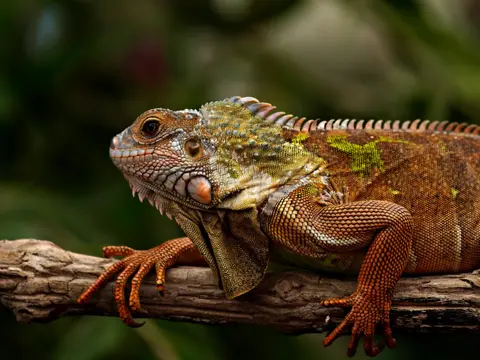
Our reference photo
JPG 576.8 KBPNG 4.1 MBWEBP 611.2 KBAVIF 363 KBHEIC 343 KB
One of our photographs, and the same photo in four more formats.
Used on: Compress pages, format pairs, the size ladder.

source.jpeg
9.8 MB
A full camera photo, the hard case for caps.
Used on: The size ladder and the PDF budgets.
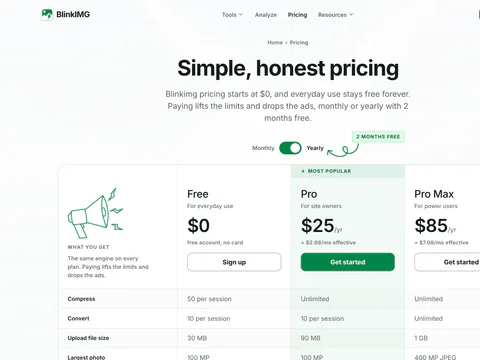
screenshot.png
1.1 MB
A screenshot of our pricing page, text and flat colour.
Used on: PNG and JPG pages, the converter table.

graphic.png
7.4 KB
A flat graphic we drew, to test flat colour.
Used on: PNG to AVIF, Resize PNG, the converter.

transparent.png
7.9 KB
A see-through circle we drew, to test transparency.
Used on: Resize PNG, Crop PNG, PNG to AVIF.
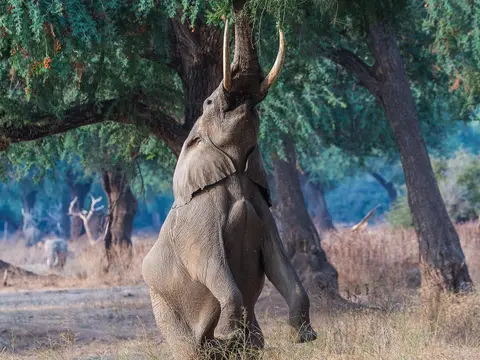
Our photographs
69.5 KB to 1.8 MB
14 of our 47 photographs, as an editor exports them.
Used on: Before-and-after figures across the tools.
Three different promises
What the settings mean
Every table says which of the three produced its row. Quality scales are not comparable across formats: from our 576.8 KB reference photo, JPEG at 80 measured 293.6 KB and AVIF at 80 measured 337.3 KB.
Auto: the engine decides
It picks the quality that suits that particular picture, rather than applying one number to everything.
Quality 80: you set the number
The engine encodes at exactly that value, which is what you want when you are matching an existing pipeline.
Max 100 KB: a hard cap
It searches for the highest quality that fits under the cap, drops the dimensions if no quality fits, and fails with a clear error rather than shipping a file over the number.
Check a number yourself
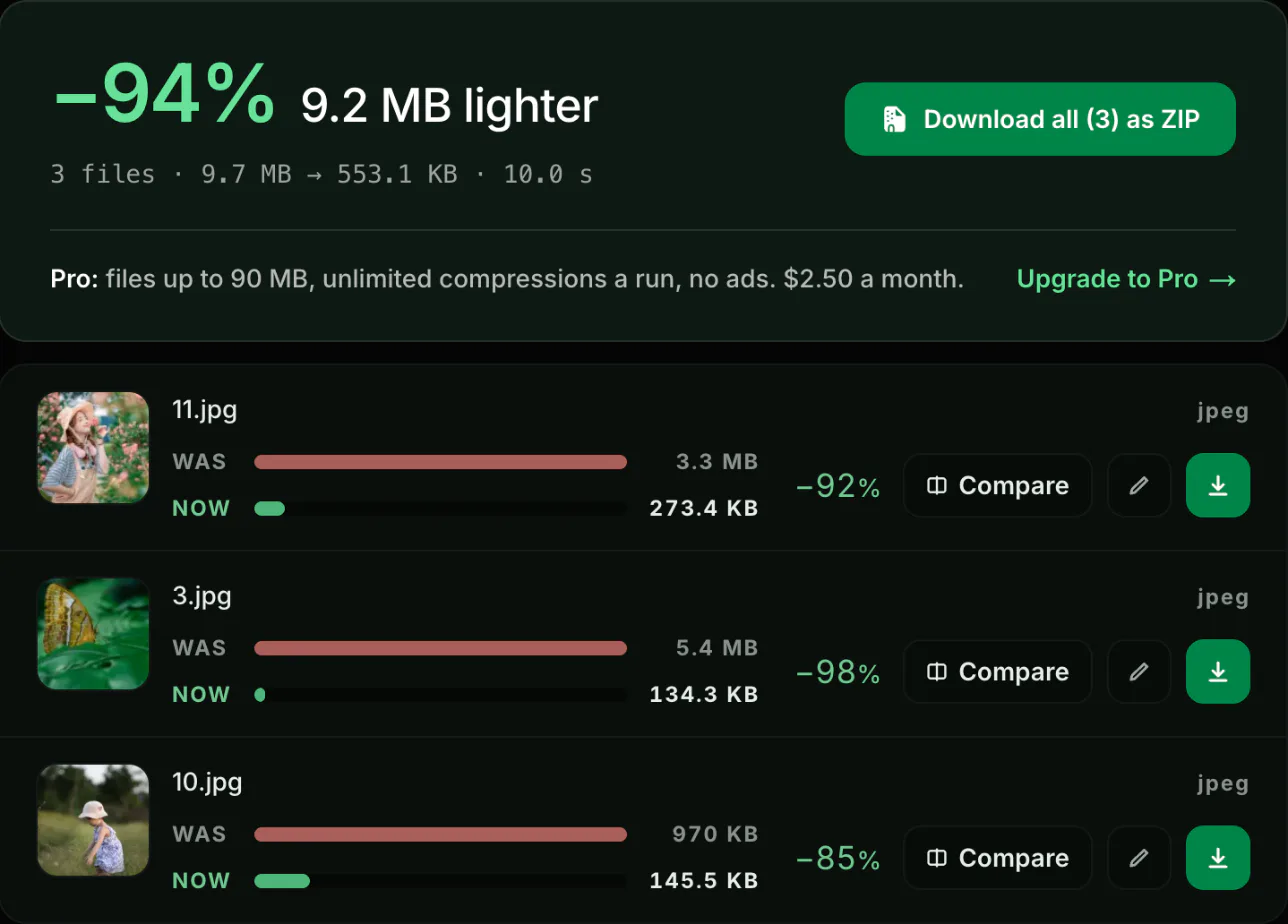
The meter prints the same bytes
On 16 October 2026 we dropped 3 test photos on blinkimg.com with Max resolution at 1920: 9.7 MB went in and 553.1 KB came out in 10.0 s. Each file matched our measured tables to the tenth of a KB.
Accountability
Questions, answered
What the numbers can and cannot tell you about your own files.

Who measures it? One engine, one person behind it.
Where these numbers come from. Found one that is off? Tell us on the contact page.
About BlinkimgAre the numbers on the site estimates?
No. Every byte count is the size of a file the engine wrote from a named source at a named setting. A build step produces them and writes them into a generated file the pages read, so a published number cannot drift from what the product does: change the engine and the numbers change in the same commit.
What image compression methodology does Blinkimg use?
Four steps, the same for every figure on the site. At build time, a script encodes each reference image at exactly the settings the pages quote. It measures the byte length of the file that comes back. It writes the result into a generated file, and the pages import that file. Sizes are decimal: 1 KB is 1,000 bytes.
Which images are the measurements taken from?
A fixed set: one of our photographs, 1920 × 1280 and 576.8 KB as a JPG, also saved as PNG, WebP, AVIF and HEIC; a 9.8 MB camera photo; a screenshot of our pricing page; a flat graphic and a see-through circle we drew; and a real iPhone HEIC. Each table names the source it used.
Will my own file get the same result?
Close, rarely identical. Compression depends on the picture: a smooth photograph compresses further than a busy one, and a screenshot behaves differently again. The tables are there to show the shape of the trade, not to promise your bytes. The meter beside your own result is the number that applies to you.
What does "Auto" mean in the tables?
The quality the engine picks for that image, rather than a number you set. It sorts the picture into a photo or a graphic and uses that format’s own setting: for a photo, 78 for JPEG, 75 for WebP and 50 for AVIF. Each format’s quality scale is its own. Every table that shows Auto also shows fixed qualities beside it.
Why do some rows say the original came back untouched?
Because a re-encode would have made the file bigger, and shipping a larger "compressed" file is a lie. When a same-format compression cannot beat the input and there is no metadata to strip, you get your original bytes back and the row says so. A file carrying EXIF always gets one stripped re-encode.
How can I check a number myself?
Drop the same kind of file into any tool on the site and read the meter: it prints the exact bytes in and out. The sources named here are ordinary images, so a photograph of similar size and content lands in the same region. Nothing on the site is a figure you have to take on trust.
Free, no signup
Put your own file through the same engine
The meter beside your result is the number that applies to you.
Exact bytes in and out. Read on the meter.
The same engine as these tables. Version for version.
Files deleted within 24 hours. Every upload.