An image to PDF converter puts pictures into one PDF file, a page each. Drop up to 50 and we compress every page first, in the order you dropped them. Up to 10 can be HEIC, WebP or AVIF. Runs on our servers, no signup.
– / –
Drop images or browse
JPEG · PNG · WEBP · AVIF · HEIC · up to 50 at once · max 30 MB each
HEIC
PNG
JPEG
AVIF
WEBP
Advanced settings1 on
SmallerAutoBetter
Auto tunes each image.
A hard cap for the whole PDF, not for each page.
Max resolution
×
Empty side keeps the ratio. Never enlarges.
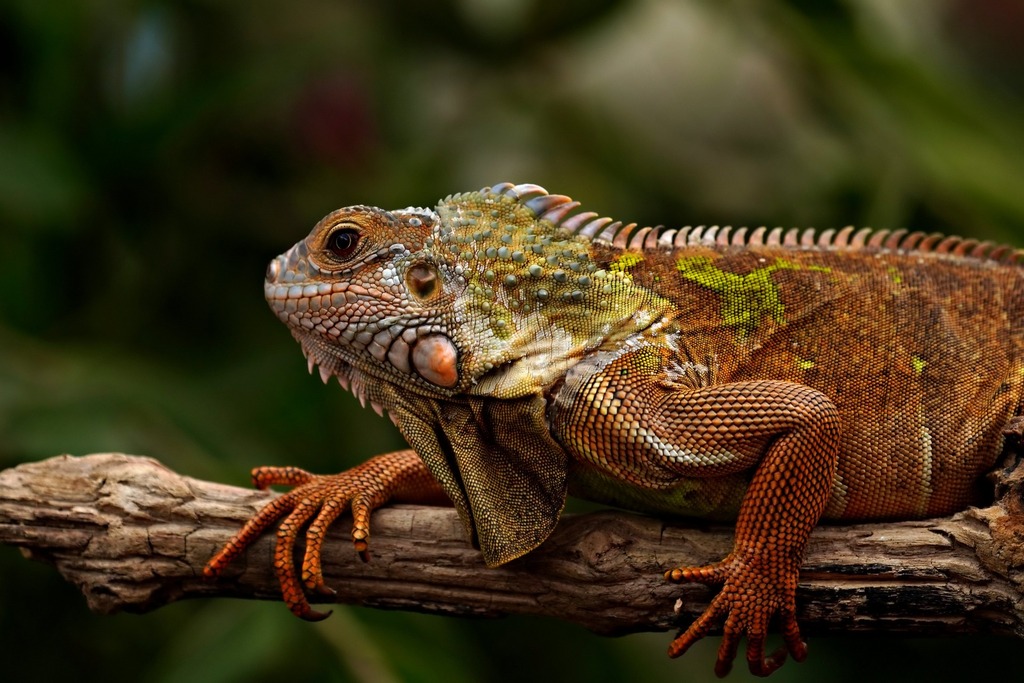
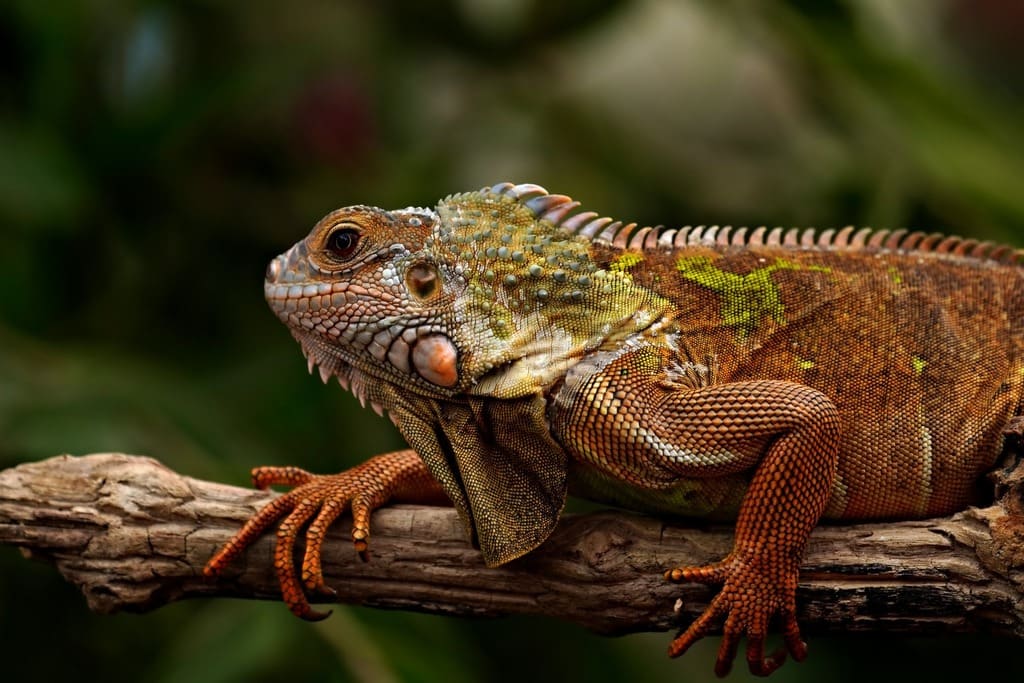
What each page gets before it lands in the PDF
JPEG · 197.7 KB
JPEG · 99.7 KB
−50%
A real page in the making: the engine compresses every image like this before embedding it, which is why the PDFs stay light.
Every format and budget, one PDF
The same converter under the name your file has, or with the size your form demands already armed. Under it, or a clear error, and never over.
Combining is the default, not a feature. Drop several images and one PDF comes back, one page per image, in the exact order you dropped them.
Combine images to PDF across formats
Formats mix freely in a single batch. The JPGs from your camera roll, the PNG screenshots, the WebP a website gave you and the HEICs straight off an iPhone all land in the same file. The same engine that powers the rest of Blinkimg compresses every page before we embed it. That is why the next section's numbers look the way they do.
Image to PDF, measured: a PDF weighs what its pages weigh
The wrapper is nearly free: 1.8 KB across a three-page file. Everything else is the pages. That is why compressing them first is the whole game:
Recipe
Relative to source
Each page
Final PDF
Auto qualityOur default
273.9 KB
823.6 KB
Quality 85 (print-safe)
339.6 KB
1020.6 KB
Pages capped at 100 KB
99.7 KB
301 KB
One HEIC, one page
268.4 KB
268.4 KB (from a 343 KB photo)
Three-page PDF from three copies of the 576.8 KB reference image, assembled by the same code that builds your file. The HEIC row is the same photo saved as HEIC, one page.
Every byte count is the size of the actual file our engine produced from the named source, the same bytes you would download, not an estimate. The reference photo is one of our own photographs, an iguana on a branch, and the camera photo is a real one too. Drop your own file into the tool above to rerun any of them. How we measure names the sources and the settings.
The PDF-under-100-KB problem, actually solved
The market leaders' own pages document this gap. One top converter's FAQ concedes its generated PDFs come out very large, then points you at a second tool. Another wrote a separate blog post for the 200 KB question its converter can't act on. Here the number is a control: Max PDF size is a budget for the whole file, with 50, 100, 200, 300, 500 KB and 1 MB as chips. At drop time it is split across the pages, the wrapper set aside, and every page is capped at its share, never over. Our reference image as five pages under a 100 KB budget assembled to 91.5 KB, and under 500 KB to 488 KB with each page capped at 99.3 KB. A page that can't make its share fails with a clear error; the card reports it as left out and prints the size beside the cap. It never silently blows the budget. Application portals, expense systems, court filings and university submissions all stop being a convert-then-compress two-step. The numbers official forms print have a page of their own: JPG to PDF under 200 KB and its siblings in the row above.
The built-in routes, and the catch in each one
1
iPhone: Preview
From iOS 26, Preview exports a photo as a PDF, and Insert from File adds more images to it. Apple’s iOS 26 guide gives the export a file-size slider; the iOS 27 guide adds Optimize Images for Screen and Save Images as JPEG. None of them takes a target in KB. This page does, and accepts HEIC natively, up to 10 photos a run.
2
iPhone: Files app → Create PDF
Users report a Create PDF quick action for photos saved to Files. Apple’s iOS 27 guide to the Files app does not document it, so check the page order and the size before you send the file.
3
macOS: Finder → Create PDF
Select the images, Control-click, then choose Quick Actions → Create PDF. Apple’s macOS 27 guide says the pages follow the order you selected them in. It lists no setting for the file size.
4
Windows: Microsoft Print to PDF
Select → Print → the PDF printer. One dialog, fixed layout choices and no size cap. A .heic needs 2 Microsoft Store extensions first: HEIF Image Extension, which is free, and HEVC Video Extensions, $0.99 in the US.
What the pages look like: A4, white, filled, the right way up
Every page is a standard A4 sheet (595×842 points) with a white background, the layout portals and printers expect. Your image fills the sheet as far as its shape allows and sits centred. The sheet's orientation follows the image: landscape photos get landscape pages instead of floating tiny in a portrait frame. Sideways phone photos straighten automatically from their EXIF orientation. A transparent PNG keeps its transparency over the white sheet, so its empty areas read and print white. Not offered, said plainly: US Letter, custom margins and drag-to-reorder. Drop order is page order, and no portal we know of has rejected A4.
Converting documents and IDs: the privacy part that matters
People convert passports, tenancy contracts, bank statements and medical forms on pages like this one. A photographed document carries EXIF, including the GPS location of the room it was shot in. We strip metadata by default from every page we embed, an angle you will not find mentioned by any of the big converters. We process and wipe the files themselves automatically: we keep nothing, never archive, never reuse. No account is attached to any of it, and no sign-in wall stands between you and the download.
When this is the wrong tool
Merging PDFs you already have?
This tool builds PDFs from images only. It does not append to or merge existing PDF files.
Need selectable, searchable text?
Pages are images, not OCR. A scanned contract stays a picture of a contract. Use an OCR tool when the text itself must be extractable.
Strict US Letter or margin requirements?
Pages are A4 with the image filling the sheet, and there are no margin controls. If a system demands Letter with margins, a word processor is the safer route.
Just need the images smaller, no PDF?
The compress pages do that directly: same engine, same caps, individual files back.
Rotating a page first? Rotate image. Trimming margins off a photographed document? Crop image.
Questions, answered
Short answers specific to this tool. Drop a couple of images above and see for yourself.
Q:How do I combine multiple images into one PDF?
Drop them together. That is the whole workflow. Up to 50 images become one PDF automatically, one page per image, in the exact order you dropped them. JPG pages can fill all 50. A WebP, AVIF or iPhone HEIC page becomes a JPEG, which counts as a conversion, and Free and Pro allow 10 conversions a run. PNG pages count too once you set a Max PDF size, since every page then becomes a JPEG. No signup.
Q:How do I get the PDF under 100 KB, 200 KB or 500 KB?
Set Max PDF size in Advanced settings to the number, or open the page for a number forms print: under 200, 300 or 500 KB. The budget is split across the pages at drop time, the wrapper set aside (1.8 KB measured on our three-page file), and each page is capped at its share, never over. Our reference image as five pages under a 100 KB budget assembled to 91.5 KB, and the card prints the size beside the cap.
Q:Why do image PDFs from other tools come out huge?
Most converters embed your photos at full size, then their own FAQs point you at a second compression tool. Here every image runs through the compression engine first, and the PDF takes each compressed page as it is: a JPEG untouched, a PNG as a PNG. The compressor and the converter are the same pass. That is the entire fix.
Q:Does converting images to PDF reduce quality?
The PDF step itself loses nothing: a JPEG page goes in as it is, and so does a PNG page. The compression pass before it makes the quality decision. Auto is tuned to be invisible: our 576.8 KB reference page became 273.9 KB. The quality slider raises it for print. Quality 85 measured 339.6 KB per page.
Q:Is JPG to PDF different from PNG or HEIC to PDF?
A little. A JPG goes in as a JPEG page after one compression pass. A PNG stays a PNG page, transparency included, unless you set a Max PDF size: a photo in 256 colours on Auto, every pixel at quality 100. A HEIC, WebP or AVIF becomes a JPEG page, since a PDF has no image type for them. All of them mix in one batch, one page per image, in drop order.
Q:Can I convert iPhone HEIC photos straight to PDF?
Yes. Drop them as they come off the phone, with no JPG detour and nothing installed. Each photo becomes a JPEG page, since a PDF has no HEIC image type. Measured: a 343 KB HEIC became a 268.4 KB one-page PDF, smaller than the photo it came from.
Q:How do I convert a photo or image to PDF on iPhone or Android?
Open the converter in your phone's browser for one PDF with a size cap on the whole file. A run takes up to 50 images, and up to 10 of them can be iPhone HEIC, WebP or AVIF. Each phone has a built-in route too: from iOS 26, Apple's Preview app exports a photo as a PDF and inserts more images, and Android's print dialog offers Save as PDF. Preview can shrink the file; neither takes a target in KB.
Q:What page size does the PDF use: A4, Letter, or fit-to-image?
A4 (595×842 points) on a white sheet, the international standard that prints everywhere. Each image fills its sheet as far as its shape allows and sits centred. The sheet turns with the image, so landscape photos get landscape pages. US Letter and custom margins are not offered. Every portal we know of accepts A4.
Q:What happens to a transparent PNG in the PDF?
It shows white. With no size limit, a PNG stays a PNG page and keeps its transparency in the file, over the white A4 sheet, so the empty areas read and print white. Under a Max PDF size the page becomes a JPEG, which has no alpha channel, and the engine fills those areas with white first. Either way the logo prints as it looks.
Q:Can I reorder or rotate pages before converting?
Page order is drop order. Select files in the order you want and that is the PDF. There is no drag-to-reorder step. Sideways photos straighten automatically from their EXIF orientation. For a deliberate turn, rotate the image first with the rotate tool, then drop it into the batch.
Q:Is it safe to upload ID scans, passports or bank documents?
We strip EXIF and GPS by default, the angle that matters most for documents. A photographed document stops carrying the location of the room it was shot in. We process and wipe your files automatically. We keep nothing, never archive, never reuse. No account is required.
Q:Do I need to sign in, pay, or accept a watermark?
None of the three. The PDF downloads directly. There is no watermark, no account, and no "sign in to save your file" wall at the end of the flow. Free means the whole flow, including the download.
Q:How many images can one PDF hold?
One PDF holds up to 50 pages, at 30 MB per image. JPG pages can fill all 50, and so can PNG pages without a Max PDF size. A WebP, AVIF or HEIC page becomes a JPEG, which counts as a conversion, and Free and Pro allow 10 conversions a run. Under a Max PDF size every page becomes a JPEG, so a PNG page counts too. Pro Max converts without limit. The free allowance is 300 images a day. Need more pages in one file? Run a second batch and merge them with any PDF tool.
Q:What resolution should scanned documents be?
Set Max resolution in Advanced settings to about 2000×2000 for legible text at a small size. That caps the longest side, stays comfortably sharper than an A4 sheet needs, and keeps each page to tens of kilobytes. Full camera resolution on document scans is nearly all wasted bytes.