Your iPhone saves photos as HEIC, a format most apps, websites, and older devices still can't open. Convert them to JPG and they'll display anywhere: email, documents, any photo editor, every browser. Part of the image converter.
– / –
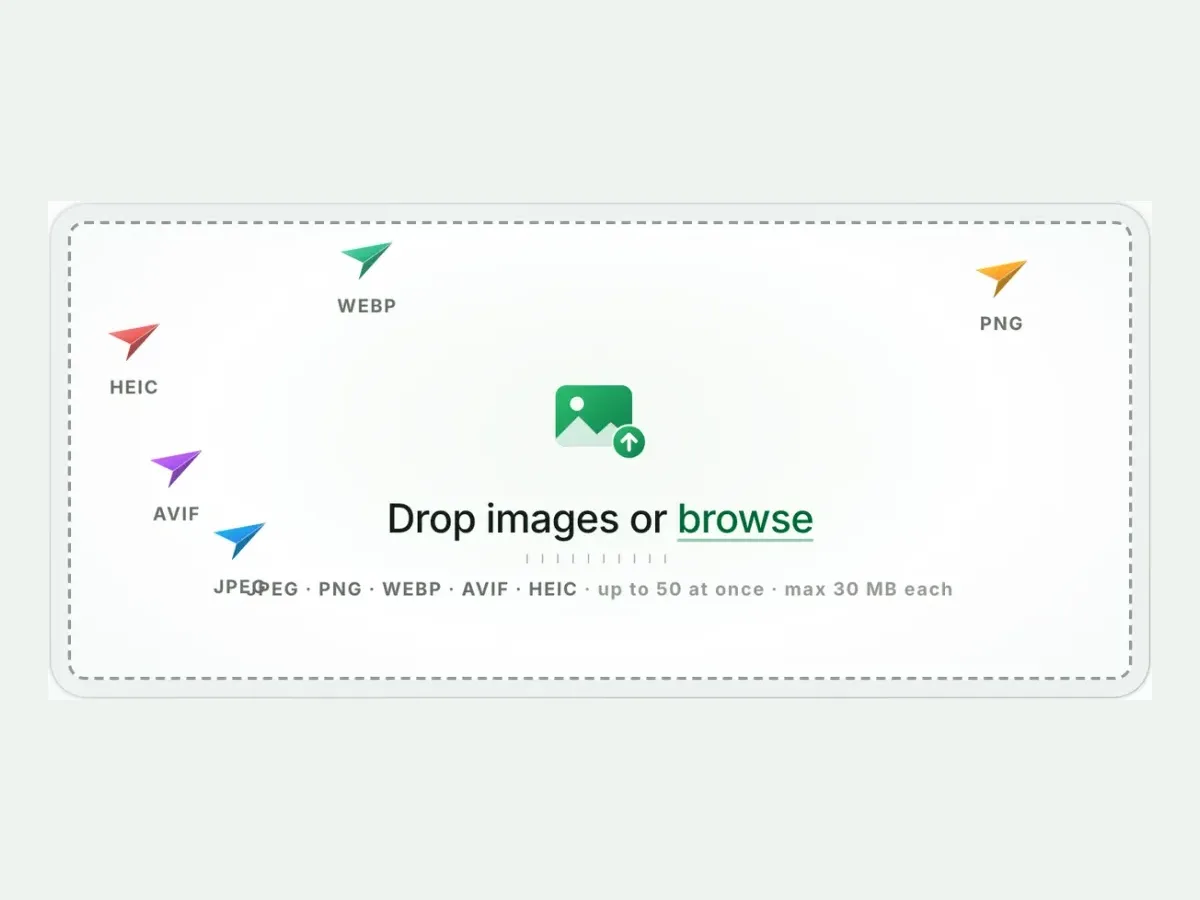
Drop images or browse
JPEG · PNG · WEBP · AVIF · HEIC · up to 50 at once · max 30 MB each
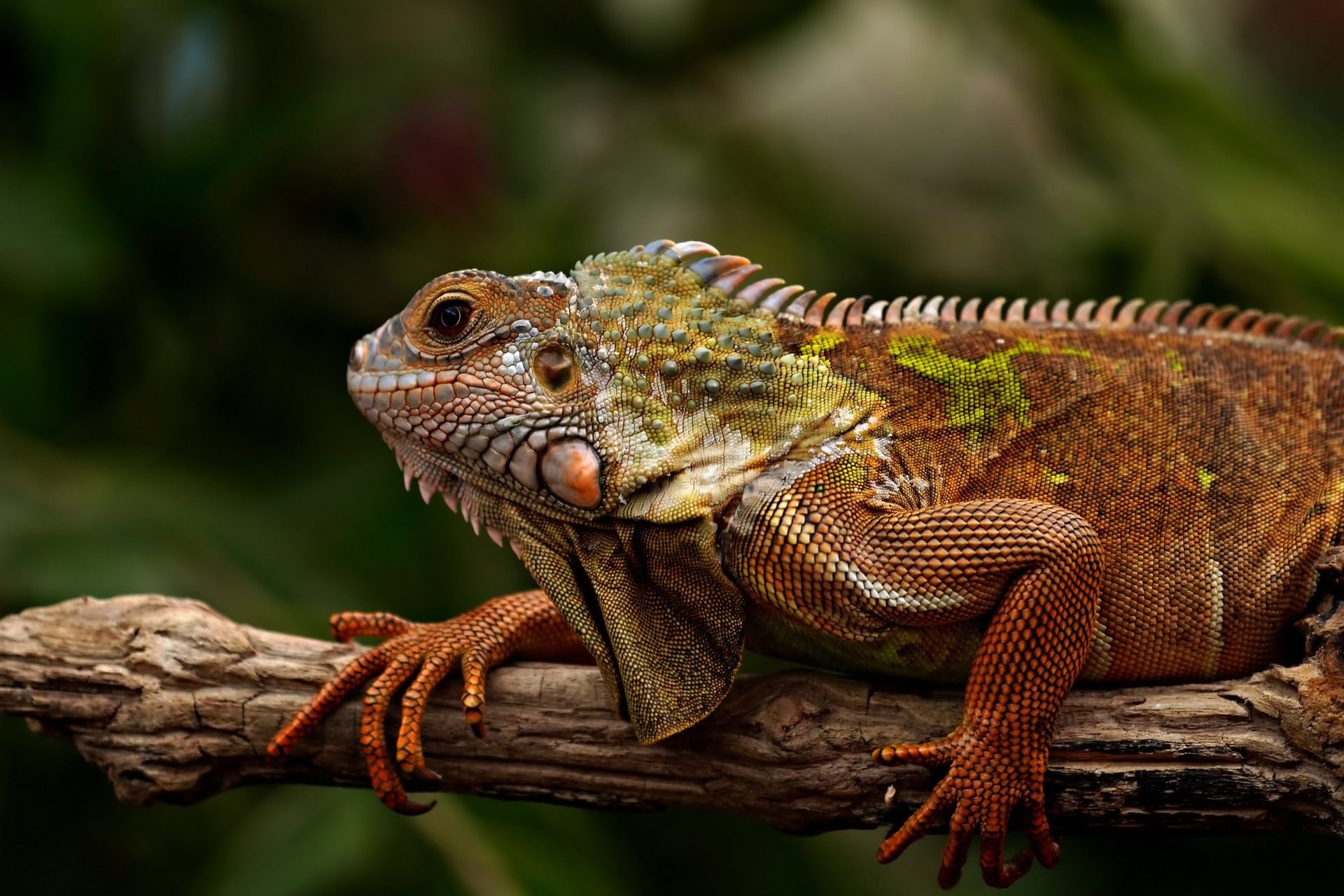
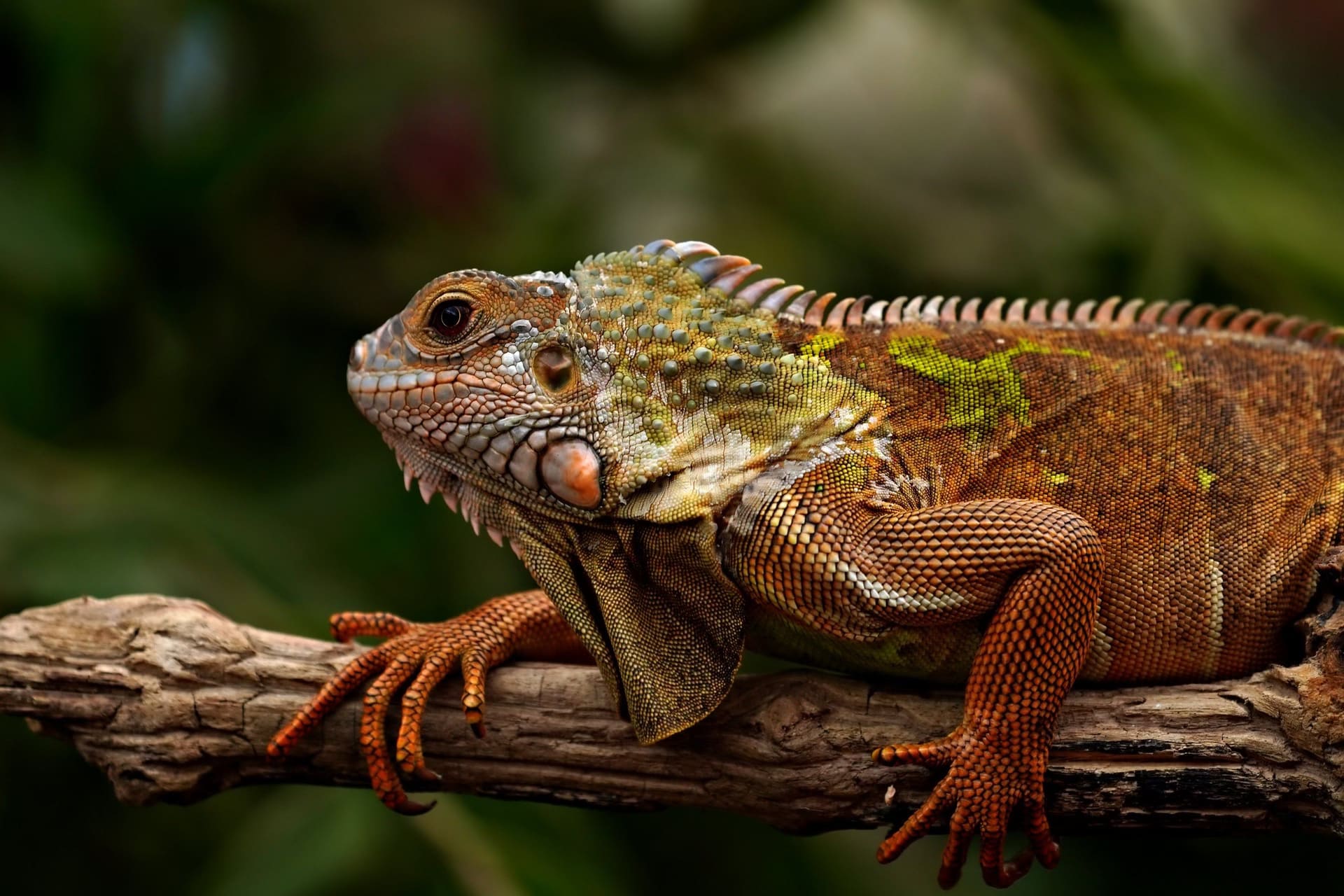
A real result from this exact operation: 343 KB in, 267.4 KB out. Drop your own file and the meter reports yours. The left half is a preview render; the byte counts are the real files’.
HEIC to JPG converter
How to convert HEIC to JPG in 4 steps
Free, in your browser, with no sign-up. Each step below is the real tool on this page.
1
Drop your HEIC files
Up to 10 HEIC files at once. JPG is already picked.
2
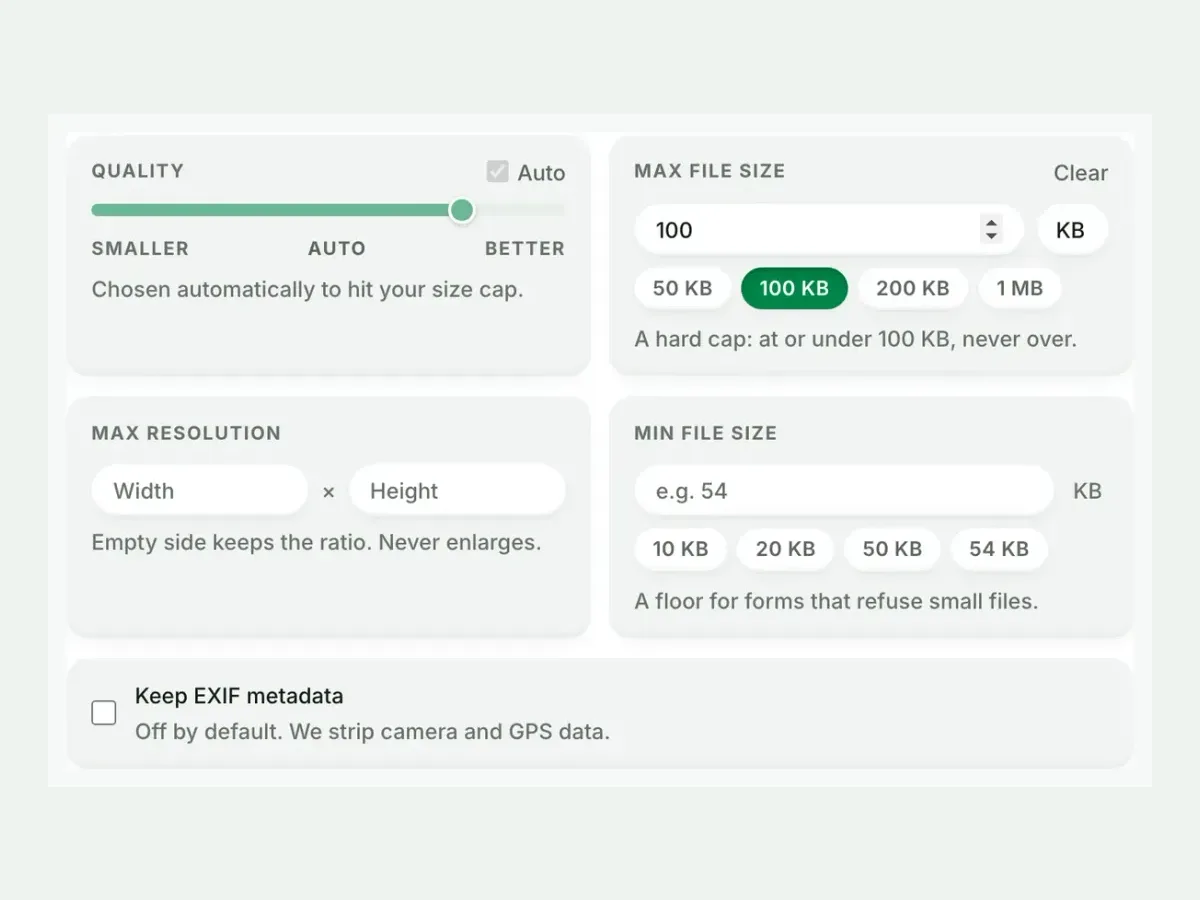
Set a size, or not
Auto picks the best JPG setting. A size cap is never exceeded.
3
Compare the result
See each measured size, then drag the slider to check the look.
4
Download one ZIP
Take each file on its own, or all of them together in one ZIP.
Free, no sign-up
The best HEIC to JPG image converter for real photos
Up to 10 HEIC files at once, every result measured to the byte, and nothing kept after you leave.
Fast and easy
A fast, easy HEIC to JPG converter
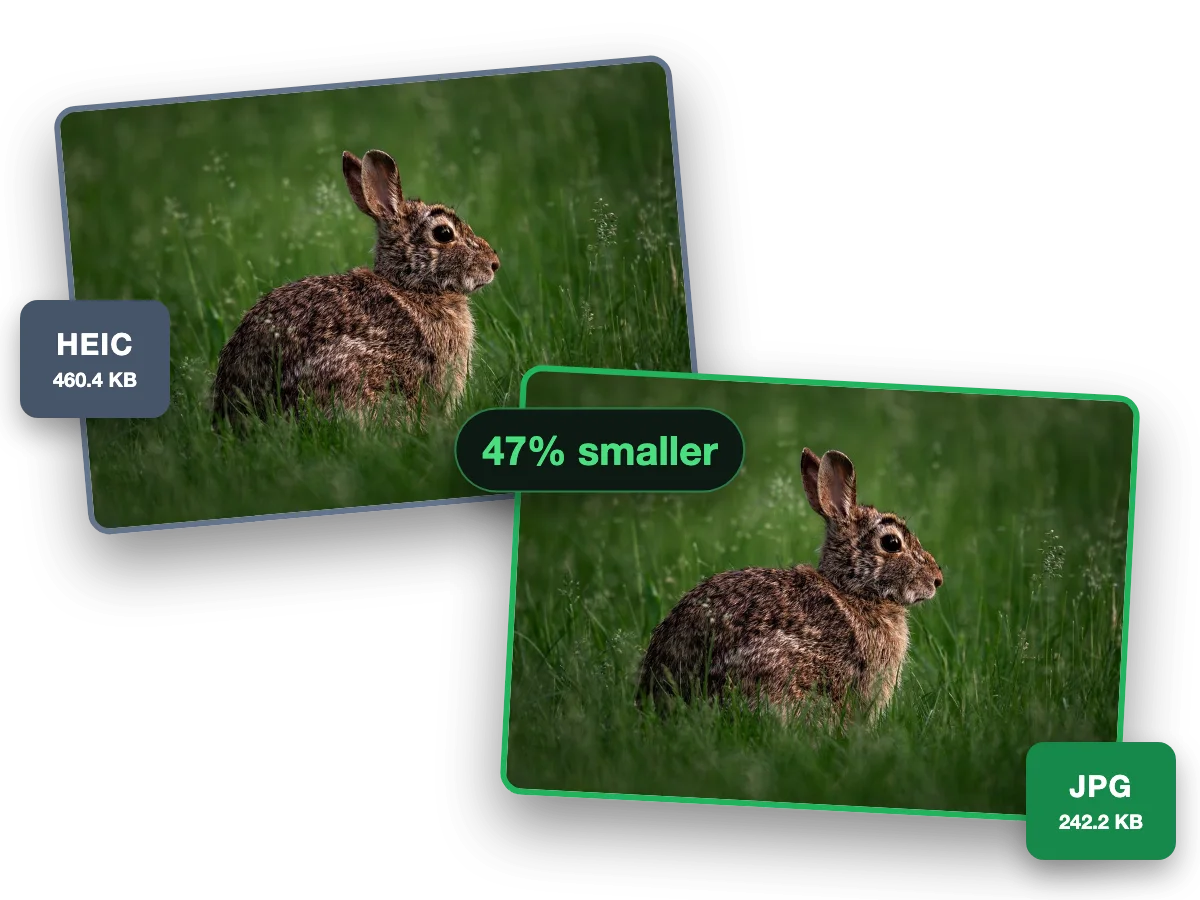
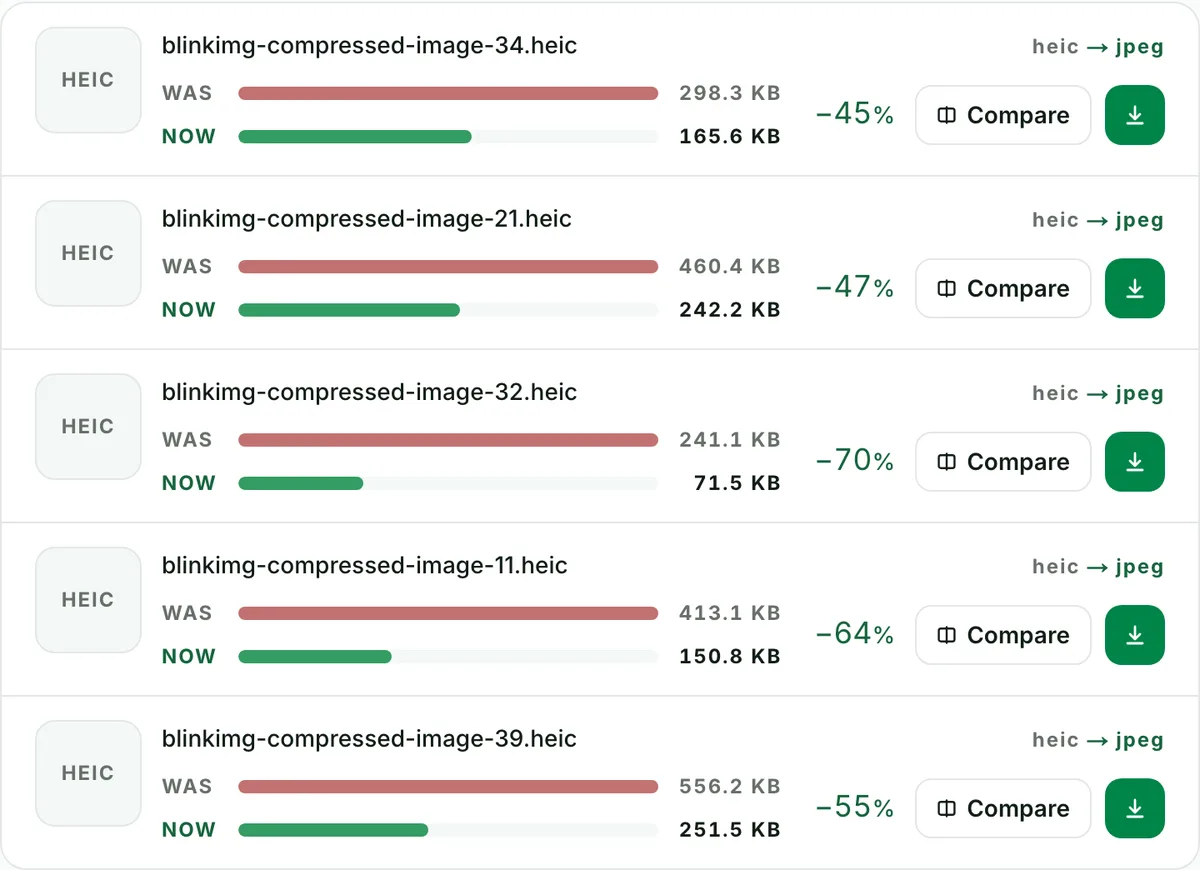
iPhone photos are HEIC; as JPG they open on Windows, Android and the web. This photo went from a 460.4 KB HEIC to a 242.2 KB JPG, 47% smaller.
Why this converter
A HEIC to JPG converter that shows its work
Every size on this page is a file the engine wrote, measured to the byte.
Batch
Batch convert HEIC to JPG, ten at a time
Convert up to 10 HEIC files to JPG in one run. Each file shows its own measured size, so you see what changed.
Quality
HEIC to JPEG with no change you can see
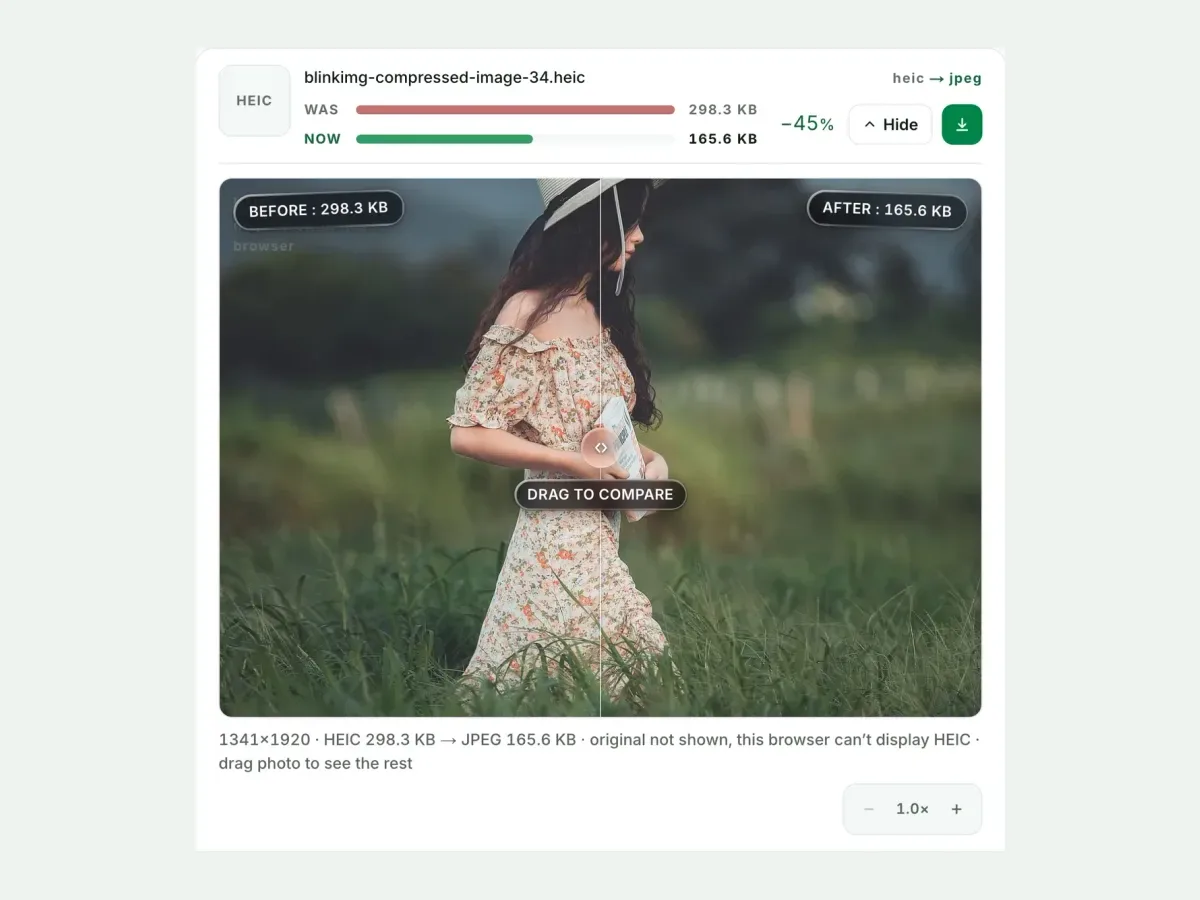
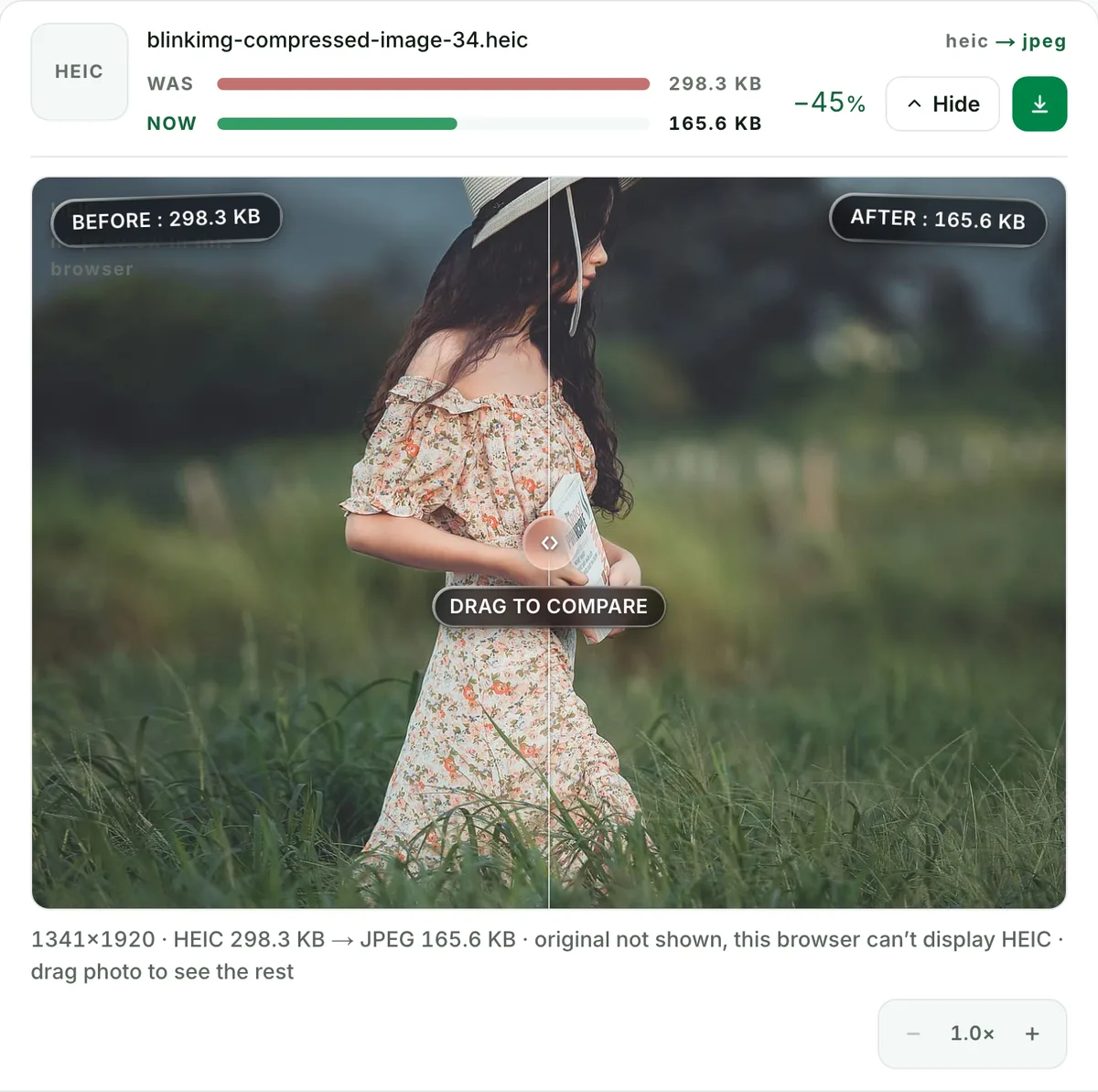
This photo went from a 298.3 KB HEIC to a 165.6 KB JPG. Check any file at full size before you keep it.
Exact size
Convert HEIC to JPG under 100 KB
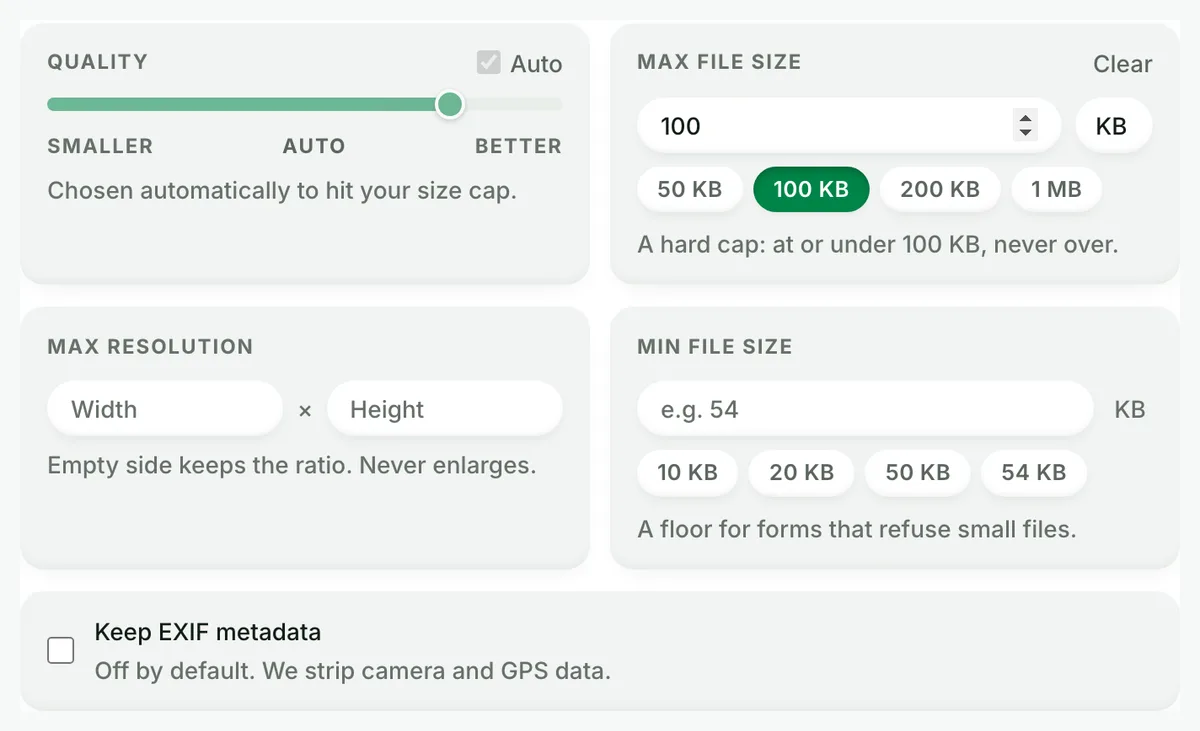
Set a maximum size and the converter finds the best quality that fits. A hard cap: at or under it, never over.
HEIC is about twice as efficient as JPEG. A straight conversion at matched quality would roughly double the size. That is not what happens here: our converter optimises while it converts. Here is our 1920 × 1280 reference HEIC, measured:
Reference file343 KBphoto.heic
Output
Relative to source
Size
vs HEIC
JPG (Auto)Our default
267.4 KB
−22%
JPG (quality 90)No saving
532.1 KB
+55%
WebP (Auto)Our default
211.4 KB
−38%
AVIF (Auto)Our default
121.9 KB
−64%
PNGNo saving
997.2 KB
+191%
Source: photo.heic, 343 KB, our reference photo of an iguana on a branch, saved as HEIC on a Mac. Auto quality unless stated. PNG output is palette-optimised; a truecolour PNG at quality 100 measured 2896.1 KB.
Every byte count is the size of the actual file our engine produced from the named source, the same bytes you would download, not an estimate. The reference photo is one of our own photographs, an iguana on a branch, and the camera photo is a real one too. Drop your own file into the tool above to rerun any of them. How we measure names the sources and the settings.
Three ways to convert HEIC to JPG: pick the one that fits
1
Online, in bulk (this page)
This is the only route that handles a camera roll: drop up to 10 HEICs, get one ZIP of JPGs back, filenames preserved, nothing to install. It works identically on Windows, Mac, Linux, iPhone and Android. It is also the only route with a quality control and a hard size cap for form uploads.
2
On Windows 11, one file at a time
Install the free HEIF Image Extension from the Microsoft Store, open the photo in Photos, and use Save as → JPG. The catch: every iPhone HEIC also needs HEVC Video Extensions, $0.99 in the US Store, and some files still refuse to open. If Photos shows a broken thumbnail, skip the codec hunt and convert here.
3
On a Mac or iPhone, one file at a time
Mac: open the photo in Preview, then File → Export and choose JPEG. Or Control-click it in the Finder and choose Quick Actions, then Convert Image. iPhone: copy the photo in Photos and paste it into the Files app, which saves a JPEG; Mail and Messages send a JPEG only when the other device cannot open HEIC. To stop shooting HEIC entirely: Settings → Camera → Formats → Most Compatible.
Slightly. JPEG is lossy, but at quality 85–92 the loss is invisible in normal viewing. Our 1920 × 1280 reference HEIC converts at quality 85 to 330 KB with no artefacts you can find without pixel-peeping. The honest way to judge it is not a promise but the before/after compare slider above. Convert your photo, open Compare, zoom to 100%, and look at the areas that break first: fine hair, foliage, smooth sky gradients.
For archival copies where every pixel matters, convert to PNG at quality 100 instead (every pixel of the decoded HEIC, but a much larger file). Or keep the original HEIC and convert on demand.
Need it under 240 KB for a visa, passport or government form?
Upload portals are the single most common reason people convert HEIC at all. They reject files two ways: wrong format, and too big. One pass here solves both. Open Advanced settings → Max file size, set 240 KB (DS-160's limit) or 100/200/500 KB, and convert. The cap is a guarantee, not a target: we search for the highest quality that fits under your number and never overshoot. Our 1920 × 1280 reference HEIC landed at 234.1 KB against a 240 KB cap. Output is standard 8-bit sRGB JPEG, which is what government validators expect; many of them reject wide-gamut Display P3 files and HEIC itself outright.
Converting a whole camera roll?
10 photos per run, up to 30 MB each, one ZIP out. No signup, no queue, no watermark, and a 300-photo daily allowance counted live beside the tool. We print the numbers because most converters won't: the popular ones cap a free file at 5 MB, gate full quality behind a paid tier, or push you to a desktop app past 200 photos. A big camera roll runs in batches of 10, and the counter always shows how far today's allowance goes.
Is it safe to upload iPhone photos here?
Every iPhone HEIC carries more than the picture: EXIF metadata includes the GPS coordinates of where it was taken, the exact capture time, and your device model. We make three commitments, each checkable. First, we keep nothing: files are processed and wiped automatically, never archived, never used for anything else. Second, the converted file carries no EXIF and no GPS: the engine reads a HEIC as pixels only, so even "Keep EXIF metadata" brings none of it back (a photographer who needs the capture dates keeps the original). Third, no account is required, so there is no profile to attach your photos to in the first place.
Live Photos, bursts, HDR and other iPhone edge cases
These failure modes fill Apple support threads, so here they are, answered in one place. Live Photos convert to their still key frame; JPEG cannot hold the motion. Burst stacks and multi-image HEIC containers convert as the primary image. We tone-map 10-bit HDR and Display P3 photos to 8-bit sRGB. Extremely saturated sunsets can shift slightly; that is a property of JPEG itself, not of any converter. The AVIF format can carry HDR, but our HEIC to AVIF pipeline writes 8-bit sRGB there too, so keep the HEIC when the HDR matters. We fix sideways photos automatically: we honour the EXIF orientation flag before converting, so nothing comes out rotated.
When JPG is the wrong target
Publishing to your own website?
Convert to AVIF or WebP instead. Our 1920 × 1280 reference HEIC measured 121.9 KB as AVIF vs 267.4 KB as JPG, and every modern browser renders both.
Archiving originals?
Keep the HEIC. It is the smallest faithful copy of your photo; convert on demand when something refuses to open it.
Need transparency or lossless edits?
JPG supports neither. Convert to PNG, and expect a larger file in exchange.
Questions, answered
Short answers specific to this page. The tool above settles most of them in a second.
Q:Does converting HEIC to JPG lose quality?
A little, by design: JPEG is a lossy format. At quality 85–92 the difference is invisible in normal viewing. Our 1920 × 1280 reference HEIC went from 343 KB to 267.4 KB at Auto. Use the compare slider on your own photo to check before downloading.
Q:Will my JPG be bigger than the HEIC?
Not at our default. At Auto our 1920 × 1280 reference HEIC went from 343 KB to a 267.4 KB JPG. At quality 90 the same photo came out at 532.1 KB, larger than the HEIC, so a high fixed quality can grow the file. Auto picks the quality per photo instead of applying one number.
Q:How do I batch convert HEIC files to JPG?
Drop up to 10 HEIC photos into the converter and every one converts in a single run. You download one ZIP with all the JPGs, filenames preserved. No signup, no queue, no watermark. Drop more and the first 10 convert, and the page tells you. For a larger camera roll, run it in batches of 10.
Q:Why are my iPhone photos saved as HEIC instead of JPG?
Since iOS 11, iPhones default to HEIC (High Efficiency Image Container). It stores the same photo in about half the space of JPEG, which saves storage on your phone. The problem only appears when a website, form, or Windows PC refuses to open the file.
Q:How do I stop my iPhone from taking HEIC photos?
Open Settings → Camera → Formats and choose "Most Compatible". Your iPhone saves new photos as JPEG from then on. Existing photos stay HEIC, so convert those with the converter. Note that "Most Compatible" files take roughly twice the storage on your phone.
Q:Is it safe to upload my photos here?
Yes. Your photos are processed and then wiped automatically: we keep nothing, archive nothing, and never use uploads for anything else. The converted file carries no EXIF metadata: no GPS location, timestamp or device model. No account is required, so no profile collects your photos, and after a day no record names them.
Q:Does converting remove my GPS location from the photo?
Yes, always. Every iPhone HEIC carries EXIF metadata: GPS coordinates, capture time and device model. The converted JPG carries none of it, even with "Keep EXIF metadata" ticked, because the engine reads a HEIC as pixels only. Keep the original HEIC beside the JPG if you need its capture dates.
Q:How do I get a JPG under 240 KB for a visa or passport upload?
Open Advanced settings, set Max file size to 240 KB (or use the presets), and convert. The cap is hard: we search for the highest quality that fits under it and never overshoot. Output is standard 8-bit sRGB JPEG, which is what government validators expect.
Q:What happens to Live Photos when I convert?
You get the still key frame as a JPG. JPEG cannot hold the few seconds of video inside a Live Photo. If you need the motion, export the Live Photo as a video on your iPhone instead. If you need the picture, the converter gives you exactly that.
Q:How do I convert iPhone photos to JPEG?
Drop them on this page. Up to 10 photos at a time come back as JPEGs in one ZIP, with their names kept and nothing to install. To copy them to a Windows PC as JPEG instead, set Settings → Apps → Photos → Transfer to Mac or PC to Automatic before you plug in the cable. To shoot JPEG from now on, set Settings → Camera → Formats to Most Compatible.
Q:Can I convert HEIC to JPG on my iPhone without an app?
Yes. Copy the photo in the Photos app and paste it into a folder in the Files app, which saves a JPEG. Sharing by Mail, Messages or AirDrop sends a JPEG only when the receiving device cannot read HEIC, so do not count on it. That is one photo at a time; for a batch, use the batch converter instead.
Q:Is there a limit on how many photos I can convert for free?
You get a free allowance of 300 photos a day, with no signup: 30 full 10-photo batches, counted live beside the tool, up to 30 MB per file. That is more anonymous volume than the big server-side tools publish, and it resets every day.
Q:Why does Windows fail to open HEIC files?
Windows needs the HEIF Image Extension codec, which is free. Every iPhone HEIC also needs the HEVC Video Extensions codec, which costs $0.99 in the US Store. That paywall is why most people convert to JPG once instead of installing codecs on every machine that needs the photo.
Q:Should I convert to JPG, or to WebP or AVIF instead?
It depends on the destination. Converting for a website? AVIF is the better target: our 1920 × 1280 reference HEIC became a 121.9 KB AVIF versus 267.4 KB as JPG. For email, documents, printing, and any upload form, pick JPG. It opens everywhere, without exception.