How to stop text wrapping around an image (and wrap it on purpose)
A floated image pulls every line after it up to its side, the next heading included. Here is each fix, measured at 3 screen widths. Part of the image resizer.
By Sahadat Husain12 min readEngineering

To stop text wrapping around an image, remove the float from the image or add clear: both to the element that should start below it. Text wraps because the image has float: left or float: right, set by your CSS, a theme or an old align attribute. We rendered the same page in Chromium at 3 widths and measured every line, so each fix below comes with what it really did.
Want the opposite, text that wraps on purpose? Keep the float, then use shape-outside to bend the lines around a cut-out. And if you are in Word or Google Docs, not a web page, the fix is one menu, near the end.
/* Stop the next element wrapping: it starts below the image. */
h2,
.next-section {
  clear: both;
}

/* Or never float: the image sits on its own line. */
.post img {
  display: block;
  float: none;
}

/* Keep a floated image inside its box. */
.card {
  display: flow-root;
}Why does text wrap around an image?
Text wraps around an image because the image floats. MDN describes a float as an element taken out of the normal flow, placed on one side, with text and inline content wrapping around it. Everything after the float flows beside it, including the next heading, until the float ends.
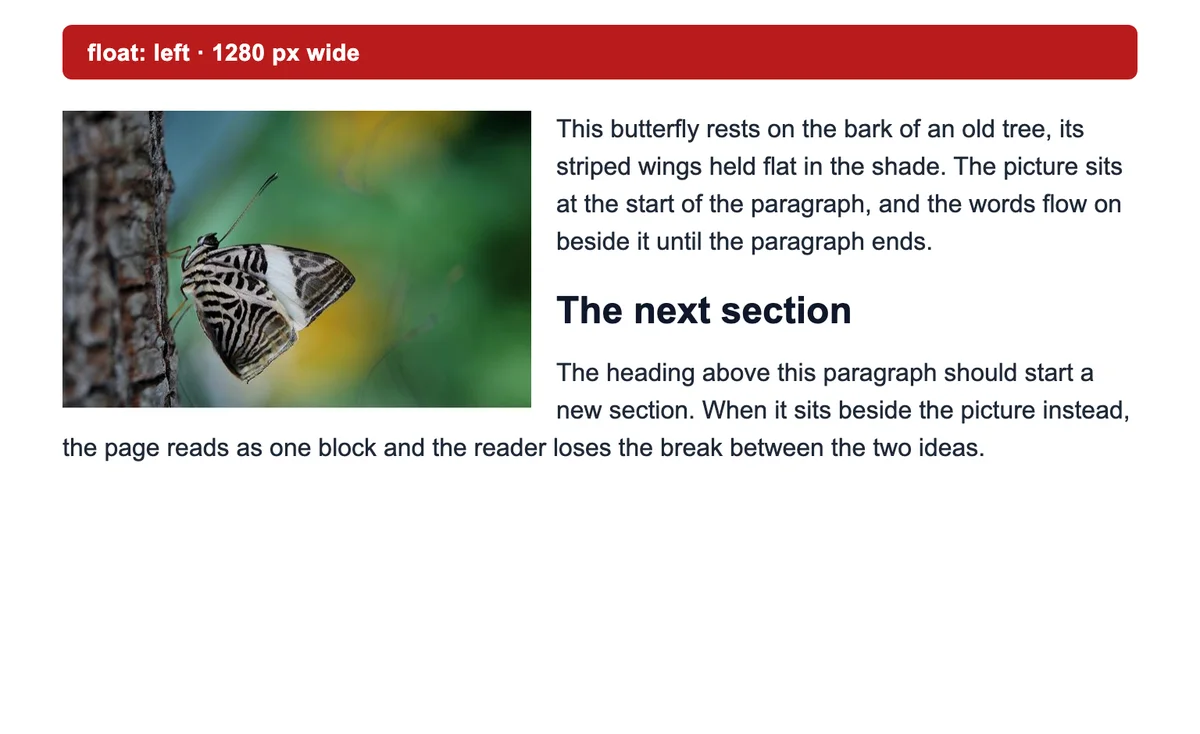
That last part is the bug most people hit. On our test page at 1280 pixels wide, the paragraph took 4 lines beside a 300 × 190 pixel photo. The heading after it then started beside the photo too, 78 pixels above the photo’s bottom edge.
How to stop text wrapping around an image in CSS
There are 5 ways to stop the wrap, and they do different things. Pick by what you want the text to do.
| CSS | Lines beside the photo (1280 px) | Heading lands | On a 390 px phone |
|---|---|---|---|
| float: left | 4 | beside the photo | 5 lines, 1 word beside |
| float + clear: both | 4 | under the photo | 5 lines |
| display: block (no float) | 0 | under the photo | 4 lines |
| display: flex | 4 | under the photo | 21 lines in a 30 px column |
| display: grid | 4 | under the photo | 21 lines in a 30 px column |
| float + flow-root on the text | 4 | beside the photo | 33 lines in a 18 px column |
Find what floats
Right-click the image, choose Inspect, and look for
floatin the Styles panel. A WordPress theme often sets it through analignleftoralignrightclass.The symptom: the next heading rides up beside the floated photo. Add clear: both to the next element
Put
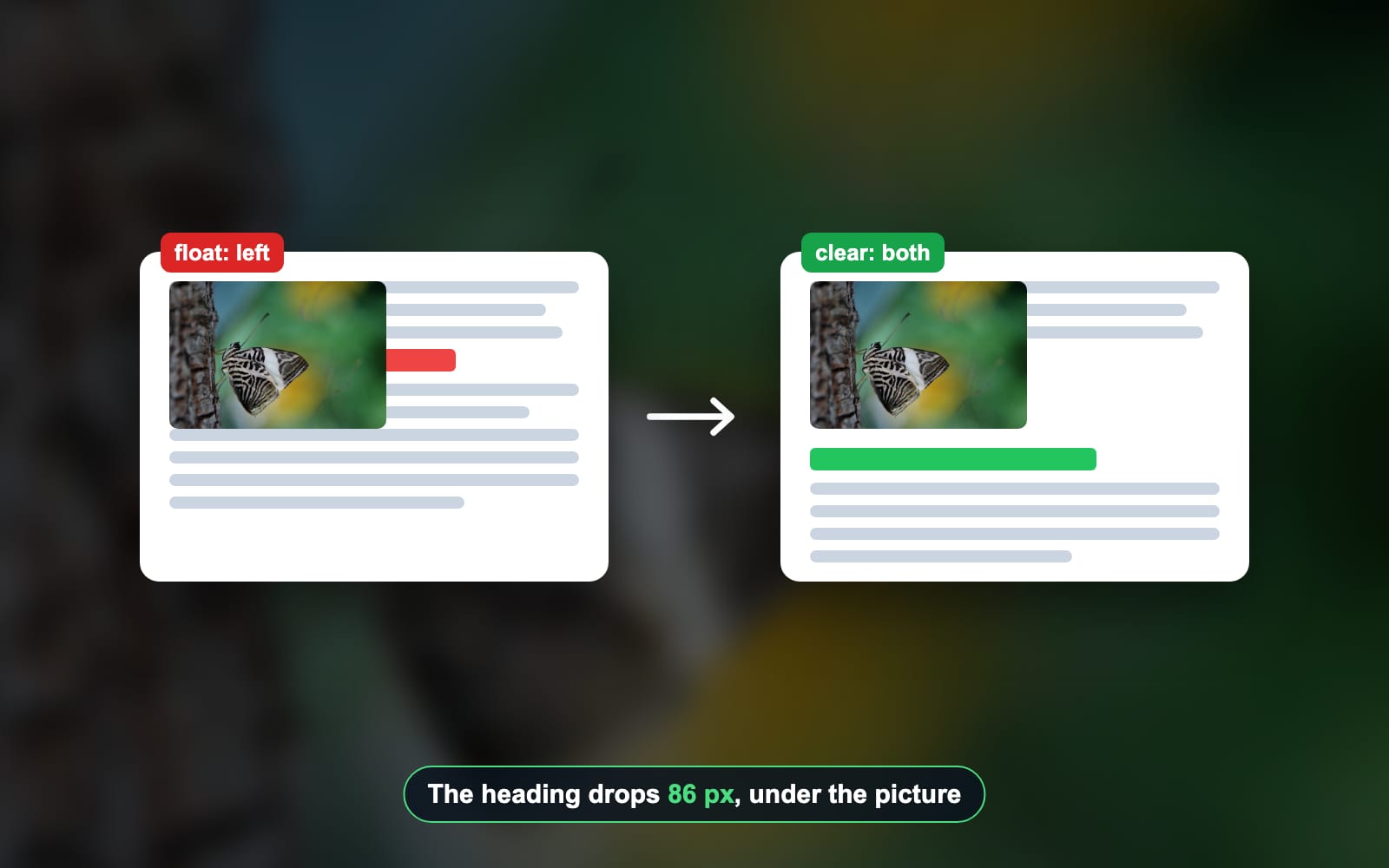
clear: bothon the heading or paragraph that should start below the image. MDN saysclearmoves an element below the floats before it. On our page it moved the heading 86 pixels down, under the photo.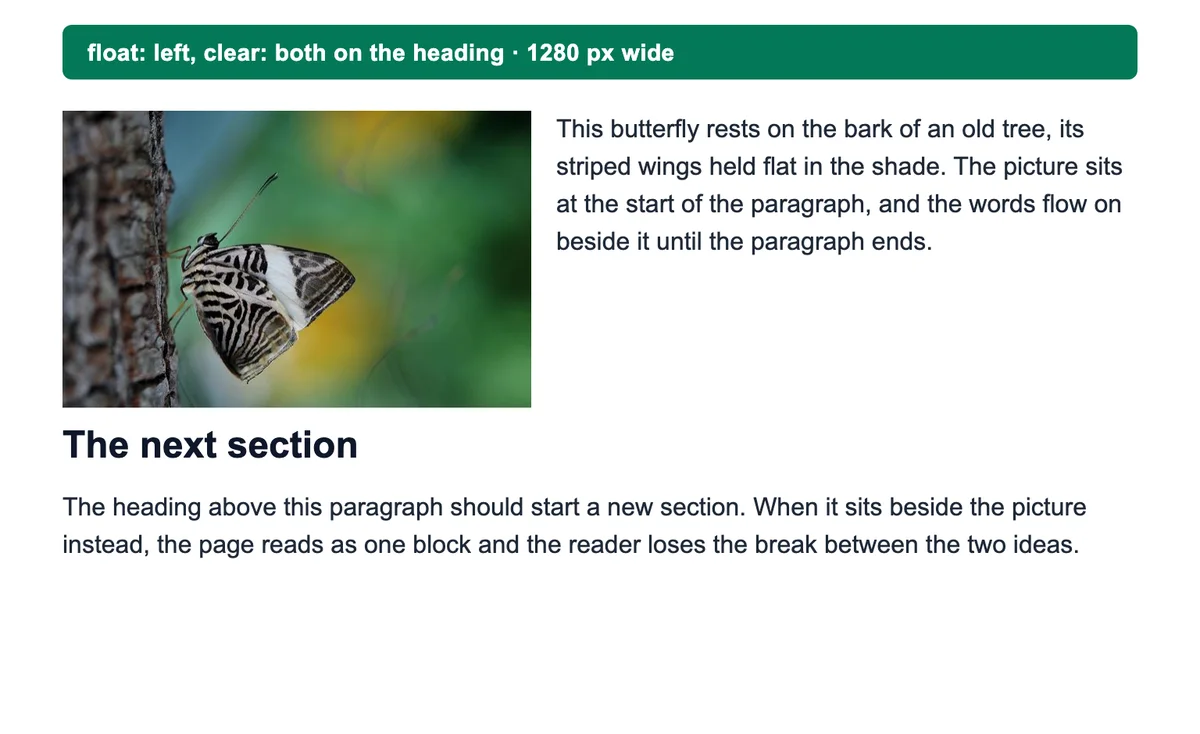
clear: both on the heading. The paragraph still sits beside the photo; the heading moved 86 pixels down. Or remove the float
Set the image to
float: noneanddisplay: block. No text sits beside it at any width. In WordPress, pick None in the block’s alignment menu.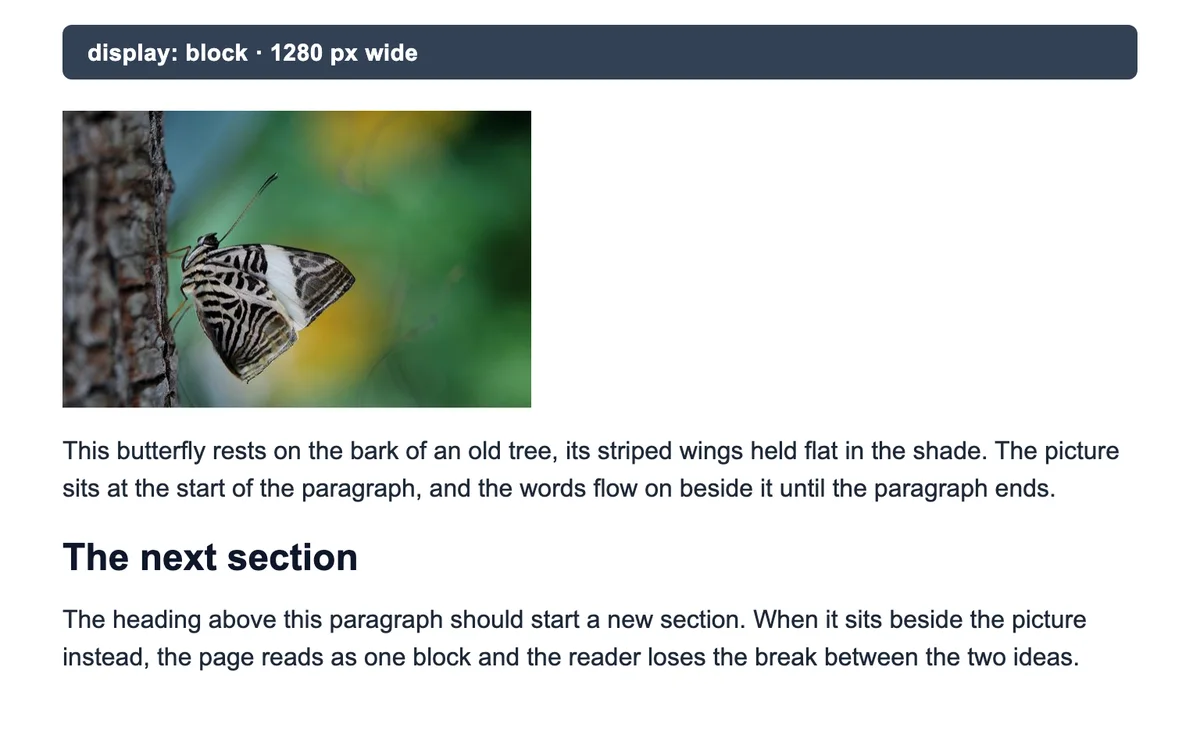
display: block with no float. The text starts under the photo. Or put the text in a column with flex
Wrap the image and its text in one box with
display: flex. The text keeps to its own column and never runs under the image, and the heading after the box starts below it.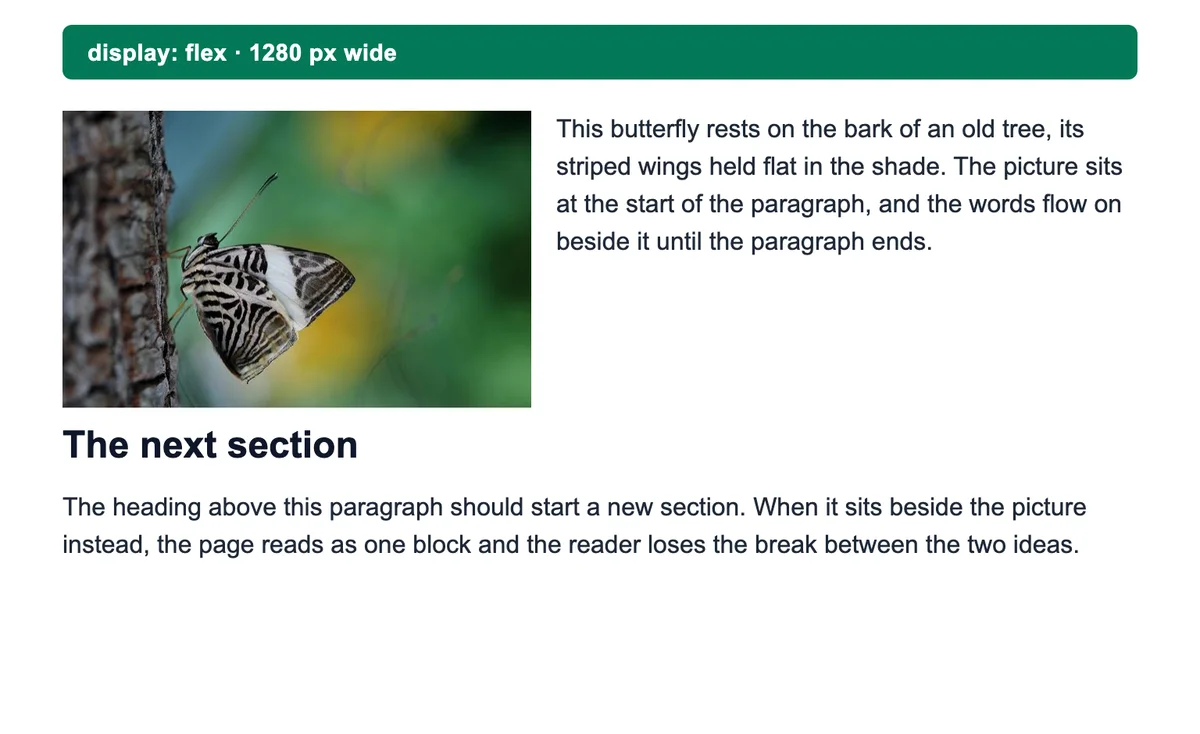
display: flex. Text beside the image in its own column, heading below.
Which should you pick? clear keeps the magazine look and only fixes what comes next. Flex and grid give you text beside the image without the wrap, which is what most people mean by “text beside image”. A plain block is the safest on a phone.
The flow-root trap
Many answers suggest display: flow-root on the text. That stops lines running under the image, because the paragraph becomes a box that sits beside the float. It does not stop the next heading jumping up: at 1280 pixels wide our heading still started beside the photo. On a phone it is worse, as the next section shows.
What happens to text beside an image on a phone?
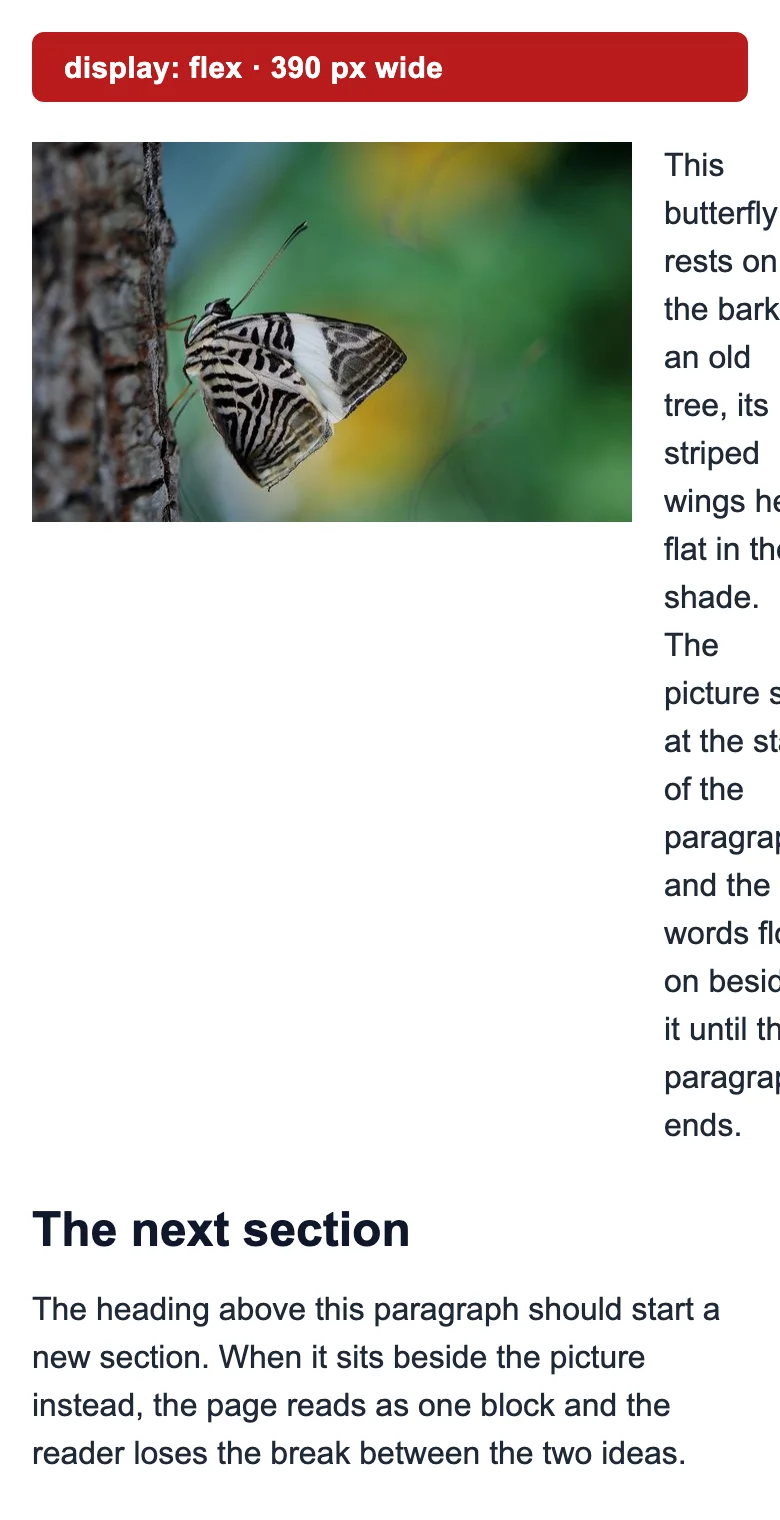
On a phone, a 300 pixel image leaves almost no room beside it. At 390 pixels wide our float left a 30 pixel gap, wide enough for 1 word. Flex, grid and flow-root are worse, because they hold the text in that column all the way down.
Lines one paragraph needs at 390 pixels wide
- display: block4
- float: left5
- display: flex or grid21
- flow-root on the text33
The fix is a media query. Float or flex on wide screens, then put the image on its own line below about 600 pixels:
.post img.left {
  float: left;
  margin: 0 16px 8px 0;
}
.post h2 { clear: both; }

@media (max-width: 600px) {
  .post img.left {
    float: none;
    display: block;
    width: 100%;
    height: auto;
    margin: 0 0 16px;
  }
}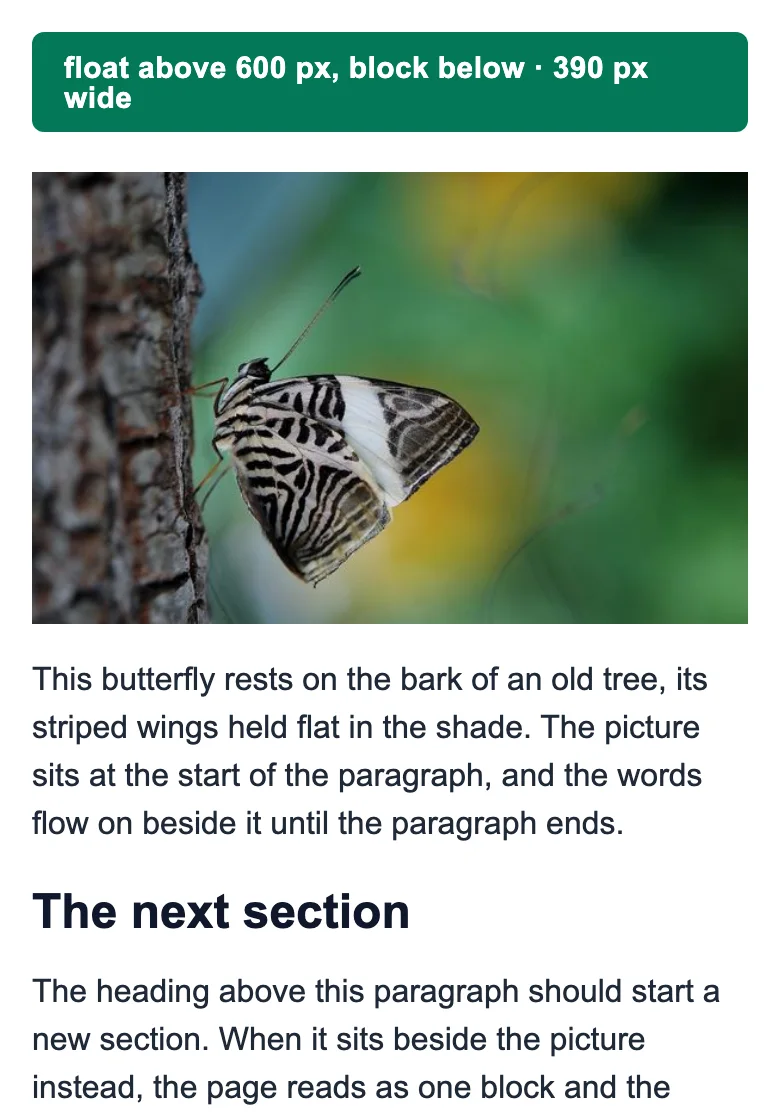
A full-width image on a phone should not be a full-size file. Our 1920 pixel example photo weighed 540.2 KB. Saved at 600 pixels wide, twice the 300 pixels it shows at, it was 21.5 KB as a JPG. Make that copy with the image resizer, and read the image optimization guide for srcset and sizes.
Why does the box around a floated image collapse?
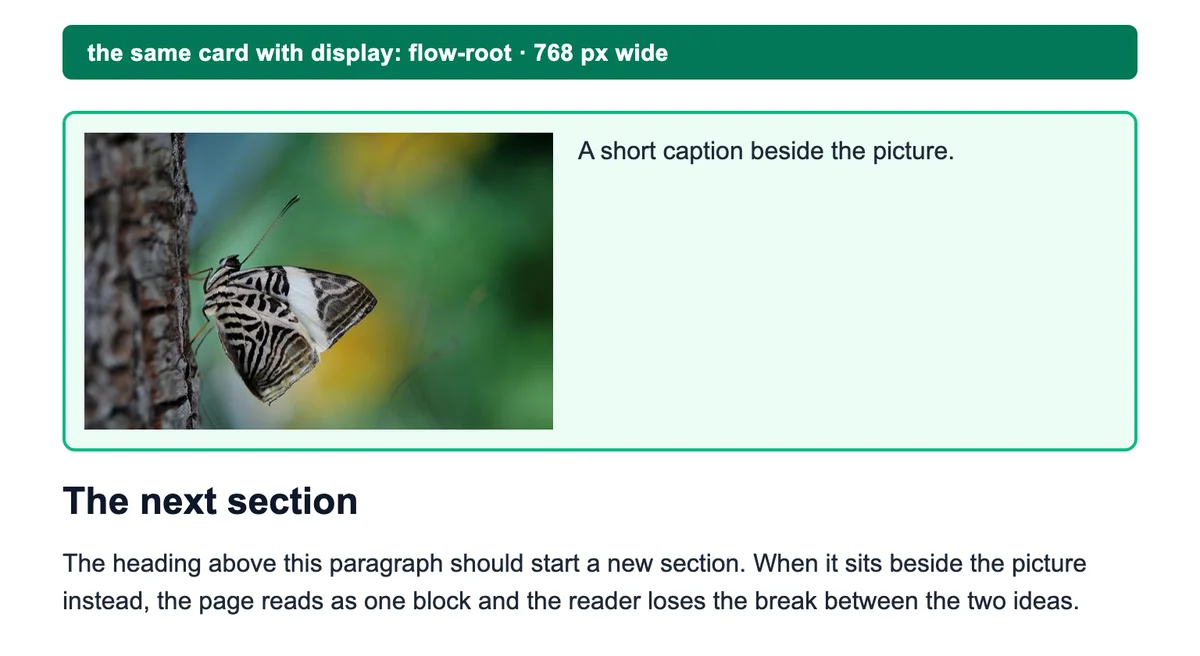
A box around a floated image collapses because floats do not count toward a parent’s height. In our test card, the photo was 190 pixels tall but the card measured 52 pixels. The photo hung out of the bottom, and the next heading rode up beside it.
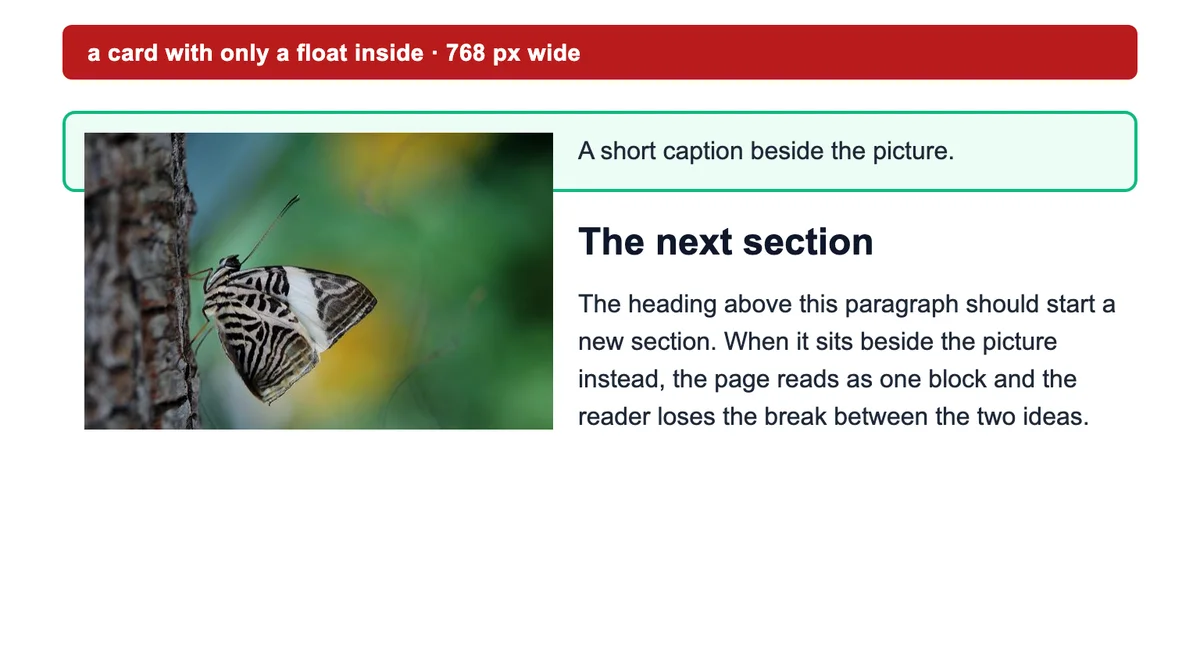
Add display: flow-root to the card. MDN describes it as a block box that starts a new block formatting context, and MDN’s float guide uses it to contain floats. Our card grew to 218 pixels and the heading started below it. That one line replaces the old clearfix hack.
How to wrap text around an image on purpose with CSS
To wrap text around an image on purpose, float it and give it a margin: float: left; margin: 0 16px 8px 0. The text then runs down the right side. That is the float image left pattern every guide shows, and it wraps to the straight edge of the box.
To follow the shape of the picture instead, add shape-outside. MDN says it works only on floats, and an image used as the shape must load with CORS, or no shape applies. Pointed at a PNG with transparent corners, it lets each line move in to the outline:
img.cutout {
  float: left;
  shape-outside: url(butterfly-cutout.png);
  shape-margin: 12px;
}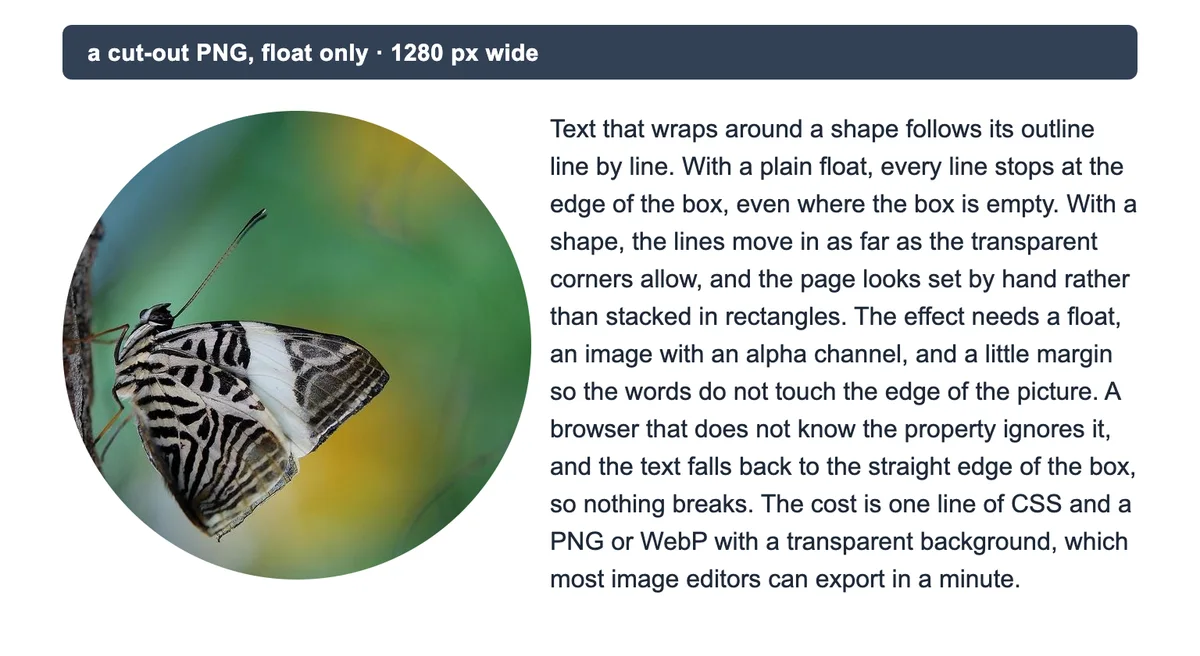
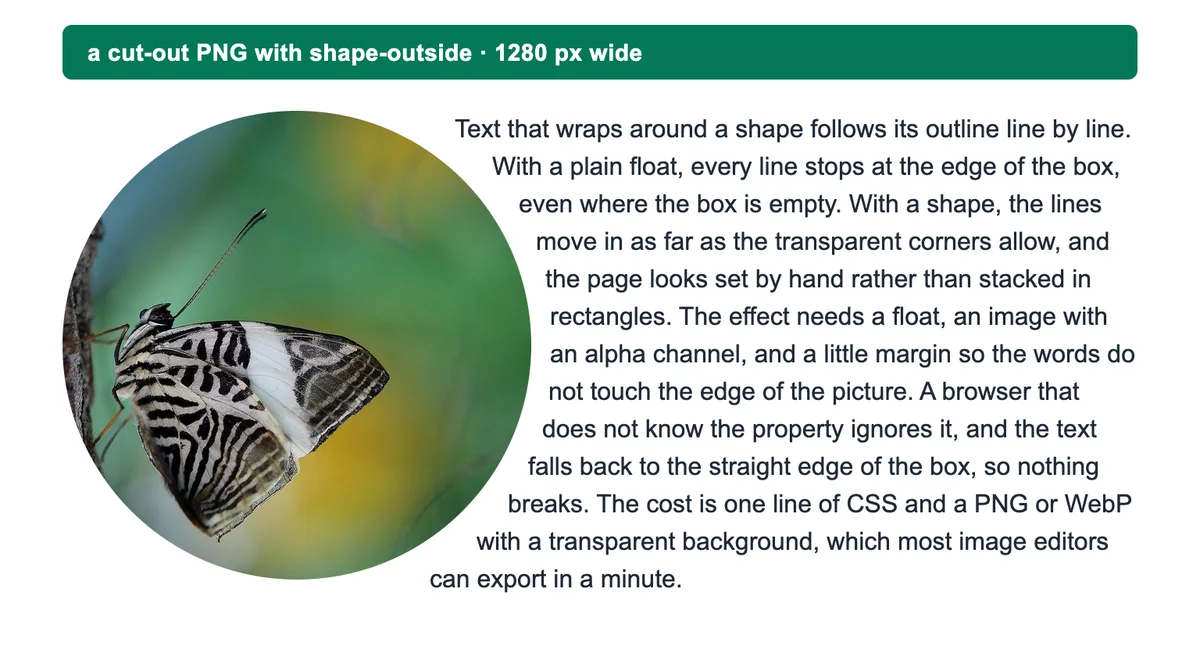
In our test, the lines beside the top and bottom of the circle started up to 77 pixels further left than with the plain float. A browser that does not support the property falls back to the square wrap, so nothing breaks.
How to stop text wrapping around a picture in Word and Google Docs
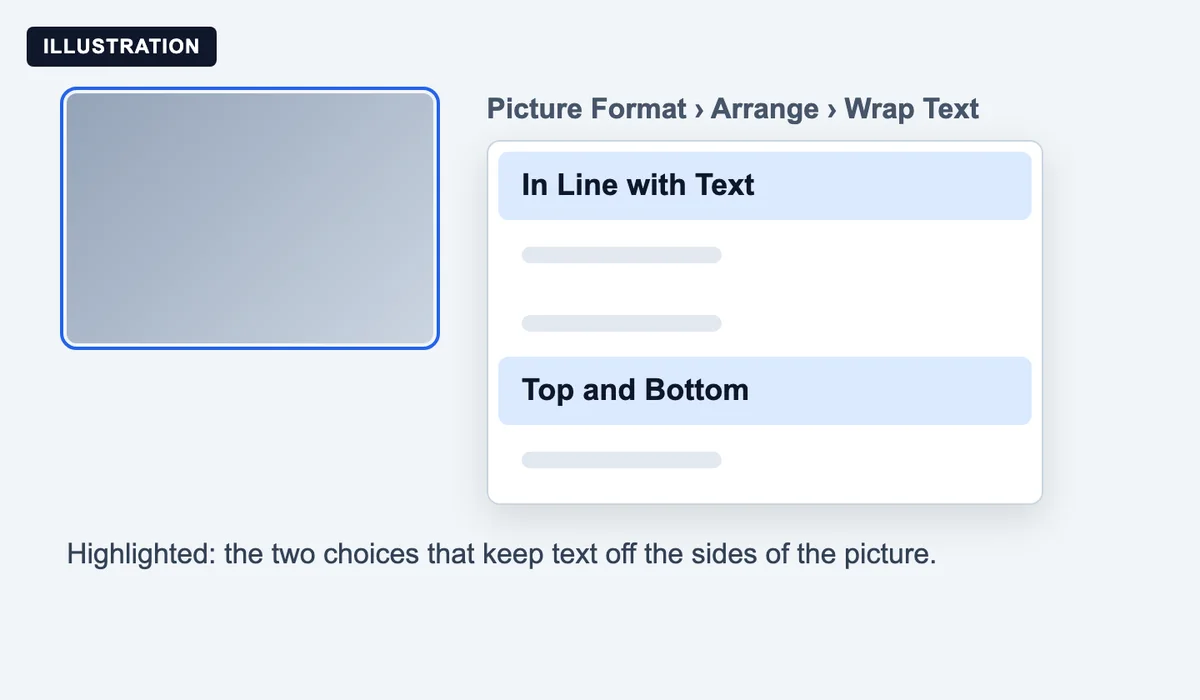
In Word, select the picture and open Wrap Text. Microsoft’s wrap text guide gives the path on a Mac as Picture Format, Arrange, Wrap Text, and on Windows as Picture Format, Wrap Text. Choose In Line with Text for no wrap, or Top and Bottom to keep the picture where it is with text only above and below.
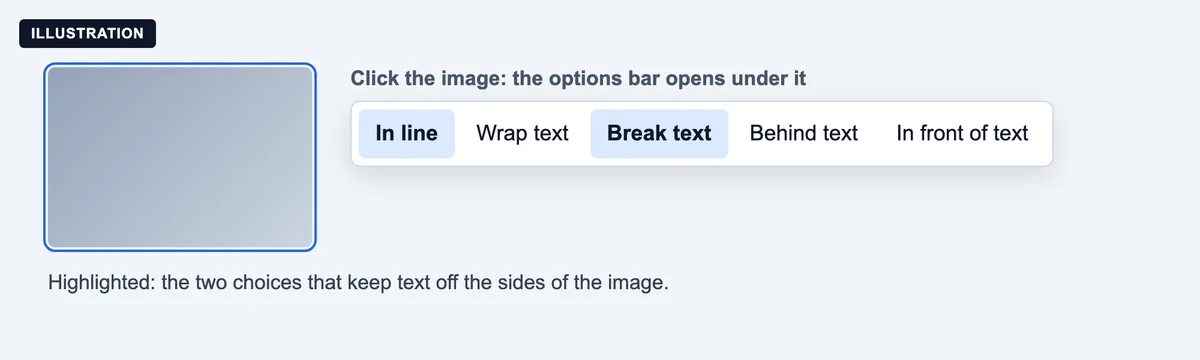
In Google Docs, click the image and pick an option in the bar under it. Google’s image help page lists In line, Wrap text, Break text, Behind text and In front of text. In line or Break text stops the wrap. Google notes these layout options work in documents set to Pages, not pageless.
How we tested
- The page: one article column, 720 pixels at most with a 16 pixel gutter, Arial 16 on 24. A 38-word paragraph, a heading and a second paragraph. The photo is a butterfly from Blinkimg’s own library, shown 300 pixels wide.
- The browser: Chromium 149.0.7827.55 through Playwright, at 390, 768, 1280 pixels wide, on 2026-10-28. Only the CSS in the table changed between runs.
- The counts: lines from Range.getClientRects on the paragraph; boxes from getBoundingClientRect. A line counts as beside the photo when its middle is above the photo’s bottom edge.
- The cut-out: the same photo cut to a circle with transparent corners, a PNG, loaded as a data URL.
- The file sizes: Blinkimg’s engine, version 10, at Auto quality, 600 pixels wide.
- Word and Google Docs: from Microsoft’s and Google’s help pages, read on 29 October 2026. The pictures are illustrations.
Next step
Add clear: both to the element after your image, then check the page at phone width. If the image fills the screen there, make a 2× copy with the image resizer so it loads fast. Want the text on top of the photo instead? Our CSS background image opacity test shows how to keep it readable.
Read the full guide: Image optimization for the web: formats, sizes and lazy loading.
Questions
- How do I make text not wrap around an image in HTML?
- Remove the float from the image, or add clear: both to the element after it. Text wraps because the image has float: left or float: right, or an old align attribute. With the float gone, the image sits on its own line and the text starts under it at every screen width.
- What does clear: both do in CSS?
- clear: both moves an element below every float that comes before it, on the left and the right. Put it on the heading or paragraph that should start under the image. In our Chromium test it moved the next heading 86 pixels down, from beside the photo to under it.
- How do I put text beside an image without it wrapping under?
- Wrap the image and the text in one box with display: flex or display: grid. The text stays in its own column beside the image and never runs underneath. On a phone, switch the box to a single column with a media query, or the text column gets very narrow.
- What is display: flow-root for?
- display: flow-root makes a box contain its floats, so a card around a floated image grows to the image’s height. It replaces the old clearfix hack. In our test it grew a collapsed card from 52 to 218 pixels. It goes on the parent, not on the next element.
- How do I wrap text around an image in CSS?
- Float the image with float: left or float: right and give it a margin, such as margin: 0 16px 8px 0. The text then flows down the other side and continues under the image. To follow the picture’s outline instead of its box, add shape-outside with a transparent PNG.
- Does shape-outside work in every browser?
- MDN lists shape-outside as widely available across current browsers. It only works on a floated element. An image used as the shape must be same-origin or served with CORS headers, or no shape applies. A browser without support falls back to the straight wrap of the box.
- Why does my heading appear next to my image?
- Your heading sits next to the image because the image floats and the paragraph before the heading is shorter than the image. The heading then flows into the space beside the float. Add clear: both to the heading, or to every h2 in your post styles.
- How do I stop text wrapping around a picture in Word?
- Select the picture and open Wrap Text on the Picture Format tab. Choose In Line with Text to treat the picture like a character on its own line, or Top and Bottom to keep text only above and below it. Microsoft’s help page gives both options.
- How do I stop text wrapping around an image in Google Docs?
- Click the image, then choose In line or Break text in the options bar under it. Google’s help page lists five options: In line, Wrap text, Break text, Behind text and In front of text. The options work in documents set to Pages, not in pageless mode.
- Why does text wrap around images on my WordPress site?
- The image block is aligned left or right, which adds a class such as alignleft that floats it. Set the block’s alignment to None or Center to stop the wrap. To keep the alignment, add clear: both to the following heading in your theme’s custom CSS.