Gmail attachment size limit: we tested where 25 MB ends
The Gmail attachment size limit is 25 MB for a personal account, across all files in one email. We tested it with real photos: Gmail counted the files, not the email, and its 25 MB means 26,214,400 bytes. Part of the image compressor.
By Sahadat Husain12 min readGuides

What is the Gmail attachment size limit?
The Gmail attachment size limit is 25 MB for a personal account, counted across every file in one email. Google’s help page puts it plainly: “For personal Gmail accounts, the limit is 25 MB.” A work or school account follows the limit its Google Workspace administrator sets.
Go over it and Gmail does not refuse the email. Google says it "automatically removes the attachment and adds it as a Google Drive link in the email." The person gets a link to the file, not the file.
Does Gmail’s 25 MB count the encoding?
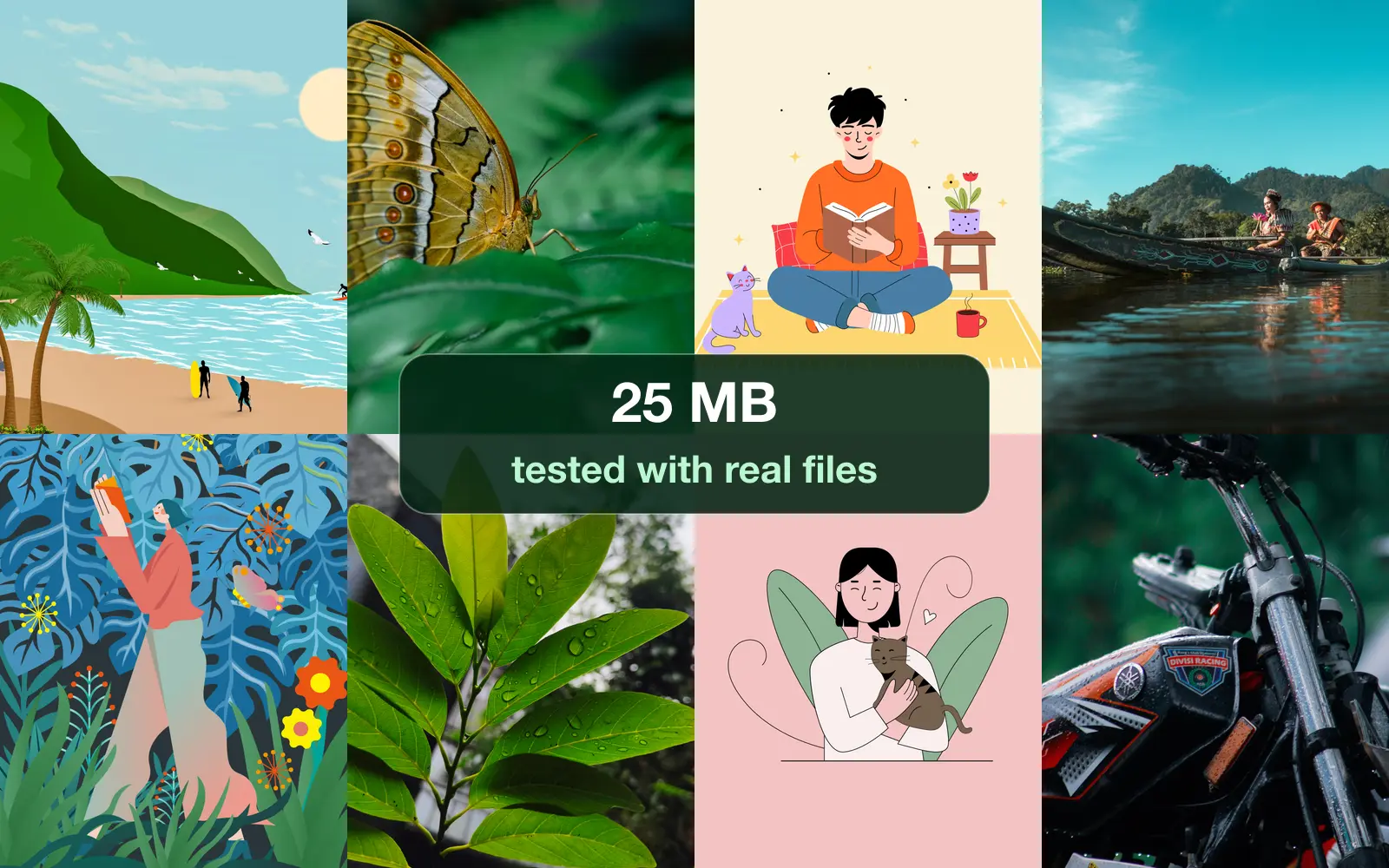
No, not when you attach. We tested it in a real Gmail account on 16 October 2026, attaching our own photos one step at a time to an unsent draft. Gmail counted the files themselves, and its 25 MB turned out to be 25 × 1,048,576 bytes: 26,214,400 bytes. Google’s help page says neither.
| Step | Files attached | As one email | What Gmail did |
|---|---|---|---|
| 1 | 8,988,436 bytes | about 12.3 MB | Kept every file attached |
| 2 | 17,506,357 bytes | about 24.0 MB | Kept every file attached |
| 3 | 18,705,902 bytes | about 25.6 MB | Kept every file attached |
| 4 | 24,128,649 bytes | about 33.0 MB | Kept every file attached |
| 5 | 25,423,822 bytes | about 34.8 MB | Kept every file attached |
| 6 | 26,534,523 bytes | about 36.3 MB | Made 19.jpg a Drive link |
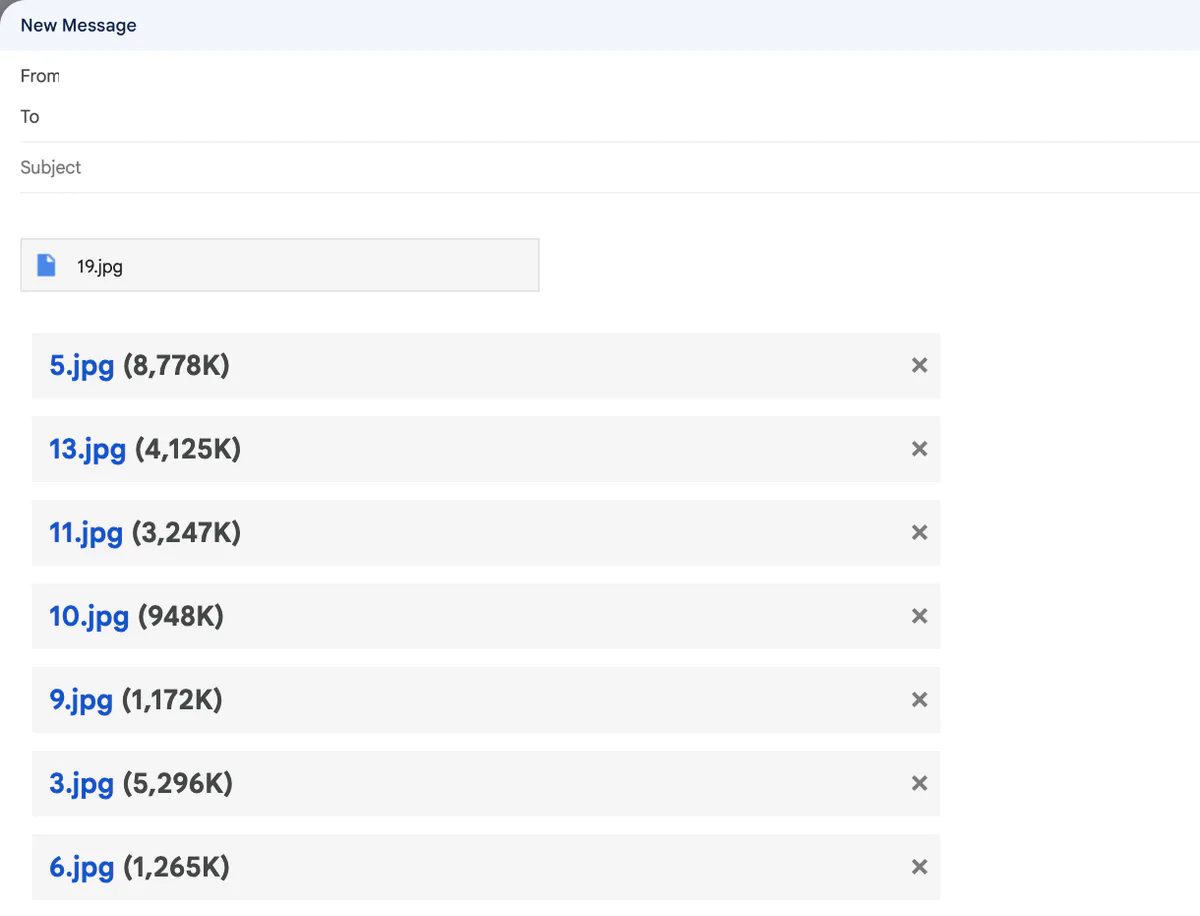
Two things surprised us. First, Gmail let 25.4 MB of files through, past 25 million bytes, because its labels count a kilobyte as 1,024 bytes: 8,988,436 bytes shows as “8,778K”. Second, only the file that crossed the line became a Drive link. The seven files before it stayed real attachments.
Why the encoding still matters
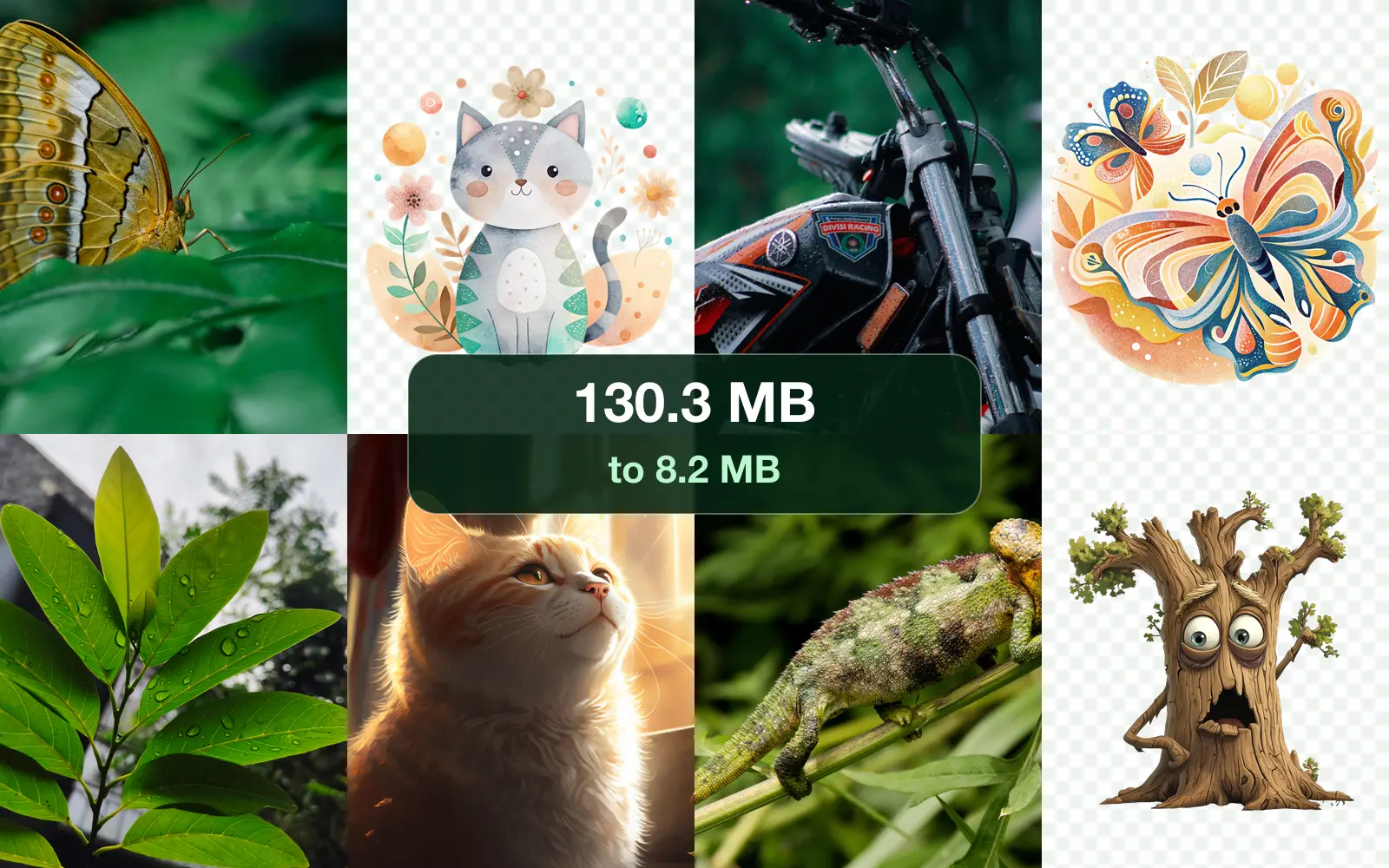
The email that leaves Gmail is bigger than the files. Email turns every attachment into text called base64, and the standard, RFC 2045, writes 3 bytes as 4 characters with a line break every 76. We measured it: 95.2 MB of our images became a 130.3 MB email, 36.8% bigger. The 25.4 MB Gmail accepted makes a 34.8 MB email.
That size meets the receiving end. Google counts mail that arrives in Workspace “after encoding, which adds about a 37% increase”, and sends it “before encoding”. A server that counts the whole email against 25 MB would refuse a full Gmail message. To be safe with any recipient, keep attachments under about 18.3 MB: that is what a 25 MB limit holds once it counts the email.
How many photos fit in one Gmail?
Six of our originals, in folder order, by Gmail's own rule. The seventh, a 13.9 MB portrait, pushed the total past 26,214,400 bytes. Sending all 20 originals that way takes 4 emails.
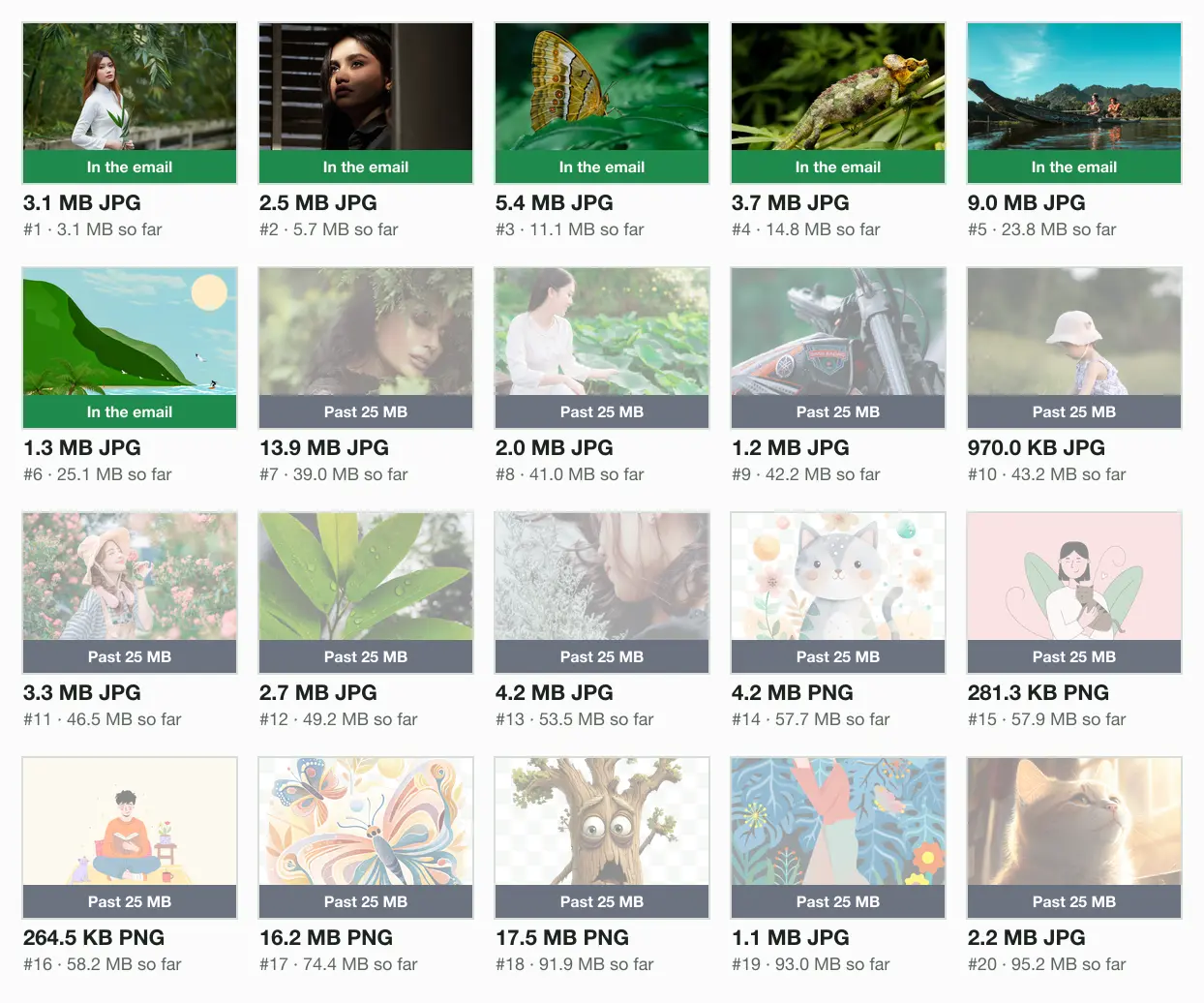
Resized to 1920 pixels, all 20 fit one email with 6.0 MB of files. The whole test is in our guide to compress photos for email.
Gmail attachment limits for Google Workspace
| Workspace plan | Sending | Receiving |
|---|---|---|
| Business | 25 MB | Not stated |
| Education | 25 MB | Not stated |
| Enterprise Standard | 25 MB | 50 MB |
| Enterprise Plus | Up to 50 MB, on the web only | 70 MB |
Sending counts the message before encoding; receiving counts it after. Since February 2026, an Enterprise Plus admin can switch on 50 MB attachments. Google adds: “There is no end user setting for this feature.” Nobody else can raise the limit, and a personal account has no setting at all.
How big an email can Gmail receive?
For a personal account, Google does not say. It publishes a receiving limit only for Workspace: 50 MB on Enterprise Standard and 70 MB on Enterprise Plus, counted after encoding. Counted that way, 50 MB holds 36.5 MB of files and 70 MB holds 51.2 MB. The “Gmail receives 50 MB” line many guides repeat comes from those Workspace pages.
When Gmail turns a message away, the sender gets the bounce, not you. Google’s list of error codes includes “552 5.3.4 Your message exceeded Google’s message size limits”. A full account bounces mail too: Google says “Messages sent to you go back to the sender.”
What happens when you attach more than 25 MB in Gmail
- The files become a Drive link. Gmail uploads them to your Google Drive and puts a link in the email.
- Gmail checks sharing. If the person cannot open the file, Google says “you’ll be prompted to change the sharing settings of the file before you send your message.”
- The file uses your storage. Files in Drive count toward the up to 15 GB each Google Account gets, shared with Gmail and Photos. A file you share uses only the owner’s storage, never the recipient’s.
- A full Drive stops it. If the upload fails, Gmail shows “Couldn’t send message” and suggests that you may not have enough space.
How to send large files through Gmail with Google Drive
Open Gmail and click Compose
On a computer, in the browser.
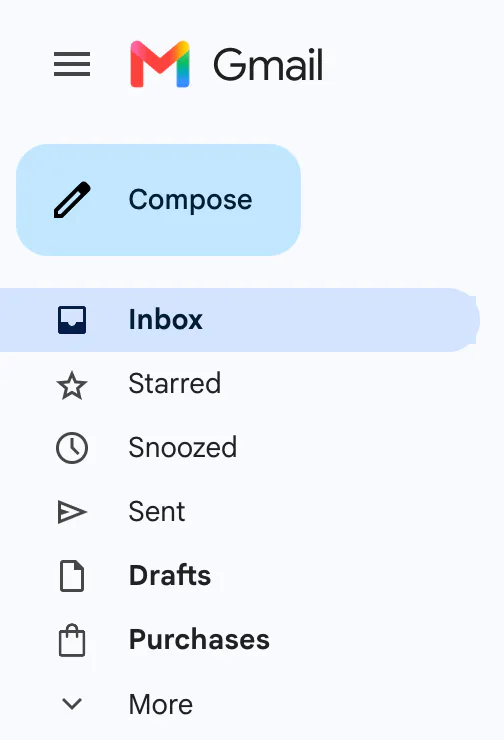
Screenshot: Compose sits at the top left of Gmail on the web. The message counts are hidden. Click Insert files using Drive
Google puts it at the bottom of the message. Select the files you want to send.
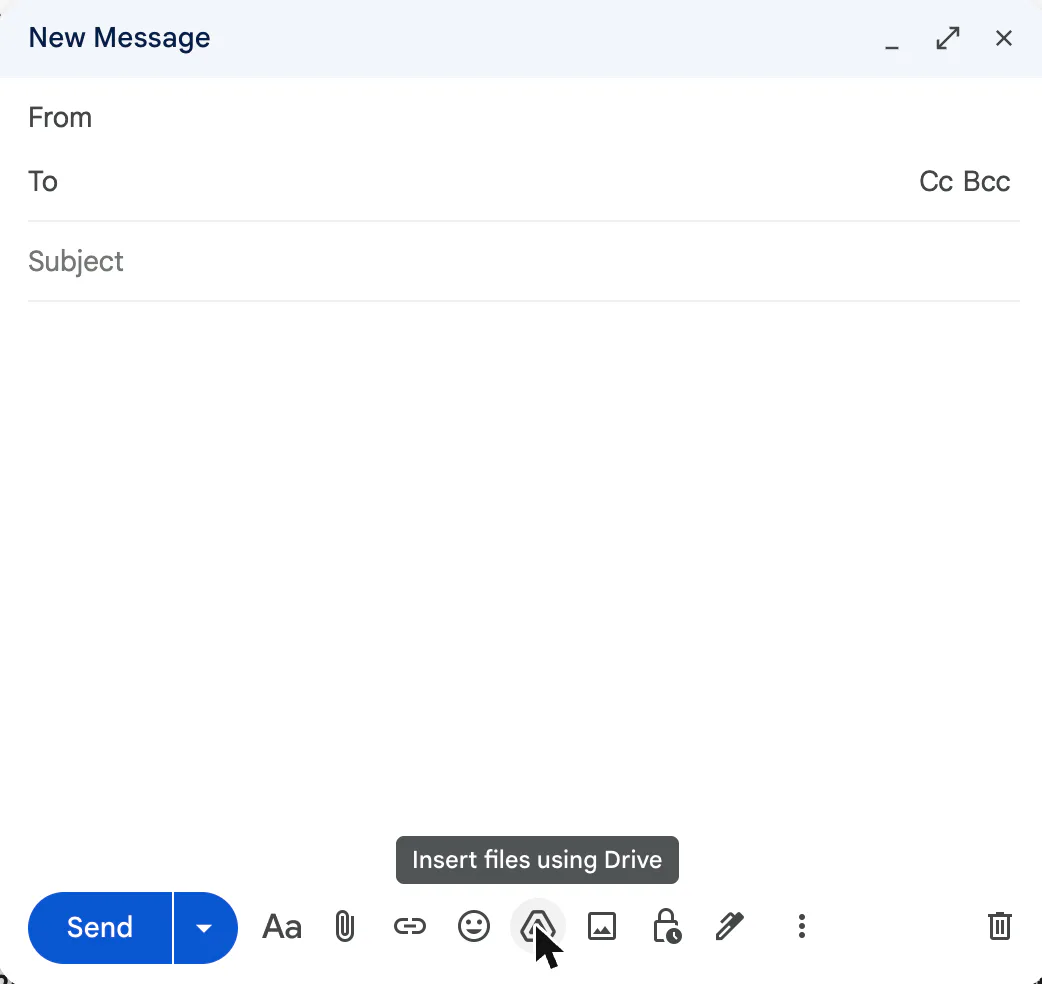
Screenshot: the Drive button’s tooltip says Insert files using Drive, Google’s own words. The sender address is hidden. Choose Add as link or Add as attachment
Pick the files, then the button. Gmail’s buttons say Add as link and Add as attachment; Google’s help page calls them Drive link and Attachment. A link works for any file in Drive; an attachment sends the file itself, and works only for files not made in Google Docs, Sheets, Slides or Forms.
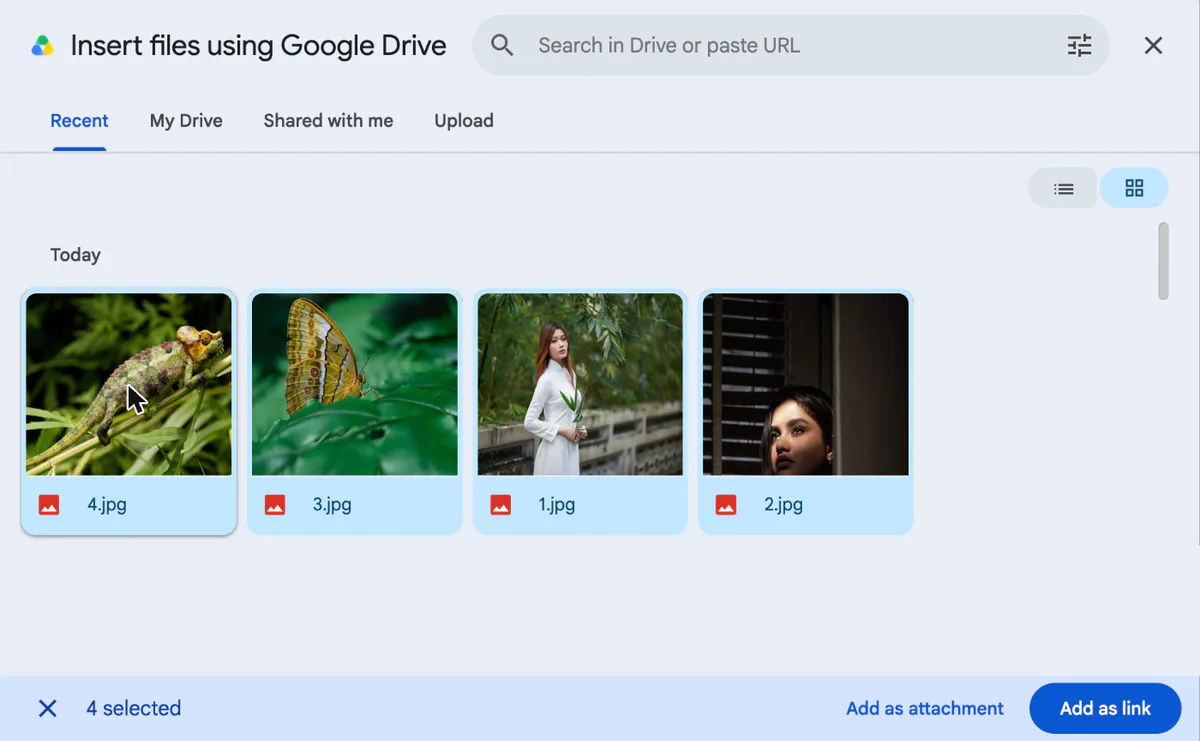
Screenshot: four photos selected in the Drive picker. Gmail’s buttons read Add as attachment and Add as link. Other files in the account are hidden. Click Insert, then Send
Allow access if Gmail asks. Recipients do not need a Google Account to open a file shared with anyone who has the link.
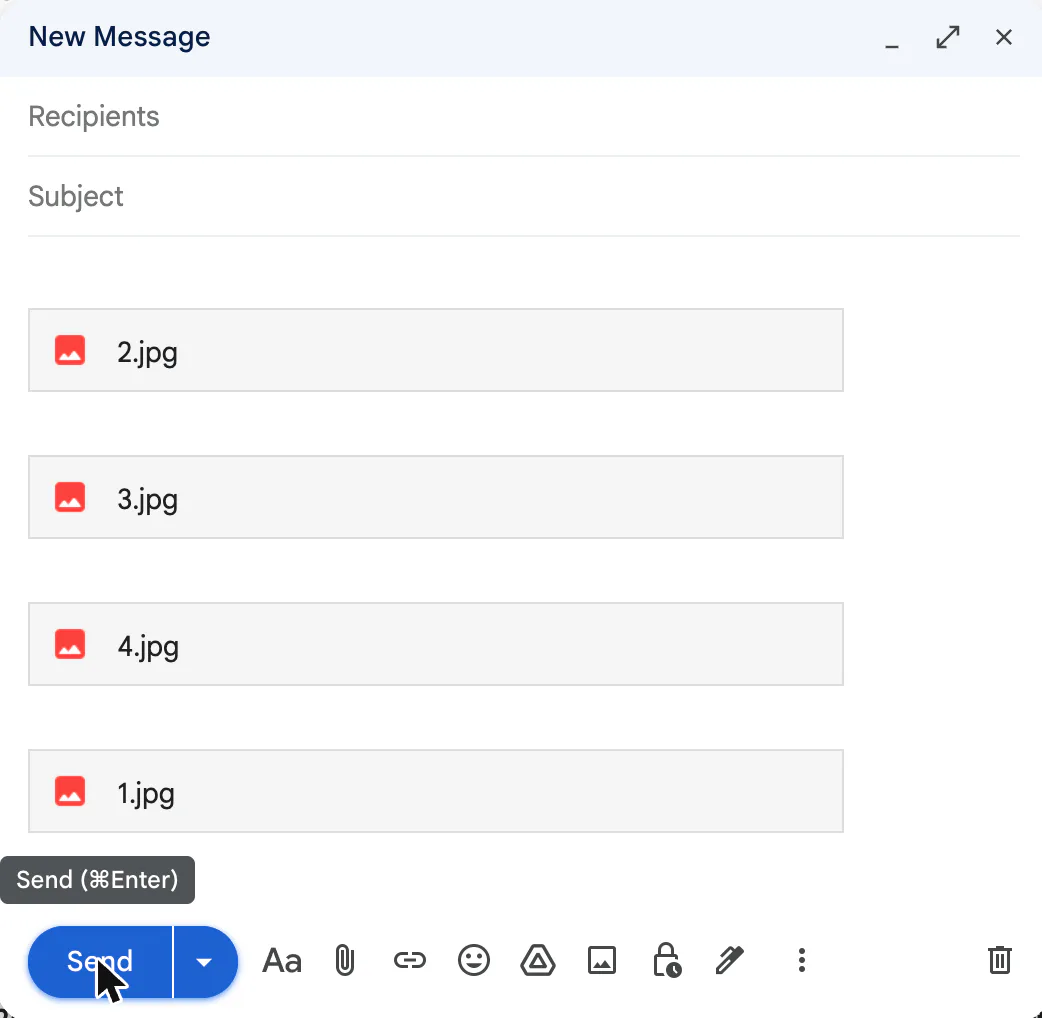
Screenshot: the photos inserted as Drive links, before Send. The email itself stays small.
Drive takes a file of up to 5 TB, so the size of a link is not the problem. The storage it uses is.
How to send large files in the Gmail app on Android and iPhone
- Android: tap Compose, then Attach, then Insert from Drive. Google says you can pick photos “up to five at a time”. Gmail Go cannot send Drive attachments, so paste the Drive link into the message instead.
- iPhone and iPad: tap Attach and choose a file from the Google Drive section. Pick up to 5 photos at a time. A single photo goes into the message text; tap it and choose Send as attachment to attach it instead.
How to send files over 25 MB in Gmail without Google Drive
- Split them across emails. Our 20 originals took 4 emails. Number the subjects so nothing gets missed.
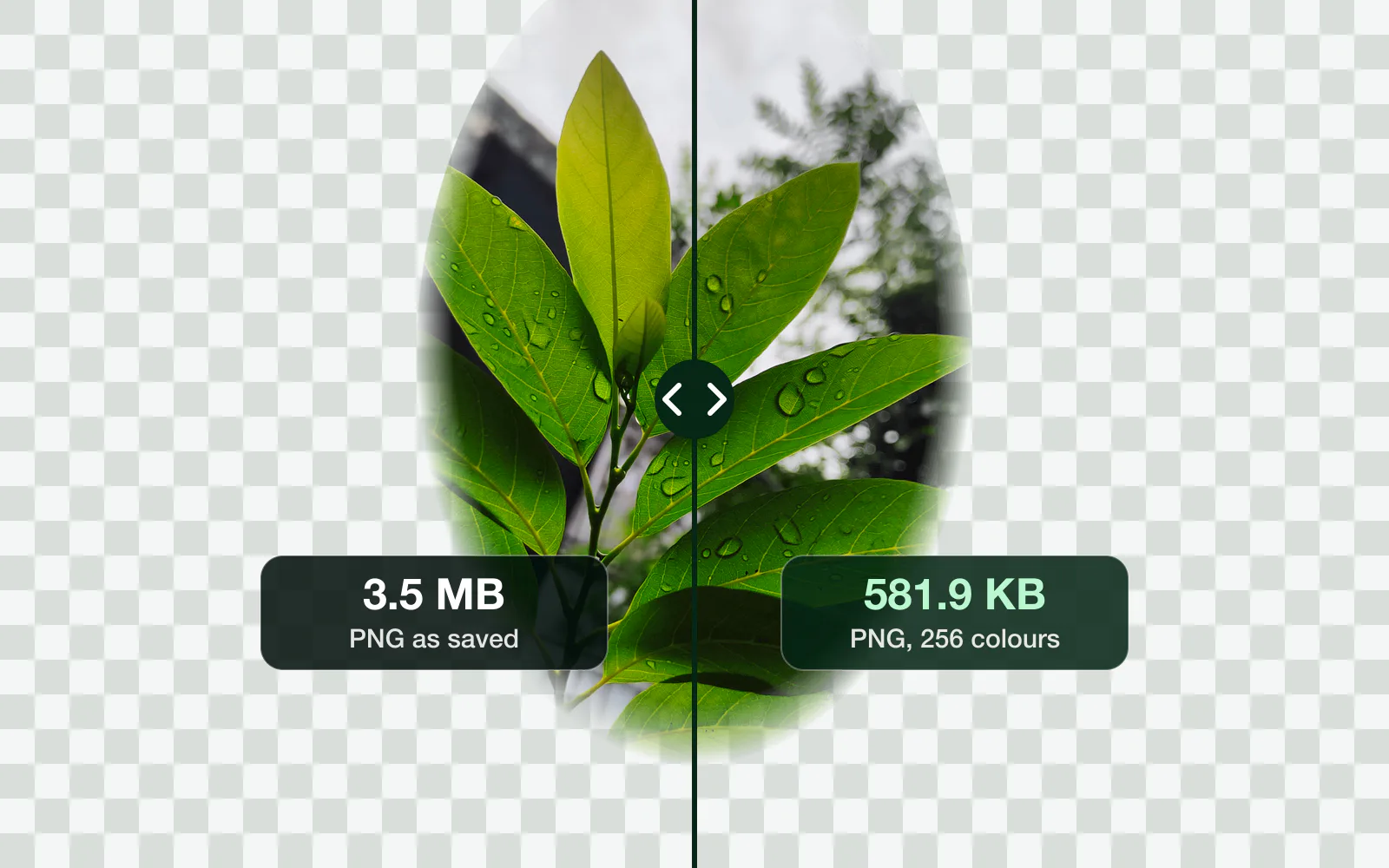
- Make photos smaller first. At 1920 pixels our 20 images fit one 8.2 MB email. A JPG barely shrinks in a ZIP, because it is already compressed.
- Use another file-sharing service that sends a link, such as OneDrive or Dropbox.
- On Enterprise Plus, ask your admin to turn on 50 MB attachments.
Make photos smaller on Blinkimg
Set Max resolution to 1920
Open Advanced settings and type 1920 in both Max resolution boxes. An empty side keeps the ratio, and a photo is never enlarged.
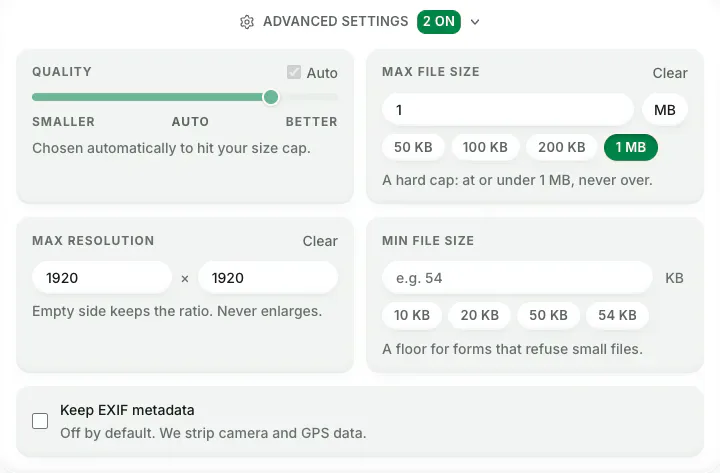
Screenshot: Max resolution at 1920 × 1920 on blinkimg.com. Drop the photos and download the ZIP
We dropped three of our originals on blinkimg.com: 9.7 MB went in and 553.1 KB came out, ready for one email well under 25 MB.
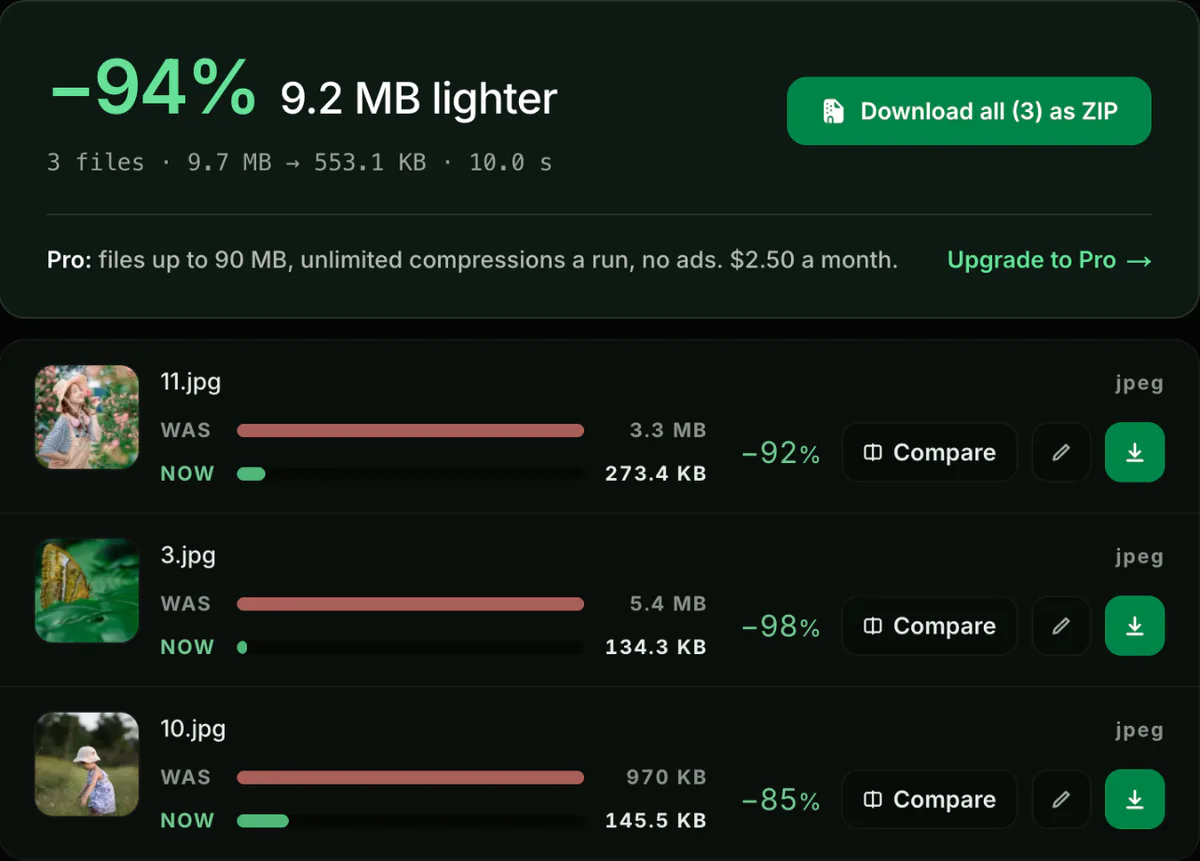
Screenshot: a live run on blinkimg.com on 16 October 2026, three photos from 9.7 MB to 553.1 KB at 1920 pixels.
File types Gmail blocks, even inside a ZIP
Size is not the only reason an attachment fails. Gmail blocks 54 file types “including their compressed form” and “when found within archives (like .zip or .tgz files)”. It also blocks password-protected archives with archived content, and documents with malicious macros.
- Programs and installers: .exe, .msi, .bat, .cmd, .dll, .scr and others.
- Mac and Android installers: .dmg and .apk.
- Disk images: .iso, .img and .vhd.
- Scripts: .js, .vbs, .ps1 and others, so a website’s code cannot travel in a ZIP.
No image format is on the list. JPG, PNG, WebP, AVIF, HEIC, GIF and SVG files attach normally, and so do PDFs.
How to find large attachments and free up Gmail storage
Search Gmail for has:attachment larger:10M to list every email with an attachment over 10 MB. Both are Google’s own search operators. Delete what you no longer need, then empty Trash, since Trash counts toward your storage. Google says the space can take 48 to 72 hours to show up after you delete many files at once.
Gmail vs Outlook, Yahoo and iCloud attachment limits
| Email service | Limit | Above it |
|---|---|---|
| Gmail, personal | 25 MB | A Google Drive link |
| Outlook.com | 25 MB, the whole email | A OneDrive link, up to 2 GB |
| Yahoo Mail | 25 MB, sent and received | Not stated |
| iCloud Mail | 20 MB | Mail Drop, up to 5 GB |
Sources: Microsoft, Yahoo and Apple. The classic Outlook app on Windows stops at 20 MB, and a business Exchange account at 10 MB by default.
How we tested
- The Gmail test: on 2026-10-16, Gmail on the web in Chrome on a Mac, a personal account, one unsent draft. Real photos from our set attached in 6 steps with Attach files, each step checked: every file a regular attachment, or one a Drive link. Nothing was sent.
- The emails: built byte for byte the way a mail app writes one, base64 in 76-character lines with a header for each file, and measured, on our 20 photos (95.2 MB), the same set as the email guide.
- The sources: Google’s Gmail, Drive, Google One and Workspace help pages, read on 16 October 2026. How we measure covers the rest.
Read the full guide: How to reduce image file size on any device.
Questions
- How do I send a file bigger than 25MB on Gmail?
- Attach it from Google Drive. In Gmail on a computer, click Compose, then Insert files using Drive, pick the file and choose Add as link. Gmail does the same by itself when your attachments pass 25 MB. Drive takes files of up to 5 TB, as long as your storage has room.
- How large of a file can Gmail send?
- 25 MB in total across every file, and in our test that meant 26,214,400 bytes. Gmail kept 25.4 MB of files as attachments and turned the next file into a Drive link at 26.5 MB. Above that, the files go as Drive links of up to 5 TB each.
- Is there a 5MB attachment limit in Gmail?
- No. A personal Gmail account sends up to 25 MB of attachments in one email, and Google lists no 5 MB limit. A smaller limit can come from somewhere else, such as the recipient’s mail server or an upload form. In the Gmail apps on Android and iPhone, you can pick up to five photos at a time.
- Can I increase the Gmail maximum attachment size?
- Only on Google Workspace Enterprise Plus, where an admin can switch on 50 MB attachments on the web. Google says there is no end user setting for it. A personal account and other Workspace plans stay at 25 MB, so a larger file goes as a Google Drive link instead.
- Why does Gmail say my file is larger than 25MB, but it’s not?
- Because the limit covers every attachment in the email together, not one file. Add up all the files: in our test, seven photos of 1 to 9 MB each passed the line together. Gmail also counts a kilobyte as 1,024 bytes, so its sizes read smaller than a computer that counts 1,000.
- How do I send files bigger than 25MB on Gmail without Google Drive?
- Split them across several emails, or make them smaller first. Our 20 photo originals needed 4 emails, but resized to 1920 pixels all 20 fit one email with 6.0 MB of files. A link from another file-sharing service such as OneDrive or Dropbox also works.
- What is the Gmail max file size?
- As attachments, 25 MB in total, which our test placed at 26,214,400 bytes. As a Google Drive link, a single file can be up to 5 TB, the most Drive stores. The link uses your Google storage, which starts at up to 15 GB shared with Gmail and Photos.
- How big an email can Gmail receive?
- Google does not publish a receiving limit for personal Gmail accounts. Google Workspace receives up to 50 MB on Enterprise Standard and 70 MB on Enterprise Plus, counted after encoding, with up to 500 attachments. When Gmail turns a message away, the sender gets a 552 bounce.
- How many photos can I attach in Gmail at once?
- On a computer, as many as fit in 25 MB in total. In the Gmail app on Android and iPhone, you can select up to five photos at a time, then add more. On iPhone, a single photo goes into the message text unless you tap it and choose Send as attachment.
- Can you send a ZIP file through Gmail?
- Yes, unless it holds a blocked file type such as .exe, .dmg, .apk or .js, or it is a password-protected archive. Gmail checks inside ZIP files. A ZIP barely shrinks photos, because JPG files are already compressed, so resize photos instead of zipping them to save space.
- What is the Gmail attachment limit in KB?
- 25,600 KB in Gmail's own units, where a kilobyte is 1,024 bytes: 26,214,400 bytes. Gmail labels each attachment that way, so a 8,988,436-byte photo shows as 8,778K. In our test, attachments adding up to 24,831K stayed attached, and the next file past the line went as a Drive link instead.
- Does a Google Drive link count toward Gmail’s 25 MB?
- Gmail sends a link instead of the file, so the email itself stays small. The file lives in your Google Drive and counts toward your storage, not the recipient’s. Choosing Add as attachment instead of Add as link sends the file itself, like any other attachment in the email.