How to compress photos for email: 20 images, measured
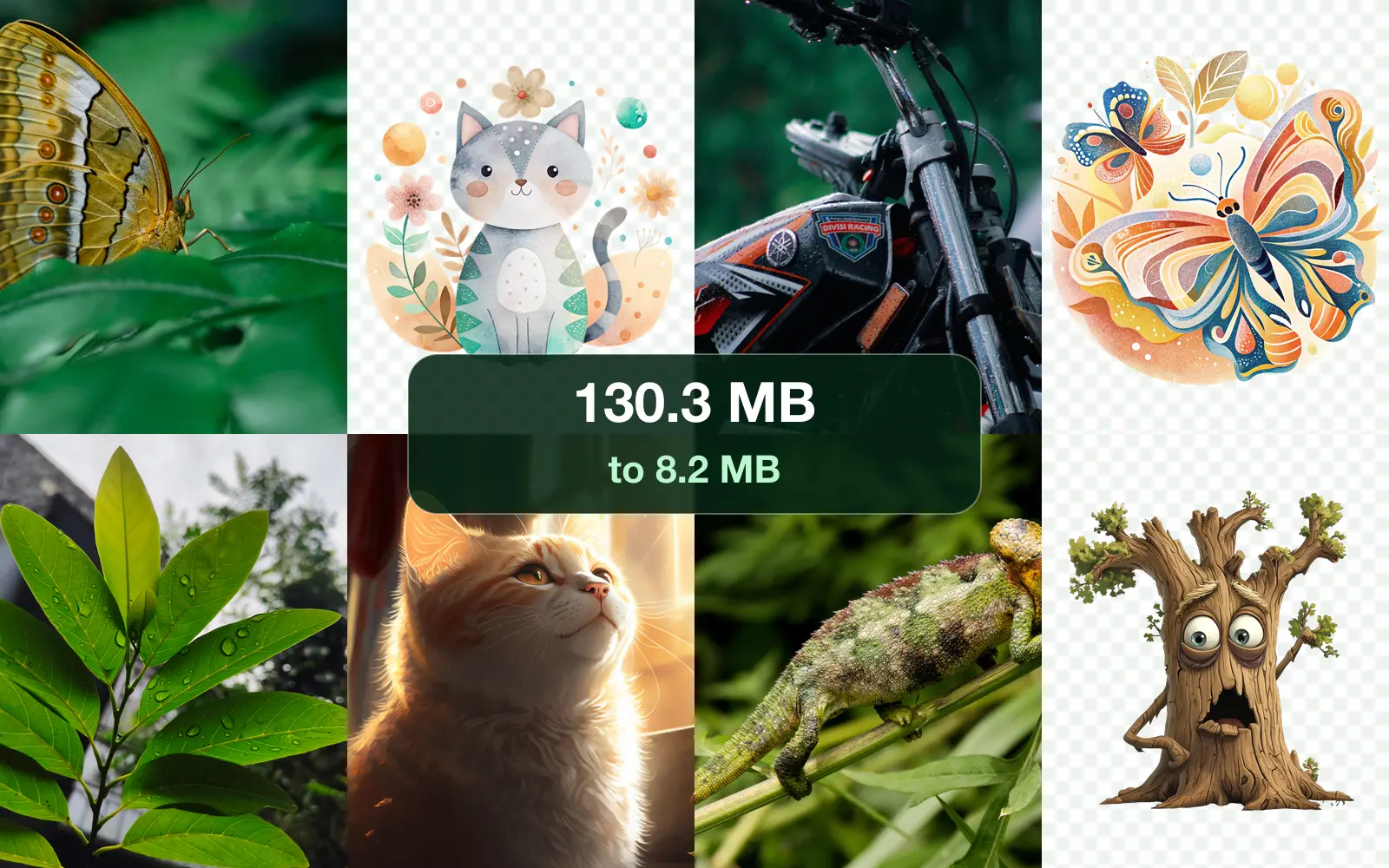
To compress photos for email, resize them to about 1920 pixels on the long side and save them as JPG. We tried it on 20 real images: the email went from 130.3 MB to 8.2 MB, under every provider's limit. Part of the image compressor.
By Sahadat Husain15 min readGuides

We tried to email 20 images. Here is what happened
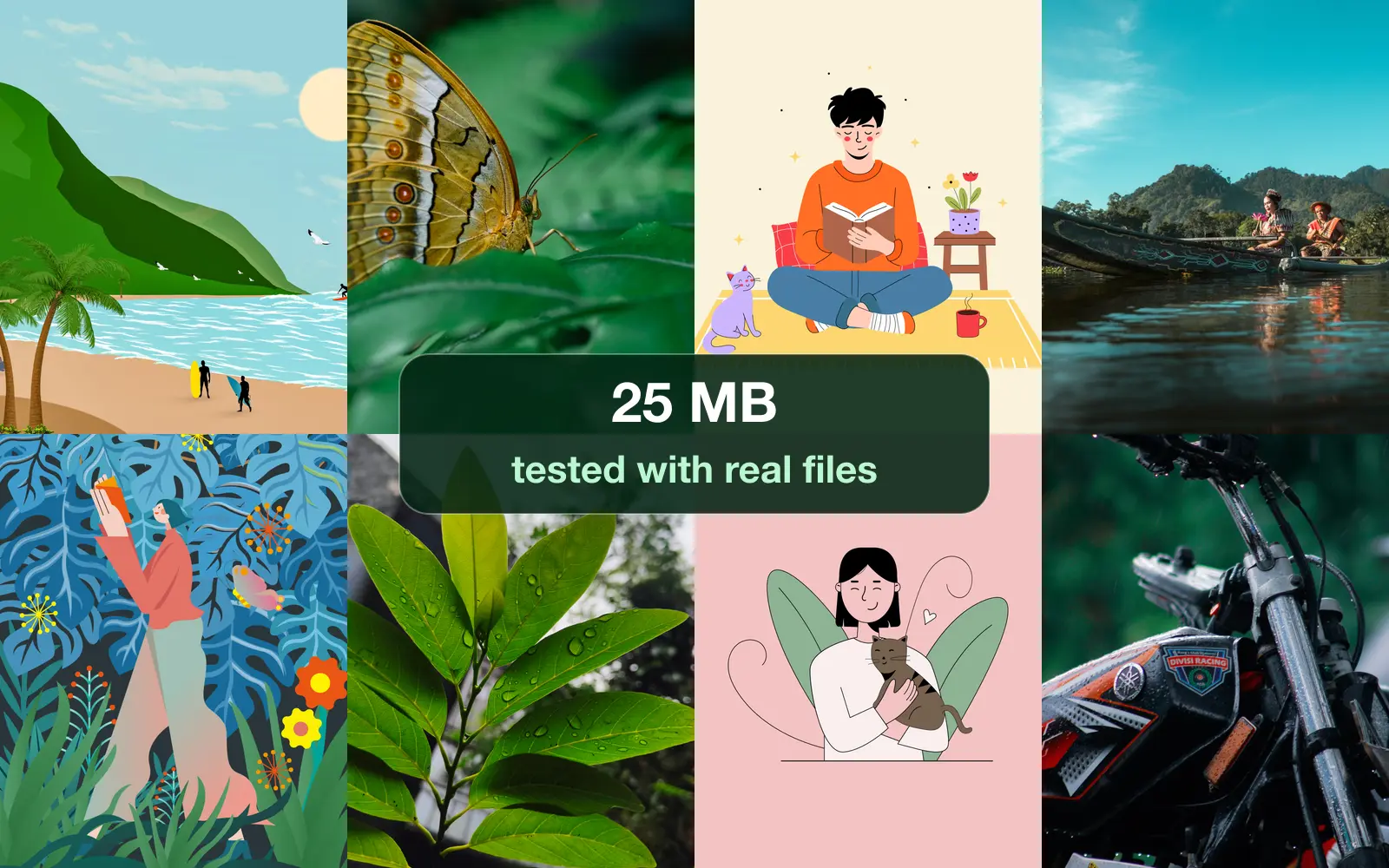
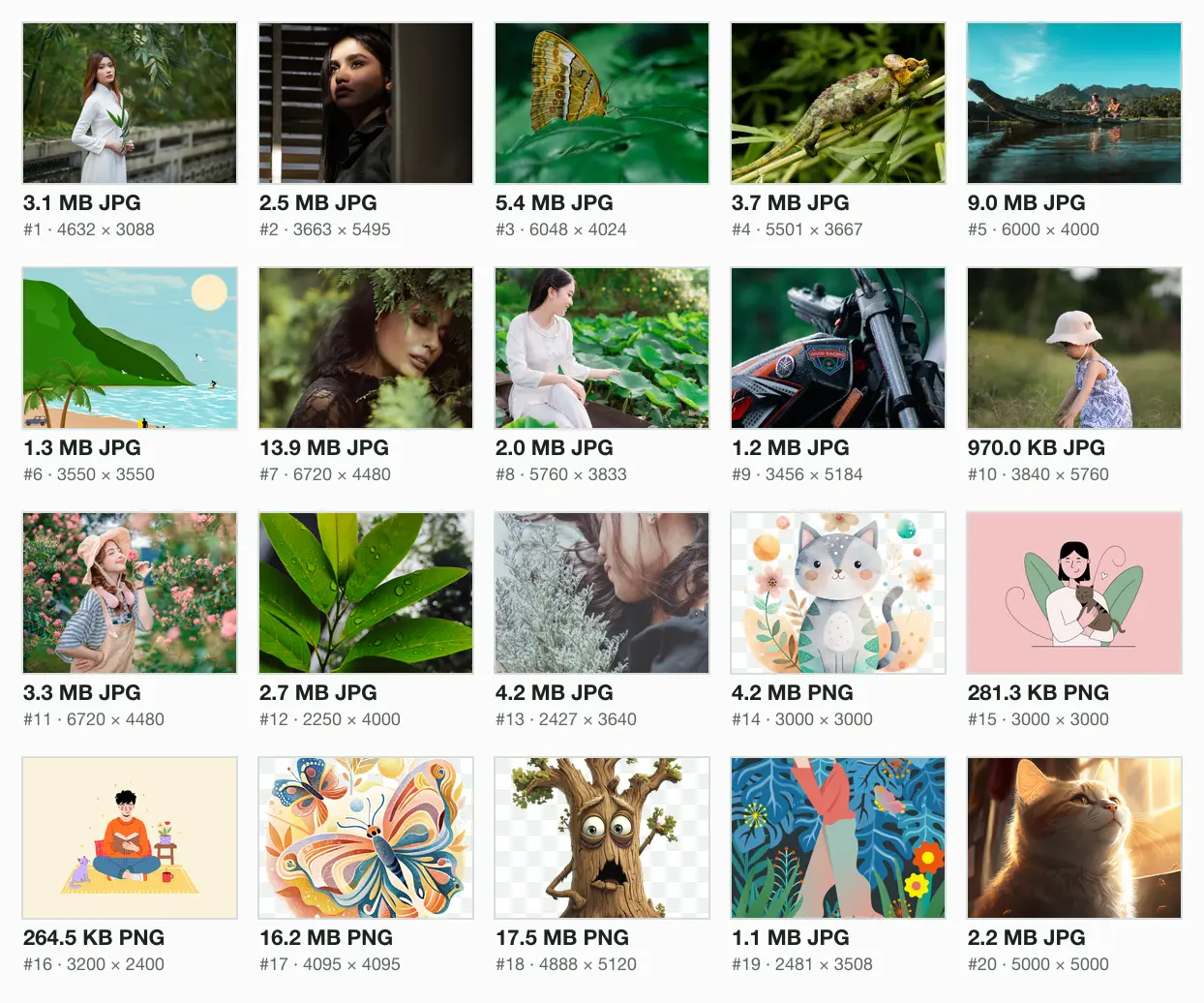
We filled one email with a real mix: 13 camera photos, 5 PNG illustrations and 2 more JPGs. On disk they came to 95.2 MB. Built as an email, byte for byte, the message weighed 130.3 MB. That is more than 5 times the 25 MB a personal Gmail account sends.
Gmail does not refuse a message like that. Google’s help page says it “automatically removes the attachment and adds it as a Google Drive link”. Your friend gets a link, not the photos. To send the photos themselves, they have to get smaller. Here is everything we measured on the way down.
Email attachment size limits: Gmail, Outlook, Yahoo and iCloud
| Email service | Limit | What it counts | Source |
|---|---|---|---|
| Gmail, personal account | 25 MB | All attachments; above it, a Drive link | Google Gmail Help |
| Google Workspace | 25 MB (up to 50 MB on Enterprise Plus, web only) | The message before encoding | Google Workspace Admin Help |
| Outlook.com on the web | 25 MB | The whole email, text and files | Microsoft Support |
| Classic Outlook app, Outlook.com or Gmail account | 20 MB | All attachments together | Microsoft Learn |
| Classic Outlook app, business Exchange account | 10 MB by default | All attachments together | Microsoft Learn |
| Yahoo Mail | 25 MB | All attachments, sent and received | Yahoo Help |
| iCloud Mail | 20 MB, or 5 GB with Mail Drop | The whole message | Apple Support |
How much can Gmail send?
Gmail sends 25 MB of attachments on a personal account, counted across every file in the message. A work or school account follows its administrator’s setting. Google’s Workspace table also says 25 MB for most plans, and adds a detail most guides miss: those values are “before encoding”. When we tested a personal account, Gmail counted the files against 25 × 1,048,576 bytes. The whole test is in our guide to the Gmail attachment size limit.
Why does Outlook say 20 MB in one place and 25 MB in another?
Because there are two Outlooks. Outlook.com on the web takes a 25 MB email. The classic Outlook app on Windows stops at 20 MB for an Outlook.com or Gmail account and at 10 MB for a business Exchange account, says Microsoft’s troubleshooting page. Plan for the smaller number if you do not know which app the sender uses.
Yahoo counts both ways. Its help page says the files in one message, sent or received, must not exceed 25 MB in total. So a Yahoo inbox turns away a message with more than 25 MB of files, even when the sender’s provider let it go.
Why a 25 MB email holds only about 18 MB of photos
An email grows on the way out. Email was built for text, so a mail app turns every attachment into letters and digits called base64. The standard, RFC 2045, writes 3 bytes as 4 characters and breaks the lines every 76 characters. That adds about 37%. Google’s own receiving limits page says “about a 37% increase”, and Microsoft plans for “approximately 33%”.
We measured it on our batch. 95.2 MB of images became a 130.3 MB message, 36.8% bigger. Turn that around and a limit counted on the email holds less than it says: 25 MB holds 18.3 MB of files, 20 MB holds 14.6 MB and 10 MB holds 7.3 MB.
How to compress photos for email, step by step
Resize to 1920 pixels on the long side
A screen shows a photo at about that size, so the extra pixels only cost bytes. Our 130.3 MB email came to 8.2 MB at 1920 pixels.
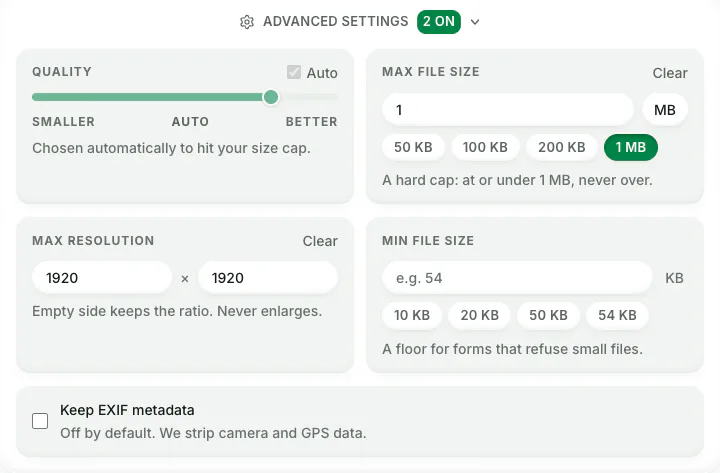
Screenshot: Max resolution at 1920 × 1920 on blinkimg.com. An empty side keeps the ratio, and a photo is never enlarged. Save photos as JPG
JPG opens in every mail app and is the smallest safe format for a photo. Keep flat drawings and screenshots as PNG, which suits them better (the PNG section below).

Screenshot: Output format on Auto keeps each JPG a JPG and each PNG a PNG. Pick JPEG to turn everything into JPG. Check the total against the limit
Add up the files and keep them under the limit divided by 1.37: about 18.3 MB for a 25 MB limit and 14.6 MB for the classic Outlook app's 20 MB. That margin is safe whichever way a server counts.

Illustration: a folder's Get Info on a Mac adds up the files for you. Our 20 resized images came to 6.0 MB. Attach and send
Attach the new files, not the originals. If the set is still too big, split it across two emails or send a link.
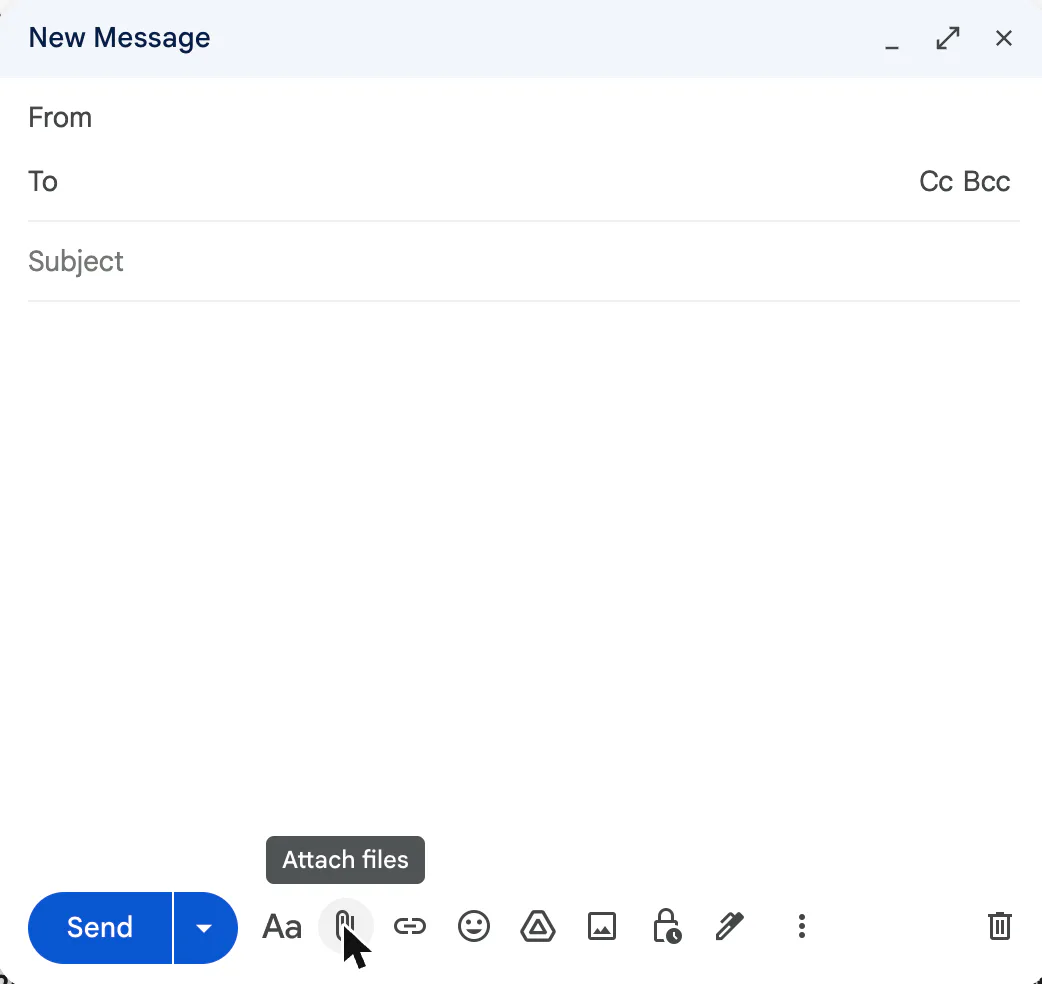
Screenshot: Attach files in Gmail on the web, the paper clip beside Send. The sender address is hidden.
On Blinkimg, the first two steps take one setting. Drop up to 50 images, open Advanced settings and type 1920 in both Max resolution boxes. Photos come back as JPGs, PNGs stay PNGs, and one ZIP holds them all.
How small do photos need to be for email?
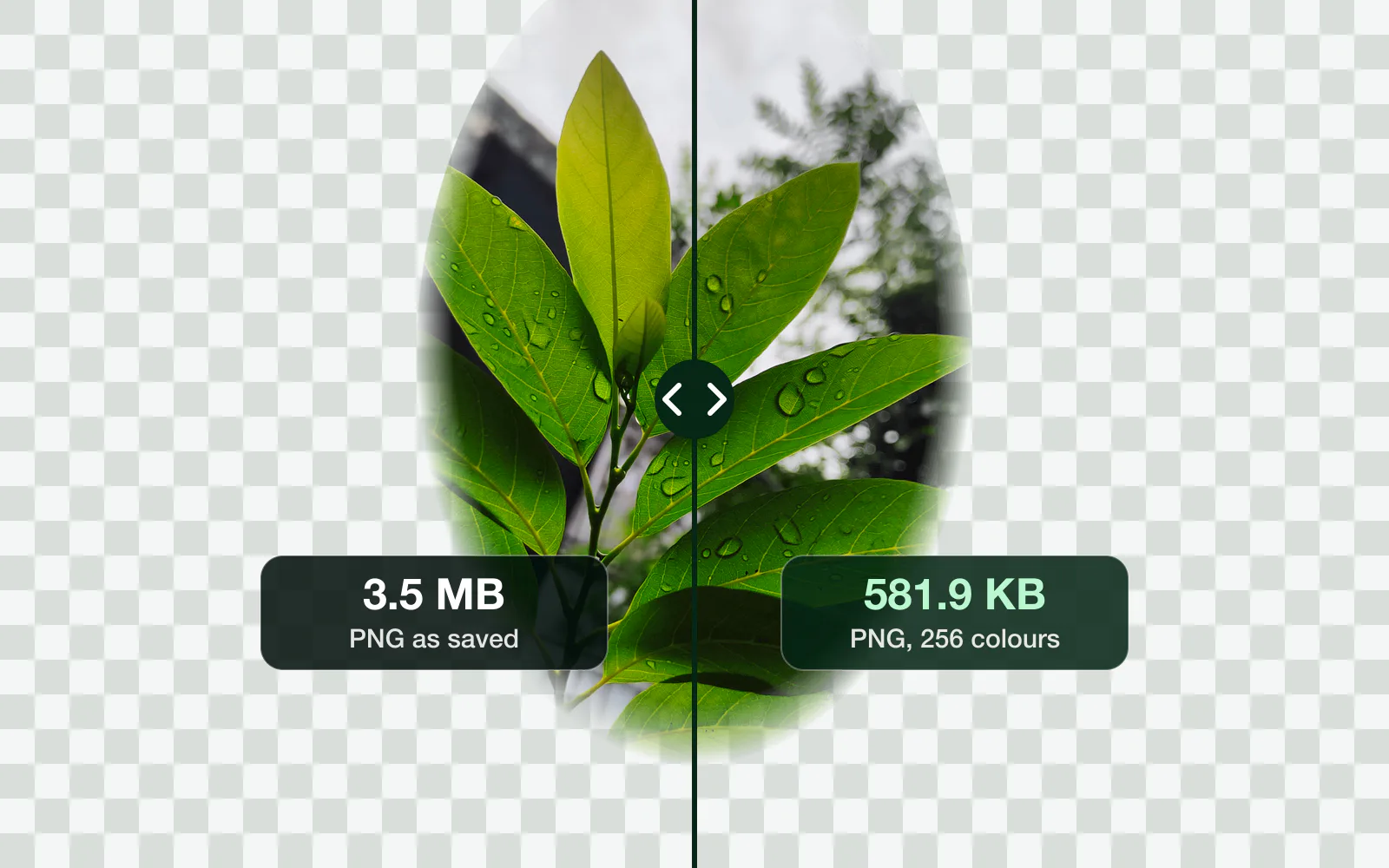
Smaller than you might think, and compressing alone was not enough. Blinkimg's Auto setting kept every pixel and cut our files by 66%, to 32.6 MB. The email was still 44.6 MB, too big for Gmail. Fewer pixels did the rest.
One email, 20 images
- As they were130.3 MB
- Full size44.6 MB
- 2560 pixels13.5 MB
- 1920 pixels8.2 MB
- 1600 pixels6.1 MB
- 1280 pixels4.2 MB
- 1024 pixels2.9 MB
| Long edge | The files | The email | A 25 MB limit | A 20 MB limit | A 10 MB limit |
|---|---|---|---|---|---|
| As they were | 95.2 MB | 130.3 MB | Too big | Too big | Too big |
| Full size | 32.6 MB | 44.6 MB | Too big | Too big | Too big |
| 2560 pixels | 9.8 MB | 13.5 MB | Fits | Fits | Too big |
| 1920 pixels | 6.0 MB | 8.2 MB | Fits | Fits | Fits |
| 1600 pixels | 4.5 MB | 6.1 MB | Fits | Fits | Fits |
| 1280 pixels | 3.1 MB | 4.2 MB | Fits | Fits | Fits |
| 1024 pixels | 2.1 MB | 2.9 MB | Fits | Fits | Fits |
At 1920 pixels our 20 images made a 8.2 MB email, under even a business account's 10 MB. At 1280 pixels the email was 4.2 MB. Go to 1280 when the photos are for a quick look on a phone, and stay at 1920 when someone may print one or view it on a big screen.
Resize or keep every pixel? We tried both
Some people want the full photo, every pixel, maybe for printing. So we tried a second route: all 20 images at full size, each squeezed under the same cap. Gmail’s 25 MB, less the encoding, left 913.3 KB per image. The email came to 21.4 MB, and it fit.
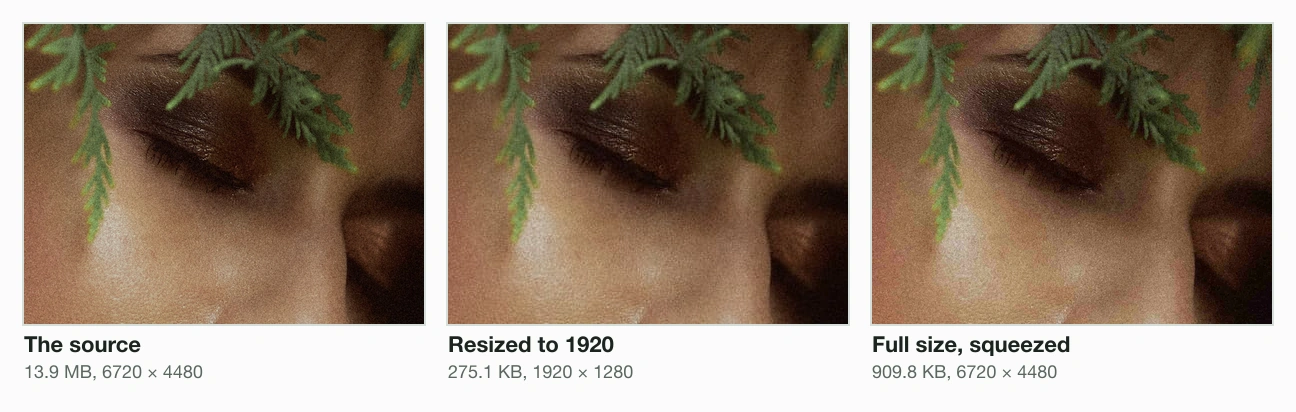
On a screen, the two routes looked alike. We scored each image at 1920 pixels against the source with SSIM, where 1 means identical: the squeezed full-size files had a median of 0.989, the 1920 resizes 0.975. The squeeze cost more email, though: 21.4 MB against 8.2 MB.
Should you email a PNG or a JPG?
It depends on the picture, and our 5 PNG illustrations went both ways. A flat drawing with a few colours stayed smallest as a PNG: our girl-with-a-cat picture was 42.1 KB as a PNG and 76.1 KB as a JPG at 1920 pixels. The watercolours and the cartoon tree have soft shading and see-through backgrounds, and a JPG was far smaller.
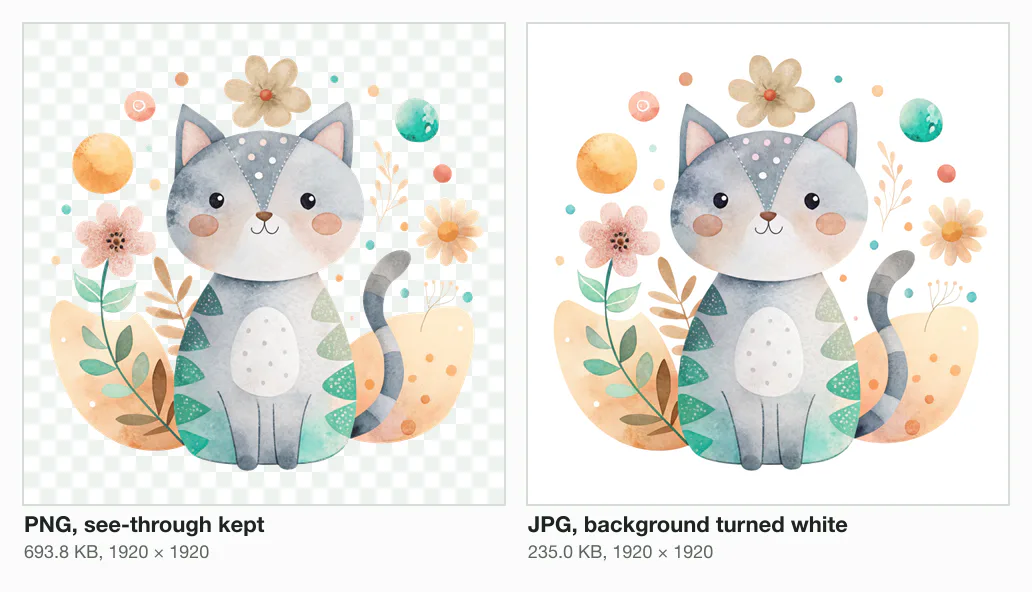
The catch is transparency. A JPG cannot store see-through pixels, so the background turns white. The cat was 235.0 KB as a JPG against 693.8 KB as a PNG. Send the JPG when the picture is just to look at. Keep the PNG when someone will place it on a coloured page.
Which format to email: JPG, not WebP, AVIF or HEIC
WebP and AVIF made smaller files. At 1920 pixels our 20 images came to 4.2 MB as JPG, 3.5 MB as WebP and 2.2 MB as AVIF. But the person opening the email matters more than the bytes. Can I email lists the classic Outlook app for Windows as unable to show WebP, and for AVIF the list is longer.
Those tests cover pictures shown inside an email, not files attached to one, but the lesson holds: a JPG opens everywhere. An iPhone photo saved as HEIC is safest turned into a JPG first with a HEIC to JPG converter.
How to compress images for email in Outlook
Classic Outlook for Windows can resize photos for you. Microsoft’s steps: attach the images, choose File, then Info, select “Resize large images when I send this message”, then go back and send. Microsoft does not say what size it resizes to.
- New Outlook for Windows can change how big a picture looks in the message, but Microsoft says it “cannot reduce the file size”. Compress the photos first.
- Outlook.com on the web has no resize either. Its help page warns that resizing an image in the message “doesn’t reduce its file size”.
- Word, Excel or PowerPoint: for a picture inside a document you are about to email, Compress Pictures has an E-mail resolution. That shrinks the document, not a photo you attach next to it.
How to compress photos for email in Gmail, on iPhone and on a Mac
- Gmail: Google documents no resize, on the web or in the app. Above 25 MB, Gmail swaps the files for a Drive link. Compress the photos before you attach them.
- iPhone and iPad: when a message is too big, Mail offers to send it with Mail Drop, up to 5 GB, kept for 30 days. Apple’s iPhone guide does not document a size choice, so resize the photos first; the iPhone resizing guide has the steps.
- Mac: Mail inserts photos at their actual size, and Apple’s Mail guide says a pop-up menu on the right of the message header offers smaller sizes when they are available. iCloud Mail sends up to 20 MB without Mail Drop.
- Android and Windows: some Samsung phones offer a size when you attach a photo, and Windows can offer one through Send to, then Mail recipient, when a desktop mail app is the default. Neither maker documents these today. Resize them online instead, or resize an image in Paint on Windows.
Why zipping photos does not make them smaller
A JPG is already compressed, so a ZIP has almost nothing left to squeeze. We zipped a 9,804.3 KB camera photo at the strongest setting: it came to 9,796.6 KB, 0.08% smaller. A ZIP is handy for keeping 20 files together, not for getting under a limit.
When to send a link instead of an attachment
Send a link when the photos must stay full size and the set is far over the limit. Gmail does it for you with Drive. Microsoft says a OneDrive file does not count toward Outlook.com’s limit and can be up to 2 GB. Apple’s Mail Drop takes 5 GB. The cost: the person downloads the photos later, and a Mail Drop link stops working after 30 days.
How we tested
- The images: 13 camera photos from 2,250 × 4,000 to 6,720 × 4,480, 5 PNG illustrations (3 of them see-through) from 3,000 × 3,000 to 4,888 × 5,120, an A4 illustration and a 5,000 × 5,000 photo; 95.2 MB in all.
- The compression: Blinkimg’s engine, version 9, at Auto, with sharp 0.35.4; measured 2026-10-16. Every photo became a JPG; every PNG was measured as a PNG and as a JPG.
- The email: built byte for byte the way a mail app writes one, base64 in 76-character lines with a header for each file, and its length counted.
- The score: SSIM over brightness against the source scaled to the same size; above 4 megapixels, on the centre 2000 × 2000. How we measure covers the rest.
Read the full guide: How to reduce image file size on any device.
Questions
- How do I reduce the size of photos for emailing?
- Resize each photo to about 1920 pixels on the long side and save it as a JPG. That keeps it sharp on any screen. Our email of 20 images went from 130.3 MB to 8.2 MB that way. Then check that the files add up to under the limit divided by 1.37.
- What is the maximum attachment size for Gmail?
- A personal Gmail account sends up to 25 MB of attachments in one message. Above that, Gmail removes the files and puts a Google Drive link in the email instead. Work and school accounts follow their administrator, and Google Workspace counts its 25 MB before the email is encoded.
- How can I make an image smaller when sending an email in Outlook?
- In classic Outlook for Windows, attach the images, choose File, then Info, and select Resize large images when I send this message. New Outlook and Outlook.com cannot reduce an image’s file size, so compress or resize the photo before attaching it, or share it as a OneDrive link.
- Why are my pictures so big when I email them?
- Because a phone or camera saves millions of pixels, and email adds more on top. An email turns every file into text called base64, which makes it about 37% bigger. Our 20 images were 95.2 MB on disk and 130.3 MB as one email.
- How do I send 20 photos by email?
- Resize them first, then attach all 20 to one message. At 1920 pixels our 20 images made a 8.2 MB email, under Gmail’s 25 MB and Outlook’s 20 MB. At full size they would need a cap of about 913.3 KB each to fit a 25 MB email counted as sent.
- Is 25MB too big for email?
- 25 MB is the most Gmail, Yahoo and Outlook.com send, so it sits right at the edge. The classic Outlook app stops at 20 MB, and a business account often at 10 MB. Because encoding adds about 37%, a 25 MB email holds only about 18.3 MB of files.
- How do I email a file larger than 25MB?
- Send a link instead of an attachment. Gmail swaps a large file for a Google Drive link by itself. Outlook.com takes a OneDrive link of up to 2 GB, and Apple’s Mail Drop sends up to 5 GB for 30 days. For photos, resizing them is often enough to fit.
- Does compressing a photo for email lower its quality?
- A little, and on a screen it is hard to see. We scored our resized photos against the originals at screen size: the median SSIM was 0.975, where 1 means identical. Keep photos for printing at full size, and squeeze each one under a cap instead.
- Does zipping photos make them smaller for email?
- Hardly at all, because a JPG is already compressed. Our 9,804.3 KB camera photo came to 9,796.6 KB in a ZIP at the strongest setting, under 1% smaller. A ZIP keeps many files together in one attachment. Resizing is what actually brings the size down.
- What size should a photo be for email?
- About 1920 pixels on the long side for viewing on a computer, and 1280 pixels for a quick look on a phone. At 1920 pixels our 20 images averaged 301.2 KB each. At 1280 pixels they averaged 154.7 KB. Both fit many photos in one email.
- Should I send photos as JPG or PNG in an email?
- Send photos as JPG, which every mail app opens. Use PNG only for flat drawings and screenshots, where it can be smaller: our flat illustration was 42.1 KB as a PNG and 76.1 KB as a JPG. A JPG turns a see-through background white.
- How do I compress a picture for email on a phone?
- Open the picture in an online image compressor, set a maximum width of about 1920 pixels, and download the smaller copy before you attach it. On an iPhone, Mail can also send an oversized message with Mail Drop, as a link that works for 30 days. Android’s Gmail app documents no resize.
- Does email compress images automatically?
- Usually not. Gmail, Yahoo and Outlook.com document no automatic compression of attachments, so a photo arrives at the size you sent. Classic Outlook resizes only when you tick its option, and Apple Mail on a Mac offers smaller sizes in a menu. Compressing first is up to you.