How to reduce image file size on any device
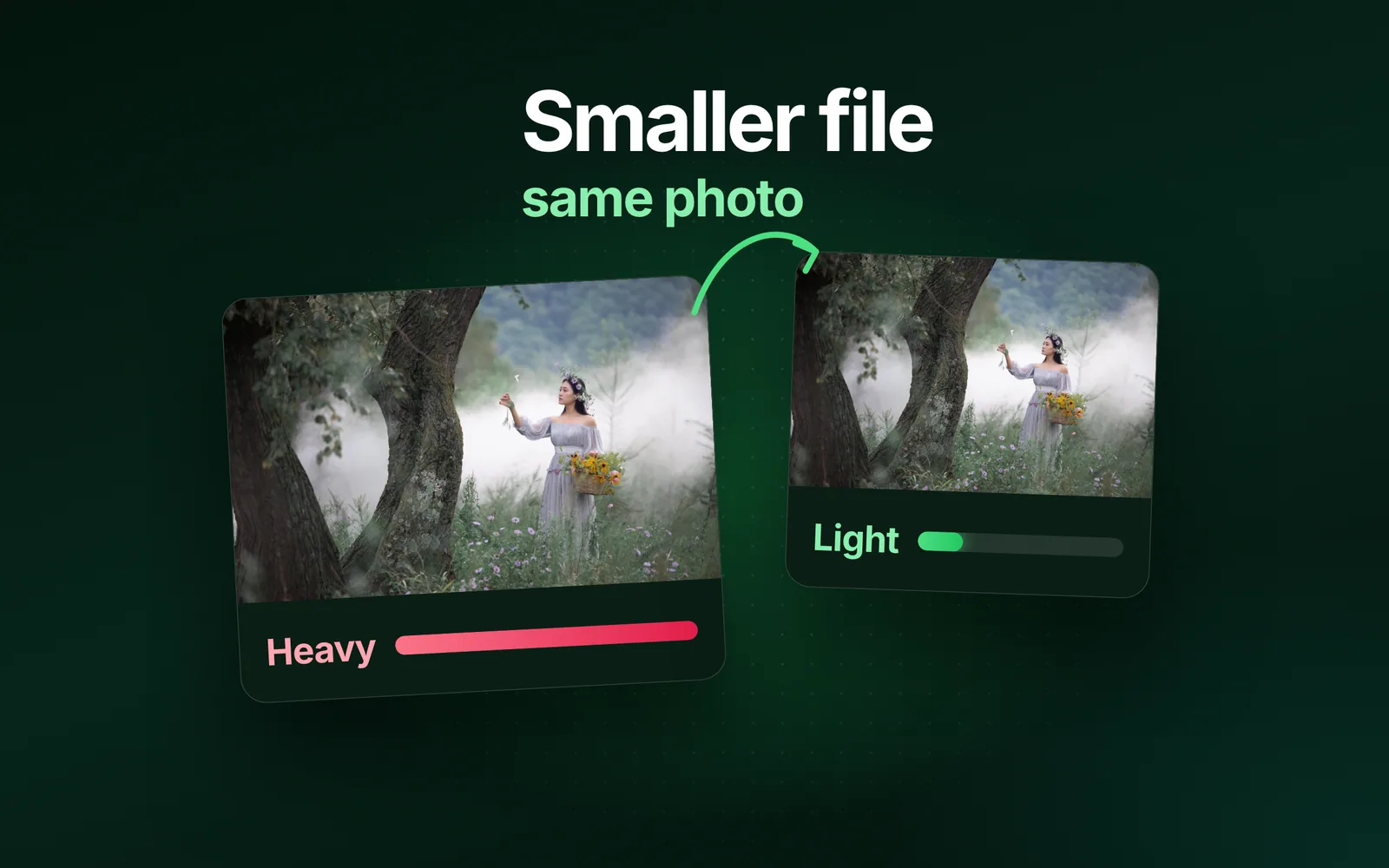
How to reduce image file size: give the image fewer pixels, save it at a lower quality, or save it in a newer format. Every phone and computer has a built-in way to do each, and this guide gives each maker's own steps. The sizes are our engine's, measured on our 9.8 MB camera photo, our 1920 × 1280 reference photo and a real iPhone 12 Pro HEIC. Part of the image compressor.
By Sahadat HusainUpdated 16 min readGuides

How to reduce image file size: the three levers every tool pulls
Every app on every device pulls one of three levers, and they stack: fewer pixels, a lower quality, a newer format. We ran our 9.8 MB camera photo, 4964 × 2782 pixels, through each of them.
A lower quality, every pixel kept
- Quality 952,598.6 KB
- Quality 85807.1 KB
- Quality 75542.3 KB
- Quality 50307.9 KB
Fewer pixels, JPEG at Auto
- Full size605.5 KB
- 1920 wide140.3 KB
- 1280 wide73.6 KB
- 800 wide35.2 KB
A newer format, 1920 wide at Auto
- JPEG140.3 KB
- WebP85.5 KB
- AVIF69.3 KB
Fewer pixels: resize or crop to the size it is shown at
A photo’s bytes follow its pixels. At 1920 pixels wide, the camera photo keeps 15.0% of its pixels and weighs 140.3 KB, 1.4% of its bytes. At 1280 wide it weighs 73.6 KB; at 800 wide, 35.2 KB. Chrome’s Lighthouse puts the rule plainly: a page “should never serve images that are larger than the version that’s rendered on the user’s screen.” The image resizer sets the width in one step.
A crop counts too. Our 1920 × 1280 reference photo, saved as PNG, weighed 994.3 KB at Auto; cut to its 1280 × 1280 centre square, it weighed 705.5 KB. The part you keep holds its full detail, which a resize does not.
A lower quality: how to reduce a JPEG image’s size
At full size, with every pixel kept, the camera photo weighs 2,598.6 KB at quality 95, 807.1 KB at 85, 542.3 KB at 75 and 307.9 KB at 50. The libjpeg guide puts photos between 50 and 95, and warns that above about 95 the file grows “dramatically” for a gain “rarely perceivable by human vision.” To compress JPEG files without guessing, leave the quality on Auto.
To reduce image file size without losing quality you can see, lower the quality until the before-and-after view shows a change, then step back one notch. The eye is the test, not the number: the same setting looks different on a sky and on a page of text.
A newer format: HEIC, WebP and AVIF
The makers’ own claims are big. Google says lossy WebP is 25 to 34% smaller than a comparable JPEG at the same SSIM score. The Alliance for Open Media says AVIF saves “over 50%” against JPEG and “over 30%” against WebP. Apple says HEIF uses less storage “while preserving the same visual quality.”
On our camera photo at full size, the AVIF claim holds: 288.0 KB against 605.5 KB for the JPEG at Auto, 52% smaller, with WebP at 329.0 KB, 46% smaller. On our 1920 × 1280 reference photo the AVIF claim holds too: 123.9 KB against 273.9 KB for the JPEG, 55% smaller. WebP is less even: 218.9 KB, only 20% smaller, short of Google’s figure. Two reasons, both on record. The JPEG standard says compression depends on “the characteristics of the particular image”. And Auto sets each format’s quality by eye on a test set, not at the equal SSIM Google measured at. The whole comparison is in AVIF vs WebP vs JPG.
The catch is where the file goes. The Alliance for Open Media dates AVIF support on phones to Android 12 and iOS 16. Email, upload forms and older software still expect a JPEG.
Which lever to pull first
- Pixels. Resize to the size the image is shown at, or the size a form asks for.
- Quality. Leave it on Auto, or lower it until you see a change and step back.
- Format. A newer one when the place it goes can open it.
- A cap last. When a form names a number in KB, set it as the maximum.
How to reduce image file size on iPhone
For a photo you already took, Preview on iOS 26 and later is the built-in app Apple documents for exact pixels and a smaller file; on any iPhone, a browser compressor in Safari does both. For the photos you take next, choose High Efficiency and 12 MP in Settings, Camera, Formats. The guide on how to resize an image on iPhone walks through every route.
Photos you already took: Preview, a crop or the browser
In Preview, More, Adjust Size gives the photo fewer pixels, and Export has a Size slider for HEIC and JPEG: left for a smaller file. A shortcut can resize too, though Apple’s Shortcuts guide does not document the action’s options.
Photos itself has no resize box; a crop there removes pixels. A real iPhone 12 Pro HEIC of 1,956.0 KB, resized by our engine to 1080 × 1920, came to a 276.5 KB JPEG or a 151.1 KB AVIF.
Photos you take next: Formats and Photo Mode
High Efficiency saves HEIF, which Apple says takes less storage at the same visual quality. On supported models, Settings, Camera, Formats, Photo Mode switches the main camera from 24 MP to 12 MP: half the pixels in every photo. Resolution Control and ProRAW are what make the 48 MP files, so leave them off unless you need them. Most Compatible saves JPEG, which opens everywhere at more bytes a photo; how to convert HEIC to JPG covers that trade.
Sending: Messages and Mail
Apple says your iPhone “can compress photo and video attachments when necessary.” To send smaller photos on purpose, open Settings, Apps, Messages and turn on Send Low Quality Photo Previews. In Mail, a file over your email account’s limit goes by Mail Drop instead.
How to reduce image file size on Android
On a Samsung Galaxy, the Gallery app resizes a photo by a percentage. On any Android phone, a browser compressor in Chrome does the same with a KB cap. For the photos you take next, choose HEIF and 12 MP where the camera offers them.
Samsung Galaxy: Gallery, Edit, Resize
Open the photo in Gallery and tap Edit
Samsung built the resize into the Gallery’s photo editor.
Tap More options, then Resize
Pick a percentage. Samsung does not offer sizes larger than the original.
Tap Done, then Save copy
Save copy keeps the original. The smaller size shows in the image details.
What a percentage does, measured: at 50%, our camera photo became 2482 × 1391 and 209.6 KB as a JPEG at Auto; at 25%, 1241 × 696 and 70.5 KB.
Any Android phone: the camera’s resolution and HEIF
Samsung’s camera saves HEIF under Photo format, which Samsung says saves space, and keeps Resolution in the Quick controls. On the Galaxy S26, Photo enhancer on Balanced or Prioritize speed saves 12 MP photos; only Prioritize quality saves 24 MP. Pixel phones shoot 50 MP only on Pro models, and only after you set Resolution to 50 MP in the Pro tab.
Google Photos Storage saver shrinks the backup, not the photo you send
Storage saver compresses the backed-up copies and resizes anything over 16 MP to 16 MP; Express resizes to 3 MP. Both are backup settings. Neither hands you a smaller file to attach, so resize or compress a copy for that.
How to make an image’s file size smaller on a Mac
In Preview, resize with Resample image ticked, then export as JPEG at a lower quality or as HEIC. For a Photos library, export at a smaller size. The guide on how to resize an image on Mac covers the main built-in routes and measures Terminal’s sips against Blinkimg.
Preview: Adjust Size with Resample image, then Export
Choose Tools, then Adjust Size
Several images open in one window can be resized together: select them in the sidebar first.
Tick Resample image and enter a smaller width
Preview shows the Resulting Size at the bottom of the dialog before you apply it.
Choose File, then Export
Pick JPEG and move the Quality slider left, or pick HEIC.
What Apple says Resample image does
Untick Resample image and Preview makes the dimensions smaller “without losing any detail”, in Apple’s words. Apple’s steps to reduce the file size tick it. Check the saved size in the Finder before you send it.
The Finder’s Convert Image
The Finder’s Convert Image converts the selected image to another format or a smaller size. For many files, use sips in Terminal.
A Photos library: File, Export
Photos never shrinks the original in the library; a smaller file is an exported copy. Choose File, Export, set Photo Kind to JPEG, then choose a smaller Size and a lower JPEG Quality.
How to shrink an image’s file size on Windows
In Paint, resize and save as JPEG. Photos has a Resize tool too. For a folder, Microsoft’s PowerToys adds a resize to the right-click menu. For a picture inside Word or PowerPoint, Compress Pictures.
Paint: Resize, then save as JPEG
Choose Resize on the Home tab and set a percentage or pixels, then save as JPEG. Not PNG: our reference photo, a 576.8 KB JPEG, weighed 2,866.3 KB saved as a lossless PNG.
Photos: Resize image
Microsoft names a Resize tool in Photos; these steps are How-To Geek’s, from its Windows 11 guide of December 2024. Open the picture, click the three dots at the top, choose Resize Image, set the pixels, optionally lower the quality, then save.
A folder at once: PowerToys Image Resizer
After installing Microsoft’s free PowerToys, right-click the selected files in File Explorer and choose Resize with Image Resizer. Pick Fill, Fit or Stretch, in centimetres, inches, percent or pixels.
A picture inside Word or PowerPoint: Compress Pictures
Select the picture, open the Picture Format tab and choose Compress Pictures, then a resolution: Print, Web or E-mail. Microsoft notes the change is kept only once you save the file.
How to decrease image file size online, on any device
Open a browser compressor on any device, phone included. Drop up to 50 files, keep Auto or type a Max file size, and download the copies, one ZIP for a batch. Auto took our 1920 × 1280 reference photo from a 576.8 KB JPEG to 273.9 KB, 52.5% smaller. We keep nothing: the files are deleted within 24 hours of the upload.
How to make a photo small enough for email or an upload form
Work back from the limit. Gmail takes 25 MB a message on a personal account. Classic Outlook takes 20 MB for Outlook.com or Gmail accounts, 10 MB for business Exchange by default, and can resize large images for you under File, Info. Mail on a Mac inserts images at their actual size, with smaller sizes in a menu on the message header. To send a whole batch, we put 20 images through one email to show how to compress photos for email.
A form names a KB cap, and pixels are the cheap way under it. On the camera photo, a 100 KB cap alone kept all 4964 × 2782 pixels at 97.3 KB, which cost quality: our quality-10 file weighs 80.8 KB and our quality-30 file 194.8 KB. Resized to 800 wide first, the same photo weighs 35.2 KB at Auto, under the cap with no quality given up. Resize to the pixels the form states, then set the cap. To reduce image size in KB to any number, type it as the maximum; for a portal that still refuses, the checks behind a photo not uploading in an online form are the next stop.
What does not reduce image file size
- Changing the DPI number alone. DPI tells a printer how large to print the same pixels, so the bytes stay.
- Saving a photo as PNG. Our reference photo, a 576.8 KB JPEG, became 994.3 KB as a PNG at Auto and 2,866.3 KB lossless.
- Enlarging. The same JPEG doubled to 3840 × 2560 weighed 712.0 KB.
- Saving again at the same quality. At quality 75 it weighed 253.3 KB after one save and 251.9 KB after ten. The libjpeg guide warns that the loss adds up over repeated cycles, so compress from the original once.
- Zipping a JPEG. The 9.8 MB camera photo went from 9,804.3 KB to 9,796.6 KB in a ZIP’s compression, 0.08% smaller.
- Renaming .heic to .jpg. The name changes; the bytes, and the format inside, do not.
The next step is one photo: drop it into the compressor, keep Auto, and read the size it prints beside the result. When a form names a number, set Max file size to it.
The guides
- Gmail attachment size limit: we tested where 25 MB ends
- How to compress photos for email: 20 images, measured
- How to make a PNG file smaller: 5 fixes, measured
- How to change the resolution of a picture (any device)
- What is a pixel? A real photo, measured pixel by pixel
- How to download an image from Google, full size and as a JPG
- How to crop an image in Photoshop 2026, step by step
- Image still too big after compressing? Set a size cap
- Why are my photos blurry when I upload them?
- Image too small to upload? Fix pixels or KB
- How to resize an image without losing quality
- How to change a file type: convert, don’t rename
- Does Discord compress images? Limits and file sizes
- How to change the DPI of an image for print
- How to resize an image in Paint on Windows 11 and 10
- How to resize an image on Mac, crop it and compress it
- How to resize an image on iPhone (and make it smaller in MB)
- Photo not uploading in online form? Why a 50 KB file still fails
- How to convert HEIC to JPG on Windows, Mac and iPhone: every free way
Questions
- How can I reduce a picture’s file size?
- Pull one of three levers: fewer pixels, a lower quality or a newer format. At the same quality, resizing a phone photo to the size a screen shows is the biggest single cut. At Auto, our 9.8 MB camera photo weighed 605.5 KB with every pixel kept, and 140.3 KB resized to 1920 pixels wide.
- How do you make a photo smaller in file size on an iPhone?
- On iOS 26 and later, open the photo in Preview. More, then Adjust Size gives it fewer pixels, and Export with the Size slider dragged left makes a smaller file. On any iPhone, Safari runs a browser compressor. For photos you take later, Settings, Camera, Formats offers High Efficiency, and 12 MP instead of 24 MP on supported models.
- How do I make a picture a smaller file size on Android?
- On a Samsung Galaxy, open the photo in Gallery, tap Edit, then More options, then Resize, and pick a percentage. Samsung says the file size drops, and Save copy keeps the original. On any Android phone, a browser compressor in Chrome does the same job, with a KB or MB cap when a form needs one.
- How can you make a picture’s file size smaller on a Mac?
- Open the image in Preview, choose Tools, then Adjust Size, tick Resample image and type a smaller width; Preview shows the new size at the bottom. Then choose File, Export and pick JPEG with a lower Quality, or HEIC. For many files, select them in Preview’s sidebar, or use sips in Terminal.
- How do you make an image file size smaller on Windows 11?
- In Paint, choose Resize on the Home tab, set a percentage or pixels and save the picture as a JPEG. Microsoft’s Photos app has a Resize tool, with a quality setting in How-To Geek’s steps. For a whole folder, Microsoft’s free PowerToys adds Resize with Image Resizer to the right-click menu in File Explorer.
- How to make an image smaller in file size without changing its dimensions?
- Lower the quality or change the format, and leave the pixels alone. Our 9.8 MB camera photo kept all 4964 × 2782 pixels at 807.1 KB as a JPEG at quality 85. As an AVIF at Auto it weighed 288.0 KB, though email clients and upload forms still want JPEG.
- Why is my photo file size so big?
- Because a phone or camera saves millions of pixels at a high quality. Our camera photo holds 4964 × 2782 pixels, about 13.8 million, and weighs 9.8 MB as a high-quality JPEG. A screen, an email or a form needs a fraction of those pixels, so resizing a copy removes most of the bytes.
- Does resizing an image reduce its file size?
- Yes: every pixel costs bytes, and at the same quality no other change cuts as much. Halving both sides keeps a quarter of the pixels. Our 9.8 MB camera photo came to 73.6 KB at 1280 pixels wide and 35.2 KB at 800. Doubled in size, our 1920 × 1280 reference photo grew from 576.8 KB to 712.0 KB.
- Does cropping a photo reduce the file size?
- Yes, roughly in line with what you cut away. Our reference photo weighed 994.3 KB as a PNG at Auto, and 705.5 KB cut to its 1280 × 1280 centre square: 33% of the pixels gone, 29% of the bytes. The part you keep holds its full detail, which a resize does not.
- Does changing the DPI reduce file size?
- Not on its own. DPI only tells a printer how large to print the same pixels, so the bytes stay. Apple’s Preview guide says unticking Resample image changes the dimensions without losing any detail. To shrink the file, tick Resample image and enter a smaller size, which removes pixels, then check the saved size.
- Which image format has the smallest file size?
- For a photo, AVIF in our tests. Our 9.8 MB camera photo at 1920 pixels wide weighed 69.3 KB as AVIF, 85.5 KB as WebP and 140.3 KB as JPEG, each at Auto. PNG is lossless, so a photo stays big in it. Email clients, upload forms and older software still expect JPEG.
- What is a good file size for photos sent by email?
- Small enough that every photo fits the provider’s limit with room to spare. Gmail allows 25 MB per message on a personal account, and classic Outlook 20 MB for internet accounts. A photo resized for the screen fits many times over: our 9.8 MB camera photo came to 140.3 KB at 1920 pixels wide.
- How do I reduce the file size of a picture in Word or PowerPoint?
- Select the picture, open the Picture Format tab and choose Compress Pictures, then pick a resolution: Print, Web or E-mail, as Microsoft’s support page names them. Pick the lowest one the document needs. Microsoft notes that the compression is kept only once you save the file, so save before you send it.
- Does Google Photos Storage saver make photos smaller?
- It makes the backed-up copies smaller. Google’s help page says Storage saver compresses photos to save space and resizes anything larger than 16 MP to 16 MP. The setting sits under Google Photos settings, Backup, Photos & videos quality. It is a backup setting, so to send a smaller file, resize or compress a copy.