How to delete unused images in WordPress, safely
Find the images no page uses, check the ones a database scan gets wrong, and move them to a bin you can bring them back from. Part of the WordPress image compression plugin.
By Sahadat Husain12 min readGuides

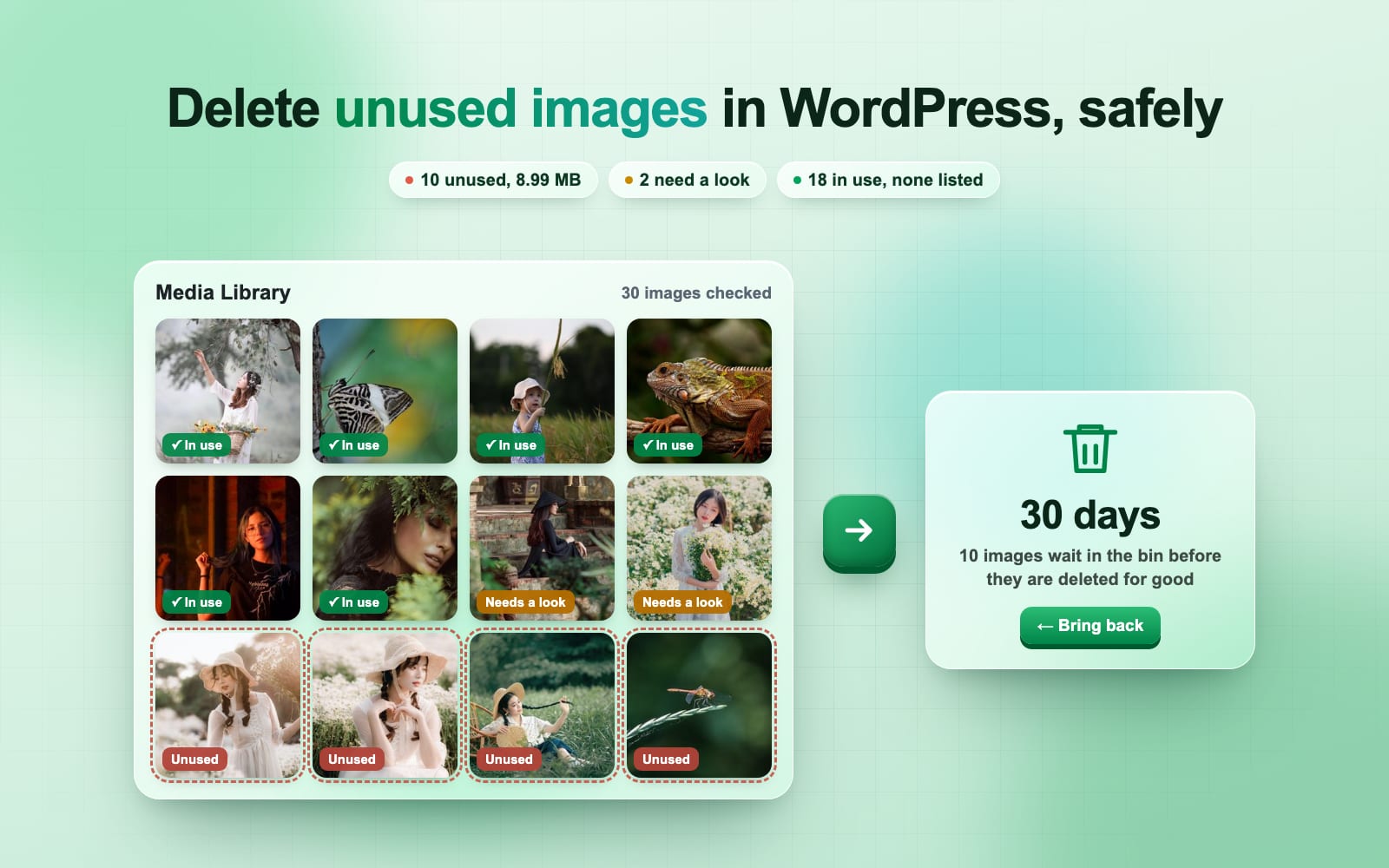
To delete unused images in WordPress safely, find them with a check that reads your pages as well as your database. Then move them to a bin you can bring them back from, and let the bin delete them later. We built a test site with 30 images placed in every spot a cleaner has to look. Blinkimg’s free Unused images found the 10 that nothing used, 8.99 MB, and listed none of the images the site shows. On the same site, WordPress’s own Unattached filter listed 23, and 13 of them were in use.
What counts as an unused image in WordPress?
An unused image is one that no page, post, product, setting or theme uses any more. They pile up fast: photos from drafts you never published, a logo you replaced, test uploads, images of products you deleted. WordPress keeps every one, because deleting a page never deletes its images.
Each image is also more than one file. On our test site, each upload made 6 files: the original and its sizes. A photo over 2560 pixels keeps its original beside a smaller “-scaled” copy, as WordPress has done since version 5.3 (WordPress’s note on big images). An image optimizer adds WebP and AVIF copies on top. Deleting an image well means finding every one of those files.
Is an unattached image the same as an unused one?
No. WordPress’s Media Library can show only media “Unattached to any Posts nor Pages” (WordPress’s Media Library guide). Attached only means the image was uploaded inside a post. A logo, a site icon or a gallery image added from the Media screen is unattached, and still on every page.
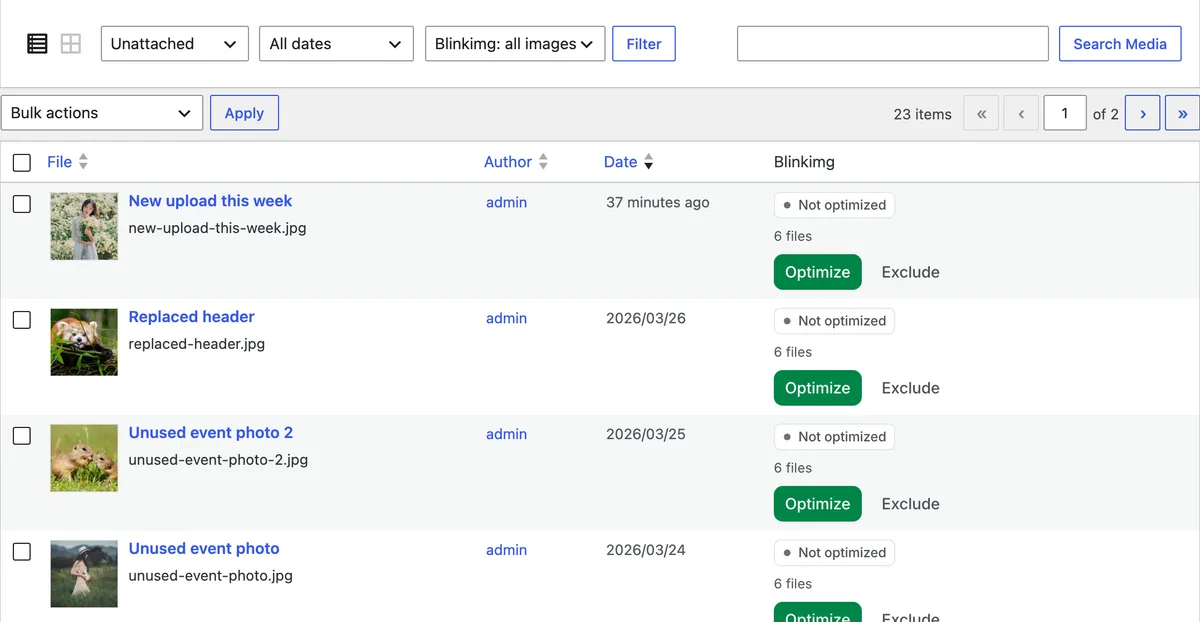
On our test site the Unattached filter listed 23 images. 13 of them were in use: the logo, the site icon, a gallery, an Elementor page and more. It also missed an unused image, because that image was attached to a post that stopped showing it. Deleting by the Unattached filter would have broken pages and still left a leftover.
Why is it risky to delete unused images?
WordPress’s Media Library has one bulk action, Delete Permanently, and it removes every file of the image (WordPress’s developer reference). There is no bin for media unless your site turns one on in code. So a wrong guess is a broken image on a live page, and the only way back is a backup.
A wrong guess is easy, because images hide in many places a simple search of posts misses:
| Where the image is | Example | How to find it |
|---|---|---|
| Post and page content | An Image block, a gallery | Read the content |
| Featured images | A post’s cover photo | Read the post’s settings |
| Site settings | The logo, the site icon, the Customizer | Read the options |
| Custom fields and ACF | A hero image on an About page | Read the fields |
| Page builders | Elementor, Divi, Bricks, Beaver Builder, WPBakery | Read each builder’s own data |
| WooCommerce | Product galleries, variation photos | Read the product data |
| Theme files | theme.json, templates, a background in CSS | Read the theme |
| Code that runs as the page loads | A banner a plugin prints in the footer | Read the page as a visitor sees it |
The last row is the one a database check cannot see. The image’s address lives in a theme or plugin’s PHP, and only appears when the page is built. On our test site, a footer banner printed that way was on every page, and nothing in the database named it.
How do you delete unused images in WordPress safely?
Use a check that reads the database and your pages, holds back anything it is not sure of, and moves images to a bin. These steps use Unused images in Blinkimg’s WordPress plugin, on its Space tab. It is free, needs no account and uses no credits. Install it from WordPress.org first.
The 6 steps, on our test site
Find unused images
Open Media, then Blinkimg, then the Space tab’s Unused images page, and press Find unused images. Blinkimg reads your content, settings, theme and up to 200 of your pages in the background, and changes nothing.

Read the three lists
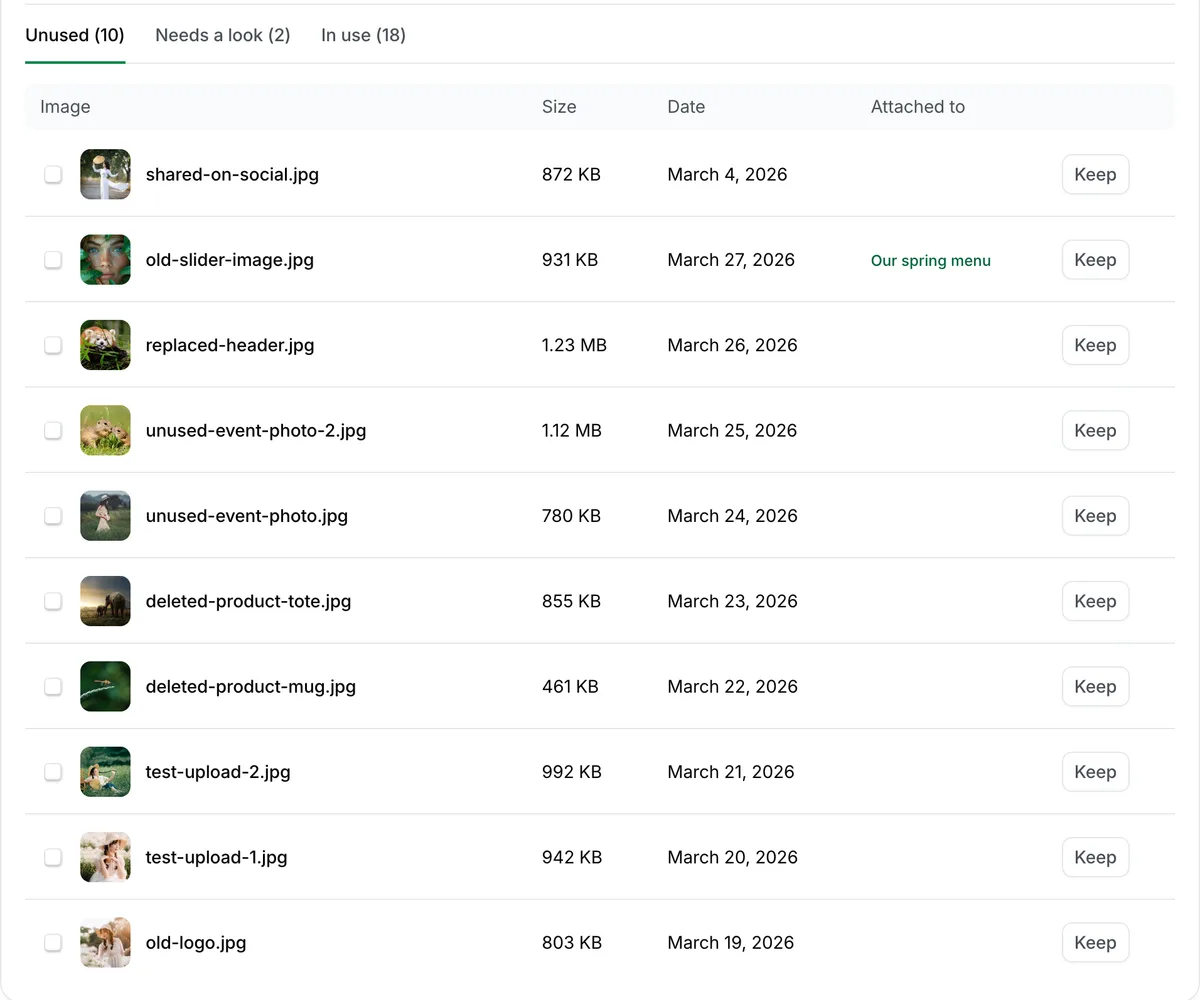
The result splits your library into Unused, Needs a look and In use. On our site it was 10, 2 and 18. An image is Unused only when nothing names it and Blinkimg can bring it back on its own.
Look at Needs a look
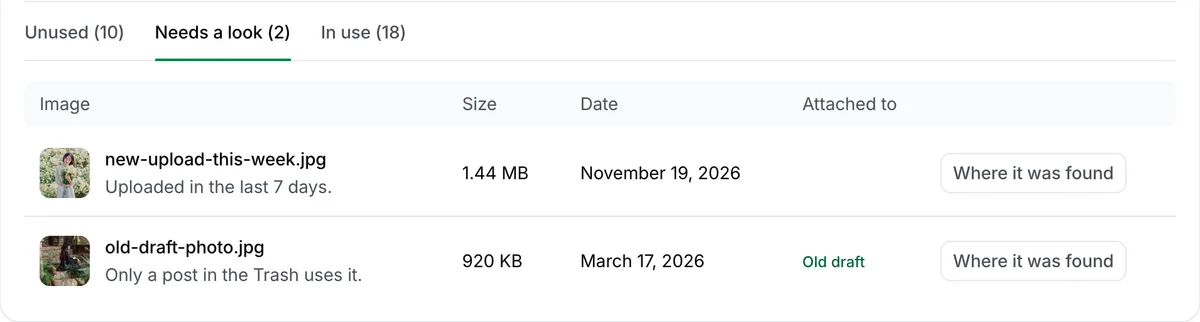
Each row says why Blinkimg held the image back. Ours were an upload from this week and a photo only a post in the Trash used. Other reasons are an image in cloud storage, one file two items share, or a GIF or SVG. Blinkimg never moves these.
Check where an image was found
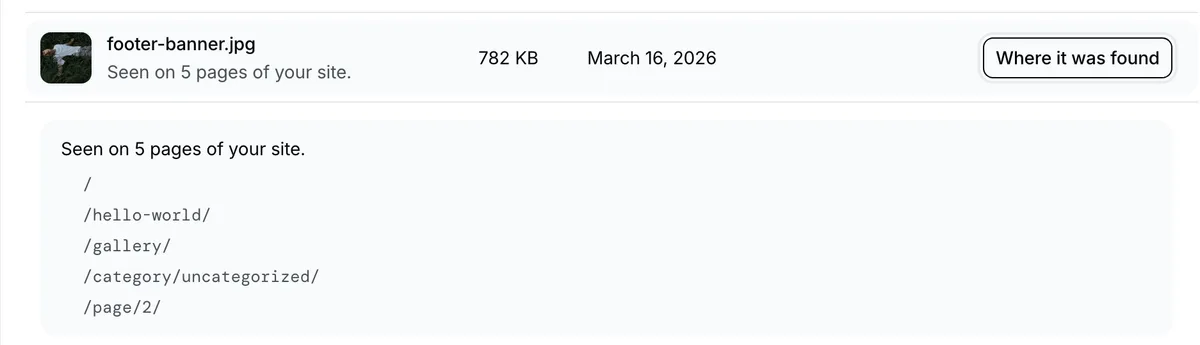
Where it was found shows each place an image is used. Our footer banner was “Seen on 5 pages of your site”: only the page check found it. If an image is wrongly listed as unused, press Keep.
Move them to the bin
Select the images, or use Move all unused images to the bin, and confirm. Each image leaves the Media Library with every size and copy, and keeps its ID, title and alt text.

Bring back, or let the bin empty
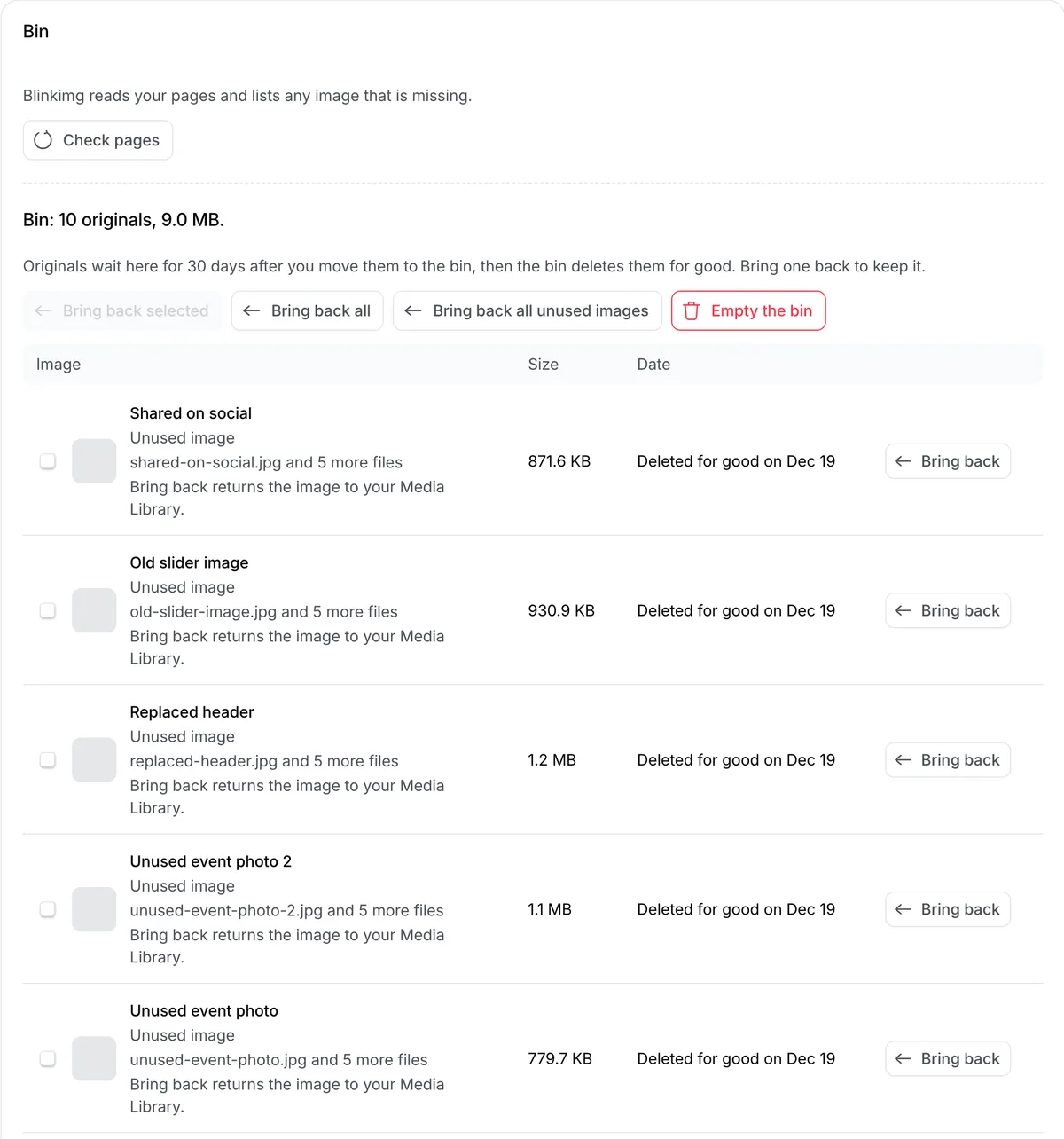
The Bin page lists each image with Bring back until the bin deletes it for good, after 7, 15 or 30 days. Ours kept the 10 images 30 days, until Dec 19.
Why is nothing deleted at the moment you clean?
Find
Database and pages
Changes nothing
Sort
Unused, Needs a look
and In use
Move
To the bin
Checked again first
Wait
Bring back any image
for 7, 15 or 30 days
One more safety net: if a page still links to an image you moved, Blinkimg brings the image back the first time a visitor’s browser asks for it. Before your first move, it tests that your server allows this. Where the test fails, Move all is off and Blinkimg warns you before you move selected images. Our test server failed it, so our move came with that warning (more in How we tested).
How do unused image cleaners compare on the same site?
We ran three checks on the same 30 images: WordPress’s Unattached filter, Media Cleaner’s free scan and Blinkimg’s Unused images. We also kept Blinkimg’s first run, when it could not read the pages. The 10 images we planted as unused were the right answer.
- WordPress Unattached filter23, 13 in use
- Media Cleaner free16, 4 in use
- Blinkimg, pages not read11, 1 in use
- Blinkimg, pages read10, none in use
| Image | Unattached filter | Media Cleaner free | Blinkimg |
|---|---|---|---|
| Site logo and icon | Listed | Not listed | In use |
| Elementor image and background | Listed | Listed as unused | In use |
| About page hero (custom field) | Listed | Listed as unused | In use |
| Footer banner a plugin prints | Listed | Listed as unused | In use |
| Upload from this week | Listed | Listed as unused | Needs a look |
| Photo only a trashed draft uses | Not listed | Listed as unused | Needs a look |
| Old slider image, attached, unused | Not listed | Listed as unused | Unused |
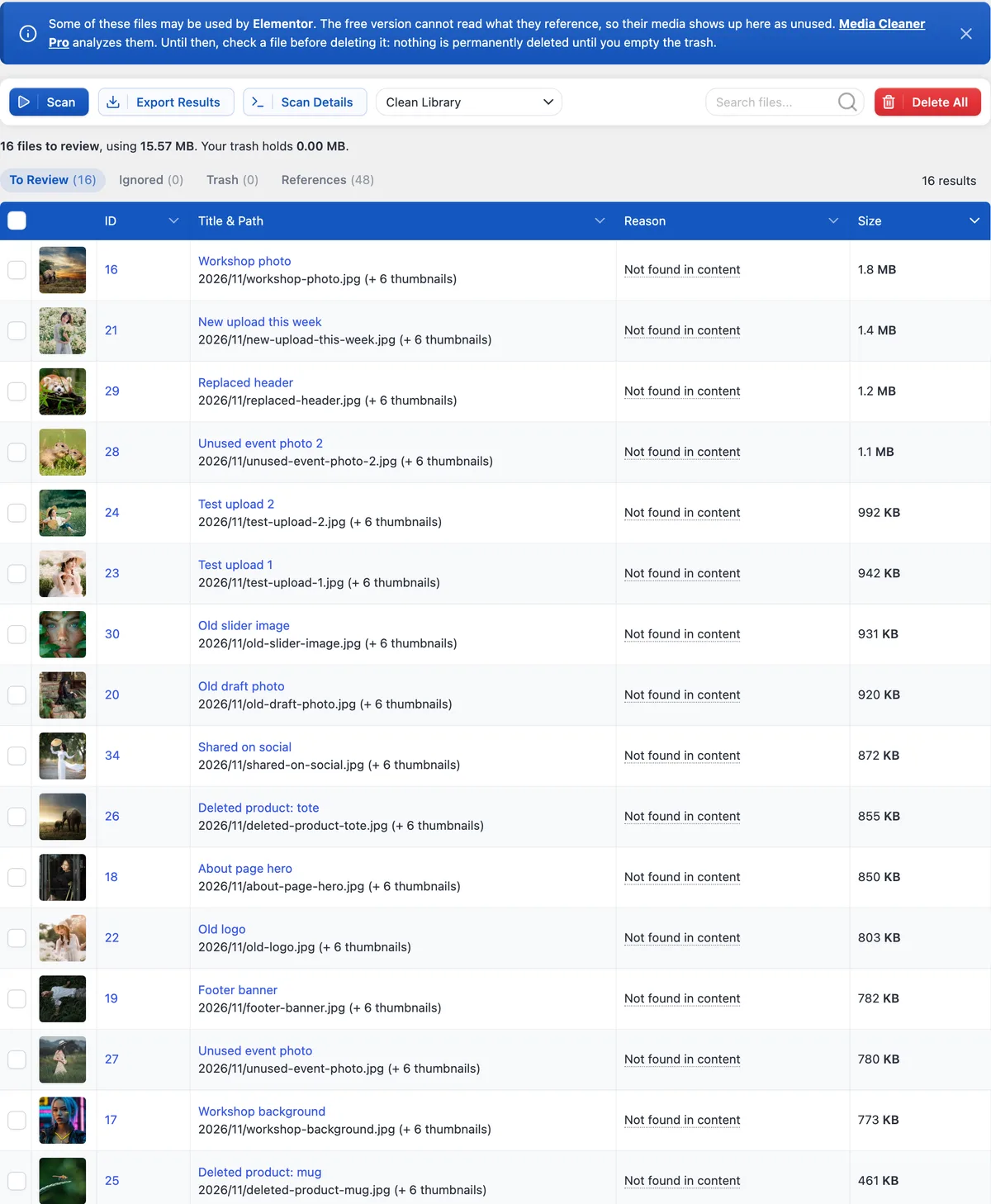
Media Cleaner is fair about it. Its own screen warned that the free version cannot read what Elementor references. Its maker’s page says Elementor, Divi, ACF, WPBakery, Bricks and Beaver Builder “are read by Pro” (Media Cleaner’s page). Its trash keeps files until you empty it. Blinkimg read the Elementor page, the custom field and the rendered pages in its free version, and its bin empties on the schedule you pick.
The pages matter too. In Blinkimg’s first run, our test server answered its page reads with a login page. Blinkimg said so on screen, and listed the footer banner as unused: exactly what a database-only check does. Once the pages were readable, the banner moved to In use.
Can you delete unused images without a plugin?
You can, slowly. WP-CLI has no command that finds unused images: its media commands import, regenerate and list image sizes, but none checks where an image is used. So the manual route is a review, one image at a time:
- Make a full backup of the database and the uploads folder.
- In Media, Library, switch to the list view and open the Unattached filter. Treat it as a list of suspects only.
- For each suspect, search your site for its file name, and open the pages that might show it (the home page, the header and footer, the shop).
- Check your theme’s settings, your page builder and your custom fields.
- Delete Permanently only the images you are sure of, a few at a time, then check your pages.
Steps 3 and 4 are where it fails: an image a plugin adds as the page loads leaves no trace to search for. WP-CLI’s own list of media commands confirms there is no shortcut. For more than a handful of images, a check that reads your pages saves the afternoon.
What about broken images?
Cleaning often turns up the opposite problem: a page asking for an image that is not there. Blinkimg’s Broken images page uses the same check. On our site it found the 5 files of an image whose files we had deleted, each asked for by 9 or 10 pages.
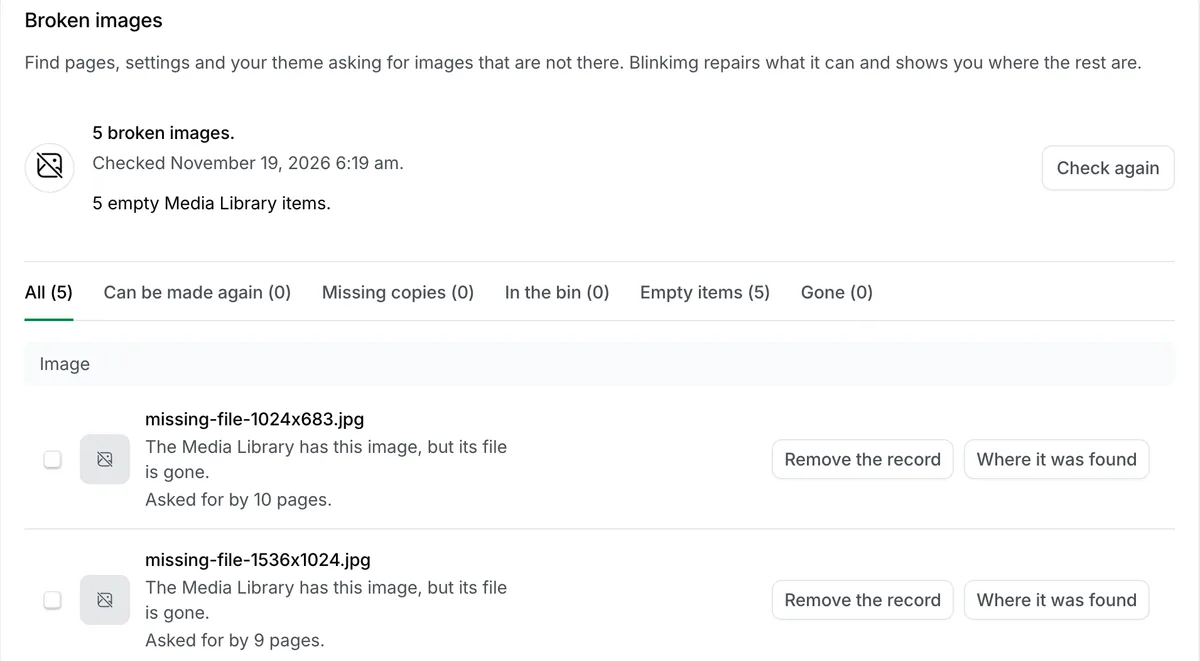
For each one it offers what it can: Regenerate makes missing sizes again, Bring back returns an image from the bin, and Remove the record moves an empty item to the bin. Blinkimg never edits your pages, so a link to a file that is gone for good shows you where to fix it by hand.
How often should you clean your Media Library?
Once a quarter suits most sites, and after any redesign, theme change or big product cleanup. Run a fresh check each time, because a page you added since the last one may use an image the old list called unused.
Once the leftovers are gone, make the rest smaller. Our guide to the best WordPress image optimizer compares five plugins on the same photos, and fixing “Improve image delivery” shows the page-speed side.
How we tested
- The site. WordPress 7.1.5 on WordPress Playground, PHP 8.3, the Twenty Twenty-Five theme, Elementor from WordPress.org, run on 2026-11-19.
- The images. 30 of our own photographs, uploaded with WordPress’s own upload code, placed in post content, featured images, the logo and icon, a gallery, an Elementor page, a custom field, a footer banner a small must-use plugin prints, a trashed draft, an image placed by one size’s address, a link to a full-size file and an image whose files we deleted. 10 uploads were left unused. All but one were dated March 2026; one was uploaded that day.
- The tools. Blinkimg 0.2.0 in local mode with no account, Media Cleaner 7.3.7 free, and WordPress’s Unattached filter. The counts and sizes are what each screen printed. Media Cleaner counts its thumbnails in its size, so we compared which images each tool listed, not megabytes.
- The pictures. Real screens of the test site, captured with Playwright and cropped.
Read the full guide: How to reduce image file size on any device.
Questions
- How do I find unused images in WordPress?
- Use a check that reads your database and your pages, such as Blinkimg’s free Unused images on the Space tab. WordPress’s Unattached filter is not enough: on our test site it listed 23 images, and 13 of them were in use, including the logo, the site icon and a gallery.
- Is it safe to delete unused images in WordPress?
- It is safe when nothing is deleted on the spot. Move images to a bin first, keep it for 7 to 30 days, and check your pages meanwhile. WordPress’s own Delete Permanently removes every file of an image at once, so a wrong guess needs a backup to undo.
- Does WordPress delete images when you delete a post?
- No. Deleting a post or page leaves its images in the Media Library, still attached to a post that no longer exists or unattached. Over time those images become the leftovers an unused image check finds, together with replaced logos, test uploads and photos of deleted products.
- What does unattached mean in the WordPress Media Library?
- Unattached means the image was not uploaded inside a post or page, or that post is gone. It does not mean unused: a logo, a site icon or a gallery image added from the Media screen is unattached and can still appear on every page of the site.
- Why does an unused image cleaner miss Elementor images?
- Page builders such as Elementor keep their layouts in their own data, not in the post content. A cleaner that cannot read that data sees no use and lists the image as unused. Media Cleaner’s free version says so; Blinkimg’s free Unused images reads Elementor, Divi, Bricks, Beaver Builder and WPBakery.
- Can I restore an image I deleted from WordPress?
- Only from a backup, if you used Delete Permanently. An image moved to a cleaner’s bin can come back: Blinkimg’s Bring back returns it with its ID, title and alt text until the bin empties after 7, 15 or 30 days.