WordPress image quality loss: what really blurs photos
What WordPress does to your photos, how much it costs, and the size mistake that causes the blur you see. Part of the WordPress image compression plugin.
By Sahadat Husain16 min readGuides

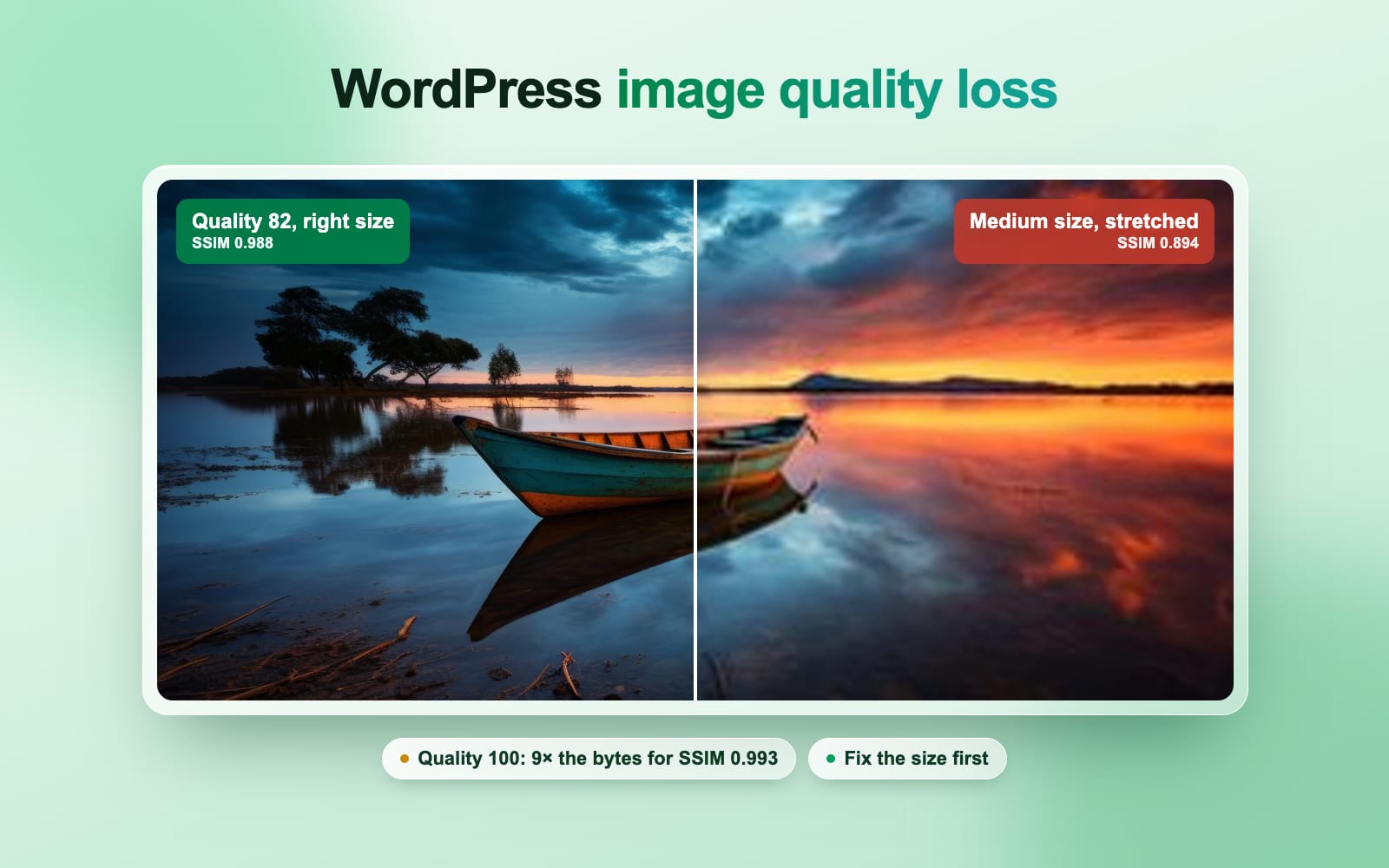
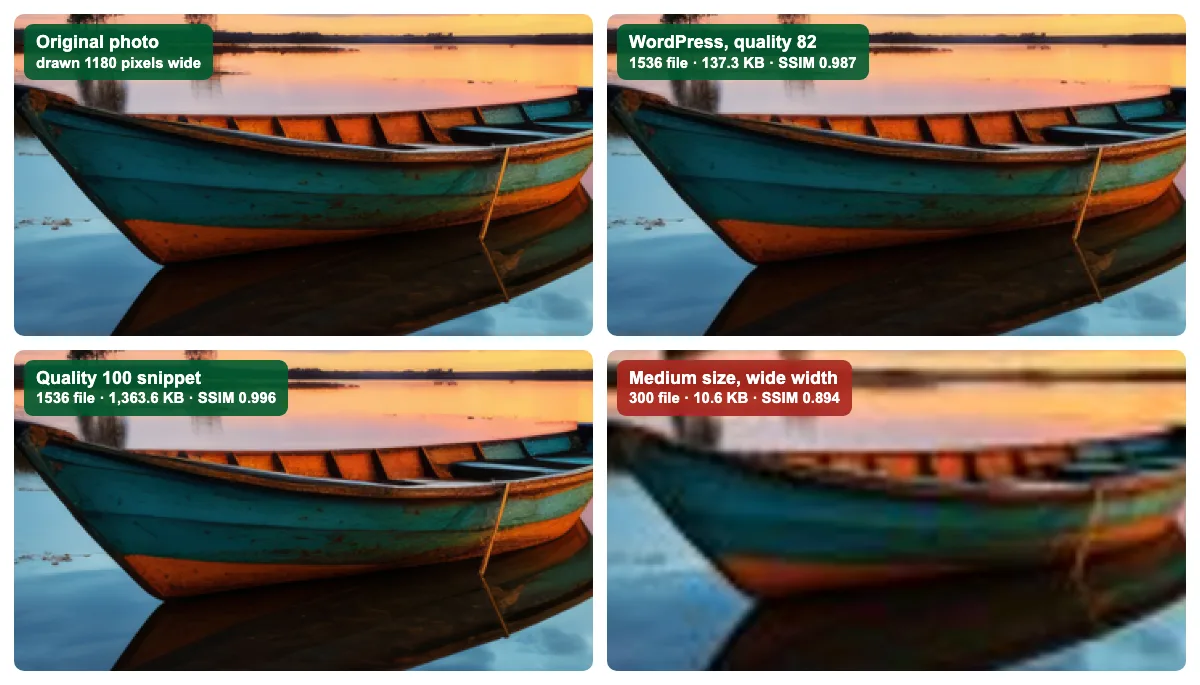
WordPress image quality loss is real but small. WordPress saves every smaller copy of a photo at JPEG quality 82, and shrinks any upload wider than 2560 pixels. On our test site, quality 82 scored 0.988 out of 1 on a monitor. Quality 100 scored 0.993 and made the file 9 times bigger. The blur people see came from somewhere else. A Medium image set to wide width drew a 300-pixel file across 1,180 screen pixels and scored 0.894. Fix the size first, then decide on quality.
How to find what blurs your WordPress images
Right-click the soft image and open it in a new tab. If the file looks sharp there, the page draws it too big. If the file looks soft on its own, the file itself lost quality. The file name tells you which copy the page loaded: a name ending in -300x168 is the 300-pixel Medium size.
| What you see | Usual cause | Fix |
|---|---|---|
| Sharp in a new tab, soft on the page | The block uses a size smaller than its space | Set the Image block’s Resolution to Large or Full Size |
| Soft only on a Retina laptop or a phone | The upload is narrower than twice the space | Upload photos at least twice your content width |
| Only the featured image is soft | The theme asks for a small size | Test a default theme, then raise the theme’s size |
| Older posts soft after a theme switch | The new theme’s sizes were never made | Regenerate the sizes |
| Worse since you installed an optimizer | Its quality is set too low | Raise the quality, restore, optimize again |
| Blocky marks in the file itself | You exported at a low quality first | Export at a high quality, or upload the camera file |
| Still soft after a fix | A cache serves the old file | Check in a private window; clear the page cache and CDN |
Does WordPress reduce image quality?
Yes, in two places. Every size WordPress makes from your upload is a new JPEG at quality 82, the $default_quality in its image editor class; WebP copies get 86. And since WordPress 5.3, an upload over 2560 pixels on its longer side becomes a smaller copy named -scaled. The big_image_size_threshold filter in wp-admin/includes/image.php sets that number.
Most guides miss two things WordPress does not do. WordPress never re-saves an upload of 2560 pixels or less: that full-size file stays byte for byte what you sent. And WordPress makes every smaller size from your original, not from the -scaled copy. So each size is compressed once, not twice.
| Size | Pixels | Quality 82 (default) | Quality 100 |
|---|---|---|---|
| Full size (-scaled) | 2560 × 1435 | 315.7 KB | 3,453.9 KB |
| 2048 × 2048 | 2048 × 1148 | 219.2 KB | 2,306.9 KB |
| 1536 × 1536 | 1536 × 861 | 137.3 KB | 1,363.6 KB |
| Large | 1024 × 574 | 71.4 KB | 645.4 KB |
| Medium large | 768 × 430 | 45.2 KB | 381.7 KB |
| Medium | 300 × 168 | 10.6 KB | 73.1 KB |
Two pages that rank for this question say WordPress compresses JPEGs “by 90%”. That is a misreading: 90 was the quality number until WordPress 4.5 lowered it to 82, not a cut of 90 percent. WordPress’s own reference describes the setting as a quality level from 1 to 100.
How much quality does WordPress’s 82 really lose?
Very little on a photo like ours. We drew each copy at the width Chromium drew it on a 1280-pixel monitor, 645 pixels, and scored it against the original drawn the same size. SSIM gives 1 for an identical picture, and the lower it goes, the more the picture changed.
Kilobytes
- WordPress, quality 100645.4 KB · 0.993
- Blinkimg High quality, AVIF103.2 KB · 0.991
- WordPress, quality 8271.4 KB · 0.988
- Blinkimg Auto, AVIF25.7 KB · 0.978
| How it was made | File | Bytes | SSIM |
|---|---|---|---|
| WordPress default, quality 82 | JPEG | 71.4 KB | 0.9883 |
| WordPress with the quality 100 snippet | JPEG | 645.4 KB | 0.9932 |
| Exported at quality 70, then WordPress 82 | JPEG | 71.7 KB | 0.9877 |
| Blinkimg High quality (engine) | AVIF | 103.2 KB | 0.9913 |
| Blinkimg High quality (engine) | JPEG | 135.1 KB | 0.9901 |
| Blinkimg Auto (engine) | AVIF | 25.7 KB | 0.9784 |
| Blinkimg Auto (This server, GD) | WebP | 44.5 KB | 0.9793 |
| Blinkimg Custom 40 (This server, GD) | WebP | 19.4 KB | 0.9554 |
| Medium size set to wide width (wrong size) | JPEG | 10.6 KB | 0.8944 |
Quality 100 bought 0.0049 of score for 9 times the bytes. Quality 100 is not lossless either: the copy is still a new JPEG, and it scored 0.993, not 1. The wrong size cost 0.0939, about 19 times what quality 82 lost. So turning compression off rarely fixes a blurry site.
A detailed photo loses more
Our portrait (4500 × 3000, fine hair and skin texture) showed the gap more clearly: 0.986 at quality 82 and 0.994 at 100, with the file growing from 137.6 KB to 814.7 KB. Blinkimg’s High quality AVIF matched quality 100’s 0.994 at 241.3 KB. On photos like this, raising the quality is worth it; doing it with a modern format costs far less.
Why do my WordPress images look blurry?
Because the browser is stretching a file smaller than the space it fills. We read 4 test posts in Chromium on 3 screens: a 1280-pixel monitor at 1x, a 1440-pixel Retina laptop at 2x and a 393-pixel iPhone at 3x. For each, we divided the file’s width by the screen pixels it covered. Below 1, the browser enlarges the file, and enlarging is blur.
| Post | Screen | File it took | File px per screen px | SSIM |
|---|---|---|---|---|
| Large size in the text | Monitor 1x | boat-default-1024x574.jpg | 1.59 | 0.9883 |
| Large size in the text | Retina 2x | boat-default-2048x1148.jpg | 1.59 | 0.9914 |
| Large size in the text | iPhone 3x | boat-default-1536x861.jpg | 1.54 | 0.9911 |
| Medium size, wide width | Monitor 1x | boat-default-300x168.jpg | 0.25 | 0.8944 |
| Medium size, wide width | Retina 2x | boat-default-768x430.jpg | 0.29 | 0.9254 |
| Medium size, wide width | iPhone 3x | boat-default-1024x574.jpg | 1.03 | 0.9793 |
The image block uses a size too small for its space
This was the only real blur we found. An Image block set to the Medium size and then to wide width tells the browser, through its sizes attribute, that the picture is 300 pixels wide. The theme then draws it 1,180 pixels wide, so the monitor fetched the 300-pixel file and stretched it almost 4 times. The Retina laptop took the 768 file for 2,680 screen pixels. The iPhone was fine, because its column is narrow.
WordPress 6.7 added sizes="auto", which lets the browser measure the real space, but only for lazy-loaded images. The first images on a page are not lazy, so they keep the wrong guess; both of ours did.
Select the image in the editor
Open the post and click the blurry image. In the panel on the right, choose Block, then the Settings tab, the gear. Resolution shows the size the block uses; ours said Medium, and the photo looked soft even in the editor.
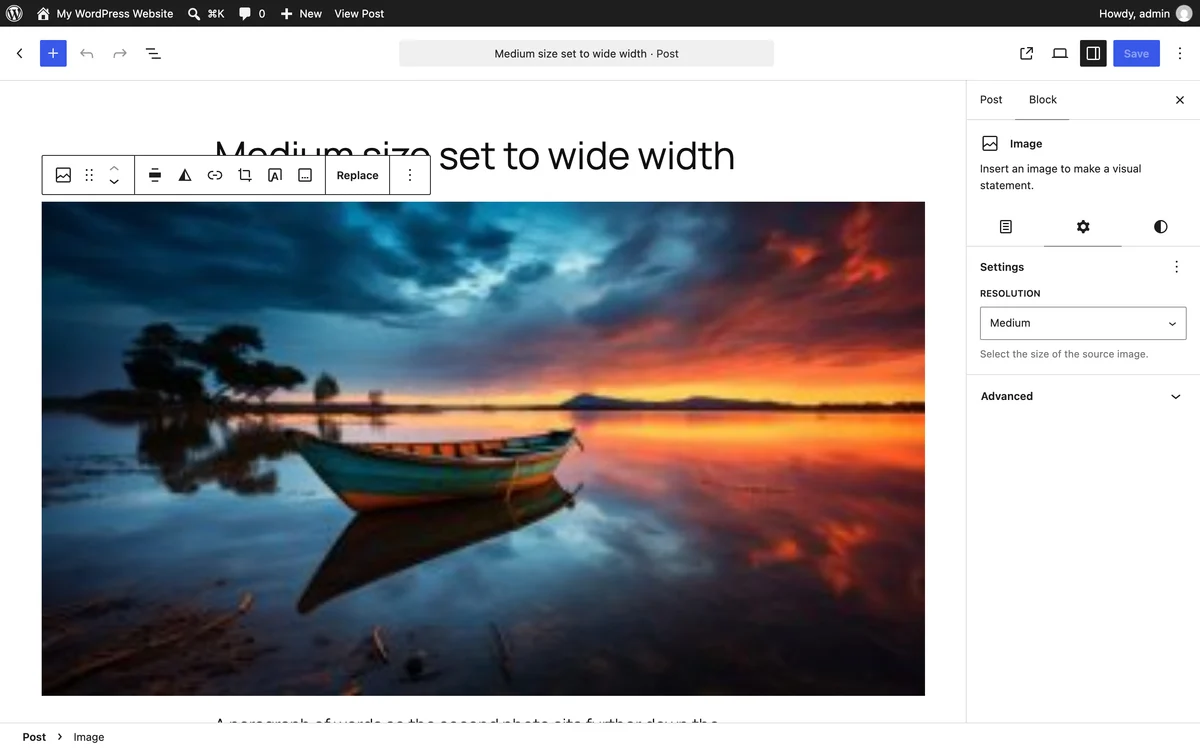
Choose a bigger Resolution
Under Resolution, choose Large or Full Size instead of Thumbnail or Medium, then Save. WordPress then tells the browser the real width, and the browser picks a big enough copy.
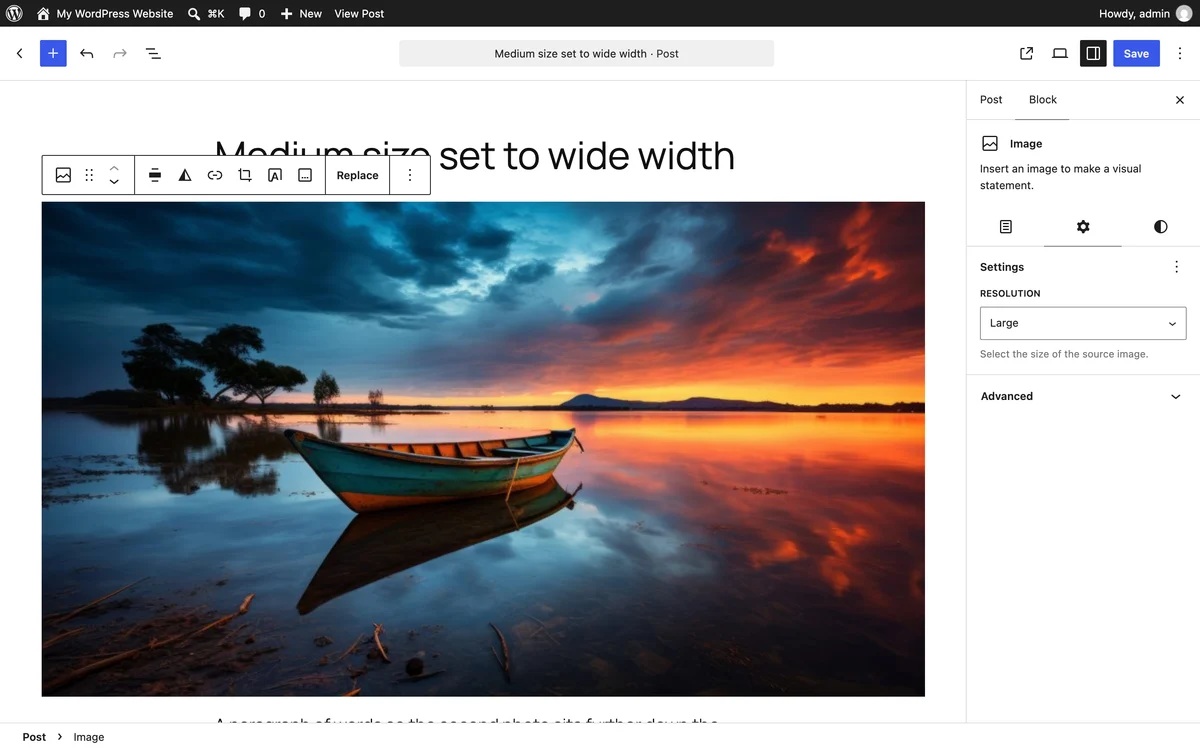
A new Image block starts at Large, the image_default_size fallback in block-editor.php, and Large is 1024 pixels wide by default. Our theme’s column was 645 pixels, so Large covered it. A theme with a column wider than 1024 pixels stretches Large too. Choose Full Size there, or raise Large’s width in Settings, Media and regenerate the sizes.
A Retina screen needs twice the pixels
A 2x screen covers every CSS pixel with 4 device pixels, so a photo shown 645 pixels wide needs a file about 1290 pixels wide. WordPress handles this when the size is right: our Large image got the 2048 file on the Retina laptop and scored 0.991. Upload photos at least twice as wide as your content column, and WordPress’s 1536 and 2048 sizes do the rest.
Your export was already compressed
Saving twice adds two losses, but on our boat the second one barely showed. We exported the photo at quality 70 (622.9 KB) and uploaded that. WordPress’s Large copy then scored 0.9877 against 0.9883 from the camera file, because shrinking a photo hides most compression marks. At the full 2560-pixel size the gap was 4 times wider, 0.9776 against 0.9799, so export at a high quality, or upload the camera file.
An optimizer plugin is set too low
An optimizer can lose more than WordPress ever does. We set Blinkimg to Custom 40 on purpose: the page copy shrank to 19.4 KB and scored 0.955, the lowest of every setting we tried. If your images got worse after installing an optimizer, check its quality setting first. Then restore the originals and optimize again at a higher quality. Run one optimizer at a time: two in a row compress the same file twice.
How do I stop WordPress compressing images?
Add a filter that returns 100. jpeg_quality sets JPEG only and runs last; wp_editor_set_quality sets every format, including the WebP copies WordPress can make. Put the snippet in a small plugin or your child theme’s functions.php, not the parent theme, which an update replaces.
If you would rather not edit PHP, a code snippets plugin runs the same lines, and the same number works the other way: return 70 instead of 100 to compress harder. Uploading a PNG avoids the 82 altogether, because PNG has no quality setting, but a photo saved as PNG is far larger than the same photo as JPEG.
// WordPress saves every size at quality 82 (JPEG) and 86 (WebP) by default.
add_filter( 'wp_editor_set_quality', function () {
	return 100;
} );
add_filter( 'jpeg_quality', function () {
	return 100;
} );The filter changes new uploads only. To remake the sizes of photos you already have, run wp media regenerate or a regenerate plugin. Then clear your page cache and CDN, and check the page in a private window, so you see the new files. Weigh the cost first: the quality 100 snippet made our boat’s full size 3,453.9 KB instead of 315.7 KB, and every visitor downloads that weight.
Should I disable WordPress’s 2560-pixel image resolution limit?
Rarely, because the limit does not cost sharpness on the page. WordPress leaves files wider than 2048 pixels out of srcset unless the image is set to Full Size, the max_srcset_image_width default. The browser then takes the smallest file that covers the screen. Your original also stays on the server next to the -scaled copy. What the limit protects is the download: with the limit off, the full-size file is the original.
We measured that with Expand on click, WordPress’s lightbox. On the Retina laptop one click on the photo downloaded the 315.7 KB -scaled copy with the limit on, and the whole 9.8 MB original with it off. If you need bigger full-size files, raise the limit instead of removing it:
// Scale uploads to 4000 pixels instead of 2560. Return false to turn scaling off.
add_filter( 'big_image_size_threshold', function () {
	return 4000;
} );Why is my WordPress featured image low quality?
Usually because the theme asks for a small size. Twenty Twenty-Five asks for the full size, so our featured image took the 1536 file on the monitor (2.38 file pixels per screen pixel) and the 2560 file on the Retina laptop: sharp everywhere. A theme that registers a small size for featured images, or a featured image block set to Medium, stretches it the way our Medium image block was stretched.
Open the featured image in a new tab and read the size in its file name. If that size is smaller than the space, raise the size in the theme’s settings or its template, then regenerate the sizes. A photo uploaded smaller than the space needs a bigger upload; no setting can add pixels.
Two quick checks narrow it down. Switch to a default theme such as Twenty Twenty-Five for a minute: if the photo turns sharp, your theme asks for the small size. And if only older posts look soft after a theme change, the new theme’s sizes were never made for them; regenerating the sizes fixes that.
How to keep image quality and still get smaller files
Use a modern format at a high quality, and keep the original so you can check and undo. Our WordPress image compression plugin, Blinkimg, has three quality levels: Auto, High quality (90 for every format, with JPEG’s full colour) and Custom from 1 to 100. Every original is backed up before a file changes, Compare shows the two side by side, and Restore brings the original back.
Set the quality, then check it with Compare
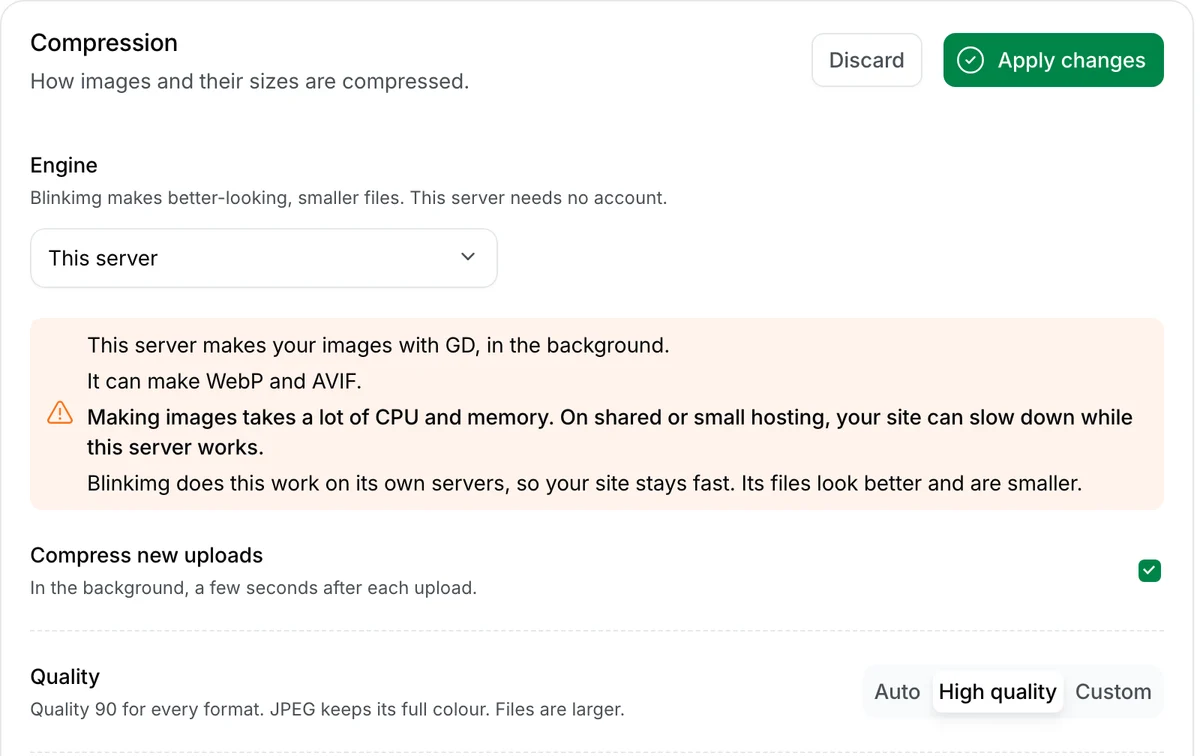
Choose High quality
Open Media, Blinkimg, Settings, Compression. Under Quality, choose High quality, then Apply changes. Auto gives smaller files; Custom takes any number from 1 to 100.
Optimize the image
In Media, Library, switch to the list view and press Optimize in the Blinkimg column, or let new uploads run on their own. The column then shows the saving.

Compare before and after
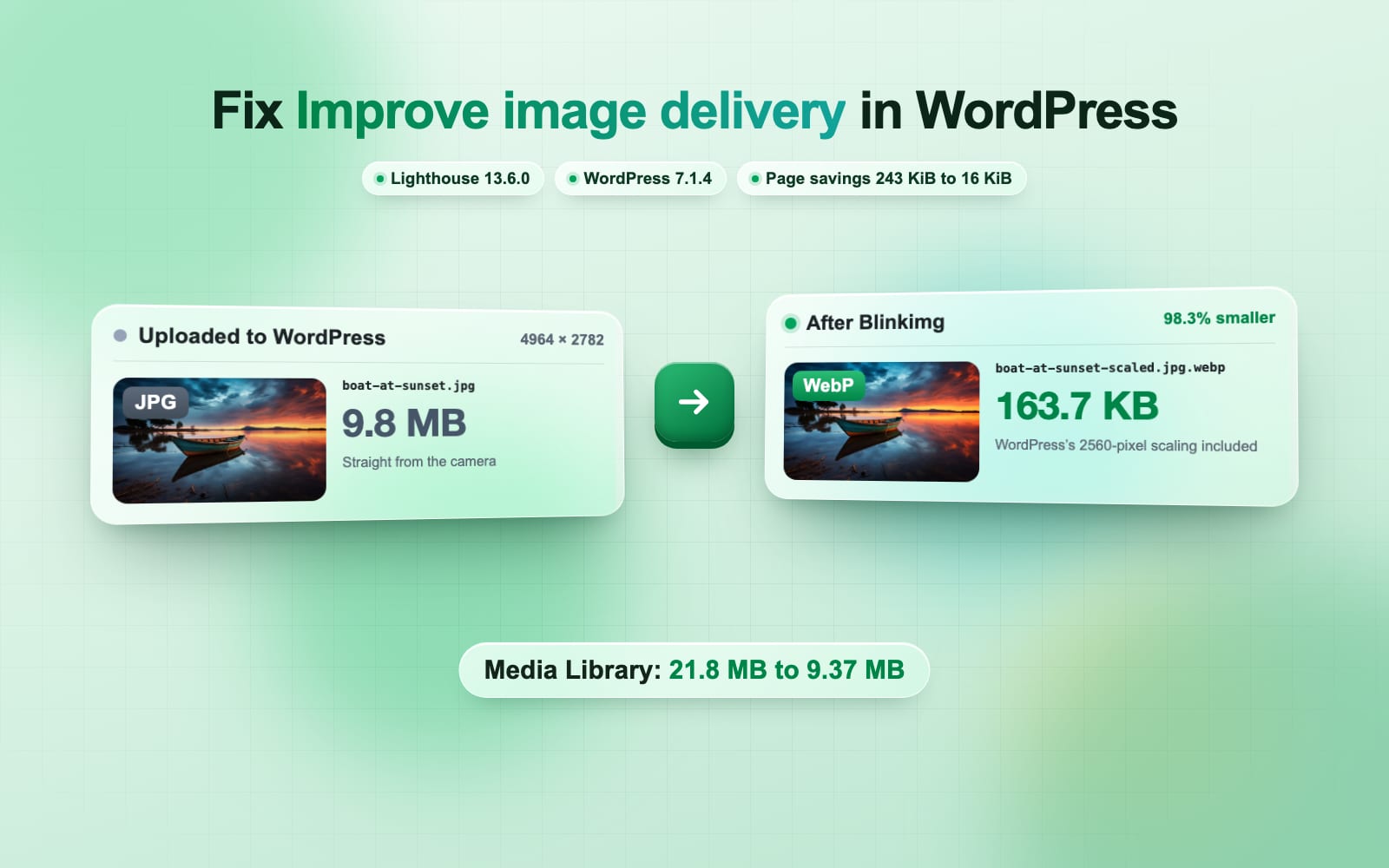
Press Compare and drag the line across the photo. Zoom to 2x or 4x on the parts that matter, such as faces or text. Ours showed the boat’s 315.7 KB full-size JPEG beside its 163.7 KB WebP.
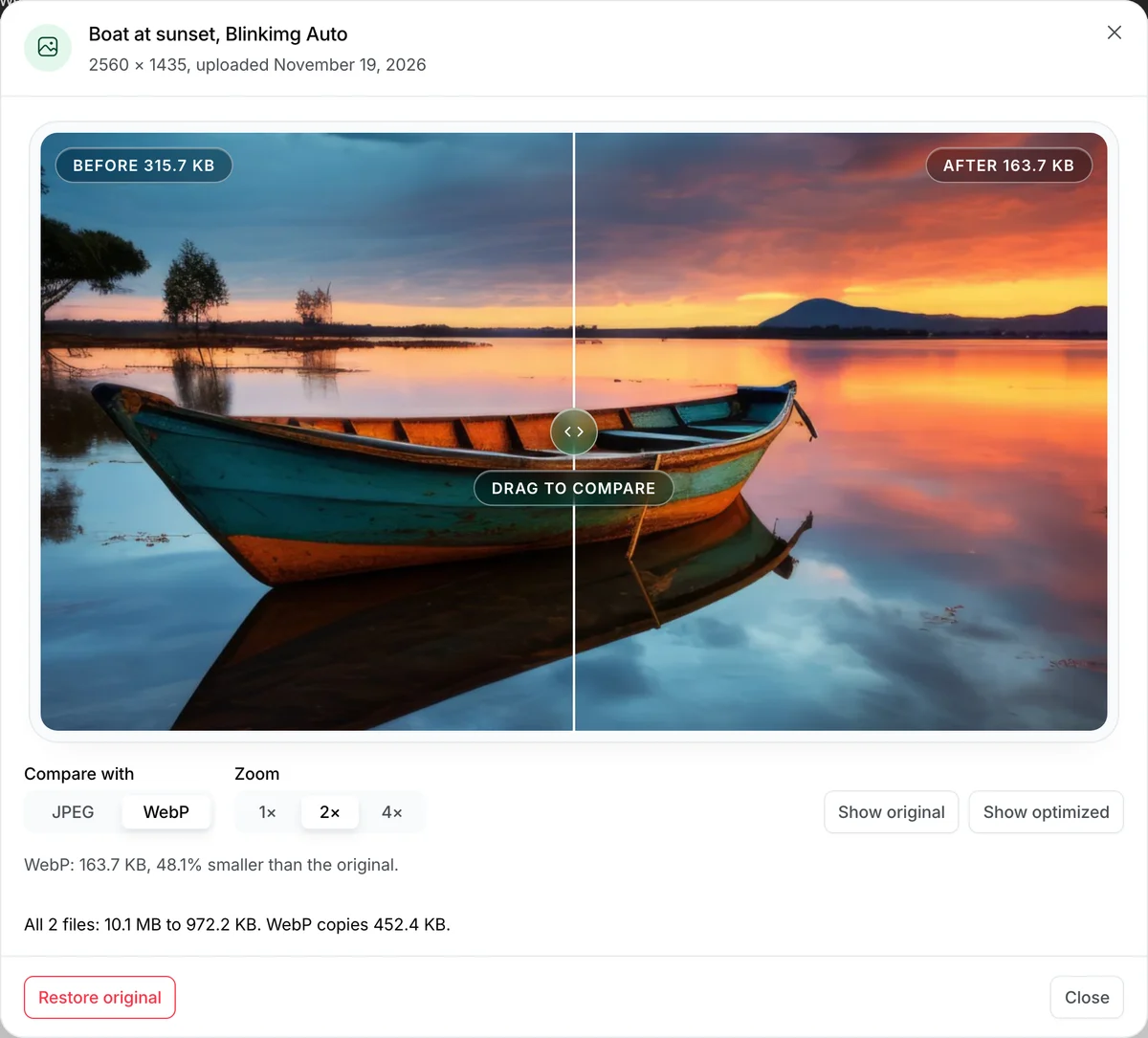
Restore if you do not like it
Press Restore in the row and confirm, or use Restore original in Compare. Blinkimg puts the original back and removes the WebP and AVIF copies. Our Custom 40 test image said Original restored, and its Large copy was WordPress’s 71.4 KB file again. To try a higher quality instead, change the setting and press Re-optimize: Blinkimg starts again from the backup, so the photo is not compressed twice.

What Auto did on our server
On This server, Blinkimg’s Auto made the boat’s page copy a 44.5 KB WebP and left WordPress’s JPEG in place where its own was bigger. It also compressed the unscaled original WordPress keeps, from 9.8 MB to 667.2 KB, with the backup kept. After a theme switch, its Tools, Improve images, Rebuild image sizes makes only the sizes your images lack, and compresses them. For how Blinkimg compares with other plugins, see our best WordPress image optimizer test. If photos also blur on social sites, our guide to photos blurry after upload covers those.
How we tested
- The site. WordPress 7.1.5 on WordPress Playground, PHP 8.3.36, GD 2.3.3, the Twenty Twenty-Five theme, on 2026-11-20.
- The photos. Our boat photo, 4964 × 2782 and 9.8 MB, and a portrait, 4500 × 3000. Each uploaded with WordPress’s defaults, with both quality filters returning 100, with big_image_size_threshold returning false, and as a quality 70 export.
- The score. SSIM over brightness (Wang and others, 2004: an 11-pixel Gaussian window). Each file was drawn at the width Chromium drew it and compared with the original drawn the same size. The widths and files come from Playwright reading each post at 1280 pixels (1x), 1440 (2x) and 393 (3x).
- Blinkimg. Blinkimg 0.2.0 from WordPress.org with no account, on This server, at Auto and Custom 40. The High quality and Auto engine rows are Blinkimg’s engine, the code its API runs, run on our machine at the same sizes; the plugin sends images there only once you connect an account.
Read the full guide: How to reduce image file size on any device.
Questions
- Does WordPress reduce image quality?
- Yes, a little. WordPress saves every smaller size of an upload as a new JPEG at quality 82, and scales any upload over 2560 pixels to a -scaled copy. An upload of 2560 pixels or less keeps its full-size file unchanged. On our test photo, quality 82 scored 0.988 out of 1 on a monitor.
- Why does WordPress make my images blurry?
- Usually the page shows a size too small for its space, and the browser stretches it. On our test site a Medium image set to wide width drew a 300-pixel file across 1,180 screen pixels. Choose Large or Full Size in the Image block, and upload photos at least twice your content width.
- How do I disable JPEG compression in WordPress?
- Add filters for jpeg_quality and wp_editor_set_quality that return 100, in a small plugin or a child theme’s functions.php. They apply to new uploads; regenerate the sizes for older photos. Expect much heavier files: our photo’s 1024-pixel copy grew from 71.4 KB to 645.4 KB.
- What is the WordPress image resolution limit?
- WordPress scales any upload wider or taller than 2560 pixels to a copy of 2560 pixels, named with -scaled, and keeps the original on the server. The big_image_size_threshold filter changes the number or turns it off. Pages leave files over 2048 pixels out of srcset unless the image is set to Full Size.
- Why is my WordPress featured image low quality?
- The theme or the featured image block asks for a small size, so the browser stretches it. Open the image in a new tab and read the size in its file name. If it is smaller than the space, choose a bigger size in the theme or template, then regenerate the sizes of older images.
- Is quality 100 better for WordPress images?
- Only slightly sharper, and far heavier. On our boat photo quality 100 raised the score from 0.988 to 0.993 and made the file 9 times bigger. A modern format at a high quality gets closer for less: Blinkimg’s High quality AVIF scored 0.991 at 103.2 KB.