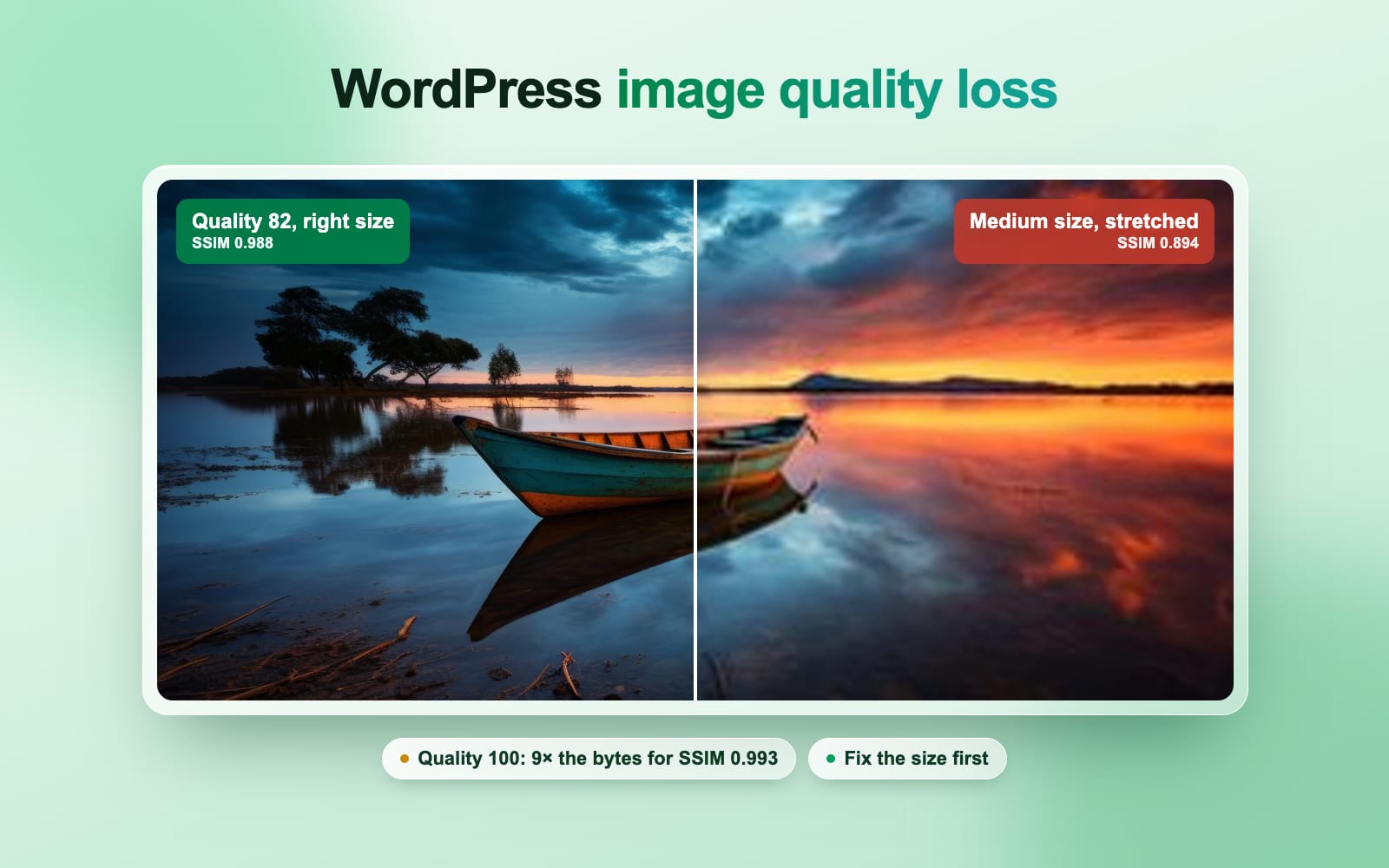
How to fix “Improve image delivery” in WordPress
Lighthouse 13 folded four image warnings into one. Here is what each row means on a WordPress site, which file it flags, and what fixed it on our test page. Part of the WordPress image compression plugin.
By Sahadat Husain19 min readGuides

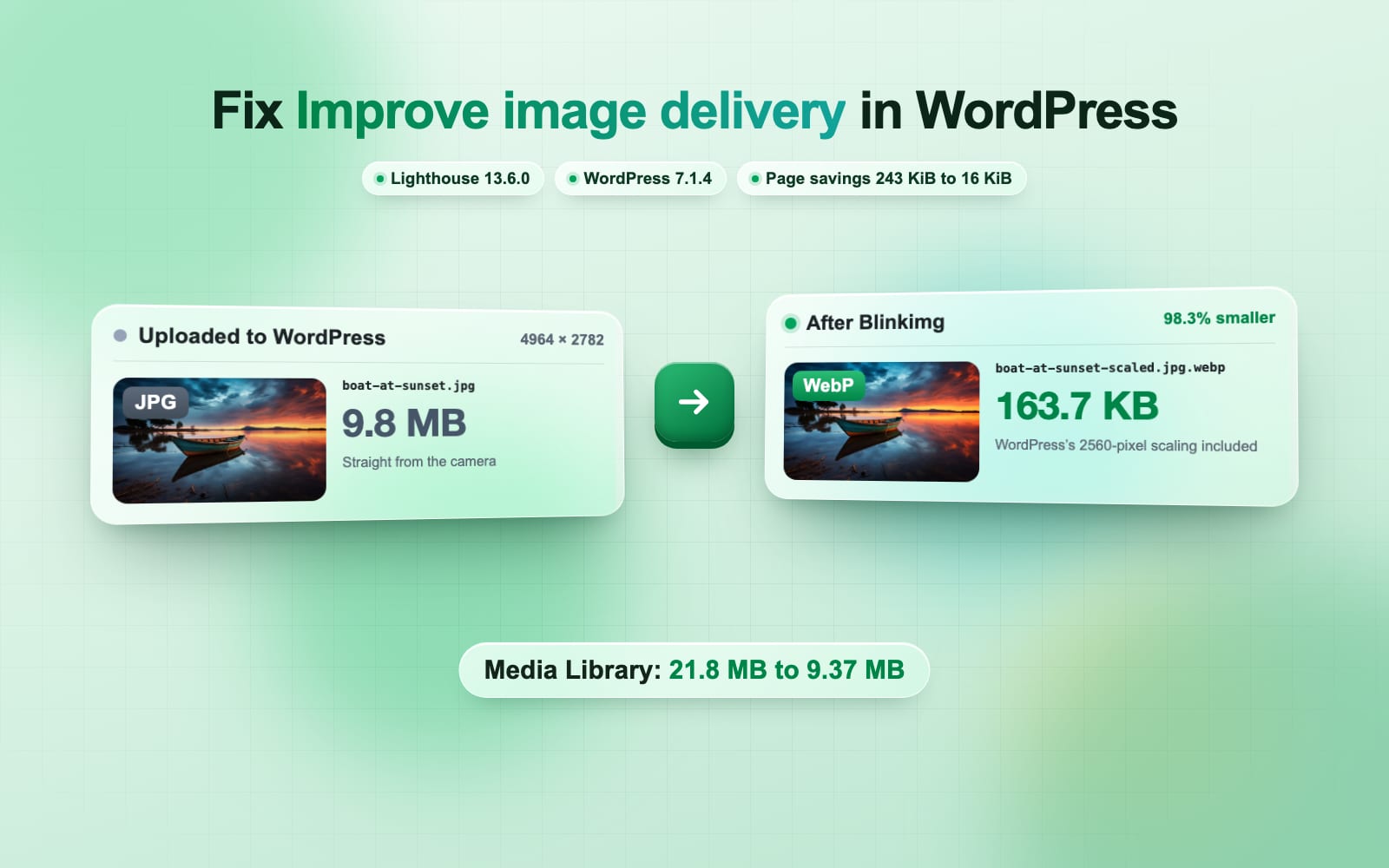
To fix “Improve image delivery” in WordPress, compress the image sizes WordPress actually serves, add WebP or AVIF copies, and make sure the image that loads first gets fetchpriority="high". PageSpeed Insights shows the warning when an image downloads more bytes than it needs. Since Lighthouse 13, one insight covers what used to be four warnings, from “Serve images in next-gen formats” to “Properly size images”. We built a WordPress page with 5 camera photos and ran Lighthouse after each fix: a free plugin, then two short pieces of code. The estimated savings fell from 243 KiB to 16 KiB.
What does “Improve image delivery” mean in PageSpeed?
“Improve image delivery” is the PageSpeed Insights insight that lists every image whose download is bigger than it needs to be, with an estimate of the bytes you could save. Chrome’s Improve image delivery documentation names the fixes: more compression, a modern format such as WebP or AVIF, video instead of a big GIF, and a file no larger than the size it is drawn at.
Each flagged image gets one or more reasons under its row. There are four, and each one has its own fix in WordPress:
- “Using a modern image format (WebP, AVIF) or increasing the image compression could improve this image’s download size.” The file is a JPEG or PNG that is too heavy for its pixels.
- “Increasing the image compression factor could improve this image’s download size.” The file is already WebP or AVIF, and it is still too heavy.
- “This image file is larger than it needs to be … Use responsive images.” The file has more pixels than the screen draws.
- Using video formats instead of GIFs. An animated GIF over 100 KiB.
Where did “Serve images in next-gen formats” go?
Lighthouse 13 removed it. Lighthouse 13, released on 10 October 2025, replaced the old audits with insights, and PageSpeed Insights switched within a week. Four image audits became “Improve image delivery”, and two LCP audits became “LCP request discovery”. Many WordPress guides still name the old warnings, so this table maps each one to where it lives now.
| Old warning | Now | What changed |
|---|---|---|
| Serve images in next-gen formats | Improve image delivery | Merged |
| Efficiently encode images | Improve image delivery | Merged |
| Properly size images | Improve image delivery | Merged |
| Use video formats for animated content | Improve image delivery | Merged |
| Preload Largest Contentful Paint image | LCP request discovery | Merged |
| Largest Contentful Paint image was lazily loaded | LCP request discovery | Merged |
| Image elements do not have explicit width and height | Layout shift culprits, and a diagnostic | Kept as a diagnostic |
| Defer offscreen images | Nothing | Removed |
Chrome removed “Defer offscreen images” because browsers already load offscreen images last, as its Lighthouse 13 notes say. Lighthouse 13 also changed nothing in how the score is calculated. An insight is a guide to wasted bytes, not a line in the score: the score moves only when fixing the images moves a metric such as Largest Contentful Paint.
How does PageSpeed decide an image is too big?
PageSpeed expects about 0.17 bytes for every pixel in the file, the rate of a well compressed AVIF, and flags the bytes above that. The rule is in Chrome’s own ImageDelivery source code: a target of 2 × 1/12 bytes a pixel, a row shown only when it saves more than 4 KiB, and a 12 KiB allowance for an image that already has a srcset. A WebP file is judged against the same AVIF target, which is why a WebP can still be flagged.
| WordPress size | Pixels | Most bytes before a flag |
|---|---|---|
| Thumbnail | 150 × 150 | 3.8 KB |
| Medium | 300 × 200 | 10.0 KB |
| Medium large | 768 × 512 | 65.5 KB |
| Large | 1024 × 683 | 116.6 KB |
| 1536 × 1536 | 1536 × 1024 | 262.1 KB |
| 2048 × 2048 | 2048 × 1365 | 465.9 KB |
| Scaled original | 2560 × 1707 | 728.3 KB |
Which file is PageSpeed flagging in WordPress?
PageSpeed flags the resized copy the visitor’s browser picked, not the photo you uploaded. Our 9.8 MB boat photo never reached the phone. WordPress scaled it to 2560 pixels, made 6 smaller sizes, and listed them in the image’s srcset. The phone in Lighthouse chose the 768-pixel copy, 45.4 KB.
Upload
9.8 MB
4964 × 2782
Scaled copy
2560 pixels wide
WordPress 5.3 and later
6 sizes
150 to 2048 pixels
JPEG quality 82
srcset
every size listed
the browser picks one
Phone downloads
768 × 430
45.4 KB
Two things follow. Compressing a photo before you upload it does not carry over to the sizes, because WordPress makes every size again from your file at its own quality, 82 for JPEG. And a fix has to reach every size, not just the full file. The big image threshold of WordPress 5.3 is why a camera photo becomes a file ending in -scaled.jpg.
How to fix “Improve image delivery” in WordPress
Run PageSpeed and read the flagged files
Test the page in PageSpeed Insights, open Improve image delivery, and note each file name. A name like
pink-flower-768x1152.jpgtells you the size: WordPress’s 768-pixel copy. Our page listed 5 images and 243 KiB of estimated savings.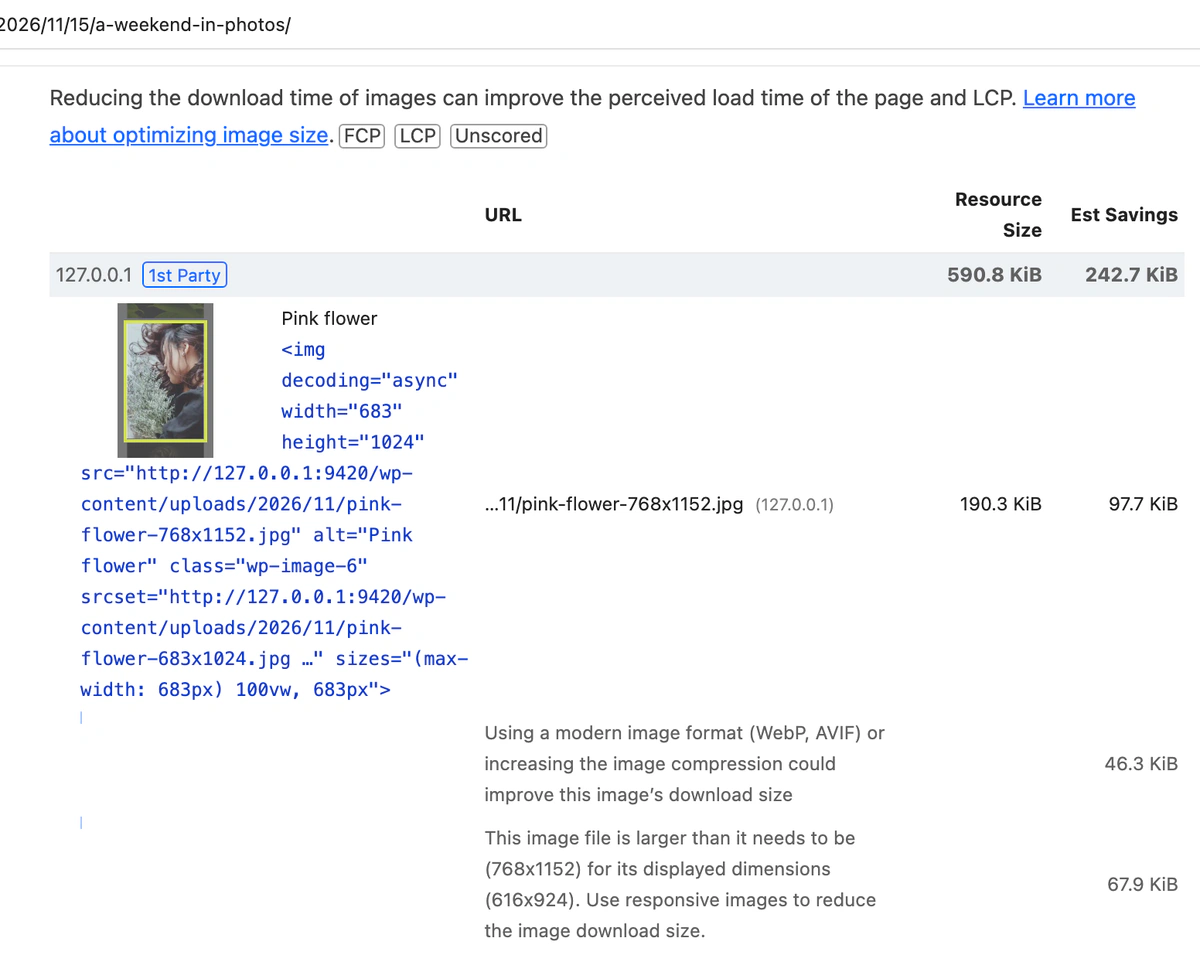
Before: every photo is flagged, most for both the format and the size. Install a plugin that compresses every size
Install an image plugin that compresses all of WordPress’s sizes and makes WebP or AVIF copies. We used ours, Blinkimg on WordPress.org, and chose Use local conversion without an account, so the site’s own server made the files for free.
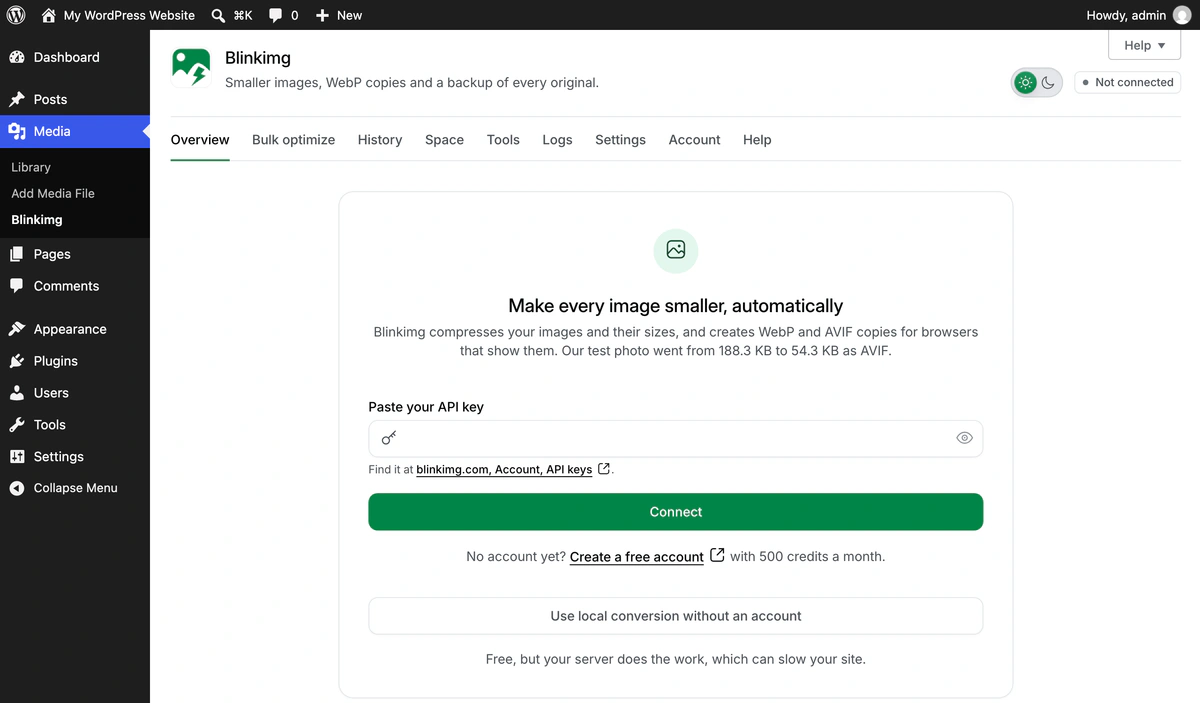
Local conversion uses the server’s GD or Imagick, with no account and no credits. Optimize the images you already have
New uploads are handled on their own, but the old ones need a bulk run. In Blinkimg, open Bulk optimize and click Start optimizing. Our library went from 21.8 MB to 9.37 MB, 56.9% smaller.
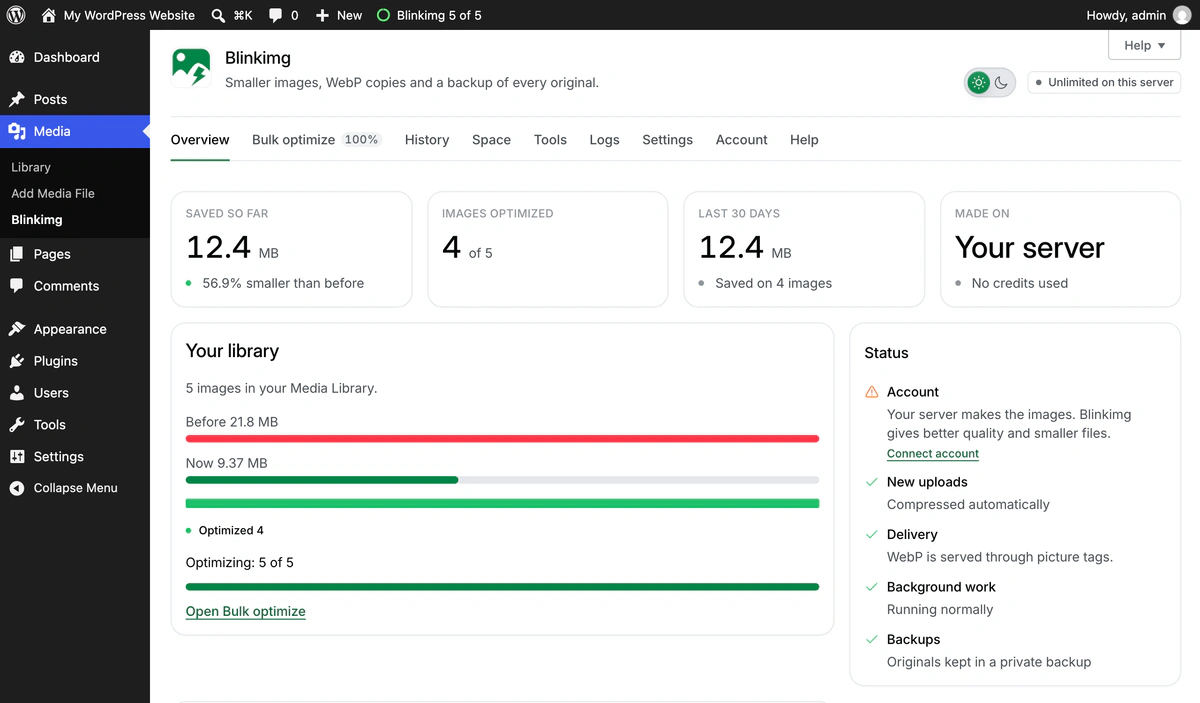
4 of 5 photos were optimized. The fifth is explained below. Clear the cache and run PageSpeed again
Clear your page cache and CDN, then test again. Rows that only said “modern image format” should be gone. Ours fell from 243 KiB to 159 KiB, and what stayed had other causes.
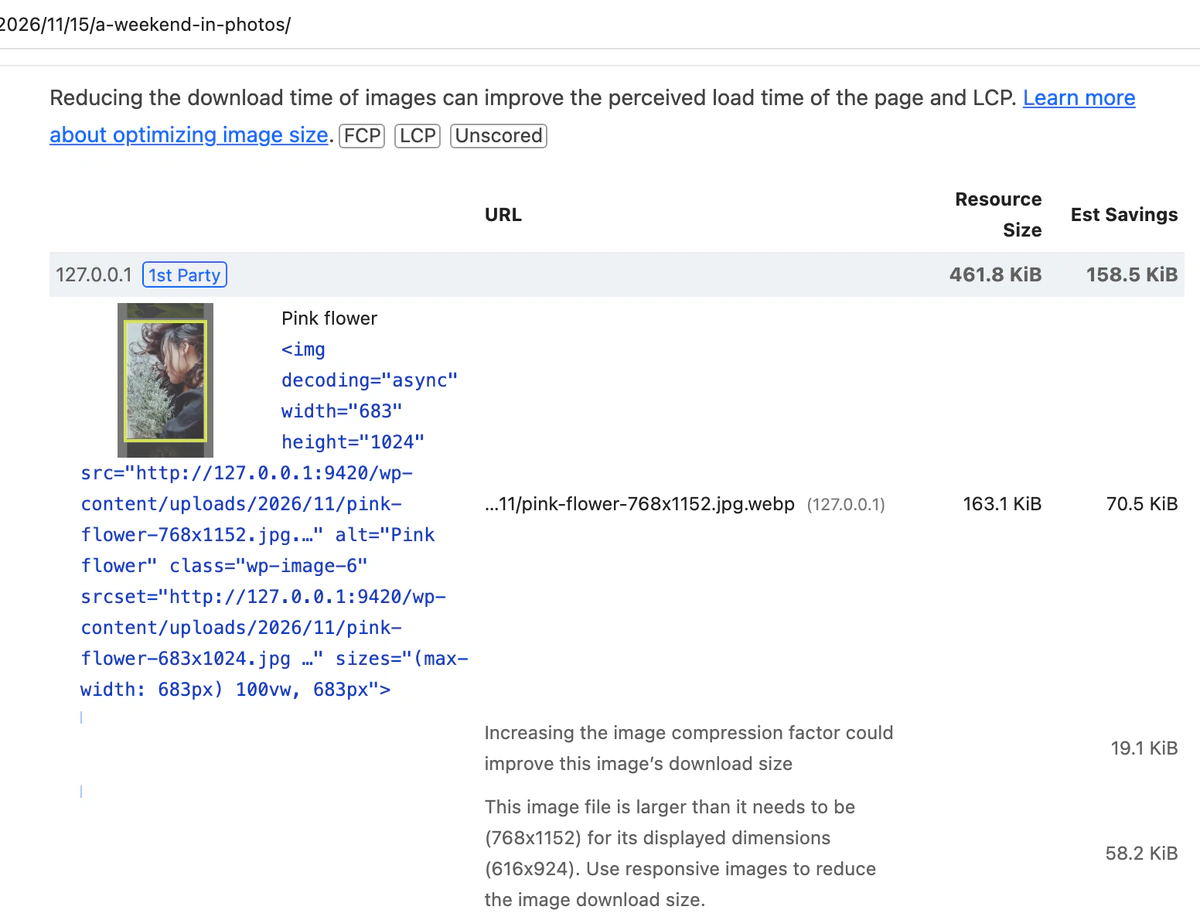
After: the WebP copies are served, and the remaining rows are about size.
What did fixing the images change on our page?
The phone downloaded 17.0% fewer image bytes, and the median score rose from 82 to 84. That is a small change, and the reason is the point of this post: the image the phone saw first was the one photo the plugin could not convert, and the size rows have nothing to do with compression.
| Before | After | |
|---|---|---|
| Image bytes downloaded | 606.1 KB | 502.8 KB |
| Improve image delivery savings | 243 KiB | 159 KiB |
| Images flagged | 5 | 4 |
| Performance score | 82 | 84 |
| Largest Contentful Paint | 4.81 s | 4.43 s |
Before (JPEG)
- boat at sunset45.4 KB
- forest path148.7 KB
- pink flower195.1 KB
- portrait in the woods137.5 KB
- portrait outdoors79.5 KB
After (WebP, except the skipped photo)
- boat at sunset29.0 KB
- forest path148.7 KB
- pink flower167.3 KB
- portrait in the woods111.3 KB
- portrait outdoors46.6 KB
On the server, each photo’s files shrank far more than the phone’s download did, because the plugin also compressed the large sizes a phone never fetches. The boat went from 9.8 MB to 163.7 KB, 98.3% smaller. The others saved 82.6%, 82.4% and 76.1%.
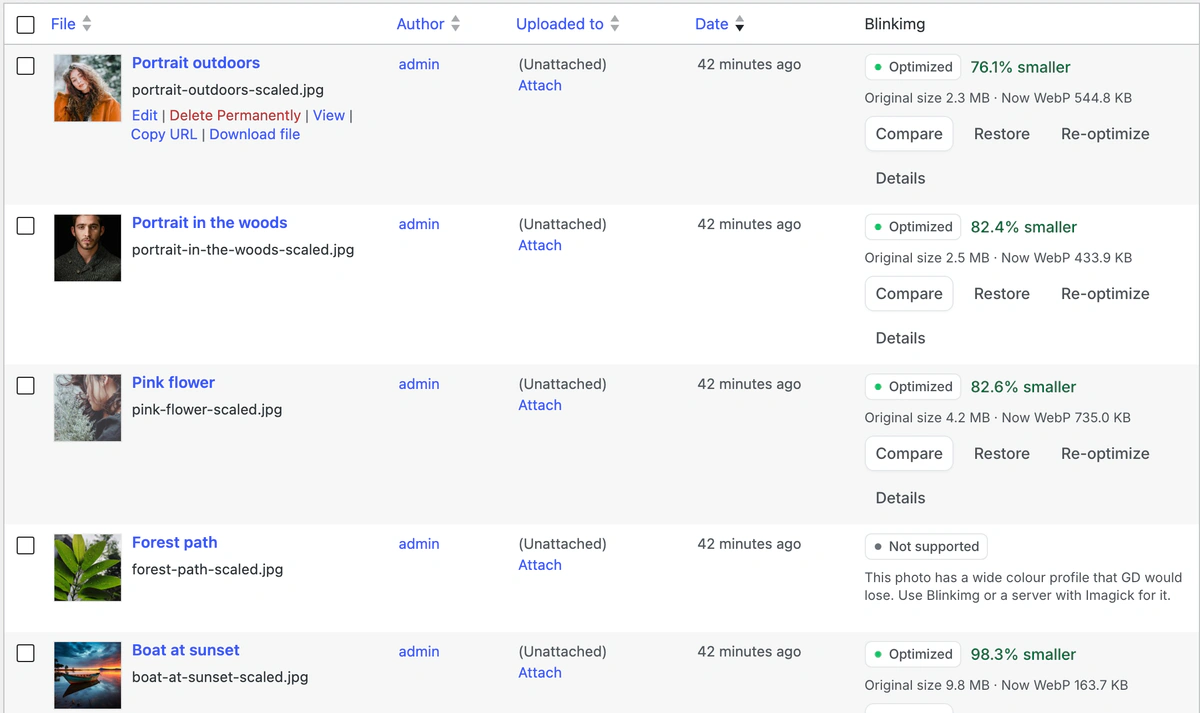
What did the last fixes change?
The two code fixes took the page the rest of the way: the images a phone downloads fell to 387.0 KB, and one row of 16 KiB was left. We built a fresh site with the same 5 photos and the plugin, then added the fixes the next sections explain, one at a time.
| Start | Plugin | + 640 size and fetchpriority | + sizes filter | |
|---|---|---|---|---|
| Image bytes downloaded | 606.1 KB | 502.8 KB | 480.6 KB | 387.0 KB |
| Improve image delivery savings | 243 KiB | 159 KiB | 122 KiB | 16 KiB |
| Images flagged | 5 | 4 | 2 | 1 |
| LCP request discovery | Failed | Failed | Passed | Passed |
| Performance score | 82 | 84 | 84 | 88 |
| Largest Contentful Paint | 4.81 s | 4.43 s | 4.45 s | 3.92 s |
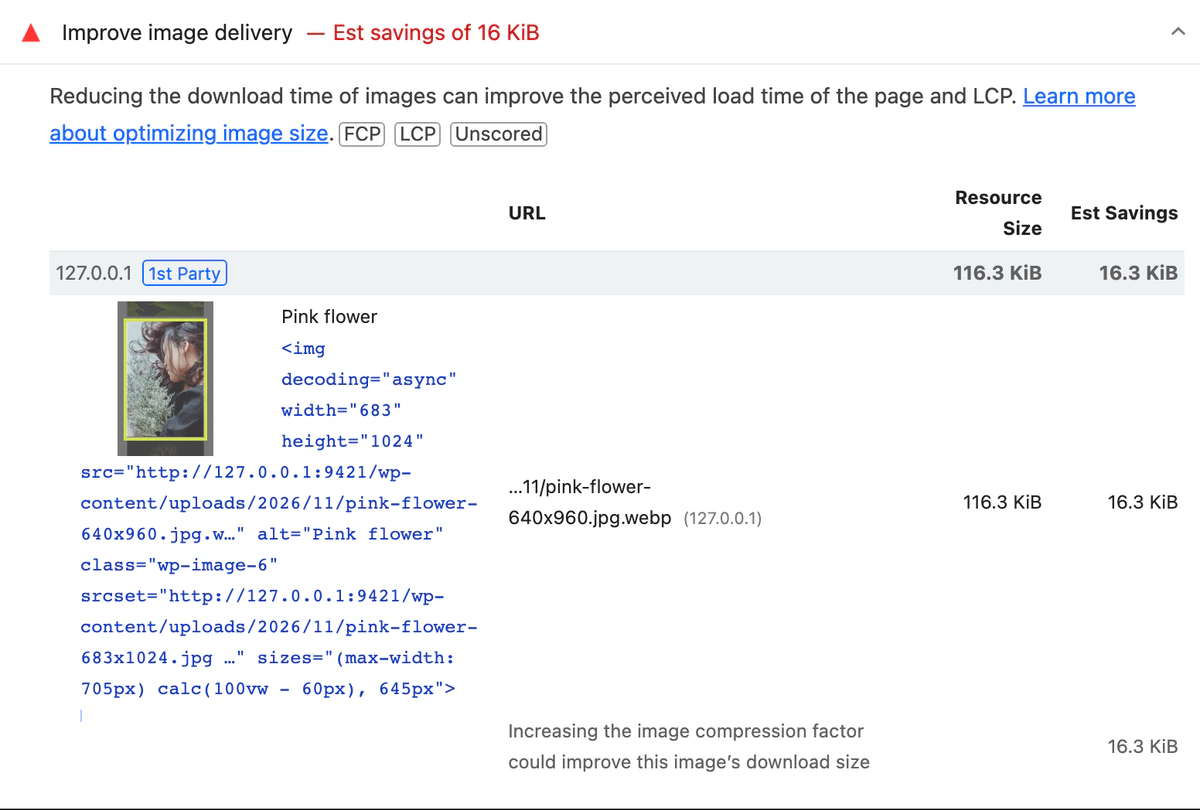
The new image size did nothing on its own for three of the photos, and that is the surprise in this test. The next two sections show why, and the code that fixed each row.
Why is my WebP image still flagged?
A WebP is still flagged when it weighs more than about 0.17 bytes a pixel, because PageSpeed measures every format against an AVIF target. Our pink flower became a 768 × 1152 WebP, which Lighthouse sized at 167.0 KB. Its budget is 147.5 KB, so the report asked for 19.6 KB more compression, to the byte.
Three fixes work. Lower the quality a step, make AVIF copies, which WordPress has supported since 6.5, or use an engine that compresses harder. Our WebP quality tests show where quality stops paying.
WordPress’s own quality is a filter. wp_editor_set_quality sets the quality WordPress uses for every size it makes: 82 for JPEG and AVIF, 86 for WebP. It does not change files a plugin makes, which have their own setting; in Blinkimg that is Settings, Compression, Quality.
// WordPress makes its sizes at quality 82 (JPEG, AVIF) and 86 (WebP).
add_filter( 'wp_editor_set_quality', function ( $quality, $mime_type ) {
	return 'image/webp' === $mime_type ? 78 : $quality;
}, 10, 2 );Why does “Properly size images” stay after compressing?
It stays because the file has more pixels than the screen draws, and no compression changes pixel counts. Lighthouse’s phone is 412 pixels wide at 1.75x, so our photos were drawn 616 pixels wide. WordPress had sizes of 576, 683 and 768 pixels for them, and the browser took the next one up, 768.
Add a size that matches your content column, then tell WordPress how wide the column really is. Register the size with add_image_size and run wp media regenerate for old images. WordPress lists the new copy in every srcset by itself.
The size alone reached only 2 of our 5 photos. Since WordPress 6.7, lazy images get sizes="auto", so the browser measures the real column and picked the 640 copy. The first 3 images kept WordPress’s guess, 100vw, the whole 412-pixel screen, so the phone still asked for about 721 pixels and took the 768 copy. A wp_calculate_image_sizes filter with the theme’s real column fixed all 5.
// In a small plugin or your child theme's functions.php.
// 1. A size close to the column: Twenty Twenty-Five draws it 616 pixels wide on a phone.
add_action( 'after_setup_theme', function () {
	add_image_size( 'content-640', 640, 0 );
} );

// 2. The column's real width, so eager images pick that size too:
//    645 pixels on a desktop, the screen minus 60 pixels on a phone.
add_filter( 'wp_calculate_image_sizes', function () {
	return '(max-width: 705px) calc(100vw - 60px), 645px';
} );

// Then make the new size for images already in the library:
// wp media regenerate --only-missing --yesHow do you fix “LCP request discovery” in WordPress?
Give the largest image on the first screen fetchpriority="high" and never lazy-load it. WordPress 6.3 does this by itself for the first large image in the content, and Chrome’s LCP request discovery guide asks for exactly that. The catch is that WordPress guesses from the order of the HTML, not from the screen.
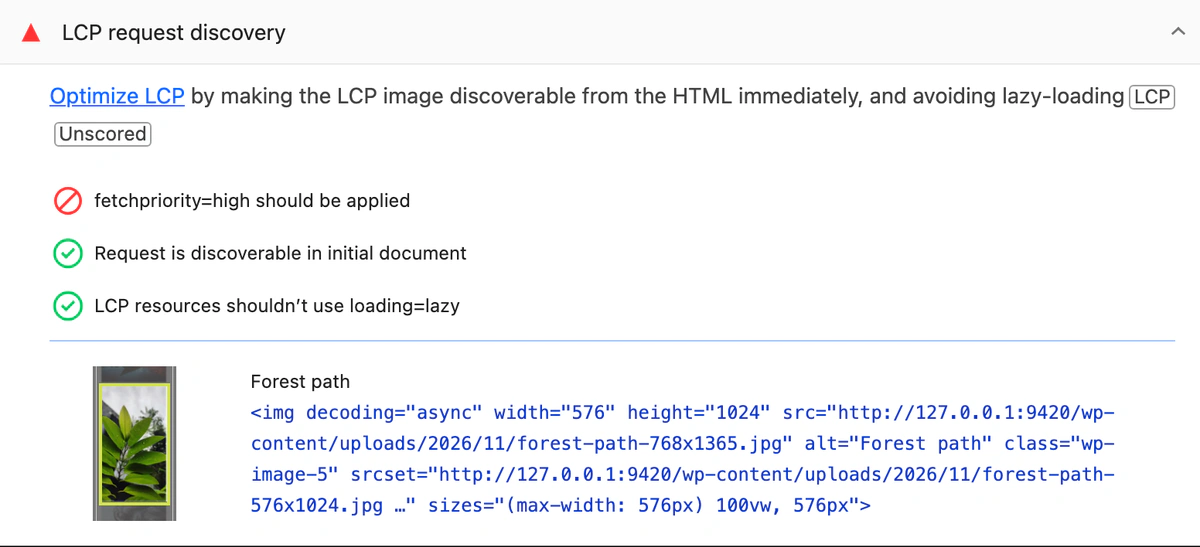
On our page, WordPress gave priority to the boat, the first image. On a phone the boat is wide and short, so the tall forest photo under it was bigger and became the LCP image. Move the most important image to the top, or move the attribute with a filter. With the filter below, LCP request discovery passed. Image Prioritizer, a plugin from the WordPress Performance Team, picks the LCP image from real visits instead.
// Give the phone's LCP image the priority WordPress gave the first image.
add_filter( 'wp_content_img_tag', function ( $html ) {
	if ( str_contains( $html, 'forest-path' ) ) {
		$html = str_replace( ' loading="lazy"', '', $html );
		if ( ! str_contains( $html, 'fetchpriority' ) ) {
			$html = str_replace( '<img ', '<img fetchpriority="high" ', $html );
		}
	} elseif ( str_contains( $html, 'boat-at-sunset' ) ) {
		$html = str_replace( ' fetchpriority="high"', '', $html );
	}
	return $html;
}, 20 );Should you lazy-load images in WordPress?
Yes for images below the first screen, never for the largest one at the top, and WordPress already does both for images in your content. It adds loading="lazy" since WordPress 5.5, leaves the first 3 images out since WordPress 6.3, and never puts lazy loading and fetchpriority on the same image.
On our page, the fourth and fifth photos had loading="lazy" and the first three did not. A lazy-loading plugin adds most where core cannot reach: CSS background images, sliders and page-builder sections. Check that it leaves your top image alone, or it brings LCP request discovery back.
Do you still need to fix image width and height?
Rarely. Since WordPress 5.5, WordPress writes width and height on the images in your content. Our page passed the unsized images check with a layout shift of 0. The warning comes back with images a theme, a slider or a page builder adds in its own code.
Does fixing image delivery raise your PageSpeed score?
Only through the metrics. The insight itself is unscored, so the score moves when smaller images make the largest image paint sooner. Ours went from 82 to 84 with the plugin alone, and to 88 once the LCP image got its smaller copy. LCP fell from 4.81 s to 3.92 s. Fix that image first: it is the one the score waits for.
Our guide to converting images to WebP in WordPress covers the settings, and the WordPress image optimizer comparison weighs the plugins on the same photos.
Which plugins fix “Improve image delivery”?
A plugin fixes the format and compression rows when it compresses every size WordPress makes and serves WebP or AVIF copies. Plugins do that in one of three places: on your own server, on the plugin maker’s servers, or in an image CDN that resizes each image as it is requested. Each place has a cost.
| Where the work happens | Examples | What it fixes | What it costs |
|---|---|---|---|
| Your own server | Blinkimg (This server), EWWW Image Optimizer | Format and compression for every size | Your server’s CPU; output depends on GD or Imagick |
| The plugin’s servers | Blinkimg, ShortPixel, Imagify, Smush Pro | Format and compression, usually smaller files | Credits or a plan; files leave your site |
| An image CDN | Optimole, Cloudinary | Format, compression and size, per visitor | Visits or bandwidth; images load from another address |
Two limits are worth knowing before you install one. Smush makes WebP and AVIF only on its Pro plan, so its free version cannot clear the modern format reason. EWWW Image Optimizer is unlimited on your own server, but only when your host lets it run its tools. Our comparison of WordPress image optimizers ran them on the same photos.
Do you need an image CDN to fix it?
No, but an image CDN is the one tool that also fixes the size rows without code. Chrome’s Improve image delivery guide lists one as a fix: it resizes and converts each image for the screen that asks, and serves it from a server near the visitor. Optimole, for example, does this free up to 2,000 visits a month.
The trade is control. Your images load from the CDN’s address, the free tier ends at a traffic limit, and switching it off brings back whatever files your server holds. A plugin that compresses the files on your server keeps working with any cache or CDN you add later.
Can you fix “Improve image delivery” for free?
Yes. Every fix in this post costs nothing but time: a plugin that converts on your own server, the image size code, and the fetchpriority filter. Our test used Blinkimg’s free plugin on This server, with no account and no limit. What you pay instead is server work: GD or Imagick makes every file, which can slow a busy shared host during a bulk run.
A cloud engine moves that work off your server. Blinkimg’s engine gives every account 500 free credits a month, and a WebP copy costs 1 more credit on top of the image.
What size should you upload images to WordPress?
Upload the photo at least twice as wide as the widest place your theme shows it, and let WordPress make the rest. Twice covers phones and laptops that draw 2 or 3 device pixels for every CSS pixel. On our test page, the phone drew each photo 616 pixels wide, so any upload of 1,232 pixels or more covered it twice over.
Bigger is fine: WordPress scales anything over 2560 pixels and keeps your original. What PageSpeed sees is never the upload, so resizing before you upload saves disk space, not page weight.
The fix in order: a checklist
- Open LCP request discovery on a phone result. Make sure the image it names has
fetchpriority="high"and noloading="lazy". - Install an image plugin that compresses every size and adds WebP or AVIF, then bulk optimize the library.
- Clear your page cache and CDN, and run PageSpeed again.
- For rows that say the file is larger than it needs to be, add an image size close to the drawn width, set sizes to the real column, and regenerate.
- For a WebP that is still flagged, lower its quality a step or add AVIF.
- Replace any animated GIF over 100 KiB with an MP4 in a Video block.
- Judge the result by LCP and the field data, not by the insight reaching zero.
How we tested
- One post with 5 camera photos, 21.8 MB in all, inserted as Image blocks at the editor’s default Large size. Three are from our own image folders; the forest path is by nataraj_07 and the pink flower by trnghieuphotos, both on Pixabay.
- WordPress 7.1.4 on WordPress Playground, PHP 8.3, the Twenty Twenty-Five theme, on 16 November 2026.
- Lighthouse 13.6.0, mobile, simulated throttling, 3 runs before and 3 after. Scores and LCP are medians. Byte counts come from Lighthouse’s network requests and the insight’s own rows.
- Before: Blinkimg installed but inactive. After: Blinkimg 0.1.1 on This server (GD), WebP copies at Auto quality, served through picture tags, after one bulk run. Rounds 2 and 3: a fresh site with the same photos and plugin, plus the code shown in this post, 3 runs each.
Read the full guide: How to reduce image file size on any device.
Questions
- What does Improve image delivery mean in PageSpeed Insights?
- It is the PageSpeed Insights insight that lists images whose download is bigger than needed, with estimated savings for each. The reasons are a heavy JPEG or PNG, a WebP or AVIF that needs more compression, a file with more pixels than the screen draws, or a large animated GIF.
- Is Improve image delivery the same as Serve images in next-gen formats?
- Mostly. Lighthouse 13, released in October 2025, merged Serve images in next-gen formats, Efficiently encode images, Properly size images and the animated GIF audit into one insight called Improve image delivery. The old names no longer appear in PageSpeed Insights, but their reasons show under each flagged image.
- Why does PageSpeed still flag my WebP images?
- PageSpeed measures every image against about 0.17 bytes a pixel, the rate of a well compressed AVIF. A WebP above that is flagged with Increasing the image compression factor. Lower the quality a step, add AVIF copies, or use an engine that compresses harder.
- Why did the warning stay after I installed an image plugin?
- Usually for one of three reasons. The old images were never bulk optimized, a page cache still serves the old HTML, or the remaining rows are about size, not compression. A row that says the file is larger than it needs to be needs a smaller WordPress image size.
- Can I fix Improve image delivery without a plugin?
- Partly. You can compress and convert each image yourself and upload it again, or add the image_editor_output_format filter so new uploads save as WebP. Neither touches images already in the library, and WordPress still makes every size at its own quality, so a plugin is less work.
- Where did Defer offscreen images go in PageSpeed?
- Chrome removed it in Lighthouse 13 because browsers already load offscreen images last. WordPress has lazy-loaded images below the first few since version 5.5. Make sure the largest image on the first screen is never lazy-loaded, which the LCP request discovery insight now checks.
- Do I need an image CDN for WordPress?
- No. An image plugin that compresses every size and adds WebP or AVIF clears most of Improve image delivery on its own. An image CDN adds resizing for each screen and servers near your visitors, which also fixes the size rows, but it usually has a traffic limit and serves images from another address.
- Does fixing images improve my PageSpeed score?
- Only through the metrics. Improve image delivery is unscored, so the score rises when smaller images make the largest image paint sooner. Start with the LCP image: give it fetchpriority high, keep it out of lazy loading, and make sure it is the one compressed first.