How to make a picture black and white on any device
Every phone, Photoshop and Word can turn a photo grey in a few taps. Here are the steps for each, and what a black and white copy does to the file. Part of the black and white image converter.
By Sahadat Husain14 min readGuides

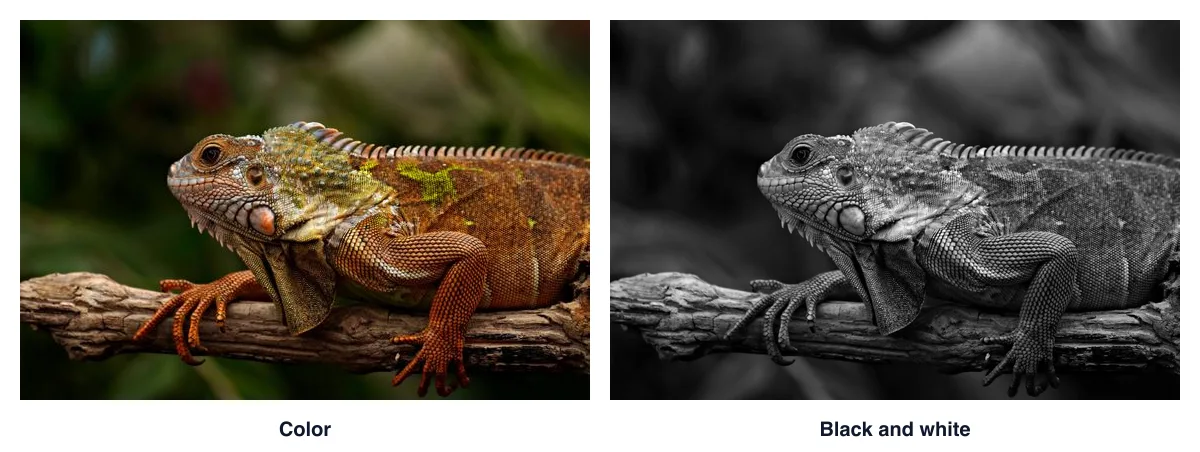
To make a picture black and white, open it in your photo editor and pick a grey filter. On iPhone that is a filter in Photos. On Android it is Google Photos or Samsung Gallery. In Photoshop it is a Black & White adjustment layer, and in Word it is Recolor. In a browser, a black and white image converter does it in one drop. We turned our own photo grey 3 ways and measured each file.
How to make a picture black and white online
A browser tool works on any phone or computer, with nothing to install. Here is the run with our iguana photo:
Drop your photo
Open the black and white image converter and drop a JPG, PNG, WebP, AVIF or HEIC on the drop zone.

The drop zone takes up to 50 images at once. Check the Mono preview
The editor opens on Color with Mono pressed, so the preview is already grey. Pick Silvertone for a slightly warmer grey or Noir for more contrast. Move Contrast or Brightness if you want.
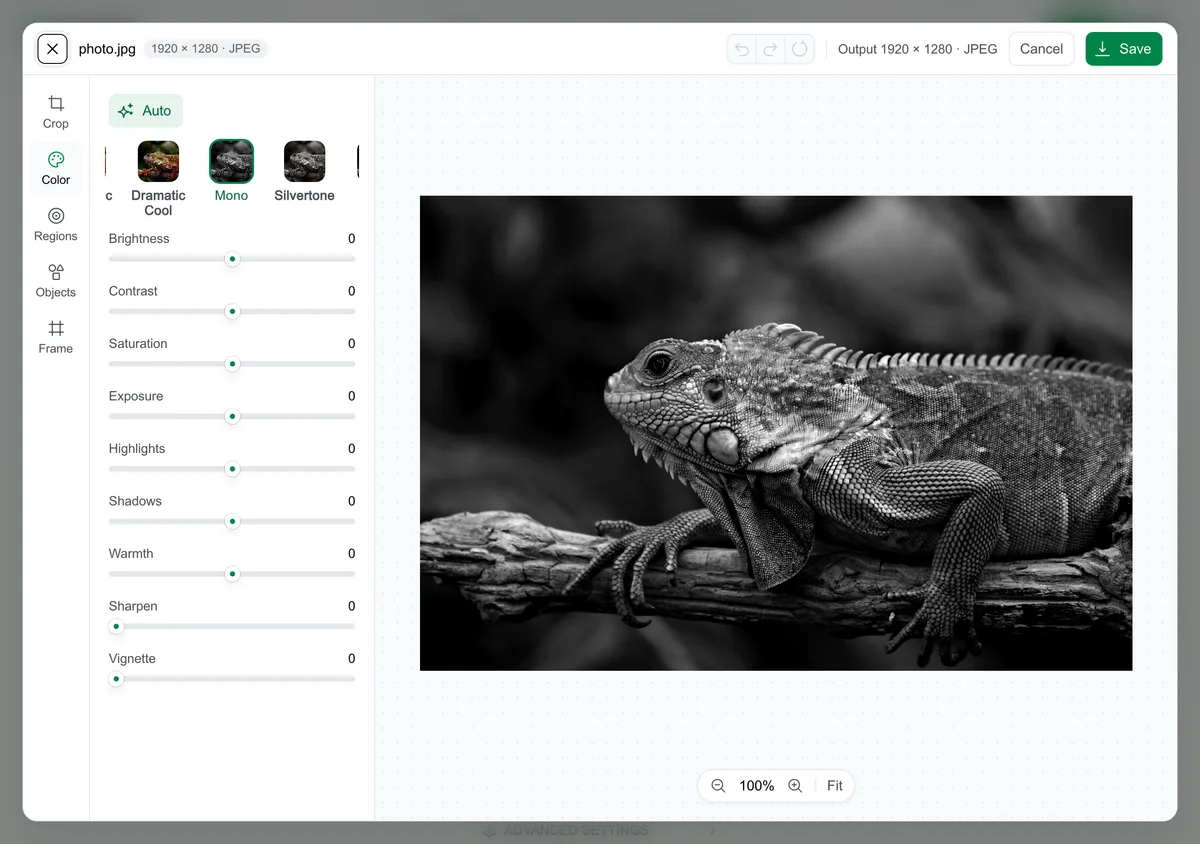
Mono is pressed when the editor opens. Silvertone sits next to it. Save and download
Click Save, then Download image. Our 1920 × 1280 JPG went from 576.8 KB to 232.3 KB in black and white.

The grey copy comes back compressed, as a JPG.
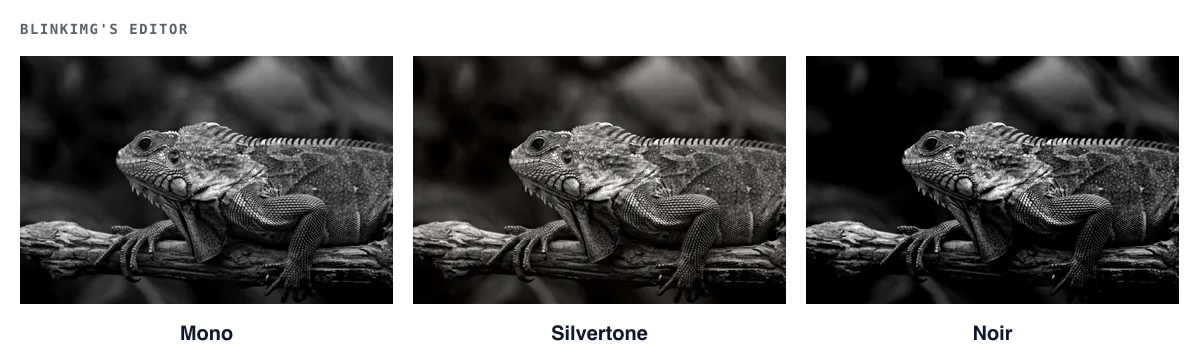
Mono, Silvertone or Noir?
Pick Mono for a neutral grey, Silvertone for a lighter one and Noir for drama. We pressed each in Blinkimg's editor on our photo. Noir came out darkest, with a mean grey of 36.9 against 50.8 for Mono.
How to make a photo black and white on iPhone
Use a filter in the Photos app. Apple’s iPhone User Guide gives the steps. The black and white filters are named Mono, Silvertone and Noir on recent iPhones. Apple’s page does not list the names, so check the labels under each tile.
Open the photo and tap the filters button
In Photos, open the photo, tap the edit button, then tap the filters button.

Illustration: the filter row in Photos. Labels follow Apple’s guide. Tap a black and white filter, then Done
Tap Mono, Silvertone or Noir and drag the slider. Tap Done to save, or Cancel to discard.

Illustration: a black and white filter picked. Done saves the edit.
Apple notes that iPhone 16 and later models use Photographic Styles instead of filters when Styles are on. Photos keeps the original, so you can return to color later.
On a Mac, Photos works the same way. Apple’s Mac guide says to click Edit, then Filters, or press F.
How to make a picture black and white on Android
Google Photos runs on every Android phone. Its help page puts filters under Edit.
In Google Photos, tap Edit, then Filters
Open the photo, tap Edit and choose the Filters category. Pick a black and white filter and tap Done.
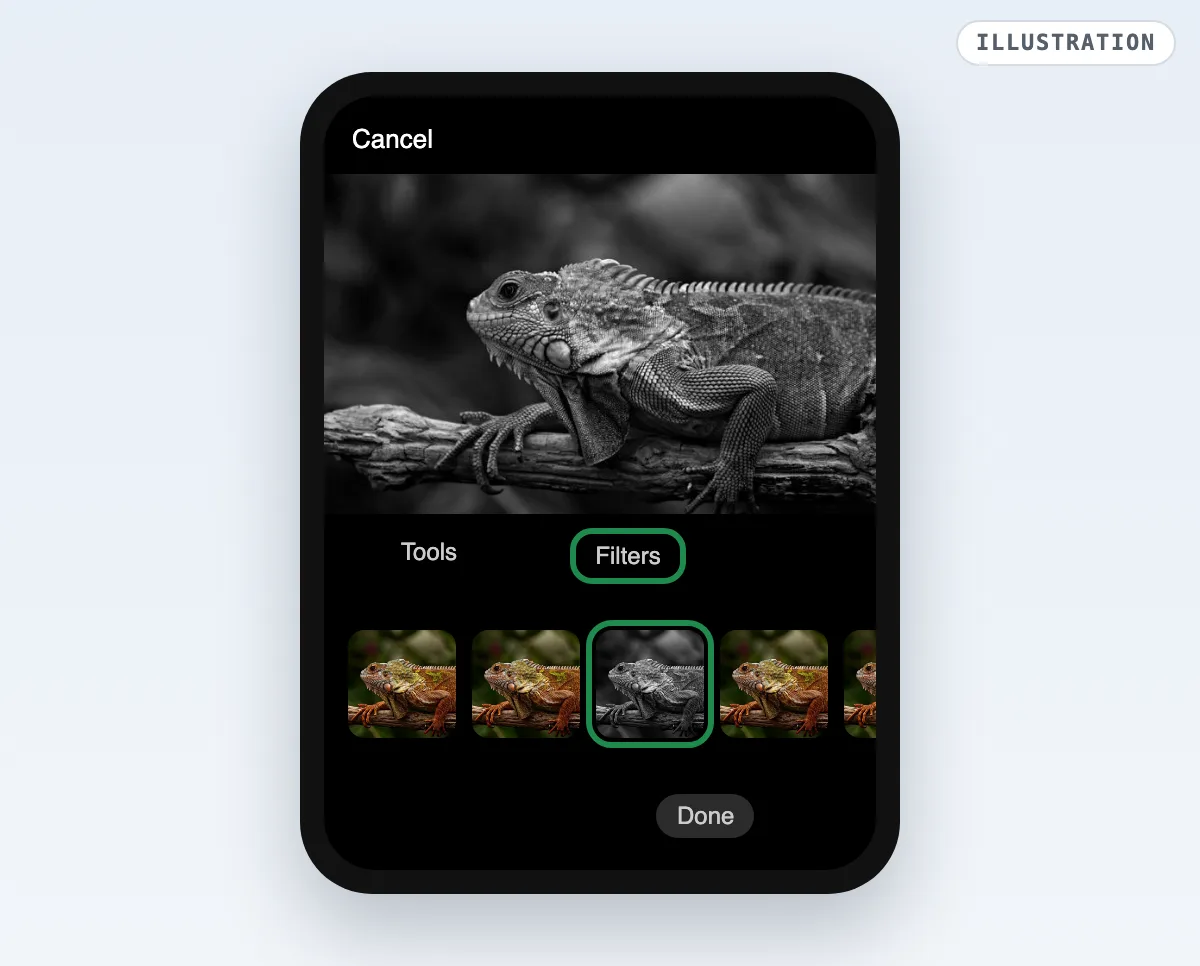
Illustration: Filters in Google Photos. Google’s page names no filter, so the tiles are blank. Tap Save as copy
Save as copy keeps your color photo. Save overwrites it.
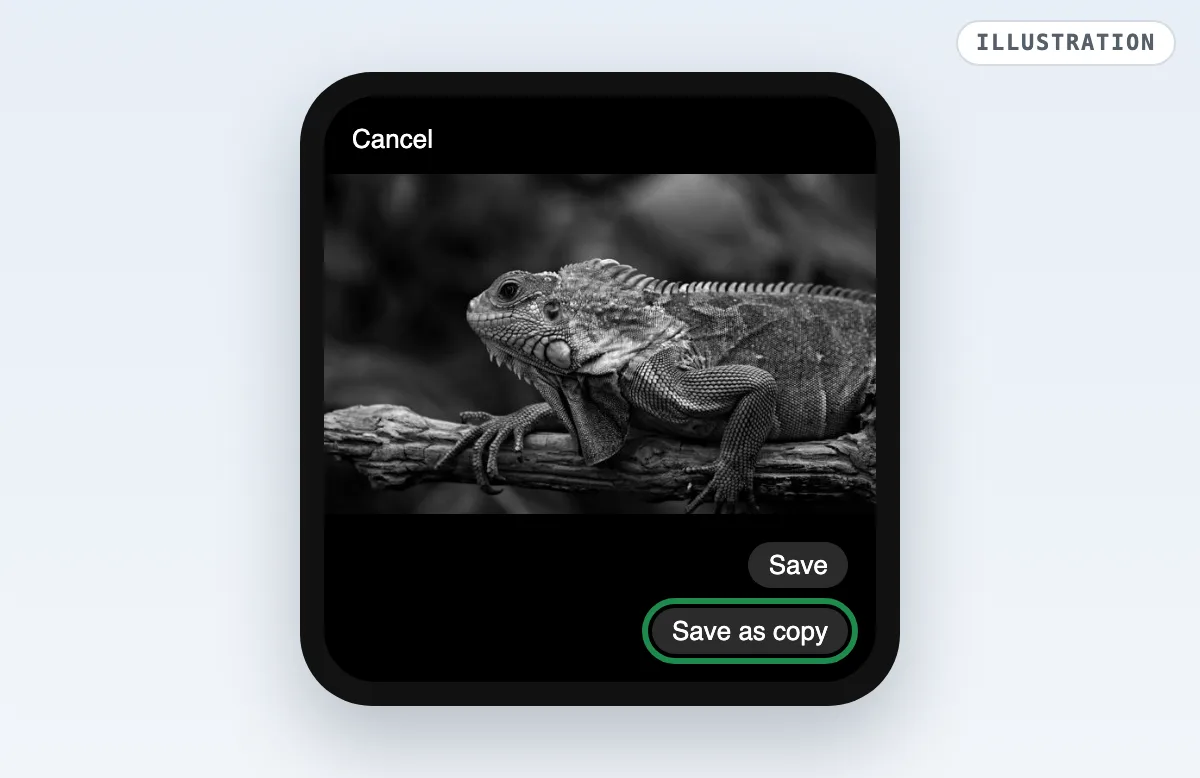
Illustration: Save as copy keeps the color original.
On a Samsung Galaxy, use Gallery. Samsung’s support page says Spot color turns the whole image black and white first.
In Gallery, tap Edit, the four circles, then Spot color
The photo turns black and white at once. Do not tap the picture, or color comes back there.
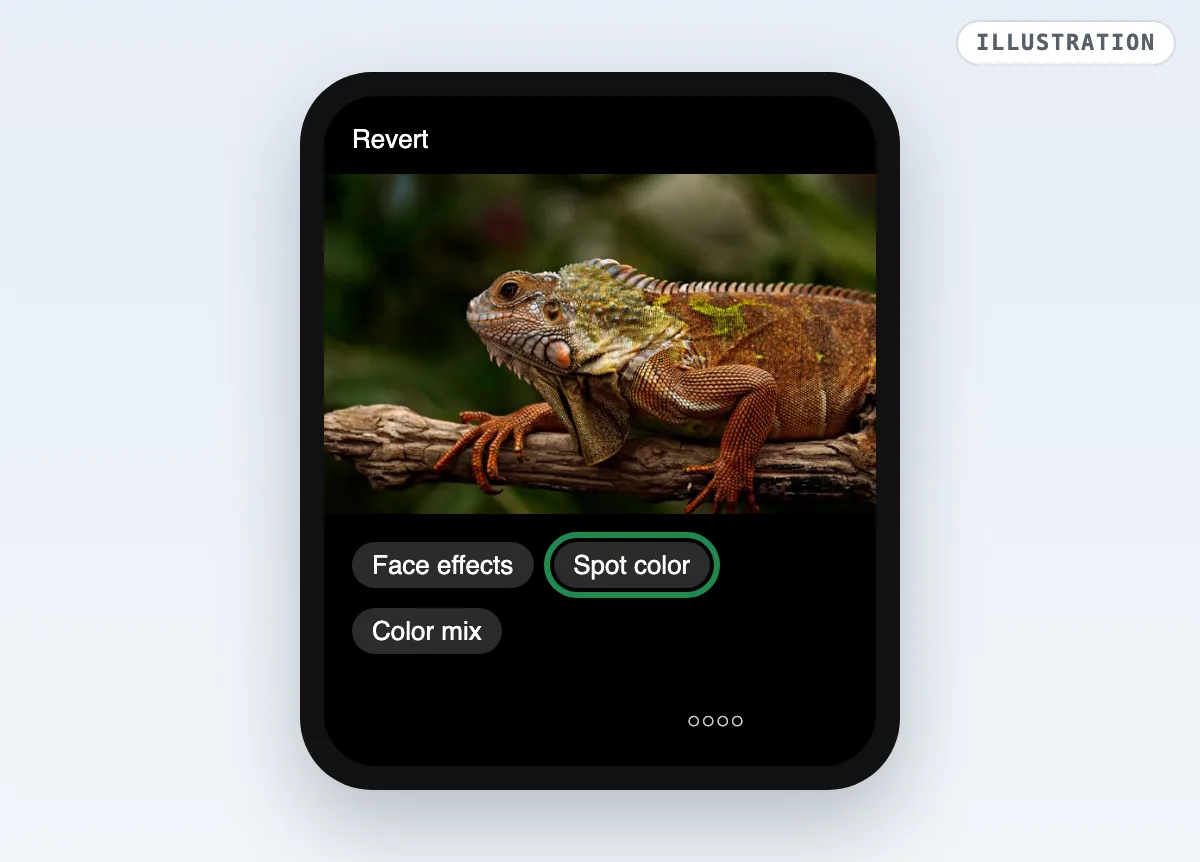
Illustration: Spot color in Samsung Gallery, under the four circles. Tap Save
Tap Save. To keep the color photo, tap More options, then Save as copy.
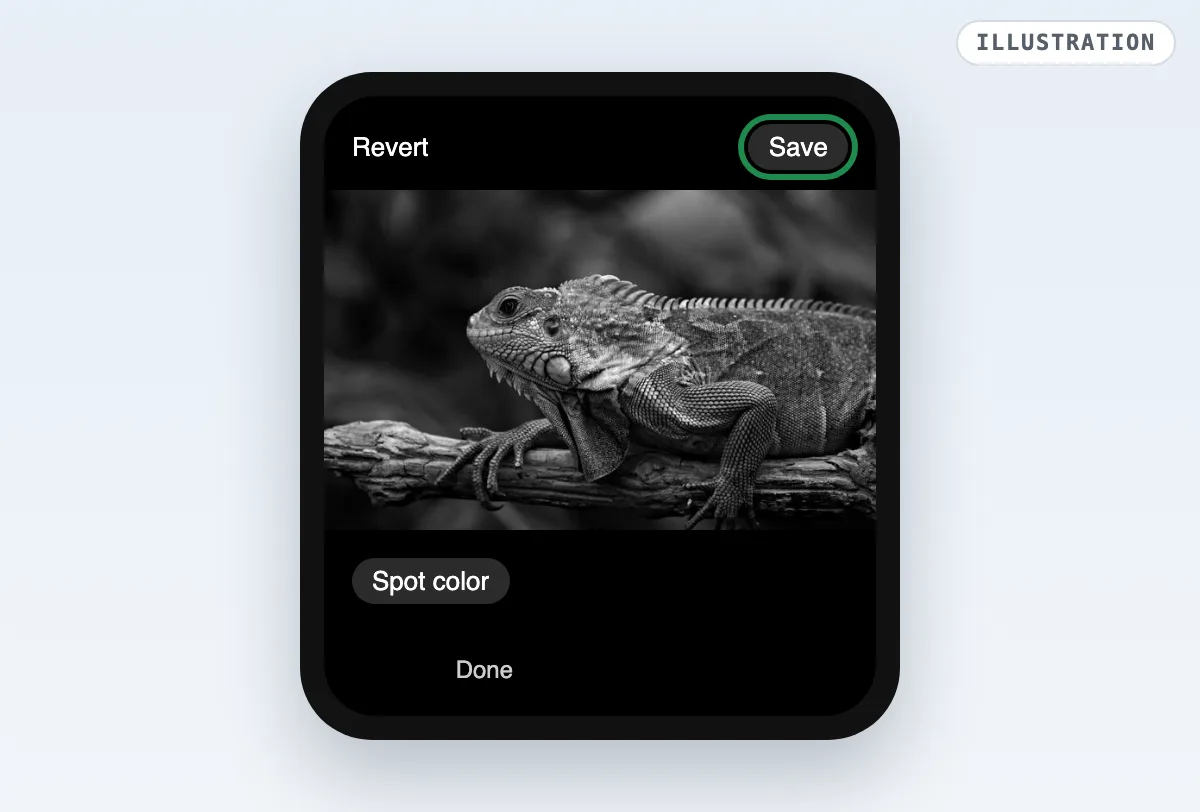
Illustration: Save, or Save as copy under More options.
How to make an image black and white in Photoshop
The Black & White adjustment layer
Use a Black & White adjustment layer. Adobe’s help page gives the steps, and the layer leaves your color pixels untouched.
Choose Layer > New Adjustment Layer > Black & White
Name the layer and select OK. Photoshop applies a default grayscale conversion.
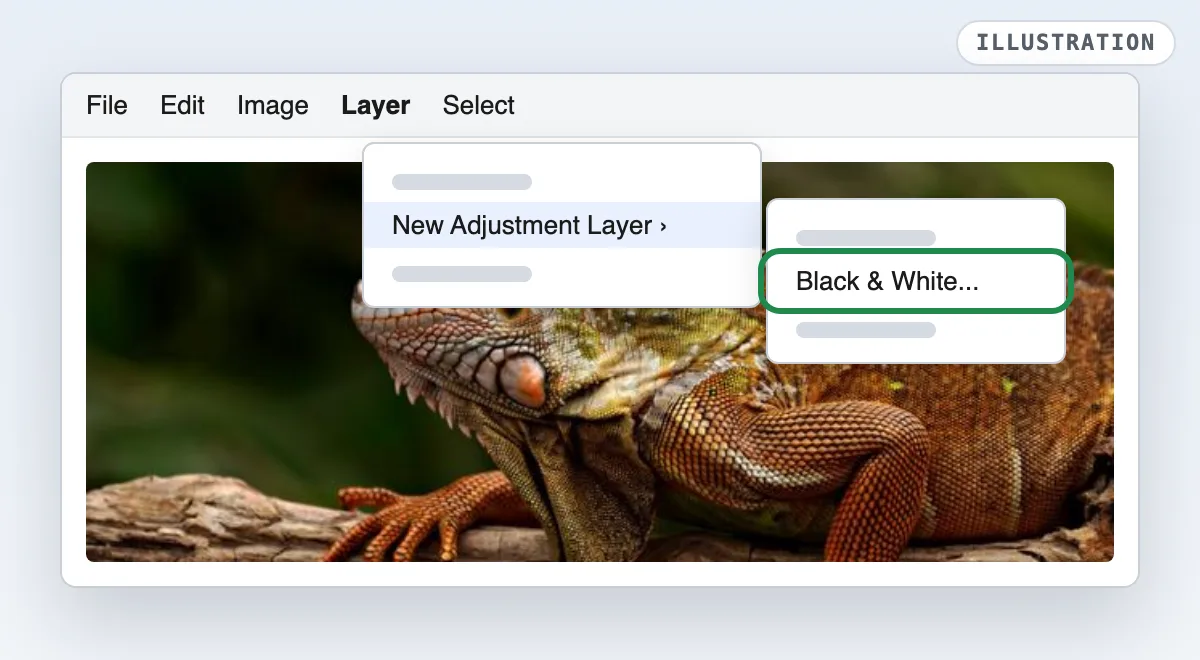
Illustration: the menu path from Adobe’s page. Tune it in the Properties panel
Drag a color slider to lighten or darken that color in grey. Auto sets a mix from your photo. Tint adds a subtle tone.
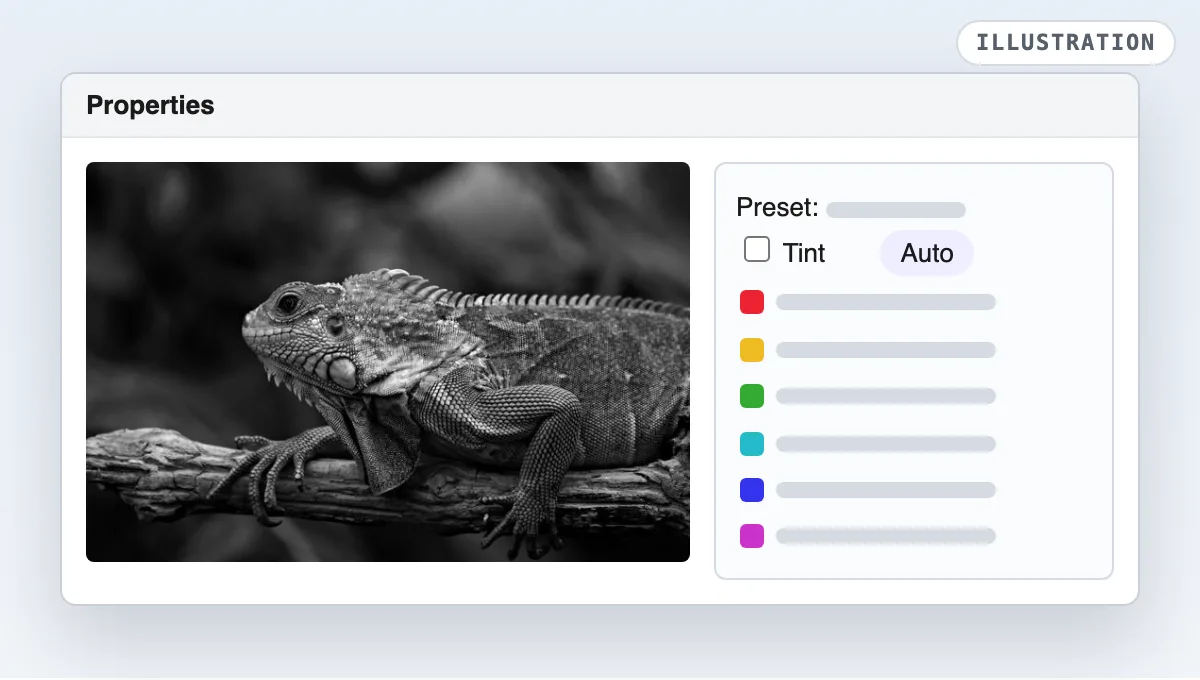
Illustration: the Properties panel. Adobe’s page does not list the slider names.
The color sliders are the reason to use Photoshop. In our photo, they let you choose how light the green patch sits against the orange skin.
Quick methods: Desaturate, Grayscale mode and the shortcut
- Desaturate: choose Image > Adjustments > Desaturate, or press Shift+Ctrl+U (Shift+Cmd+U on a Mac). Adobe’s color effects page says it changes the selected layer permanently.
- The shortcut for Black & White: Alt+Shift+Ctrl+B on Windows, Opt+Shift+Cmd+B on a Mac, from Adobe’s shortcut sheet. It opens the Black & White dialog on the layer itself.
- Grayscale mode: choose Image > Mode > Grayscale. Adobe’s color modes page warns that a mode change permanently changes color values. Save a copy first.
How to make a picture black and white in Word
Use Recolor. Microsoft’s support page gives the same steps for Word, PowerPoint and Excel.
Select the picture, then Picture Format > Color
Click the picture. On the Picture Format tab, in the Adjust group, select Color.
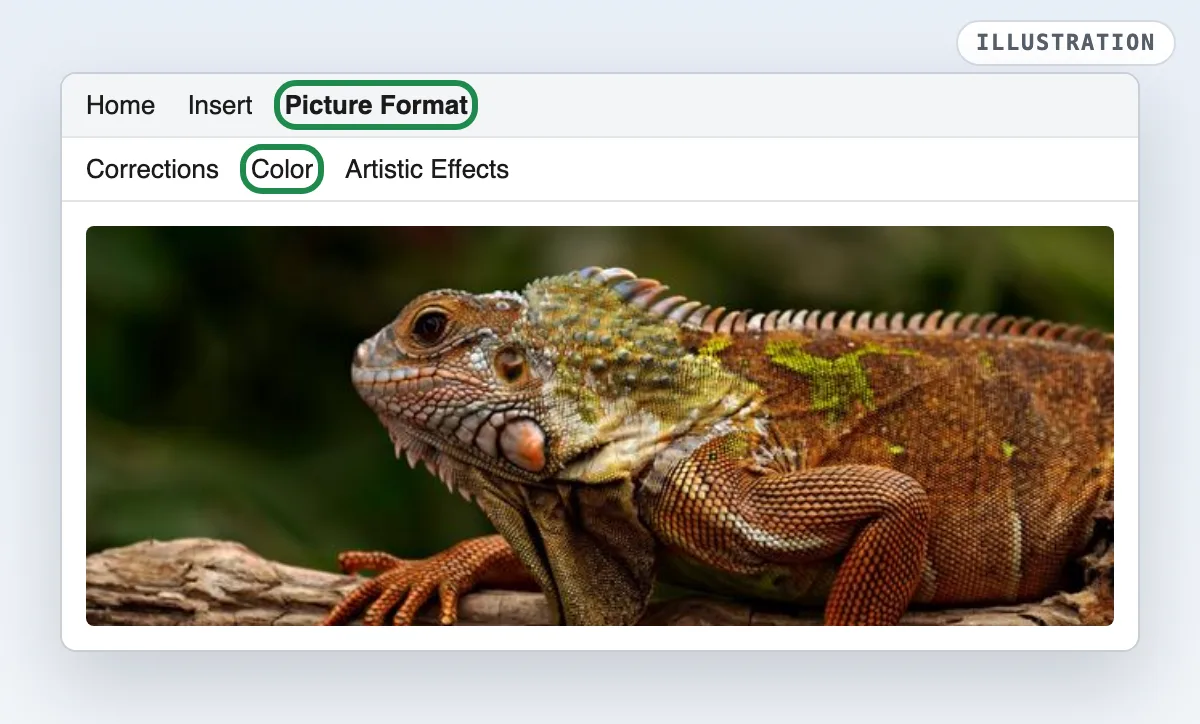
Illustration: the Picture Format tab shows only while a picture is selected. Pick grayscale under Recolor
Under Recolor, click the grayscale preset. Hover first for a live preview.
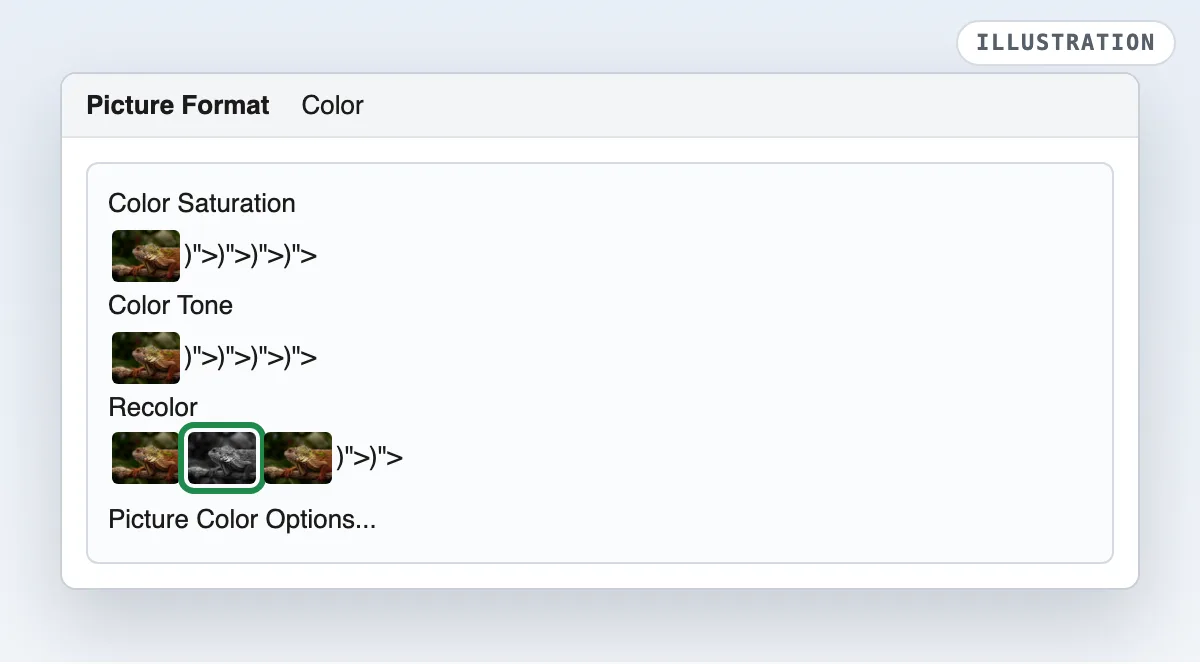
Illustration: the Color gallery. Picture Color Options fine-tunes it.
Word changes how the picture shows in the document. The picture file you inserted stays in color.
Want a grey without a preset? Open Picture Color Options and drag Saturation down to 0%. Microsoft’s Picture Color pane page says a lower saturation turns colors toward gray. To undo everything, click Reset Picture in the Adjust group, as Microsoft’s reset page shows.
How to make a picture black and white in Google Docs
Use Recolor in Format options. Google’s Docs Editors Help gives the path, and it works in Slides too.
Click the image, then Format > Format options
Click the image you want to change. In the Format menu, click Format options.
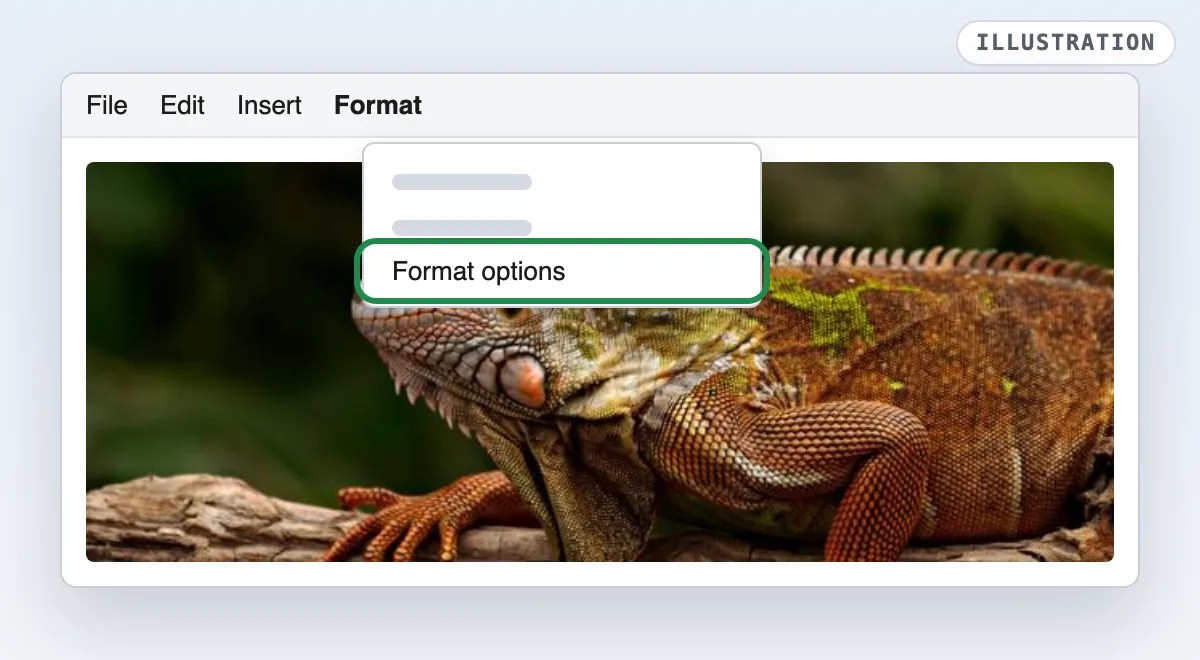
Illustration: the Format menu in Google Docs. Pick a grey under Recolor
Under Recolor, pick the grey option. Right-click and Reset image brings the color back.
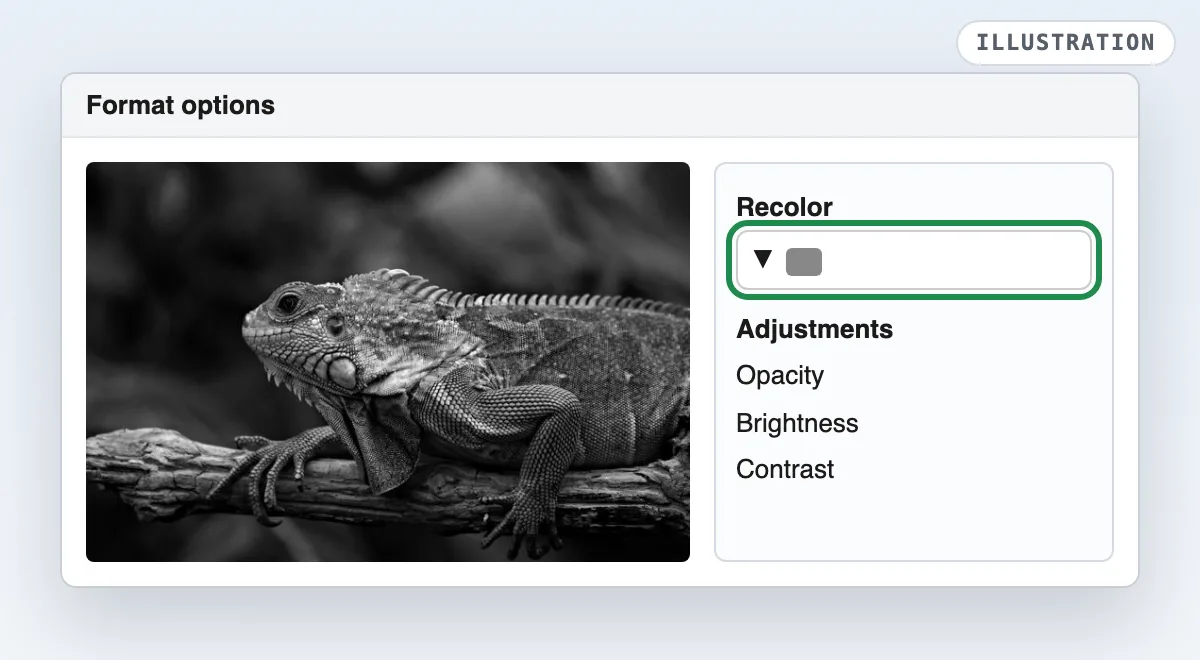
Illustration: Recolor. Google’s page names no preset, so the swatch is unlabeled.
Windows Photos, Lightroom and Snapseed
Each of these apps can turn a photo grey too. We did not run them; each line follows the maker’s own help page.
- Windows Photos: select Edit image (Ctrl+E), then pick from the Filter panel. Microsoft’s Photos page lists 15 filters but names none, so look for a grey tile.
- Lightroom Classic: in the Develop module, select Black & White in the Treatment area of the Basic panel, or press V. That is Adobe’s Lightroom Classic page.
- Snapseed: use the Black & White filter. Google’s Snapseed Help lists Preset, Color Filter, Brightness, Contrast and Grain.
Desaturate or grayscale: which black and white is right?
Grayscale by luminance is right for most photos. It weights green most, because your eye does. The W3C filter spec uses 0.2126 red, 0.7152 green and 0.0722 blue. A plain desaturate averages the 3 channels equally.
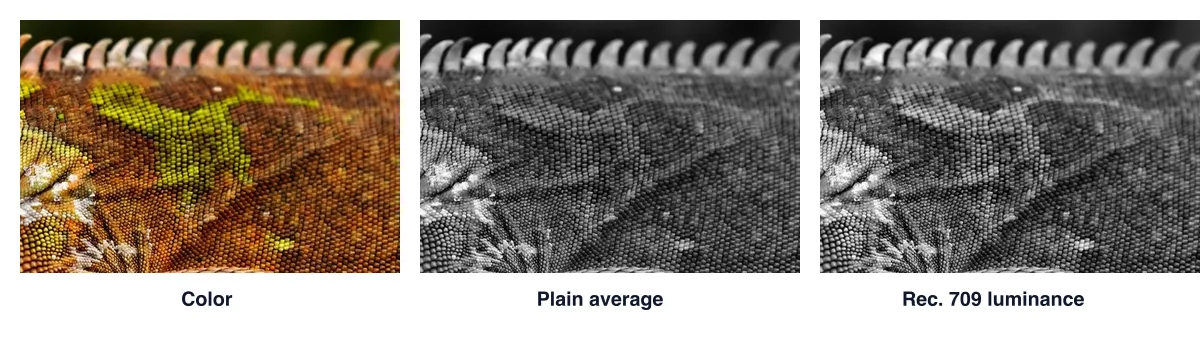
On our photo, the two methods differed by up to 55 grey levels on one pixel. 21.7% of the pixels moved by 10 levels or more.
| Method | Orange | Green | Gap |
|---|---|---|---|
| Plain average | 102.4 | 63.8 | 39 |
| Rec. 601 (older TV, Pillow) | 110.7 | 75.1 | 36 |
| Rec. 709 (CSS, Mono) | 106.9 | 77.9 | 29 |
Rec. 601 and Rec. 709 never differed by more than 10 levels on our photo. You will not see that gap. The plain average is the one to avoid.
Tips for a better black and white photo
Start with a photo that has contrast, light and texture, then steer the greys with a color filter. Here is each tip on our iguana.
Add contrast
Grey photos look flat without contrast, so push it a little. Blinkimg's Noir adds the most. Its grey spread (standard deviation) was 49.9 levels on our photo, against 47.2 for Mono and 45.1 for plain luminance.
Look for light and texture
Without color, light and texture carry the picture. Adobe’s black and white page says the look emphasizes the subject and textures. In our grey copy, the scales and the side light on the iguana’s head stay sharp.
Use a color filter for skies and skin
A color filter makes its own color lighter in grey. Google’s Snapseed Help says objects matching the filter’s color turn lighter. We tried a red-orange mix: 0.6 red, 0.35 green and 0.05 blue.
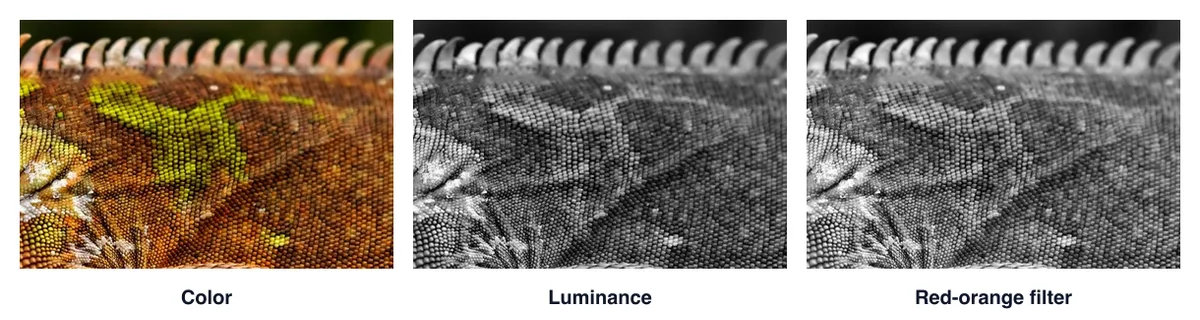
The orange skin rose 27 grey levels, while the green stayed close to 78. The gap between them grew from 29 to 58 levels.
Blue counts for 0.05 in our mix, against 0.0722 in luminance. So a blue sky turns darker, and white clouds stand out. Reddish skin gets lighter for the same reason. Our photo has no sky or face, so we did not measure those.
Does black and white make the file smaller?
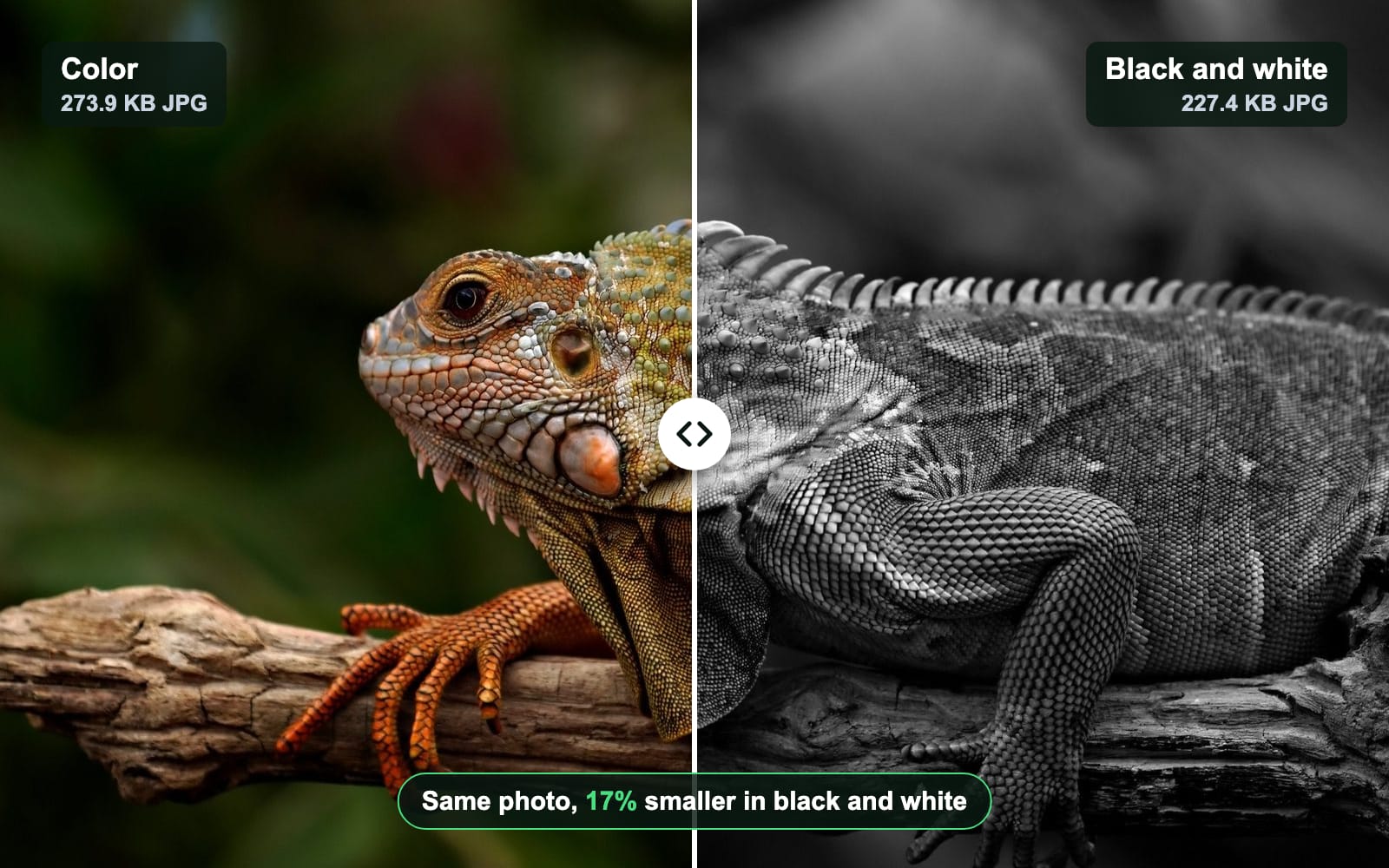
Yes, a little. Blinkimg's engine saved our color photo as a 273.9 KB JPG and the grey copy as 227.4 KB. That is 17% smaller, from losing the color detail alone.
JPG
- Color273.9 KB
- Black and white227.4 KB
WebP
- Color218.9 KB
- Black and white189.0 KB
AVIF
- Color123.9 KB
- Black and white105.3 KB
A true grayscale file stores 1 channel instead of 3. For a JPG, that barely matters, because JPEG already squeezes the color channels hard. For a PNG, it matters a lot:
| File | Color | Grey, 3 channels | Grey, 1 channel |
|---|---|---|---|
| JPG | 293.6 KB | 242.7 KB | 238.5 KB |
| PNG | 3.94 MB | 1.86 MB | 1.46 MB |
Which way should you pick?
- A phone photo you will share: the Photos, Google Photos or Gallery filter. It is quick and keeps the original.
- Control over each color: Photoshop’s Black & White layer. It costs a subscription and more time.
- A picture in a document: Recolor in Word or Google Docs. Only the document view changes, not the file.
- A batch, or a smaller file: a browser tool. You get a compressed grey copy, with no app to install.
How we tested
The photo and the measurements
- The photo: our own 1920 × 1280 JPG of an iguana on a branch (576.8 KB), the reference photo every Blinkimg page uses.
- The greys: each pixel weighted three ways, plain average, Rec. 601 and Rec. 709, on the sRGB values. “Orange” pixels have red at least 50 above green; “green” pixels have green above red and blue.
- The files: sharp 0.35.5 (libvips 8.18.7) for the fixed-quality JPG and PNG. Blinkimg’s engine version 10 at Auto for the JPG, WebP and AVIF bars, on 2026-10-26.
The steps
- Online: captured on the live grayscale page with the same photo, Mono at its defaults. Mono adds a little contrast, so its file differs from our plain Rec. 709 one.
- Mono, Silvertone and Noir: pressed in turn in the live editor on 2026-10-26 and captured from its preview with Playwright. The mean and spread come from those captures, on a 0 to 255 scale.
- The color filter: our own mix of 0.6 red, 0.35 green and 0.05 blue, on the same skin pixels as the table.
- The apps: iPhone, Google Photos, Samsung Gallery, Photoshop, Word and Google Docs follow each maker’s help page. So do the Photoshop shortcuts, Word’s Saturation and Reset Picture, Windows Photos, Lightroom Classic and Snapseed. We read each page on 26 October 2026. The app pictures are illustrations.
Next step
Drop your photo on the black and white image converter, check the Mono preview and download the grey copy.
Read the full guide: How to reduce image file size on any device.
Questions
- How do I make a picture black and white on my iPhone?
- Open the photo in the Photos app, tap the edit button and then the filters button. Tap Mono, Silvertone or Noir, drag the slider to set the strength, and tap Done. Photos keeps the original, so you can revert to color later. On iPhone 16 and later, Photographic Styles can replace filters.
- How do I make a photo black and white on Android?
- In Google Photos, open the photo, tap Edit, choose Filters, pick a black and white filter and tap Done. Then tap Save as copy to keep the color original. On a Samsung Galaxy, open Gallery and use Spot color. It turns the whole photo black and white first.
- How do I make a picture black and white in Word?
- Click the picture, open the Picture Format tab and select Color in the Adjust group. Under Recolor, click the grayscale preset. The change applies to the picture inside the document only. Word, PowerPoint and Excel share the same Color menu, and Picture Color Options fine-tunes the result.
- How do I make an image black and white in Google Docs?
- Click the image, then open Format and choose Format options. Under Recolor, pick the grey option from the menu. The same panel holds Opacity, Brightness and Contrast. To undo it, right-click the image and choose Reset image, which brings back the original color picture you added.
- What is the best way to make a photo black and white in Photoshop?
- Use a Black & White adjustment layer: Layer, then New Adjustment Layer, then Black & White. It keeps the color pixels underneath, so you can change it later. In the Properties panel, each color slider sets how light that color turns. Auto gives a starting mix.
- What is the difference between grayscale and desaturate?
- A plain desaturate often averages red, green and blue equally. Grayscale by luminance weights green most and blue least, the way the eye sees brightness. On our iguana photo, the two differed by up to 55 grey levels on one pixel. The plain average made a green patch nearly vanish.
- Does making a photo black and white reduce file size?
- Yes, a little. Our 1920 × 1280 photo saved as a 273.9 KB JPG in color. In black and white it was 227.4 KB, 17% smaller. As PNG the drop is bigger: a 1-channel grayscale PNG was 1.46 MB against 3.94 MB in color. The exact saving depends on the photo.
- Can I turn a black and white photo back to color?
- Only if the app kept the original. iPhone Photos, Google Photos with Save as copy, Photoshop layers and Word’s Recolor all keep the color version. A grey file saved over the original has no color left. AI colorizers only guess the colors back.
- Is black and white the same as grayscale?
- In everyday use, yes. A black and white photo is a grayscale image. Every pixel is a shade of grey between black and white. Strictly, black and white can also mean two tones only, pure black and pure white. A fax or a line drawing uses those.
- What are Mono, Silvertone and Noir?
- They are the three black and white filters in the iPhone Photos app. Blinkimg’s editor uses the same names. In Blinkimg, Mono is a neutral grey with a little contrast. Silvertone is a touch brighter and warmer. Noir adds strong contrast and is slightly darker. Mono is pressed when the editor opens.
- How do I make part of a picture black and white?
- Use Samsung Gallery’s Spot color, which turns the photo black and white and brings color back where you tap. In Photoshop, add a Black & White adjustment layer. Then paint black on its mask where color should stay. Most phone filters change the whole picture.
- Can I make a photo black and white in Windows Photos, Lightroom or Snapseed?
- Yes. In Windows Photos, select Edit image and pick a filter from the Filter panel. In Lightroom Classic, choose Black & White in the Treatment area of the Basic panel, or press V. In Snapseed, use the Black & White filter and its Color Filter. We followed each maker’s help page and did not run these apps.
- How do I make a picture black and white on a Mac?
- Open the photo in the Photos app on your Mac, double-click it and click Edit. Click Filters in the toolbar, or press F, and pick a black and white filter. Photos saves the change automatically. Click Revert to Original to get the color photo back at any time.