How to remove AI metadata from an image: 5 ways, tested
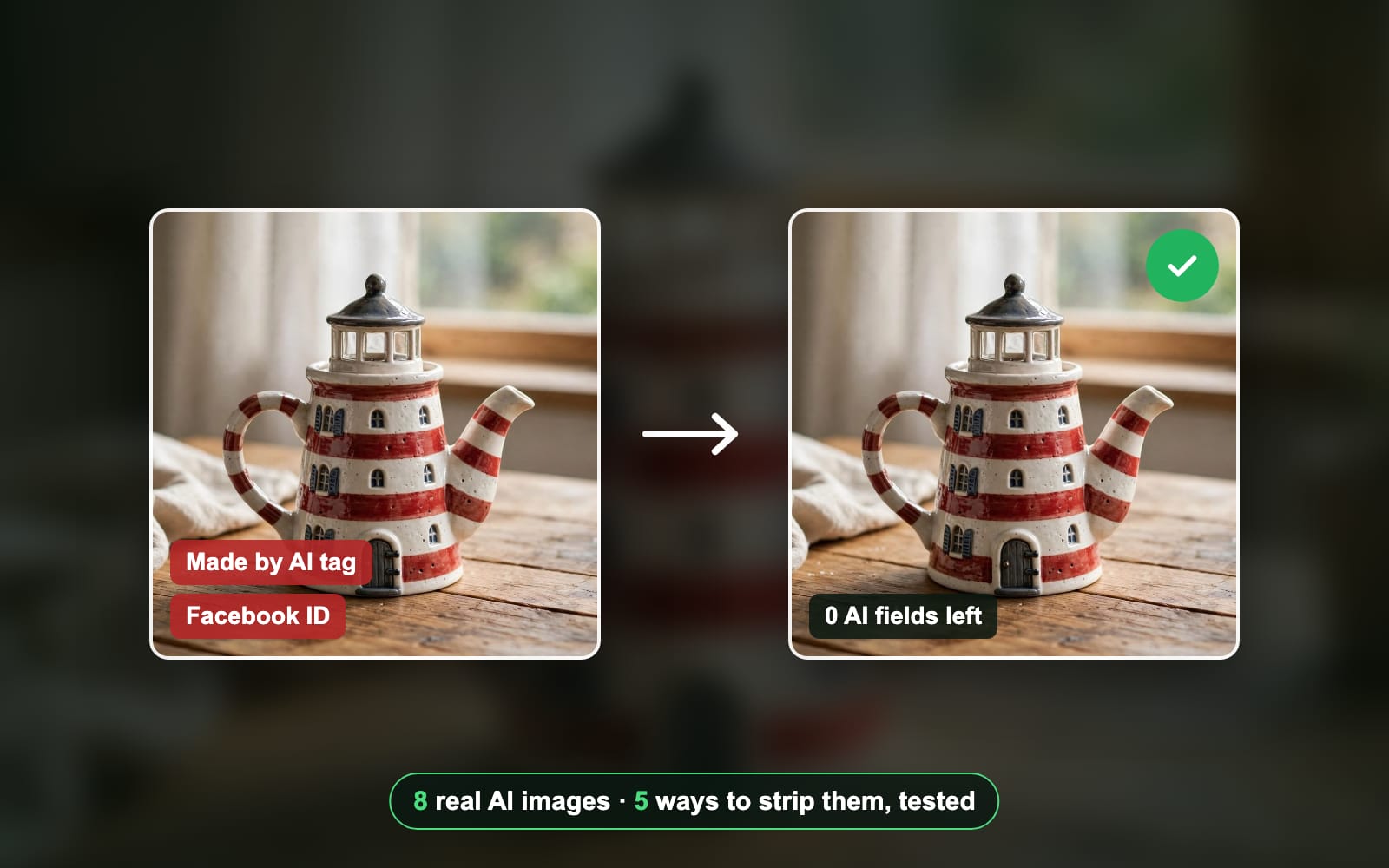
AI tools write a made-by-AI tag, a signed C2PA record and sometimes your prompt into the file. Here is what removes all of it, tested on 8 real AI images. Part of the AI image metadata remover.
By Sahadat Husain13 min readGuides

To remove AI metadata from an image, you delete the fields an AI tool writes into the file: the C2PA manifest, the made-by-AI tag and any saved prompt. ExifTool’s -all= does it on a computer. An AI image metadata remover does it in a browser. We ran 8 real AI images through 5 methods. Two of them, a targeted C2PA strip and a macOS re-save, left Meta’s made-by-AI tag in the file.
What AI metadata is in an image?
AI metadata is the part of the file that says an AI tool made the picture. We made the same teapot picture with 8 tools on 24 October 2026 and read every file with ExifTool. Here is what each one carried:
| Made with | Format | AI fields in the file |
|---|---|---|
| ChatGPT | PNG | C2PA, made-by-AI tag |
| Gemini | JPG | C2PA, made-by-AI tag |
| Google AI Studio | JPG | C2PA, made-by-AI tag |
| Ideogram | JPG | C2PA, made-by-AI tag |
| ComfyUI | PNG | prompt |
| Meta AI | JPG | made-by-AI tag, Facebook ID |
| Meta Muse | WEBP | made-by-AI tag, publisher |
| Leonardo | JPG | None |
- C2PA, or Content Credentials: a signed record of which tool made the image. ChatGPT, Gemini, Google AI Studio and Ideogram each wrote one. OpenAI’s help page on provenance says ChatGPT images carry Content Credentials and a SynthID watermark.
- The made-by-AI tag: the IPTC field DigitalSourceType set to trainedAlgorithmicMedia. The IPTC vocabulary defines it as media “created algorithmically using an Artificial Intelligence model”. Every C2PA file carried it, and both Meta files carried it in plain XMP.
- Your prompt and workflow: ComfyUI saved the prompt (2.2 KB) and the whole node workflow (17.1 KB) as text in the PNG. Anyone with the file can read your prompt and load your setup.
- An account trace: the Meta AI file carried an IPTC field starting with FBMD, a Facebook ID string.
Inside the Ideogram file
- Whole file736.2 KB
- Thumbnail in C2PA78.9 KB
- After ExifTool -all=643.9 KB
Which method removes AI metadata?
ExifTool's -all= and Blinkimg cleaned all 7 marked files. The two partial methods each missed Meta's tag. We read every output with ExifTool, so "Clean" means no AI field was left.
| Made with | ExifTool -all= | ExifTool -JUMBF:all= | macOS re-save (sips) | Blinkimg |
|---|---|---|---|---|
| ChatGPT | Clean | Clean | Clean | Clean |
| Gemini | Clean | Clean | Clean | Clean |
| Google AI Studio | Clean | Clean | Clean | Clean |
| Ideogram | Clean | Clean | Clean | Clean |
| ComfyUI | Clean | Left: prompt | Clean | Clean |
| Meta AI | Clean | Left: made-by-AI tag, Facebook ID | Left: made-by-AI tag, Facebook ID | Clean |
| Meta Muse | Clean | Left: made-by-AI tag, publisher | Cannot save WebP | Clean |
How to remove AI metadata from an image online
Use a browser tool that removes every AI field, not only C2PA. Here is the run with the Meta AI file, the one two other methods missed:
Open the remover and check the boxes
The AI image metadata remover opens Advanced settings at quality 100. Remove EXIF metadata and Remove AI image metadata are both ticked. Untick Remove EXIF metadata to keep your camera, date and GPS; the AI fields still go.
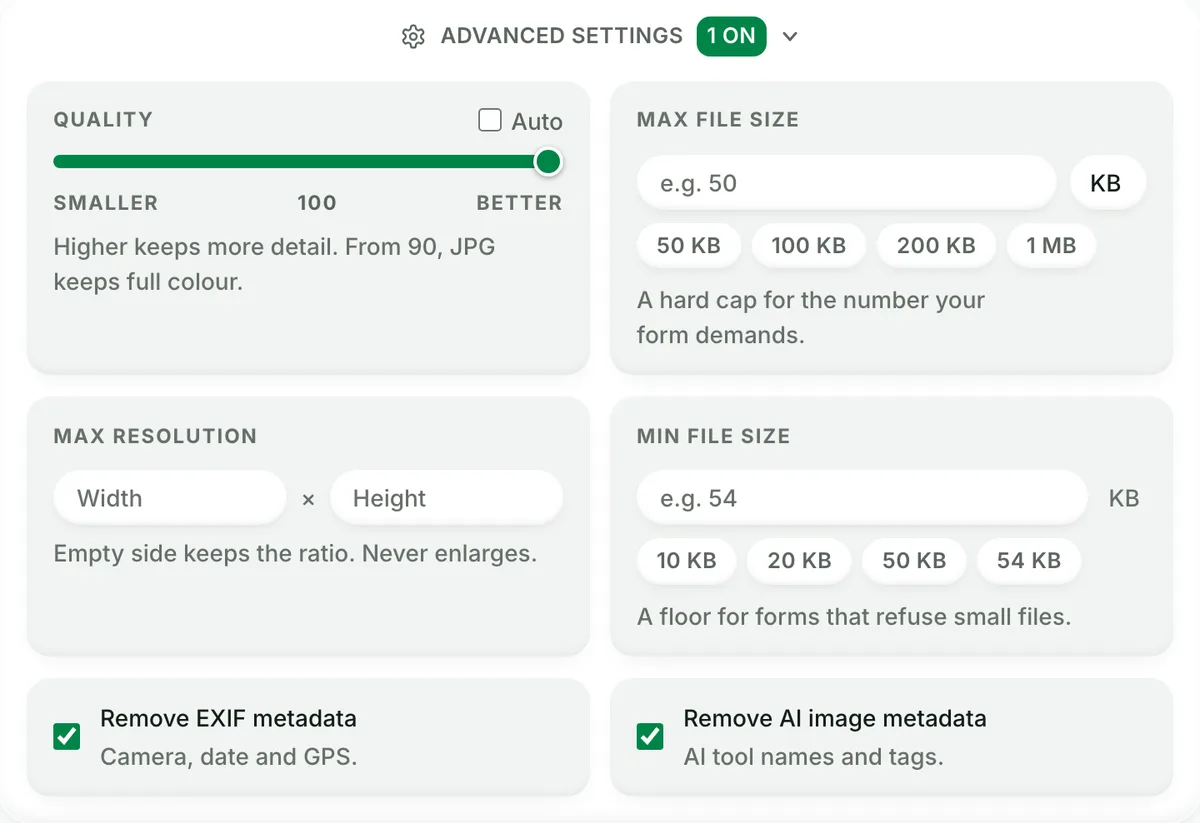
Both boxes are ticked by default, at quality 100. Drop your image
Drop a JPG, PNG, WebP, AVIF or HEIC, or a batch of them, on the drop zone. A HEIC comes back as a JPG.
The drop zone takes several images at once. Download the clean file
Click Download image. Our Meta AI file went from 177.7 KB to 577.4 KB, with no made-by-AI tag and no Facebook ID left.
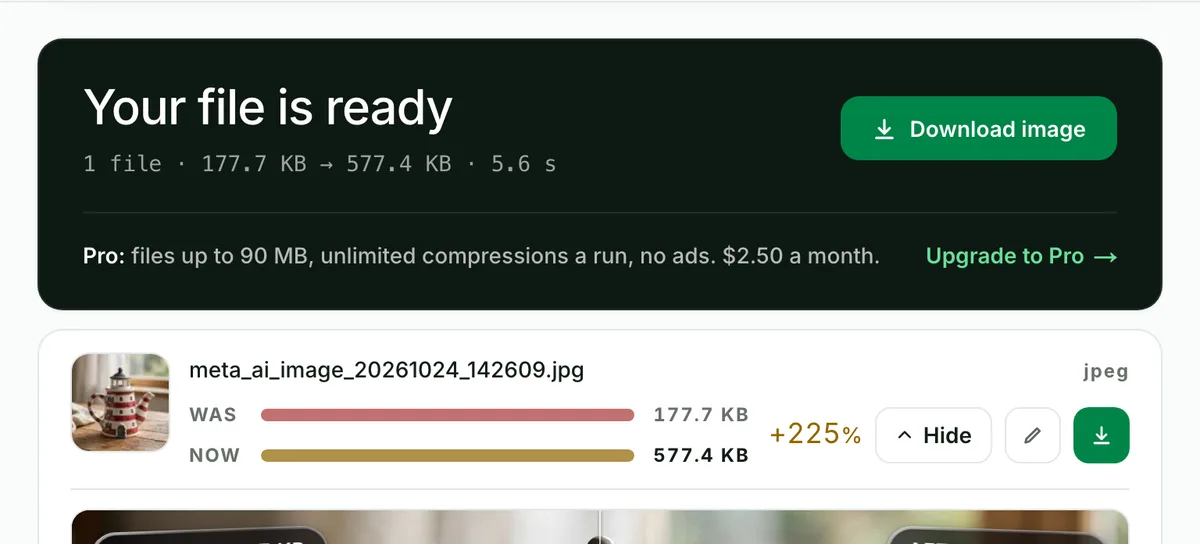
Quality 100 re-encodes the JPG, so this file grew.
Weigh the size. Quality 100 writes a fresh JPG, and a fresh JPG at 100 is usually bigger: our Gemini file grew from 2.84 MB to 3.07 MB. Move the Quality slider down, or tick Auto, when a smaller file matters more. For camera data alone, see how to remove EXIF data from a photo.
How to remove AI metadata with ExifTool
Run exiftool -all= yourfile.jpg. ExifTool is a free command-line reader and writer, and its documentation names -all= as the way to delete every tag it can write. It cleaned all 7 marked files without re-encoding the pixels, so every file got a little smaller. Here is our real run on the Meta AI file:
% exiftool -XMP:DigitalSourceType -IPTC:SpecialInstructions meta-ai.jpg
Digital Source Type             : http://cv.iptc.org/newscodes/digitalsourcetype/trainedAl…
Special Instructions            : FBMD0a000ab0030000f6840000dce300005cf40000b7020100941701…
% exiftool -all= meta-ai.jpg
    1 image files updated
% exiftool -XMP:DigitalSourceType -IPTC:SpecialInstructions meta-ai.jpg
%Avoid the targeted -JUMBF:all= when you want every AI field gone. That command deletes only the C2PA store. On the ComfyUI PNG it changed nothing:
% exiftool -JUMBF:all= comfyui.png
    0 image files updated
    1 image files unchanged
% exiftool -PNG:Prompt comfyui.png
Prompt : {"57:11": {"_meta": {"cnr_id": "comfy-core", "title": "M…Does a screenshot remove AI metadata?
Yes, a screenshot carries none of the original’s metadata, because it is a new picture of your screen. OpenAI’s help page says Content Credentials “can be lost through everyday actions, such as taking a screenshot”. We took one of the ChatGPT image open in Preview, and ExifTool found no AI field in it.

A screenshot costs you the picture, though. Ours came out at a different size, with the window frame and toolbar in it, and with the display’s colour profile instead of the original’s. The OpenAI page also says SynthID is designed to survive screenshots. So a screenshot drops the metadata and keeps the watermark.
Does re-saving in Preview or Photoshop remove AI metadata?
Not always. We re-saved every file with sips, the image tool built into macOS. sips dropped the C2PA manifests and the ComfyUI prompt. It kept the Meta AI file’s made-by-AI tag and Facebook ID, and it cannot write WebP at all. It also re-compressed the JPGs: our Gemini file shrank from 2.84 MB to 0.81 MB.
Photoshop decides Content Credentials in its export dialog. Adobe’s export page lists three choices under File > Export > Export As: Publish to Content Credentials cloud, Attach to file, and None. Pick None. The cloud choice keeps a copy online that Adobe says allows recovery “if they’re stripped from your content”. We did not run Photoshop, so check the result with ExifTool.
How to remove AI metadata on Windows
Remove the properties in File Explorer
Right-click the image in File Explorer, click Properties and open the Details tab. Click Remove Properties and Personal Information, choose the copy with all possible properties removed, and click OK. Microsoft’s tip says the copy loses “all properties it can change”, by file type. It does not mention C2PA or PNG text, and we could not run Windows. Check the copy with ExifTool, which runs on Windows too.
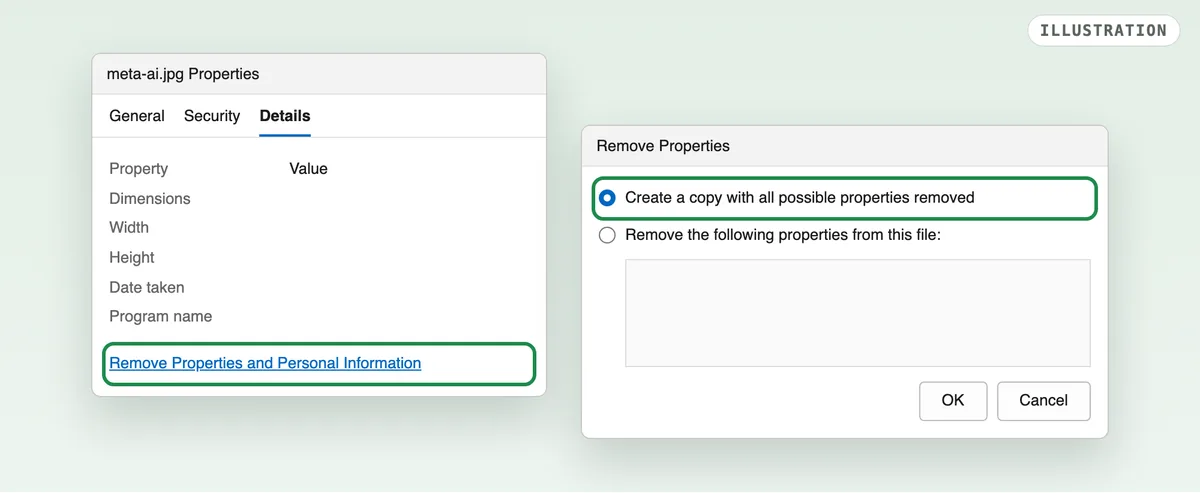
Illustration: the two windows, labelled as Microsoft’s tip names them.
Will Instagram still label my image as AI?
It can. Meta’s labeling post says it reads the AI information “in the C2PA and IPTC technical standards”. Meta also labels from what you disclose and from its own detection. Removing the metadata takes away only the first signal. Meta renamed “Made with AI” to “AI info” on 1 July 2024, its update says, after photographers saw real photos labelled.
That last case is a fair reason to remove AI metadata. An AI edit such as Generative Fill can tag a whole real photo as AI-made. The IPTC vocabulary has a separate value for that, compositeWithTrainedAlgorithmicMedia, “edited using Generative AI”. Whether you then say the photo was edited is your call.
What metadata removal cannot remove
- SynthID and other pixel watermarks. Google’s SynthID page says the mark survives “cropping, adding filters, changing frame rates, or lossy compression”. It lives in the pixels, so no metadata tool touches it.
- The law where you publish. Article 50 of the EU AI Act applies from 2 August 2026. Its text makes AI providers mark outputs, and makes people who publish deepfakes disclose them.
- A platform’s own checks. A file with no AI fields can still get a label from detection or from a watermark.
Which way should you pick?
Pick ExifTool when you are comfortable in a terminal. It removes every field, keeps the pixels as they are and makes the file smaller. The cost is an install and a command, and the backup file it leaves.
Pick a browser tool when you have a batch, no terminal or a phone. It removes every AI field in one drop and can keep your camera data. The cost is a re-encode, which at quality 100 often makes a JPG bigger.
Skip screenshots and plain re-saves. A screenshot changes the picture, and a macOS re-save left Meta’s tag in our test.
How we tested
- The files: 8 images the owner made on 24 October 2026 from one prompt, a lighthouse teapot, in ChatGPT, Gemini, Google AI Studio, Ideogram, ComfyUI, Meta AI, Meta’s Muse and Leonardo. Every file as downloaded, unchanged.
- The methods: ExifTool 13.59 with
-all=and with-JUMBF:all=; sips on macOS 15.7.3, saving each file in its own format; Blinkimg’s engine (version 10, sharp 0.35.5) at quality 100 with the defaults, and again with Remove EXIF metadata unticked, which also cleaned all 7. - The reading: every input and output read with ExifTool 13.59. A field counts when ExifTool prints it: the JUMBF store for C2PA, trainedAlgorithmicMedia anywhere, the PNG prompt and workflow, the FBMD string and the XMP publisher.
- The screenshot: one macOS window capture of the ChatGPT image open in Preview, on 2026-10-26, read with the same ExifTool.
- The steps: the Blinkimg steps captured on the live site with the Meta AI file. Photoshop and Windows follow Adobe’s and Microsoft’s own pages.
Next step
Drop your AI images on the AI image metadata remover and download them clean. Then read the file once with ExifTool if you want proof.
Read the full guide: How to reduce image file size on any device.
Questions
- How do I remove AI metadata from an image?
- Run exiftool -all= on the file, or drop it on a browser AI metadata remover. Both cleaned all 7 marked images in our test. Avoid tools that remove only C2PA: a C2PA-only strip left the made-by-AI tag in both Meta files and the prompt in a ComfyUI PNG.
- Does a screenshot remove AI metadata?
- Yes. A screenshot is a new picture of your screen, so it carries none of the original file’s metadata. Our screenshot of a ChatGPT image had no AI field left. It also changed the size and caught the window frame, and OpenAI says its SynthID watermark is designed to survive screenshots.
- Does removing metadata remove SynthID?
- No. SynthID is an invisible watermark that Google DeepMind puts in the pixels, not in the metadata. Google says it survives cropping, filters and lossy compression. ChatGPT and Gemini images carry it, so a file with every metadata field removed can still be detected as AI-made.
- What is C2PA metadata?
- C2PA metadata, also called Content Credentials, is a signed record inside the file of which tool made an image and how it changed. ChatGPT, Gemini, Google AI Studio and Ideogram each wrote one in our test. The signature covers the original file, so an edited copy cannot keep a valid one.
- Will Instagram still show AI info after I remove metadata?
- It can. Meta says it reads the AI information in the C2PA and IPTC standards, and it also labels from what you disclose and from its own detection. Removing the metadata takes away only the signals inside the file. A pixel watermark such as SynthID can still be found.
- Does ExifTool remove C2PA?
- Yes. ExifTool’s -all= removed the C2PA manifest from all 4 C2PA files in our test, and -JUMBF:all= removes the C2PA store alone. Use -all= to remove every AI field, because the C2PA-only command left the made-by-AI tag and the ComfyUI prompt in 3 of 7 files.
- Does re-saving an image remove AI metadata?
- Not reliably. Re-saving with sips, the image tool built into macOS, removed C2PA and the ComfyUI prompt but kept the made-by-AI tag and Facebook ID in the Meta AI file. In Photoshop, set Content Credentials to None in Export As. Check the result with ExifTool either way.
- Can I remove AI metadata and keep my camera data?
- Yes. In Blinkimg, untick Remove EXIF metadata and leave Remove AI image metadata ticked. The camera make, date and GPS stay, and every AI field goes; that run cleaned all 7 marked files in our test. ExifTool can do the same by deleting named groups instead of using -all=.
- Where does ComfyUI save the prompt?
- ComfyUI saves the prompt and the whole workflow as text chunks inside the PNG. Our ComfyUI file held a 2.2 KB prompt and a 17.1 KB workflow. Anyone with the PNG can read your prompt and drag the file into ComfyUI to load your setup, so remove them before sharing.
- Is it legal to remove AI metadata from an image?
- Removing metadata from your own file is a normal privacy step, and it is legal in most places. What you publish is a separate question. The EU AI Act’s Article 50 makes people who publish deepfakes disclose them, and platforms such as Meta and TikTok have their own AI disclosure rules.
- Why does my real photo show as made with AI?
- An AI edit can tag the whole file. Generative Fill and similar tools write Content Credentials or an IPTC source type into the photo you export, and Meta reads those fields. Removing the AI metadata takes the file-level tag off; what you say about the edit is still your call.
- Does Windows Remove Properties delete AI metadata?
- Microsoft says the Remove Properties copy loses all the properties Windows can change for that file type. Its tip does not mention C2PA or PNG text chunks, and we could not test Windows. Check the copy with ExifTool, which runs on Windows, before you rely on it.