How to send high-quality photos on WhatsApp, measured
To send high-quality photos on WhatsApp, tap HD in the photo picker so it shows a checkmark, or attach the photo as a Document to send the untouched original. Standard, the default, shrank our 12 MP iPhone photo to 2 MP. We measured all three. Part of the image compressor.
By Sahadat Husain15 min readGuides

How do you send high-quality photos on WhatsApp?
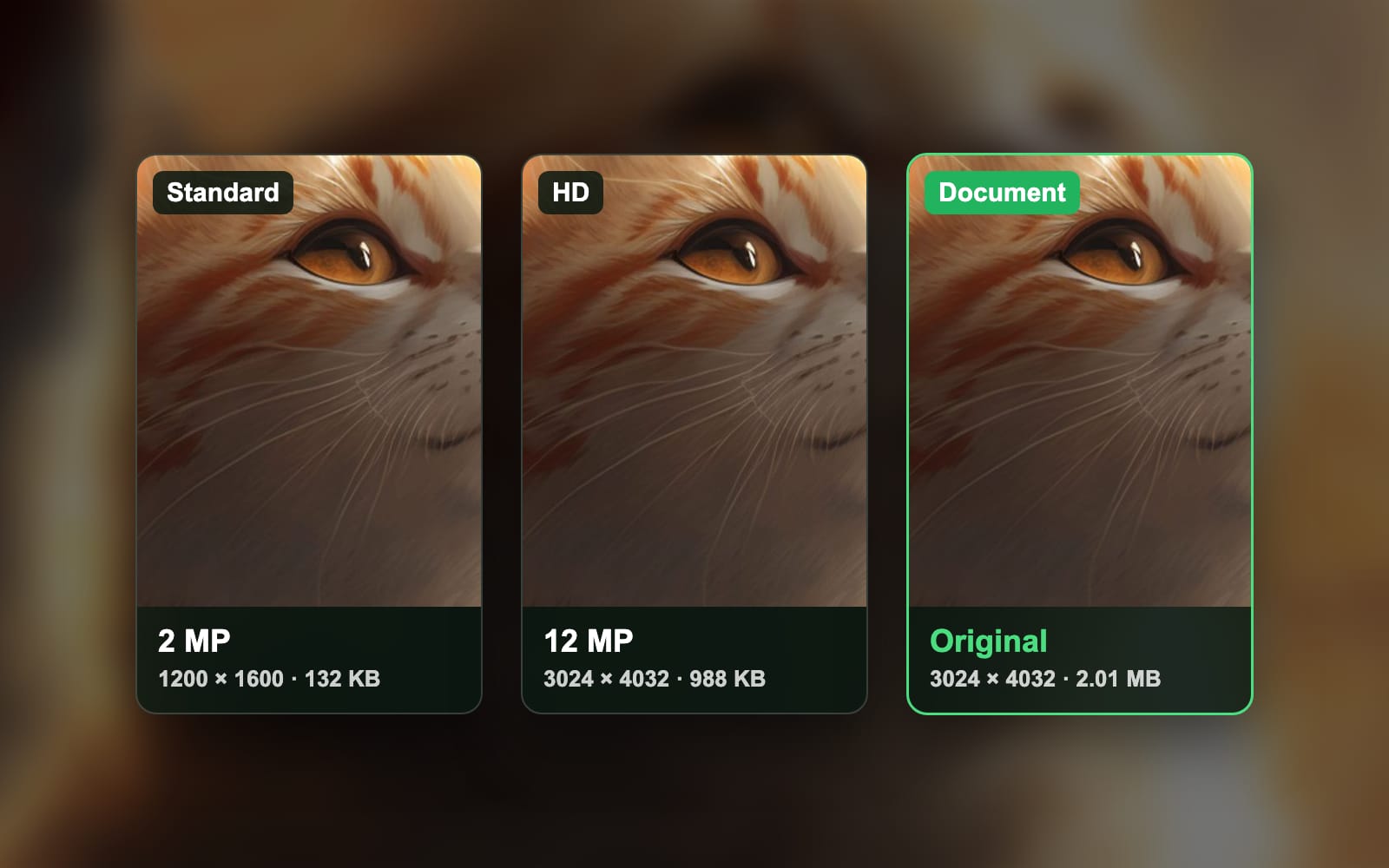
You have three choices, and they deliver three different files. We sent one 12 MP iPhone photo all three ways on 2026-10-18 and measured what arrived.
- Standard quality (the default) shrank it to 1,200 × 1,600 pixels and 131.7 KB, 6.5% of the original’s bytes.
- HD quality kept all 3,024 × 4,032 pixels but turned the HEIC into a JPEG of about 988 KB.
- Document sent the original file, byte for byte: a 3,024 × 4,032 HEIC of 2.01 MB.
What arrived, in bytes
- Document (the original HEIC)2.01 MB
- HD quality (JPEG)about 988 KB
- Standard quality (JPEG)131.7 KB
So pick by what the photo is for. HD is the right choice for a picture someone will look at on a phone. A Document is the only way to send the untouched file, for printing, editing or keeping. Standard is fine for a quick snap.
| Sent as | Pixels | Bytes | Format | Camera EXIF | Colour profile | Shows as |
|---|---|---|---|---|---|---|
| Standard (iPhone) | 1,200 × 1,600 | 131.7 KB | JPEG | removed | removed | photo |
| HD (iPhone) | 3,024 × 4,032 | about 988 KB | JPEG | removed | not read | photo, HD badge |
| Document (iPhone) | 3,024 × 4,032 | 2.01 MB | HEIC, unchanged | kept | kept (Display P3) | file |
| Photo (WhatsApp Web) | 1,600 × 1,066 | 408.9 KB | JPEG | none to keep | added (sRGB) | photo |
| Document (WhatsApp Web) | 6,720 × 4,480 | 3.32 MB | JPEG, unchanged | none to keep | none | file |
How do you send an HD photo on iPhone?
Tap the HD button at the top right of the photo picker, so it shows a checkmark, then send. On our iPhone 12 Pro, tapping HD turned it on at once, with no menu to choose from. WhatsApp’s help page about HD photos describes a choice between Standard quality and HD quality; our app showed the on and off button instead.
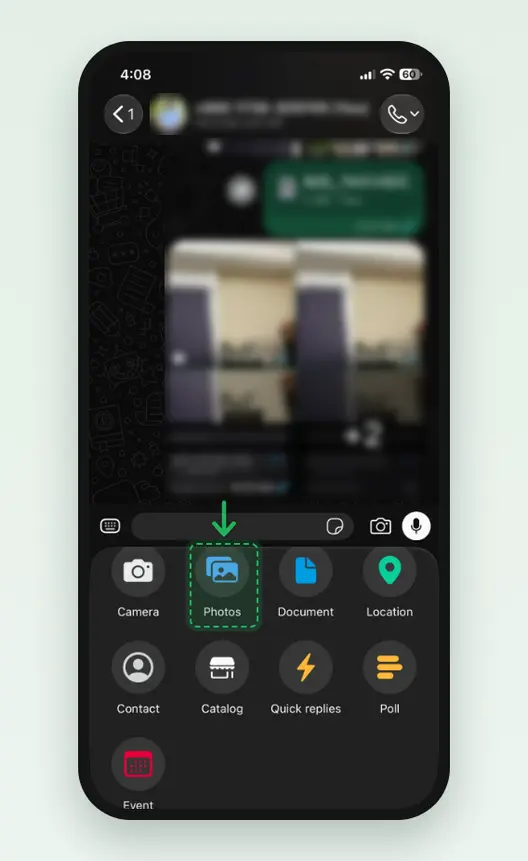
Open the chat and tap +, then Photos
Tap + to the left of the message box. The attach menu opens with Camera, Photos and Document in the first row. Tap Photos.
Screenshot: Photos in the attach menu. Pick the photo
Tap the photo you want to send. It gets a green number, and the count shows on the Send button.
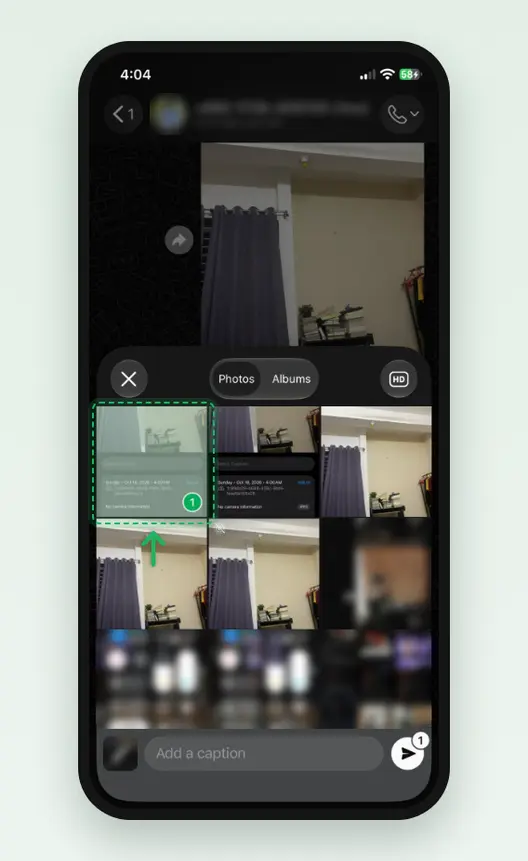
Screenshot: the selected photo carries a green number. Tap HD at the top right, so it shows a checkmark
The HD button sits at the top right of the picker. One tap turns it on and adds a checkmark. There is no separate quality sheet.
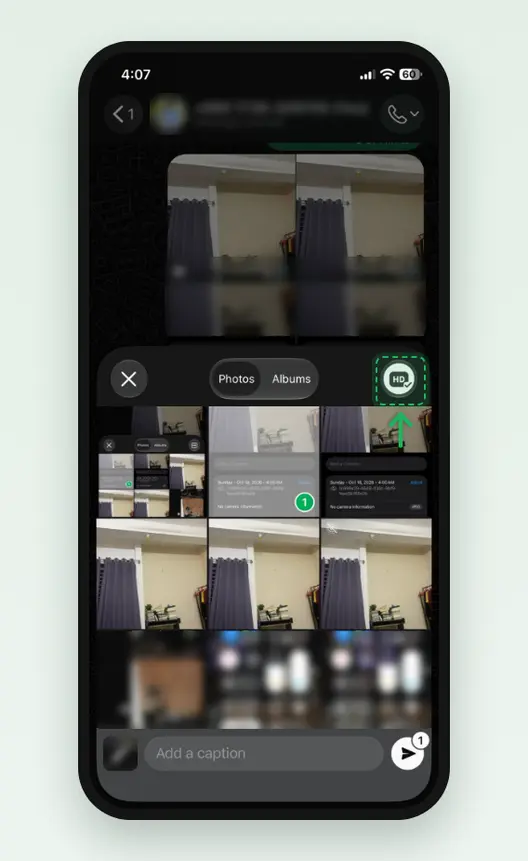
Screenshot: HD with its checkmark means HD is on. Tap Send
Tap the Send arrow at the bottom right. Add a caption first if you want one.
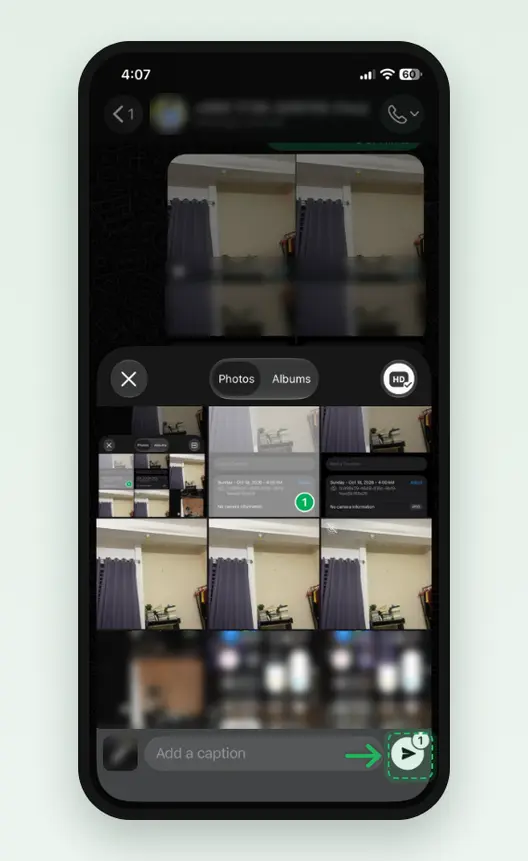
Screenshot: Send, with the count of selected photos. Look for the HD badge
Over mobile data, WhatsApp’s help page says it may ask “Continue without WiFi?”; tap Continue. The sent photo carries a small HD badge at its bottom left. A photo without the badge went as Standard.
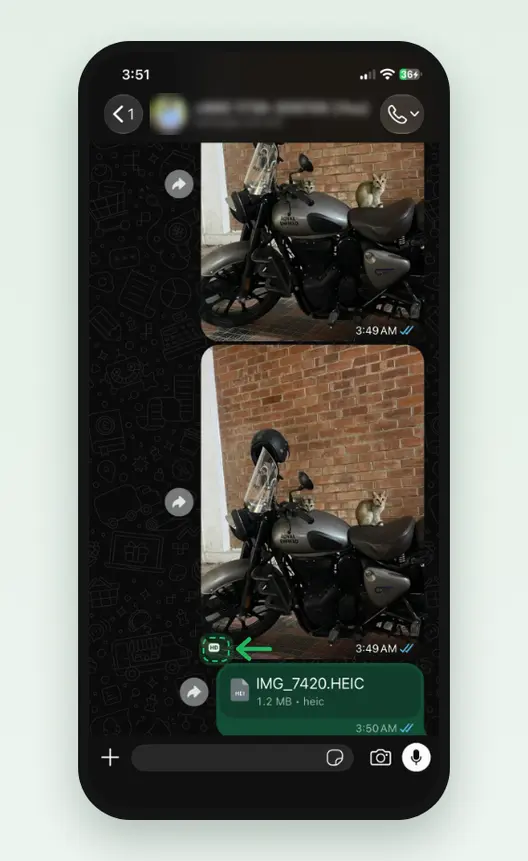
Screenshot: the HD badge marks the photo sent in HD.
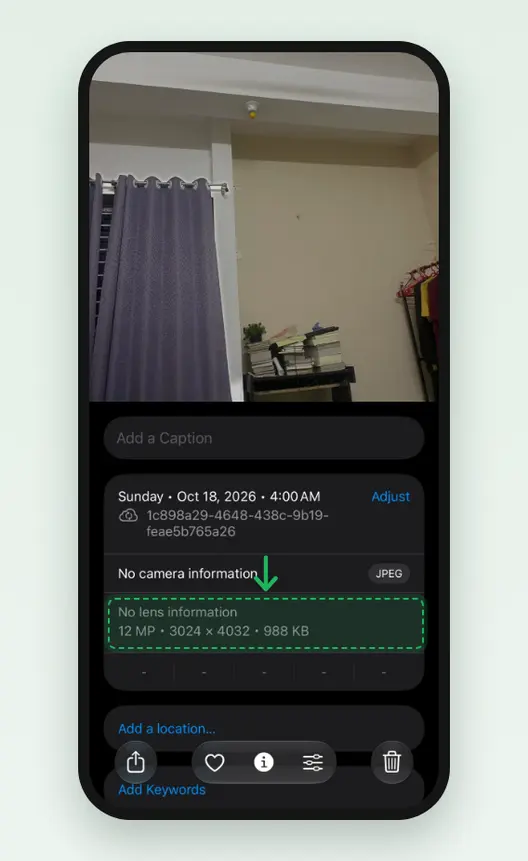
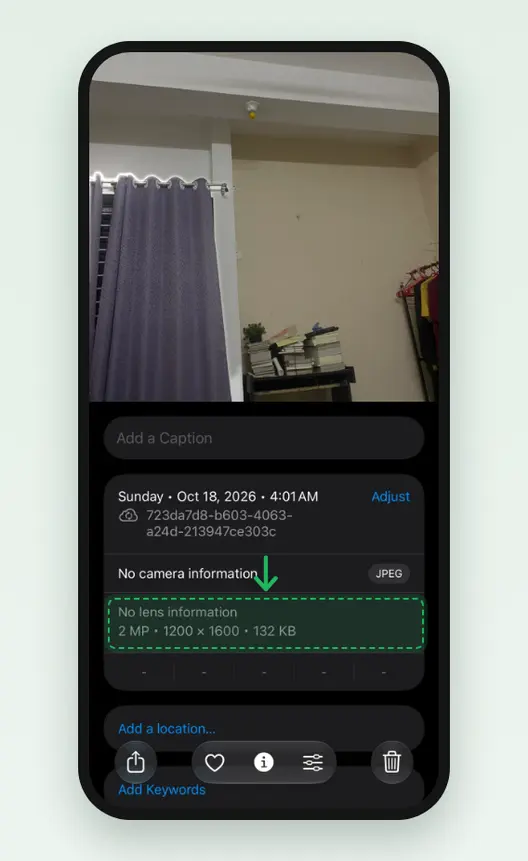
The HD copy our phone saved read JPEG, 12 MP, 3,024 × 4,032, 988 KB in the iPhone Photos info panel, with no camera information and no location. The Standard copy read 2 MP, 1,200 × 1,600, 132 KB.
How do you send an HD photo on Android?
The steps are the same in spirit. WhatsApp’s help page says to open the chat, tap the attach button, then Gallery, pick the photo, tap the HD icon and choose HD quality. We had no Android phone for this test, so these steps come from that page, not from our own run.
Tap the attach button, then Gallery
In the chat, tap the paperclip or + in the message bar, then Gallery, and pick the photo.
Tap HD and choose HD quality
Tap the HD icon at the top of the editor and choose HD quality, then send. The photo shows the HD badge in the chat.
How do you change WhatsApp upload quality to HD?
Change one setting: Settings, then Storage and data, then the upload quality setting, then HD quality. WhatsApp’s help page calls it Media upload quality; on our iPhone (WhatsApp Business) the page was titled Upload quality. WhatsApp warns that HD is “Slower to send, can be 6 times larger”. Our HD copy was 7.5 times the bytes of the Standard one, a little more than WhatsApp says.
Tap Settings
On iPhone, Settings is the tab at the bottom right. On Android, tap the three dots at the top, then Settings.
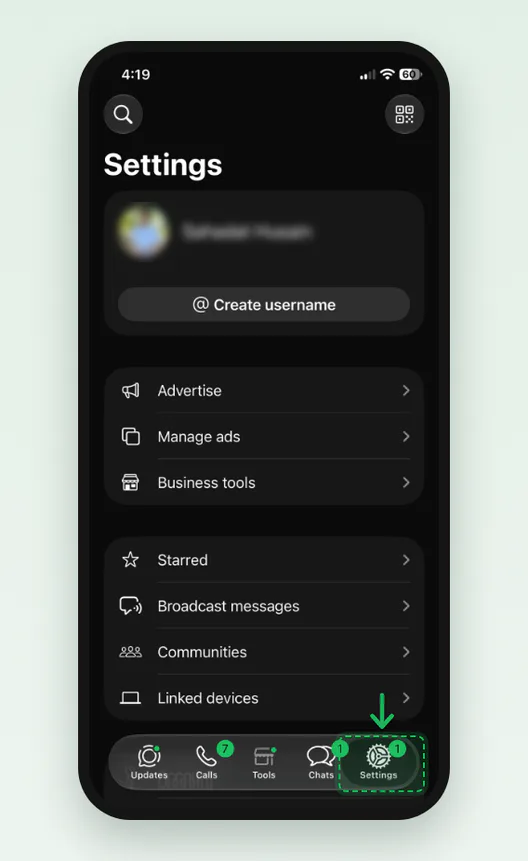
Screenshot: the Settings tab, bottom right. Tap Storage and data
Scroll down to the group with Account, Privacy and Chats, and tap Storage and data.
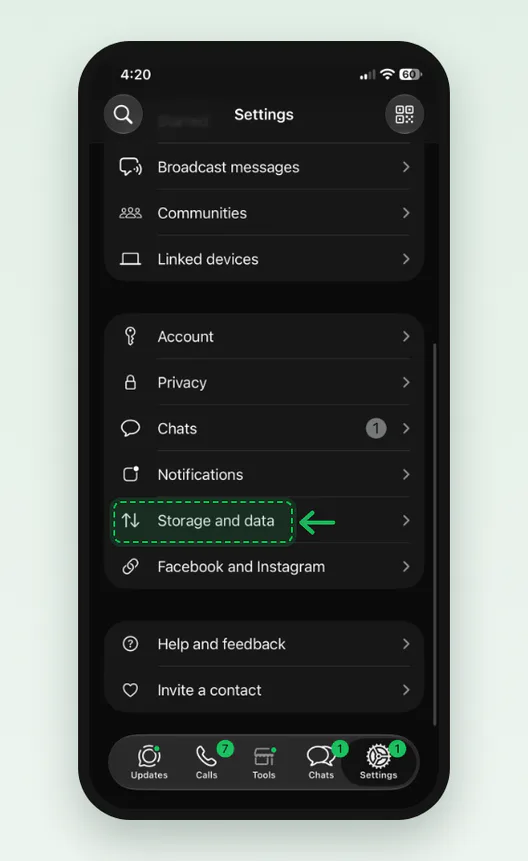
Screenshot: Storage and data, under Notifications. Tap Upload quality under Media quality
Upload quality sits under Media quality and shows the current choice, Standard on ours.
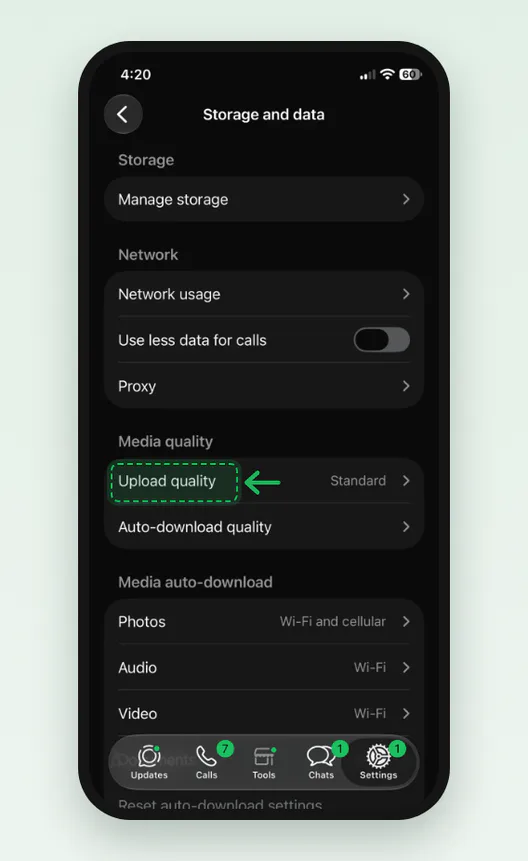
Screenshot: Upload quality reads Standard until you change it. Open Upload quality, then tap HD quality
The page lists Standard quality, “Faster to send, smaller file size”, and HD quality, “Slower to send, can be 6 times larger”. Tap HD quality. To go back, tap Standard quality.
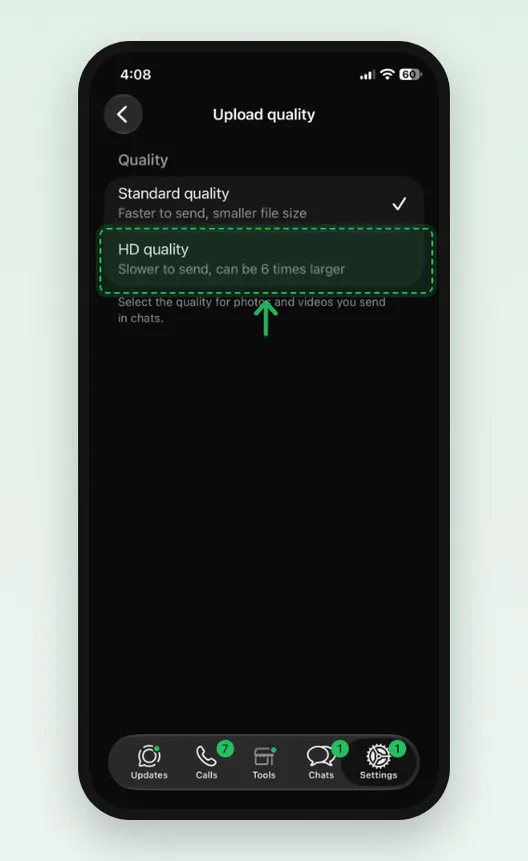
Screenshot: Upload quality, with Standard checked and HD marked.
The setting does not reach back in time. WhatsApp’s help page says a photo already sent cannot be upgraded; send it again in HD.
What is the WhatsApp HD photo resolution?
No. HD keeps the pixels of a 12 MP photo, but it is a new, smaller file. Our 3,024 × 4,032 HEIC of 2.01 MB came back as a 3,024 × 4,032 JPEG of about 988 KB: 49.1% of the bytes. The camera details and the date stamp in EXIF were gone, by the Photos info panel.
Standard went much further. It cut the long edge to 1,600 pixels and left 6.5% of the bytes. Its quantisation tables read as JPEG quality 85 on the usual IJG scale, with 4:2:0 colour subsampling. Against the original at the same 1,200 × 1,600, it scored SSIM 0.9063 and PSNR 33.2 dB (1 means identical).
What about bigger photos? Launch coverage in 2023 quoted a 4096-pixel HD limit from beta screenshots. groovyPost says 5120 pixels. AccioPix reports measured caps and quality between 67 and 92, but we could not open its article to check how. We sent a 12 MP photo, so our test does not show where HD stops. Those numbers are theirs, not ours.
How do you send a photo as a document on WhatsApp?
Attach it as a Document, not as a photo. WhatsApp then passes the file through untouched. Our iPhone HEIC arrived at exactly 2,013,200 bytes, and the 6,720 × 4,480 JPEG we sent from WhatsApp Web came back with the same SHA-256 hash: the same file, bit for bit.
iPhone: tap +, then Document
In the chat, tap + at the bottom left. The menu shows Camera, Photos, Document, Location and more. Tap Document, not Photos.
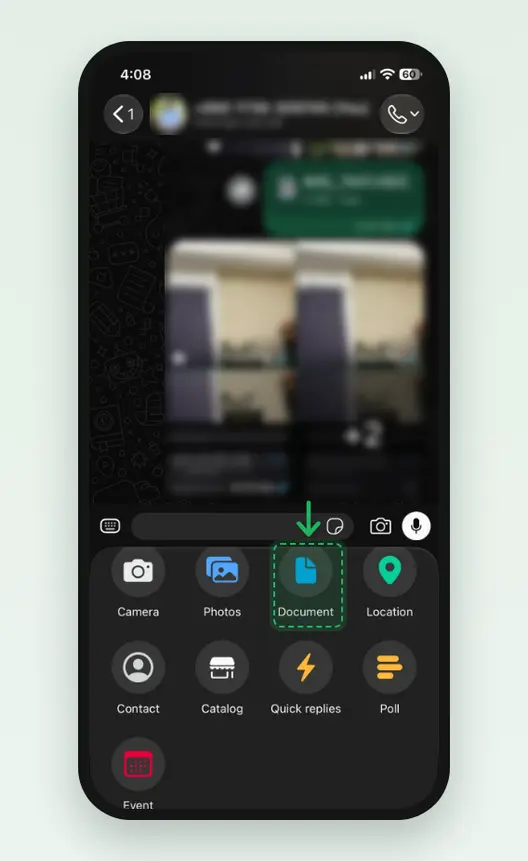
Screenshot: Document, beside Photos in the attach menu. Tap Choose photo or video
WhatsApp shows “Choose document” with its own line: “Send original files up to 2 GB in size.” Tap Choose photo or video to pick from your library, no Files app needed.
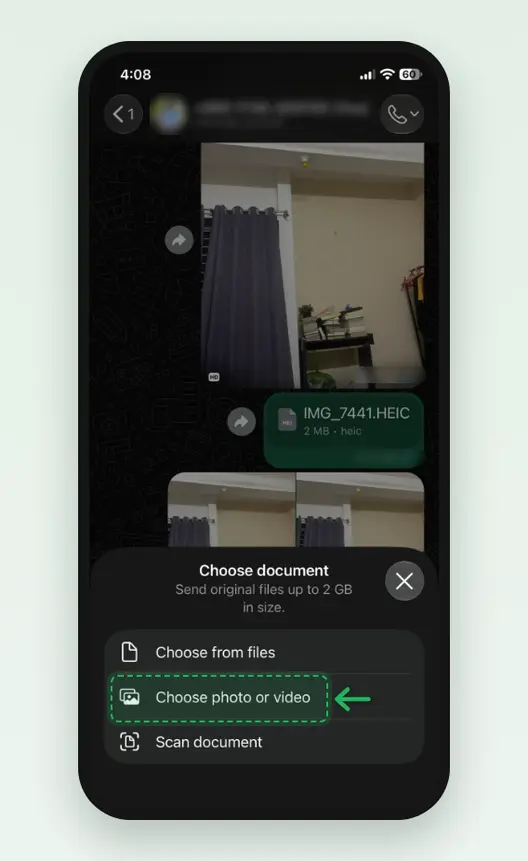
Screenshot: Choose photo or video sends the original from your library. Pick the photo and send it
Pick the photo and tap Send. The chat shows a file bubble with the name, the size and the type, not a picture.
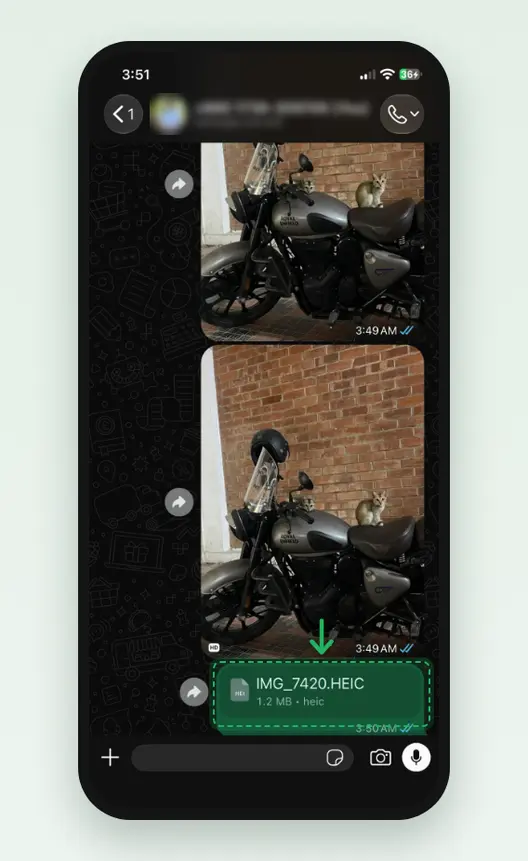
Screenshot: a document arrives as a file bubble. Android: attach button, then Document
Tap the paperclip or +, then Document, and browse to the photo. WhatsApp’s help page gives this path; we did not run it.
Two things to know. The person gets a file to open, not a photo in the chat. And a HEIC stays a HEIC, so the person needs a device that opens one. Many Windows PCs and older Android phones do not. Send a JPG instead, or point them to our HEIC to JPG converter. The 2 GB limit is in the app’s own words, and in WhatsApp’s help page on sending media.
Can you send HD photos from WhatsApp Web or the desktop app?
Not as a photo, in our test. On WhatsApp Web, Photos & videos sent at once with no HD choice. Our 6,720 × 4,480 JPEG of 3.32 MB arrived as 1,600 × 1,066 and 408.9 KB, 12.3% of the bytes. WhatsApp also added an sRGB colour profile. As a Document, the same file came back unchanged.
For a photo: click +, then Photos & videos
Click + beside the message box. Photos & videos sends a shrunken copy: ours went at 1,600 pixels on the long edge.
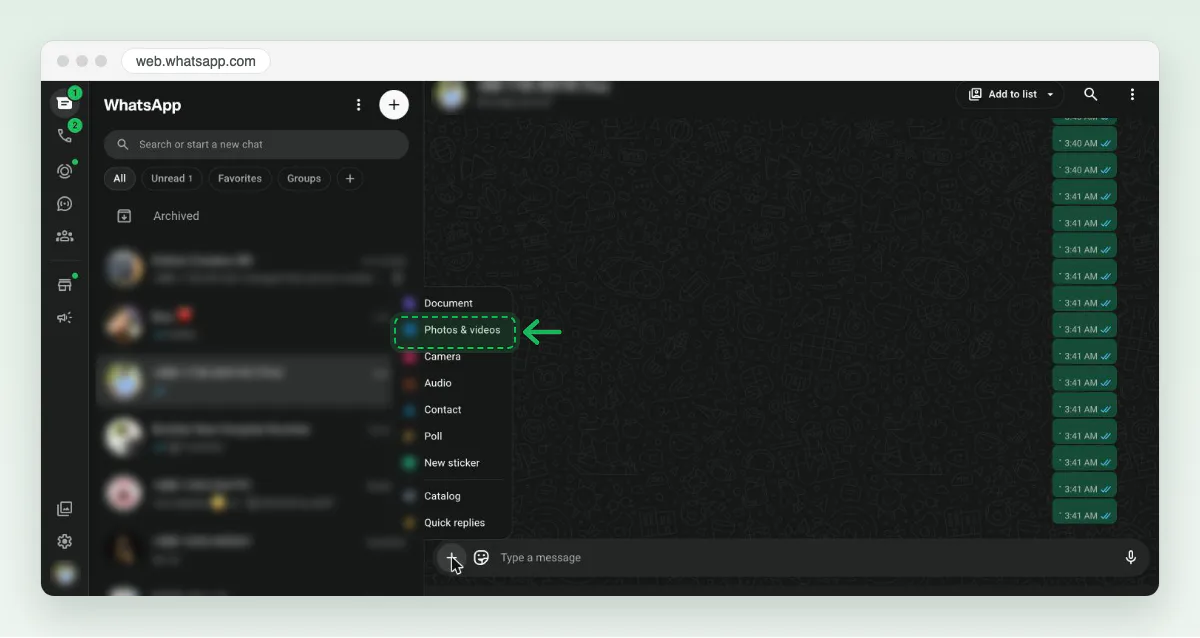
Screenshot: Photos & videos on WhatsApp Web has no HD choice. For the original: click +, then Document
Pick Document instead and choose the photo file. This is the route that keeps it whole.
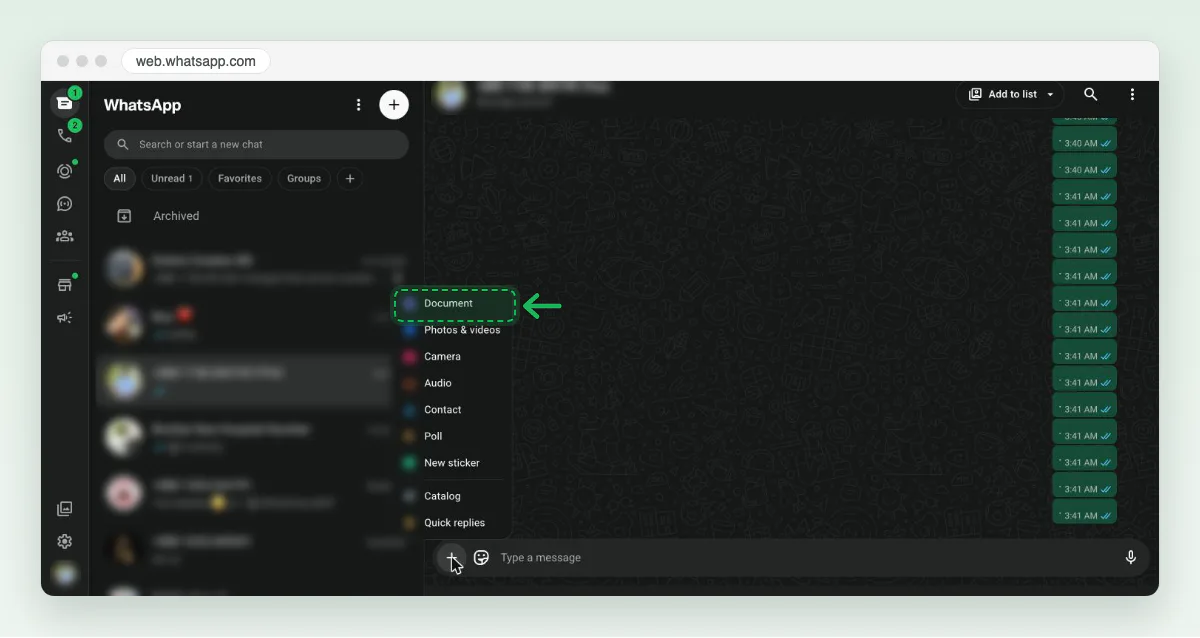
Screenshot: Document, the first line of the menu. Check the preview, then click Send
A document shows “No preview available” with its size and type. That is expected. Click the green send button.
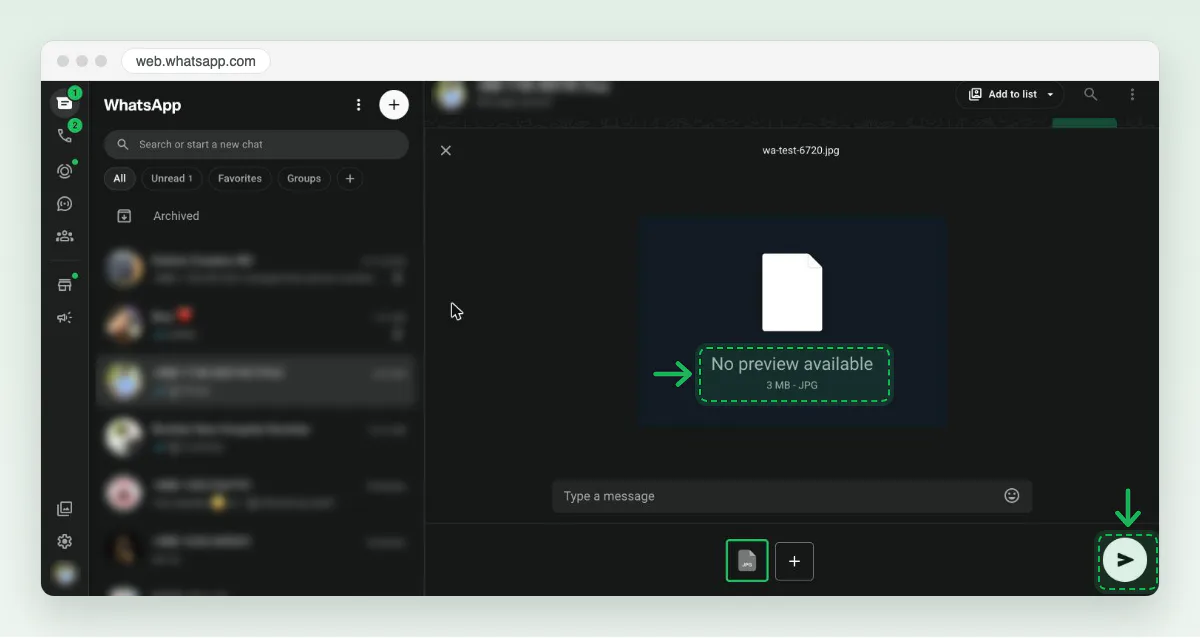
Screenshot: “No preview available, 3 MB - JPG”, then Send. Spot the difference in the chat
The photo shows as a picture. The document shows as a file bubble with its name and size.
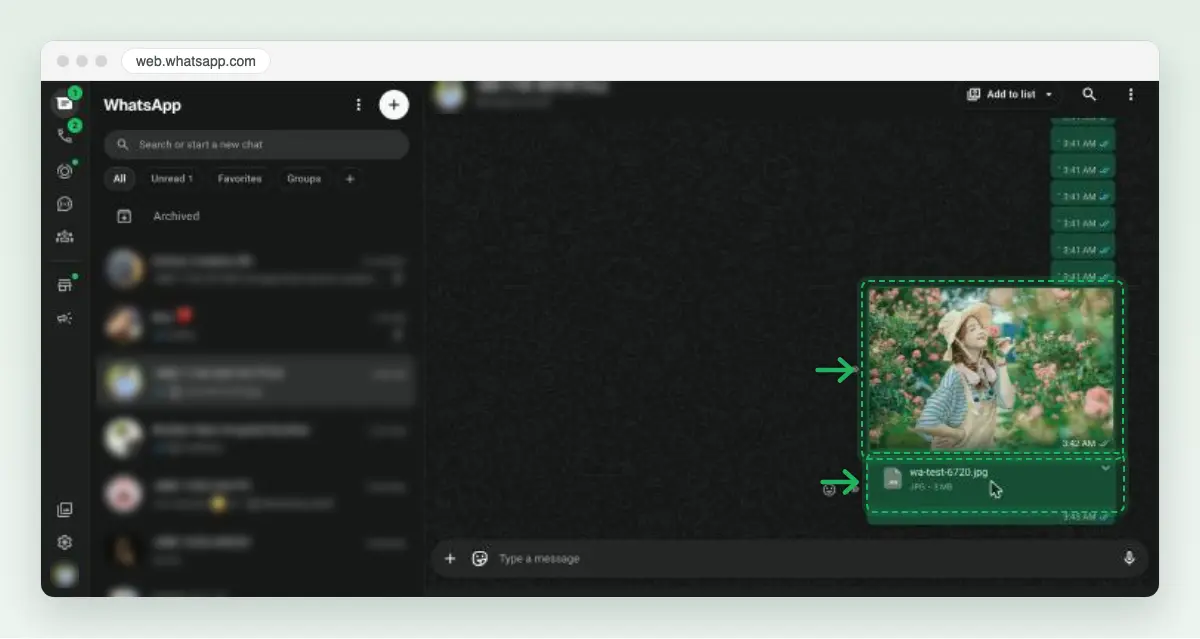
Screenshot: the same file, sent as a photo and as a document.
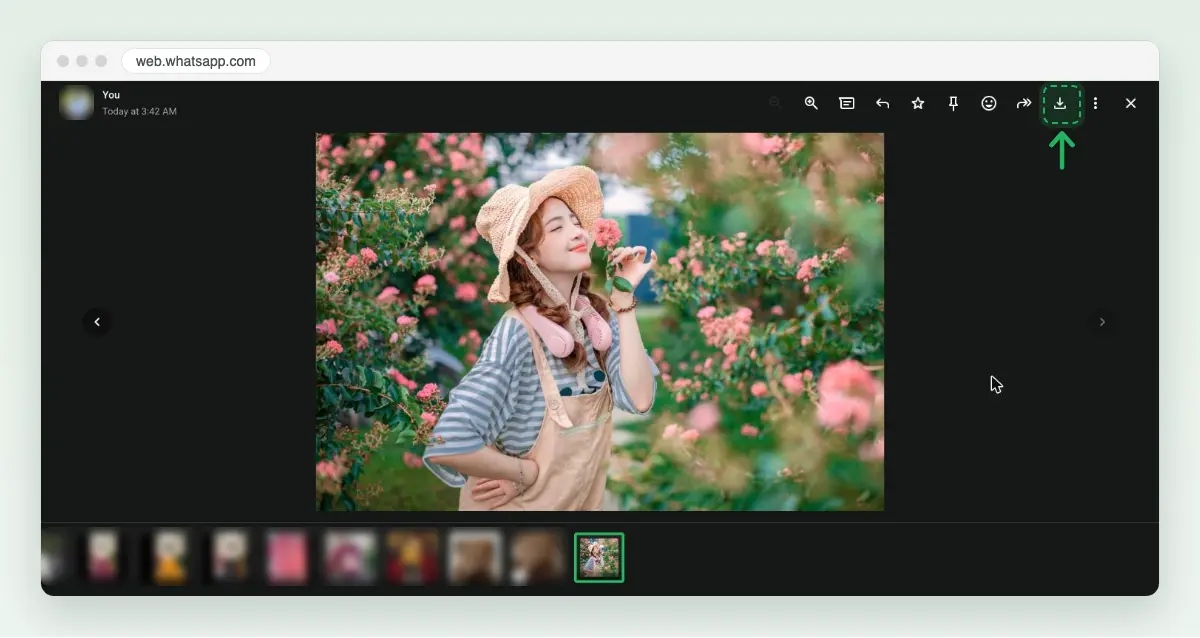
Saving on Web has its own trap. For the HD photo our iPhone sent, WhatsApp Web’s download button gave a 960 × 1,280 file of 85.1 KB, smaller than even the Standard copy. To keep an HD photo, save it from the phone.
The WhatsApp apps for Mac and Windows have the same attach menu with Document. We did not test them, so we cannot say whether they offer HD.
Do status updates and profile pictures get HD?
No. WhatsApp’s help page says HD media is not available for status updates or profile pictures. For the right size of a profile photo, use our WhatsApp DP resizer. We did not post a status or test groups and view once photos.
Why do WhatsApp photos look blurry or less vibrant?
Blurry first. Standard keeps about one pixel in six of a 12 MP photo, and it re-encodes the rest. Zoom in and the fine detail is gone. WhatsApp’s help page also says a weak connection lowers the quality of media sent and received, even in HD.
Less vibrant is about colour. Our iPhone original carried a Display P3 colour profile, a wider range of colour than most screens use. The Standard copy had no colour profile at all, so apps read it as plain sRGB. Bright reds and greens can then look flatter. A Document keeps the profile; we did not measure the HD copy’s.
Our post on why photos look blurry after upload covers the same problem on other apps.
Does WhatsApp remove EXIF and location from photos?
Standard and HD did, in our test. Our original had camera EXIF (the iPhone model and the date) and the Photos panel showed both WhatsApp copies with “No camera information” and no location. Our original carried no GPS, so we could not see location removed. A Document keeps everything, location included, so check before you send one.
Can you shrink a photo yourself and keep more quality?
Yes, at the same pixels. We ran Blinkimg’s engine on the same HEIC at a 1,600-pixel long edge, Auto quality. It made a 1,200 × 1,600 JPEG of 111.3 KB, against WhatsApp’s 131.7 KB. It scored SSIM 0.938 and PSNR 38.72 dB against WhatsApp’s 0.9063 and 33.2 dB: smaller and closer to the original.
1,200 × 1,600
- WhatsApp Standard131.7 KB
- Blinkimg, Auto111.3 KB
3,024 × 4,032
- WhatsApp HDabout 988 KB
- Blinkimg, Auto764.0 KB
On the Web photo the result was mixed. Our engine made the 1,600-pixel copy at 208.9 KB, about half of WhatsApp’s 408.9 KB, but scored a little lower: SSIM 0.9764 against 0.9826. WhatsApp spent more bytes on that one.
Sending by email instead? Our post on the Gmail attachment size limit covers the 25 MB cap.
How we tested
- The photo: IMG_7441.HEIC, taken on our founder’s iPhone 12 Pro: 3,024 × 4,032, 2,013,200 bytes, HEIC, with camera EXIF and a Display P3 profile, no GPS. Sent to “Message yourself” as Standard, HD and Document on 2026-10-18.
- The copies: the Standard copy as saved; the HD copy as the iPhone Photos info panel printed it (we have no file of it); the Document compared by size with the original.
- The Web test: a 6,720 × 4,480 JPEG of 3,324,181 bytes sent from WhatsApp Web (WhatsApp Business) in Chrome on a Mac, as a photo and as a document, and downloaded back. The document matched by SHA-256.
- The measures: pixels, bytes, EXIF, GPS, colour profile and subsampling read with sharp 0.35.4 (libvips 8.18.6); JPEG quality estimated from the luminance quantisation table on the IJG scale; SSIM (8 × 8 windows) and PSNR on luma against the original resized to the same pixels. Blinkimg engine 9, Auto quality, JPEG. Measured 2026-10-17. How we measure covers the rest.
Read the full guide: How to reduce image file size on any device.
Questions
- How can I send a photo on WhatsApp without losing quality?
- Attach it as a Document instead of a photo. WhatsApp then sends the original file unchanged: in our test a 2 MB iPhone HEIC arrived byte for byte. HD quality keeps the pixels but makes a new, smaller JPEG. The person receives a document as a file to open, not a picture in the chat.
- Is WhatsApp HD full quality?
- Not fully. In our test HD kept all 3,024 × 4,032 pixels of a 12 MP iPhone photo, but turned the 2 MB HEIC into a JPEG of about 988 KB and removed the camera information. It looks close on a phone screen. For the exact original, send the photo as a Document.
- Does WhatsApp compress photos?
- Yes, every photo sent as a photo. Standard quality cut our 12 MP iPhone photo to 1,200 × 1,600 pixels and 131.7 KB, about 6.5% of its bytes. HD quality compresses less and keeps the pixels. Only a Document arrives untouched, because WhatsApp treats it as a file.
- What resolution does WhatsApp Standard send?
- In our test, Standard quality set the long edge to 1,600 pixels: a 3024 × 4032 iPhone photo arrived at 1,200 × 1,600, about 2 megapixels. A photo sent from WhatsApp Web arrived at 1,600 × 1,066, also 1,600 pixels on the long edge.
- How do I make WhatsApp always send HD photos?
- Open WhatsApp Settings, tap Storage and data, then the upload quality setting (Upload quality in our app, Media upload quality in WhatsApp’s help), and tap HD quality. WhatsApp warns HD “can be 6 times larger”. Our HD copy was 7.5 times the bytes of the Standard one.
- Can I send HD photos on WhatsApp Web?
- Not as a photo in our test. WhatsApp Web sent Photos & videos at once with no HD choice, and a 6720 × 4480 JPEG arrived at 1,600 × 1,066. Attach the file as a Document instead: it came back byte for byte, with the same SHA-256 hash as the original.
- Why can’t I see the HD option on WhatsApp?
- Check where you are sending. WhatsApp says HD is not available for status updates or profile pictures, and WhatsApp Web showed no HD choice in our test. Update the app if the button is missing in a chat. On our iPhone, HD sat at the top right of the photo picker and showed a checkmark when on.
- Does WhatsApp status support HD photos?
- No. WhatsApp’s help page says HD media is not currently available for status updates or profile pictures, so a status photo goes at standard quality. A profile picture is also cropped to a square. For a sharp status photo, start from a well-lit original that is already the right shape.
- Why do WhatsApp photos look less vibrant?
- Colour profile. Our iPhone photo carried a Display P3 profile, which holds brighter reds and greens than ordinary sRGB. The Standard copy WhatsApp made had no colour profile, so apps read it as sRGB and strong colours can look flatter. Sending as a Document keeps the original profile.
- Why do WhatsApp photos look blurry?
- Standard quality keeps about one pixel in six of a 12 MP photo and re-encodes it as JPEG, so fine detail goes soft when you zoom. WhatsApp also says a weak connection lowers the quality of media sent and received. Send in HD, or as a Document, for a sharper result.
- Does WhatsApp remove location data from photos?
- Photos sent as Standard or HD lost their camera information in our test, by the iPhone Photos info panel, which showed no location either. Our original carried no GPS, so we could not watch location being removed. A Document keeps every byte, location included, so check a photo before sending it that way.
- Can I upgrade a WhatsApp photo I already sent to HD?
- No. WhatsApp’s help page says the quality of a photo already sent cannot be changed. Send the photo again with HD switched on in the picker, or attach it as a Document. Deleting the first copy is optional; the person keeps whatever they already saved.