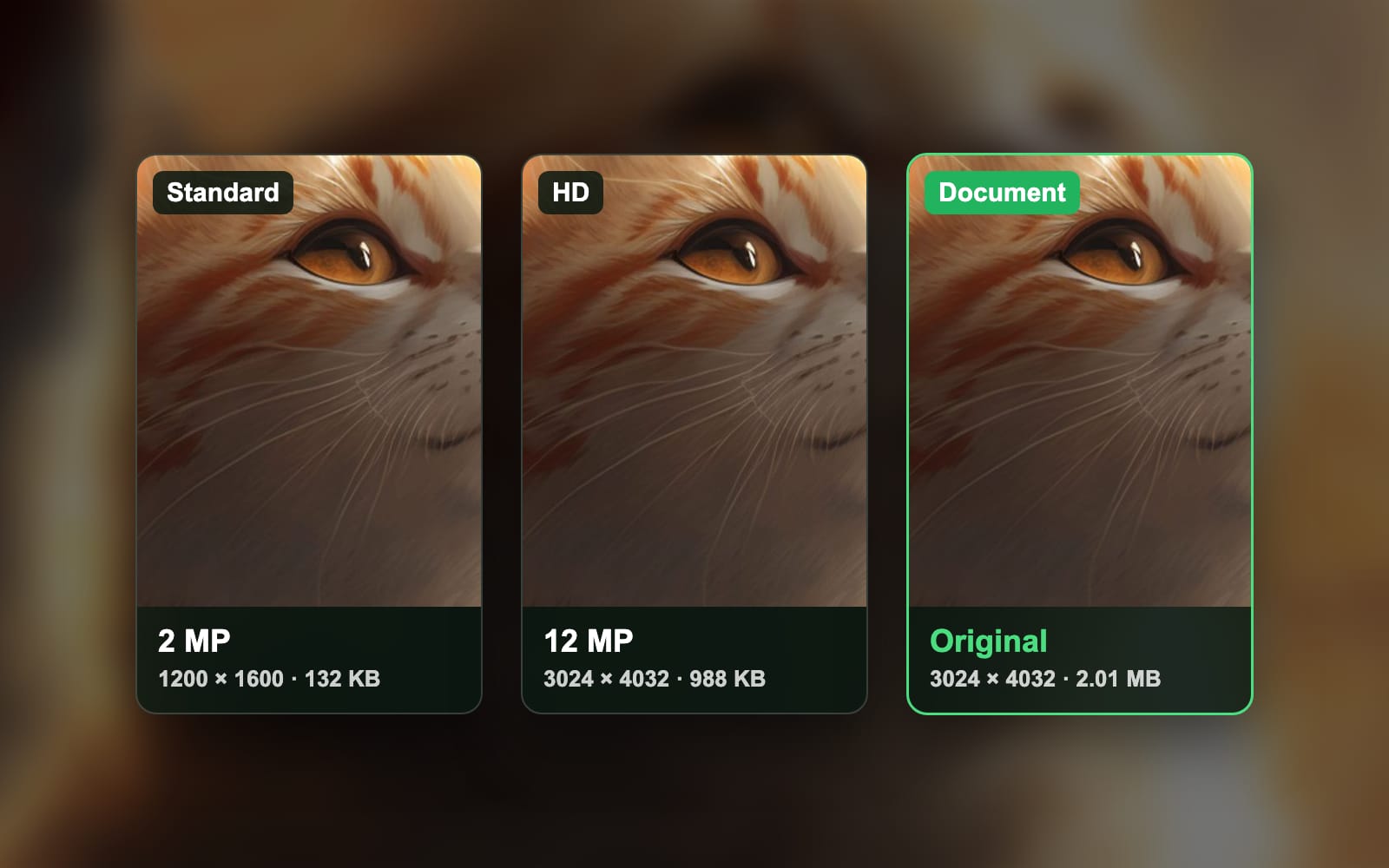
DPI vs PPI: the difference, measured on one photo
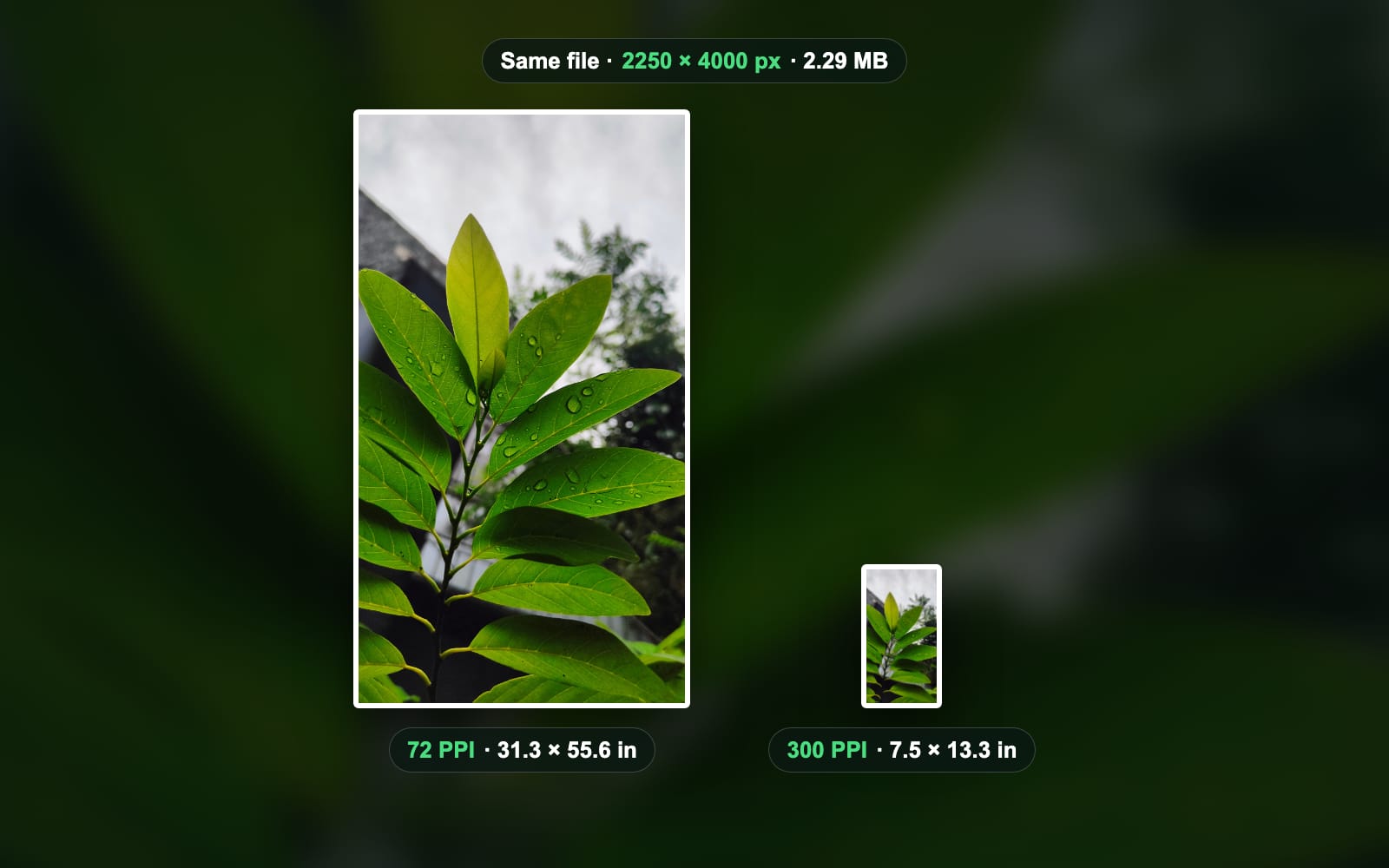
PPI counts the pixels per inch of an image file or a screen. DPI counts the ink dots a printer lays per inch. Apps store a file’s number 1:1 and label it DPI, so a “300 DPI” request means 300 PPI. We tagged one photo at 72, 150, 300 and 600 PPI: same pixels, same bytes, only the print size changed. Part of the image resizer.
By Sahadat Husain14 min readGuides

What is the difference between DPI and PPI?
PPI is a count of pixels, DPI is a count of ink dots. A pixel is one square of colour in an image file or on a screen. A dot is one droplet of ink or toner on paper. Both are measured per inch.
| PPI (pixels per inch) | DPI (dots per inch) | |
|---|---|---|
| Counts | pixels, each one full colour | ink or toner dots, a few colours |
| Lives in | an image file, a screen, a scanner | a printer |
| Who sets it | you, in the file | the printer and its settings |
| Changes the file? | only its print size | no, it is not in the file |
| Typical numbers | 72, 150, 300, 600 | 300 to 2,400 and up |
The file has one more twist. Every image format stores its PPI in a field that most apps label DPI. Adobe’s DPI guide (read 5 October 2026) says Photoshop measures in PPI, “but its ratio of PPI to DPI is 1:1”. Photopea, which we ran for this post, labels the same box DPI and its unit Pixels / Inch. So when a file’s properties say 300 DPI, they mean 300 PPI.
Is 300 PPI the same as 300 DPI?
For a file, yes: a print shop that asks for 300 DPI wants a file stored at 300 PPI with enough pixels for the print. For the printer, no. A printer mixes several dots of a few inks to make the colour of one pixel, so its own DPI is higher than the file’s PPI.
The same goes for 72, 150 and 600. We saved one photo, 2,250 × 4,000 pixels, at each of those numbers. Only the size it prints at changed, because inches are pixels divided by PPI.
| Tagged | Prints at | Pixels | File size |
|---|---|---|---|
| 72 PPI | 31.25 × 55.56 inches | 2,250 × 4,000 | 2,294,955 bytes |
| 150 PPI | 15 × 26.67 inches | 2,250 × 4,000 | 2,294,955 bytes |
| 300 PPI | 7.5 × 13.33 inches | 2,250 × 4,000 | 2,294,955 bytes |
| 600 PPI | 3.75 × 6.67 inches | 2,250 × 4,000 | 2,294,955 bytes |
Does PPI change the file size or the quality?
No. Changing only the PPI number moved 10 bytes in our JPEG and 22 in our PNG, and both files kept their exact size. Every copy decoded to the same pixels, checked with a SHA-256 of the raw pixel data.
JPEG, quality 90
- 72 PPI2.29 MB
- 150 PPI2.29 MB
- 300 PPI2.29 MB
- 600 PPI2.29 MB
PNG
- 72 PPI14.94 MB
- 150 PPI14.94 MB
- 300 PPI14.94 MB
- 600 PPI14.94 MB
Pixel Calculator says 72 or 96 PPI is enough for the screen “to save storage space”, and 99designs says a higher PPI makes a bigger file. Neither holds when only the number changes. A file grows when the app adds pixels, which Photoshop’s Resample box does, or when the app saves the picture again.
Our Mac shows both side effects. macOS sips, told to set 300 on the 72 PPI JPEG, saved the whole picture again: 2,483,745 bytes instead of 2,294,955, with changed pixels, and it still read 72 afterwards. On the PNG it kept every pixel and read 300, but rewrote the file 20% smaller with its own compression. Post 13, how to change the DPI of an image, takes that quirk apart.
Screens ignore the number too. Chrome 149 laid out our 72 PPI and 600 PPI JPEGs at the same 2,250 pixels wide. On the web, only the pixel size counts.
When does DPI or PPI matter: print or screen?
- A print. The PPI sets the print size. Most photo prints and flyers aim for 300 PPI at the final size, the figure Adobe’s guide calls the general benchmark. A poster seen from a few steps away gets by with less.
- A screen, a website, an email or social media. The PPI number does nothing. A platform reads the pixels and scales them to fit.
- A printer you buy. Its DPI is a hardware figure. More dots per inch can give finer gradients, but two makers’ dots differ in size, so compare prints, not the number.
How many pixels do you need to print at 300 PPI?
Multiply each side in inches by the PPI. The other way round, inches are the pixels divided by the PPI. Here are the common print sizes at the three numbers people ask about.
| Print size | 150 PPI | 300 PPI | 600 PPI |
|---|---|---|---|
| 2 × 2 in | 300 × 300 px | 600 × 600 px | 1,200 × 1,200 px |
| 4 × 6 in | 600 × 900 px | 1,200 × 1,800 px | 2,400 × 3,600 px |
| 5 × 7 in | 750 × 1,050 px | 1,500 × 2,100 px | 3,000 × 4,200 px |
| 8 × 10 in | 1,200 × 1,500 px | 2,400 × 3,000 px | 4,800 × 6,000 px |
| 8.5 × 11 in | 1,275 × 1,650 px | 2,550 × 3,300 px | 5,100 × 6,600 px |
| 11 × 14 in | 1,650 × 2,100 px | 3,300 × 4,200 px | 6,600 × 8,400 px |
| 16 × 20 in | 2,400 × 3,000 px | 4,800 × 6,000 px | 9,600 × 12,000 px |
More pixels weigh more. Cut from our photo at 300 PPI, the 4 × 6 print, 1,200 × 1,800 pixels, saved as a 212.4 KB JPG from Blinkimg’s engine at Auto. The 8 × 10 print, 2,400 × 3,000 pixels, came to 688.8 KB. That is the file size question that matters: the pixels, never the tag.
How to check the PPI of an image
On a Mac, Preview shows it. These steps follow Apple’s Preview User Guide; we opened our 72 PPI leaf photo the same way.
Open the photo in Preview and click the Inspector
Double-click the image, or Control-click it and choose Open With > Preview. Click the circled i in the toolbar, or choose Tools > Show Inspector.
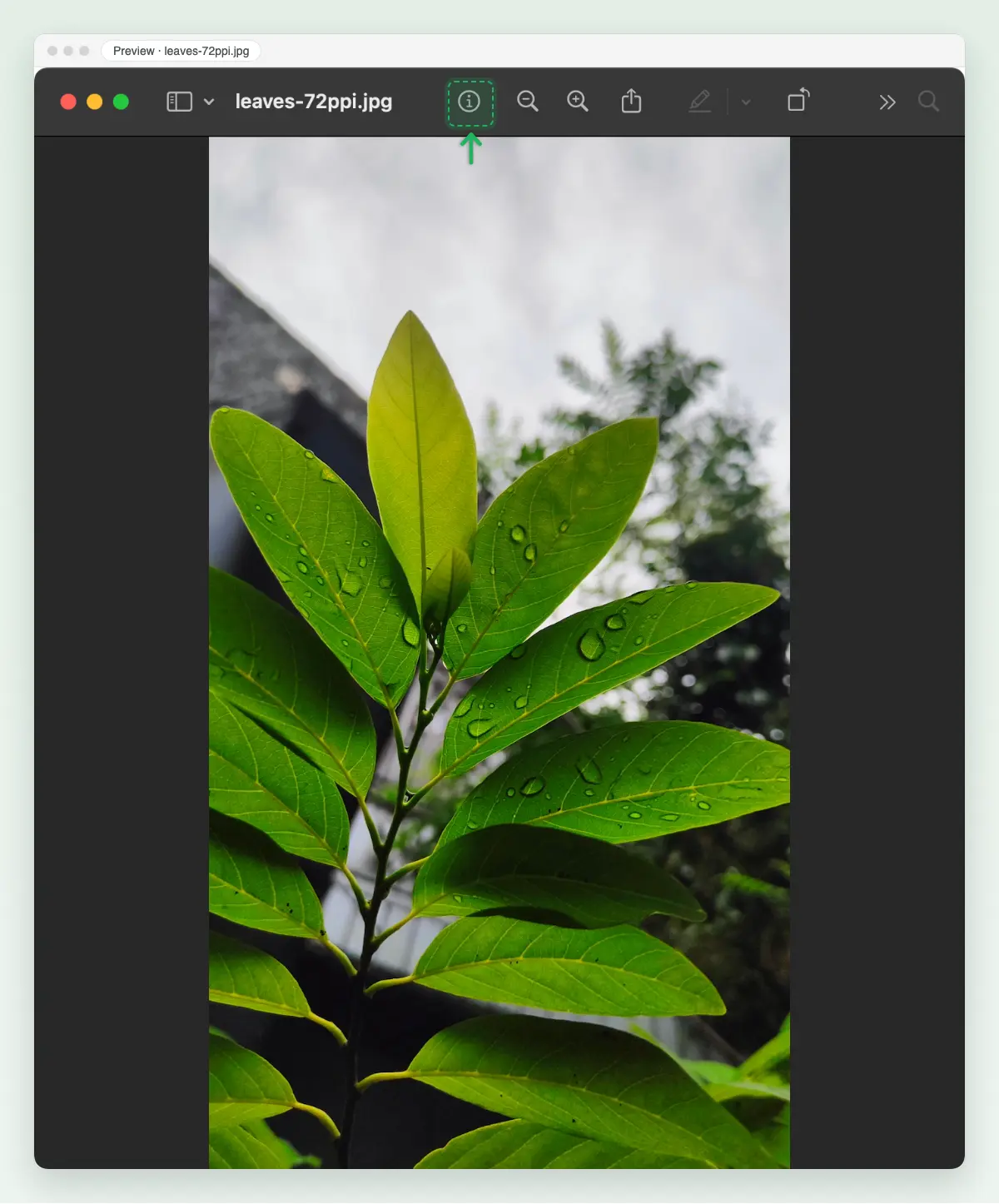
Screenshot: the circled i opens the Inspector. Read Image DPI on the General Info tab
The first tab lists the pixel size and the Image DPI. Our file read 72, and its pixels read 2,250 × 4,000.
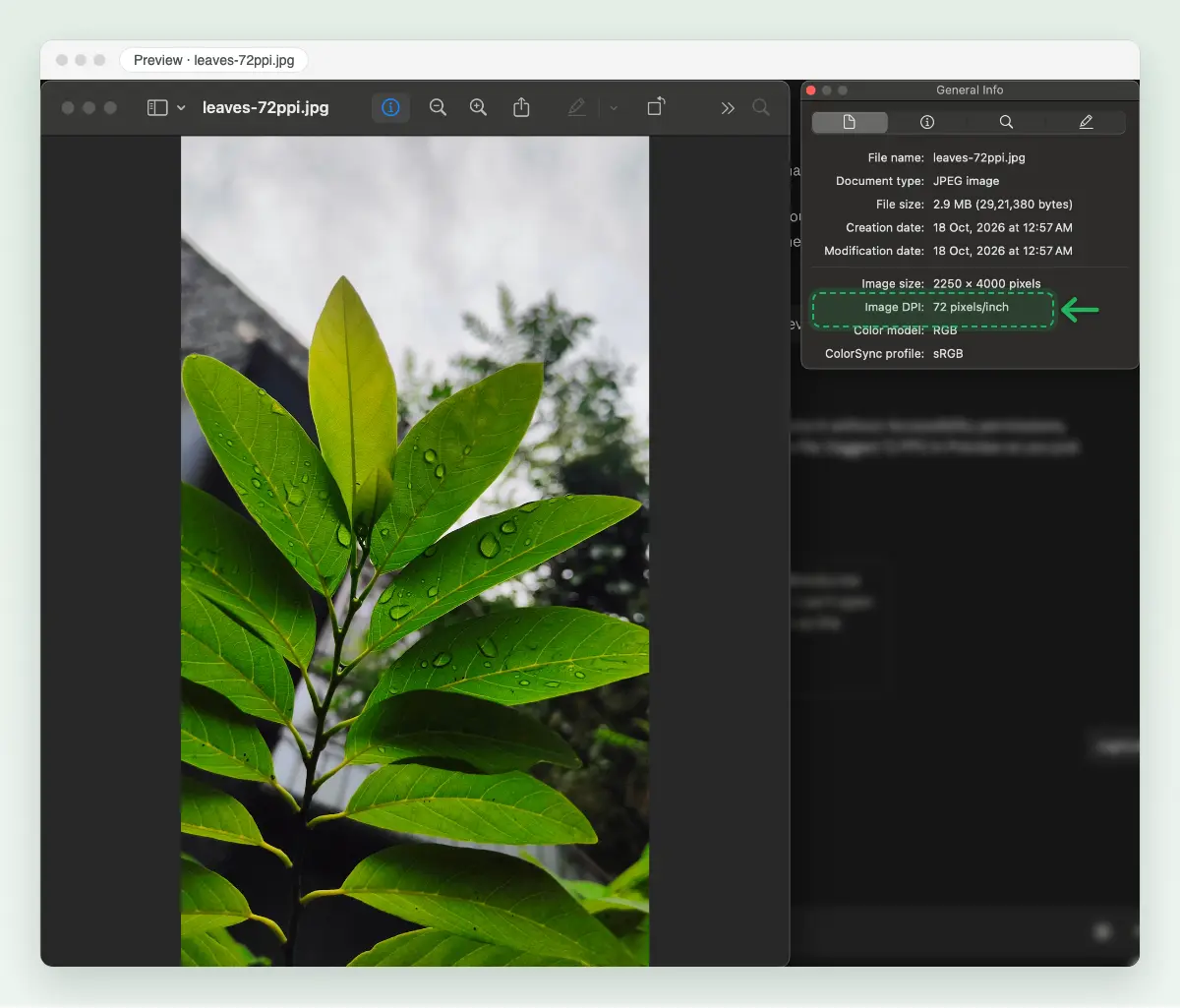
Screenshot: Image DPI sits under the pixel size. Open More Info for DPI Width and DPI Height
Click the second tab, More Info, then General. DPI Width and DPI Height are listed separately; both read 72 on our file, beside Pixel Width 2,250 and Pixel Height 4,000.
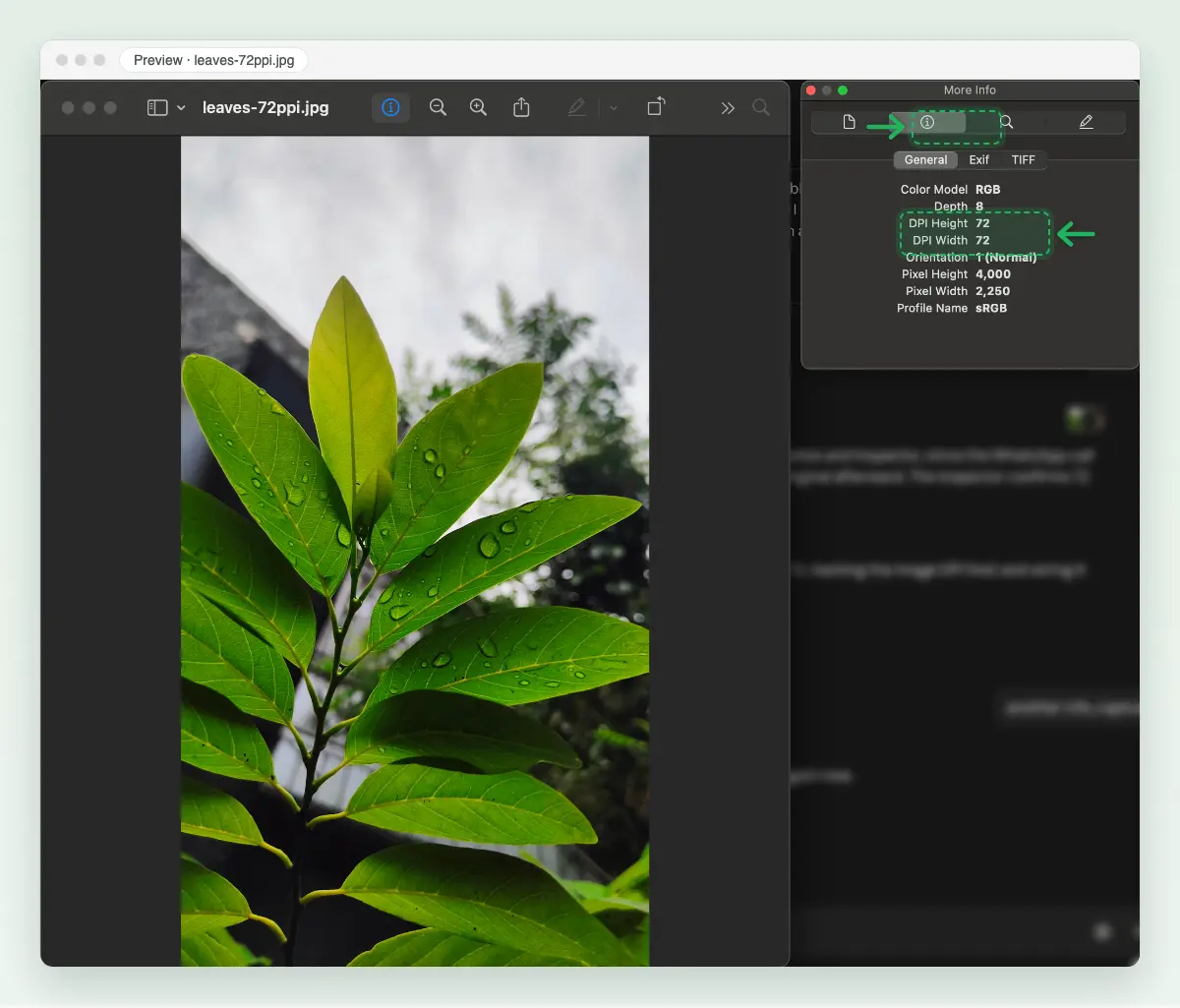
Screenshot: More Info lists DPI Width and DPI Height on their own.
On Windows, File Explorer shows it, the path Adobe’s guide gives:
Right-click the file and choose Properties
In File Explorer, right-click the image and choose Properties. On Windows 11 it can sit under Show more options.
Open Details and read the resolution
Open the Details tab. Under Image you see Dimensions in pixels, then Horizontal resolution and Vertical resolution in dpi.
In GIMP, Image > Print Size shows the X and Y resolution. GIMP’s docs say that dialog “does not change the number of pixels in the image”. We did not run GIMP.
How to change PPI without changing the pixels
Turn Resample off, then type the new number. We ran this in Photopea, a free editor in the browser whose Image Size dialog works like Photoshop’s. The Photoshop and Preview steps are in how to change the DPI of an image.
Open the photo and choose Image > Image Size
Drop the photo onto Photopea, or use Open From Computer. Then open the Image menu and click Image Size.
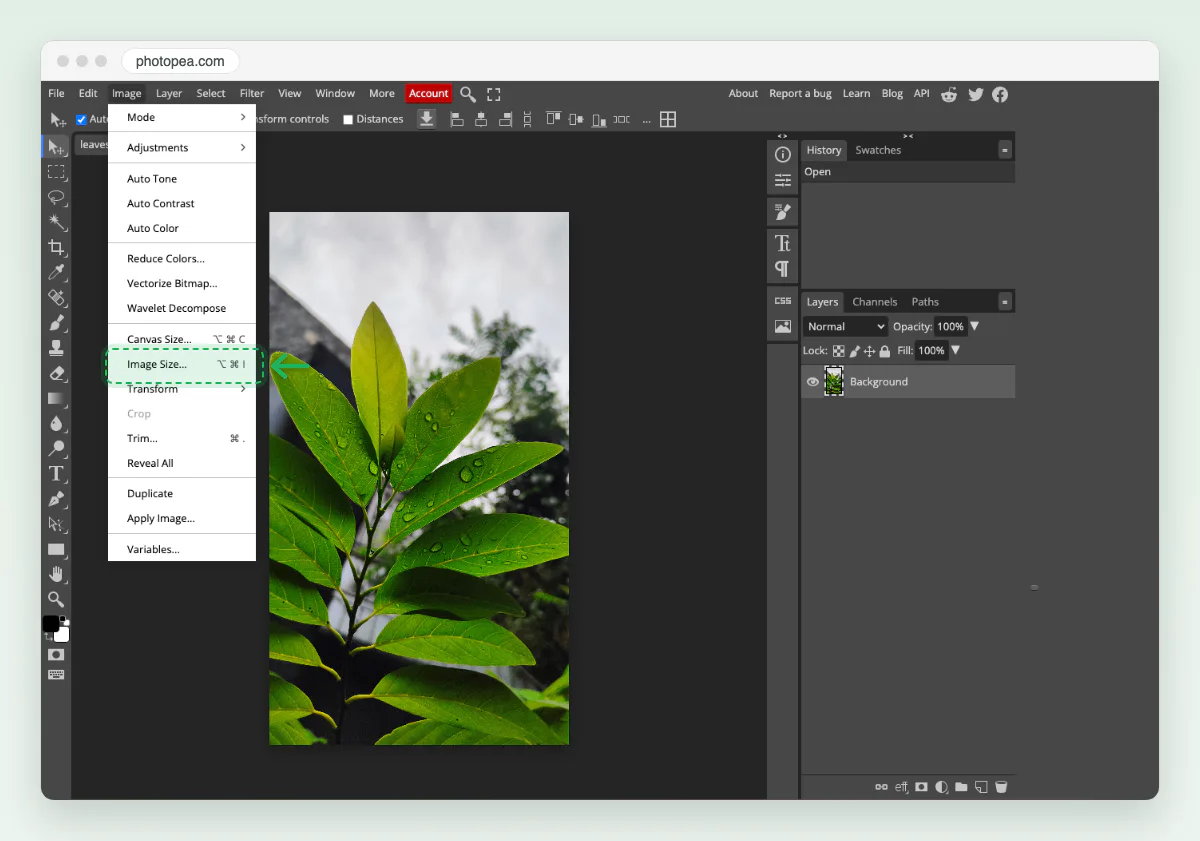
Screenshot: Image Size sits in the Image menu. Read the current DPI
The dialog shows Width and Height in pixels, then DPI in Pixels / Inch. Our photo read 2,250 × 4,000 at 72.
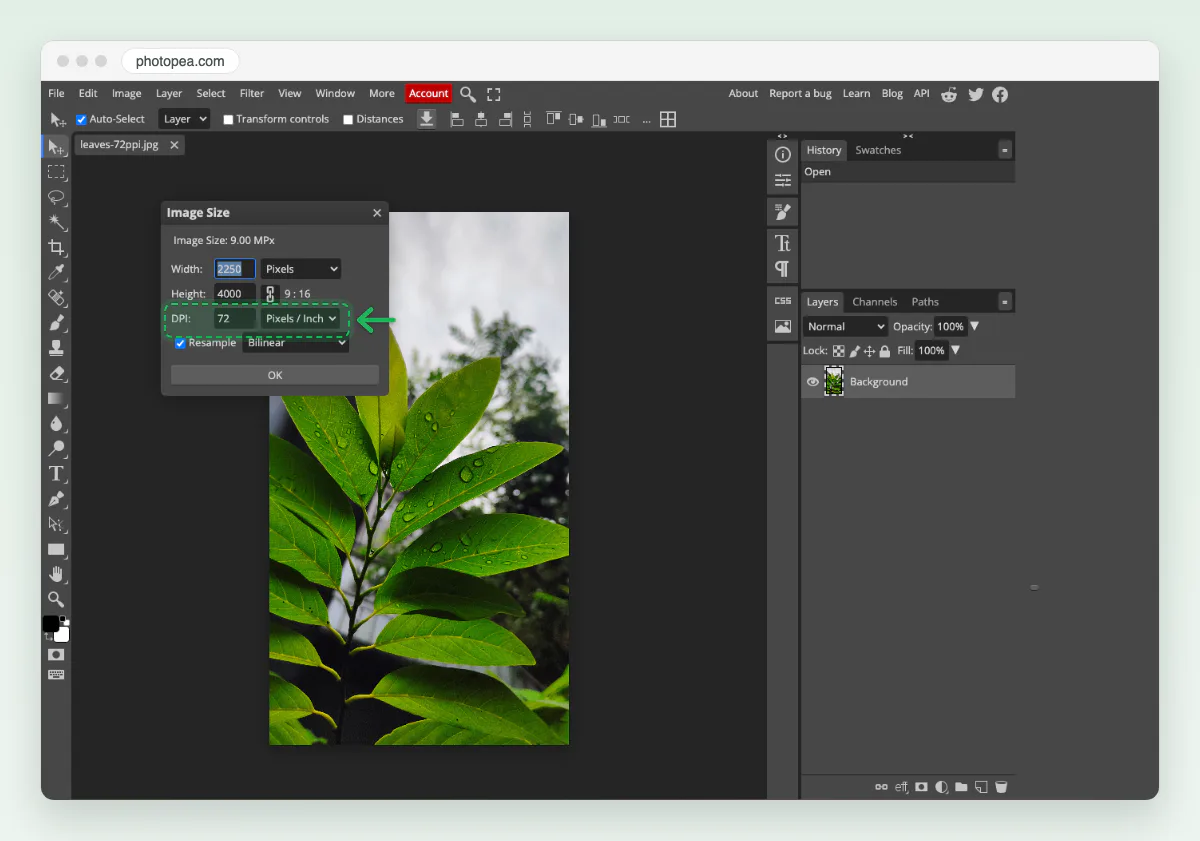
Screenshot: DPI 72, Resample on by default. Untick Resample, then type 300
Untick Resample first, or the editor adds pixels. Type 300 in DPI. With Width set to Inches, the photo now reads 7.5 × 13.33 inches, and the pixel count stays.
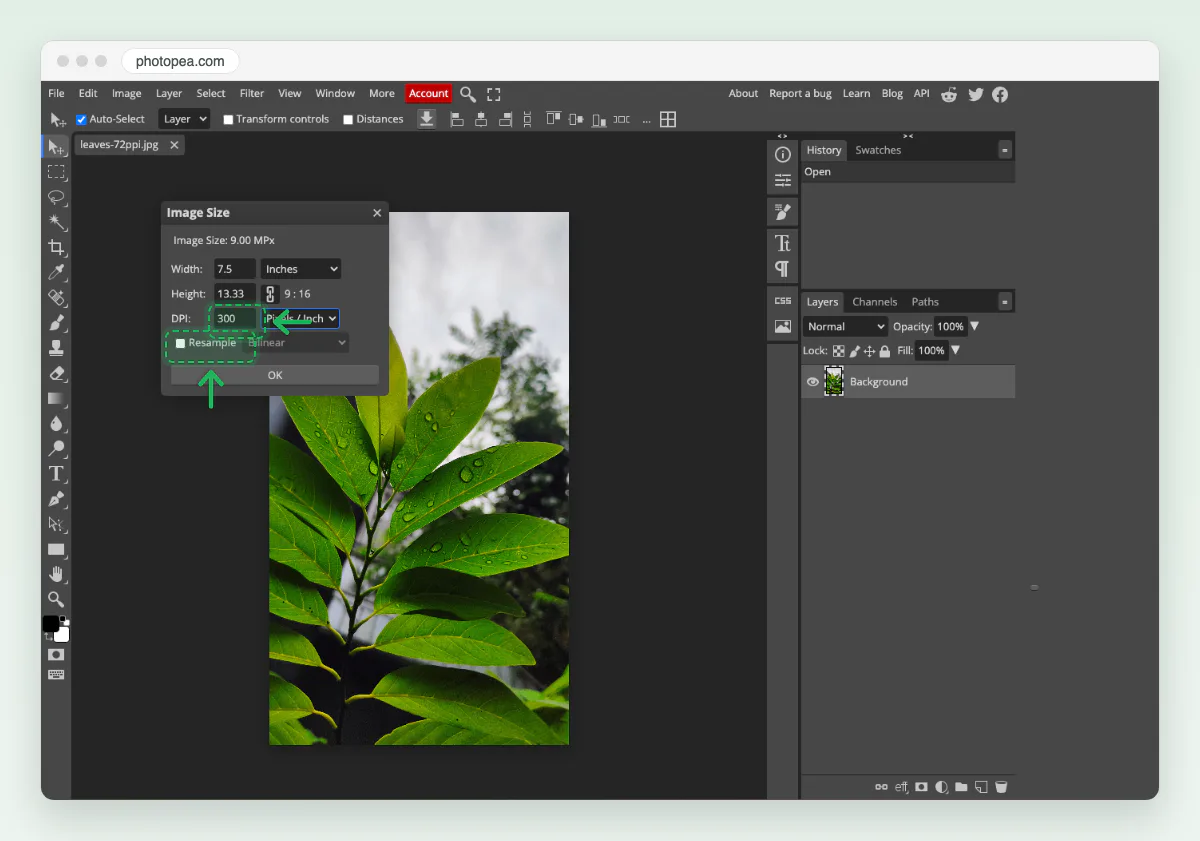
Screenshot: Resample off, 300 typed, 7.5 × 13.33 inches.
Click OK and export. The export saves the picture again, so a JPEG is compressed once more. If you only need the number changed for a form, an app that writes the field without re-saving is safer.
How to make a photo the right size for a print
Give it the pixels the print needs. Our resize image in inches tool takes the print size and works out the pixels at 300 PPI. We ran these steps with the same leaf photo.
Drop the photo on the inches page
Open the resize image in inches page and drop the photo on the box, or click browse. No signup.
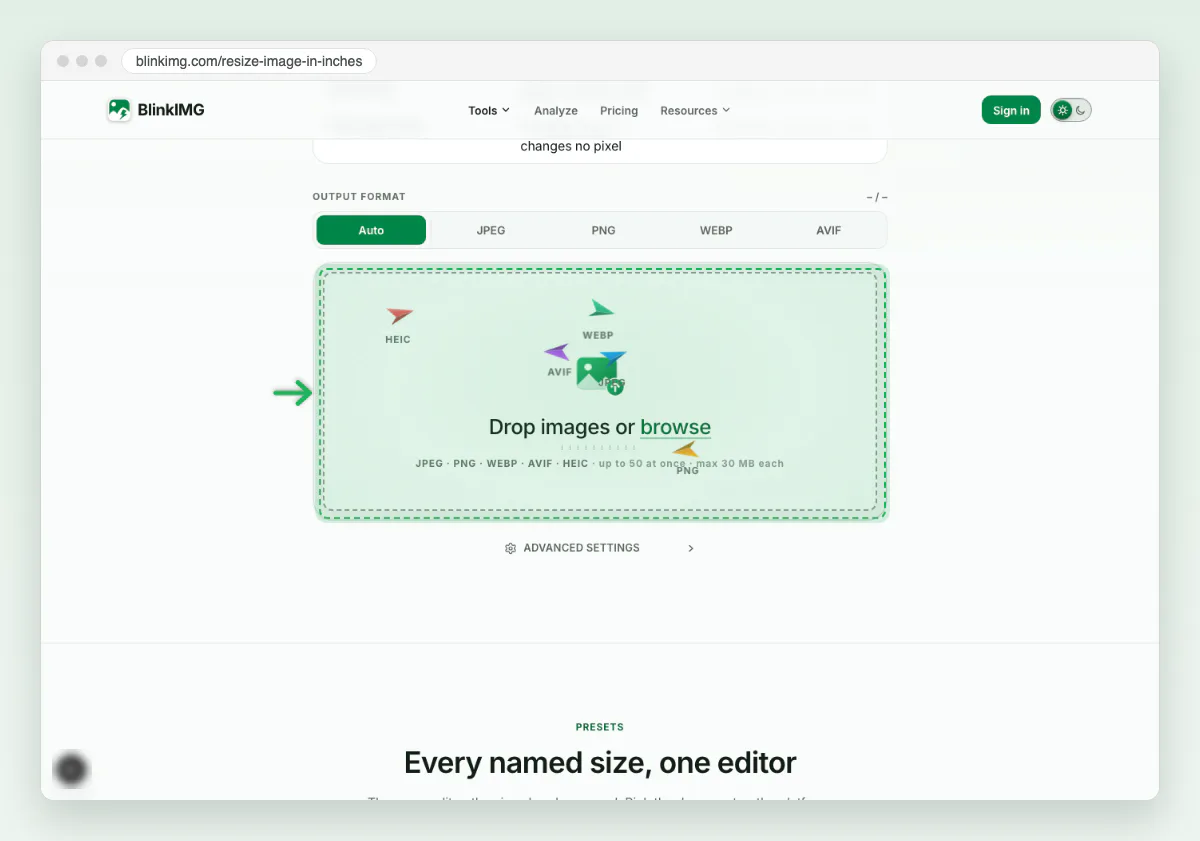
Screenshot: drop the photo on the box. Check the size: 4 × 6 inches is 1200 × 1800
The editor opens on 4 × 6 inches. Under the size it reads 1,200 × 1,800 px at 300 DPI.
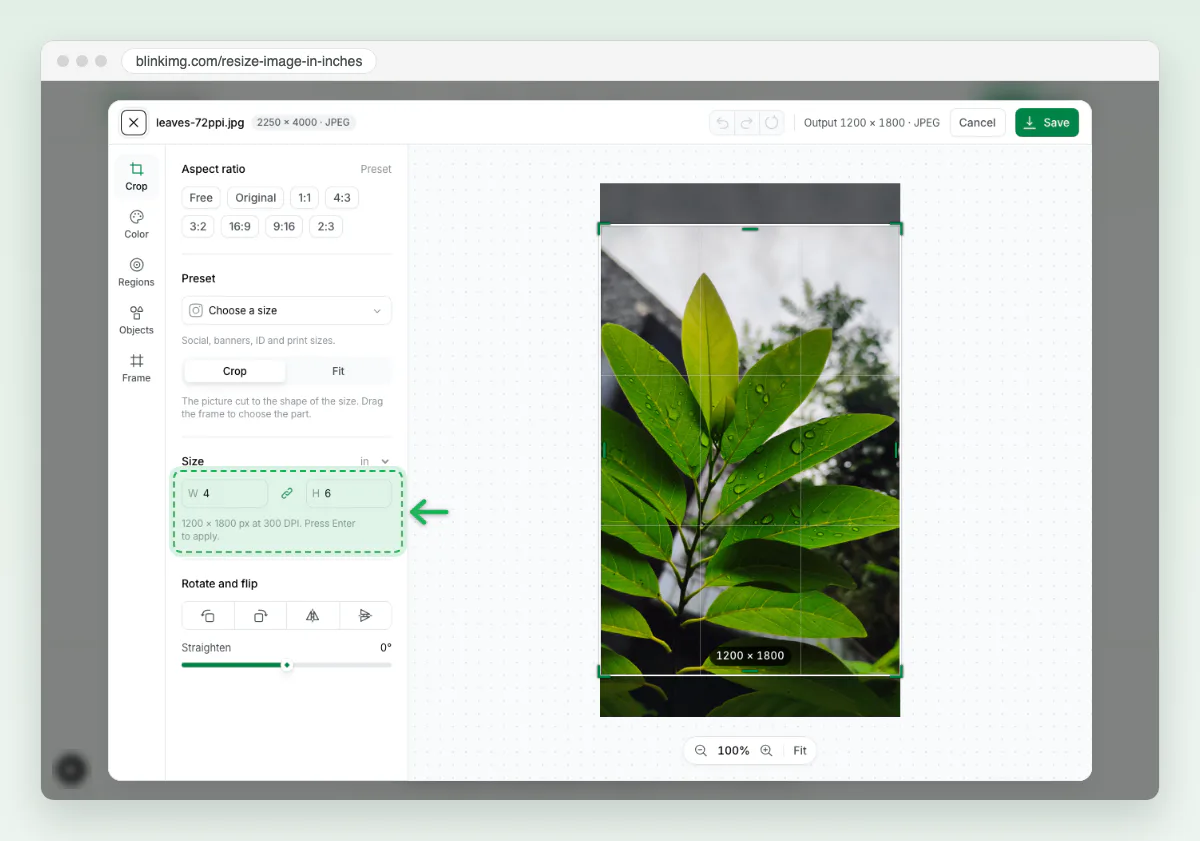
Screenshot: 4 × 6 inches works out to 1200 × 1800 pixels. Type another size, then click Save
Click the link icon to unlink width and height, type 8 and 10, and press Enter. The editor reads 2,400 × 3,000 px. Save downloads the JPG.
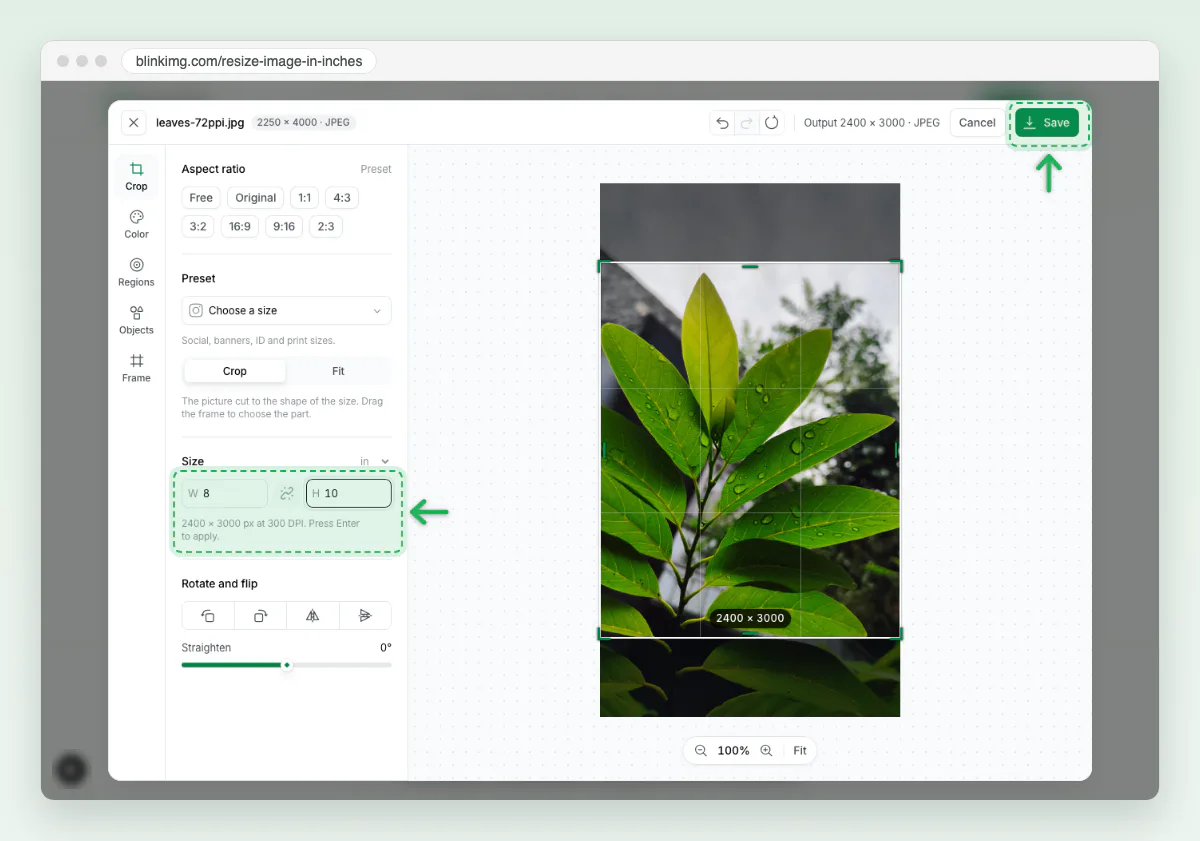
Screenshot: 8 × 10 inches is 2400 × 3000 pixels. Save downloads it.
One thing to know: Blinkimg’s engine strips metadata by default, and a JPEG’s PPI lives in that metadata. Our 300 PPI JPEG came back with no PPI field, which apps read as 72. Turn on Keep EXIF metadata in Advanced settings to keep it: the engine then kept 300. A PNG kept its 300 either way. Labs print by the pixels, so the field rarely matters. To add pixels to a small photo instead, see how to change the resolution of a picture.
What about screen PPI and mouse DPI?
A screen has a fixed PPI: its pixels divided by its size. A 1920 × 1080 screen measuring 24 inches across the diagonal has about 2,203 pixels on that diagonal, so about 92 PPI. A phone packs far more into a few inches, which is why the same photo looks smaller and sharper on it.
Windows uses “96 DPI” as its 100% scale. Microsoft’s developer guide says most displays once had 96 pixels per inch, and apps that ignore scaling still render at 96. So “96 DPI to PPI” is 96 PPI, a screen unit, not a print setting.
Mouse DPI is a different thing again: how far the pointer moves for each inch you move the mouse. It has nothing to do with images or printing.
How we tested
- The photo: the owner’s own 12.jpg, rain-wet leaves, 2,250 × 4,000 pixels, 2,718,723 bytes, decoded once so every copy started from the same pixels.
- The tags: sharp 0.35.4 (libvips 8.18.6) saved a quality 90 JPEG and a PNG at 72, 150, 300 and 600 PPI with withMetadata(density). We compared file sizes, the bytes that differ, and a SHA-256 of the decoded pixels. sips on macOS 15.7.3 read each tag back. sharp writes the JPEG’s PPI into Exif, not a JFIF header.
- sips and the engine: sips -s dpiWidth on copies of the 72 PPI files; Blinkimg’s engine, version 9, on the 300 PPI files with metadata stripped and kept. Prints cut at 300 PPI with sharp (cover, Lanczos 3), then saved by the engine at Auto and by sharp at quality 90 (470.8 KB and 1568.2 KB). Measured 2026-10-17.
- The screens: Chrome 149.0.7827.55 in Playwright laid out the images. The Photopea screenshots are photopea.com in that Chrome on 17 October 2026; the Blinkimg screenshots are our own site; the Preview window is our Mac. The Windows and Preview Inspector steps follow Adobe’s and Apple’s pages. How we measure covers the rest.
Where this test stops
Read the full guide: How to reduce image file size on any device.
Questions
- Is 300 DPI equal to 300 PPI?
- For an image file, yes. Apps store one number and treat PPI and DPI as 1:1, so a file at 300 DPI is a file at 300 PPI. For a printer, no: its DPI counts ink dots, and it lays several dots per pixel, so a printer prints a 300 PPI file at a far higher DPI.
- Is 600 PPI the same as 600 DPI?
- In a file, the two labels mean the same number. Our 2,250 × 4,000 photo tagged 600 prints 3.75 × 6.67 inches, and its bytes and pixels match the 72 PPI copy exactly. A printer’s 600 DPI is a hardware figure about ink dots, a separate thing from the pixels in your file.
- Is 150 PPI the same as 150 DPI?
- In the file, yes: 150 PPI and 150 DPI both mean 150 pixels per inch of print. At 150, our 2,250 × 4,000 photo prints 15 × 26.67 inches. That is twice as wide as at 300, with half the pixels per inch, usually fine for a poster seen from a few steps away.
- What is 72 PPI in DPI?
- 72 PPI is 72 DPI in a file, because apps treat the two as 1:1. The number only sets the print size. Our 2,250 × 4,000 photo at 72 PPI prints 31.25 × 55.56 inches, poster size, at a soft 72 pixels per inch. On a screen, the 72 does nothing at all.
- How many PPI is 96 DPI?
- 96 DPI is 96 PPI. The figure usually comes from Windows, where 96 DPI is the 100% display scale. Microsoft’s developer guide says most displays once had 96 pixels per inch. In an image file, 96 is just a print size setting like any other, and it changes no pixel.
- How to convert DPI to PPI?
- There is nothing to convert for a file: the DPI an app shows is the PPI, 1:1. What you convert is inches and pixels. Pixels equal inches times PPI, so a 4 × 6 print at 300 needs 1200 × 1800. Inches equal pixels divided by PPI, so 3000 pixels at 300 is 10 inches.
- Is 72 DPI ok for web?
- Yes, and so is any other number, because browsers ignore it. Chrome laid out our photo at the same 2,250 pixels wide whether it was tagged 72 or 600. What matters on the web is the pixel size and the file size. Resize to the width the page shows, then compress.
- Is 300 PPI good quality?
- For a print viewed in the hand, 300 PPI is the usual target, and Adobe calls it the general benchmark for photos and flyers. Quality comes from the pixels, though: 300 PPI is only real when the photo has enough pixels for the print size, such as 1200 × 1800 for a 4 × 6.
- Is 600 PPI good for printing?
- It works, but few prints need it. At 600 PPI a 4 × 6 print needs 2400 × 3600 pixels, four times the pixels of 300 PPI, and the file grows with them. Use 600 for line art, scans you will enlarge, or when the lab asks. For photos, 300 is enough.
- Is 300 DPI too much?
- Not for a print held at arm’s length, where 300 is the common target. It is more than a large poster needs, which often looks fine at 150. On a screen, 300 is neither too much nor too little, because screens ignore the number and show the pixels.
- Is 600 DPI or 1200 DPI better for a printer?
- A higher printer DPI can render finer gradients and text edges, but dot sizes differ between makers, so the number alone does not rank two printers. Your file’s PPI is a separate setting: a 300 PPI photo prints well on either. Compare sample prints, not the DPI on the box.
- DPI vs PPI on a mouse: what is mouse DPI?
- Mouse DPI measures sensitivity: how many dots the pointer travels for each inch you move the mouse. A higher number moves the pointer farther for the same hand movement. It has nothing to do with image PPI or printer DPI; the three only share the words per inch.