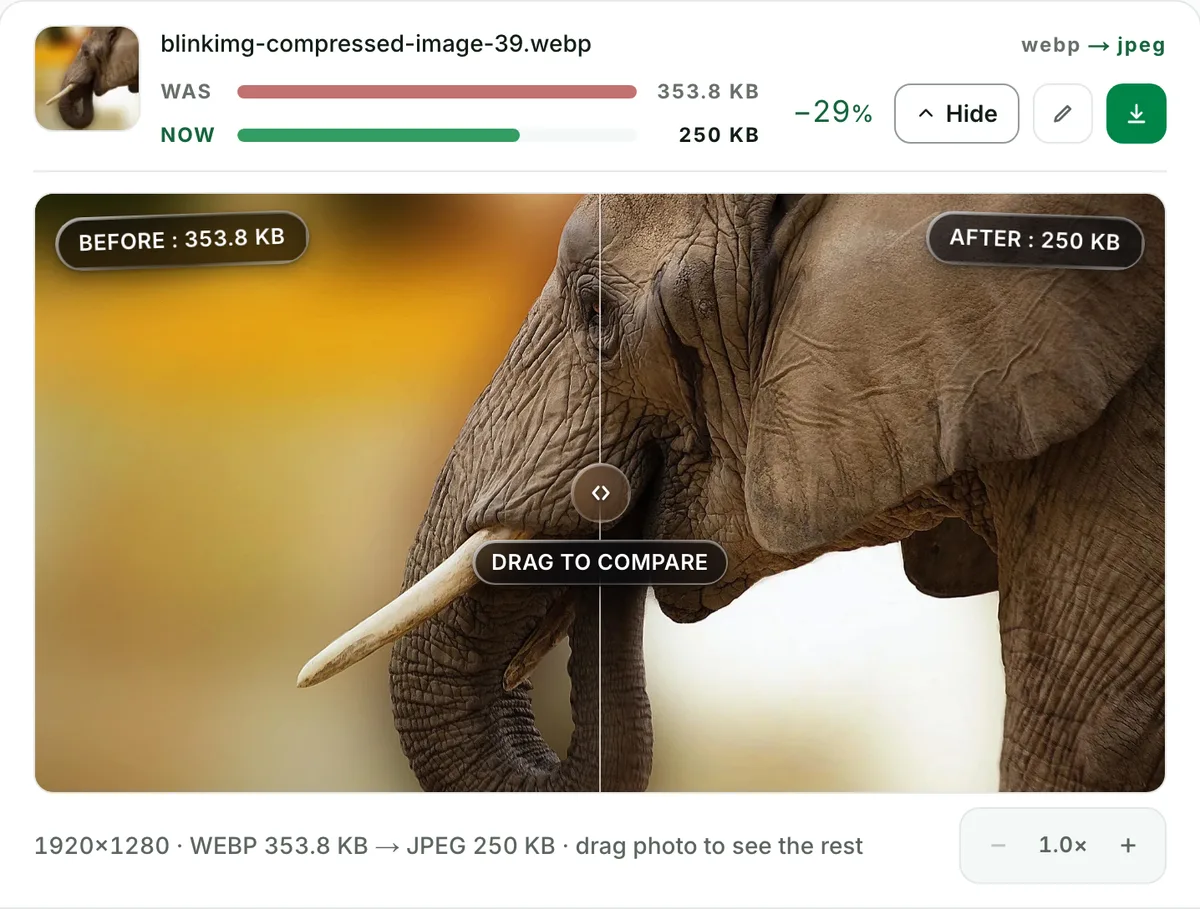
Turn WebP images into JPGs that open anywhere: email attachments, older photo editors, and any app that won't read WebP yet. JPG has no transparency, so it flattens any transparent areas in your WebP onto a solid background. Part of the image converter.
– / –
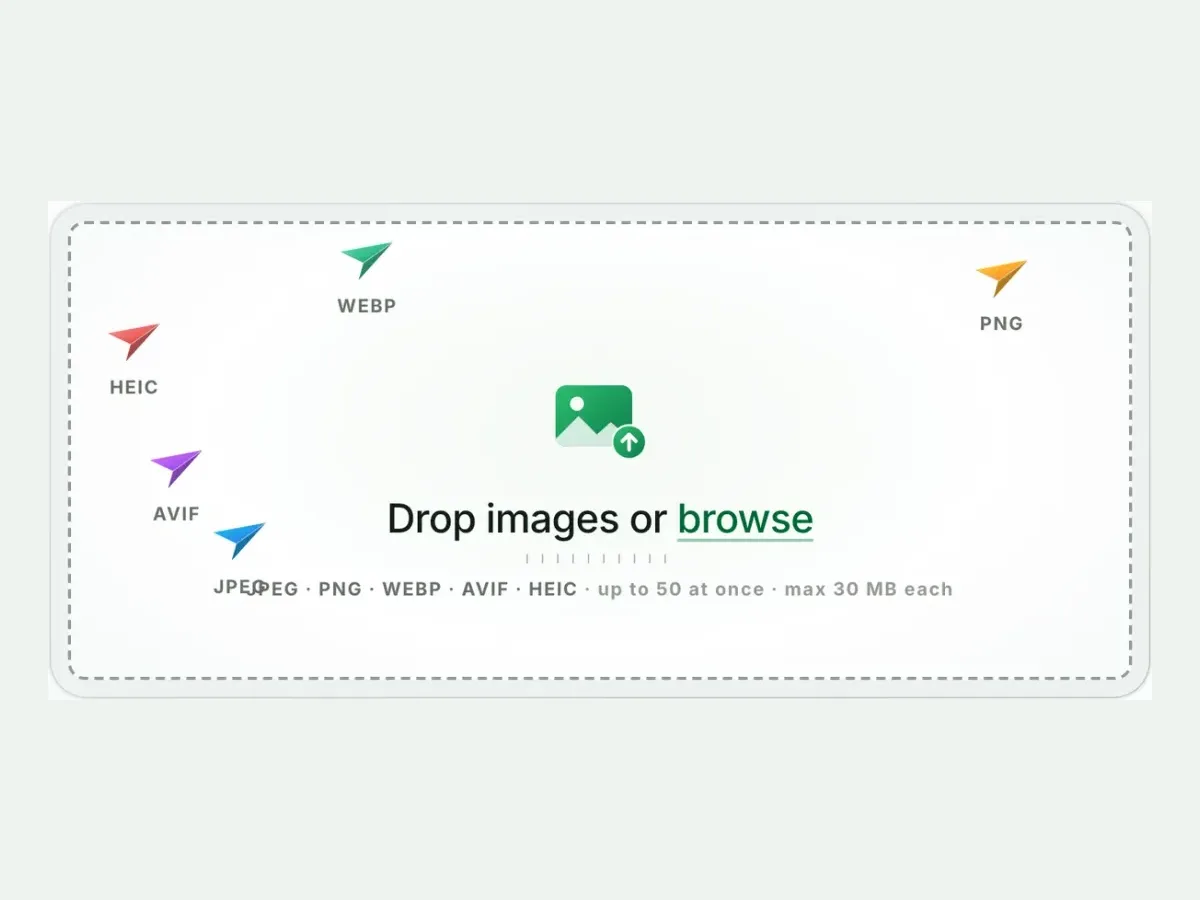
Drop images or browse
JPEG · PNG · WEBP · AVIF · HEIC · up to 50 at once · max 30 MB each
The "right-click, save, won’t open" loop, explained
Sites serve WebP because your browser tells them it can show one, and it never asks you first. WebP is often the smaller file: at each format’s default, our camera photo came out 45.7% smaller as a WebP than as a JPG, and our reference photo 20.1% smaller. The loop breaks the moment the saved file meets software outside the browser that never learned WebP: an older Photoshop, Office, a photo frame, a marketplace uploader. Converting the file to JPG once ends the loop for good. Thirty years of software opens JPG without being asked.
What WebP to JPG costs, measured
Reference file611.2 KBphoto.webp
Output
Relative to source
Size
vs WebP
JPG (Auto)Our default
271 KB
−56%
JPG (quality 85)
338 KB
−45%
PNG (if you need alpha)
978.4 KB
−-60%
Source: photo.webp, 611.2 KB. Auto often lands SMALLER than the source because it optimises while converting.
Every byte count is the size of the actual file our engine produced from the named source, the same bytes you would download, not an estimate. The reference photo is one of our own photographs, an iguana on a branch, and the camera photo is a real one too. Drop your own file into the tool above to rerun any of them. How we measure names the sources and the settings.
The built-in routes, and where each one fails
1
Windows 11: the Paint detour
Photos frequently won't save WebP as JPG. The working path is open-in-Paint → Save as → JPEG. One file at a time, quality dial hidden. Fine for one file, painful for a folder.
2
macOS: Preview or Quick Action
Preview exports WebP to JPEG cleanly (File → Export), several files at once when you select them in its sidebar, and the Finder’s Convert Image quick action converts a selected image. No size caps, no batch ZIP, no measured output.
3
iPhone and Android: Preview, or the browser
On iOS 26 and later, Apple’s iPhone guide says Preview exports an image as JPEG (tap the menu beside the file name, then Export). The guide does not list the formats Preview opens, so try one WebP first. On Android, or for a folder, the tool above works in the phone’s browser: same 10-file batch, same ZIP.
Transparent WebP: the flattening is stated, not a surprise
WebP can carry transparency; JPG cannot. Converting flattens transparent regions onto white, the industry-standard fill. The result preview shows the outcome before you download, so a white logo on transparency gets caught rather than shipped blank. When the transparency itself matters, take the other fork: WebP to PNG keeps alpha losslessly and opens in every editor.
When JPG is the wrong exit
Editing it next, or need transparency?
WebP to PNG: alpha intact, every pixel kept at quality 100, universal editor support.
It is going back onto the web?
Keep the WebP. Every browser renders it, and converting would only grow the file.
It is animated?
JPEG cannot hold it, and we refuse to pretend. Keep the animation or capture the frame you need.
Questions, answered
Short answers specific to this page. The tool above settles most of them in a second.
Q:Why do websites give me WebP files instead of JPG?
Because your browser tells each site it can show WebP, and many sites then send it. WebP is often the smaller file. At each format's default, our camera photo came out 45.7% smaller as WebP than as JPG, and our reference photo 20.1% smaller. When the saved file meets an app that refuses WebP, converting it to JPG fixes it.
Q:How do I convert WebP to JPG on Windows 11?
The built-in route is awkward. Photos often refuses to "Save as" JPG, and the working path is opening the WebP in Paint and saving from there, one file at a time. Our browser tool does 10 in one run with nothing installed. That is genuinely the fast route.
Q:How do I convert WebP to JPG on a Mac or iPhone?
On a Mac, open the WebP in Preview and choose File, Export, then JPEG, or use the Finder's Convert Image quick action. On an iPhone with iOS 26 or later, Apple's guide says Preview exports an image as JPEG, though it does not list the formats Preview opens. Our converter also works in Safari, 10 files a run.
Q:Does converting WebP to JPG lose quality?
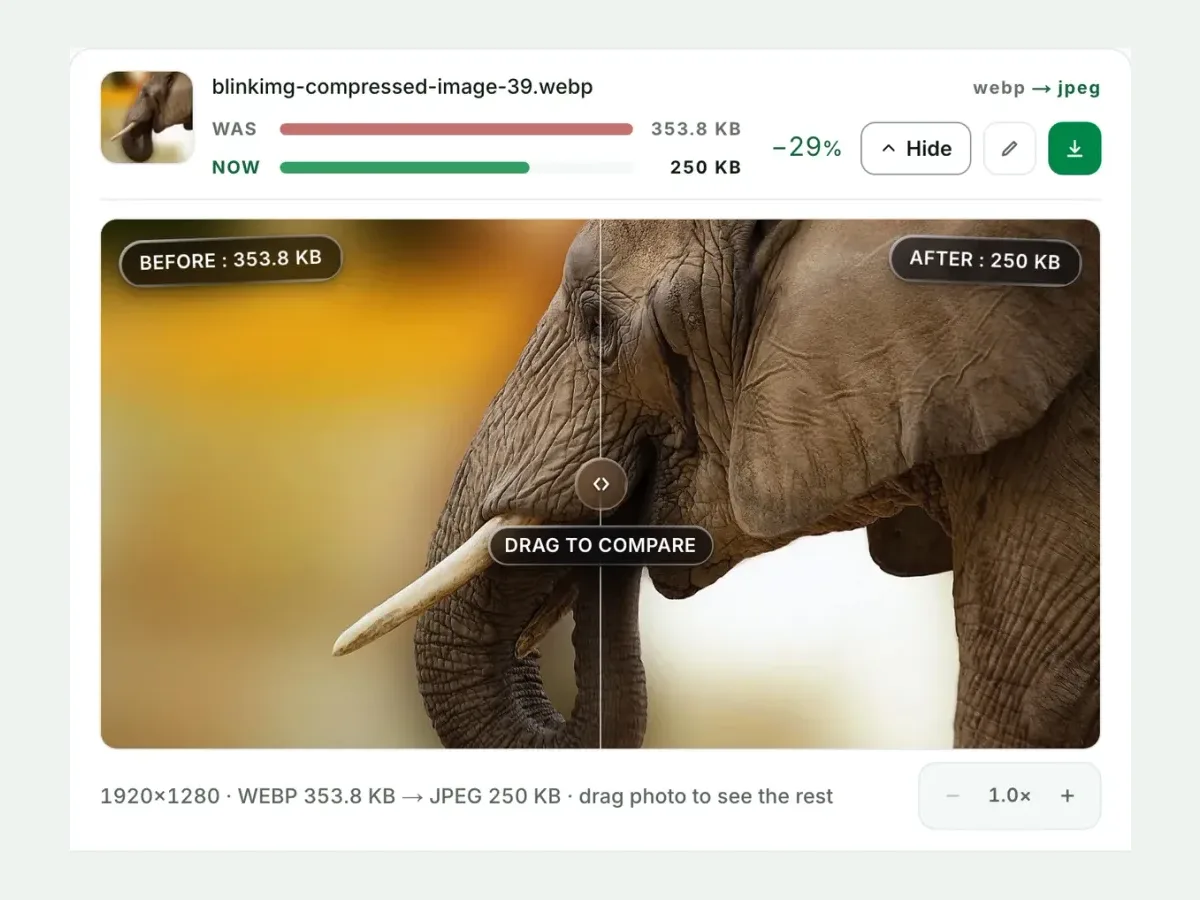
You add one extra lossy generation: small at quality 85+ and invisible in normal viewing. The compare slider shows your actual file before/after at 100% zoom. If you can re-download the image or find its original, converting from that source skips a generation.
Q:Will the JPG be bigger than the WebP?
It depends on the picture. Our 611.2 KB reference WebP, saved at high quality, became a 271 KB JPG at Auto, and quality 85 measured 338 KB, because Auto optimises while converting. A WebP saved at a low quality has less room to shrink. Your file's number shows in its result row.
Q:What happens to transparency when converting to JPG?
JPEG has no alpha, so we flatten transparent regions onto white, the industry-standard fill. The result preview shows it before you download. Transparency that must survive should go to PNG instead. The WebP to PNG converter exists for exactly this fork.
Q:Can I convert an animated WebP to JPG?
No. We decline animated inputs with a clear message. JPEG cannot hold animation, and silently exporting frame one would lose your animation without telling you. For a single frame, screenshot the moment you want. For the animation, keep the WebP or use video.
Q:How do I batch convert WebP to JPG?
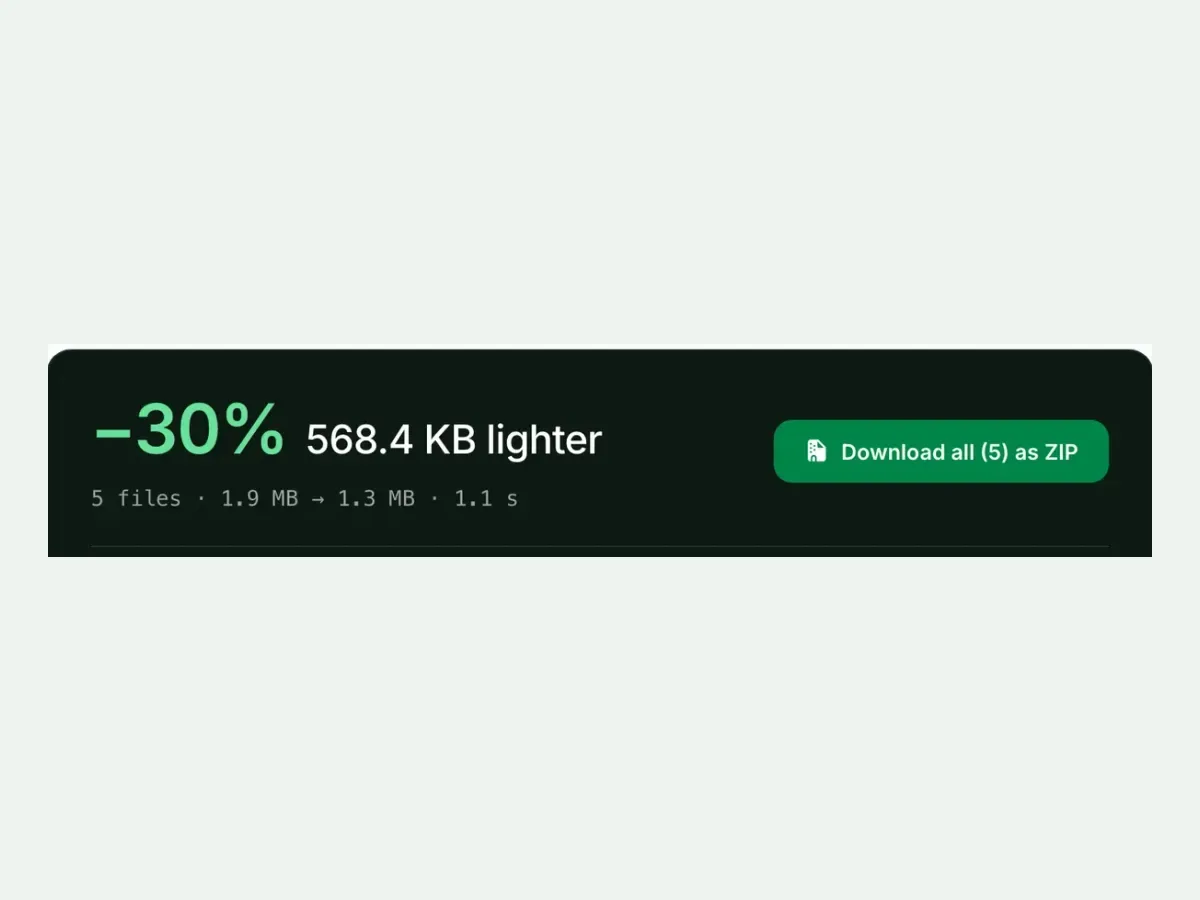
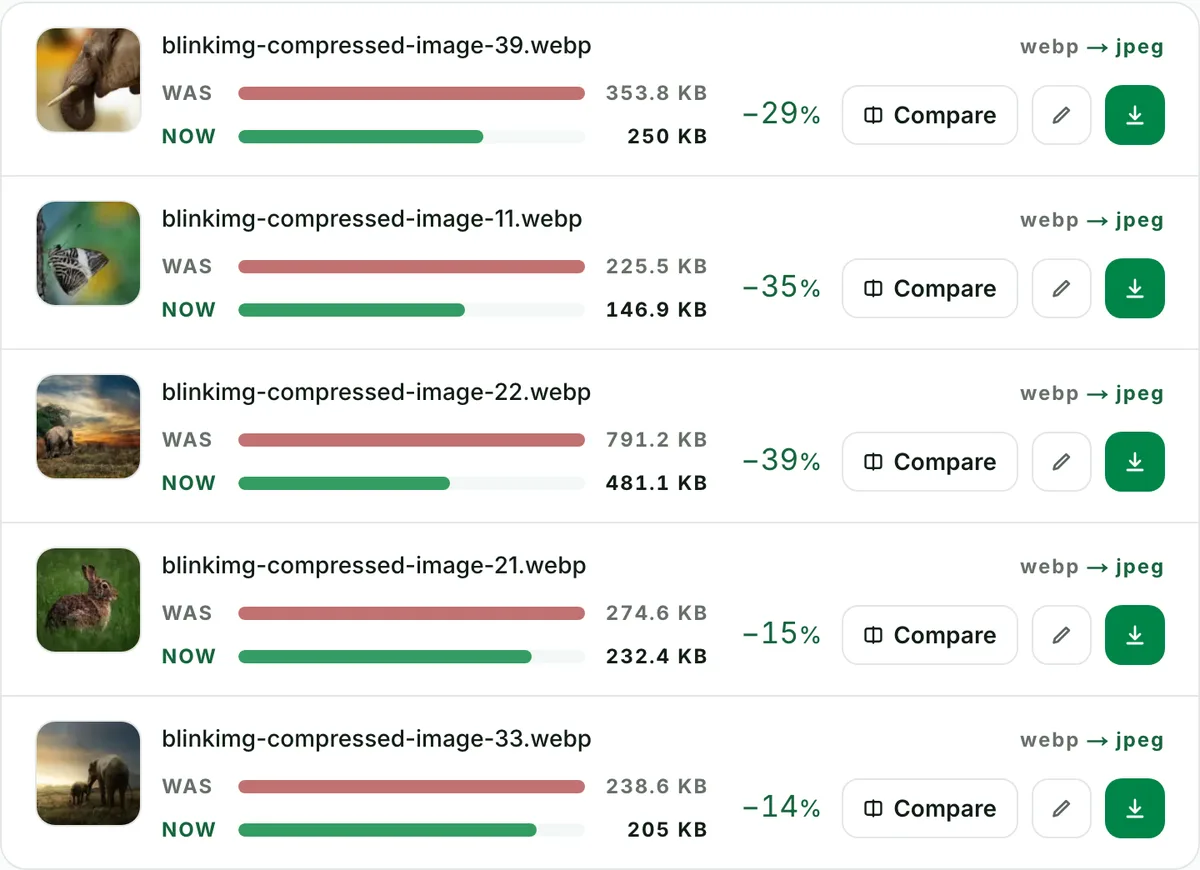
Drop up to 10 WebP files: one run, one ZIP, filenames preserved. It is free with no signup, no watermark and a 300-image daily allowance. The folder of WebPs you accumulated from saving product images all month is a single drag.
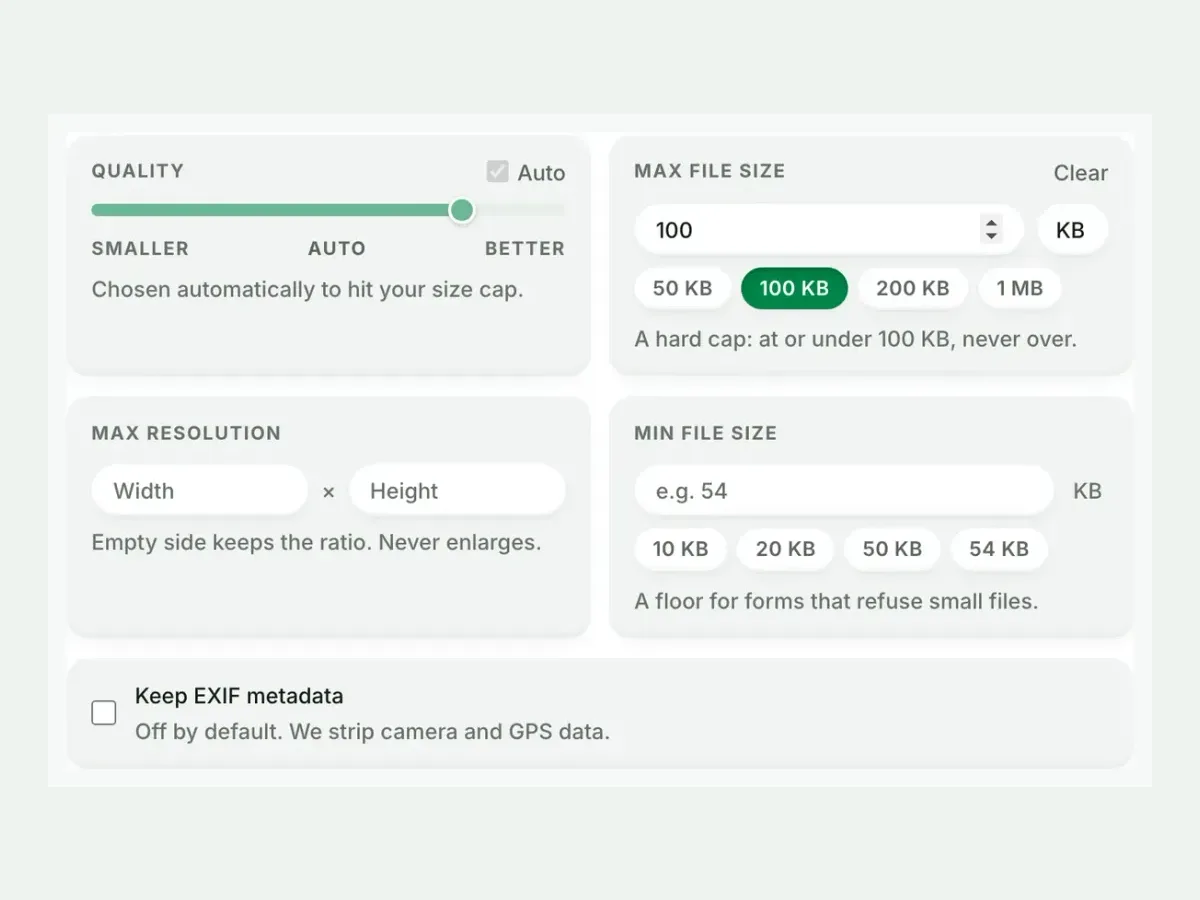
Q:How do I get the JPG under 100 KB?
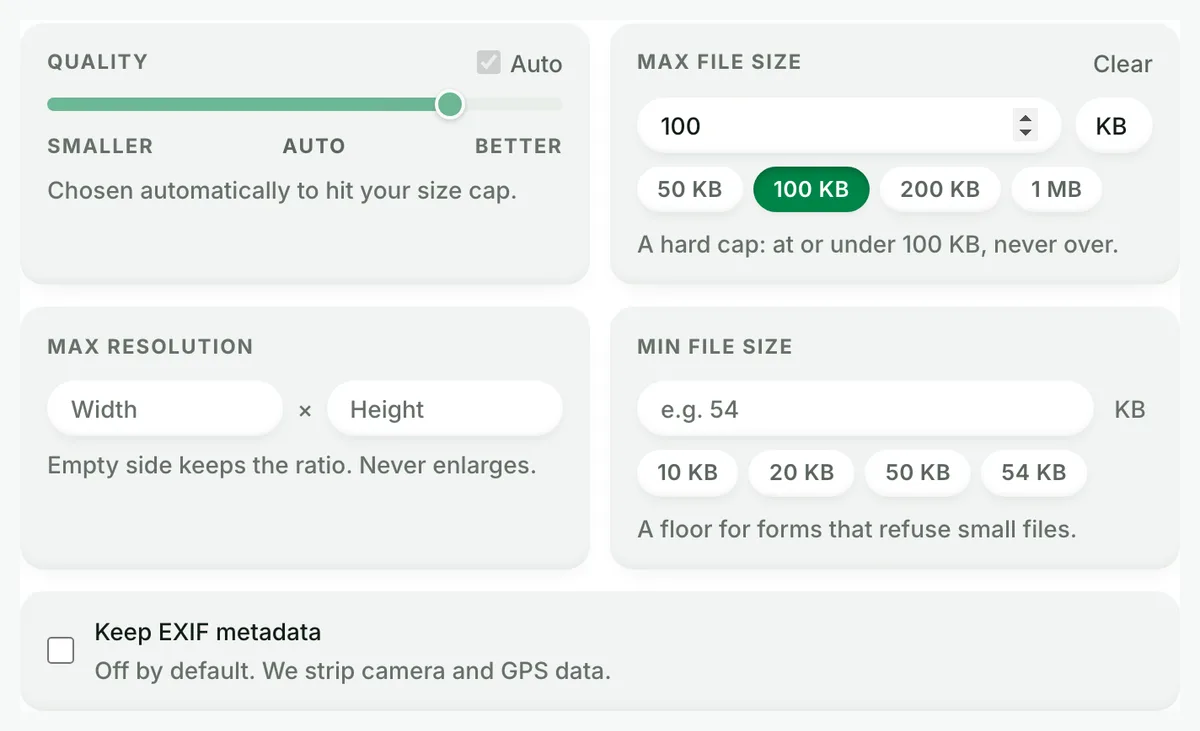
Set Max file size before converting. The cap is hard: we meet it by quality search and never overshoot. Converting AND compressing to a form's limit in one pass is this tool's signature. The usual convert-then-find-a-compressor workflow collapses into one step.
Q:Is this free, with no watermark?
Yes: free, no watermark, no signup. Those aren't trial terms; free stays part of the product. The free allowance is 300 images a day (100 an hour), counted live beside the tool. That is 30 full 10-file batches, resetting daily.
Q:What happens to my WebP files after the conversion?
We keep nothing. We process your files, then wipe them automatically. We never archive them or reuse them for anything. We strip metadata from outputs by default, and you need no account.