How to resize an image in Paint on Windows 11 and 10
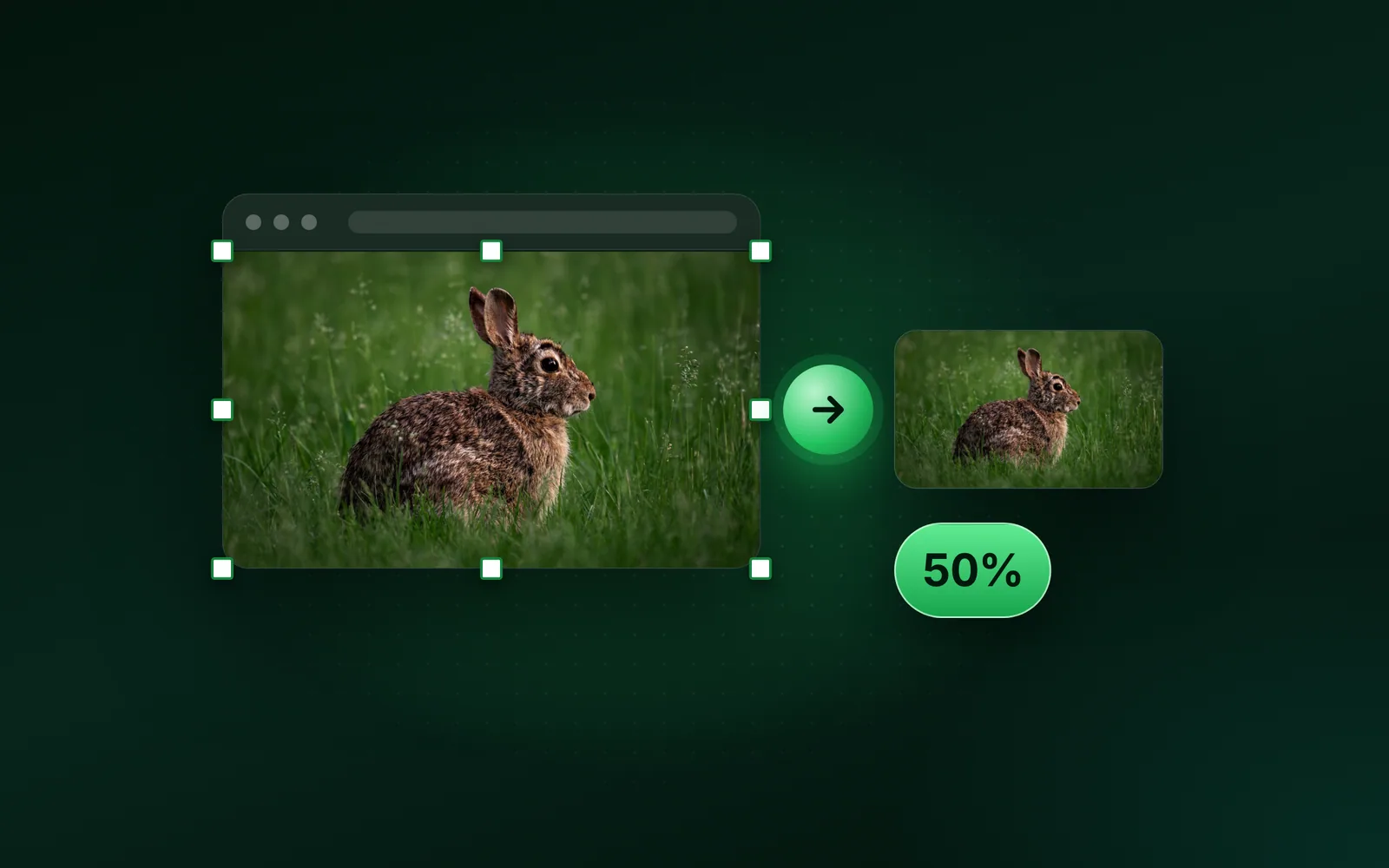
To resize an image in Paint, open it and press Ctrl+W, or click Resize and skew. Choose Pixels or Percentage, keep Maintain aspect ratio on, type the width and click OK. We ran our 9.8 MB camera photo through Blinkimg's engine at each percentage to show what each one weighs. Part of the image resizer.
By Sahadat Husain12 min readGuides

How to resize an image in Paint on Windows 11
Paint on Windows 11 resizes a picture in one dialog, Resize and skew, which Ctrl+W opens. Maintain aspect ratio is the setting that keeps the shape. These are How-To Geek’s steps for Windows 11’s Paint:
Open the image in Paint
Right-click the file in File Explorer, choose Open with, then Paint.
Click Resize and skew
The button sits in the Image group at the top of the window. Ctrl+W opens the same dialog.
Choose Pixels or Percentage
Pixels sets an exact size, such as 1600 wide for a web page. With Maintain aspect ratio on, Percentage scales both sides by the same share.
Keep Maintain aspect ratio on, then type Horizontal
Horizontal is the width and Vertical the height. With the setting on, the height follows the width. Virtual Curiosities shows it as a chain-link button between the two boxes.
Click OK, then save a copy
Choose File, then Save as, and give the file a new name. The original stays as it was.
Microsoft redrew the Resize and Skew dialog for Windows 11 in November 2021, its Windows Insider blog says. Below Resize sits a Skew section, which slants the picture. Its values are degrees, from −89 to 89, according to eStudy247’s Paint lesson. Leave Skew at 0 for a plain resize.
Resize an image with Paint from the keyboard
Four shortcuts cover the whole job. Winaero’s list of Paint shortcuts gives Ctrl+W, Ctrl+E and Ctrl+Z.
- Ctrl+W opens the Resize and Skew dialog.
- Ctrl+E opens Image Properties, which holds the picture’s dimensions.
- Ctrl+A selects the whole picture, and Ctrl+Z undoes the last change.
Resize an image on Paint in Windows 10
Windows 10’s Paint keeps Resize on its Home tab. Microsoft’s Paint page describes that path. You select “the ‘Resize’ option from the ‘Home’ tab”. Then you set the new dimensions “in pixels or as a percentage of the original size”.
The dialog that opens is Resize and Skew. It has the same Percentage, Pixels and Maintain aspect ratio choices. Ctrl+W opens it from the keyboard too.
Pixels or percentage?
Choose Pixels when a site or form names a size. Choose Percentage when you only want the picture smaller. When the shape must change as well, crop first.
Does a site or form ask for exact pixels?
- Yes
Is that shape different from your picture?
- Yes
Crop first, then resize in Pixels
Crop to the new shape, so nothing stretches.
- No
Pixels, Maintain aspect ratio on
Type the width; the height follows.
- Yes
- No
Do you need the file under a size in KB?
- Yes
Percentage, then a KB tool
Paint has no file size setting.
- No
Percentage, Maintain aspect ratio on
50 halves each side.
- Yes
Does resizing reduce the file size?
Resizing does reduce the file size, though not in step with the pixels. A percentage applies to each side, so 50% keeps a quarter of the pixels. We put our 9.8 MB camera photo, 4964 × 2782 pixels, through Blinkimg’s engine at 4 percentages. Each side was rounded to the nearest pixel, and each copy saved as a JPG at Auto:
| Percentage | Pixels | Share of the pixels | JPG at Auto | Share of the full-size JPG |
|---|---|---|---|---|
| 100% (full size) | 4964 × 2782 | 100% | 605.5 KB | 100% |
| 75% | 3723 × 2087 | 56% | 390.1 KB | 64% |
| 50% | 2482 × 1391 | 25% | 209.6 KB | 35% |
| 25% | 1241 × 696 | 6% | 70.5 KB | 12% |
| 10% | 496 × 278 | 1% | 16.9 KB | 3% |
JPG at Auto, by percentage
- 100%, 4964 × 2782605.5 KB
- 75%, 3723 × 2087390.1 KB
- 50%, 2482 × 1391209.6 KB
- 25%, 1241 × 69670.5 KB
- 10%, 496 × 27816.9 KB
At 50%, the copy keeps 25% of the pixels. It keeps 35% of the full-size JPG’s bytes: 209.6 KB against 605.5 KB. At 10%, 496 × 278, it fell to 16.9 KB.
Why does my picture look stretched?
A picture stretches when Maintain aspect ratio is off and the new size does not match its shape. Paint then scales the 2 sides by different amounts.
Force our 4964 × 2782 photo to 1080 × 1080. The width shrinks to 0.2176 of itself and the height to 0.3882. So everything in the picture comes out 44% narrower than it should. A crop keeps the shape: it cuts the sides first, then scales both sides alike.
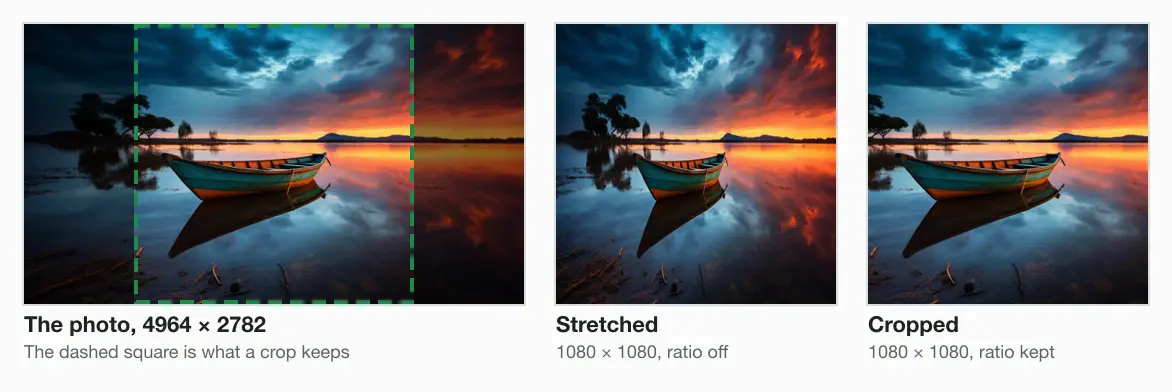
The 2 files weigh about the same: 88.4 KB stretched and 86.6 KB cropped, each a JPG at Auto. Only the shape differs. A crop loses the edges of the photo, and a stretch distorts everything in it.
Crop to the shape first, then resize
Click Select and draw around the part to keep
Microsoft’s Paint page gives the crop: select the part to keep with the Select tool, then click Crop.
Click Crop
Paint removes everything outside the selection.
Resize the cropped picture in Pixels
Press Ctrl+W, choose Pixels, keep Maintain aspect ratio on and type the width.
Paint’s selection is drawn by hand, so an exact 4:5 or 16:9 is hard to hit. In a browser, the change image aspect ratio tool crops to a ratio you pick. To crop an image to an exact size in pixels, use the cropper.
Can Paint make a picture bigger without losing quality?
Enlarging cannot add detail the picture never had. The program spreads the same pixels over more of them and guesses the new ones from their neighbours. The guessing method is called a kernel, and Microsoft does not say which one Paint uses.
So we tried 3 standard kernels in sharp 0.35.4, the image library under Blinkimg’s engine. The engine itself never enlarges a picture, so we called the library directly. We shrank our photo to 25%, 1241 × 696, then enlarged it 2× and 4×. PSNR scores each result against the original at that size, and higher is closer:
| Enlarged | Size | Nearest neighbour | Bilinear | Lanczos 3 |
|---|---|---|---|---|
| 2× | 2482 × 1391 | 35.1 dB | 36.0 dB | 36.2 dB |
| 4× | 4964 × 2782 | 34.9 dB | 36.5 dB | 36.9 dB |
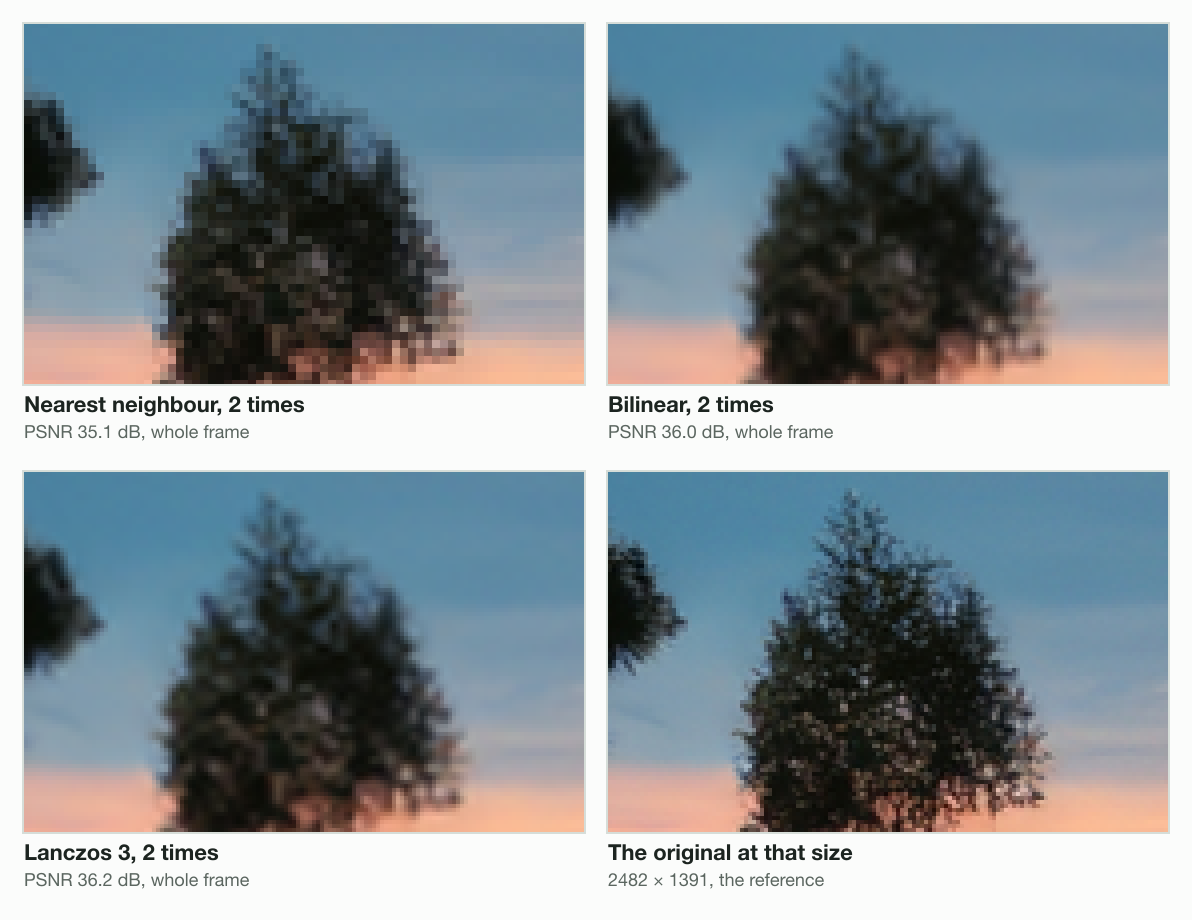
The best kernel beat the worst by only 1.1 dB at 2× and 2.0 dB at 4×. The kernel changes how the loss looks, as blocks or as blur. None brings the lost detail back. Enlarge as little as you can, and start from the largest original you have.
Change the canvas, not the picture
The canvas is the area the picture sits on. Drag the small handles at its right edge, bottom edge or bottom-right corner. The canvas changes, and the picture keeps its scale. A larger canvas adds blank space. A smaller one cuts the picture from the right and bottom edges. Those are the steps in eStudy247’s Paint lesson and Virtual Curiosities’ guide.
For a print size such as 2 × 2 inches, work in pixels. At 300 pixels per inch, 2 inches is 600 pixels, so the square is 600 × 600. The resize image in inches tool does that sum for any size. The 2x2 passport photo tool crops a face to the US rules.
Can Paint reduce an image to a size in KB?
Paint cannot aim at a size in KB. It has no file size setting. So you guess a percentage, save, check the size in File Explorer and try again.
A Max file size runs that search for you. Under a 100 KB cap, the engine took the 2482 × 1391 copy to 99.7 KB, at quality 44. At 1241 × 696 it fitted at 96.9 KB, at quality 86. With fewer pixels, the same 100 KB holds a much higher quality.
Other ways to resize an image on Windows
Paint handles one picture at a time. Windows offers 2 other routes, and a browser a third:
- Photos. How-To Geek’s steps: open the photo in Photos, click the three dots at the top, then choose Resize image. Photos also offers a quality slider.
- PowerToys Image Resizer, for many files at once. After you install PowerToys, right-click the selected files in File Explorer. Then choose Resize with Image Resizer, Microsoft’s PowerToys page says. Its sizes work in centimeters, inches, percent or pixels, and each can Fill, Fit or Stretch.
- A browser. Resize image sets exact pixels on any computer, with the shape kept, cropped or fitted. For 50%, type half the width.
Paint 3D is no longer an option. Microsoft’s deprecated features page says it “was removed from the Microsoft Store on November 4, 2024”. Existing copies keep working, and Microsoft points to Paint or Photos for 2D images.
On other devices, read how to resize an image on Mac or how to resize an image on iPhone.
Read the full guide: How to reduce image file size on any device.
Questions
- Where is the resize menu in Paint?
- In Windows 11 Paint, Resize and skew is a button in the Image group at the top. In Windows 10 Paint, Resize sits on the Home tab of the ribbon. Both open the same dialog, and Ctrl+W opens it in either version. Choose Pixels or Percentage there, then click OK.
- How do you resize an image in Paint without stretching it?
- Keep Maintain aspect ratio on in the Resize and skew dialog, then type only the width. Paint works out the height, so the shape stays the same. Do you need a new shape, such as a square? Crop to that shape first with Select and Crop. Then resize the cropped picture.
- How can I resize an image in Paint without losing its quality?
- Make it smaller, never larger, and save as PNG to keep every pixel. Shrinking discards pixels but stays sharp, while enlarging guesses new ones. We enlarged a 1241 × 696 copy of our photo 2× to 2482 × 1391 with sharp 0.35.4. Its best kernel scored 36.2 dB PSNR against the original.
- How do I reduce the KB size of an image in Paint?
- Lower the pixels with Resize and skew, then save as JPEG. Paint has no quality or file size setting. So check the size in File Explorer, and resize again if needed. Blinkimg's engine saved our 9.8 MB camera photo at 25% as a 70.5 KB JPG at Auto.
- How do I resize a photo to 50 KB?
- Resize it to the width it will be shown at, then use a tool with a size target. Paint cannot aim at a number of KB. Blinkimg's Max file size searches the quality for you. Our photo at 1241 × 696 fitted under 100 KB at quality 86. A 50 KB cap works the same way.
- How do I resize and skew an image in Paint?
- Press Ctrl+W to open the Resize and skew dialog. The Resize section scales the picture by Percentage or Pixels. The Skew section slants it, Horizontal or Vertical, in degrees from -89 to 89, eStudy247's Paint lesson says. Leave both Skew boxes at 0 for a plain resize, then click OK.
- How do I make a 2 × 2 inch picture in Paint?
- Work in pixels: at 300 pixels per inch, 2 × 2 inches is 600 × 600 pixels. Crop the picture to a square with Select and Crop first. Then press Ctrl+W, choose Pixels, keep Maintain aspect ratio on and type 600. For a passport photo, check the head size rules as well.
- How do I resize many images using Paint?
- Paint opens one picture at a time, so each image needs its own Ctrl+W and save. For many at once, Microsoft's free PowerToys adds Image Resizer. Select the files in File Explorer, right-click and choose Resize with Image Resizer. Its sizes work in pixels, percent, inches or centimeters, and they can fill, fit or stretch.
- How do I change the canvas size without resizing the picture?
- Drag the small handles at the canvas's right edge, bottom edge or bottom-right corner. The picture keeps its size and only the canvas changes. A larger canvas adds blank space, and a smaller one cuts the picture from the right and bottom. Press Ctrl+Z to undo a cut you did not want.
- How do I resize only part of an image in Paint?
- Draw a selection around the part with the Select tool, then press Ctrl+W. With a selection active, only the selected area resizes, eStudy247's Paint lesson says. The rest of the picture stays as it was. Drag the resized part into place. To keep only that part instead, click Crop after selecting it.
- What causes image quality loss when resizing?
- Shrinking throws pixels away, and enlarging has to invent new ones from their neighbours. Saving as JPEG adds its own loss each time. We enlarged a 1241 × 696 copy of our photo 4× to 4964 × 2782 with sharp 0.35.4. It scored 34.9 dB to 36.9 dB PSNR, by kernel, and no kernel restored the detail.
- Is Paint 3D still available?
- Paint 3D was deprecated in August 2024 and removed from the Microsoft Store on 4 November 2024, Microsoft says. Copies already installed keep working, but the app can no longer be downloaded. Microsoft points to Paint or Photos for editing 2D images. Classic Paint still ships with Windows 11 and resizes pictures with Ctrl+W.