How to resize an image on iPhone (and make it smaller in MB)
How to resize an image on iPhone: crop it in Photos to keep fewer pixels, or, on iOS 26 and later, open it in Preview, where Adjust Size sets exact pixels and Export makes a smaller file in MB. Photos itself has no width and height box. Here are Apple’s own steps for each route and what Apple leaves undocumented. The file sizes are our engine’s, run on a Mac on our 9.8 MB camera photo and a real iPhone 12 Pro HEIC, not on an iPhone. Part of the image resizer.
By Sahadat HusainUpdated 11 min readGuides

How to resize an image on iPhone: the short answer
Photos crops; Preview resizes. The Photos app has no width and height box: it cuts a part of the picture away. For exact pixels, or a smaller file in MB, open the photo in Preview, the app Apple added to iPhone in iOS 26. On an older iPhone, a web tool in Safari does both. Here is every route, and what Apple itself says about it, read on iOS 27:
| Route | Fewer pixels | Smaller MB | Apple’s iPhone guide |
|---|---|---|---|
| Photos, Crop | Yes, it cuts | Yes, by fewer pixels | Yes |
| Preview, Adjust Size | Yes, any size | Yes | Yes, iOS 26 and later |
| Preview, Export slider | No | Yes | Yes, iOS 26 and later |
| Shortcuts, Resize Image | Yes | Yes | Named only as an example |
| Files, Convert Image | Not stated | Not stated | No; Mac only |
| Mail, image size choice | Not stated | Not stated | No; Mac only |
| A web tool in Safari | Yes | Yes | Not Apple’s; any iOS |
Crop a photo in Photos, and keep the original
Open the photo and tap Edit
Then tap the Crop button.
Drag the corners, or pick a shape
The frame keeps the photo’s shape until you tap the lock in the top-right corner. Apple names Square, Wallpaper, 9:16 and 5:7 among the presets.
Tap Done
The crop is saved on the same photo. To undo it later, tap More, then Revert to Original.
A crop does not make a new file. Photos saves it as an edit on the same photo, and Apple’s crop page says you can still revert to the original after you save. To keep the whole photo and a cropped copy, tap More, then Duplicate first, and crop the copy.
Does a crop make the file smaller?
The copy you send, yes, because it holds fewer pixels. Apple does not say by how much, and the guides argue both ways, so we measured it. A square cut from the middle of our 4964 × 2782 photo keeps 56% of the pixels and saved at 366.8 KB, against 605.5 KB for the whole photo, both through our engine at Auto. The library itself does not shrink, because the original stays for Revert.
Resize and compress in Preview (iOS 26 and later)
Preview is the iPhone’s own way to set exact pixels and a smaller file. Apple’s pages start from an image already open in Preview; MacMost’s walkthrough sends one from Photos with Share, then Preview. Preview opens files from the Files app too.
Adjust photo size on iPhone: More, Adjust Size
Tap More, then Adjust Size
Apple’s Preview editing page says to choose options, then tap Done. Apple does not list the options; MacMost and CleverFiles show pixels, percent and inches, with the sides kept in proportion.
Type the new width
Instagram sizes a wider feed photo down to 1080, as our Instagram size guide shows, and Apple’s older Shared Albums kept 2048 on the long edge, so either is plenty for a screen. The chart below shows what each width weighs.
Tap Done
To undo it, tap More, then Undo.
Reduce photo file size on iPhone: Export and the Size slider
Tap the menu next to the file name, then Export
Pick a format: HEIC, JPEG, PDF, PNG or TIFF.
Move the Size slider
For HEIC and JPEG, Apple’s export page says to drag it left for a smaller file, right for higher quality.
Choose where to save it, then Save
The export is a new file; the photo you opened stays as it was.
How much smaller each size makes the file
Almost no ranking guide measures anything, so we did. Our sample is a 9.8 MB JPEG, 4964 × 2782, saved at a very high quality. Every row below is our engine at Auto:
Our 9.8 MB sample photo, 4964 × 2782
- Full size605.5 KB
- 3024 wide283.4 KB
- 2048 wide155.1 KB
- 1600 wide104.9 KB
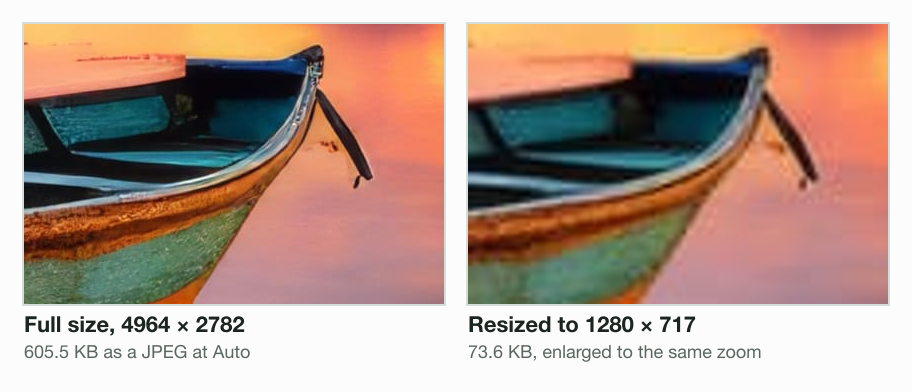
- 1280 wide73.6 KB
- 1080 wide56.7 KB
- 800 wide35.2 KB
- Square crop366.8 KB
Two things stand out. From the 9.8 MB original, quality does most of the work: our engine took the photo to 605.5 KB at full size, no resize at all, and to 370.2 KB at quality 60, all 4964 × 2782 pixels kept. A 1 MB limit needs no resize either: under a 1 MB cap our engine kept all 4964 × 2782 pixels at 996.5 KB, and 497.7 KB under 500 KB. Pixels do the rest: at 1080 wide the photo keeps 4.7% of its pixels and weighs 56.7 KB; at 2048 wide, 155.1 KB.
Does resizing lose quality you can see?
Only when you zoom in. On a phone screen a 1600-wide copy looks the same as the original; enlarged, the fine detail is gone, and no app can put it back:
Make a one-tap resize shortcut
For many photos, a shortcut is faster than Preview. Apple’s Shortcuts guide gives “resizing an image” as its example of an action that transforms content, though it does not document the action’s options. In the Shortcuts app, make a new shortcut that receives images from the share sheet, add Resize Image with the width you want, then Save to Photo Album. From then on, select photos in Photos, tap Share and run it. The originals stay as they were.
Compress images on iPhone without an app
On an iPhone older than iOS 26, or for a size limit Preview cannot promise, use a web tool in Safari. The image resizer sets exact pixels; the tools to compress an image to 1 MB or reduce image size in MB to any cap land at or under the number, which Preview’s slider does not. Tap the upload area, choose Photo Library, pick the photos and save the results to Files or Photos.
Files Convert Image and Mail sizes: what Apple does not say
Most videos on this topic show a Convert Image quick action in the Files app, with a format and a size. Apple documents Convert Image only for the Mac’s Finder, in its Mac User Guide; its iPhone guide does not describe it, and no page gives what its sizes are in pixels.
The old email trick is the same story. Mail on a Mac has an image size menu. Apple’s iPhone Mail guide, checked for iOS 12, 15 and 27, describes no size choice when you attach a photo. A file too large for your mail account goes by Mail Drop, which takes attachments up to 5 GB. Preview, above, gives you the same result with sizes you choose.
When to convert HEIC to JPEG, and what it does to the size
Convert only when a website or a person needs JPEG. Apple’s HEIF page says HEIF compresses better than JPEG at the same visual quality, so the camera’s Most Compatible setting, which saves JPEG, makes bigger files than High Efficiency. A conversion at Auto can still come out smaller: our engine turned a real iPhone 12 Pro HEIC of 1,956.0 KB into a 940.7 KB JPEG. When you share, tap Options in the share sheet: Automatic picks a format for the destination, Current sends the file as it is, and Most Compatible may convert it to JPEG. For a batch on any computer, use HEIC to JPG.
What Messages, AirDrop and iCloud do to photo size
- Messages may compress photo attachments when necessary, Apple says. To send smaller ones on purpose, turn on Send Low Quality Photo Previews in Settings, Apps, Messages (older pages call it Low Quality Image Mode).
- AirDrop with Current in the share sheet’s Options sends the photo with no format conversion; All Photos Data sends the original file with its edit history.
- Shared Albums made on iOS 26 or earlier reduce photos to 2048 pixels on the long edge. Albums made on iOS 27 keep full resolution, so the old trick of saving a copy from a shared album no longer shrinks anything.
- Optimize iPhone Storage keeps storage-saving versions on the phone and the originals in iCloud. It frees space; it does not give you a smaller file to send.
How to check a photo’s size in MB
Open the photo in Photos and swipe up, or tap the Info button: the panel lists the file size, which Apple documents from iOS 15. Check it before and after, so you know the method worked.
Take smaller photos from now on
In Settings, Camera, Formats, High Efficiency saves HEIF, and Photo Mode picks 12 MP instead of the 24 MP default on supported models. Leave ProRAW off unless you edit raw files: Apple puts a ProRAW photo at about 25 MB at 12 MP and 75 MB at 48 MP, 10 to 12 times a HEIF or JPEG. Our guide on how to reduce image file size covers the same settings on Android, Mac and Windows.
Read the full guide: How to reduce image file size on any device.
Questions
- How do I reduce the MB size of a photo on my iPhone?
- On iOS 26 or later, open it in Preview, tap the menu by the file name, tap Export, choose JPEG or HEIC and drag the Size slider left. Shrinking the pixels first with Adjust Size cuts more. Our 9.8 MB photo fell to 605.5 KB at full size from the quality alone.
- How do I resize an image in Photos?
- The Photos app on iPhone only crops: tap Edit, then Crop, and drag the corners or pick a shape such as Square or 9:16. It has no box for a width and height in pixels. For exact pixels, open the photo in Preview and use Adjust Size, or use a shortcut or a web tool.
- How do I resize a photo to fit an iPhone screen?
- Crop it in Photos with the Wallpaper preset, one of the shapes Apple lists: tap Edit, then Crop, tap the lock at the top-right corner, choose Wallpaper and drag the frame over the part you want, then tap Done. The original stays in your library; More, then Revert to Original undoes it.
- How do I resize an image on iPhone Files?
- Open the image from the Files app in Preview, tap More, then Adjust Size, and export the result as a new file. Files also shows a Convert Image quick action in many videos, but Apple documents Convert Image only for the Mac, so its sizes on iPhone are not stated anywhere.
- How do I reduce the size of a photo on iPhone to 1 MB?
- Use a tool that takes a target, because Preview’s slider has no numbers. Under a 1 MB cap our engine kept the whole 4964 × 2782 photo at 996.5 KB, with no resize. In Safari, open a compress to 1 MB tool, pick the photo from your library and save the result.
- How do I compress a JPEG file on my iPhone?
- Open the JPEG in Preview on iOS 26 or later, tap the menu next to the file name, then Export. Choose JPEG and drag the Size slider left for a smaller file, then choose where to save it. The new file is separate, so the original JPEG stays as it was in case you need it again.
- Why is the Photos app taking up so much space on my iPhone?
- Mostly resolution and format. Recent iPhones shoot 24 MP by default, Resolution Control makes 48 MP, and Apple puts a ProRAW photo at about 25 MB at 12 MP and 75 MB at 48 MP. Most Compatible saves JPEG instead of HEIF. Optimize iPhone Storage keeps smaller versions on the phone.
- Does resizing a photo on iPhone lose quality?
- Detail, yes, but you see it only when you zoom in. A copy 1600 pixels wide looks the same on a phone screen as the full photo, and our engine saved it at 104.9 KB. Keep the original, resize a copy, and never enlarge a small photo, because no app can add detail back.