How to post a photo on Instagram in full size, without a crop
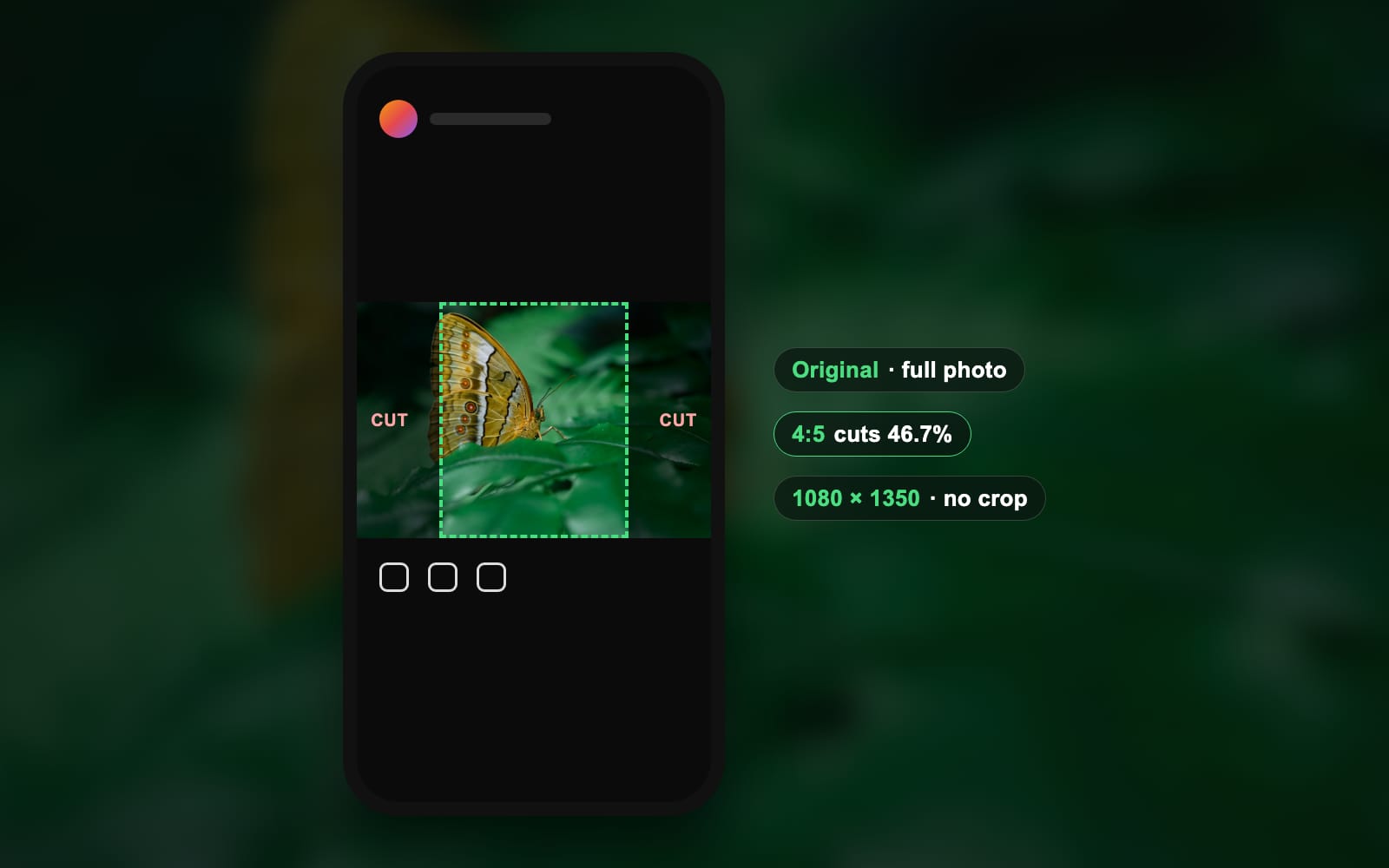
To upload a photo on Instagram, tap Create, then POST, pick the photo, tap Next twice and tap Share. On a computer, click Create, then Post. To post it in full size, choose Original on the crop screen: any photo between 1.91:1 and 3:4 keeps its whole frame. We measured what each crop costs on 18 photos. Part of the social media image resizer.
By Sahadat Husain10 min readSizes

How do I upload a photo on Instagram from my phone?
Five steps in the Instagram app, on iPhone and Android alike. These steps follow Instagram’s help page “Post a photo on Instagram”, read 17 October 2026.
Tap Create
Open the Instagram app and tap Create, the plus at the top left of Feed. You can also swipe right anywhere in Feed.
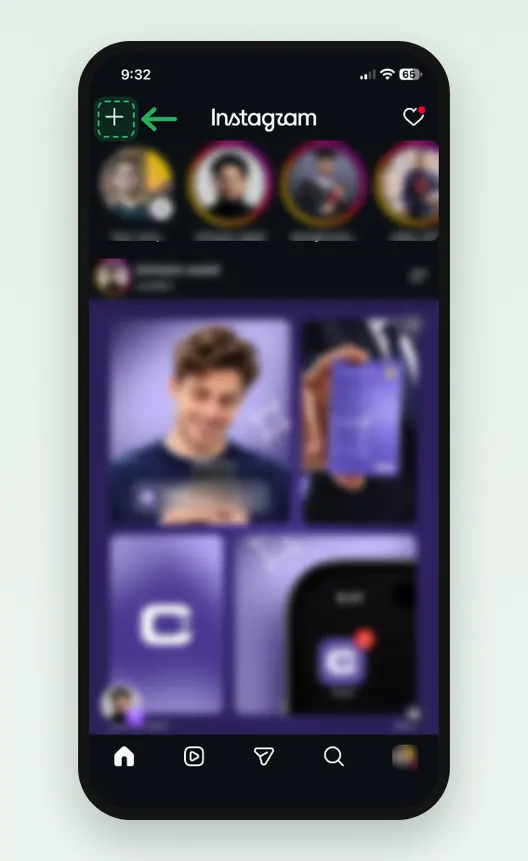
Screenshot: Create sits at the top left of Feed. Tap POST, pick the photo, then Next
POST is selected at the bottom. Tap the photo in your library. The expand button at the bottom left of the preview shows the whole photo instead of a square. Tap Next.
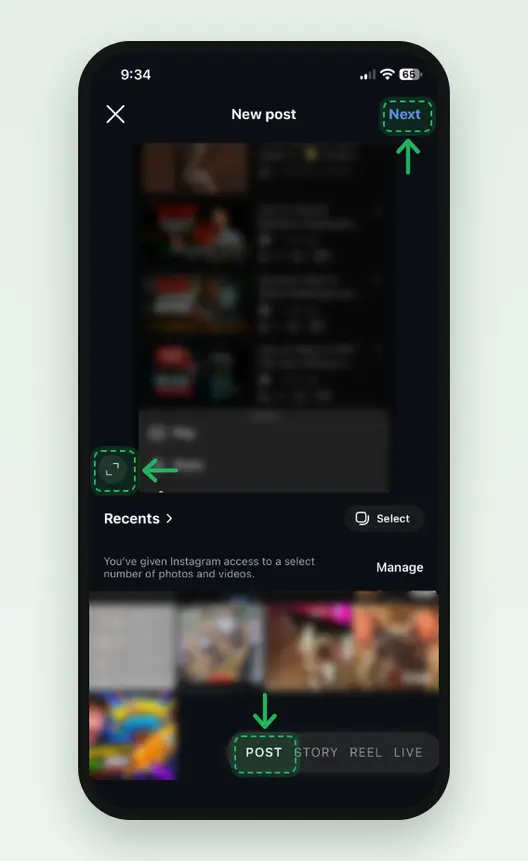
Screenshot: POST, the expand button, then Next. Tap Ratio to set the shape, then Next
The editing screen has Audio, Text, Overlay, Filter, Edit and Ratio along the bottom. Ratio sets the shape of the post. Tap Next when it looks right.
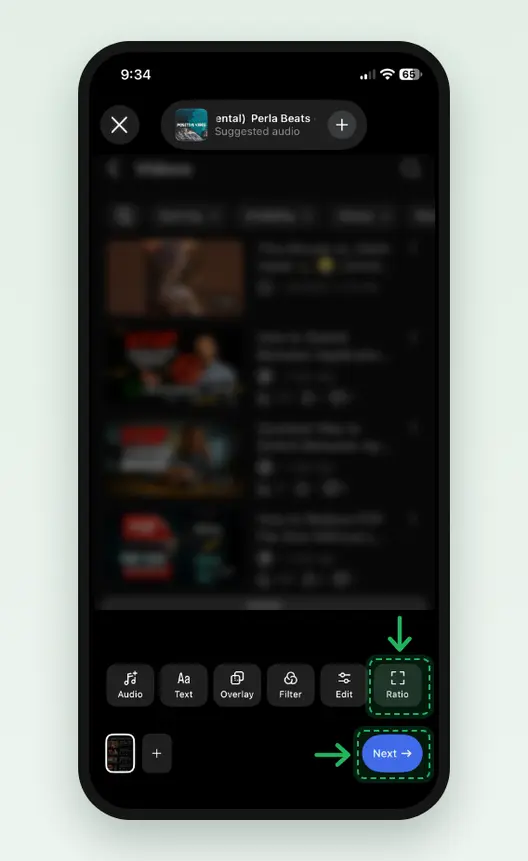
Screenshot: Ratio at the end of the row, Next below it. Tap Edit to adjust, then Done
Edit opens Adjust, Lux, Brightness, Contrast and more. Change what you like and tap Done. Skip it to keep the photo as it is.
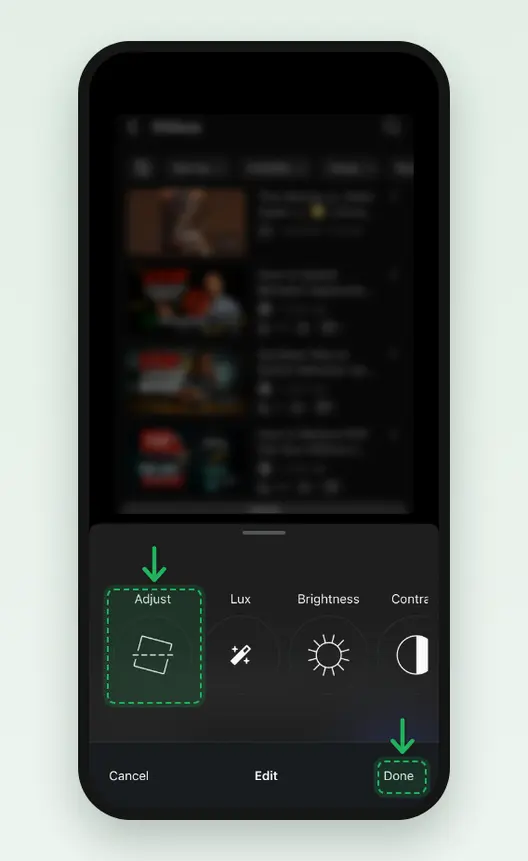
Screenshot: the Edit panel, then Done. Write a caption and tap Share
Add a caption, and audio, people or a location if you want them, then tap Share. The photo goes to your Feed and your profile.
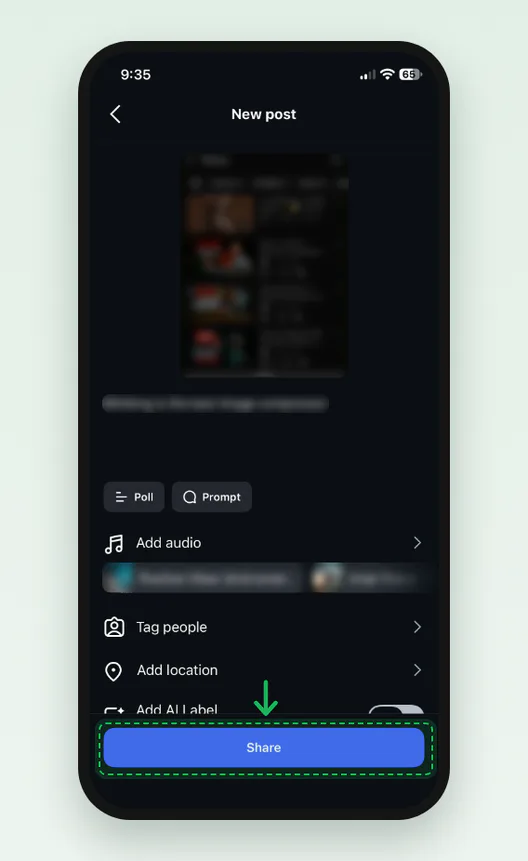
Screenshot: the caption screen, then Share. We did not tap it.
Can I post pictures on Instagram from my computer?
Yes. instagram.com in any browser posts photos, and Instagram’s computer help names JPG, PNG and HEIC as the formats it takes. We ran every step below in Chrome on 17 October 2026 with our butterfly photo, a 6,048 × 4,024 JPG, and stopped before Share.
Click Create, then Post
Click Create in the left menu. A small menu opens with Post, Live video and Ad. Click Post.
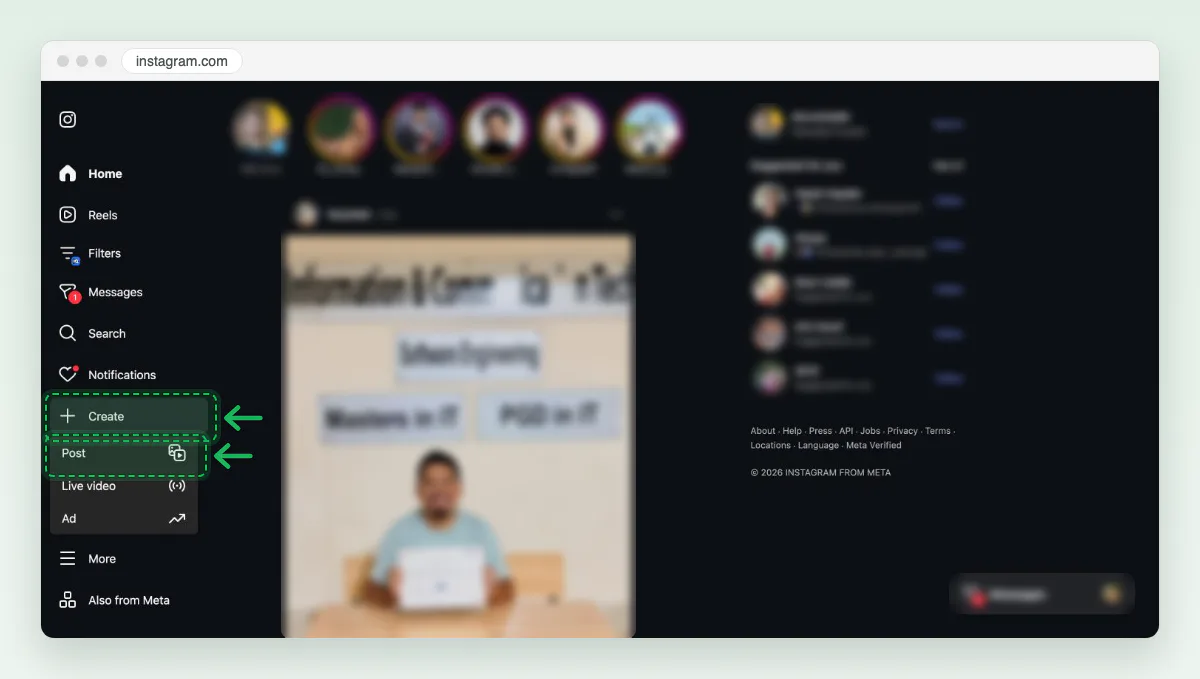
Screenshot: Create opens a menu. Post is the first line. Click Select From Computer
The Create new post box opens. Click Select From Computer and pick your photo, or drag the file onto the box.
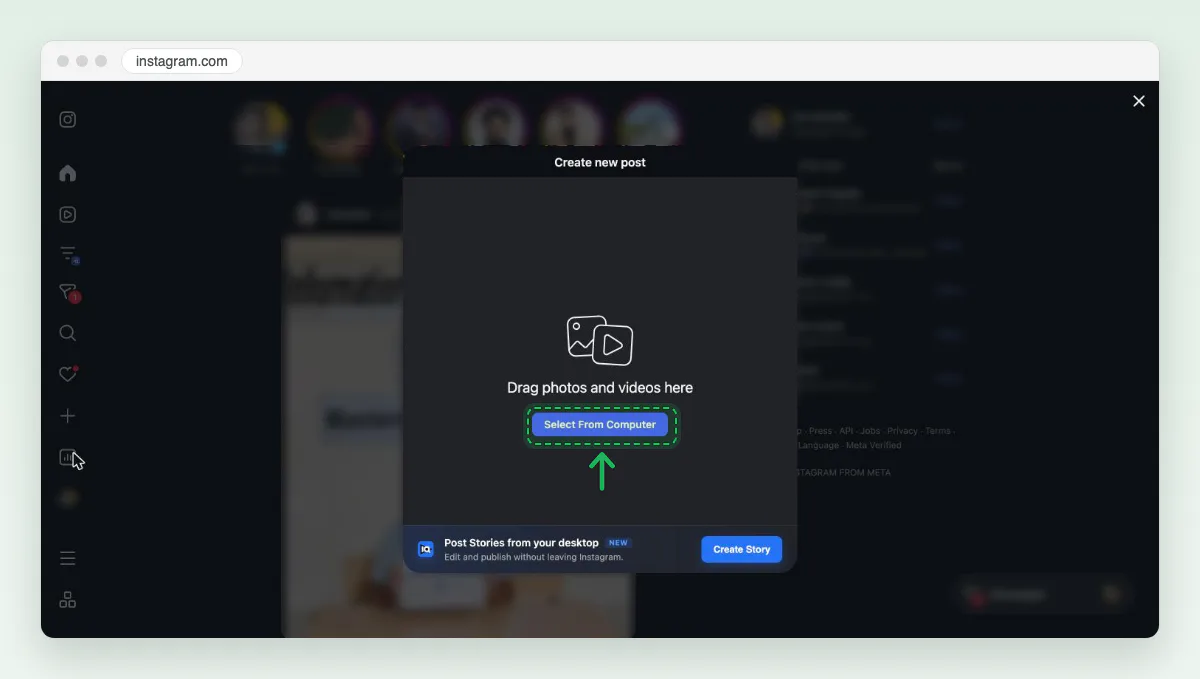
Screenshot: Select From Computer, or drag the file in. Open the size menu at the bottom left
Instagram opened our landscape photo as a 1:1 square, cutting off both sides. Click the two-arrow button at the bottom left. It offers Original, 1:1, 4:5 and 16:9.
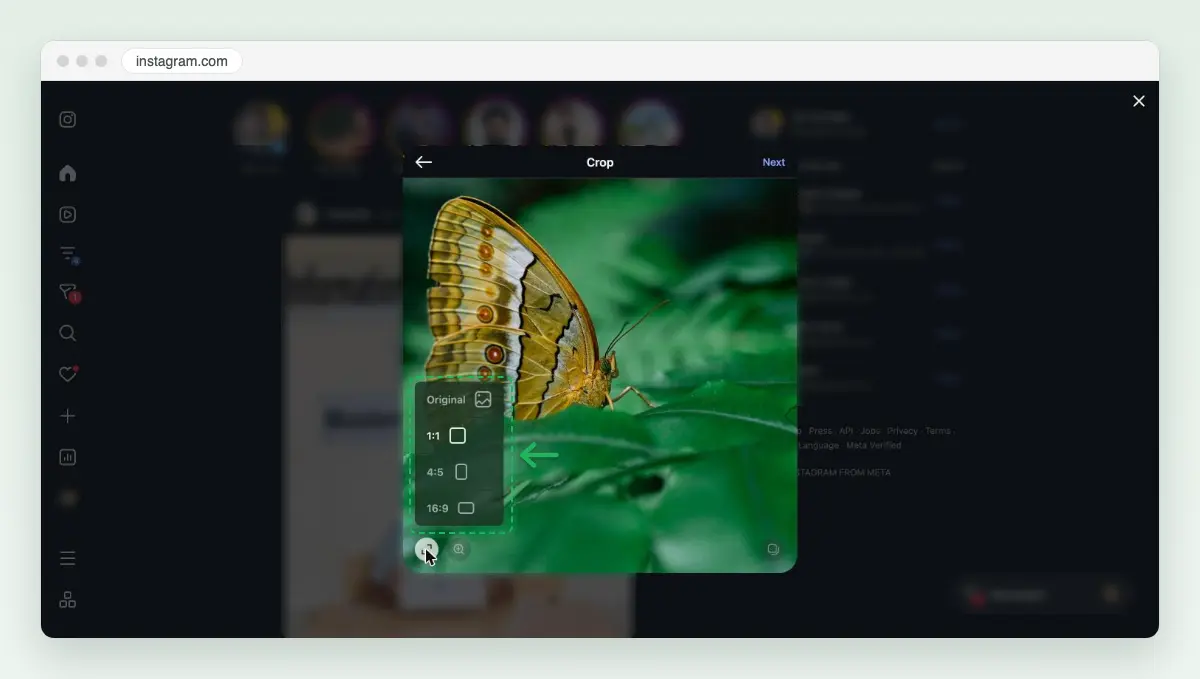
Screenshot: the size menu. Original keeps the whole photo. Choose Original, then Next
Original showed the whole photo, nothing cut, with bands above and below in the preview. Click Next at the top right.
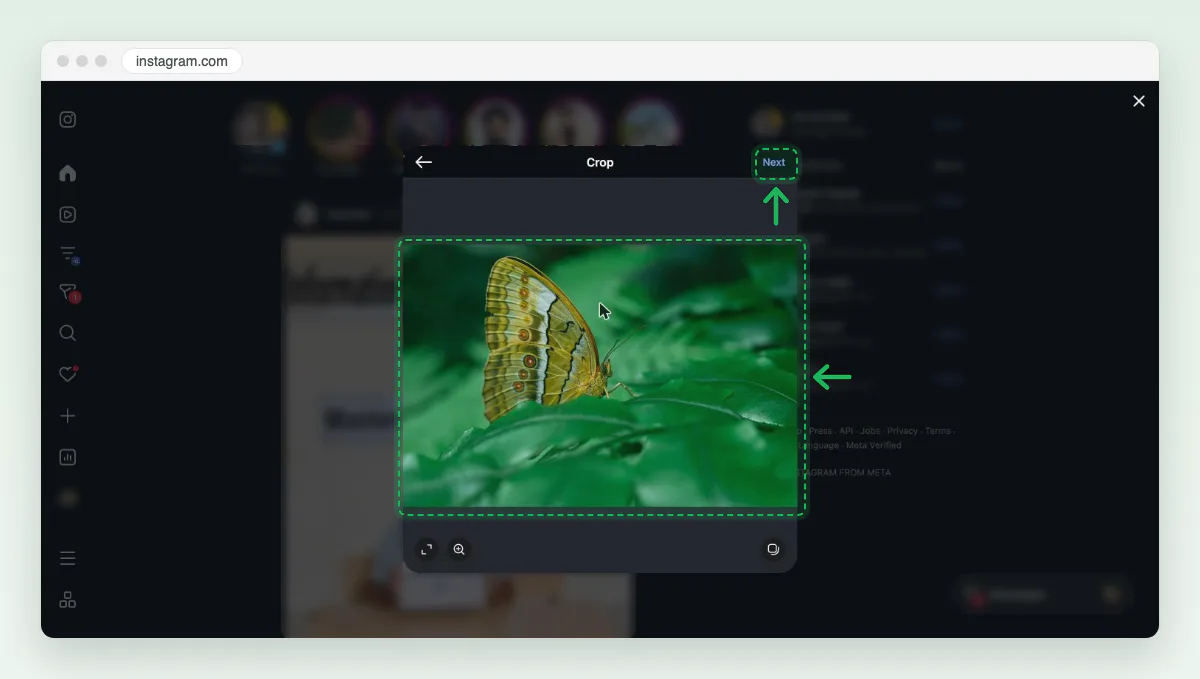
Screenshot: Original keeps the full photo. Next moves on. Pick a filter or Adjustments, then Next
The Edit screen has Filters and Adjustments. Original is the filter that changes nothing. Click Next.
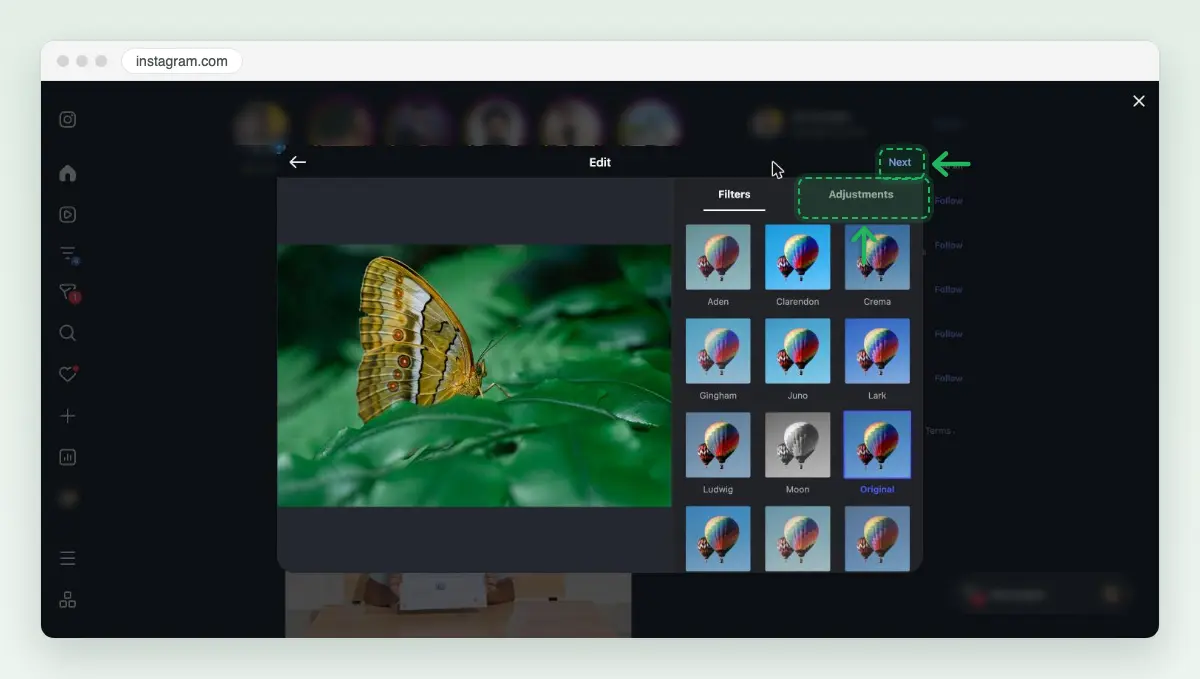
Screenshot: Filters and Adjustments, then Next. Write the caption, then click Share
Type a caption of up to 2,200 characters, add a location if you want, and click Share at the top right.
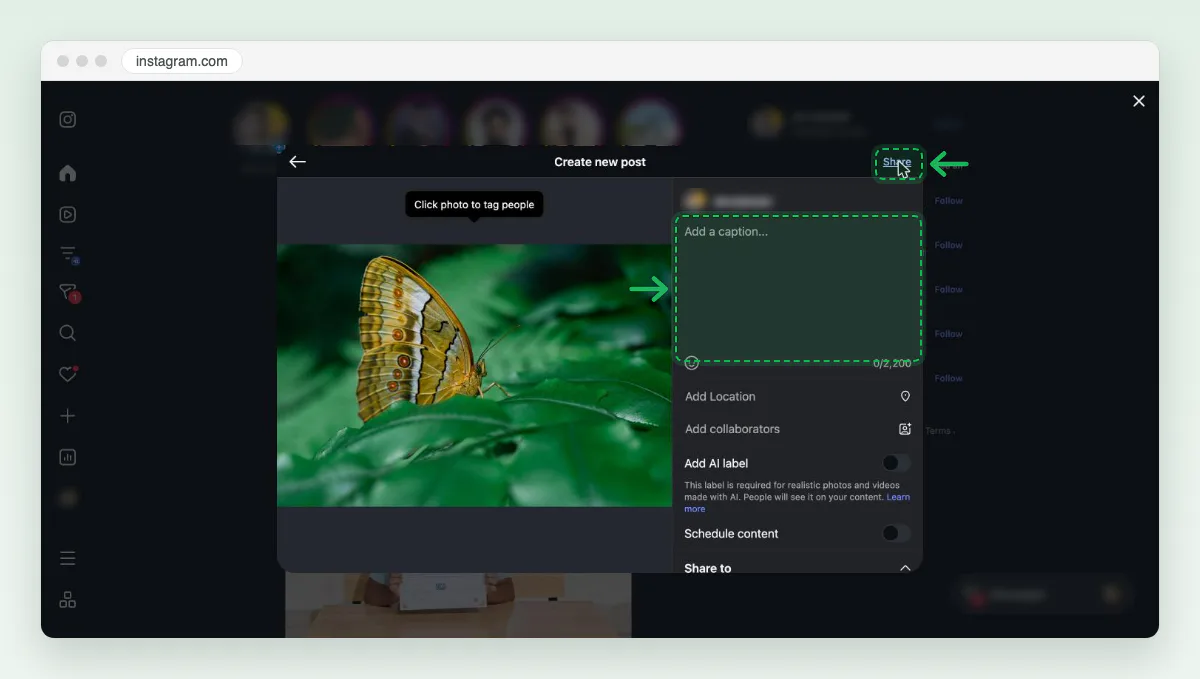
Screenshot: the caption box counts to 2,200. Share posts it.
How do I upload a full photo to Instagram without cropping?
Keep the photo between 1.91:1 and 3:4, and pick Original on the crop screen. Instagram’s resolution page says a photo inside that range keeps its shape, and any other shape “will be cropped to fit a supported ratio”. At 1080 pixels wide, that range runs from 566 to 1440 pixels tall.
So the shape of your photo decides what you lose. We worked it out for the common shapes. A 3:2 camera photo fits the range as it is. Picked as 4:5 or 1:1 instead, it loses 46.7% or 33.3% of the picture.
Lost to a 4:5 crop
- 3:2 landscape46.7%
- 4:3 landscape40%
- 16:9 landscape55%
- 1:1 square20%
- 4:5 portrait0%
- 3:4 portrait6.3%
- 2:3 portrait16.7%
- 9:16 portrait29.7%
Lost to Instagram’s own range (Original)
- 3:2 landscape0%
- 4:3 landscape0%
- 16:9 landscape0%
- 1:1 square0%
- 4:5 portrait0%
- 3:4 portrait0%
- 2:3 portrait11.1%
- 9:16 portrait25%
What each crop costs, by photo shape
| Photo shape | Original (1.91:1 to 3:4) | 4:5 | 1:1 | 1.91:1 |
|---|---|---|---|---|
| 3:2 landscape | 0% | 46.7% | 33.3% | 21.4% |
| 4:3 landscape | 0% | 40% | 25% | 30.1% |
| 16:9 landscape | 0% | 55% | 43.8% | 6.8% |
| 1:1 square | 0% | 20% | 0% | 47.6% |
| 4:5 portrait | 0% | 0% | 20% | 58.1% |
| 3:4 portrait | 0% | 6.3% | 25% | 60.7% |
| 2:3 portrait | 11.1% | 16.7% | 33.3% | 65.1% |
| 9:16 portrait | 25% | 29.7% | 43.8% | 70.5% |
Only shapes taller than 3:4 lose pixels under Original. A 2:3 portrait loses 11.1%, and a 9:16 phone screenshot loses 25%. Of our 18 photos, 5 were that tall. A 16:9 frame loses only 6.8% at 1.91:1, and a square loses nothing at 1:1 but 20% at 4:5.
Too tall to fit, or you want the full photo on a 4:5 tile? Place it on a white or coloured background at 1,080 × 1,350 before you post. Our resize image for Instagram tool does exactly that, with nothing cut. On a phone, Instagram’s crop page says to pinch the photo and move it within the frame.
How to make a photo 1080 × 1350 before you post it
A 4:5 portrait is the tallest common shape that stays inside Instagram’s range, so it fills the most of the screen. Here is how to make one without losing the edges of your photo. We ran each step with the butterfly photo.
Drop the photo on the Instagram resizer
Open the resize image for Instagram page and drop the photo on the box, or click browse. No signup.
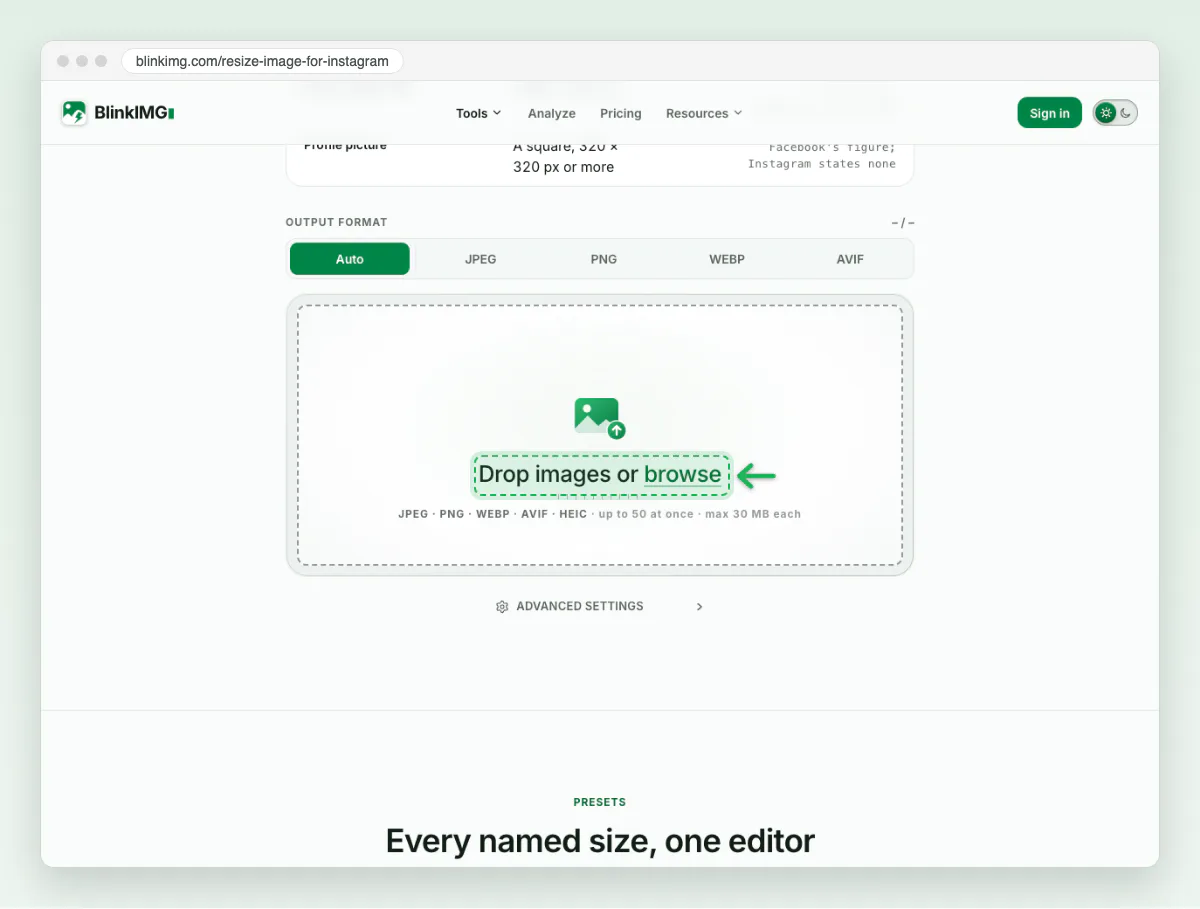
Screenshot: drop the photo on the box. Keep IG portrait and Fit
The editor opens on IG portrait, 1,080 × 1,350, with Fit on. Fit keeps the whole photo and fills the rest with white. Pick another fill colour if you like.
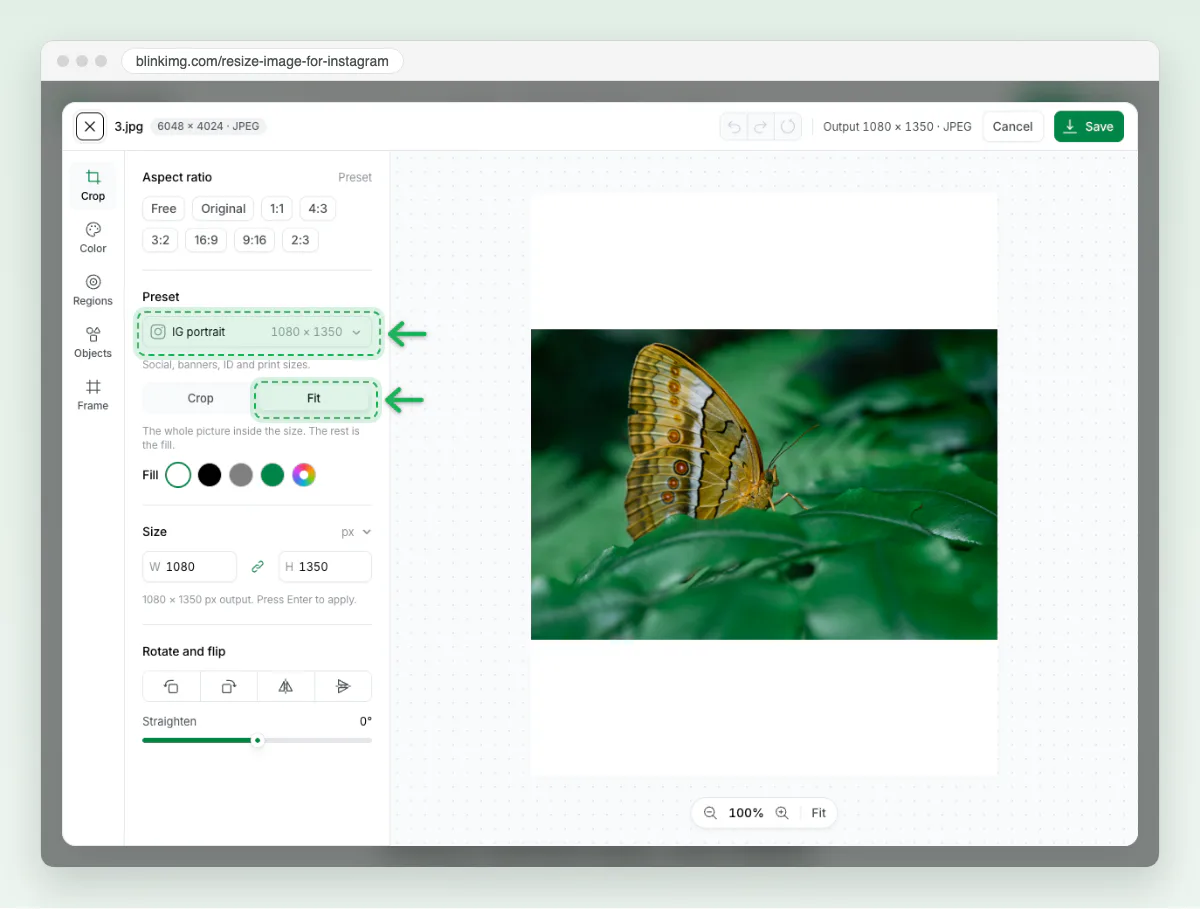
Screenshot: Fit puts the whole photo inside 1080 × 1350. Or choose Crop to fill the frame
Crop cuts the photo to 4:5 instead. Drag the frame to the part you want. Our 3:2 photo lost both sides this way.
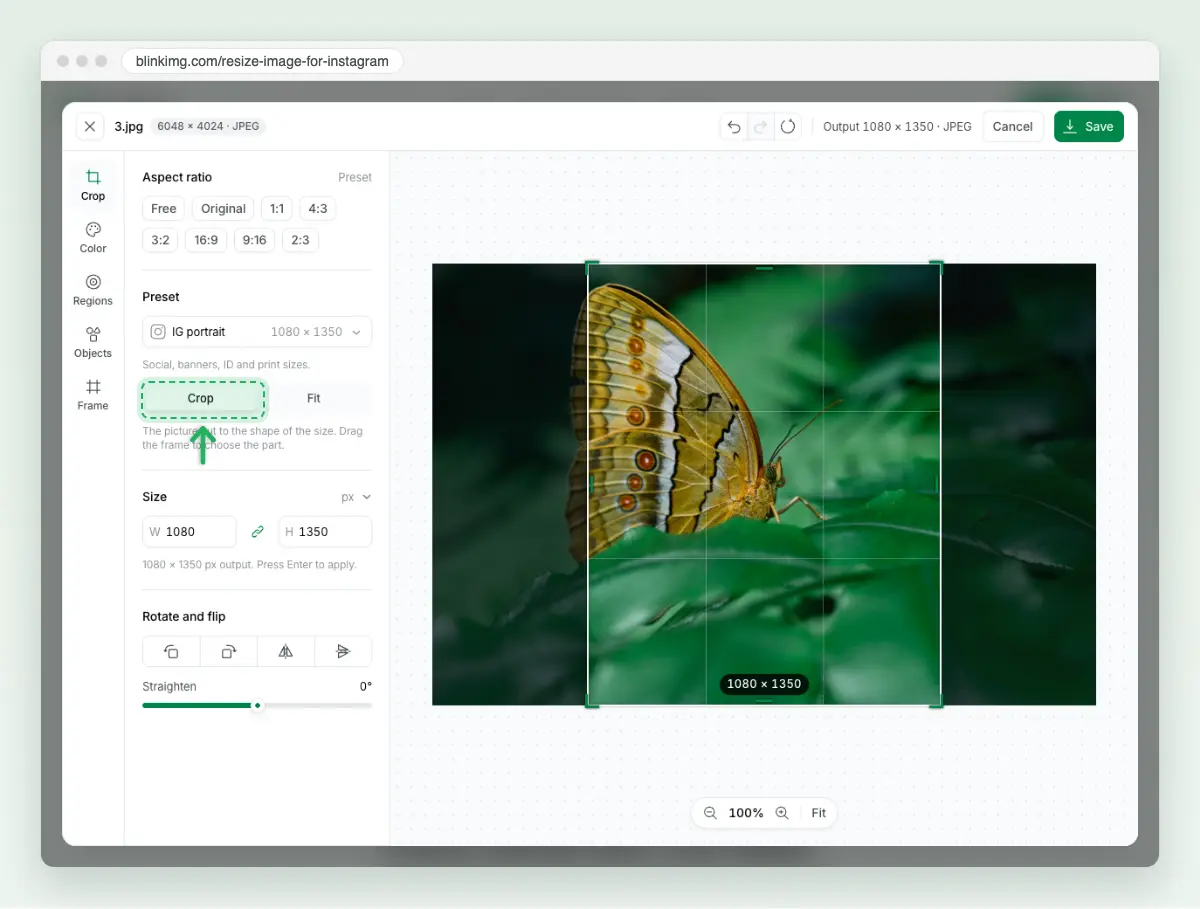
Screenshot: Crop keeps only what is inside the 4:5 frame. Click Save
Save at the top right downloads the JPG. Post that file with Original on the crop screen.
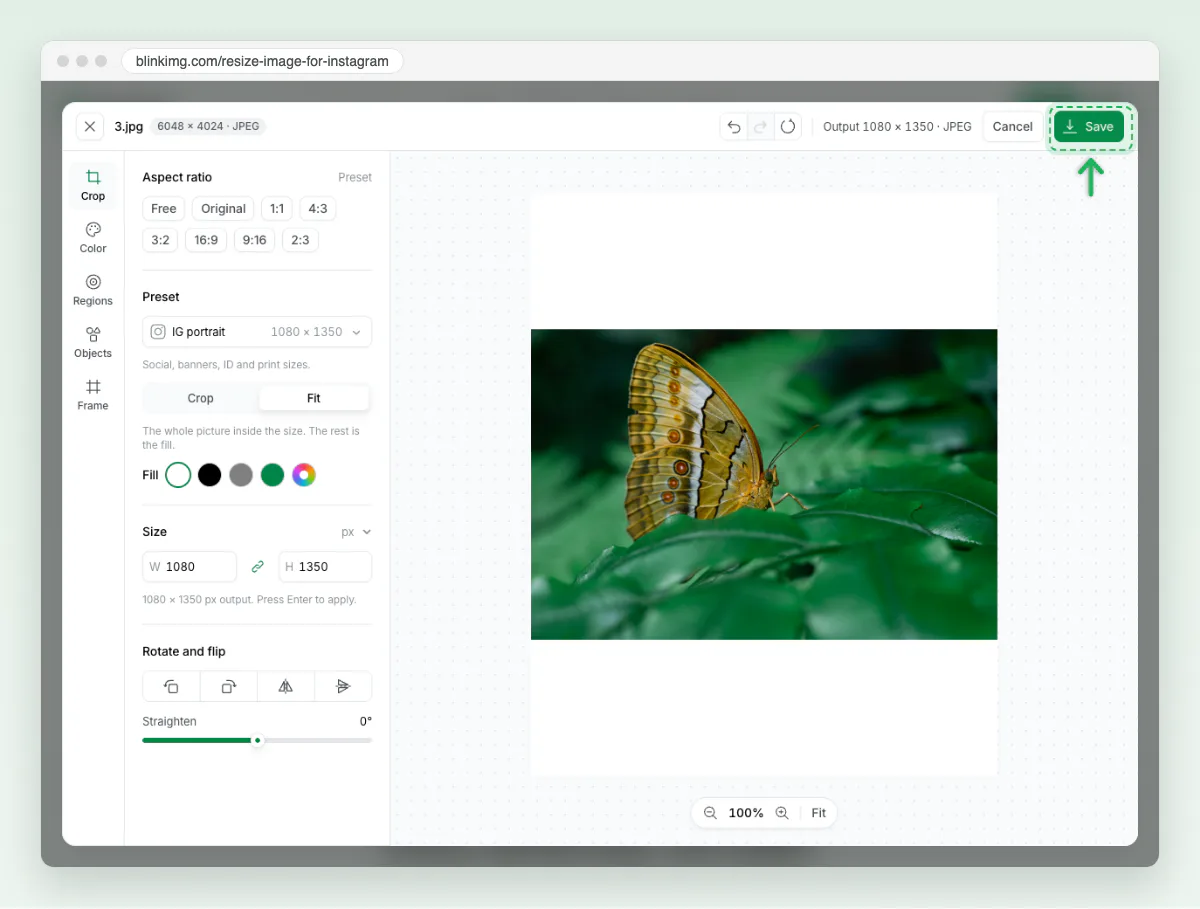
Screenshot: Save downloads the 1080 × 1350 JPG.
How to post high-quality photos on Instagram
Upload a photo at least 1080 pixels wide, inside the range. Instagram sizes anything wider down to 1080 pixels and enlarges anything narrower than 320 pixels. A bigger file never shows more detail.
The shape decides how many pixels you keep. Our 8 landscape photos kept a median of 0.78 megapixels at 1080 wide. Our 5 portraits kept 1.56 megapixels, twice as many, because a tall photo is taller at the same width.
1,080 × 1,350
- JPG, Blinkimg engine125.5 KB
- JPG at quality 92275.4 KB
1,080 × 1,080
- JPG, Blinkimg engine104.3 KB
- JPG at quality 92214.6 KB
1,080 × 566
- JPG, Blinkimg engine59.8 KB
- JPG at quality 92135.8 KB
1,080 × 1,440
- JPG, Blinkimg engine119.9 KB
- JPG at quality 92293.3 KB
| Size | Shape | Engine JPG, median | Engine JPG, largest | Quality 92, median |
|---|---|---|---|---|
| 1,080 × 1,350 | 4:5 | 125.5 KB | 244.7 KB | 275.4 KB |
| 1,080 × 1,080 | 1:1 | 104.3 KB | 189.0 KB | 214.6 KB |
| 1,080 × 566 | 1.91:1 | 59.8 KB | 125.5 KB | 135.8 KB |
| 1,080 × 1,440 | 3:4 | 119.9 KB | 255.4 KB | 293.3 KB |
| 1,080 × 1,350 | 4:5, Fit on white | 95.3 KB | 190.9 KB | 197.6 KB |
Every file was small. Our largest 1,080 × 1,350 JPG from the engine was 244.7 KB, against a median of 275.4 KB for a plain quality 92 export. A smaller upload finishes sooner on a slow connection.
Can you add a photo to an Instagram post already posted?
No. Instagram’s page on posts with several photos says you cannot add new photos after you share. You can reorder or remove photos, and edit the caption, location and tags. To swap the picture, delete the post and share it again.
One post holds up to 20 photos and videos, the same page says. Tap SELECT MULTIPLE after POST. The shape you pick, square, portrait or landscape, applies to every photo in that post. Stories, reels and profile pictures have their own sizes, in our Instagram story size guide. Every other network is in the social media image resizer.
How we tested
- The photos: the owner’s own 18 files, 13 camera photos from 2,250 × 4,000 to 6,720 × 4,480 and 5 PNG illustrations. Shapes read after each photo’s rotation tag.
- The crop math: the share of pixels a centre crop removes to reach each shape, computed from the width and height. Instagram’s range is the one on its resolution page.
- The files: each photo cut from the centre to every size with sharp 0.35.4, then saved by Blinkimg’s engine, version 9, as a JPG at Auto, and by sharp as a JPG at quality 92. Measured 2026-10-17.
- The steps: the instagram.com screenshots are our founder’s own account in Chrome on 17 October 2026. Other people’s posts, his name and his avatar are blurred, and the draft was discarded without sharing. The Blinkimg screenshots are our own site. The phone steps are screenshots of the Instagram app on his iPhone the same day, nothing shared, checked against Instagram’s help page. How we measure covers the rest.
Read the full guide: Social media image sizes cheat sheet: ratios, safe zones and limits.
Questions
- How do you post Instagram photos without losing quality?
- Prepare the photo at 1080 pixels wide, 1080 × 1350 for a portrait, so Instagram has less to resize, and pick Original or 4:5 at the crop step so nothing you want is cut. Upload the photo itself, not a screenshot of it. Our 3:2 photo lost nothing under Original and 46.7% of the picture at 4:5.
- How do I upload a photo on Instagram?
- Open the Instagram app and tap Create, the plus at the top of Feed. Tap POST at the bottom and pick the photo from your library. Tap Next, choose a filter if you want, and tap Next again. Write a caption and tap Share. The photo then shows in your Feed and on your profile.
- Can I post pictures on Instagram from my computer?
- Yes. Go to instagram.com, click Create in the left menu, then Post, and click Select From Computer. Instagram takes JPG, PNG and HEIC files. Pick the size with the button at the bottom left, click Next twice, write a caption and click Share. Nothing is shared until you click Share.
- How do I upload a full photo to Instagram?
- Choose Original on the crop screen instead of the square. Instagram keeps any photo between 1.91:1 and 3:4 as it is. A taller photo, such as a 9:16 screenshot, still loses 25%. To keep all of it, place it on a 1080 × 1350 background before you post.
- How do I upload photos from files to Instagram?
- On a computer, click Create, then Post, then Select From Computer, and choose the file from any folder. You can also drag the file onto the box. On a phone, save the file to your photo library first, because the Instagram app picks from the library, then post it as usual.
- Why does Instagram crop my photo?
- On instagram.com, our new post opened as a square, and Instagram crops any photo outside 1.91:1 to 3:4. A 3:2 camera photo loses 33.3% as a square. Pick Original, or 4:5 for a portrait, with the size button before you tap Next.
- What size should a photo be for Instagram?
- At least 1080 pixels wide, between 566 and 1440 pixels tall. That means 1080 × 1350 for a 4:5 portrait, 1080 × 1080 for a square and 1080 × 566 for a landscape. Instagram shrinks a wider photo to 1080 pixels, so a larger file shows no extra detail.
- Can I add a photo to an Instagram post after posting?
- No. Instagram says you cannot add new photos or videos to a post once it is shared. You can reorder or remove photos, and edit the caption, location and tags. To change the picture itself, delete the post and share a new one with the photo you want.