How to make a YouTube thumbnail: we made 18 and measured
To make a YouTube thumbnail, crop an image to 16:9, add two or three large words, save it as a JPG and upload it under Thumbnail in YouTube Studio. Your account must be verified first. We made 18 thumbnails this way and measured every file and headline. Part of the social media image resizer.
By Sahadat Husain13 min readSizes

How to make a YouTube thumbnail, step by step
A YouTube thumbnail is the still picture a viewer sees before pressing play. You can make one in any editor that crops and adds text. We made ours in Blinkimg’s editor, which opens at the right shape, and checked each step on a real file.
Pick one image with one clear subject
Use a frame from the video or a photo you took. One subject that fills the frame survives being shrunk. We made 18 thumbnails, from 13 camera photos and 5 PNG illustrations.
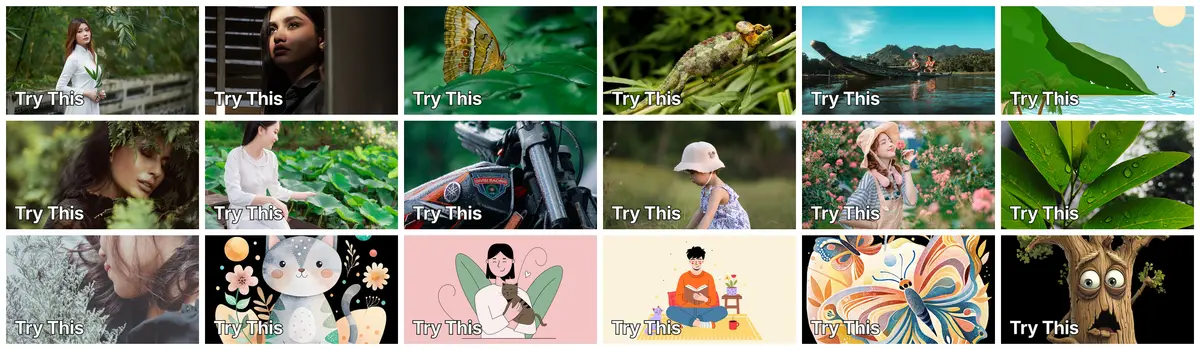
Our 18 test thumbnails, each 1,280 × 720 with the same two-word headline. Go to blinkimg.com and choose JPEG
Open blinkimg.com and pick JPEG under Output format. A JPG opens everywhere and stays small: our 18 thumbnails had a median of 91.9 KB as JPGs from the engine, far under the 2 MB YouTube allows from a phone.
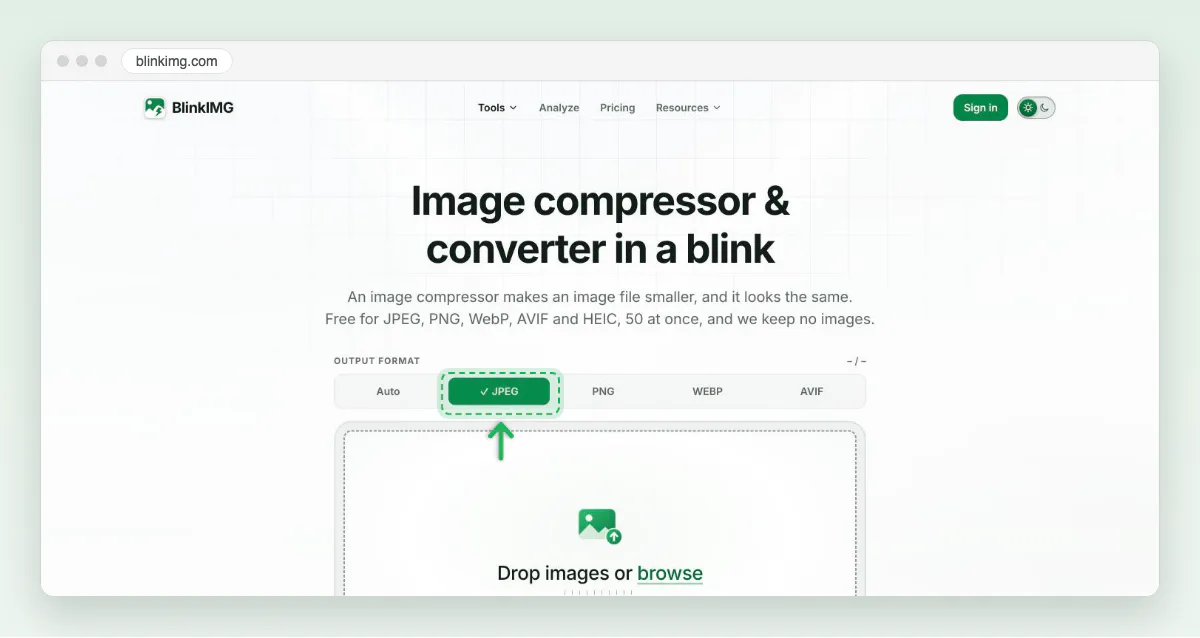
Screenshot: blinkimg.com with JPEG picked under Output format. Drop your photo, then click Edit
Drop the photo on the box, or click browse. When the result row appears, click the pencil, Edit, beside Hide. No signup.
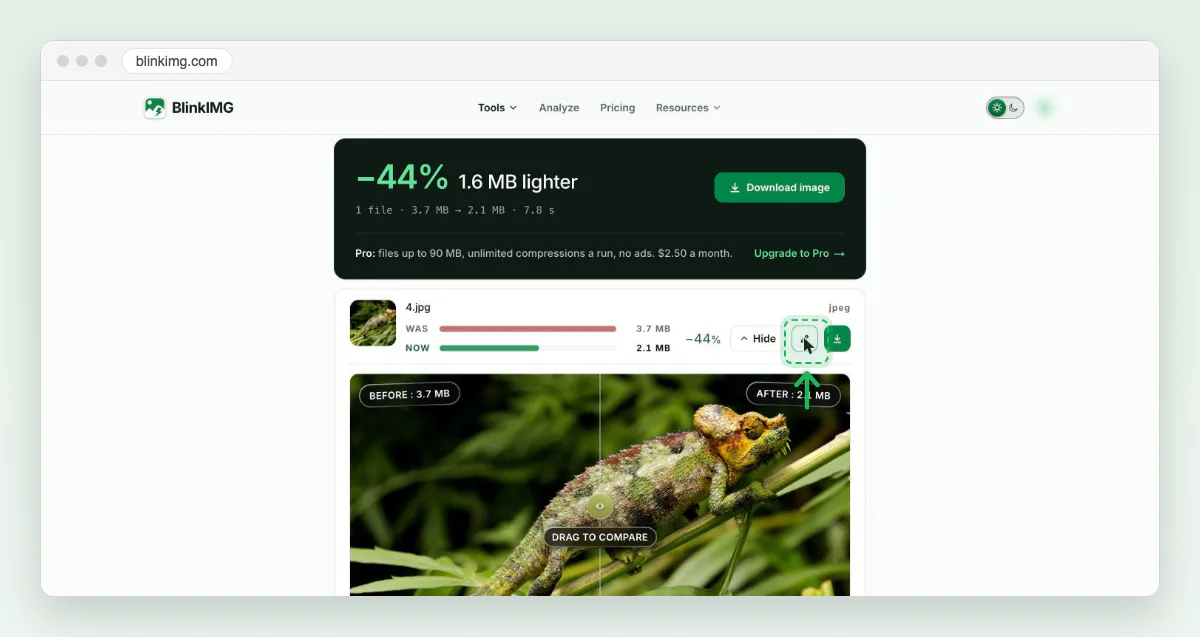
Screenshot: our chameleon photo, done in 7.8 seconds. The pencil opens the editor. Choose YouTube under Preset
The editor opens at the photo’s full size. Open Preset, choose YouTube, and keep Crop selected. The output becomes 1280 × 720. On the YouTube thumbnail page the editor opens on this preset by itself.
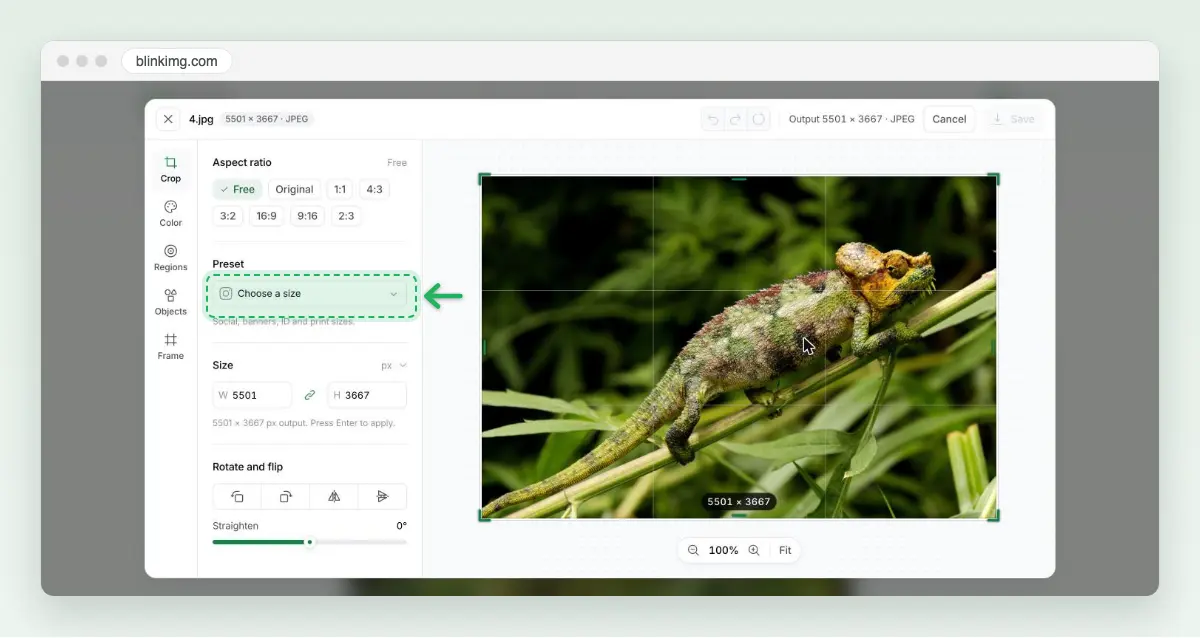
Screenshot: the editor opens on the full photo. Preset holds the YouTube size. Drag the 16:9 frame to the subject
A 16:9 frame at 1280 × 720 sits over the photo. Drag it until the subject fills it.
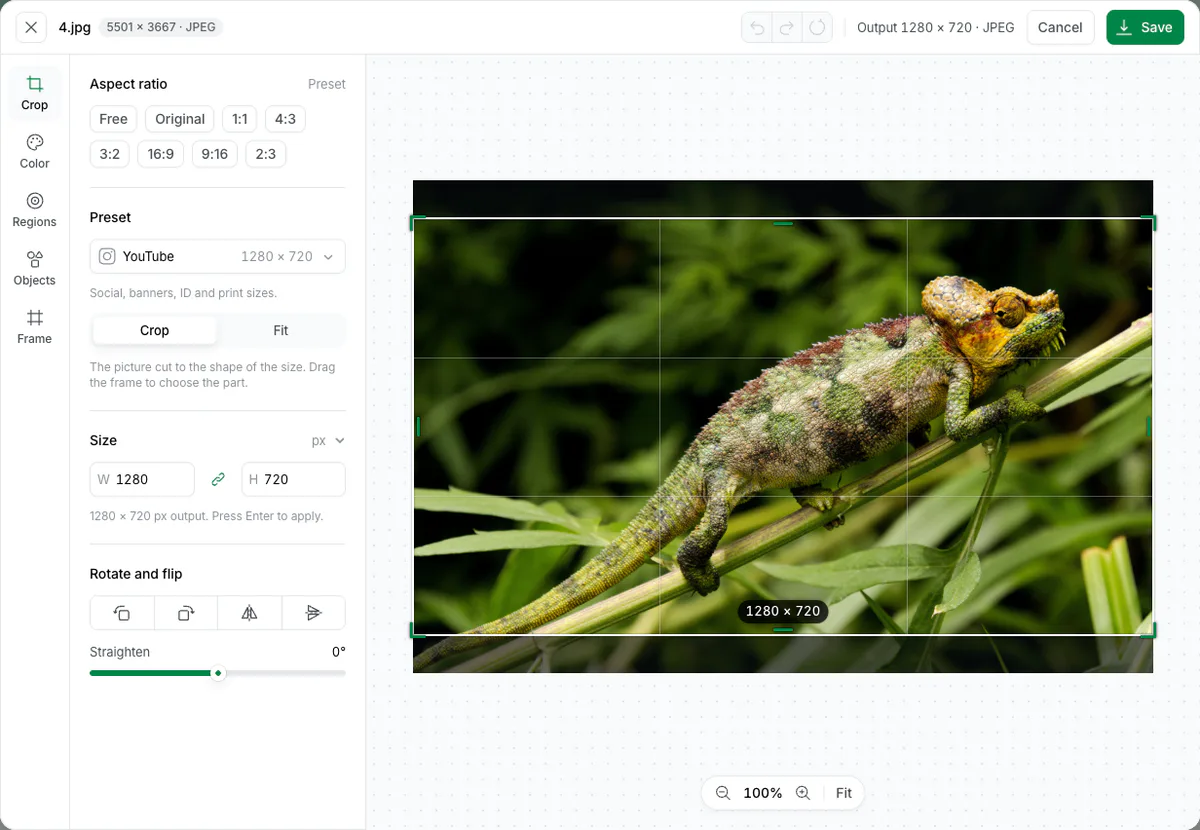
Screenshot: the YouTube preset draws a 1280 × 720 frame. Drag it to choose the part you keep. Add two or three big words
Open Objects, choose Text and the large size, click the picture and type. Keep it short: a word you cannot read at phone size is a word wasted.
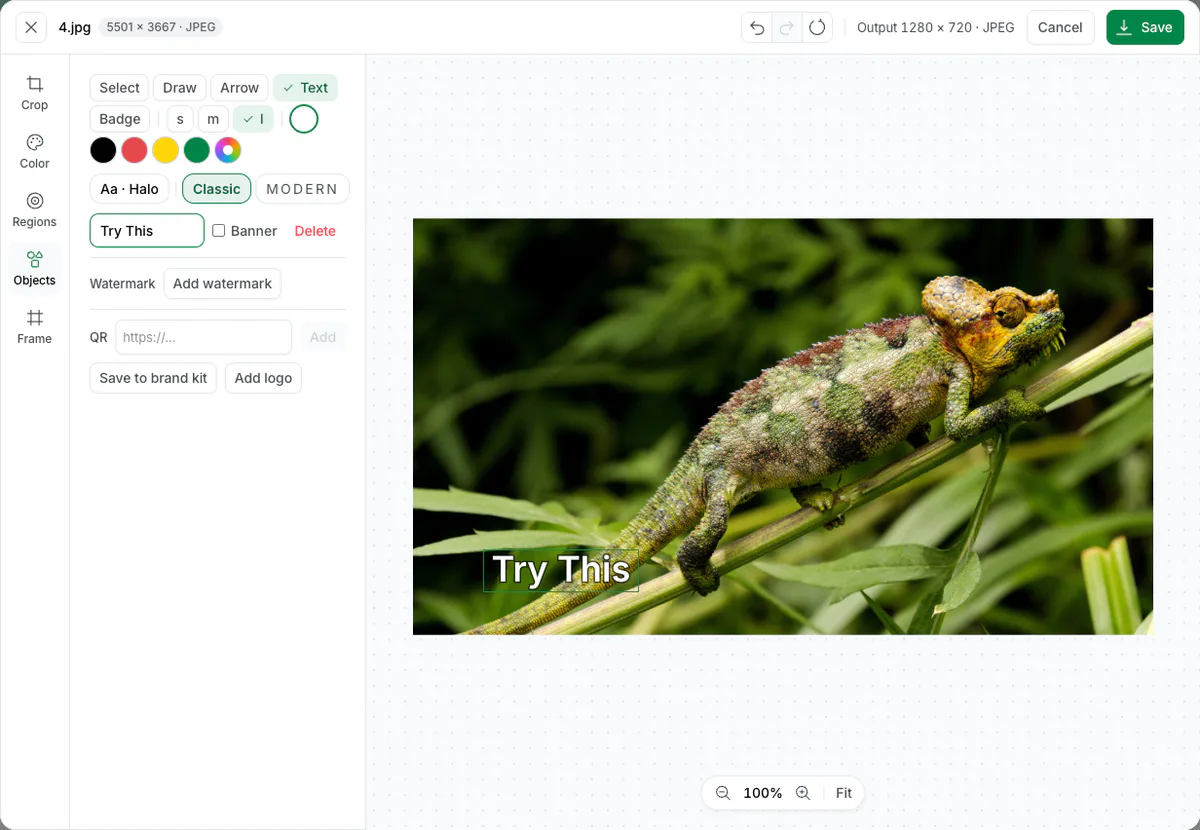
Screenshot: Objects, Text, size l, and the words typed in the Object text field. Check it at the small size
Shrink a copy to 320 × 180, one of the sizes YouTube serves, and look. Our 120-pixel headline still had capitals 21.8 pixels tall at that size.

Our headline at 72, 120, 168 pixels, each saved by the engine at 320 × 180 and shown at twice that. Click Save
Save sits at the top right of the editor, beside Output 1280 × 720 · JPEG. The JPG downloads, ready for YouTube Studio.
Screenshot: Save, top right, downloads the 1280 × 720 JPG.
What YouTube asks of a custom thumbnail
YouTube lets you upload your own thumbnail only when your account is verified, says Google’s help page on custom thumbnails, read 17 October 2026. Verifying takes a phone number and a code by text or call, and the verification page lists custom thumbnails among what it unlocks. Without it, you choose from the frames YouTube suggests.
| Rule | Videos | Shorts |
|---|---|---|
| Account | Verified | Verified |
| Shape | 16:9 | 9:16 |
| Recommended size | 3,840 × 2,160 | 2,160 × 3,840 |
| Minimum | 640 pixels wide | 640 pixels tall |
| File types named | JPG or PNG | JPG or PNG |
| File size from a phone | 2 MB | Not offered on a phone |
| File size from a computer | 50 MB | 50 MB |
Most guides, including Canva’s and Adobe Express’s thumbnail pages, still give 1280 × 720 and 2 MB. 1280 × 720 is still above YouTube’s minimum and works fine. The full story of each size is in our guide to what size a YouTube thumbnail is.
How big should the text on a YouTube thumbnail be?
Bigger than it looks right on your screen. The smallest picture the YouTube Data API lists for a video is 120 × 90, and the next is 320 × 180. We set our headline in Inter at 3 sizes on a 1,280 × 720 canvas and let the engine shrink each one.
| Font size at 1280 × 720 | Capitals at 1280 × 720 | At 320 × 180 | At 120 × 90 |
|---|---|---|---|
| 72 px | 52.4 px | 13.1 px | 4.9 px |
| 120 px | 87.3 px | 21.8 px | 8.2 px |
| 168 px | 122.2 px | 30.6 px | 11.5 px |
At 120 × 90, even our largest 168-pixel headline had capitals only 11.5 pixels tall. The 72-pixel one fell to 4.9 pixels, a smudge. So the picture has to carry the thumbnail at the smallest size, and the words help from 320 × 180 up. The API’s thumbnail sizes say which files exist, not where each one shows.
JPG, PNG or WebP: what our 18 thumbnails weighed
None of our 18 thumbnails came near the limit at 1,280 × 720. Even a PNG straight from the browser, with no compression at all, peaked at 1.66 MB. The format still changes the file a lot.
Median file size, 18 thumbnails at 1280 × 720
- PNG, straight from the browser1.03 MB
- PNG, Blinkimg engine347.2 KB
- JPG at quality 92211.5 KB
- JPG, Blinkimg engine91.9 KB
- WebP, Blinkimg engine60.6 KB
| Format | Smallest | Median | Largest | Under 2 MB |
|---|---|---|---|---|
| PNG, straight from the browser | 289.0 KB | 1.03 MB | 1.66 MB | 18 of 18 |
| PNG, Blinkimg engine | 53.2 KB | 347.2 KB | 675.6 KB | 18 of 18 |
| JPG at quality 92 | 83.4 KB | 211.5 KB | 391.9 KB | 18 of 18 |
| JPG, Blinkimg engine | 52.3 KB | 91.9 KB | 176.8 KB | 18 of 18 |
| WebP, Blinkimg engine | 33.0 KB | 60.6 KB | 160.9 KB | 18 of 18 |
The size YouTube now recommends is where the limit starts to bite. At 3,840 × 2,160, 12 of our 18 PNGs went over the 2 MB phone limit, the largest at 5.80 MB. Every JPG from the engine stayed under it, with a median of 531.0 KB and a top of 1.29 MB. From a computer, all of them fit the 50 MB limit.
How to add a thumbnail to a YouTube video on a computer
These steps follow Google’s help page. The screenshots are YouTube Studio on our founder’s own channel, taken on 17 October 2026; nothing was changed or saved.
Open Content in YouTube Studio
Sign in to YouTube Studio and choose Content in the left menu. Point at your video and click the pencil, Details, that appears under its title.
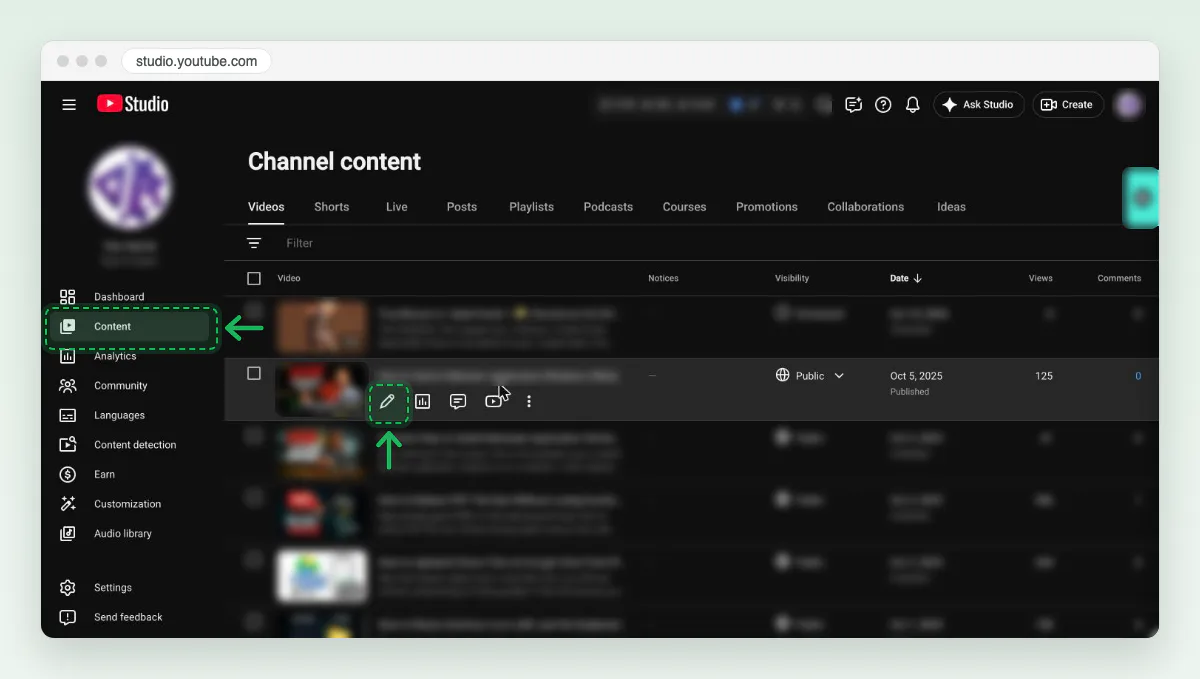
Screenshot: point at a video in Content and the pencil appears under its title. Scroll to Thumbnail
On Video details, scroll to Thumbnail. A video with no custom thumbnail shows Upload file there. Get suggestions asks YouTube to make one for you instead.
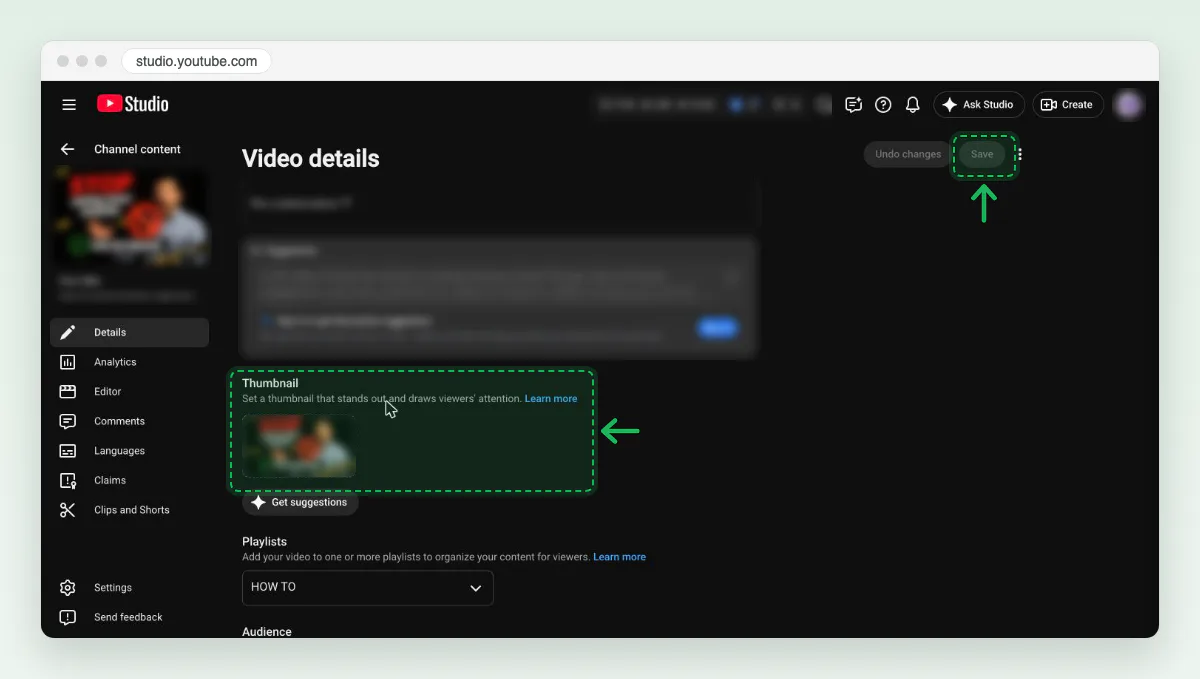
Screenshot: the Thumbnail section on Video details, with Save at the top right. Click Upload file or Change, then Save
Click Upload file and choose your JPG. If the video already has a thumbnail, open the three-dot menu on it and click Change. Then click Save at the top right. Google says the change can take time to show on YouTube.
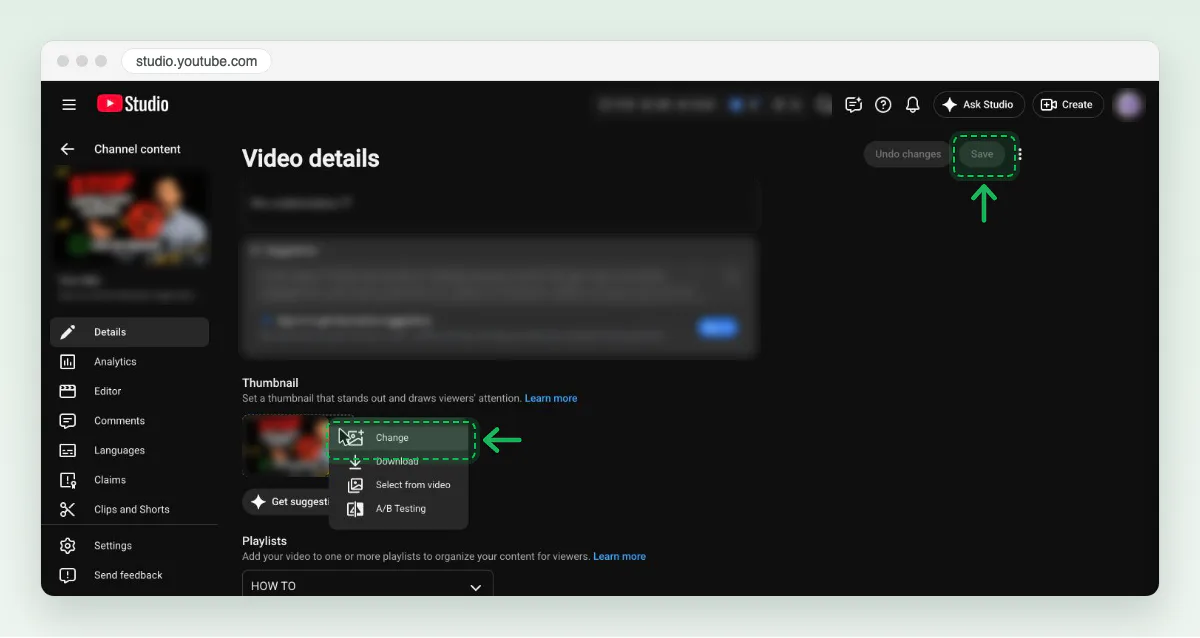
Screenshot: Change in the thumbnail’s menu replaces it. Save sits at the top right.
How to add a thumbnail in the YouTube Studio app
On a phone, the YouTube Studio app and the YouTube app both do it, on Android and iPhone. The file must be under 2 MB. In the YouTube app, the path starts at your profile picture, then Your videos.
Open Content and find the video
Open the YouTube Studio app and tap Content in the bottom menu. Tap View all beside Videos if the video is not in the first row.
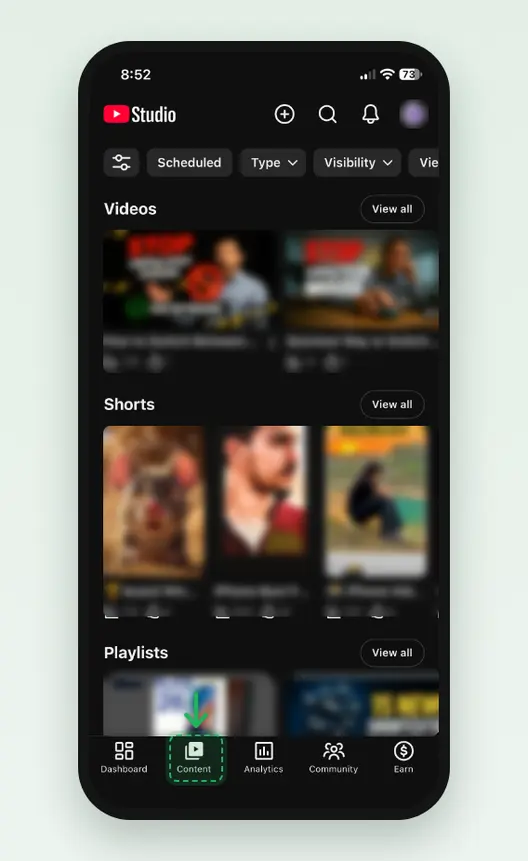
Screenshot: Content in the YouTube Studio app, our founder’s channel. Tap the three dots, then Edit
Tap the three dots beside the video. A menu opens with Play, Share, Edit, Save to device and Delete. Tap Edit.
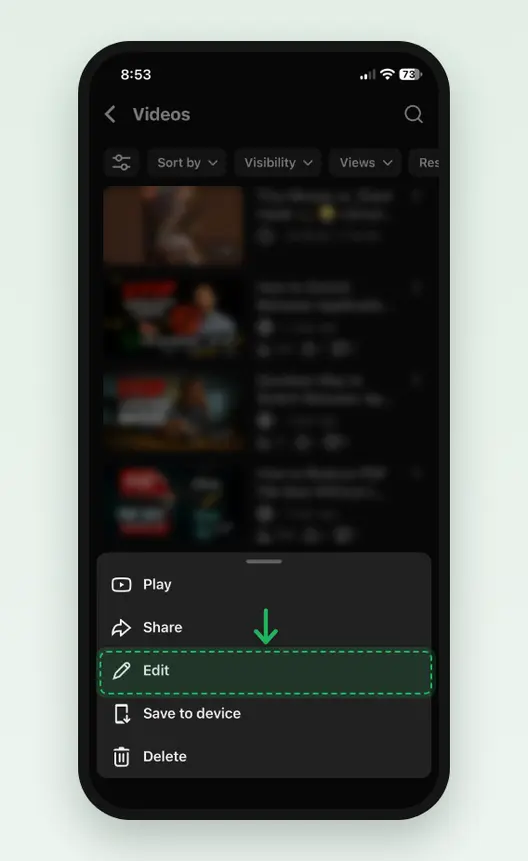
Screenshot: Edit sits in the video’s three-dot menu. Tap the thumbnail on Edit video
Edit video shows the current thumbnail at the top, with a picture icon on it. Tap the thumbnail to open Edit thumbnail.
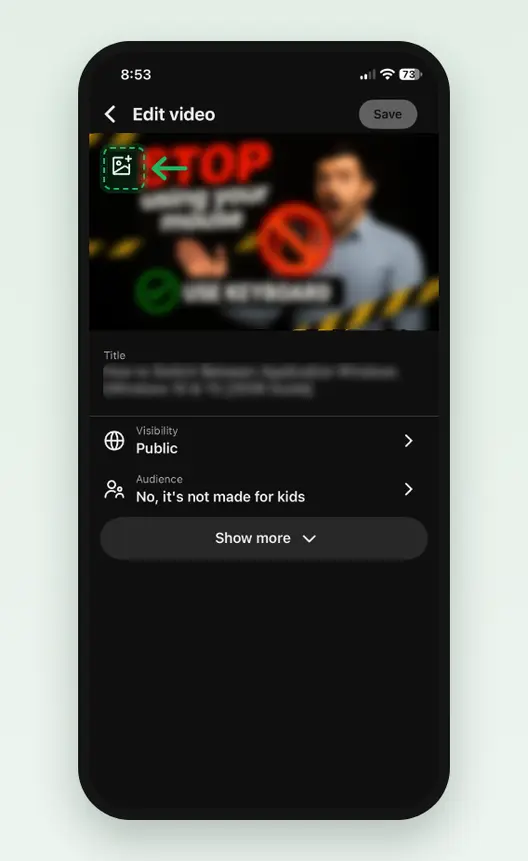
Screenshot: tap the thumbnail at the top of Edit video. Tap Change, pick your JPG, then Select and Save
On Edit thumbnail, tap Change and pick the JPG from your phone. Tap Select at the top right, then Save on Edit video.
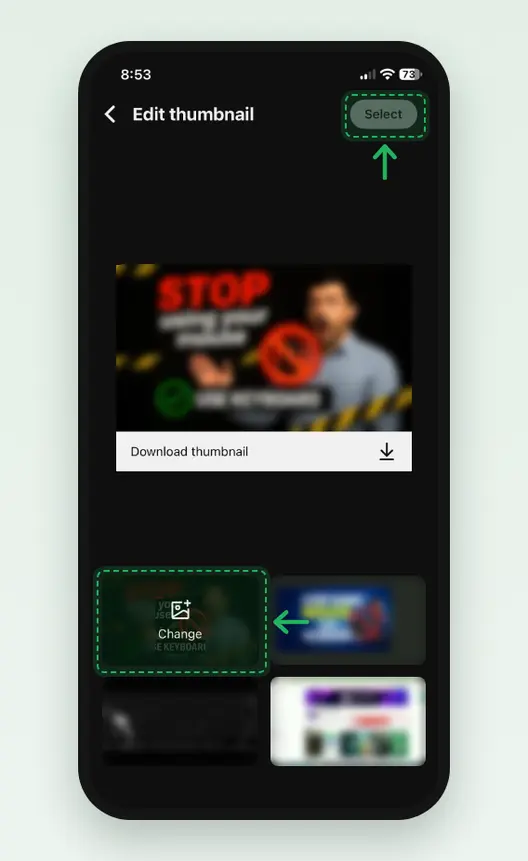
Screenshot: Change picks a picture from the phone; the other tiles are frames from the video.
How to change the thumbnail on YouTube Shorts
Only on a computer. Google’s help page says custom thumbnails for Shorts can be added only in YouTube Studio on a computer, and only from a verified account. The phone apps cannot do it. Make the picture 9:16, tall like the Short.
Open Content, then the Shorts tab
In YouTube Studio, choose Content, then Shorts at the top. Point at the Short and click the pencil under its title.
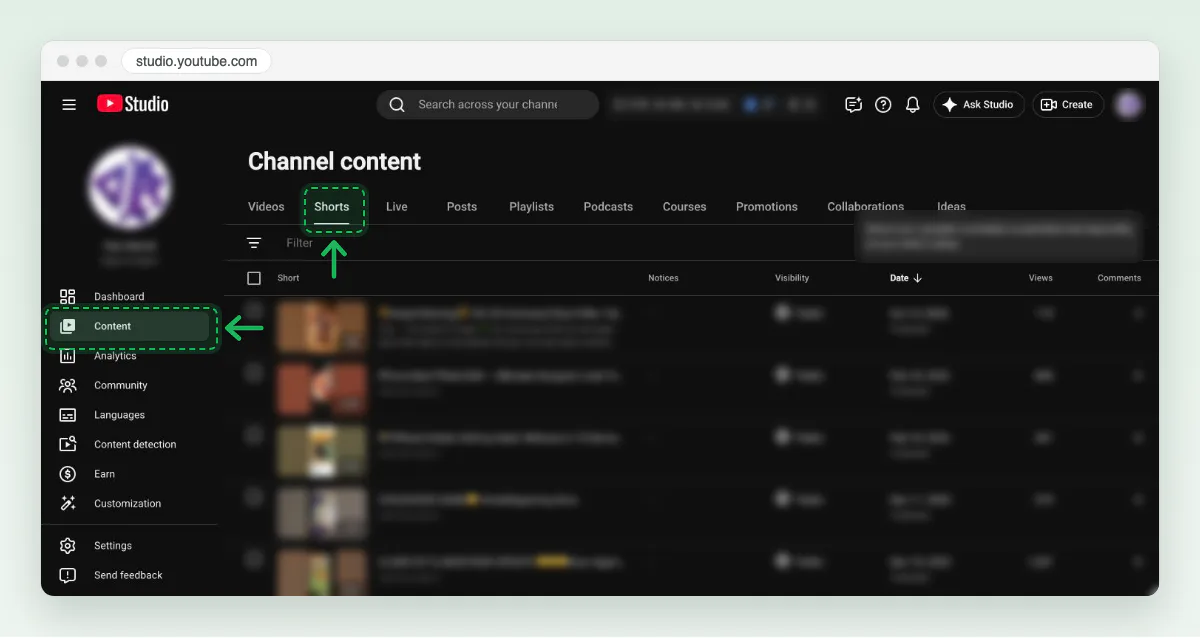
Screenshot: the Shorts tab sits at the top of Content, beside Videos. Upload a 9:16 file, then Save
Scroll to Thumbnail on the Short’s details. The box is tall. Upload a tall image, or use Change in its three-dot menu. YouTube recommends 2,160 × 3,840. Click Save.
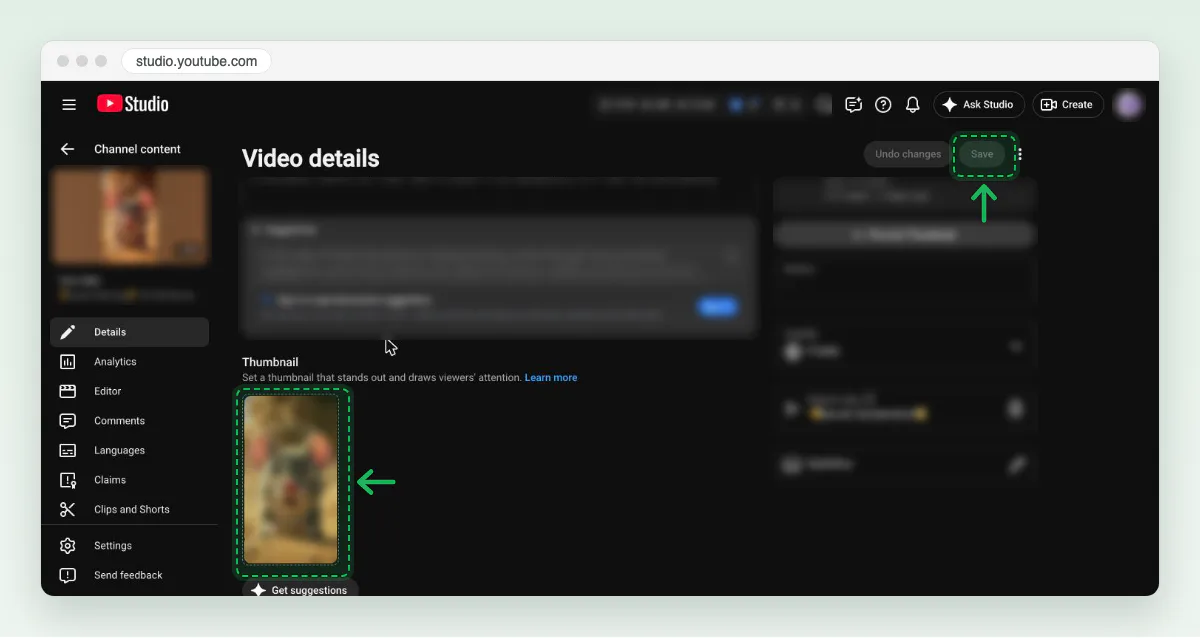
Screenshot: a Short’s thumbnail box is tall, 9:16 like the Short.
What do YouTubers use to make thumbnails?
Any app that crops to 16:9 and adds text will do. Each route gives something and costs something:
- A design app such as Canva or Adobe Express gives you templates, fonts and cut-outs. Both run in a browser and on a phone. We did not run either for this post.
- A phone video editor such as CapCut can grab a frame from the clip you are editing. We did not test it.
- YouTube’s own Ask Studio can suggest thumbnails from your video’s transcript, and you can ask it to make the text larger, says Google’s help page. The result is a starting point you cannot fully control.
- Blinkimg’s editor crops, adds text and arrows, and saves the file in one place, but it has no templates. For a full layout, design it elsewhere and bring it in to size it.
Already have a finished image in the wrong shape? The 1280 × 720 resizer crops it to exactly that size. For the wide picture at the top of your channel, use the YouTube banner resizer.
How we tested
- The images: the owner’s own 18 files, 13 camera photos from 2,250 × 4,000 to 6,720 × 4,480 and 5 PNG illustrations, each cut from the centre to 16:9.
- The headline: “Try This” in Inter at weight 800, white with a dark outline, laid on each image in HTML and rendered by Chromium 149.0.7827.55 at 1,280 × 720 and 3,840 × 2,160; measured 2026-10-17.
- The files: Blinkimg’s engine, version 9, at Auto, as JPG, PNG and WebP; the plain JPG from sharp 0.35.4 at quality 92. The legibility copies were shrunk by the engine to 320 × 180 and to 120 × 90, the 16:9 picture between black bands.
- The steps: the home page, the result row and the opened editor are a live run on blinkimg.com on 17 October 2026 with the chameleon photo. The other editor screenshots were taken on our own site with the chameleon photo. The YouTube Studio computer steps are screenshots of our founder’s own channel on 17 October 2026, with the channel stats, other videos and browser extensions blurred, and nothing saved. The phone steps are screenshots of the YouTube Studio app on his iPhone, the same day. How we measure covers the rest.
Where this test stops
Read the full guide: Social media image sizes cheat sheet: ratios, safe zones and limits.
Questions
- How do you make thumbnails on YouTube?
- YouTube Studio does not design a custom thumbnail for you; it suggests frames from the video. Make the picture in an editor at 16:9, for example on Blinkimg’s YouTube thumbnail page, save it as a JPG, then upload it under Thumbnail on the video’s Details page in YouTube Studio and click Save.
- How do I create thumbnails for YouTube for free?
- Use a free editor that crops to 16:9 and adds text. Blinkimg’s thumbnail page opens at 1280 × 720 with no signup, and Canva and Adobe Express have free plans. Save it as a JPG: our 18 thumbnails had a median of 91.9 KB as JPGs from the engine, far under the 2 MB phone limit.
- How do you make a thumbnail for YouTube?
- Choose an image with one clear subject, crop it to 16:9, and add two or three large words. Save it as a JPG. Then open YouTube Studio, choose Content, edit the video, and click Upload file under Thumbnail. Custom thumbnails need a verified account, which takes a phone number.
- How can I create a free YouTube thumbnail?
- Use any free editor that crops to 16:9 and adds text, in a browser or on a phone. Blinkimg’s YouTube thumbnail resizer opens on a 1280 × 720 frame, adds text and saves a JPG with no signup. Our 18 test thumbnails came to a median of 91.9 KB each.
- What do YouTubers use to make thumbnails?
- Most use a design app with templates, such as Canva or Adobe Express, or a full photo editor. Some grab a frame in a video editor like CapCut. YouTube Studio also has Ask Studio, which suggests thumbnails from the video’s transcript. Any tool that exports a 16:9 JPG or PNG works.
- How do I convert an image to a YouTube thumbnail size?
- Crop the image to a 16:9 shape and scale it to at least 640 pixels wide. 1280 × 720 is the common choice, and YouTube now recommends 3840 × 2160. A thumbnail resizer does both in one step: drop the image, move the 16:9 frame to the subject, and save.
- How do I change the thumbnail on YouTube Shorts?
- Use YouTube Studio on a computer, because the phone apps cannot do it. Choose Content, then the Shorts tab, and edit the Short. Below Thumbnail, click Upload file and pick a 9:16 image, then click SAVE. Your account must be verified to add a custom thumbnail to a Short.
- Why can’t I upload a custom thumbnail on YouTube?
- Usually because the account is not verified. YouTube asks for a phone number and sends a code by text or call, and custom thumbnails unlock after that. A daily upload limit, a Community Guidelines strike, or a file over 2 MB from a phone can also block it.
- Can I add a YouTube thumbnail from my phone?
- Yes, for a regular video. In the YouTube Studio app, tap Content, the video, Edit, then Edit thumbnail and Custom thumbnail, and choose the image. The file must be under 2 MB from a phone. Shorts thumbnails are the exception and need YouTube Studio on a computer.
- How big should the text be on a YouTube thumbnail?
- Large. We set a headline at 120 pixels on a 1280 × 720 thumbnail, and its capitals were 21.8 pixels tall at 320 × 180 and 8.2 pixels at 120 × 90. Use two or three words so each letter can stay big.
- Should a YouTube thumbnail be JPG or PNG?
- JPG for a photo. Our 18 thumbnails at 1280 × 720 had a median of 91.9 KB as JPGs and 347.2 KB as PNGs. At 3840 × 2160, 12 of the PNGs went over the 2 MB phone limit, while every JPG stayed under it.