What is EXIF data? What your photo reveals, and how to remove it
Every phone photo carries a hidden record of the camera, the time and often the place. Here is what ours held, and how to see and remove it. Part of the remove EXIF data.
By Sahadat Husain15 min readGuides

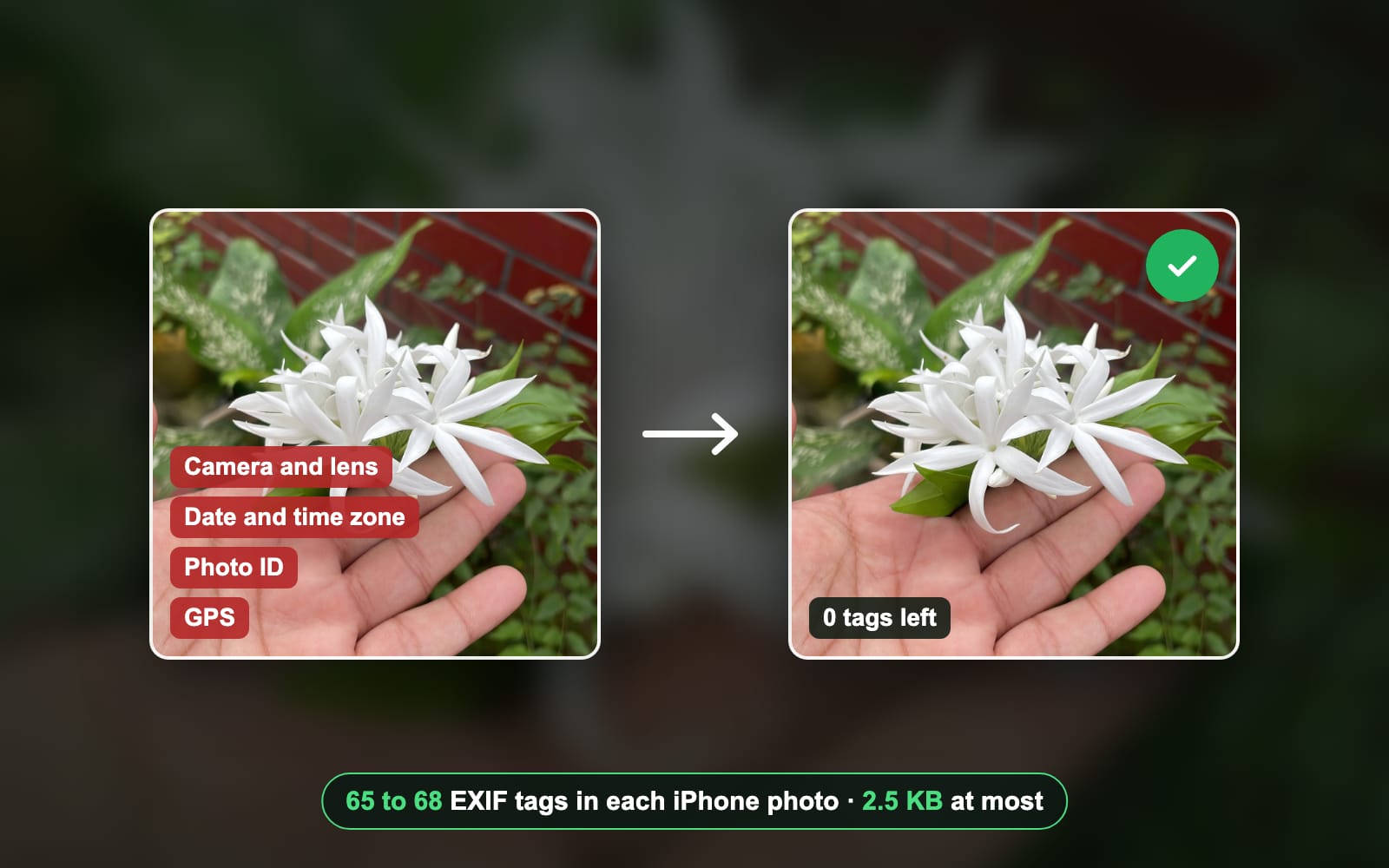
EXIF data is information a camera or phone writes inside a photo file. It names the camera, the lens, the settings and the date. If location is on, it records where you stood. You do not see it in the picture. Anyone who has the file can read it. We read 10 of our own iPhone photos. Each carried 65 to 68 EXIF tags, including a per-photo ID.
EXIF stands for Exchangeable image file format. The camera makers’ body CIPA publishes it with JEITA as standard DC-008. Its version 1.0 dates from October 1995, and CIPA’s Exif 3.0 overview dates that revision to 2023. The current edition is version 3.1.
What does EXIF metadata hold?
EXIF metadata holds the facts of the moment the photo was taken. Here is what ExifTool found in our iPhone photos, field by field. We print which fields are there, never their values.
| Field | Example of what it says | In our photos |
|---|---|---|
| Make and model | Apple, iPhone 12 Pro | 10 of 10 |
| Lens | Which of the 3 cameras, focal length, aperture | 10 of 10 |
| Exposure | Shutter speed, aperture, ISO | 10 of 10 |
| Date and time taken | To the hundredth of a second | 10 of 10 |
| Time zone offset | Where in the world, roughly | 10 of 10 |
| Software | The iOS version | 10 of 10 |
| Photo ID | A unique ID in Apple’s maker notes | 10 of 10 |
| Orientation | Which way is up | 10 of 10 |
| GPS location | Latitude, longitude, altitude | 0 of 10 |
| Thumbnail | A small copy of the picture | 0 of 10 |
Why no GPS? Location access for the Camera app was off on this phone. With it on, the iPhone writes latitude, longitude and altitude into every photo. To show that case, we wrote a public test location into a copy of one photo. ExifTool then read 7 GPS tags in it.
What is hidden EXIF data?
Hidden EXIF data is the part no photo app shows you. Most of it sits in the maker notes, a block each brand fills in its own way. In our HEIC files, ExifTool read 147 to 150 tags in total, most of which no photo app displays.
- Apple’s maker notes: focus distance, colour temperature and the phone’s tilt. They even hold the time since the phone last restarted.
- A per-photo ID: a long unique string in Apple’s maker notes. Every copy of the file you send carries the same one.
- Other blocks: XMP and IPTC hold captions, ratings and editing history. They are not EXIF, but they travel in the same file. AI tools write their own tags there, which is the subject of how to remove AI metadata.
Inside one HEIC from our iPhone
- Whole file1.2 MB
- EXIF block2.5 KB
So EXIF is tiny: 0.21% of that file. Removing it does not make a photo meaningfully smaller. It makes the photo say less about you.
Does every photo have EXIF data?
No. A photo straight from a phone or camera does. A photo saved from the web often does not. We read 15 photos downloaded from websites, and not one carried a single EXIF tag. The sites most likely stripped it on upload.
Screenshots carry none of the original photo’s EXIF, because they are new pictures of your screen. Files sent through some chat apps lose it too. A file sent as a document or by email usually keeps every tag, so check before you send.
Which file formats carry EXIF data?
JPEG, HEIC, TIFF, PNG, WebP and AVIF can all carry EXIF. GIF cannot. We copied the EXIF of our GPS test JPG into each format we could make. Then ExifTool read it back.
| Format | Carries EXIF? | Where the answer comes from |
|---|---|---|
| JPEG | Yes: 74 of 74 tags read back, GPS included | Our test |
| PNG | Yes: 74 of 74 tags read back, GPS included | Our test |
| WebP | Yes: 74 of 74 tags read back, GPS included | Our test |
| AVIF | Yes: 74 of 74 tags read back, GPS included | Our test |
| HEIC | Yes: 65 to 68 EXIF tags in each of our 9 iPhone photos | Our photos |
| GIF | No: ExifTool wrote 0 EXIF tags into it | Our test |
| TIFF | Yes: EXIF reuses the TIFF tag layout | The CIPA DC-008 standard |
| RAW and DNG | Not tested by us | We had no raw file to read |
Carrying EXIF is not the same as keeping it. Lightroom, for one, drops it under some export settings. So check the file you send, not the format it is in.
How to view EXIF data
Every system shows part of it. ExifTool shows all of it. Here is each route, with the menu names the makers’ own help pages use.
On iPhone: open the photo and tap Info
Open the photo in Photos, then swipe up or tap the Info button. Apple’s personal safety guide says the panel shows the location, and the Map collection groups photos by place.

Illustration: the Info panel, labelled as Apple’s guide names it. On Android: open the photo in Google Photos and tap Info
Open the photo and tap Info. Google’s location help shows the location there. Google says a location your camera saved cannot be edited or removed in Google Photos.

Illustration: Info in Google Photos, labelled as Google’s help names it. On Windows: Properties, then Details
Right-click the file in File Explorer, click Properties and open the Details tab. The tab lists the properties Windows reads, and Microsoft’s tip puts Remove Properties and Personal Information at its foot.
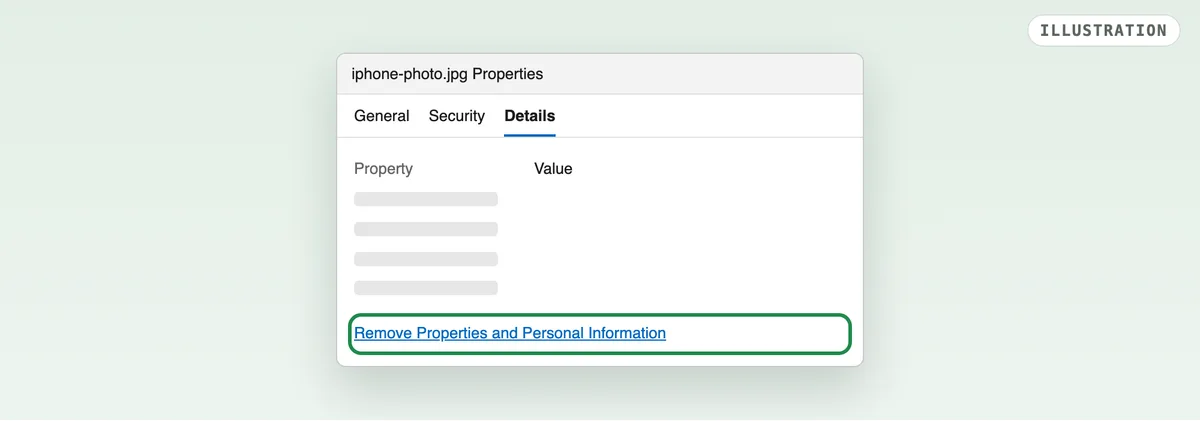
Illustration: the Details tab, labelled as Microsoft’s tip names it. Everywhere: ExifTool
For every tag, run
exiftool -a -G1 photo.jpg. ExifTool is free and runs on Windows, Mac and Linux; its documentation lists every option. Our output below hides the values that would identify the phone.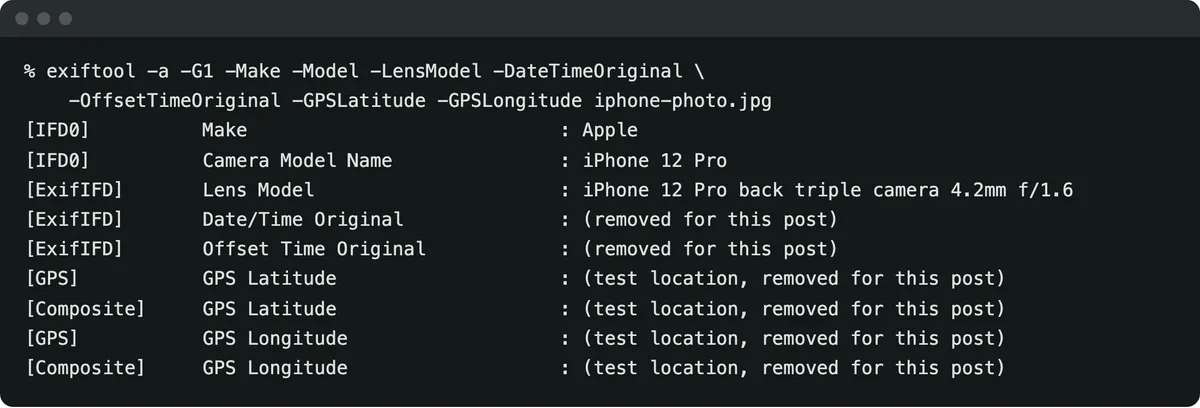
Our real ExifTool run, with the date and the test coordinates replaced before publishing.
% exiftool -a -G1 -Make -Model -LensModel -DateTimeOriginal -OffsetTimeOriginal -GPS:all iphone-photo.jpg
[IFD0]      Make                    : Apple
[IFD0]      Camera Model Name       : iPhone 12 Pro
[ExifIFD]   Lens Model              : iPhone 12 Pro back triple camera 4.2mm f/1.6
[ExifIFD]   Date/Time Original      : (removed for this post)
[ExifIFD]   Offset Time Original    : (removed for this post)
[GPS]       GPS Latitude            : (test location, removed for this post)
[GPS] GPS Longitude : (test location, removed for this post)How to view and remove EXIF data on a Mac
A Mac shows EXIF in Preview and in Photos, with no extra app. Photos can also hide a photo’s location. These steps come from Apple’s own guides; we checked each menu name there.
In Preview: open the Inspector, then More Info
Open the photo in Preview and click the Inspector button in the toolbar. Apple’s Preview guide says More Info shows the image’s details and where the photo was taken.
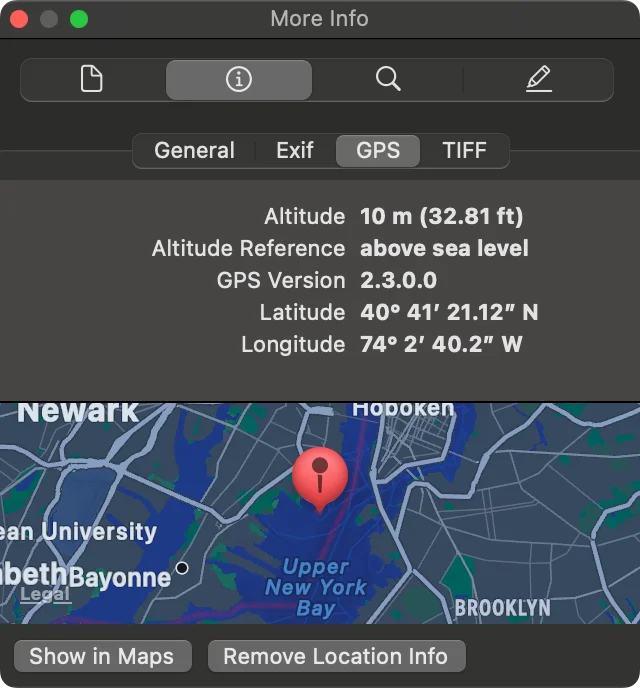
Illustration: macOS blocked the keystroke our capture needed, so we drew the tabs Apple’s guide names. In Photos: choose Image, Location, Hide Location
Select the photos, then choose Image, then Location, then Hide Location. Apple’s Photos guide also offers Revert to Original Location to undo it.
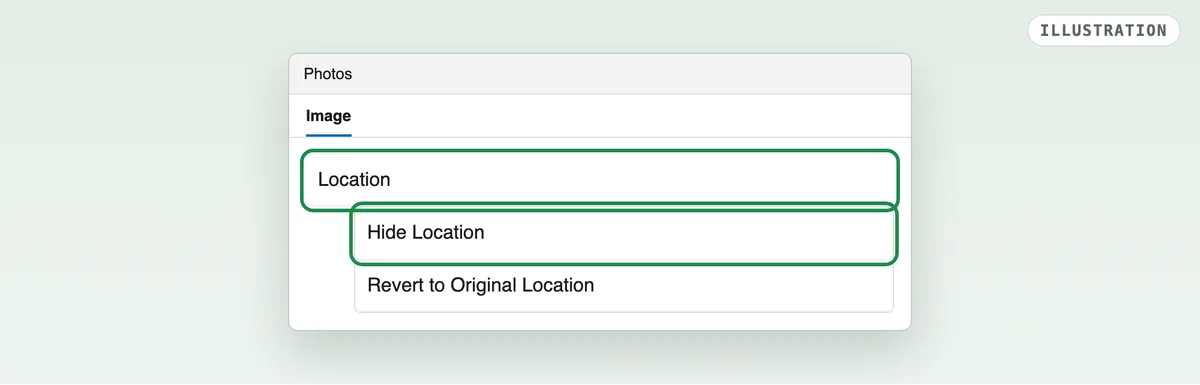
Illustration: the menu names from Apple’s Photos guide.
What each Mac app shows
In Photos, press Command-I for the Info window. Apple’s guide lists the device, the date, the lens, the shutter speed and the place. In Finder, choose File, then Get Info, as Apple’s Mac guide describes. Finder shows file details, not the full EXIF block.
Apple’s Preview guide names no button that removes EXIF, so we list none. Hide Location in Photos works on the location only; the camera and date stay. To strip the whole block on a Mac, use ExifTool or a remover.
How to remove EXIF data from a photo
Remove the whole block when you share a photo with strangers: a listing, a forum, a dating profile. Here is the run with our iPhone test JPG, which has GPS written in.
Open the remover and check the box
Open the tool to remove EXIF data. Remove EXIF metadata is ticked by default under Advanced settings.
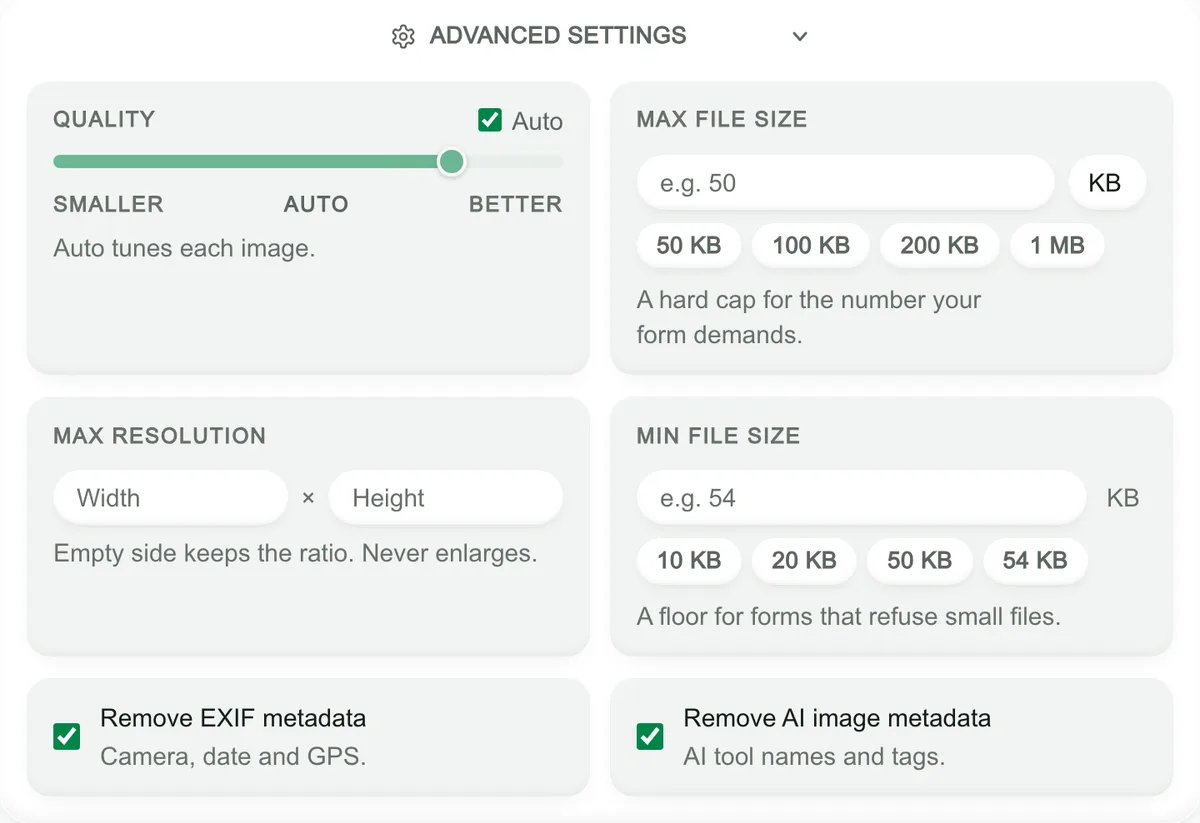
Both boxes are ticked by default. Drop your photo
Drop a JPG, PNG, WebP, AVIF or HEIC, or a batch of them. A HEIC comes back as a JPG.

The drop zone takes several photos at once. Download the clean file
Click Download image. Our test JPG went from 1.4 MB to 385.3 KB at Auto quality. ExifTool then read 0 tags: no camera, no date, no GPS.
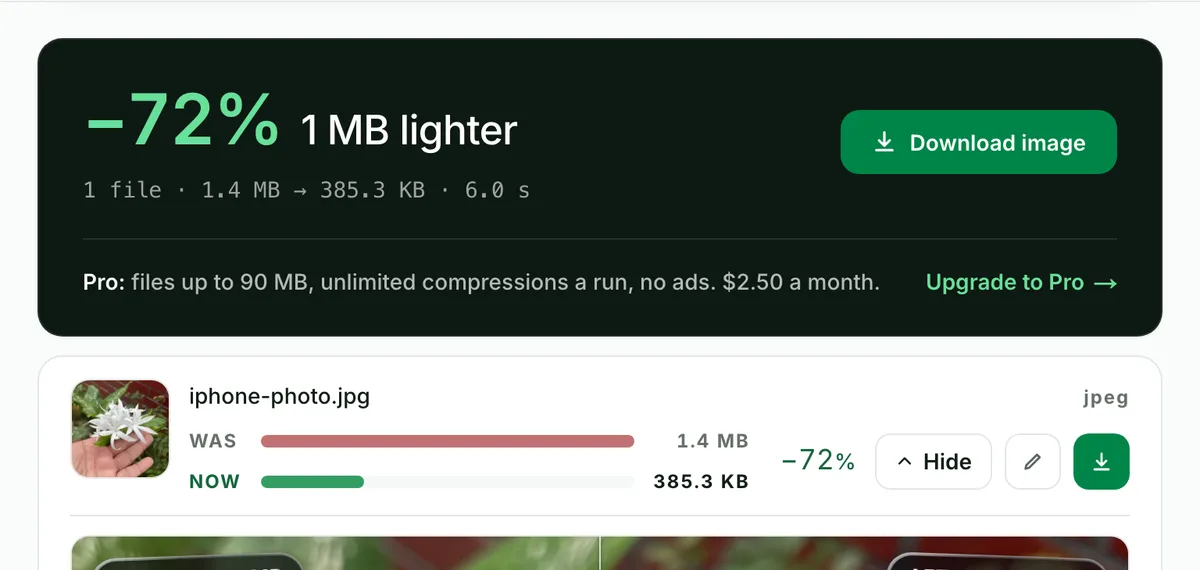
The file shrank because it was compressed, not because the EXIF went.
Want to keep the camera and date, for a photo contest or your own archive? Untick Remove EXIF metadata. Our test file then kept 73 EXIF tags, GPS included. So untick it only for files you trust to the people who get them.
How to remove the location from an iPhone photo
An iPhone can drop the location without any other tool. These steps come from Apple’s personal safety guide. They remove the location only; the camera, date and photo ID stay.
Remove the location from one photo
Open the photo in Photos, tap the More button, then tap Adjust Info, Adjust Location and No Location.
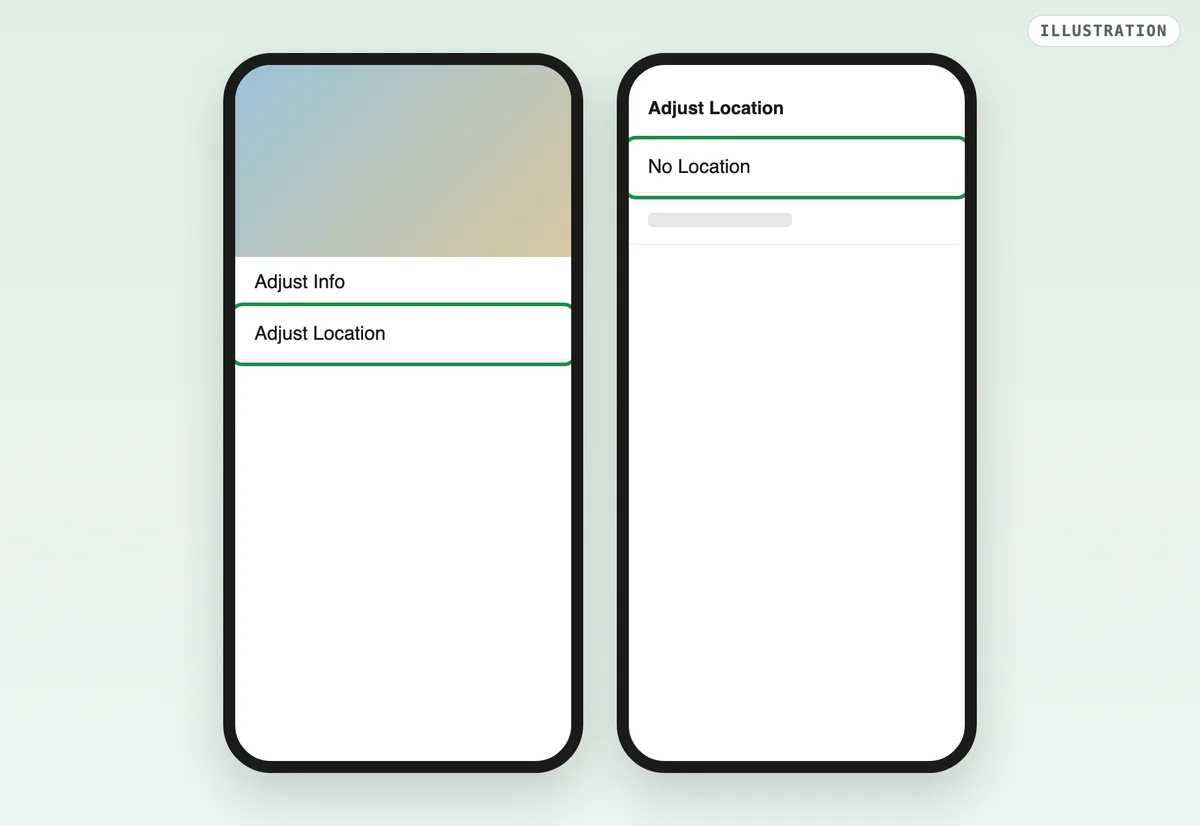
Illustration: the menu names from Apple’s guide. Or share without it
In the share sheet, tap Options and turn off Location. Apple’s guide says “Location Not Included” then shows above Options. Check that the switch is there on your iOS version before you rely on it.
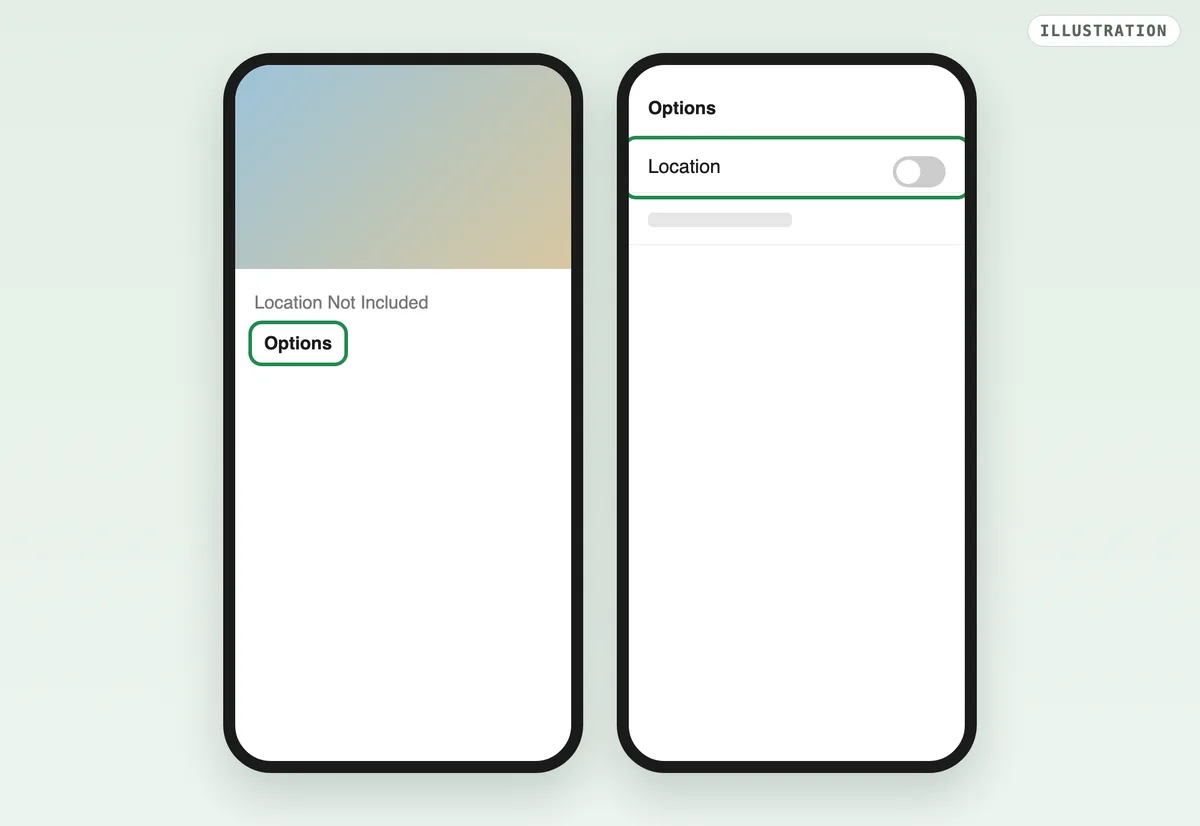
Illustration: Options and Location, as Apple’s guide names them.
To stop new photos recording the place, open Settings, Privacy & Security, Location Services, Camera. Tap Never. Photos you already took keep their location.
How to remove EXIF data with ExifTool
exiftool -all= photo.jpg deletes every tag ExifTool can write. exiftool -gps:all= photo.jpg deletes the location alone. We ran both on copies of our GPS test JPG, which held 76 tags.
% exiftool -all= photo.jpg
    1 image files updated
% exiftool -gps:all= photo-copy.jpg
1 image files updatedWhat each command left
-all=: 76 tags before, 0 after. No camera, no date, no GPS.-gps:all=: 76 tags before, 69 after. GPS gone; the camera and date stayed.
To check the result, run exiftool -a -G1 photo.jpg again. Every option is in ExifTool’s documentation.
Does Lightroom or Photoshop strip EXIF on export?
It depends on one Metadata setting in the export dialog. We did not run Lightroom or Photoshop; this comes from Adobe’s own help pages.
| App and setting | Camera EXIF | GPS |
|---|---|---|
| Lightroom Classic: Copyright Only | Dropped | Dropped |
| Lightroom Classic: Copyright & Contact Info Only | Dropped | Dropped |
| Lightroom Classic: All Except Camera Raw & Camera Info | Dropped | Kept, unless Remove Location Info is ticked |
| Lightroom Classic: All | Kept | Kept, unless Remove Location Info is ticked |
| Photoshop: Export As, Metadata | Dropped | Dropped |
Adobe’s Lightroom Classic page says the first 2 options keep only IPTC copyright and contact fields. It says these options do not apply to DNG files. Adobe’s Photoshop page says Export As keeps only copyright and contact information, plus the DPI.
Should you keep EXIF data or remove it?
Keep it on your own copies. EXIF sorts your library by date, puts photos on a map and tells a photographer which settings worked. It also keeps a photo upright, through the orientation tag.
Remove it from copies you share with people you do not know. The cost is small: you lose the date and camera on that copy, and nothing in the picture changes. A good remover turns the pixels upright before it drops the orientation tag. Then the photo never lands on its side.
How we tested
The photos
- Phone photos: 10 photos the owner took on an iPhone 12 Pro: 9 HEIC and 1 JPG, unchanged.
- Web photos: 15 JPGs downloaded from websites to the owner’s Mac.
- The GPS copy: one phone JPG with a public test location (the Statue of Liberty) written in with ExifTool. No real location of the owner was used or printed.
The tools and the counts
- Reading: ExifTool 13.59 on 2026-10-26. A tag counts when ExifTool prints it from the file; ExifTool’s own file-system and computed tags are left out. The EXIF size is the block ExifTool extracts with
-b -EXIF. - Removing: Blinkimg’s engine (version 10, sharp 0.35.5) with the defaults, and again with Remove EXIF metadata unticked. The step pictures come from the live site with the same test JPG.
- ExifTool removal:
-all=and-gps:all=on 2 copies of the GPS test JPG, counted before and after the same way. - Formats: a plain JPEG, PNG, WebP, AVIF and GIF made with sharp from the test JPG. ExifTool copied its EXIF in, then read each file back.
- The device steps: iPhone, Android, Windows and Mac steps follow Apple’s, Google’s and Microsoft’s own pages. Their pictures are illustrations. macOS blocked the keystroke our Preview capture needed.
- Lightroom and Photoshop: from Adobe’s help pages only.
Next step
Check one of your own photos with the steps above. Then, before you post it publicly, drop it on the tool to remove EXIF data.
Read the full guide: How to reduce image file size on any device.
Questions
- What is EXIF data in simple terms?
- EXIF data is a hidden record a camera or phone writes inside each photo file. It names the camera and lens, the settings, the date and time and, when location is on, the place. You do not see it in the picture, but any app or person with the file can read it.
- What does EXIF stand for?
- EXIF stands for Exchangeable image file format. It is a standard published by CIPA, the camera makers’ association in Japan, together with JEITA, as document DC-008. It sets where a JPEG, HEIC or TIFF file stores the camera’s details. So every app reads them the same way.
- Does EXIF data show my location?
- Yes, when location access for the camera is on. The phone then writes latitude, longitude and altitude into every photo. Our iPhone photos had none, because Camera location was off. Each still carried its time zone and the exact second taken.
- What is hidden EXIF data?
- Hidden EXIF data is the part photo apps do not show. Most of it sits in the maker notes, a block each brand fills its own way. Our iPhone HEIC files held about 150 tags in total. They include focus distance, the phone’s tilt and a unique photo ID.
- How do I view EXIF data on iPhone?
- Open the photo in Photos, then swipe up or tap the Info button. Apple’s guide says the panel shows where the photo was taken. The Map collection groups photos by place. For every tag, including the maker notes, read the file with ExifTool on a computer.
- How do I view EXIF data on Windows?
- Right-click the photo in File Explorer, click Properties and open the Details tab. The tab lists the properties Windows reads from the file. The same tab holds Remove Properties and Personal Information. Microsoft says it makes a copy without the properties Windows can change.
- How do I view EXIF data on Android?
- Open the photo in Google Photos and tap Info. The panel shows where the photo was taken. Google says a location your camera saved cannot be removed inside Google Photos. So the original file keeps it. A full list of tags needs a dedicated EXIF viewer or ExifTool.
- Does removing EXIF data reduce file size?
- Barely. In our iPhone photos the EXIF block weighed about 2.5 KB. That is about 0.2% of the file. A remover that also compresses the photo makes it much smaller, but that saving comes from compression. Removing EXIF protects your privacy, not your storage space.
- Do photos downloaded from websites have EXIF data?
- Usually not. We read 15 photos downloaded from websites, and none carried a single EXIF tag. The sites most likely stripped it on upload. Do not count on that for your own uploads, though. A file sent by email or as a document usually keeps every tag it had.
- Does a screenshot have EXIF data?
- A screenshot carries none of the original photo’s EXIF, because it is a new picture of your screen. The phone may write a little of its own, such as the date and the device. A screenshot also changes the size and catches whatever else was on screen. Removing EXIF from the photo itself is cleaner.
- Why does my photo show the wrong date?
- A photo shows the wrong date when the date in its EXIF is wrong or missing. The camera clock may have been off, or set to another time zone. A photo saved from the web often has none: our 15 web photos had no EXIF date at all. Photos on Mac can fix it with Image, Adjust Date and Time.
- What is the difference between EXIF, IPTC and XMP?
- EXIF is what the camera writes: the settings, the date and the place. IPTC is a set of fields people fill in, such as caption, credit and copyright. XMP is a text-based container that can hold both, and more. Lightroom’s Copyright Only export keeps the IPTC copyright and drops the camera EXIF.
- Can EXIF data be faked or edited?
- Yes. Any tag can be rewritten with a tool such as ExifTool. That is how we wrote a test location into one photo. So EXIF tells you what a file claims about itself, not proof of where or when it was taken. Treat it as a clue, not as evidence.
- Should I remove EXIF data before posting photos online?
- Yes, for anything posted where strangers can download the file: a listing, a forum, a dating profile. Many big platforms strip EXIF on upload, but email, cloud links and file attachments keep it. Leave it on your own copies, where the date and camera help you sort them.