WordPress images not showing? 7 causes, tested
Find the cause from what you see, fix it, and check every page for broken images at once. Part of the WordPress image compression plugin.
By Sahadat Husain18 min readGuides

WordPress images stop showing when a page asks for a file the browser cannot get: the file or one of its sizes is gone, the address names an old domain, or a script never fills the address in. We broke one test site 7 ways, one cause per post, and read each post on 4 screens. Each symptom points to its cause. Blinkimg’s free Broken images check then found 8 broken images on the site. Its Regenerate brought back the 2 missing sizes on every screen.
Why are my images not showing on WordPress?
Because the browser asked for an image and got nothing it could draw. What you see on the page tells you which cause it is, so start from the symptom:
| What you see | Likely cause | Fix | Tested |
|---|---|---|---|
| A broken icon or the alt text, on every screen | The file was deleted outside WordPress, or never copied after a move | Upload it again or restore it from a backup | Yes |
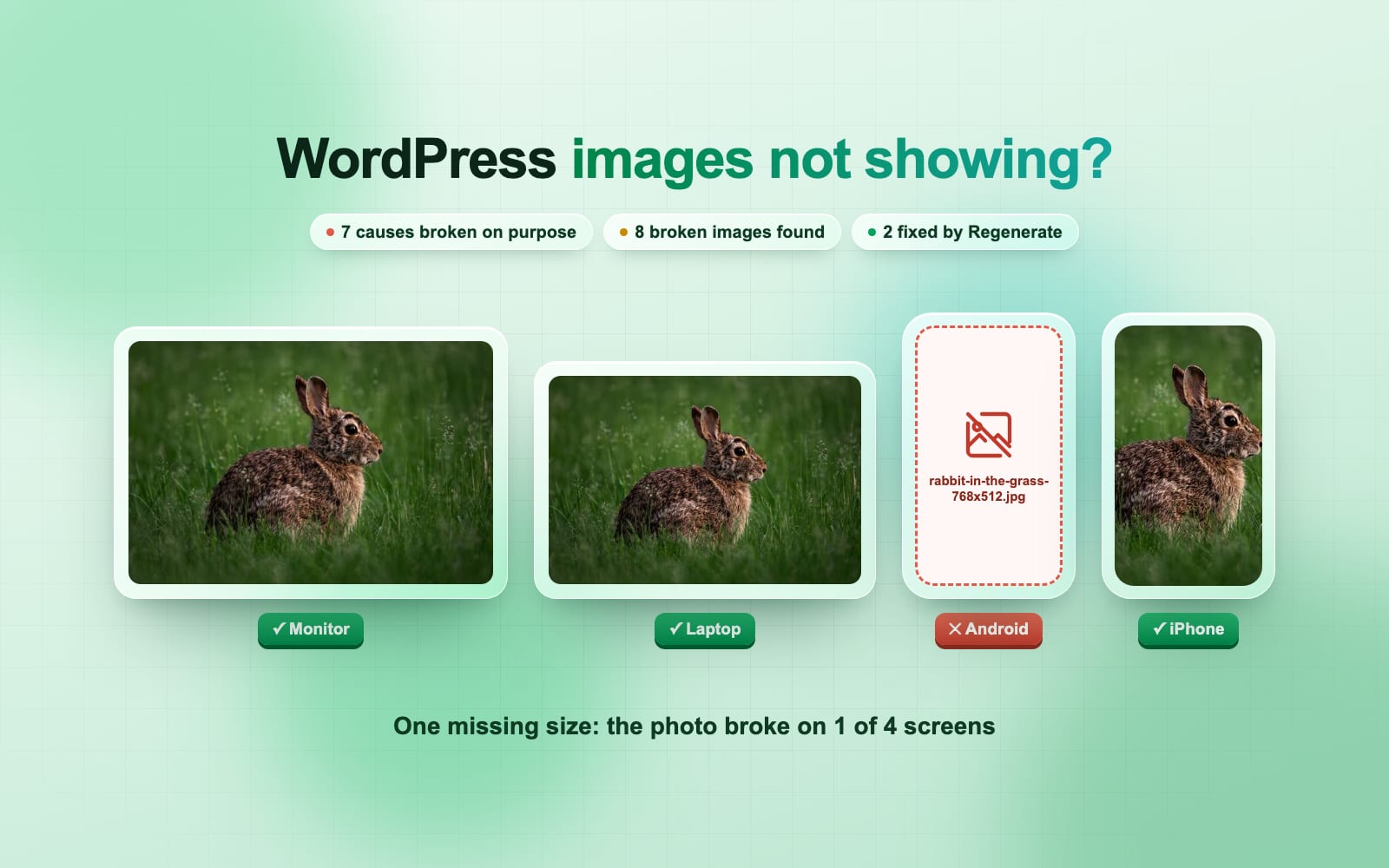
| Fine on a laptop, broken on a phone | One size of the image is missing | Regenerate the missing size | Yes |
| Broken after a theme change | The page asks for a size the old theme made | Regenerate that size, or choose the image again | Yes |
| Broken on the live site after a move or domain change | Addresses still name the old domain | Search and replace the old address | Yes |
| An empty space, no icon, no request | A script lazy loader whose script never runs | Turn off one of the two lazy loaders | Yes |
| A gap in an Elementor or other builder page | The image was deleted from the Media Library | Edit the page and choose an image again | Yes |
| No featured image at all | The featured image was deleted from the Media Library | Set a new featured image | Yes |
| Broken only after moving to HTTPS | Mixed content: addresses still start with http | Search and replace http with https | No |
| Broken everywhere, with a 403 error | File permissions, or hotlink protection | Set 644 for files and 755 for folders; allow your own domain | No |
| Fine for you, broken for visitors, or still broken after a fix | A page cache or CDN serves a stale copy | Purge the page and the image address | No |
| Broken, and the address names another site | That site removed the image or blocks hotlinks | Upload a copy to your own Media Library | No |
| An iPhone photo missing in most browsers | The upload stayed a .heic file | Turn the photo into a JPEG and upload it again | In our HEIC test |
How do you find out why an image is not loading?
Ask the browser. It shows what it got for each image, and the answer narrows the list to one or two causes:
- Right-click the broken image and open it in a new tab. A “page not found” or an error page means the file is not there, or the server refuses it.
- Open the developer tools (F12 on Windows, Option Command I on a Mac), go to Network, choose Img, and reload the page. Each image is one row with a status.
- Read the status. 404 means the file is missing, and 403 means the server blocks it. “Name not resolved” means the address names a domain that no longer answers. An image with no row at all was never asked for: a script is the cause. A row with 200 and still no picture means a style hides it, such as display: none or a width of 1%.
- Read the address. A file name ending in a size, such as -768x512.jpg, is one size of the image, and the original may still be fine. Check the name letter by letter too: most servers treat Photo.JPG and photo.jpg as two different files. An address on another site puts that site in charge of your image, so upload a copy to your own Media Library.
When the browser shows nothing wrong
If the address and the status look right and the image still fails, rule out your own browser first. Open the page in a private window with extensions off, since an ad blocker can hide images, or in a second browser. Then find the plugin or theme behind it. Deactivate plugins one at a time, then switch to a default theme such as Twenty Twenty-Five, and reload after each change. Your host’s error log shows a 403 from a firewall or security rule.
What we broke, one cause at a time
Our test site had 8 photos, one post or page per cause, and one healthy post to compare. We read every post in Chromium on 4 screens: a 1280-pixel monitor, a 1440-pixel Retina laptop, a 360-pixel Android phone at 2x and a 393-pixel iPhone at 3x.
- File deleted4 of 4
- One size missing1 of 4
- Old theme size4 of 4
- Old domain, Image block0 of 4
- Old domain, HTML4 of 4
- Lazy-load conflict4 of 4
- Builder image deleted4 of 4
- Featured image deleted4 of 4
A file deleted outside WordPress
We deleted every file of one photo on the server, as an FTP client, a host’s file manager or a cleanup script would. WordPress still had the Media Library item, so the post kept asking for the file. Every screen showed a broken icon and the alt text.
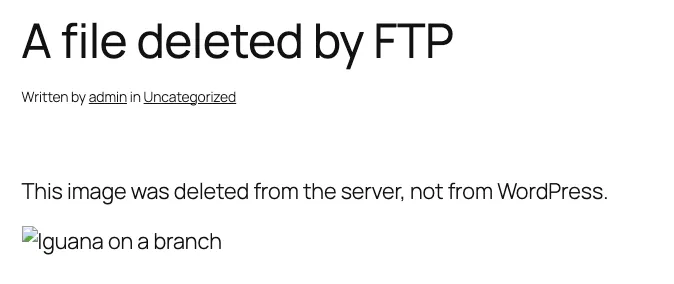
The fix is the file itself. Upload it again under the same name to the same year and month folder, or restore the uploads folder from a backup. If the photo is gone for good, take it out of the post and remove its Media Library item, so nothing asks for it.
A missing image size
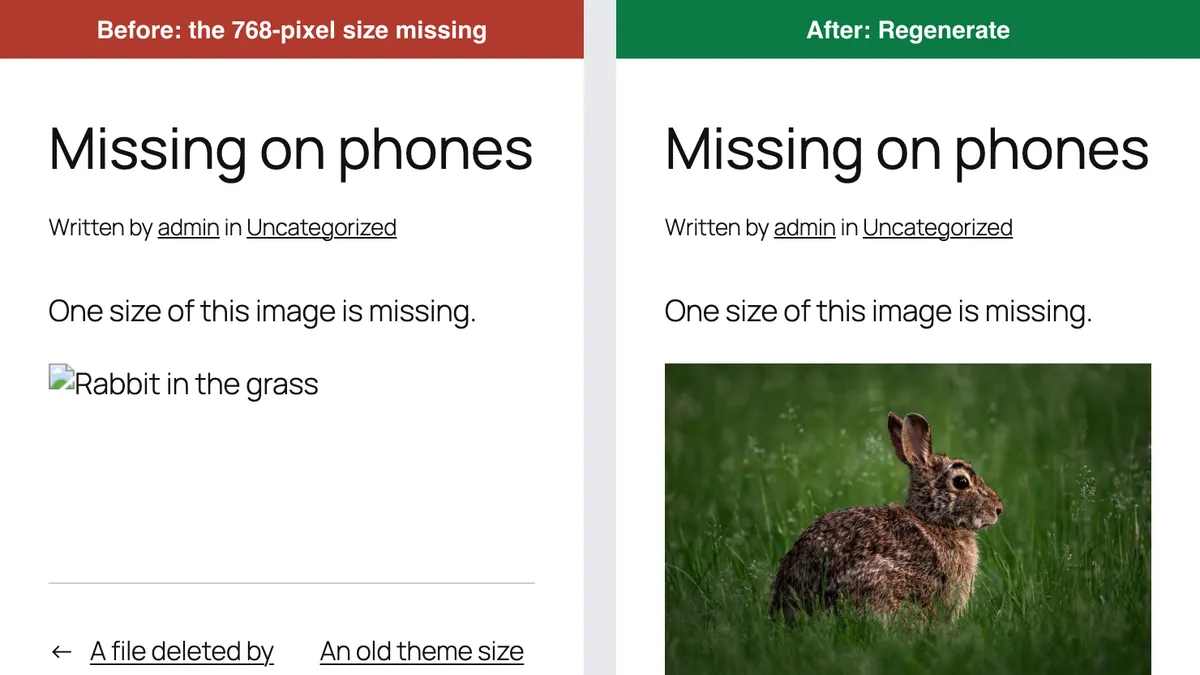
WordPress makes several sizes of each upload and lists them in the image’s srcset, so each browser downloads the one that fits its screen. We deleted only the 768-pixel size of one photo. Each screen asked for a different file:
| Screen | File it asked for | Photo shown |
|---|---|---|
| Monitor, 1280 px at 1x | 1024x683 | Yes |
| Retina laptop, 1440 px at 2x | full size | Yes |
| Android phone, 360 px at 2x | 768x512 | No |
| iPhone, 393 px at 3x | 1536x1024 | Yes |
So the photo showed on the laptop and broke on the Android phone. The original was still on the server, so the fix is to make the size again from it. WP-CLI does that with wp media regenerate and its --only-missing option. The Regenerate Thumbnails plugin does it from Tools, as our guide to WordPress image sizes shows step by step. Blinkimg’s Regenerate does it from the Broken images list (the steps are below).
A size an old theme made
A page can also ask for a size no theme makes any more. Our post asked for toucan-600x400.jpg, the kind of name an old theme’s 600 by 400 size leaves behind, and it broke on every screen. WP-CLI’s regenerate makes the sizes the site registers now, so it has no name to ask for this one. Blinkimg’s Regenerate made the 600 × 400 file from the original, because the page named it.
Why are images not showing on the live site after a migration or domain change?
After a move, the database still holds the old addresses. A post written on a staging site, on localhost or on your old domain asks for images there. We placed the same photo twice on one post, both on the old domain old-studio.example: once as an Image block, once as plain HTML.
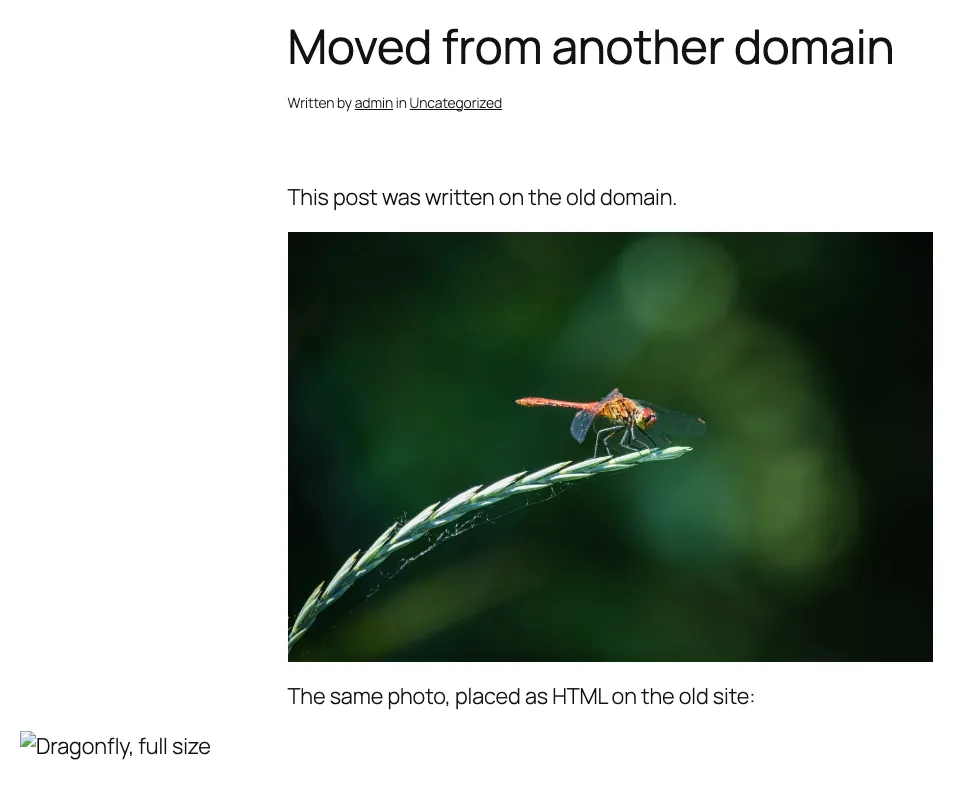
The Image block showed on all 4 screens. WordPress builds its srcset from the Media Library item as the page loads, with the current domain. The browser used that srcset on every screen. The HTML copy had no srcset, so it broke on all 4 with “name not resolved”. A theme’s background, a builder’s image or a link to the full size behaves like the HTML copy. So a migration can look fine on most posts and still leave broken images. “It works on some pages” does not prove the move went well.
How to fix the old addresses
The fix is a search and replace in the database. WP-CLI’s wp search-replace handles PHP serialized data and has a --dry-run option. Without the command line, Better Search Replace does the same from Tools. Its dry run on our site searched 2 tables and found 2 cells to change. Back up the database first, and search for the old address with its http or https, so you do not change other text. With the old address replaced, the HTML copy showed on all 4 screens.

If images are missing on the live site and the addresses are right, the uploads folder may not have moved. A database-only migration copies no files, so wp-content/uploads has to go across by FTP, SFTP or your host’s file manager.
Why are WordPress images not showing on mobile?
A missing size is the cause we measured: a phone can ask for a smaller file than a laptop does, as our 1-in-4 result shows. Our Android phone at 2x asked for the 768-pixel size; the iPhone at 3x asked for the 1536-pixel one. So the same post can break on one phone and not on another.
Two other causes can break phones alone. A lazy loader that waits for a script fails when a script optimizer delays that script. And a theme or builder can show a different image on small screens, set in its responsive settings. Open the page on the phone, or in your browser’s device mode, and read the Network tab there.
Can lazy loading stop images from showing?
Yes, when a script does it. WordPress has added loading="lazy" to images since version 5.5, and the browser handles that itself (WordPress’s note on lazy loading). A script lazy loader works another way: it moves the address into data-src and puts it back with JavaScript as you scroll. We did that to one post and kept the script from running, as a script optimizer that delays it can.
The photo was missing on all 4 screens, with no broken icon and 0 requests for it in the Network tab. View the page source: an img with data-src and a tiny placeholder in src is a lazy loader’s work. The fix is one lazy loader, not two. Turn off the plugin’s, or exclude its script from your optimizer’s delay list. To turn off WordPress’s own instead, the wp_lazy_loading_enabled filter returns false.
Why does a builder page or a featured image lose its picture?
Both happen when an image is deleted from the Media Library while something still uses it. We used Delete Permanently on two photos: one in an Elementor page’s Image widget, one set as a post’s featured image.
In a page builder
Elementor kept the photo’s old address in its own data and printed it. The file was gone, so each of the 4 screens showed an empty gap. Any builder that stores the address does the same: Divi, Bricks, Beaver Builder and WPBakery included. The fix is to edit the page and choose an image again.
Elementor has one more cause of its own after a move. Its guide says background images are stored in a CSS file with the full address. Some addresses also live in files a migration plugin misses. It gives three fixes, all under Elementor’s Tools and Settings: Replace URL, Clear Files & Data, and an internal CSS Print Method (Elementor’s guide to site migration issues). We did not test them.

As a featured image
The featured image left nothing behind at all: no gap and no broken icon. Deleting an image also clears it as the featured image of every post that used it (WordPress’s wp_delete_attachment). The theme then prints no image at all. So no checker can find it, because nothing is broken. Set a new featured image in the post’s settings.
Why does an uploaded iPhone photo not show?
Most often the photo is still a HEIC file, the format an iPhone saves by default. Since WordPress 6.7, a HEIC upload becomes a JPEG only when the server’s ImageMagick can read HEIC. On a server that cannot, WordPress keeps the .heic file, and most browsers cannot show it. Our WordPress HEIC test checks which server you have and gives the fixes.
The causes we could not break on our test site
Four common causes need a real server, a certificate or a CDN, which our test site did not have. These are the makers’ own fixes. We did not test them.
Mixed content after moving to HTTPS
An https page that asks for an http image has mixed content. Browsers upgrade a plain http image to https, but they block http addresses in srcset and picture (MDN on mixed content). Since WordPress 5.7, the HTTPS switch in Site Health rewrites old http addresses on your own domain as the page is built. The database stays unchanged (WordPress’s note on 5.7). For a lasting fix, search and replace http://yourdomain with https://yourdomain.
File permissions
A server that cannot read a file answers 403. WordPress’s own guide gives 755 or 750 for folders and 644 or 640 for files, and says no folder should ever be 777, uploads included (WordPress’s guide to file permissions). Files copied by FTP or restored from an archive can arrive with the wrong owner too, which only your host can change.
Hotlink protection
Hotlink protection blocks other sites from showing your images. In cPanel, it serves only the sites on its list of URLs allowed access (cPanel’s guide to hotlink protection). After a domain change, or with www and without it, your own site can be missing from that list. Add every address your site uses.
On Apache and LiteSpeed, hotlink and password rules live in the .htaccess file, next to WordPress’s own rules. A rule written wrong there can block every image. Rename the file to test, then put back only WordPress’s block, the one that starts with # BEGIN WordPress (WordPress’s guide to .htaccess).
A stale cache or CDN
A page cache can keep serving a page with old addresses after you fixed them. A CDN can keep an old or missing copy of an image. Clear your cache plugin, then purge the image’s address at the CDN. Cloudflare recommends purging by URL, one file at a time (Cloudflare’s guide to purging the cache). Last, reload with the browser’s own cache skipped (Shift and the reload button). If the image shows for you and not for visitors, open the page in a private window, logged out: that is the copy a visitor gets.
Why are images not showing in the Media Library?
A blank tile is a Media Library item whose file is gone. Our deleted photo kept its title and became an empty square, while the other 5 tiles showed their thumbnails.
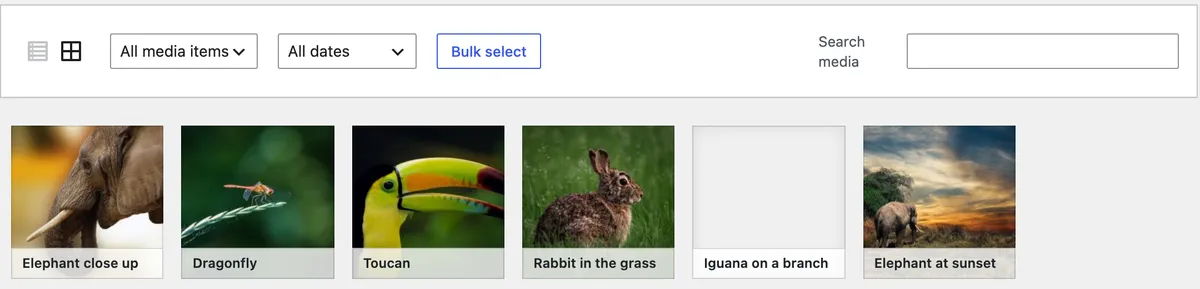
If every tile is blank, the whole uploads folder is unreadable or missing: check permissions and the folder itself. If the grid never loads at all, switch to the list view. A plugin that breaks the grid’s data is a common cause, and the Network tab shows the failed admin-ajax.php answer. Deactivate plugins one at a time to find it.
The opposite also happens: files in the uploads folder that the Media Library never shows. The library lists only what WordPress registered, so a file copied by FTP is not in it. WP-CLI’s wp media import registers such files, and its --skip-copy option leaves them where they are.
How do you find every broken image in WordPress at once?
Use a broken image checker that reads your pages as well as your database. These steps use Broken images in Blinkimg’s WordPress plugin, on its Space tab. It is free and needs no account; install it from WordPress.org first. On our site, one check read 17 pages in 80 seconds.
The 5 steps, on our test site
Find broken images
Open Media, then Blinkimg, then the Space tab’s Broken images page, and press Find broken images. The check reads your content, settings, theme and pages in the background, and changes nothing.
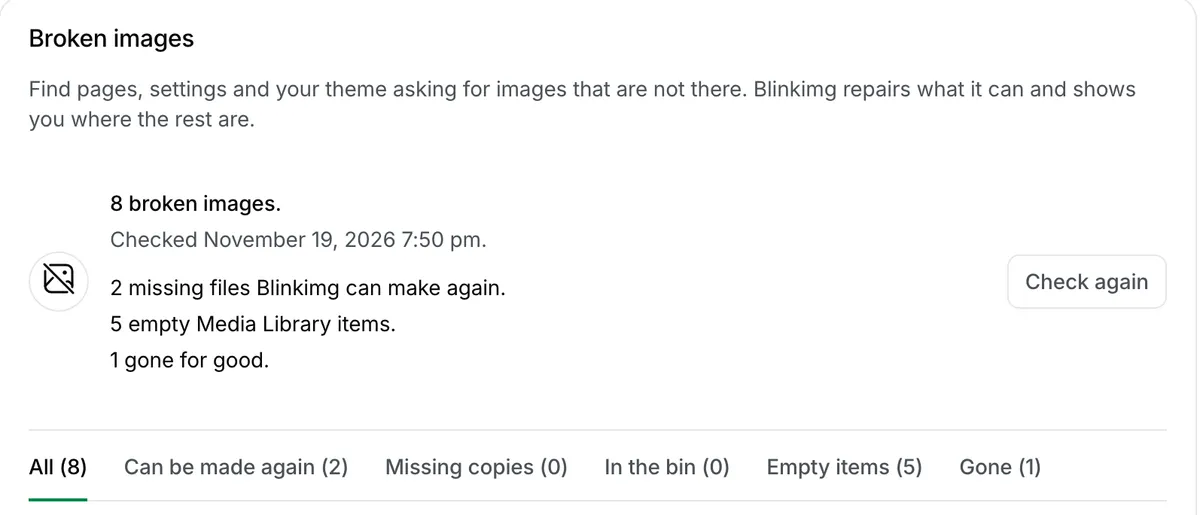
Read the list
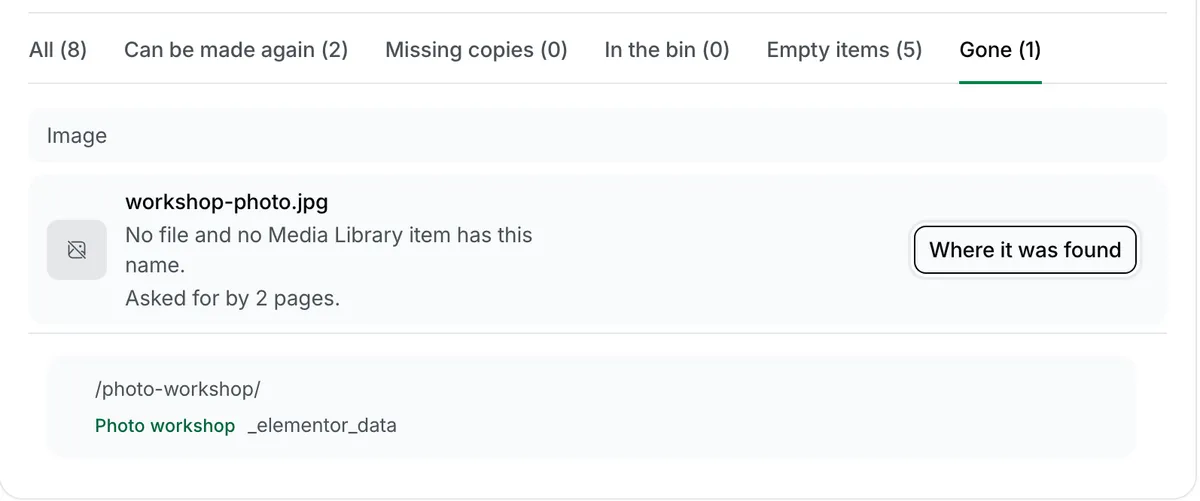
Each row is one missing file, with how many pages ask for it. Ours were the 2 missing sizes, the 5 files of the deleted photo (one Media Library item) and the 1 Elementor image.
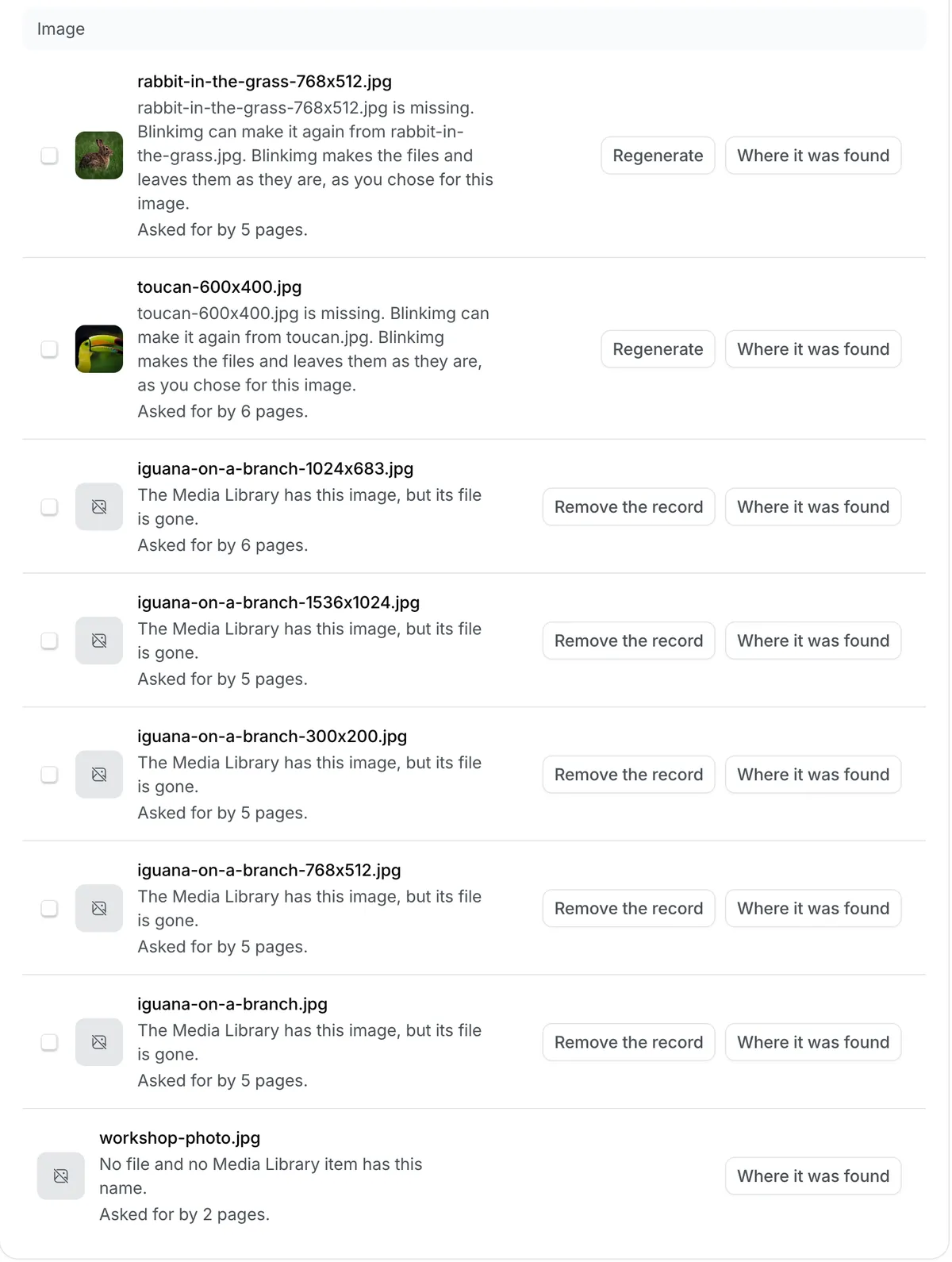
Regenerate what can be made again
A size whose original is still on disk is listed as Can be made again. Press Regenerate, then Regenerate in the question. Blinkimg makes the file from the original and leaves your pages as they are.
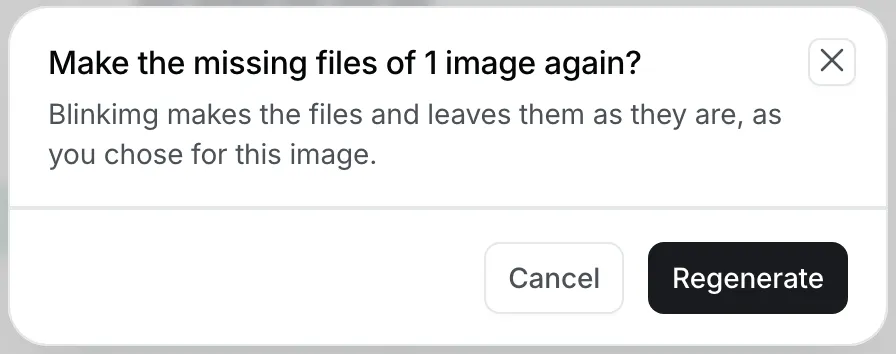
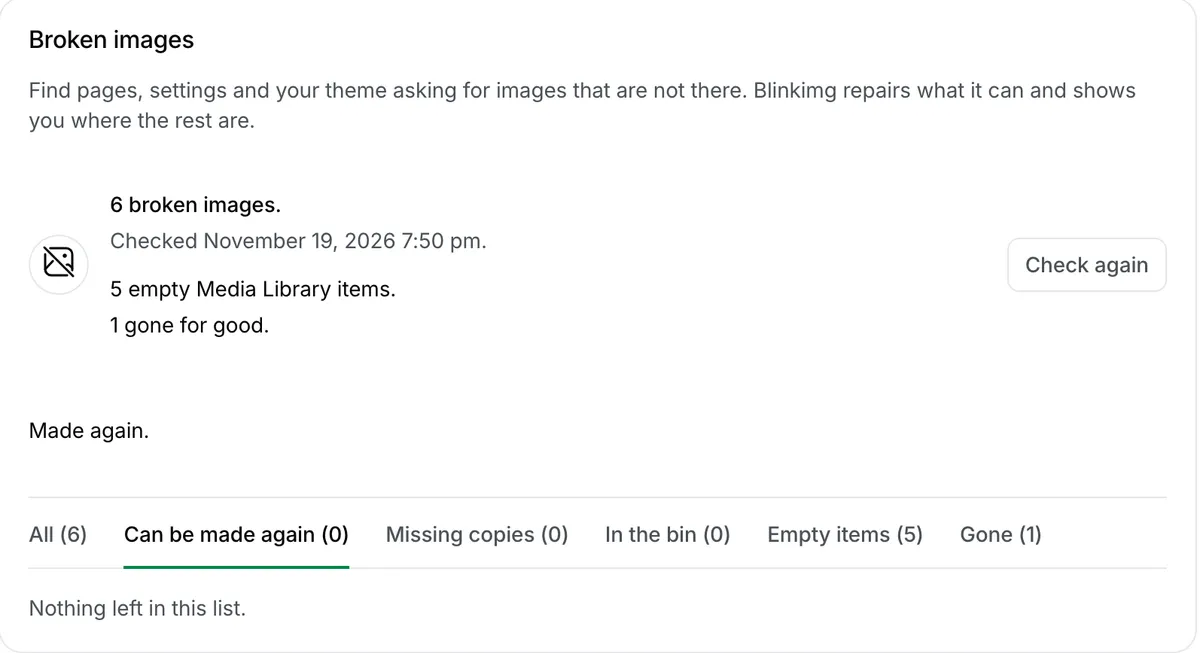
Check that it worked
The row says Made again and leaves the list. Ours went from 8 broken images to 6, and both posts showed their photos on all 4 screens.
Fix the rest where they are used
For a file that is gone, Where it was found shows each place with an edit link. Ours was the Elementor page, in its builder data. For a Media Library item whose files are gone, Remove the record moves it to the bin.
On the command line, wp blinkimg unused scan runs the same check, and wp blinkimg broken list prints the result as a table, CSV, JSON or IDs. The repairs stay on the Broken images page.
Two limits, so you know what the list leaves out. Blinkimg does not list links to another domain, so an old domain needs the search and replace above. It never edits your pages either: a link to a file that is gone for good is yours to change.
A check like this pairs well with a cleanup. Our guide to deleting unused images in WordPress safely uses the same check to find the images nothing uses.
How we tested
- The site. WordPress 7.1.5 on WordPress Playground, PHP 8.3, the Twenty Twenty-Five theme, run on 2026-11-20.
- The breaks. 8 of our own photographs, one post or page per cause. We deleted files on disk, used Delete Permanently, and wrote the old domain into two addresses. The lazy-load conflict is a short must-use plugin that moves src to data-src, with no script.
- The screens. Chromium through Playwright at 1280 pixels (1x), 1440 (2x), 360 (2x) and 393 (3x). Broken means the image drew nothing on that screen.
- The tools. Blinkimg 0.2.0 with no account, Elementor 4.4.1 and Better Search Replace 1.4.11, all from WordPress.org.
Read the full guide: How to reduce image file size on any device.
Questions
- Why are my WordPress images not showing?
- The page asks for a file the browser cannot get. The usual causes are a file deleted outside WordPress, a missing image size, addresses left on an old domain after a migration, a script lazy loader that never runs, and an image deleted while a page builder still uses it. The browser’s Network tab shows which one.
- Why are WordPress images not showing after a migration?
- Either the database still holds the old domain or the uploads folder never moved. Search and replace the old address with WP-CLI’s search-replace or a plugin such as Better Search Replace, after a backup and a dry run. Then copy wp-content/uploads to the new server if the files are missing.
- Why are my WordPress images not showing on mobile?
- Most often one size of the image is missing. A phone asks for a smaller file than a laptop, so the photo breaks only there. On our test site a deleted 768-pixel size broke the photo on a 360-pixel Android phone and nowhere else. Regenerate the missing size from the original.
- Why are images not showing in the WordPress Media Library?
- A blank tile means the item’s file is gone from the uploads folder, deleted by FTP, a script or a failed move. If every tile is blank, check the folder and its permissions. If the grid will not load at all, try the list view and deactivate plugins one at a time to find the conflict.
- Is there a broken image checker for WordPress?
- Yes. Blinkimg’s free Broken images, on the Space tab, reads your content, settings, theme and pages and lists every image they ask for that is not there. It offers Regenerate for missing sizes, Bring back for images in its bin and an edit link for the rest.
- How do I fix a missing featured image in WordPress?
- Open the post, find Featured image in the settings panel and choose an image again. When you delete an image from the Media Library, WordPress also clears it as the featured image of every post, so the theme shows nothing and no broken image is left to find.