Bulk add alt text in WordPress: where it really shows
How to fill missing alt text across the Media Library in one run, and why most of it never reaches the posts the images already sit in. Part of the WordPress image compression plugin.
By Sahadat Husain17 min readGuides

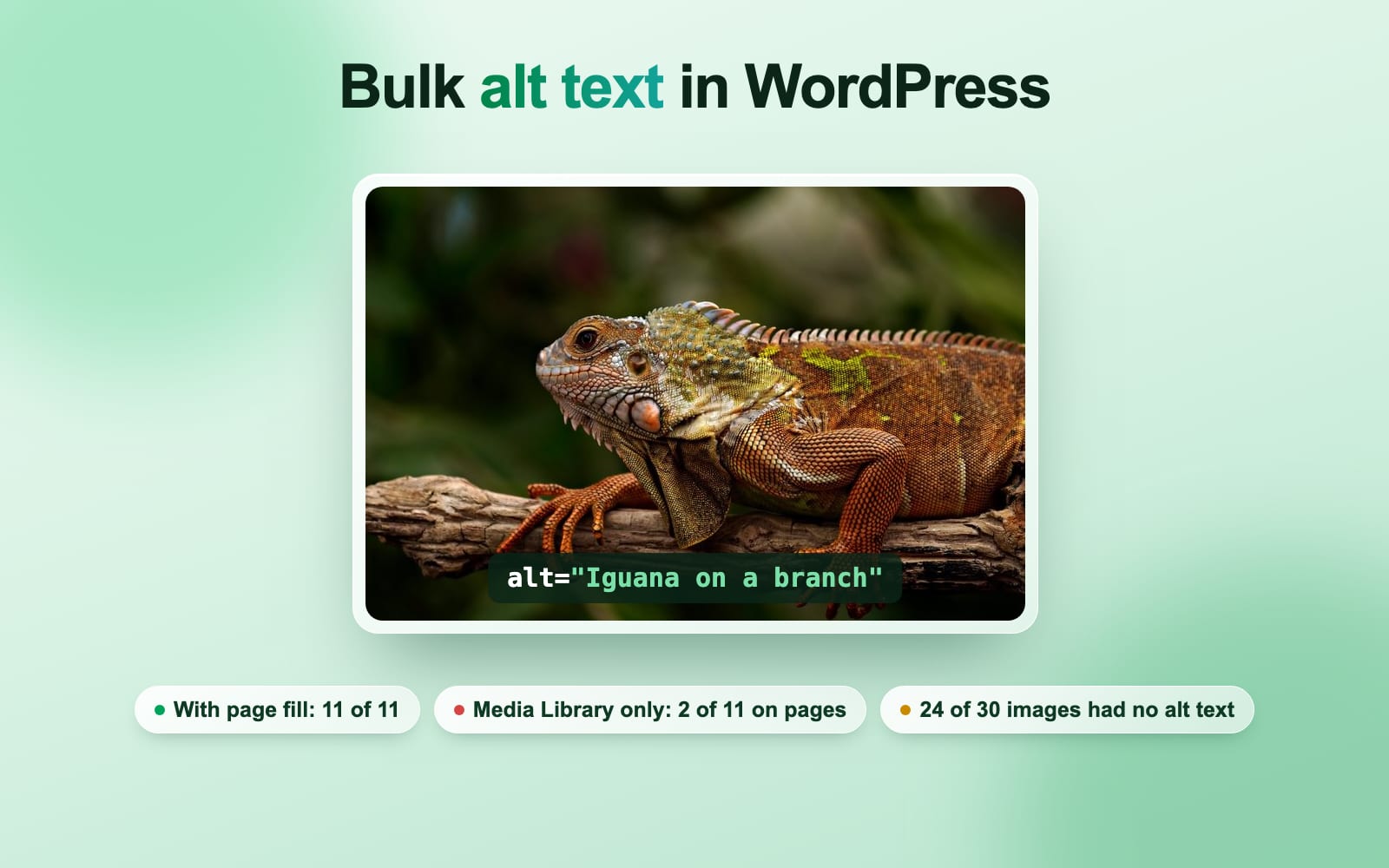
To bulk add alt text in WordPress, you need a plugin: the Media Library’s only bulk action is Delete permanently. On our test site of 30 photos, Blinkimg found 24 without alt text and wrote 12 from their titles in one run. Then we read every published page. Only 2 of the 11 placed images showed the new alt text, because an Image block keeps its own copy. Here is the bulk run, where alt text reaches, and how to make it reach the rest.
Images showing the new alt text
- Media Library write only2 of 11
- With Fill alt text in published pages11 of 11
How many of your images have no alt text?
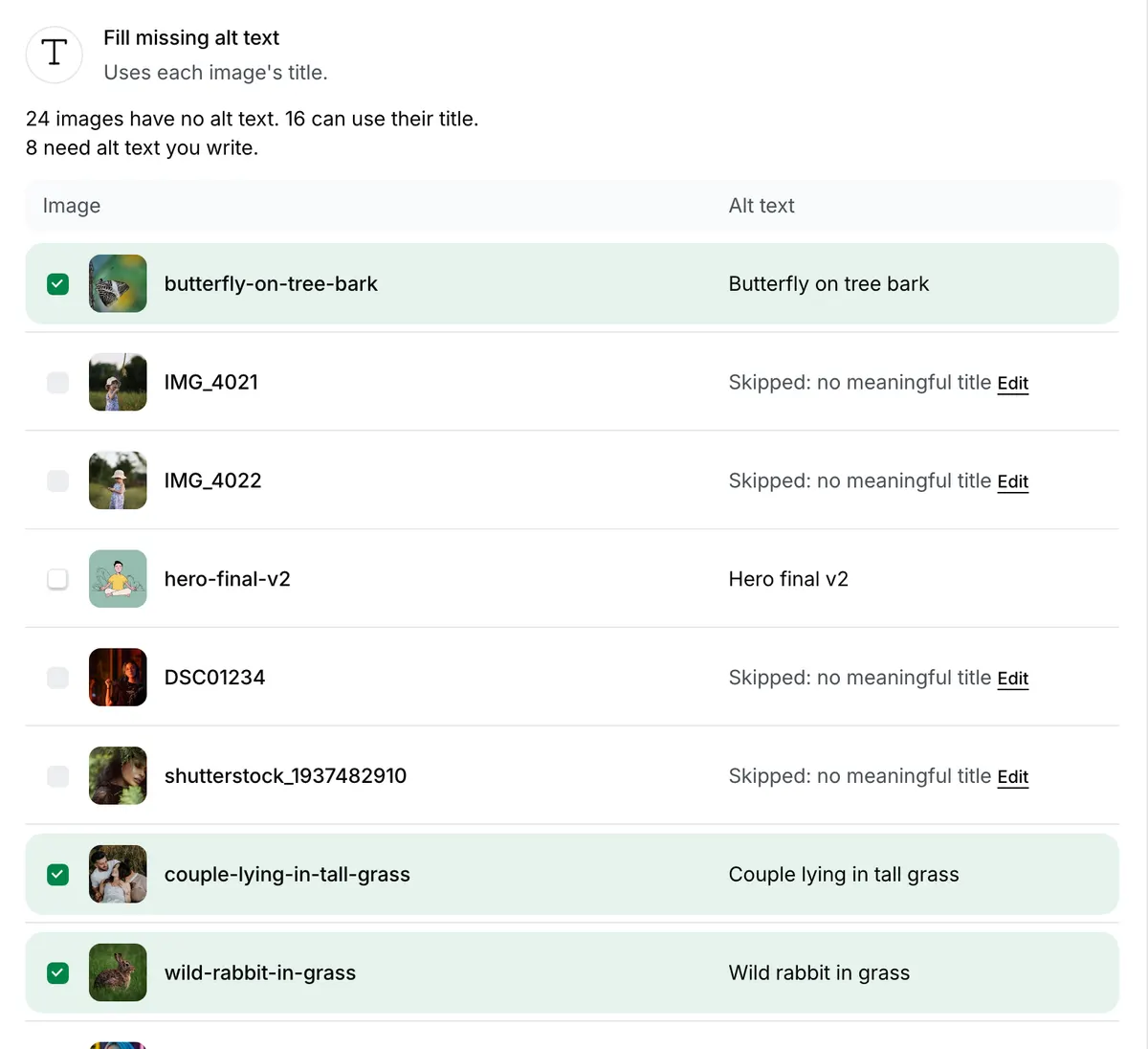
WordPress does not tell you. The Media Library has no alt text column and no filter for a missing one, and its documentation lists Delete permanently as the only bulk action. So the first job of any bulk tool is the count. Blinkimg’s count on our site: 24 of 30 images had no alt text, 16 had a title it could use, and 8 needed alt text a person writes.
The 8 skipped images all had camera, phone, stock or chat-app names: IMG_4021, IMG_4022, DSC01234, shutterstock_1937482910, a screenshot, a WhatsApp image and a copy. A title like that says nothing about the picture, so no rule can turn it into alt text.
How to bulk add alt text in WordPress with Blinkimg
Blinkimg 0.2.0 writes alt text from each image’s title, only where an image has none, and keeps a marker so it can take back what it wrote. It is free, uses no credits and needs no account. Its readme puts it this way: a title such as red-velvet_cake-1024x768 becomes “Red velvet cake”, and titles like IMG_4021 are skipped.
Open Media, Blinkimg, Tools, Alt text
The Alt text page holds two cards: Fill missing alt text and Remove alt text Blinkimg added. Both are free.
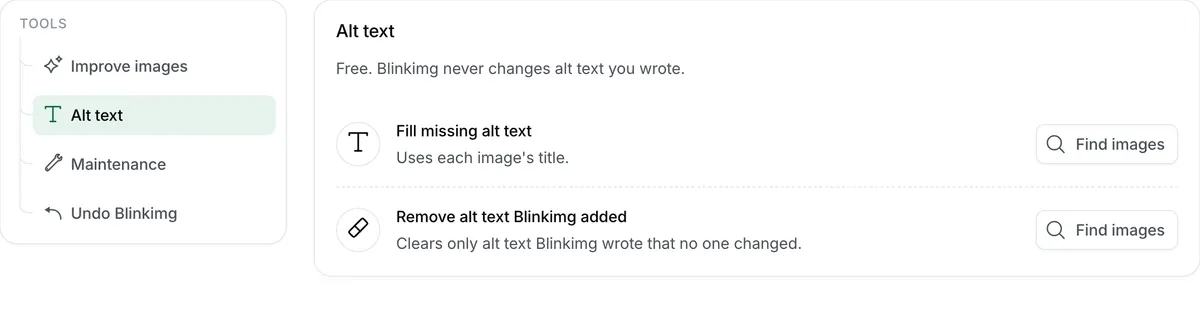
Click Find images on Fill missing alt text
Blinkimg counts in the background, a page of images at a time. Ours printed “24 images have no alt text. 16 can use their title. 8 need alt text you write.”
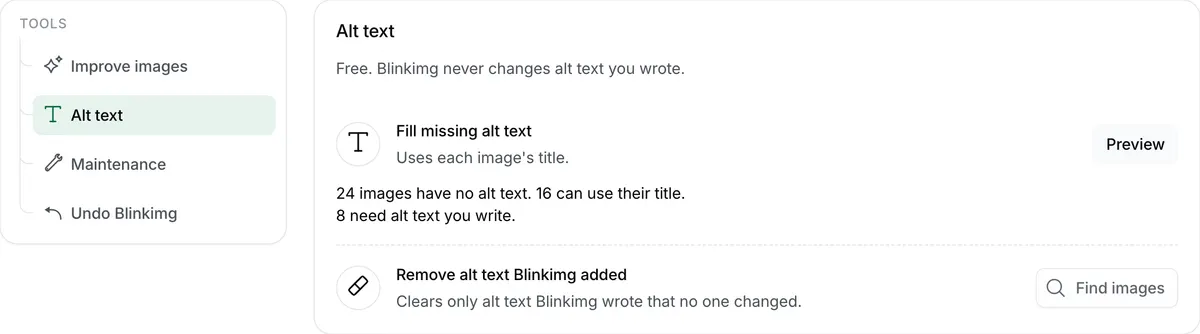
Click Preview and untick the weak ones
The preview lists every image with no alt text, 50 to a page, with its thumbnail, its title and the alt text Blinkimg would write. Each row has a tick box. We unticked 4: Hero final v2, Seo wordpress tips blog image, Blog header 3 and Temple steps. The button then read Write 12 alt texts.
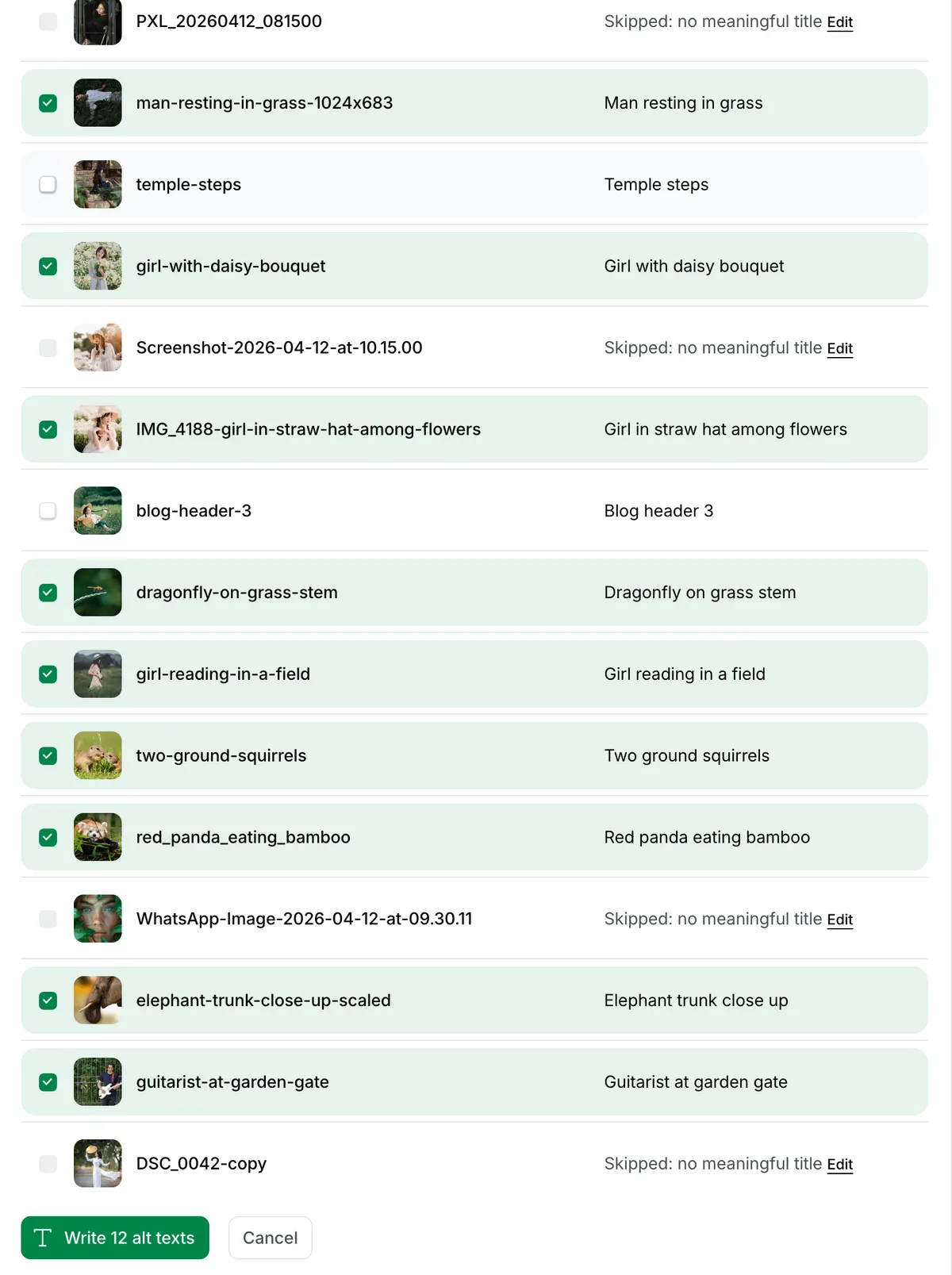
The proposal sits beside each thumbnail, so a bad title is easy to catch before anything is written. Click Write 12 alt texts
Blinkimg wrote 12 alt texts in the Media Library. Images without alt text dropped from 24 to 12: the 8 skipped and the 4 we unticked, which still need a person. On a large library, a Cancel button stops the write partway, and the card reports how many alt texts were written.
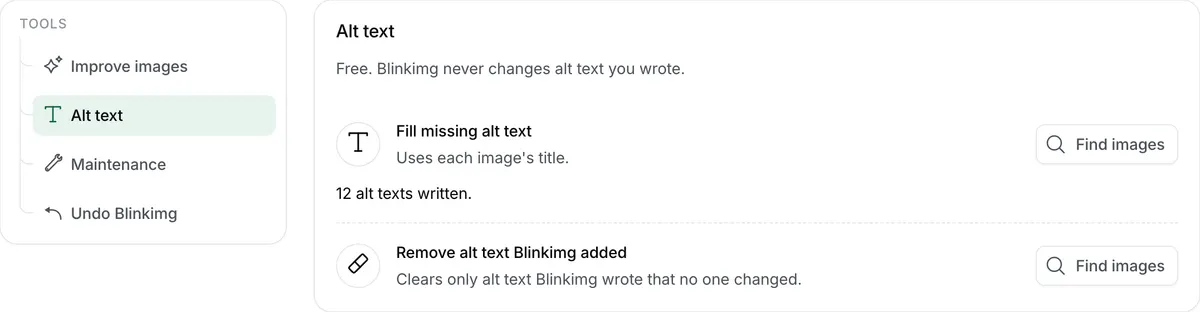
How to undo the alt text Blinkimg added
Remove alt text Blinkimg added clears only the alt text it wrote that nobody changed since. To test that, we rewrote one of the 12 by hand, “Girl reading in a field”, after the count. Blinkimg read each image again as it went and kept our edit.
Click Find images on Remove alt text Blinkimg added, then Remove
Blinkimg asks before it acts: “Remove 12 alt texts Blinkimg added?” with Cancel and Remove.
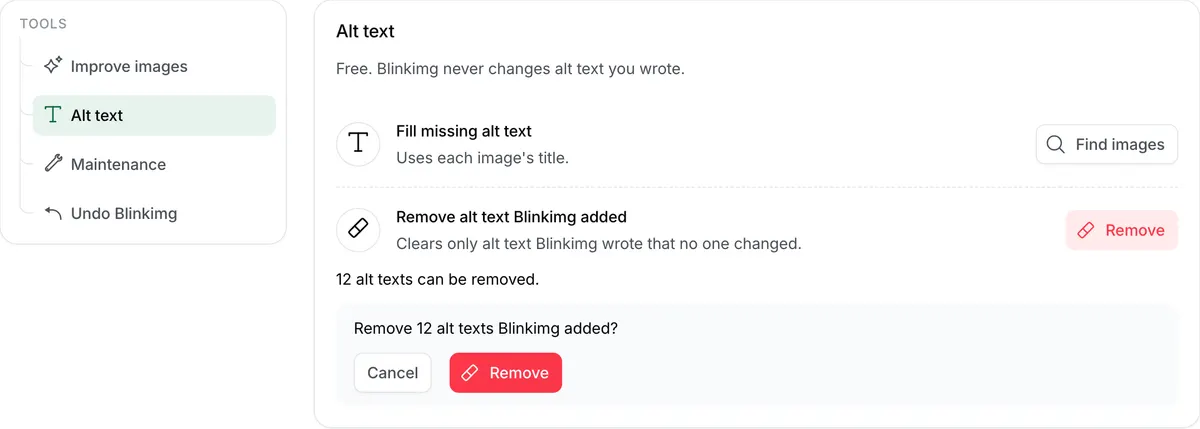
Read the result
It printed “11 alt texts removed.” The one we edited stayed, so 23 images were back without alt text.
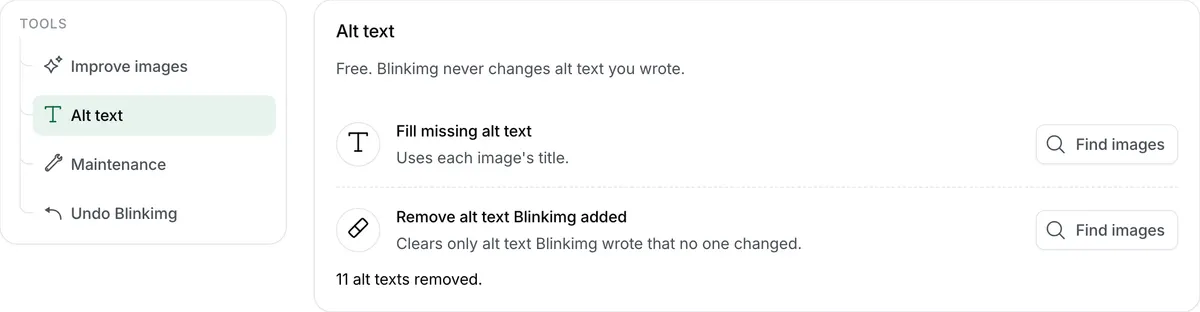
Remove works through a marker Blinkimg stores beside each alt text it writes. Deleting the plugin clears those markers but leaves the alt text in the Media Library. So run Remove first if you want the alt text gone too.
New uploads get alt text on the way in
Fill empty alt text, under Settings, Metadata, is on by default and does the same for each new upload. We uploaded two more photos: brick-temple-steps-at-dusk arrived with the alt text “Brick temple steps at dusk”, and IMG_5001 arrived with none. Each image’s panel in the Media Library also has a Use title as alt text button for one image at a time.
Where Media Library alt text reaches, and where it does not
Media Library alt text reaches only the places that read it when the page is shown. WordPress’s Edit Media documentation says it plainly: the Media Library’s data is used “as the default values at the time an image is inserted”, and after that the image “becomes disconnected from the data in the media library”. The Image block documentation adds that an alt edit in a block applies only to that post. We counted it on the published pages.
| Where the image sits | Images | Before | After the bulk write | With page fill |
|---|---|---|---|---|
| Image block | 3 | empty | empty | filled |
| Gallery block | 4 | empty | empty | filled |
| Media & Text block | 1 | empty | empty | filled |
| Classic block | 1 | empty | empty | filled |
| Featured image, on the post | 1 | empty | filled | filled |
| Elementor Image widget | 1 | empty | filled | filled |
| Total showing alt text | 11 | 0 | 2 | 11 |
- Image, Gallery, Media & Text and Classic blocks save the alt text inside the post. Our 9 were inserted while the images had none, so each saved alt="", and the bulk write changed nothing on the page.
- A block keeps old alt text too. Our iguana’s block was saved with “Iguana on a branch”. We changed the Media Library to “Orange iguana resting on a mossy branch”, and the post still showed the old words.
- Featured images and the Elementor Image widget read the Media Library each time the page is built, so both showed the new alt text at once, with no cache to clear.
- A featured image in the blog list is a link to the post, and WordPress’s Post Featured Image block then sets the alt text to the post’s title. Our 2 list images showed the post titles, before and after.
- An Elementor section background is a CSS background, not an img tag, so it has no alt text to fill. Put a picture that carries meaning in an Image widget instead.
Fill alt text in published pages
Blinkimg has a second switch for the images stuck in post content. Fill alt text in published pages, under Settings, Metadata, is off by default. With it on, Blinkimg checks each image in a post as the page is built: when the img tag’s alt is empty and the image is in the Media Library with alt text, it puts that text in the page. Nothing in the post is changed, and turning it off puts every page back.
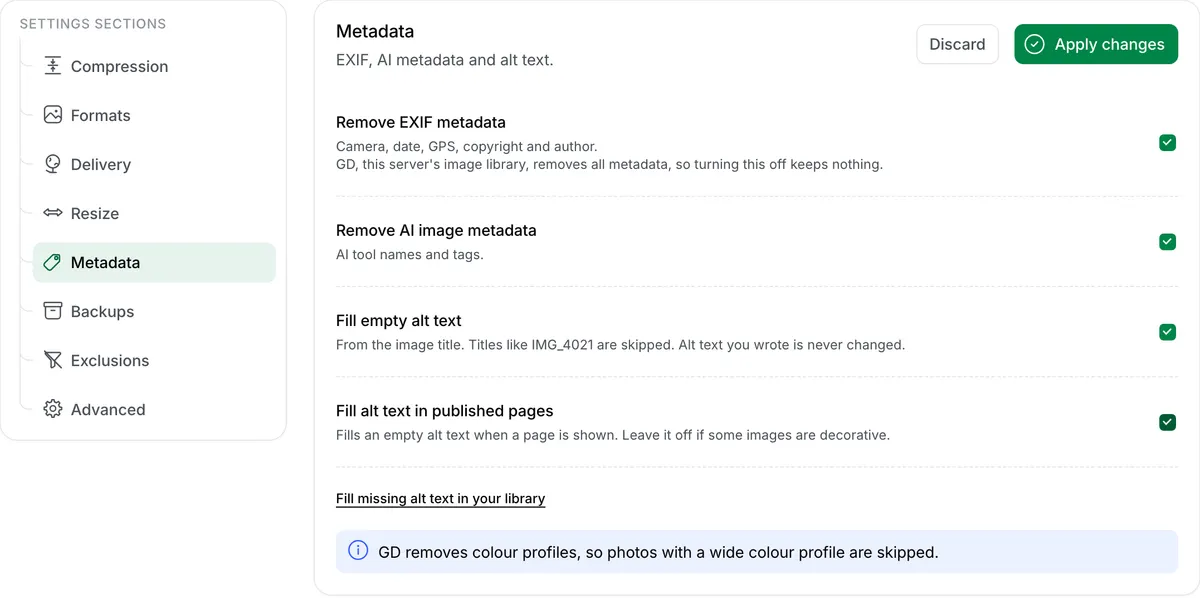
With the switch on, all 11 of our 11 placed images showed the new alt text. It fills only an empty alt, so the iguana’s old block text stayed. For a block that holds wrong words, edit the block, or find every post that uses the image first.
How to add alt text in WordPress by hand
For the images a bulk tool skips, and for the ones that matter most, write the alt text yourself. Where you write it decides where it shows.
In the Media Library: Media, Library, click the image, Alternative Text
Type in the Alternative Text field; WordPress saves it when you leave the field. This sets the default for every future insert, the featured image and Elementor widgets. It does not change blocks you already inserted.
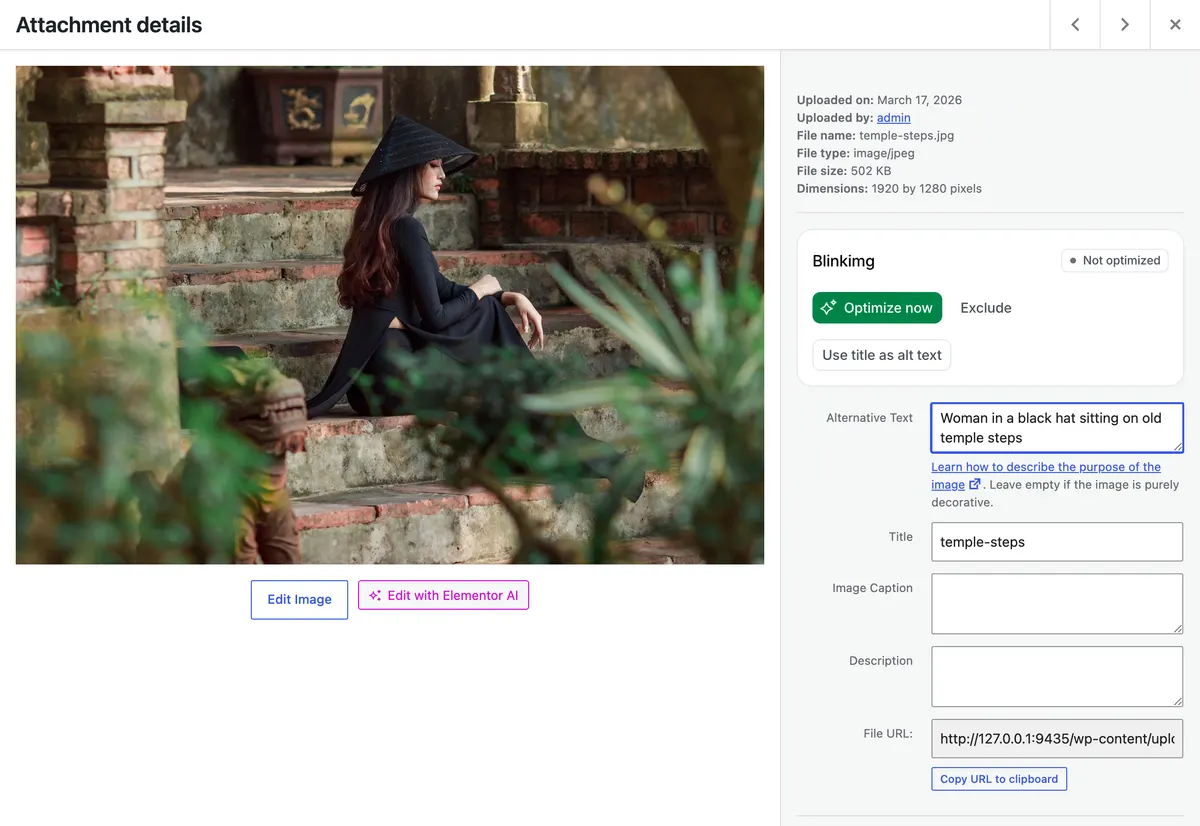
The title Blinkimg would have used was “Temple steps”. A person sees the woman. In the block editor: select the Image block, Block settings, Alternative Text
Open the post, click the image, and type in Alternative Text in the sidebar. This changes the alt text in that post only. Tick Mark as decorative for an image that adds nothing to the text.
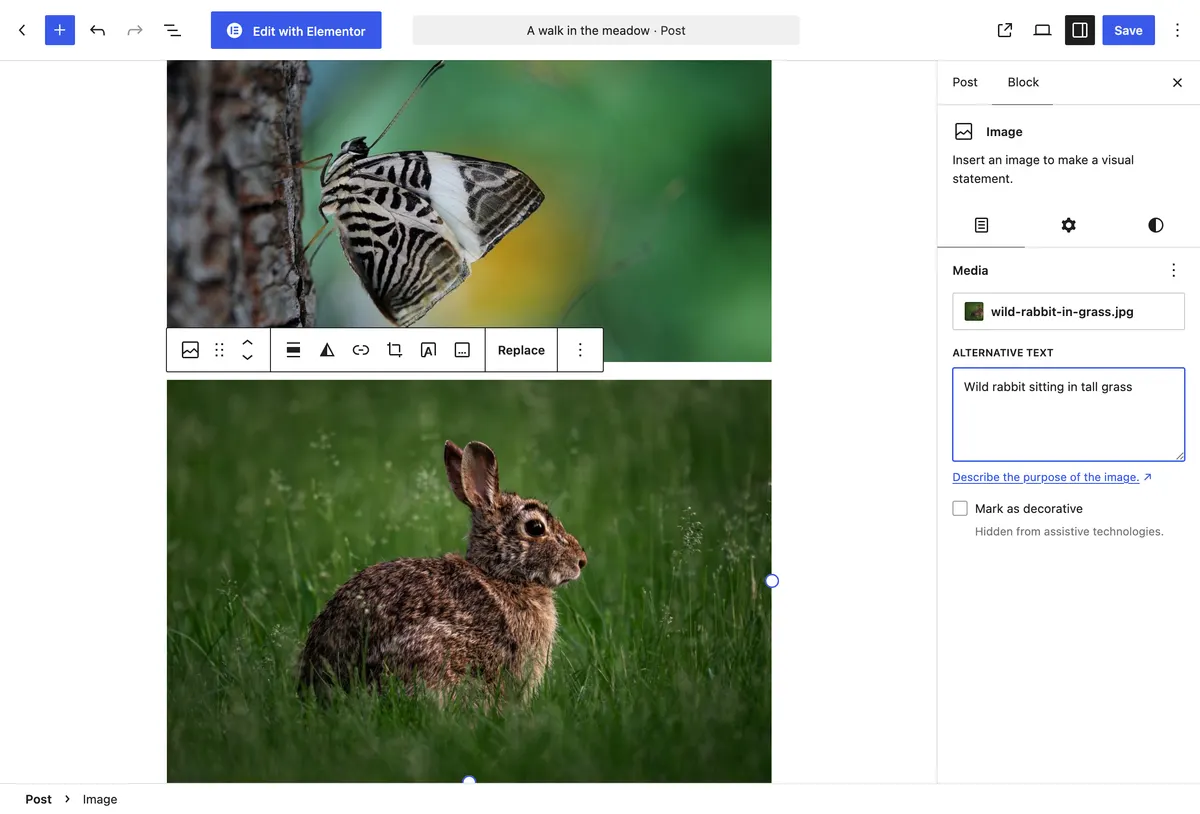
Alt text typed here is saved in the post. Save the post to keep it.
In the classic editor, click the image, then the pencil, and fill Alternative Text in Image Details. In Elementor, Elementor’s help sends you to the Media Library, and on our page its Image widget used the Media Library alt text as it changed.
Alt text written before upload
Since WordPress 7.0, the uploader reads the IPTC Alt Text (Accessibility) field from a photo’s XMP data (wp_get_image_alttext() in wp-admin/includes/image.php). We wrote that field into a copy of our toucan photo and uploaded it as IMG_7730.jpg: WordPress filled the alt text with “Toucan with a yellow and orange beak against a dark background”. The same photo without the field got none. Photo apps that write IPTC can so carry alt text into WordPress; photo metadata explains the fields a file holds.
What makes good alt text
Good alt text says what the picture means in the sentence around it. The W3C alt decision tree asks five questions in order: does the image hold text, is it a link or button, does it add meaning, is it purely decorative, and if none fit, what is its purpose. Most photos in a post land on “adds meaning”: describe what matters.
- Decorative images get alt="". The W3C’s decorative images tutorial asks for an empty alt and says leaving out the attribute is not an option. Whether an image is decorative is a call only you can make, which is why no bulk tool should decide it.
- A linked image names the link’s target. The W3C’s functional images tutorial, one branch of the decision tree, describes the action, not the picture. Our guide to image links measured what a link with no alt reads as: nothing.
- No keyword lists. Google Search Central calls alt text the most important attribute for image search, asks for useful, information-rich text, and warns that stuffing keywords can be treated as spam. File names give only light clues.
- Leave out “image of”. The W3C’s alt text tips, in the same images tutorial, note that screen readers already announce an image, so words like “image” and “picture” add nothing.
- Short, but no fixed limit. The 125 characters many tools use is a convention. WCAG’s Non-text Content criterion sets no length. Blinkimg cuts title alt text at 125 characters on a word boundary.
How good is alt text from image titles?
As good as the titles. Of the 16 alt texts Blinkimg proposed on our site, we judged 12 usable as they stood, 1 weak and 3 bad, by setting each beside its photo. A title becomes alt text, so a bad title makes bad alt text. That is why the preview exists.
| Title | Proposed alt text | Our verdict | Why |
|---|---|---|---|
| hero-final-v2 | Hero final v2 | bad | a working file name; the picture is an illustration of a person meditating |
| seo-wordpress-tips-blog-image | Seo wordpress tips blog image | bad | keywords, not the picture: a woman with blue hair under neon light |
| temple-steps | Temple steps | weak | names the place and leaves out the woman sitting on the steps |
| blog-header-3 | Blog header 3 | bad | says where the image was used, not what it shows |
Our 30 titles were chosen to cover the cases, so the ratio is ours, not a typical site’s. On a library uploaded straight from a phone, most titles are camera names and get skipped. On one where people named files for what they show, most proposals hold.
Cleaning did its part. Blinkimg dropped the size suffix from man-resting-in-grass-1024x683, WordPress’s -scaled and the IMG_4188 camera prefix. Those suffixes come from the copies WordPress makes on upload, which WordPress image sizes lists one by one.
WordPress alt text plugins and AI generators
The plugins in Google’s results work in 4 ways. Ask each one 3 questions: where the text comes from, what happens to alt text you wrote, and whether it reaches images already in your posts.
| Plugin | Alt text from | Alt text you wrote | Images already in posts | Cost |
|---|---|---|---|---|
| Blinkimg | The image title, cleaned | Never changed | Optional page fill, empty alt only | Free |
| Auto Image Attributes | The file name, numbers stripped | Replaced by the bulk updater | Pro add-on only | Free; Pro add-on paid |
| Bialty | SEO keyword, post title or file name | Your rule: keep or replace | Added as the page is shown | Free; Pro for WooCommerce |
| WP Sheet Editor | What you type, another field or a CSV | Whatever you set | Not stated | Paid |
| AI generators | A vision model reading the picture | Kept unless you turn on overwrite | Alt Text Pro: a separate step | Credits |
- From titles or file names. Image Alt Text’s WordPress.org listing shows a table of all images, with bulk copy from file name or post title. The Auto Image Attributes listing asks you to back up your database before its bulk updater runs. Its Pro add-on also lists an update of images inside post content, filling only an empty alt.
- Added as the page is shown. Bialty, by its WordPress.org listing, writes nothing to the Media Library, so its alt text vanishes when the plugin is turned off. A keyword in every alt is what Google warns about.
- A spreadsheet or CSV. WP Sheet Editor’s own guide shows your images as rows. A filter on an empty Alt text column finds the missing ones, and a Replace edit swaps one word across many alt texts.
- AI that looks at the picture. A vision model describes the photo, so a camera name does not matter. Ally by Elementor, as Elementor’s help describes it, works a page at a time instead: it scans one address, lists its images, and lets you type alt text, ask its AI, or mark an image decorative.
From your own list, with WP-CLI
If you already have alt text in a spreadsheet, as people ask on WordPress Stack Exchange, WP-CLI’s post meta update writes the Media Library field one image at a time by attachment ID. We did not run it here, and it meets the same limit: blocks in your posts keep their own copy.
wp post meta update 1234 _wp_attachment_image_alt "Red panda eating bamboo"What an AI alt text generator costs and needs
| Plugin | Free | Paid | Needs |
|---|---|---|---|
| AltText.ai | 25 credits at signup | $49 a year for 1,200 credits | An account; images go to its servers |
| Alt Text Pro | 150 at signup, then 15 a month | From $5 a month for 500 | An account and credits |
| AltTextLab | 25 credits a month | From $5 a month for 100 | An account and API key; sends the image or its address |
| Image Alt Text Pro | The free plugin has no AI | Yearly, price not listed | Your own OpenAI, Gemini or Claude key |
Weigh it both ways. An AI generator writes alt text for IMG_4021, which no title rule can, and in many languages: AltText.ai’s WordPress page and AltTextLab’s listing each name 130 or more. It costs credits, sends each image to a third party, and still cannot know why the image is in your post, so check the important ones. Alt Text Pro’s bulk guide advises a test run on a handful of images before the whole library. Its bulk run fills only the Media Library, so it meets the same limit our placement table shows.
WordPress alt text not showing?
Check where the image sits before you blame the plugin. In our tests the alt text was missing from a page for 4 reasons.
- The block holds its own alt text. Edit the alt text in the block, or turn on a page fill that reads the Media Library.
- The image is a linked featured image. WordPress uses the post title in its place.
- The image is a CSS background. An Elementor section background, or a Cover block with a fixed background, has no img tag and so no alt text.
- You are looking for it on screen. Browsers show alt text only when the image fails to load, and screen readers read it aloud. Clear any page cache, then read the alt attribute with View source or the browser’s inspector. If the image itself is missing, see WordPress images not showing.
How we tested
- The site. WordPress 7.1.5 on WordPress Playground, PHP 8.3.36, Twenty Twenty-Five, Elementor 4.4.1, on 2026-11-20. 30 of our own photos uploaded with Blinkimg inactive, each titled with its file name as WordPress’s uploader does; 6 given alt text a person would write.
- The placements. 3 Image blocks, a Gallery of 4, a Media & Text block, a Classic block, 2 featured images, an Elementor Image widget and a section background, a decorative Image block and an Image block saved with alt text.
- The reading. Every published page fetched logged out, each img tag’s alt read from the HTML before the write, after it and with the page fill on.
- Blinkimg. Blinkimg 0.2.0, run through its screens in Playwright; its rules read in its readme and source. Our verdict on each proposal is our own judgement against the photo. WordPress’s behaviour comes from its documentation and its source.
Read the full guide: How to reduce image file size on any device.
Questions
- How do I bulk add alt text in WordPress?
- WordPress has no bulk alt text action, so use a plugin. A title-based tool such as Blinkimg counts the images without alt text, previews the text it would write from each title, and writes it where none exists. AI plugins describe the picture instead, for credits. Check the preview before you write.
- Does changing alt text in the Media Library update my posts?
- Not for images already inserted. An Image, Gallery, Media & Text or Classic block saves its own copy of the alt text when you insert it. On our test site, featured images and Elementor Image widgets updated at once; 9 images in post content did not, until a page fill read the Media Library.
- How do I add alt text to an image in WordPress?
- In the block editor, select the Image block and type in Alternative Text in the sidebar; that changes the post only. In Media, Library, click the image and fill Alternative Text; that sets the default for future inserts and for featured images. In Elementor, set it in the Media Library.
- Why is my WordPress alt text not showing?
- Usually the block kept the alt text it had when you inserted the image, so a later Media Library edit never reached the page. A linked featured image uses the post title instead, and a CSS background has no alt at all. Browsers show alt text only when an image fails to load.
- Should decorative images have alt text?
- No. The W3C asks for an empty alt attribute, alt="", on a purely decorative image, so screen readers skip it; leaving the attribute out is not allowed. In WordPress, tick Mark as decorative on the Image block. Keep tools that fill empty alt text away from those images.
- Is alt text good for SEO?
- Yes. Google Search Central calls alt text the most important attribute for understanding an image, and asks for useful, information-rich text in context. It warns that stuffing keywords into alt text can be treated as spam. Write for the person who cannot see the picture, and search benefits too.