WordPress HEIC: how to upload iPhone photos, tested
What WordPress does with an iPhone HEIC photo on a server that can read it and one that cannot, and how to get a JPEG either way. Part of the WordPress image compression plugin.
By Sahadat Husain15 min readGuides

WordPress HEIC support works like this: since WordPress 6.7, an iPhone HEIC photo becomes a JPEG on upload, but only when your server’s ImageMagick can read HEIC. Without that, WordPress keeps the .heic file, and most browsers cannot show it. We uploaded a real 1.96 MB iPhone photo to WordPress 7.1.5 on a server that cannot read HEIC and on one that can. The first kept 1 file with no sizes; the second made 8 files and a JPEG every browser shows. Here is how to tell which server you have, what each upload screen does, and the fixes.
Kilobytes
- HEIC kept (no reader)1,956.0 KB, not shown
- JPEG made in Chrome668.8 KB
- JPEG made by ImageMagick590.9 KB
- Blinkimg WebP389.1 KB
Does WordPress support HEIC?
Yes, with a condition. The WordPress 6.7 developer note says HEIC uploads are converted to JPEG “on the server when possible”, and that conversion happens only if the server has a version of Imagick that supports HEIC. In the code, wp_get_image_editor_output_format() in wp-includes/media.php maps image/heic and image/heif to image/jpeg; the JPEG is written only by an image editor that can open the file. GD, the other editor WordPress uses, read no HEIC on either of our servers.
| Server and screen | What WordPress kept | Files | On disk | Shows in a browser |
|---|---|---|---|---|
| No HEIC reader, any upload screen | The .heic only, no sizes | 1 | 1.96 MB | No (blank tile) |
| No HEIC reader, block editor in Chrome | A JPEG Chrome made (2268 × 4032), its sizes and the .heic | 9 | 5.19 MB | Yes |
| ImageMagick reads HEIC, any upload screen | A 1440 × 2560 JPEG, its sizes and the .heic | 8 | 3.53 MB | Yes |
The server that can read HEIC wrote fewer bytes: WordPress went straight from the HEIC to the 2560-pixel -scaled JPEG and kept the HEIC as the original. The browser route keeps a full 2268 × 4032 JPEG too, 1,454.1 KB, so the same photo took 1.66 MB more disk.
How to check if your server can convert HEIC
Open Tools, Site Health, Info, Media Handling
Look for HEIC in the row ImageMagick supported file formats. Our Playground site ran ImageMagick 7.1.1-39 and GD 2.3.3, yet listed no HEIC; its active editor was GD, so WordPress could not convert. The row Image format transforms says image/heic → image/jpeg on every site: that row is the wish, not the ability.
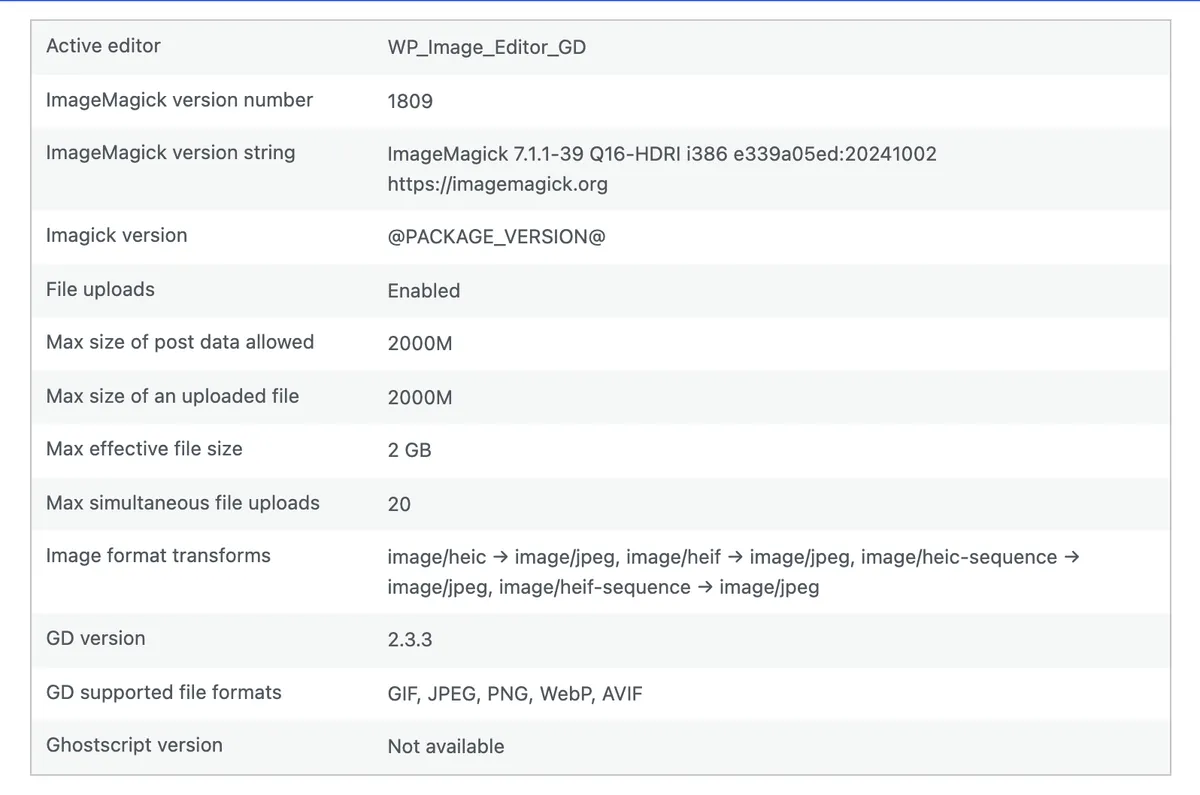
A server that cannot convert HEIC: no HEIC in any format list, even with ImageMagick installed.
An ImageMagick version number does not prove HEIC. WPBeginner’s guide asks for ImageMagick 7.0.8-26 or newer; our no-HEIC server had 7.1.1-39, far newer, and still read no HEIC, because ImageMagick needs libheif built in. Only HEIC in the supported formats row counts. Our working server ran ImageMagick 7.1.1-43 with libheif 1.23.6.
So three parts must be on the server. Imagick is the PHP extension WordPress calls. ImageMagick is the program underneath Imagick. libheif is the library ImageMagick reads HEIC with. When you ask your host, name all 3. A host that cannot add libheif leaves you two routes: convert the photo before upload, or use a plugin that converts somewhere else.
What happens when the server cannot read HEIC
WordPress still accepts the file: HEIC has been an allowed upload type since WordPress 5.5. What you see depends on which upload screen you use, and on WordPress 7.1.5 we got 3 different results from the same photo.
- Media, Add Media File: the upload finished with no warning at all. The function meant to set the warning there,
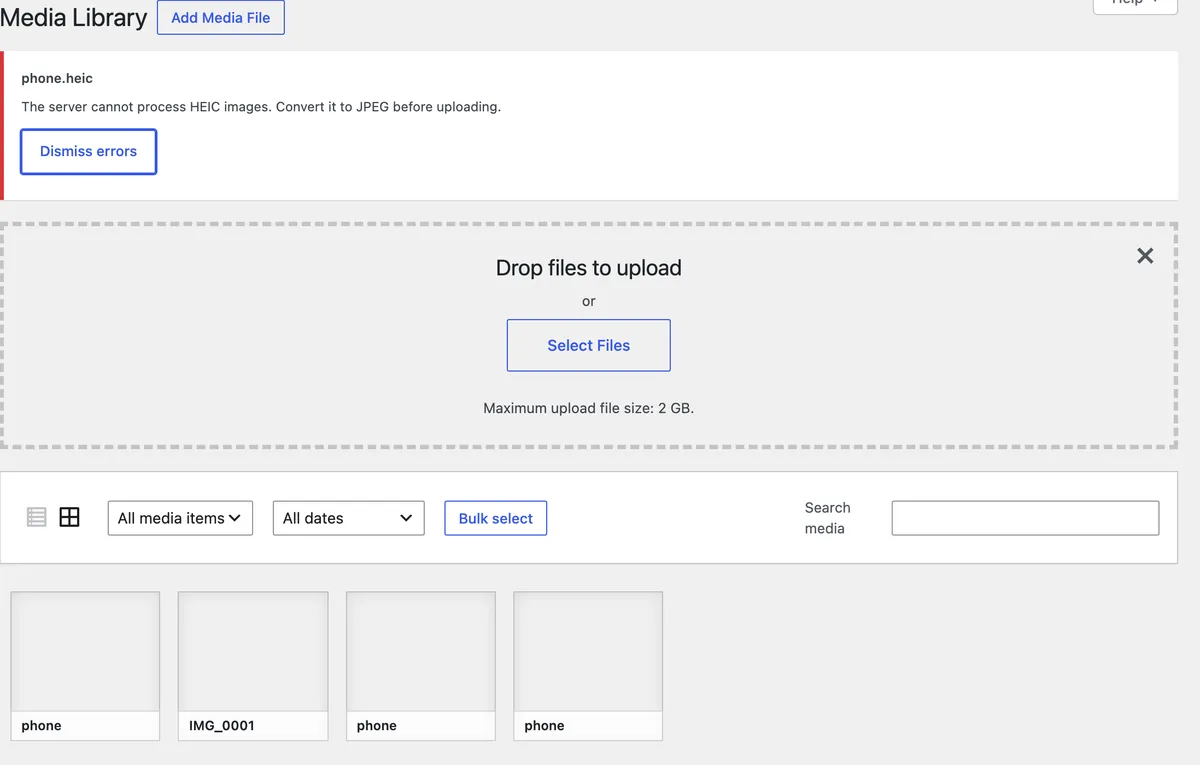
wp_show_heic_upload_error(), writes to a variable it never returns, so the flag never reaches the page. - Media, Library: a red notice, “The server cannot process HEIC images. Convert it to JPEG before uploading.” The file uploads anyway and sits in the library as a blank tile, one of the causes in why WordPress images are not showing.
- The block editor: WordPress 7.1.5 first asks your browser to turn the photo into a JPEG, covered next. Where that is off, the HEIC uploaded as it was and the Image block drew nothing.
WordPress 7.1 has your browser convert HEIC
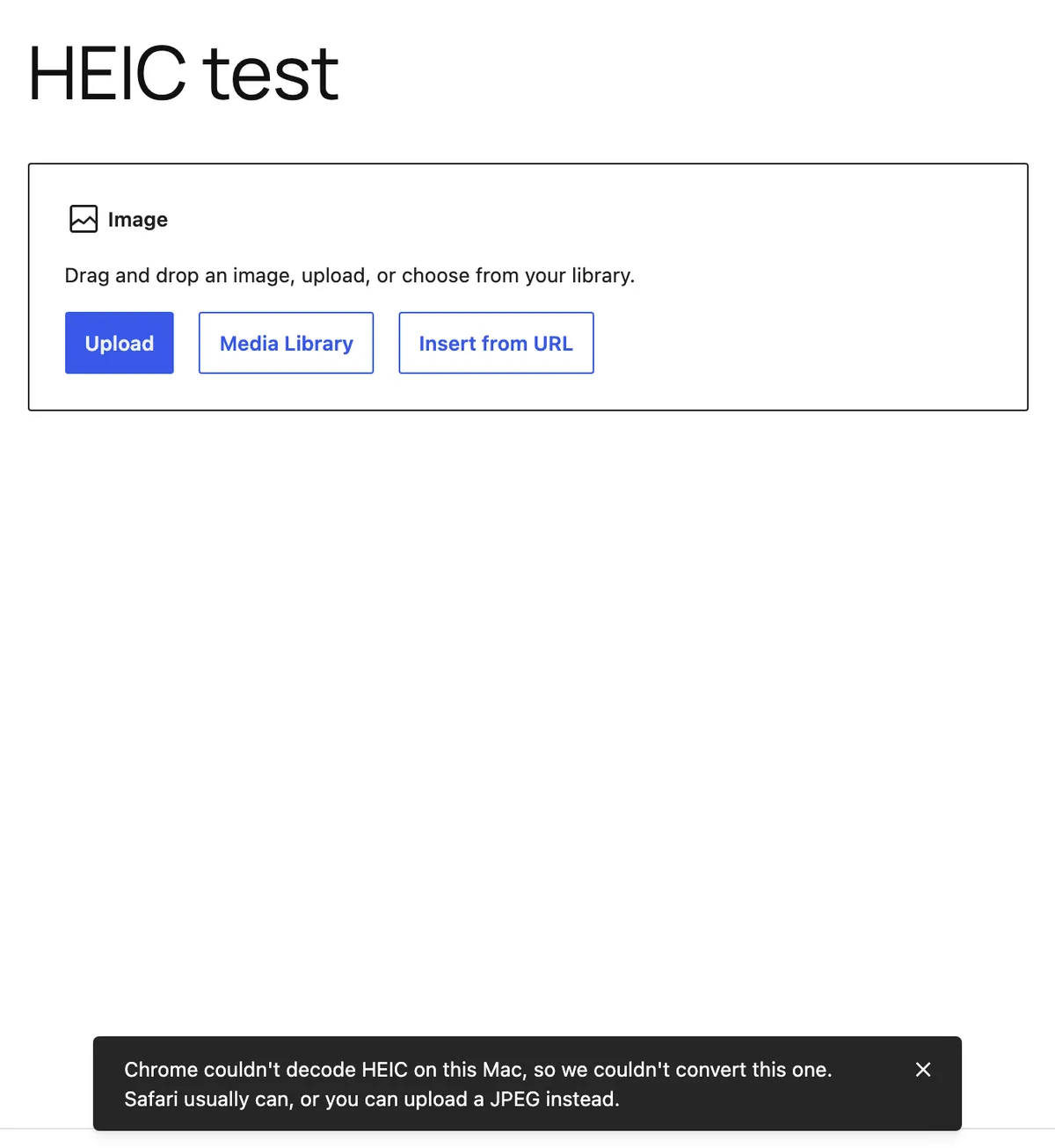
WordPress 7.1 added client-side media processing to the block editor, in its upload-media package. For a HEIC, the browser decodes the photo, draws it and saves a JPEG at quality 0.82, then uploads the JPEG and the HEIC beside it. The conversion needs a browser that can decode HEVC, and WordPress turns it on only for an HTTPS site or localhost (wp_is_client_side_media_processing_enabled()).
We tested both sides on the server without a HEIC reader. Google Chrome 157 on macOS decoded the HEIC: the editor showed the photo, and the library got a JPEG with all its sizes. Playwright’s Chromium build, which reported no HEVC decoder, refused with the notice below. WordPress’s own messages say Firefox and Linux cannot decode HEIC, and suggest Safari on a Mac.

What WordPress does when it can convert HEIC
On the official WordPress Docker image (ImageMagick 7.1.1-43, libheif 1.23.6), our iPhone HEIC became a 1440 × 2560 JPEG of 590.9 KB, plus the 6 usual sizes. No warning showed in the Media Library. The attachment page links the HEIC as the original image, and the JPEG is what every page uses.
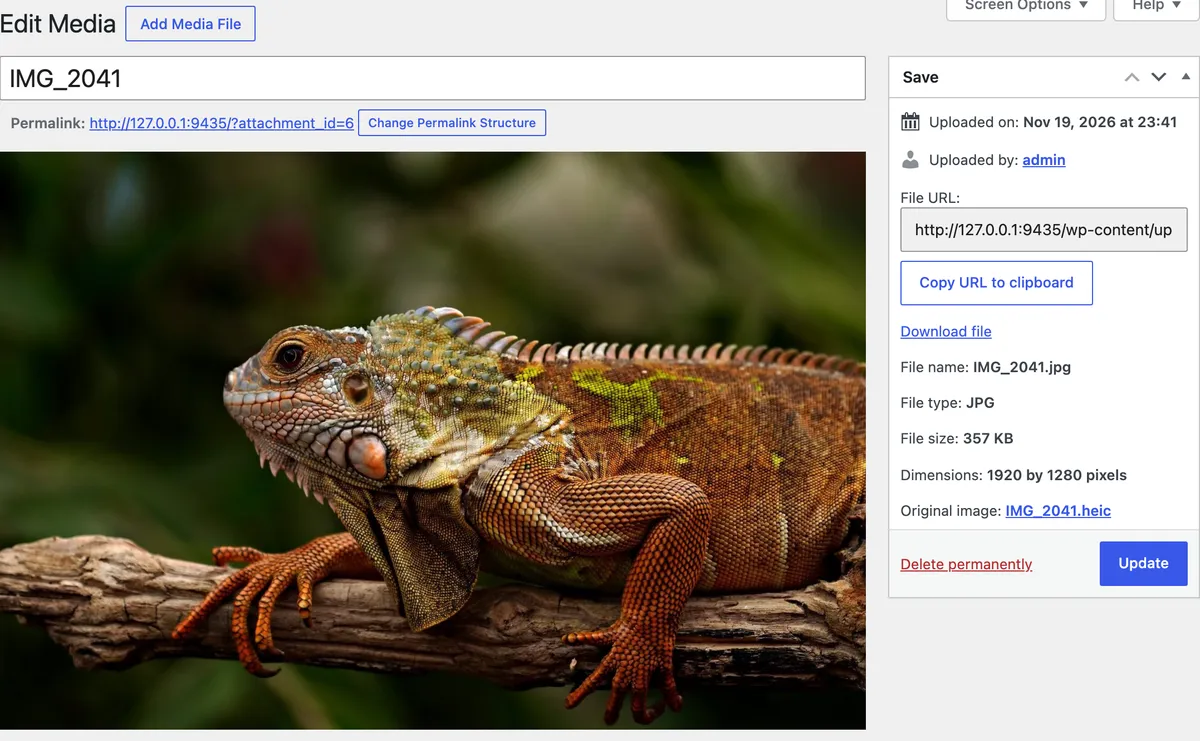
Three details we measured. The Original image link points at the .heic, so copy the File URL or insert the image from the library, never that link. The attachment’s MIME type stayed image/heic in the database while its file became a JPEG, which matters to code that filters by type. And WordPress’s image metadata, such as the camera name, was empty on both routes. The sizes themselves are WordPress image sizes, the same as for any photo.
Is the JPEG bigger than the HEIC? At the same size, yes: our 1920 × 1280 iguana went from a 343.0 KB HEIC to a 365.5 KB JPEG, 6.5% heavier. The iPhone photo’s page copy came out smaller than its HEIC only because WordPress scaled it down to 2560 pixels. That gap is what a WebP copy wins back.
Does the conversion lose quality? A little, as every JPEG does. WordPress’s image editor saves JPEG at quality 82 by default (class-wp-image-editor.php), and our test on what WordPress’s 82 quality costs measures the loss. The 2560-pixel limit is the big_image_size_threshold filter, so a site that needs the full-size photo can raise that limit.
How to turn off the HEIC to JPG conversion
To keep HEIC files as uploaded, remove the HEIC entry from the image_editor_output_format filter, as the developer note shows:
add_filter( 'image_editor_output_format', function( $output_format ) {
    unset( $output_format['image/heic'] );
    return $output_format;
} );Sorry, you are not allowed to upload this file type (HEIC)
This message means HEIC is not on your site’s list of allowed types. WordPress added heic to that list in WordPress 5.5, and heif, heics and heifs in 6.7 (functions.php), so a current site refuses HEIC only when something removed them. We removed them with the upload_mimes filter and uploaded our photo: the server answered “Sorry, you are not allowed to upload this file type.”, and the Media Library’s uploader said “This file cannot be processed by the web server.” before sending anything.
- WordPress before 5.5. HEIC was not an allowed type. Update WordPress.
- A multisite network. Network Admin, Settings, Upload file types sets the list for every site (check_upload_mimes in WordPress’s ms-functions.php). Add heic there.
- A security plugin or your host. Some remove the HEIF types on purpose, for the libheif reason below. Ask before you add them back.
Is HEIC upload safe on a WordPress server?
HEIC upload is safe when libheif is up to date. In September 2026, Wordfence reported a critical bug in libheif, the library ImageMagick uses to read HEIC, rated 9.8 out of 10 by its maintainer. A server is exposed only when all of this is true: PHP’s Imagick extension, an ImageMagick packaged with HEIF, libheif 1.18.0 to 1.23.2, and libheif’s uncompressed codec built in. libheif 1.23.3 fixed it. Their test on an Author account turned one HEIC upload into code running on the server.
| Platform | libheif | Vulnerable then |
|---|---|---|
| Official wordpress Docker image | 1.19.8 | Yes |
| Debian 13 trixie | 1.19.8 | Yes |
| Ubuntu 24.04 LTS | 1.17.6 | No |
| Debian 12 bookworm | 1.15.1 | No |
| Our wordpress:php8.5 image, 2026-11-20 | 1.23.6-2~deb13u1 | Not tested; past the 1.23.3 fix |
The attack needs an account that can upload media. In WordPress, that is the Author role and above, which get the upload_files capability (schema.php). Updating WordPress does not fix the bug, because libheif comes with the server’s ImageMagick, not with WordPress. So the same Site Health row that says WordPress can convert HEIC also says to check libheif.
- Ask for the fix, not only the number. A Linux distribution can backport the fix into a package with an older version number, as eSecurity Planet’s report on the bug points out. Ask your host whether its libheif carries the fix.
- Restart after patching. PHP keeps the old library loaded until it restarts. On Docker, pull the new image and redeploy the container.
- Block HEIC until then. Removing the 4 HEIF types stops the file before it reaches libheif, at the cost of the “not allowed” message above.
How to upload iPhone photos to WordPress as JPG
The surest fix is on the phone. Apple’s page Using HEIF or HEVC media on Apple devices gives the setting, and it works on any WordPress server.
Set Settings, Camera, Formats to Most Compatible
Open Settings, tap Camera, tap Formats, then tap Most Compatible. Apple says all new photos then use JPEG. Photos you took before stay HEIC, and High Efficiency switches back.
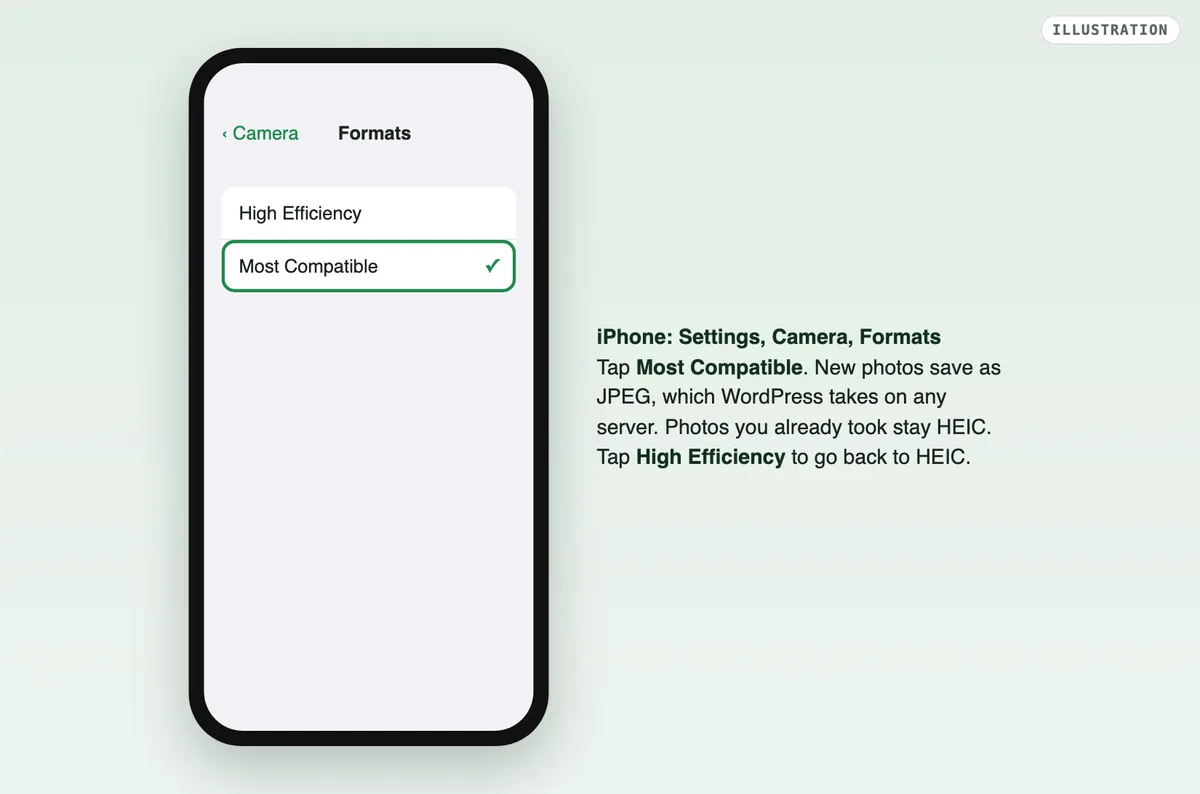
Illustration: the setting Apple’s support page names. We did not run it on an iPhone.
Sending the photo another way may convert it too. Apple says AirDrop, Messages and email might share a HEIC as JPEG when the receiving device does not support HEIF, and an import to a PC over USB might convert unless Settings, Apps, Photos is set to Keep Originals. “Might” is Apple’s word, so check the file name ends in .jpg before you upload. The WordPress iOS app is its own case: a 2023 thread on the WordPress.com forums reports it uploading HEIC unconverted until its version 23.3; we did not test the app. For photos already on your computer, our HEIC to JPG guide has a route for Windows, Mac and iPhone, and the HEIC to JPG converter does a batch in the browser. What HEIC is, and why phones use it, is in what is a HEIC file.
A WordPress HEIC to JPG plugin, when your server cannot convert
A plugin cannot give your server a HEIC reader. It can convert on the server when the reader is there, or send the photo somewhere that has one. So ask a plugin where the conversion happens.
WordPress reads HEIC
WordPress makes the JPEG
No credit used
Else: Blinkimg engine
The API makes the JPEG
2 credits, needs an account
Else: This server
The HEIC stays
The library says why
Then
Blinkimg optimizes the JPEG
and adds WebP
Blinkimg
Blinkimg 0.2.0 reads whether WordPress’s editor supports HEIC before it does anything. Where it does, Blinkimg leaves the conversion to WordPress and compresses the JPEG: on our ImageMagick server, Blinkimg on This server took the 2.0 MB HEIC upload to a 389.1 KB WebP page copy, 80.1% smaller, with no account. Where WordPress cannot read HEIC, Blinkimg’s engine, with an account, sends the HEIC to its API and gets back a JPEG for 2 credits. That JPEG is at most 2560 pixels on its longer side, or the limit set in Blinkimg’s Settings, Resize, and the HEIC stays beside it. HEIC photos uploaded earlier convert when you optimize them or run Bulk optimize. On our demo site that photo’s WebP came out 82.8% smaller than its JPEG, 440.2 KB to 75.6 KB.
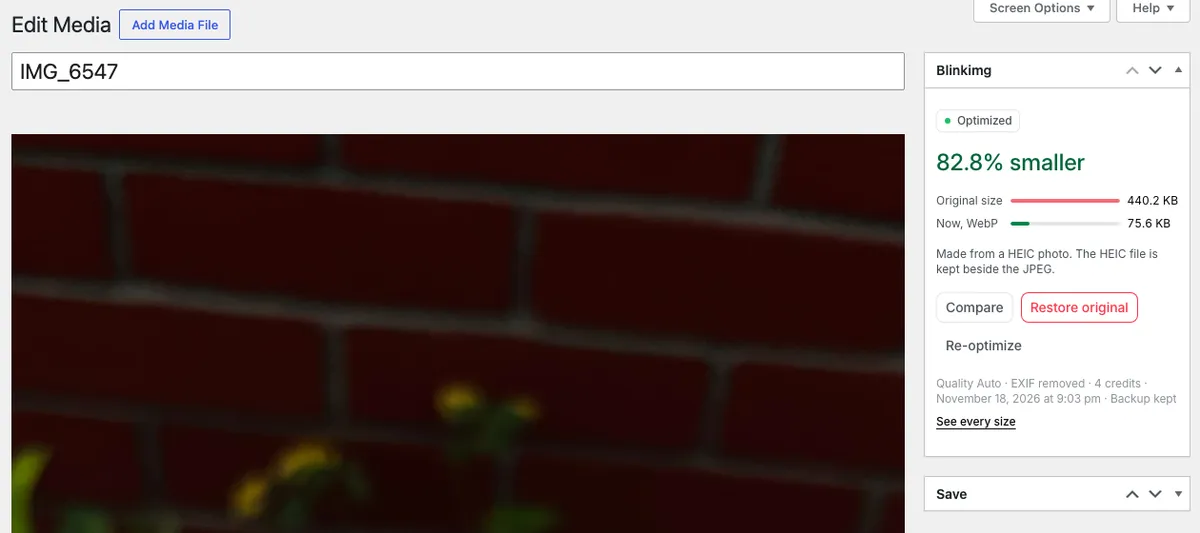
With This server as the engine and no HEIC reader, Blinkimg leaves the HEIC alone and says so in the Media Library. Blinkimg’s count of images to optimize left our 5 HEIC files out. A JPEG the block editor made in Chrome is an ordinary JPEG to it: Blinkimg took ours from 1.5 MB to a 423.5 KB WebP, 70.9% smaller.

Other HEIC plugins
HEIC Support, the HEIC plugin in Google’s top results, makes a JPEG, WebP or AVIF copy of each HEIC upload on your server, free. Its listing says local conversion needs ImageMagick 7 with libheif, the same parts WordPress needs, and that a live test at Settings, Media shows whether your server has them. The original stays unless you turn on its Replace option. Where the server cannot convert, the plugin offers paid cloud conversion, from $5.99 for 3 images, which sends the HEIC to its maker’s server. We read its listing and did not run it.
How we tested
- The photos. A real iPhone 12 Pro HEIC, 2268 × 4032 and 1.96 MB, for every number; it shows a printed receipt, so no screenshot shows it. The screenshots use our iguana photo saved as HEIC on a Mac.
- Without a HEIC reader. WordPress 7.1.5 on WordPress Playground, PHP 8.3.36, GD 2.3.3, ImageMagick 7.1.1-39, on 2026-11-20; Playwright’s Chromium 149 and Google Chrome 157 on macOS. Playground serves http://127.0.0.1, so we turned on the
wp_client_side_media_processing_enabledfilter, as an HTTPS site has it. - With a HEIC reader. The same WordPress in the official wordpress:php8.5 Docker image: PHP 8.5.12, ImageMagick 7.1.1-43, libheif 1.23.6-2~deb13u1, SQLite.
- Blinkimg. Blinkimg 0.2.0 on This server at Auto, no account; its HEIC handling read in its source. The 82.8% result is our demo site of 2026-11-18 with Blinkimg’s engine. WordPress’s behaviour comes from its source and the 6.7 developer note, the iPhone steps from Apple’s support page.
Read the full guide: How to reduce image file size on any device.
Questions
- Does WordPress support HEIC files?
- Since WordPress 6.7, a HEIC upload becomes a JPEG, but only when the server’s ImageMagick can read HEIC. Otherwise WordPress stores the HEIC, which most browsers cannot show. WordPress 7.1’s block editor can also convert in a browser that decodes HEIC, such as Chrome on a Mac, when the site runs on HTTPS.
- Why does WordPress say the server cannot process HEIC images?
- The server’s image editor cannot read HEIC: GD could not on our servers, and ImageMagick needs libheif. Check Tools, Site Health, Info, Media Handling for HEIC in the ImageMagick formats. The file still uploads, as a HEIC. Ask your host for ImageMagick with HEIC, or upload a JPEG.
- How do I convert HEIC to JPG in WordPress?
- On a server whose ImageMagick reads HEIC, WordPress does it on upload. Without that, upload through an Image block in a browser that decodes HEIC on an HTTPS site, use a plugin that converts elsewhere, or convert before you upload. On the iPhone, Settings, Camera, Formats, Most Compatible saves JPEG.
- Why does WordPress say Sorry, you are not allowed to upload this file type for HEIC?
- HEIC is missing from the site’s allowed types. WordPress allows it since version 5.5, so the cause is an older WordPress, a multisite network’s Upload file types setting, or a plugin or host that removed it, often for security. Add heic back only after checking why.
- How do I stop my iPhone from saving photos as HEIC?
- Open Settings, tap Camera, tap Formats and choose Most Compatible. New photos save as JPEG from then on; photos already taken stay HEIC. Apple says AirDrop, Messages and email might also send a JPEG when the receiving device does not support HEIF.
- Is it safe to allow HEIC uploads in WordPress?
- Yes, once libheif is patched. Wordfence reported a critical libheif bug in September 2026 that let a HEIC upload run code on servers with libheif 1.18.0 to 1.23.2 and its uncompressed codec. Version 1.23.3 fixed it. Ask your host for the libheif version.