How to change the resolution of a picture (any device)
To change the resolution of a picture, resize its width and height in pixels: Paint on Windows, Preview on a Mac or iPhone, Gallery on Samsung, or an image resizer in any browser. Lowering it is safe. Raising it adds pixels, not detail. Part of the image resizer.
By Sahadat Husain11 min readGuides

What does the resolution of a picture mean?
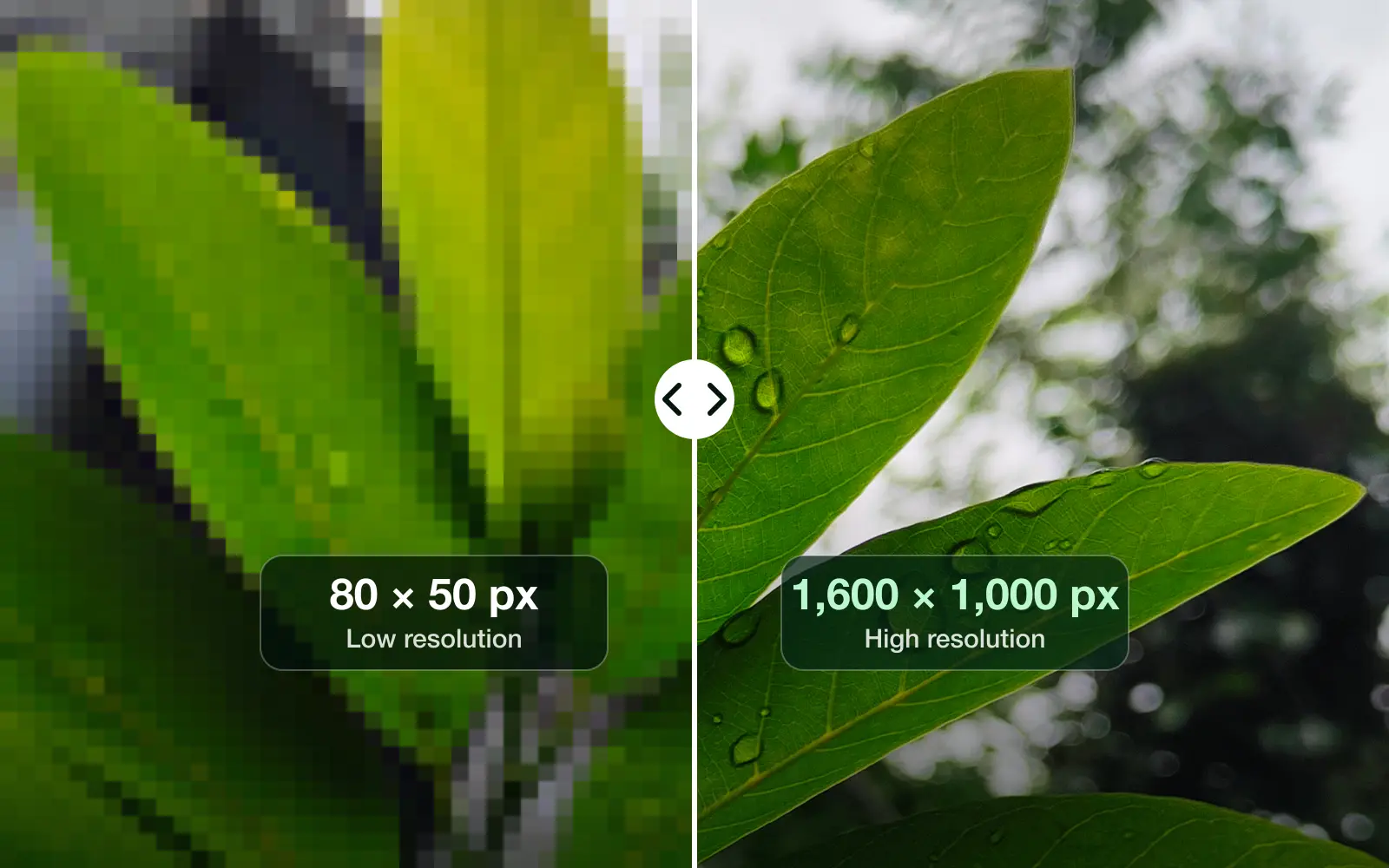
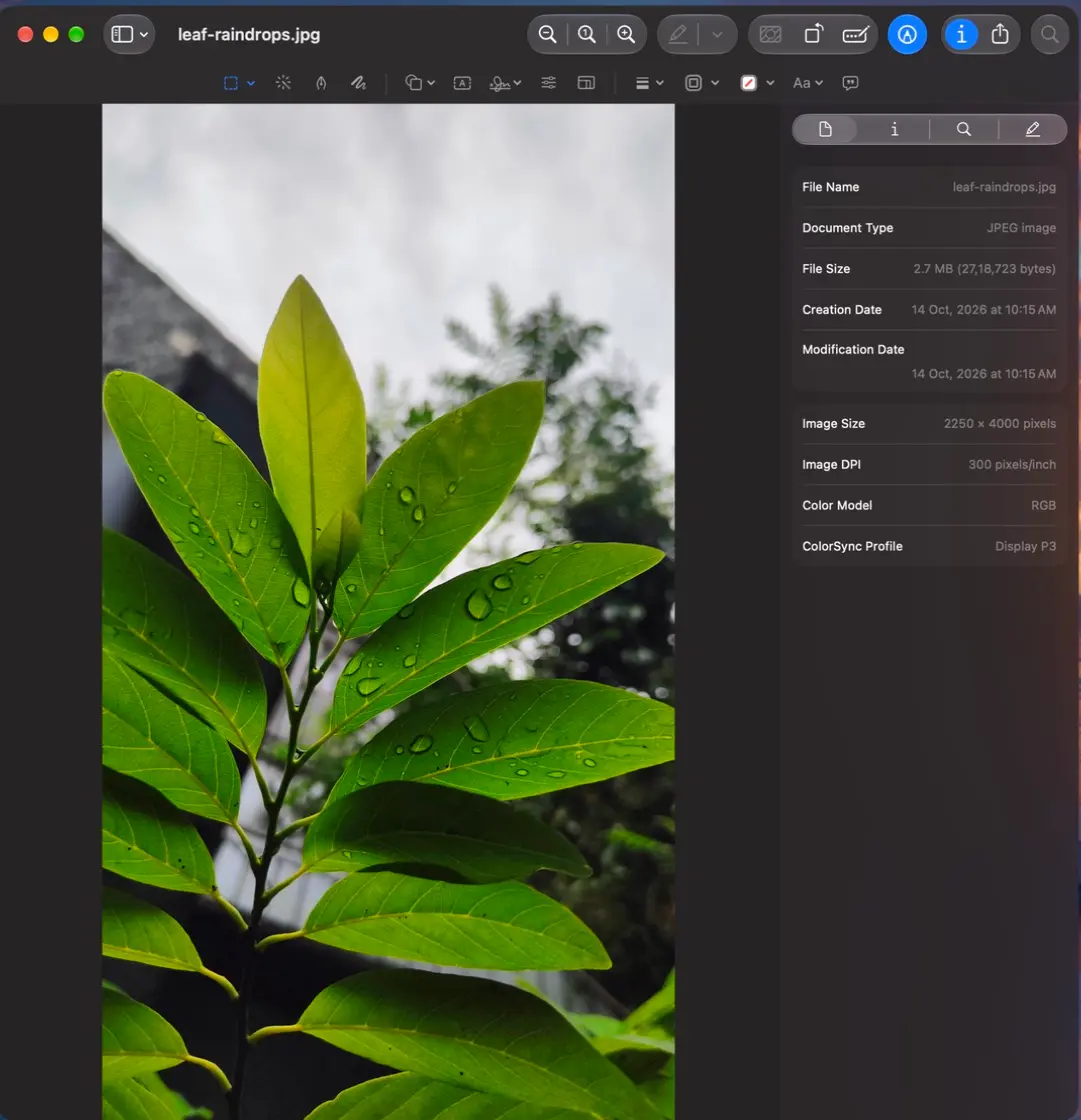
A picture’s resolution is its width and height in pixels. Our leaf photo is 2,250 × 4,000 pixels, or 9.0 megapixels. To change the resolution of a picture, you change those two numbers. A resize does that, and every device below has one.
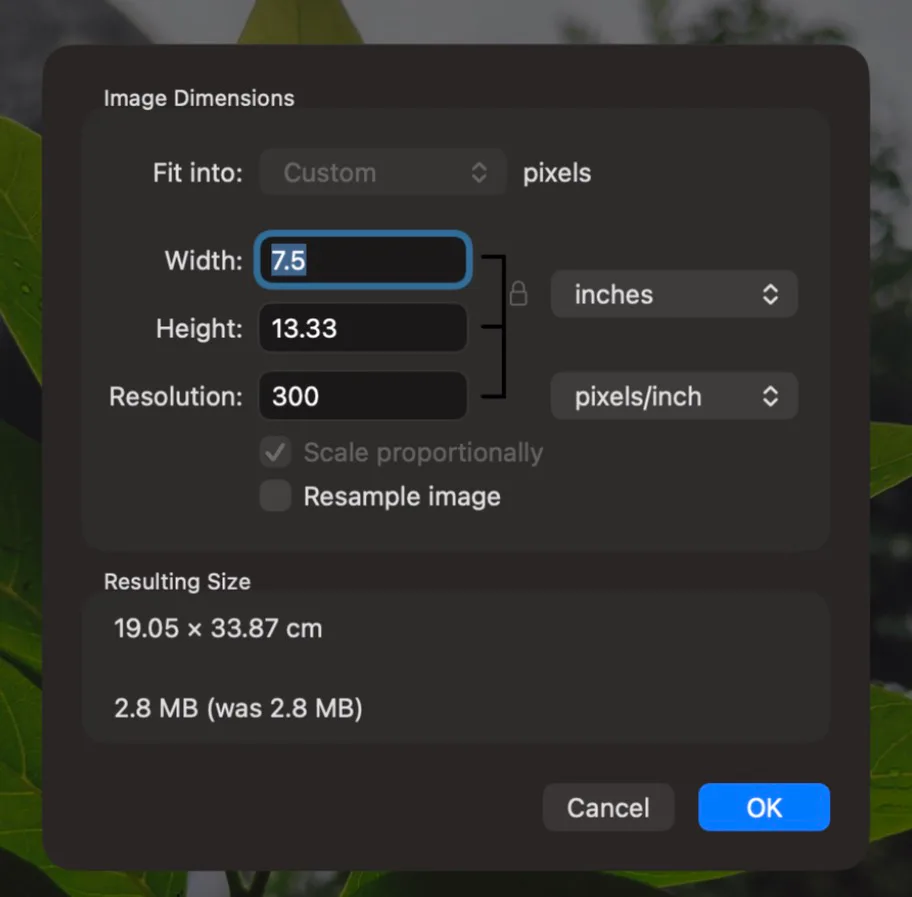
The word has a second meaning in print: pixels per inch, or PPI. Our photo is tagged 300 DPI. That tag only says how big the photo prints. It holds no picture. Change it alone and not one pixel moves, as the DPI guide measures.
How to change the resolution of a picture on any device
Every phone and computer can change a picture’s resolution with a built-in app. Only some let you type exact pixels. Here is where each one hides it.
| Device | App and menu | Exact pixels? |
|---|---|---|
| Windows 11 | Paint: Image, Resize and skew (Ctrl+W) | Yes |
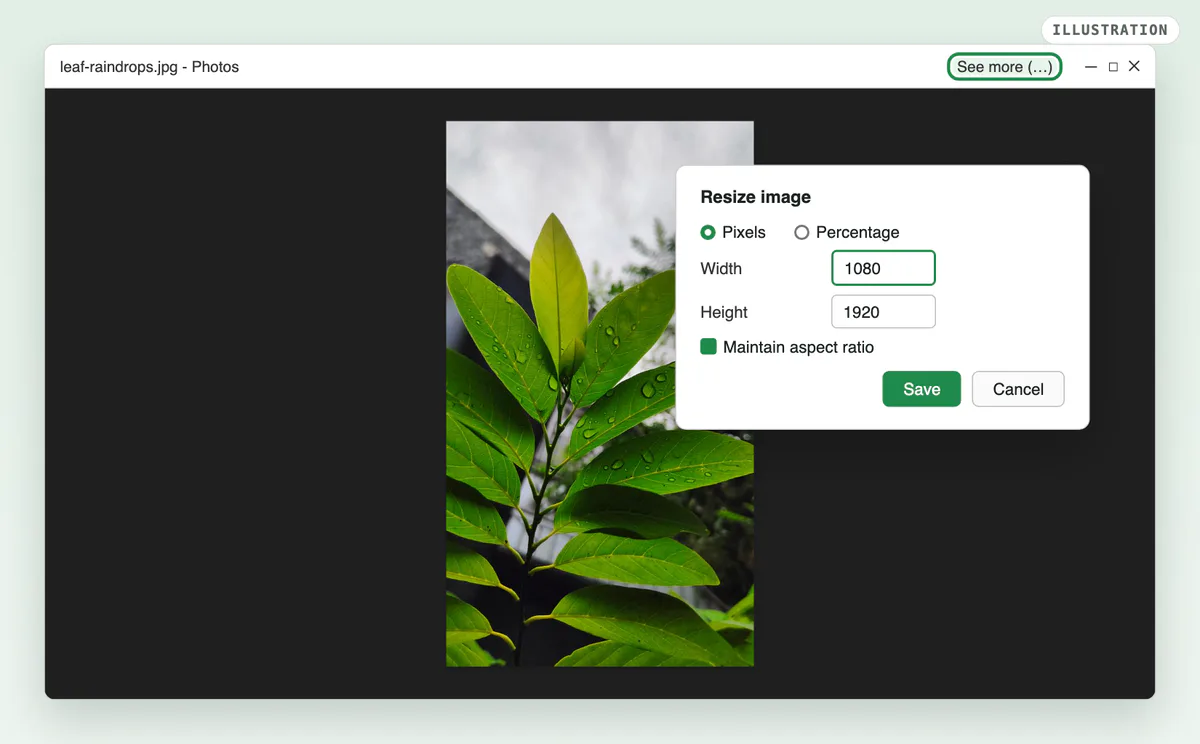
| Windows 11 | Photos: See more (…), Resize image | Yes |
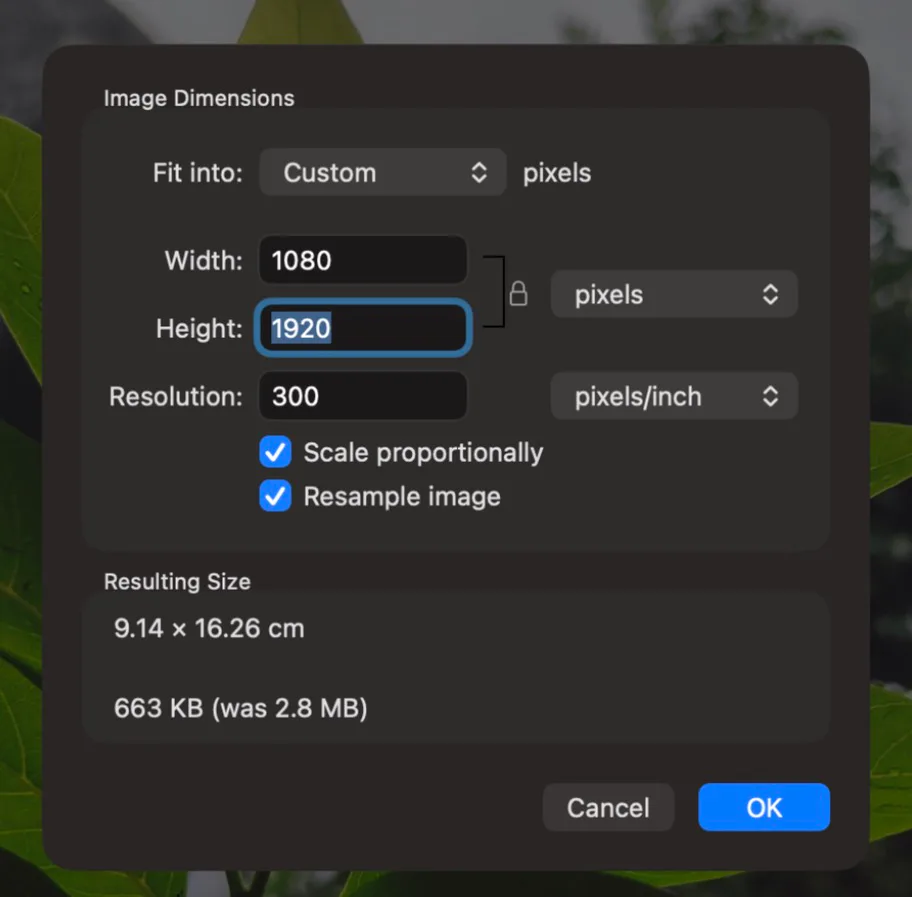
| Mac | Preview: Tools, Adjust Size | Yes |
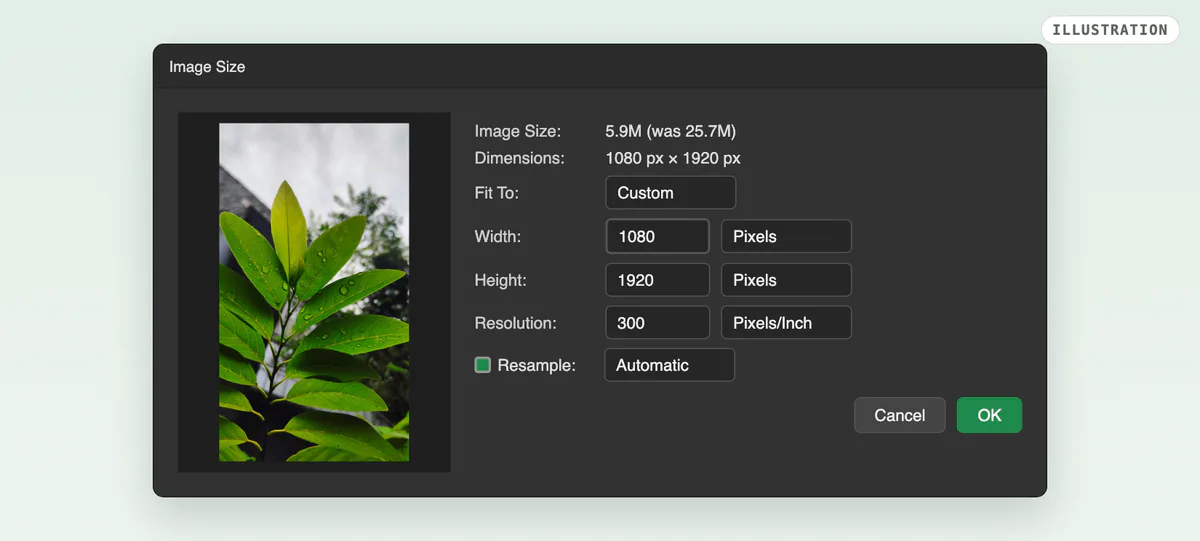
| Windows or Mac | Photoshop: Image, Image Size | Yes |
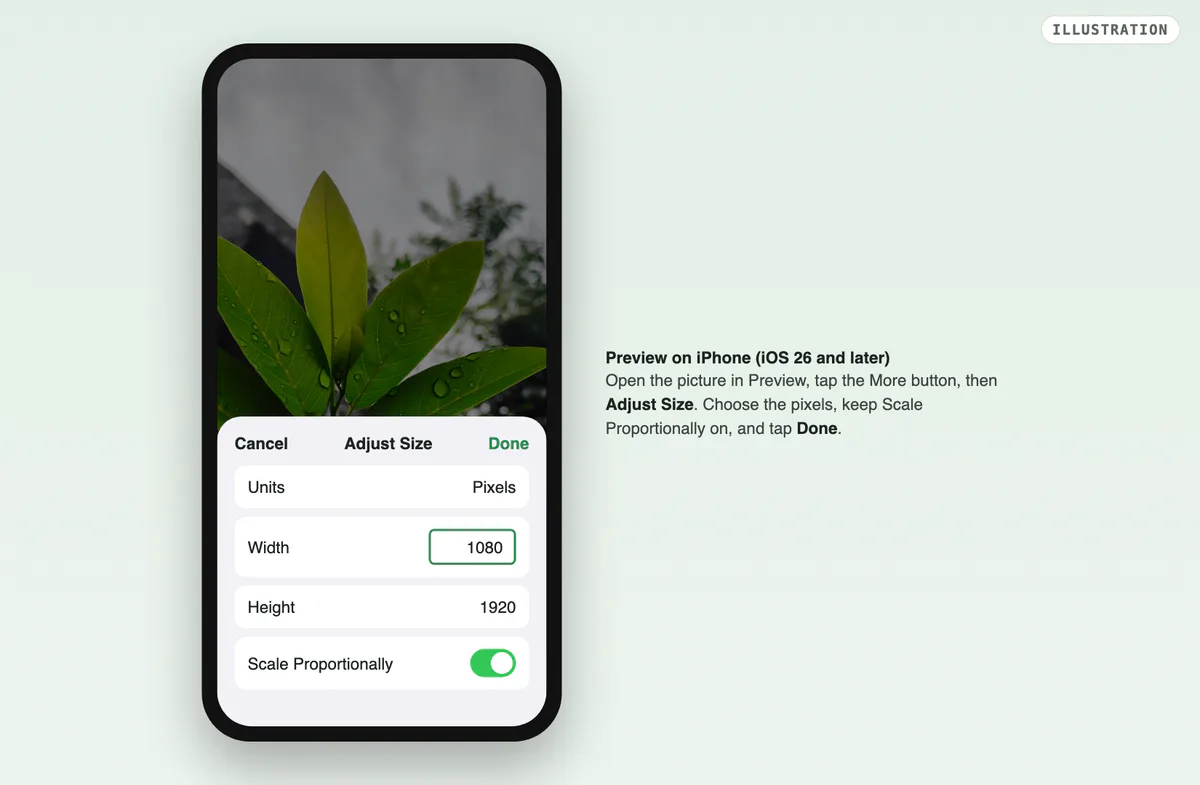
| iPhone (iOS 26) | Preview: … menu, Adjust Size | Yes |
| Samsung Galaxy | Gallery: Edit, ⋮ menu, Resize | No, percentages, smaller only |
| Any browser | An image resizer, Custom size | Yes |
On Windows 11
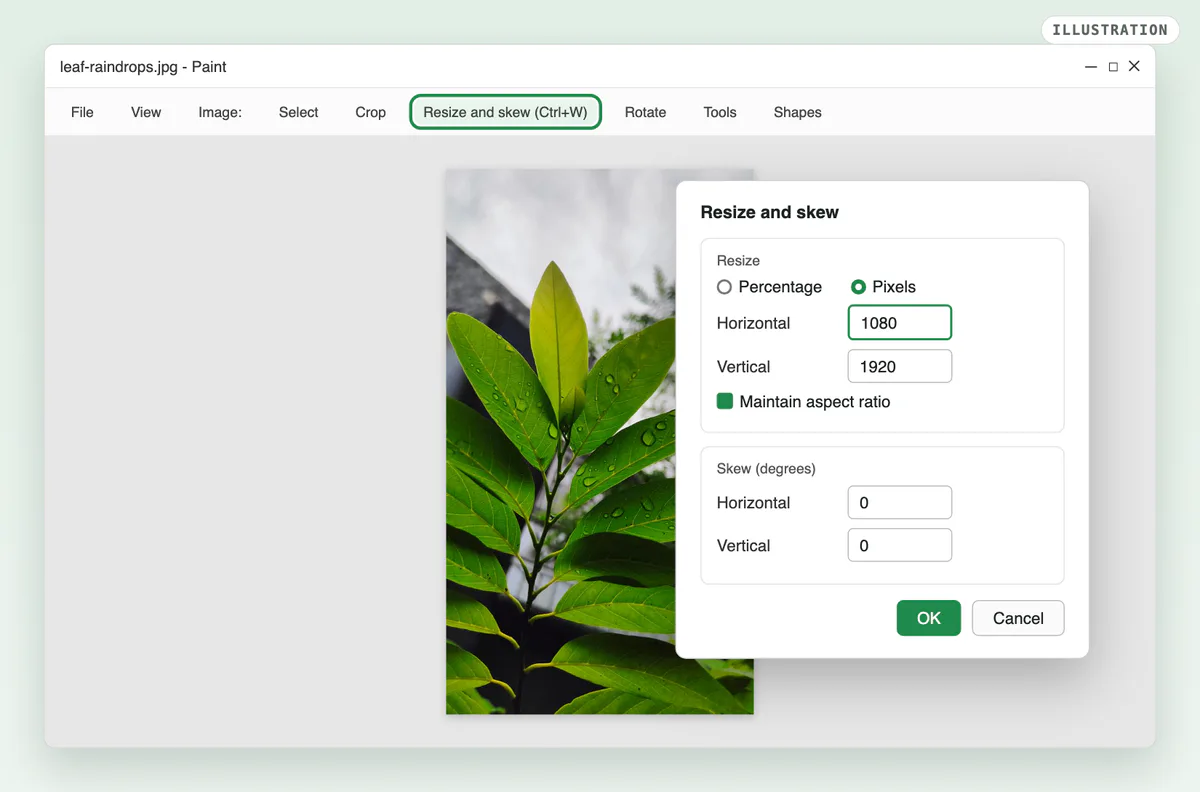
Open the picture in Paint
Right-click the file, choose Open with, then Paint.
Press Ctrl+W and choose Pixels
Keep Maintain aspect ratio on, so the picture does not stretch.
Type the new width, then save a copy
Choose File, then Save as, and give the file a new name. The Paint guide has every dialog.
On a Mac
Open the picture in Preview and choose Tools, then Adjust Size. Keep Resample image ticked, or only the PPI changes. Type the width in pixels and click OK. The Mac guide covers Export and many files at once.
In Photoshop
Choose Image, then Image Size. Keep the chain icon on, so the width and height stay in proportion. Tick Resample, set the unit to Pixels and type the new width, then click OK. Without Resample, Photoshop changes only the PPI, Adobe’s help page explains.
On iPhone and Android
The Photos app on iPhone crops but has no width box. Since iOS 26, open the picture in the Preview app, tap the More button, then Adjust Size. Choose the pixels and tap Done, Apple’s iPhone guide says. The iPhone guide covers older versions.
On a Samsung Galaxy, open the photo in Gallery and tap Edit. Tap the three-dot menu, then Resize, and pick a percentage. Samsung’s help page says it only shrinks. Choose Save copy from the same menu to keep the original.
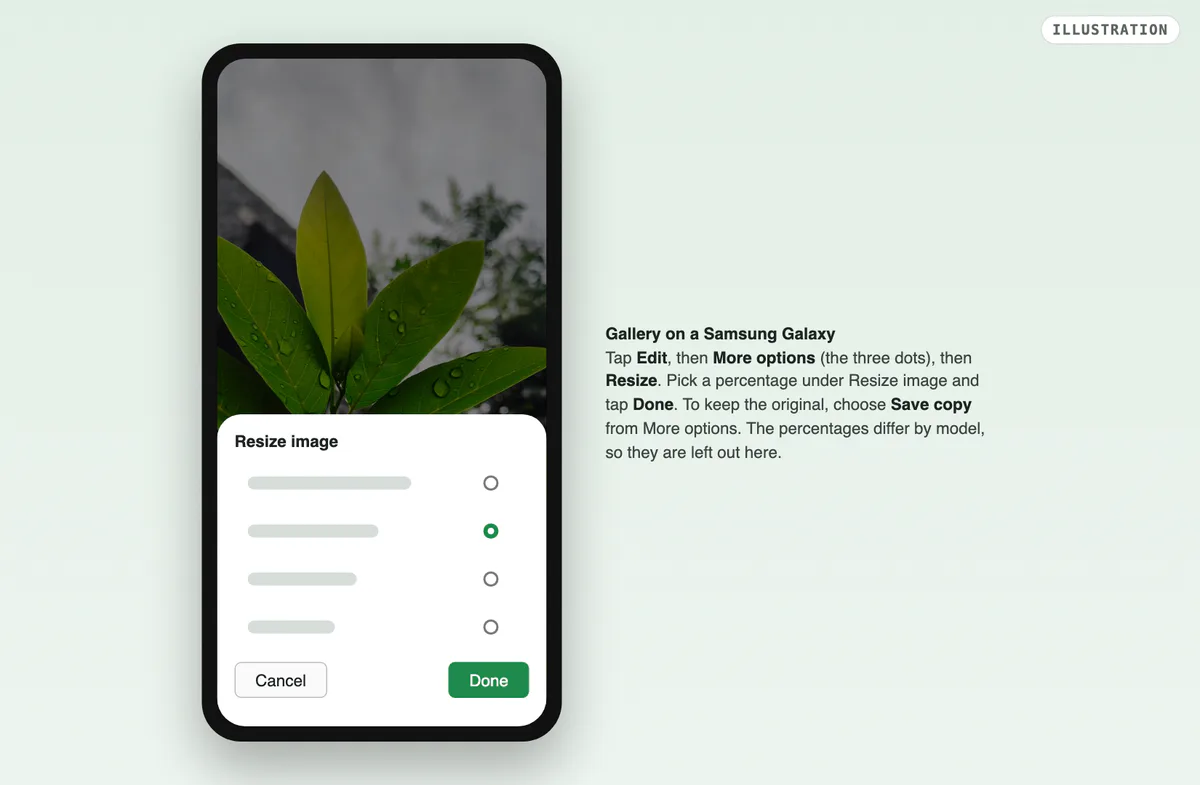
On a Pixel or another Android phone, Google Photos crops but shows no width or height box, in the guides we read; Google’s help publishes no resize steps. Use an image resizer in Chrome instead, below.
Online, in any browser
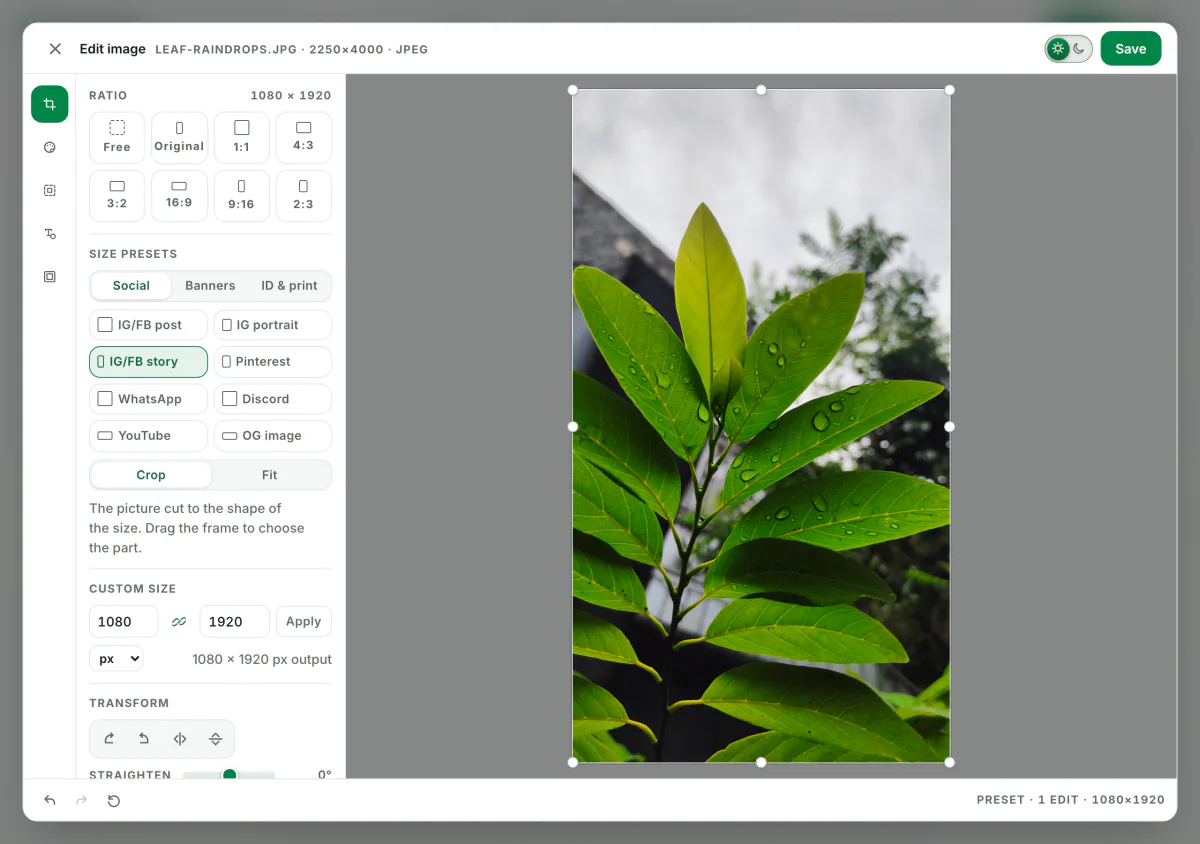
Open the image resizer and drop the picture. Tap a size preset, or type a width and height into Custom size. For a common screen size, the resize image to 1920x1080 page sets it in one tap. You get the file back in JPG, PNG, WebP or AVIF.
What each resolution weighs, and how big it prints
Fewer pixels make a smaller file, and the drop is steep. We saved the leaf photo with Blinkimg’s engine at five common long edges, JPG at Auto. The 4K copy was 729.4 KB; the 1080 one was 74.6 KB.
File size by resolution
- 2,160 × 3,840729.4 KB
- 1,440 × 2,560325.5 KB
- 1,080 × 1,920196.2 KB
- 720 × 1,28098.0 KB
- 608 × 1,08074.6 KB
| Resolution | Megapixels | JPG at Auto | At 300 PPI | At 150 PPI |
|---|---|---|---|---|
| 2,250 × 4,000 | 9.0 | 793.3 KB | 7.5 × 13.3 in | 15.0 × 26.7 in |
| 2,160 × 3,840 | 8.3 | 729.4 KB | 7.2 × 12.8 in | 14.4 × 25.6 in |
| 1,440 × 2,560 | 3.7 | 325.5 KB | 4.8 × 8.5 in | 9.6 × 17.1 in |
| 1,080 × 1,920 | 2.1 | 196.2 KB | 3.6 × 6.4 in | 7.2 × 12.8 in |
| 720 × 1,280 | 0.9 | 98.0 KB | 2.4 × 4.3 in | 4.8 × 8.5 in |
| 608 × 1,080 | 0.7 | 74.6 KB | 2.0 × 3.6 in | 4.1 × 7.2 in |
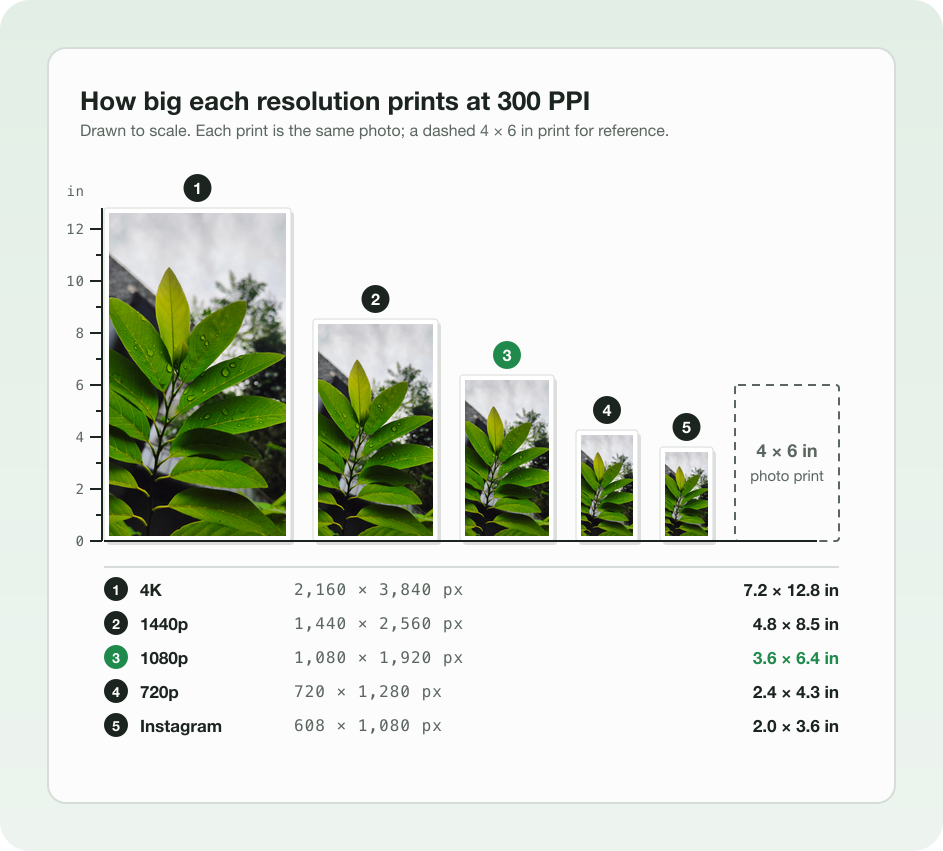
So pick the resolution from where the picture goes. A web page or an email needs the width it shows at, often 1920 or less. A print needs 300 pixels for every inch.
How to increase the resolution of an image
To increase a photo’s resolution, you add pixels, but you cannot add detail the camera never caught. We enlarged the 1,080 × 1,920 copy to 2,160 × 3,840 with sharp’s Lanczos 3 resize. Then we compared it with a real 2,160 × 3,840 copy made from the original.
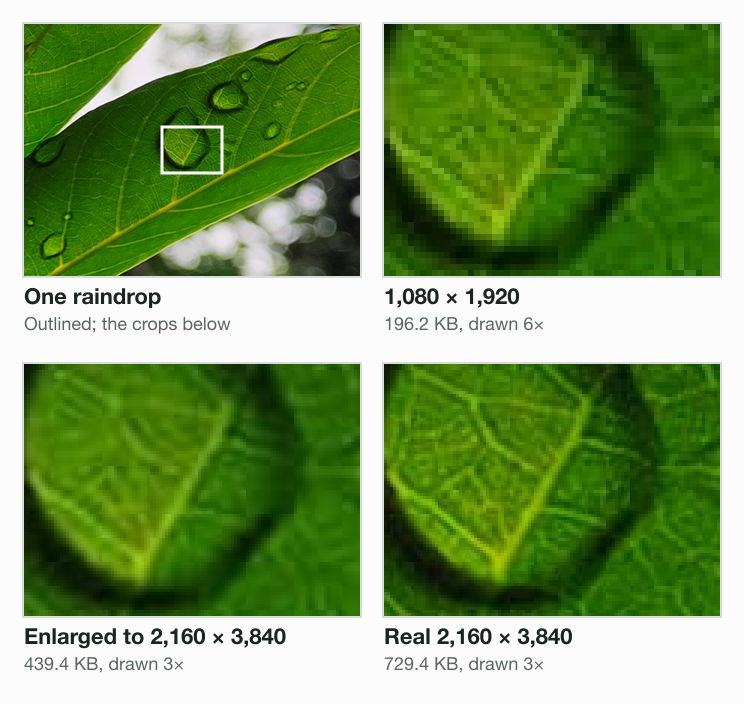
The enlarged copy kept 47% less detail than the real one, by our score of the step between neighbouring pixels. Its JPG was 439.4 KB, against 729.4 KB for the real one. The file grew from 196.2 KB, yet only to hold a smoother picture.
So the best way to a higher resolution is a bigger source. Here are the options, best first.
- Export the original again. Go back to the camera file or the full-size download, not a copy a chat app shrank.
- Shoot at the camera’s full resolution. Recent iPhones save 24 MP by default. Resolution Control under Settings, Camera, Formats unlocks 48 MP, Apple’s camera guide says.
- Use an AI upscaler when there is no bigger file. Tools such as Adobe’s Super Resolution invent likely detail. That can look sharp, but it is a guess, not the scene.
- Enlarge with a plain resize when a form only checks the pixels. Use Paint or Preview, at 2 times or less. The image too small to upload guide shows what each step costs.
How to lower the resolution of a picture to upload it
Lowering the resolution is safe, and it is the fastest way to a small file. The 4K leaf photo shrank from 729.4 KB to 196.2 KB at 1,080 × 1,920, a cut of 73%.
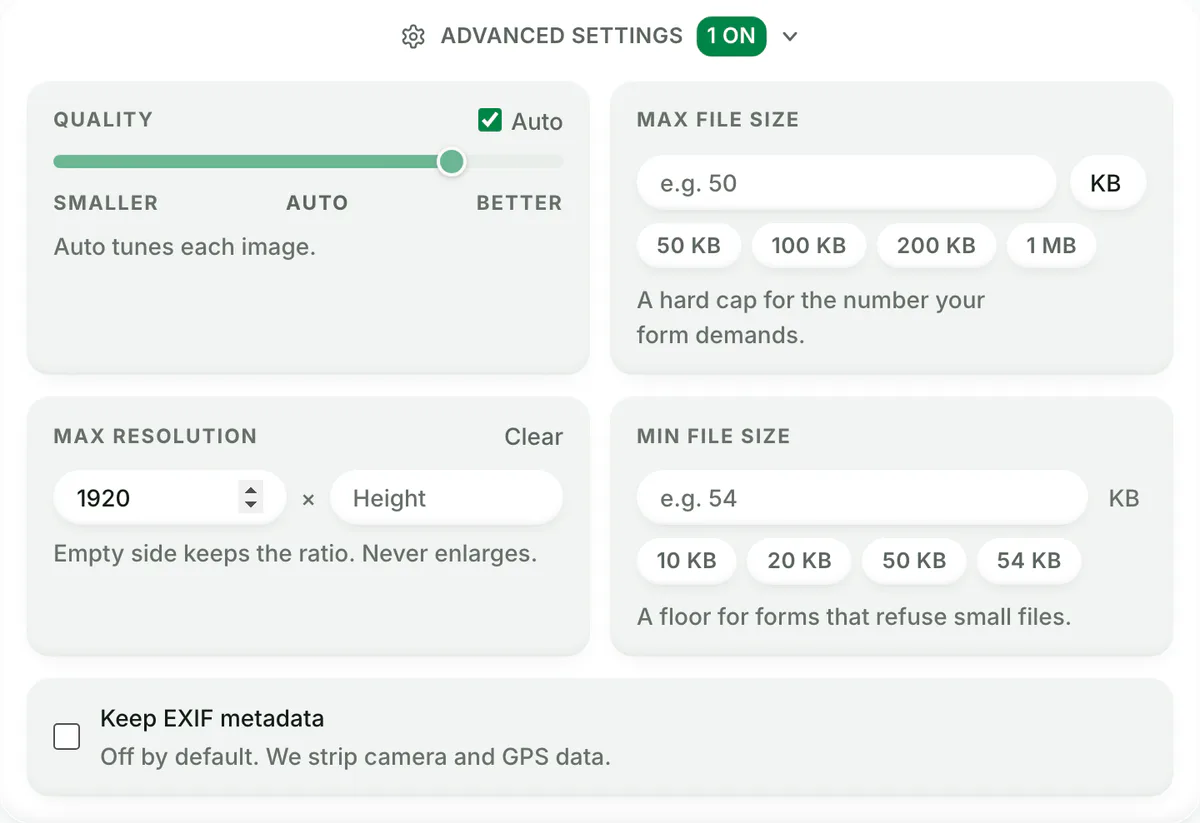
To lower many pictures at once, open Advanced settings in the image resizer and set Max resolution, such as 1920. Every picture shrinks to fit inside it, and none is enlarged. Add a Max file size to land under a form’s KB limit in the same pass.
Does changing the DPI change the resolution?
No. A DPI change rewrites a tag in the file’s header and nothing else. In our DPI test, setting a 1,800 × 1,200 JPG to 300 DPI added 18 bytes. It changed 0 of its 6,480,000 colour samples.
A higher DPI only makes the same pixels print smaller and denser. When a print lab asks for 300 DPI at a size, check that the pixels cover it first. Then change the tag in Photoshop or Preview with Resample off.
How to check the resolution of a picture
- Windows: right-click the file, choose Properties, then the Details tab. Dimensions sits under Image.
- Mac: open it in Preview and choose Tools, then Show Inspector.
- iPhone: open it in Photos and swipe up. The line under the date shows the megapixels and the width × height.
- Any browser: drop it into the image resizer; the editor shows width × height beside the file name.
Know the numbers before you change them. Then you can tell whether a picture needs fewer pixels, more pixels, or only a new DPI tag.
How we tested
- The photo: nataraj_07’s leaf with raindrops from Pixabay, 2,250 × 4,000, tagged 300 DPI.
- The files: Blinkimg’s engine, version 9, saved every JPG at Auto on 2026-10-14. sharp 0.35.4 made the enlargement with Lanczos 3, because the engine never enlarges.
- The detail score: the average brightness step between neighbouring pixels. A softer picture scores lower. How we measure covers the rest of our method.
- The steps: Paint and Preview on a Mac are from our own Paint and Mac tests. The Photoshop, iPhone, Samsung and camera steps come from Adobe’s, Apple’s and Samsung’s own help pages, linked where they appear. The Windows Photos menu comes from how-to guides; we did not run it.
Read the full guide: How to reduce image file size on any device.
Questions
- Can you change the resolution of an existing photo?
- Yes. A resize changes an existing photo’s width and height in pixels, and every phone and computer has one. Paint and Photos on Windows, Preview on a Mac or iPhone, and Gallery on Samsung all do it. Save the result as a copy, so the original keeps its full resolution.
- How do I convert a low resolution photo to high resolution?
- First look for the original: the camera file or the full download. If none exists, an AI upscaler can invent likely detail, and a plain resize adds pixels only. Our 1,080 × 1,920 leaf photo, enlarged to 4K, kept 47% less detail than a real 4K copy.
- How do I change the resolution of an image to 1920x1080?
- Open the image in a resizer, type 1920 for the width and 1080 for the height, and choose Crop or Fit. Crop fills the frame and trims the edges; Fit keeps the whole picture. A photo that is not 16:9 cannot fill 1920 × 1080 without one of the two.
- How to change picture resolution on iPhone?
- On iOS 26 or later, open the photo in the Preview app. Tap the More button, then Adjust Size, choose the width in pixels and tap Done. Then export the copy as JPEG or HEIC. The Photos app itself only crops, so it cannot change a picture’s resolution.
- Does lowering the resolution reduce quality?
- It removes fine detail, which shows only when the picture is viewed or printed larger than its new size. Shown at that size or smaller, it looks the same. The file shrinks a lot: our leaf photo went from 729.4 KB at 4K to 196.2 KB at 1,080 × 1,920.
- Is resolution the same as DPI?
- No. Resolution is the picture’s pixels, such as 2,250 × 4,000. DPI, or PPI, is a tag that says how many of them fit in an inch of print. At 300 PPI, those pixels print 7.5 × 13.3 inches. Changing the tag changes no pixel.
- What resolution should a picture be for printing?
- Labs ask for 300 pixels per inch for a sharp print. Multiply the inches by 300: a 4 × 6 print needs 1200 × 1800 pixels. A 1,080 × 1,920 picture prints sharp up to 3.6 × 6.4 inches, or twice that at 150 PPI.
- Why does my picture get blurry when I increase the resolution?
- A resize makes new pixels by blending the old ones around them. It cannot see detail that was never in the file, so edges and fine texture spread out and look soft. Start from a bigger original, or keep any enlargement to 2 times or less.
- How to change the resolution on a picture in Windows 11?
- Open the photo in Paint and press Ctrl+W. Choose Pixels, keep Maintain aspect ratio on and type the new width. Click OK, then File, Save as, with a new name. The Photos app also resizes from its See more menu, with Resize image.
- How do I check what resolution a picture is?
- On Windows, right-click the file, choose Properties and open the Details tab. On a Mac, open it in Preview and choose Tools, then Show Inspector. On an iPhone, open it in Photos and swipe up; the width × height shows under the date.