How to change the DPI of an image for print
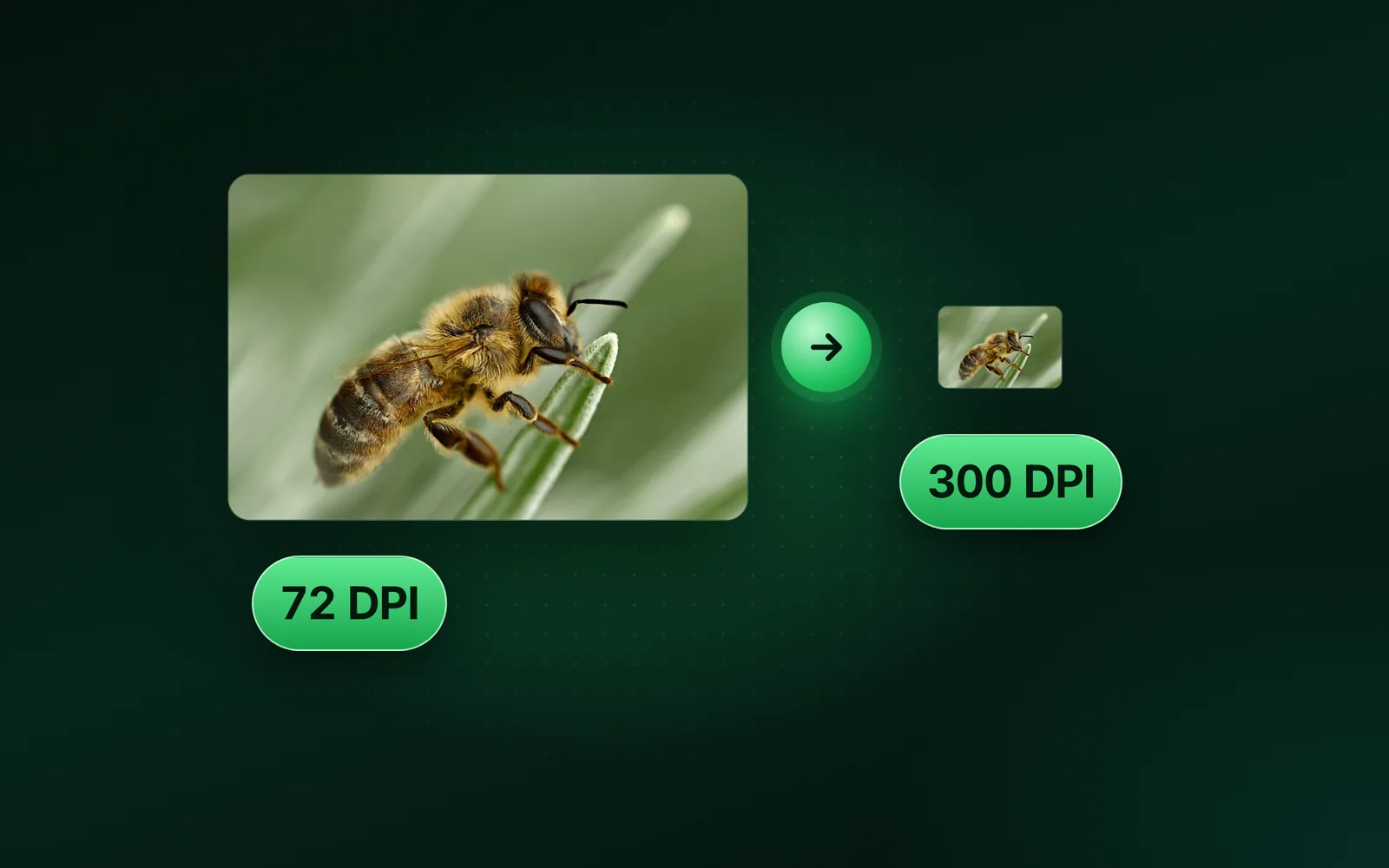
The DPI of an image changes in one box: Resolution, in Photoshop's Image Size or Preview's Adjust Size. Turn Resample off, and the pixel count stays; only the print size moves. Our script retagged one 1800 × 1200 JPG at 72 and at 300 DPI. Both weigh 146.6 KB, and no pixel value changed. Part of the image resizer.
By Sahadat Husain13 min readGuides

DPI is a print setting, not a pixel count
An image’s DPI is one number in the file that says how many pixels fill an inch of paper. The pixels themselves do not change with it. Adobe’s DPI guide defines dots per inch as the ink droplets a printer lays down per inch. In a file, the number counts pixels, so Photoshop treats PPI and DPI at a ratio of 1:1.
So the print size is the pixels divided by the DPI. Our 9.8 MB camera photo has 4964 × 2782 pixels. At 300 DPI it prints 16.5 × 9.3 inches. The same file at a lower DPI simply prints larger.
Does changing the DPI change the image?
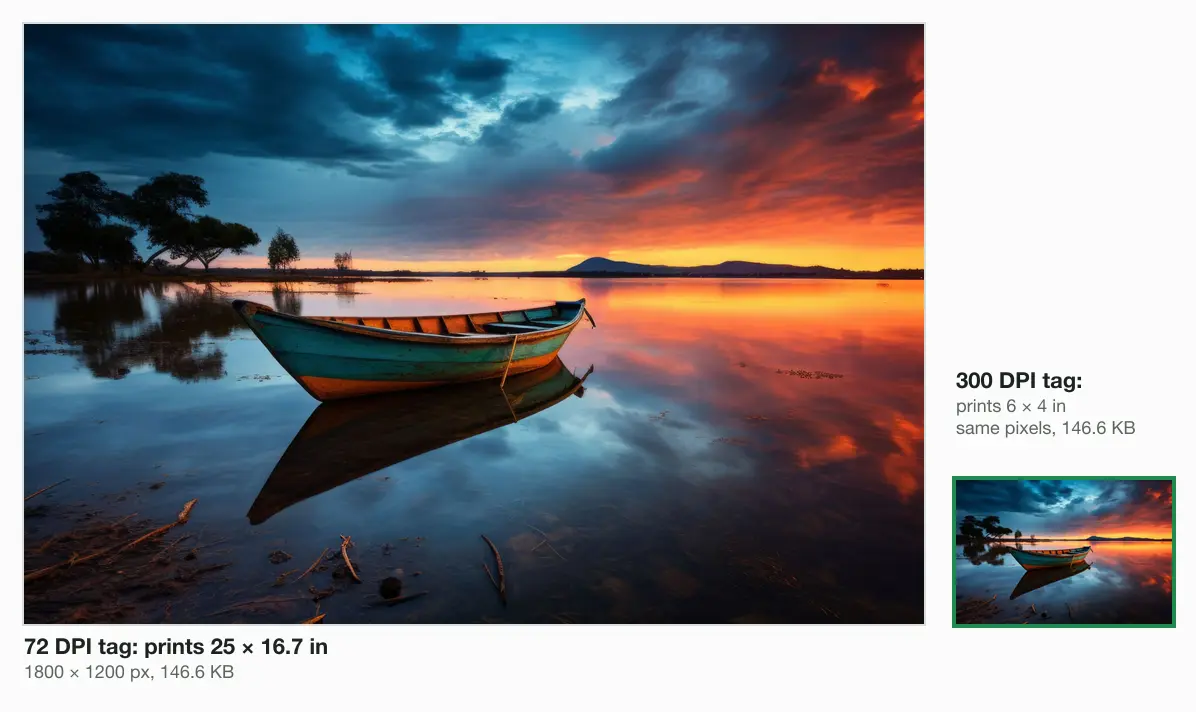
Changing only the DPI number leaves every pixel and almost every byte as it was. We cut our photo to a 4 × 6 inch print lying sideways, 1800 × 1200 pixels. Blinkimg’s engine saved it as a 146.6 KB JPG at Auto. Then our script wrote a DPI of 72 into one copy and 300 into another.
| File | Bytes | sips reads | Prints at | Pixel values changed |
|---|---|---|---|---|
| The engine's JPG, no DPI field | 146,617 | 72 DPI | (no unit stored) | 0 |
| Tagged 72 DPI | 146,635 | 72 DPI | 25 × 16.7 in | 0 of 6,480,000 |
| Tagged 300 DPI | 146,635 | 300 DPI | 6 × 4 in | 0 of 6,480,000 |
Both tagged files weigh 146,635 bytes. They differ in 4 bytes out of 146,635. Decoded, both give the engine’s pixels exactly: 0 of 6,480,000 values changed. A printer gets more pixels per inch at 300 only because the print shrinks.
Where a JPG and a PNG keep their DPI
A JPG keeps its DPI in the JFIF header, right after the file’s first 2 bytes. The JFIF 1.02 specification gives it a units byte, where 1 means dots per inch, and two 2-byte densities. Our 300 DPI file carries these 18 bytes:
- FF·
- E0·
APP0 marker
- 00NUL
- 10·
Length: 16
- 4AJ
- 46F
- 49I
- 46F
- 00NUL
JFIF and a zero
- 01·
- 02·
Version 1.02
- 01·
Units: 1, per inch
- 01·
- 2C,
X density: 300
- 01·
- 2C,
Y density: 300
- 00NUL
- 00NUL
No thumbnail
A PNG keeps its DPI in a pHYs chunk. The W3C PNG specification counts pixels per metre there, not per inch. So 300 DPI is stored as 11,811 pixels per metre. The engine’s PNG of the same print, 631.0 KB, said 2,835, which is 72 DPI. Rewriting it to 300 changed 8 bytes and no pixel.
Why does a photo say 72 DPI?
A photo can show 72 DPI without storing it. Our 9.8 MB camera photo has a JFIF header with units 0: a 1:1 pixel shape, no inch. Blinkimg’s engine writes no JFIF header into its JPGs. On macOS 26.5.1, sips reported both files as 72 DPI. On a Mac, 72 can mean the file holds no DPI.
How do you change the DPI of a picture?
You change the DPI of a picture in one of 2 ways: retag the file, or resample its pixels. Retagging keeps the pixel count and moves the print size. Resampling keeps the print size and changes the pixel count.
Does someone ask for a DPI, such as 300?
- Yes
Do your pixels cover the print at that DPI?
- Yes
Retag: Resample off, type the DPI
The pixel count stays; the print size moves.
- No
Resample to inches × DPI
A 4 × 6 at 300 is 1200 × 1800.
- Yes
- No
Does a form ask for exact pixels?
- Yes
Resize to those pixels
The form names pixels, so send those.
- No
Leave the DPI alone
A typical photo shows on screen by its pixels.
- Yes
Change the DPI in Photoshop
Open the image and choose Image > Image Size
These are the steps in Adobe’s DPI guide.
Deselect Resample
Resampling can add pixels artificially and degrade quality, the guide warns. With Resample off, Width and Height in pixels stay as they are.
Type the new Resolution in Pixels/Inch
The print size in inches changes to match. Save the file.
Change the DPI on a Mac with Preview
Open the image in Preview and choose Tools > Adjust Size
Apple’s Preview guide uses this dialog for every change of size.
Deselect Resample image
Apple’s guide says to deselect it to change the size without losing any detail.
Type the new Resolution, then click OK and save
Check the result afterwards, as the next section shows.
Apple’s Preview guide also gives the opposite route. With Resample image ticked, a smaller Resolution makes the file smaller, because Preview drops pixels. To resize in pixels on a Mac, read how to resize an image on Mac.
Change the DPI on Windows
Microsoft’s Paint page describes resizing in pixels or as a percentage, and it names no DPI setting. On Windows, Photoshop’s steps work as above. An online DPI tool rewrites the number too. PicsSizer, one of Google’s top results, says its change is metadata only. For the pixel side, read how to resize an image in Paint.
What sips really writes when you change the DPI
sips-316 set 300 DPI on our JPG, but sips still read it as 72. It also re-saved the picture. The sips command is the image tool built into macOS. Its manual lists dpiWidth and dpiHeight as properties to get or set. We ran it on our 72 DPI JPG and PNG:
# on a JPG, sips-316 still reads 72; the PNG route works
sips -g dpiWidth -g dpiHeight photo-72dpi.jpg
sips -s dpiWidth 300 -s dpiHeight 300 photo-72dpi.jpg --out sips-300dpi.jpg
sips -g dpiWidth -g dpiHeight sips-300dpi.jpg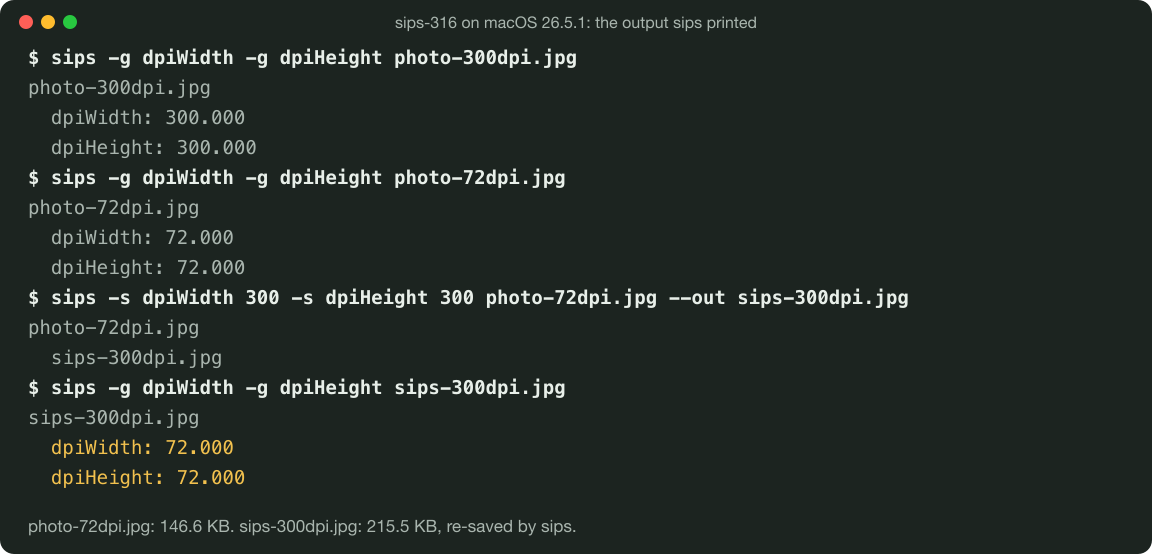
On our JPG, sips did not just change the number. It re-encoded the picture: 146.6 KB became 215.5 KB, up 47%. It changed 25% of the pixel values of the 1800 × 1200 frame, a PSNR of 50.7 dB. It wrote 300 into the JFIF header with units 0, which means no unit, and wrote no Exif resolution. So sips read its own file back as 72 DPI.
The PNG fared better: sips kept every pixel and wrote 11,811 pixels per metre. It read back 300 DPI. It also added an eXIf chunk and repacked the data: 631.0 KB became 744.9 KB.
Make an image 300 DPI for print
A 300 DPI print needs its size in inches times 300, in pixels. When your photo has fewer pixels, retagging only shrinks the print. Resample instead, or order a smaller print.
How many pixels does each print size need?
| 150 DPI | JPG at Auto | 300 DPI | JPG at Auto | |
|---|---|---|---|---|
| 2 × 2 in | 300 × 300 | 12.0 KB | 600 × 600 | 34.7 KB |
| 3.5 × 5 in | 525 × 750 | 37.8 KB | 1050 × 1500 | 114.1 KB |
| 4 × 6 in | 600 × 900 | 49.4 KB | 1200 × 1800 | 146.6 KB |
| 5 × 7 in | 750 × 1050 | 65.7 KB | 1500 × 2100 | 199.6 KB |
| A4, 210 × 297 mm | 1240 × 1754 | 146.9 KB | 2480 × 3508 | 433.0 KB |
At 150 DPI
- 2 × 2 in, 300 × 30012.0 KB
- 3.5 × 5 in, 525 × 75037.8 KB
- 4 × 6 in, 600 × 90049.4 KB
- 5 × 7 in, 750 × 105065.7 KB
- A4, 210 × 297 mm, 1240 × 1754146.9 KB
At 300 DPI
- 2 × 2 in, 600 × 60034.7 KB
- 3.5 × 5 in, 1050 × 1500114.1 KB
- 4 × 6 in, 1200 × 1800146.6 KB
- 5 × 7 in, 1500 × 2100199.6 KB
- A4, 210 × 297 mm, 2480 × 3508433.0 KB
Double the DPI and you get 4 times the pixels, because both sides double. The 4 × 6 print went from 49.4 KB at 150 DPI to 146.6 KB at 300. An A4 page at 150 DPI holds 2.17 megapixels, about the same as the 4 × 6 at 300. Its JPG weighed 146.9 KB.
What 150 and 72 DPI look like up close
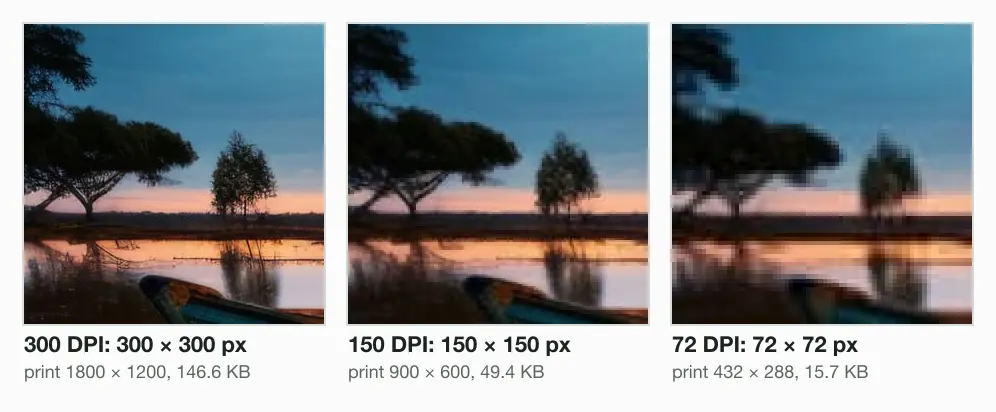
The picture shows one inch of the 4 × 6 print at 3 densities. Each comes from its own JPG at Auto. Every square is one pixel the printer gets.
To get exact print pixels, the resize image in inches tool converts at 300 DPI. For metric sizes, use resize image in cm or resize image to A4. A lab print can go straight to resize photo to 4x6. A passport print is a 2x2 photo, 600 × 600 pixels at 300 DPI.
How to find the DPI of an image
The DPI of an image shows in its file details on Windows, and in Preview on a Mac. Adobe’s guide gives both paths:
- Windows. Right-click the file in File Explorer and choose Properties. Open the Details tab and scroll down to Dimensions and the DPI resolution.
- Mac, Preview. Open the image in Preview, then choose Tools > Show Inspector. The General Info tab shows the resolution.
- Mac, Terminal. Type sips -g dpiWidth and the file name. It prints the DPI with 3 decimals.
The DPI that matters is the pixels divided by the print size. Our 1800 × 1200 file prints 6 inches wide at 300 DPI. Sent for a 25-inch print, it gives 72, whatever its tag says.
Which DPI should you use?
Use 300 DPI for a photo print, a flyer or a business document. Adobe’s guide calls it the general benchmark for those. A poster seen from a distance needs at least 100 DPI. Magazine and exhibition prints may need 600 or more.
A print shop or form that names its own DPI wins. On a screen, a typical photo shows by its pixels. To set those, open the image resizer.
Read the full guide: How to reduce image file size on any device.
Questions
- What does DPI stand for?
- DPI stands for dots per inch. Adobe’s DPI guide says that in print, it counts the ink droplets a printer puts down per inch. In an image file, the DPI is one stored number that sets the print size. Photoshop counts the same figure as pixels per inch, at a ratio of 1:1.
- Can you change a photo from 72 DPI to 300 DPI?
- Yes, and the photo keeps its pixel count. Our script retagged one 1800 × 1200 JPG at 72 and at 300 DPI. Both stayed 146.6 KB, and no pixel value changed. Only the print size moved, from 25 × 16.7 inches to 6 × 4. An editor that saves the JPG again re-compresses it.
- Can a JPEG be 300 DPI?
- A JPEG can be 300 DPI: the JFIF 1.02 specification puts the DPI in the JFIF header. A units byte of 1 means dots per inch, and two 2-byte fields hold the densities. 300 is written as 01 2C. macOS sips read our tagged JPG back as 300 DPI.
- How do I make sure a photo is 300 DPI?
- Divide its pixels by the print size in inches. A 4 × 6 print needs 1200 × 1800 pixels for 300 DPI, because 4 × 300 is 1200. A photo with fewer pixels prints at a lower real DPI, whatever its tag says. Resize to the exact pixels first, then set the tag to 300.
- How can I convert an image to 200 DPI?
- First decide whether the print size or the pixels should change. To keep the pixels, set Resolution to 200 with Resample off. An 1800-pixel side then prints 9 inches wide. To keep the print size, resample instead: a 6-inch side at 200 DPI needs 1200 pixels.
- Is 72 PPI the same as 300 DPI?
- 72 PPI is not 300 DPI. Photoshop treats PPI and DPI as 1:1, so 72 PPI means 72 DPI. The two numbers give the same file different print sizes. Our 1800 × 1200 JPG prints 25 × 16.7 inches at 72 and 6 × 4 inches at 300. Our script's retag left its pixels identical.
- What size image is best for 300 DPI?
- Multiply the print size in inches by 300. A 4 × 6 print needs 1200 × 1800 pixels. A 5 × 7 needs 1500 × 2100, and an A4 page 2480 × 3508. From our camera photo, Blinkimg's engine saved JPGs at Auto of 146.6 KB, 199.6 KB and 433.0 KB.
- A 3.5 image at 300 DPI is what size in pixels?
- A 3.5 inch side at 300 DPI is 1050 pixels, because 3.5 × 300 is 1050. A 3.5 × 5 inch print needs 1050 × 1500 pixels. At 150 DPI the same print needs 525 × 750. Blinkimg's engine saved the 300 DPI version of our photo as a 114.1 KB JPG at Auto.
- Does changing the DPI change the file size?
- Not when only the number changes. Our JPG weighed 146,635 bytes at 72 DPI and at 300 DPI, and 4 bytes differed. A PNG's DPI field took 8 changed bytes and kept 631.0 KB. A program that saves the picture again can change the size. On our Mac, sips turned the 146.6 KB JPG into 215.5 KB.
- Does changing the DPI reduce image quality?
- Changing only the DPI number keeps the quality. Our script's 72 and 300 DPI copies decoded to identical pixels. Resampling, or a tool that saves the JPG again, can cost quality. When sips-316 wrote a new DPI into our 1800 × 1200 JPG, 25% of the pixel values moved. That is a PSNR of 50.7 dB.
- How do I change the DPI in Photoshop?
- Open the image, then choose Image > Image Size. Deselect Resample, then type the new Resolution in Pixels/Inch. Width and Height in pixels stay as they were, and only the size in inches changes. Adobe's DPI guide warns that resampling can add pixels artificially and degrade quality.
- How do I change the DPI of an image on a Mac?
- Open the image in Preview and choose Tools > Adjust Size. Apple's guide says to deselect Resample image to keep every detail. Type the new Resolution and save. Then check it with sips -g dpiWidth in Terminal. On our Mac, sips-316 set 300 on a PNG, but a JPG still read 72.