How to save a PDF as a JPEG on Mac, Windows and iPhone
To save a PDF as a JPEG on a Mac, open it in Preview, choose File, then Export, and pick JPEG. On Windows 11, take a snip with Windows logo key + Shift + S. Acrobat and an iPhone shortcut export every page at once. Pick 150 DPI for screens and 300 DPI for print. Part of the image converter.
By Sahadat Husain11 min readFormats

What happens when you save a PDF as a JPEG?
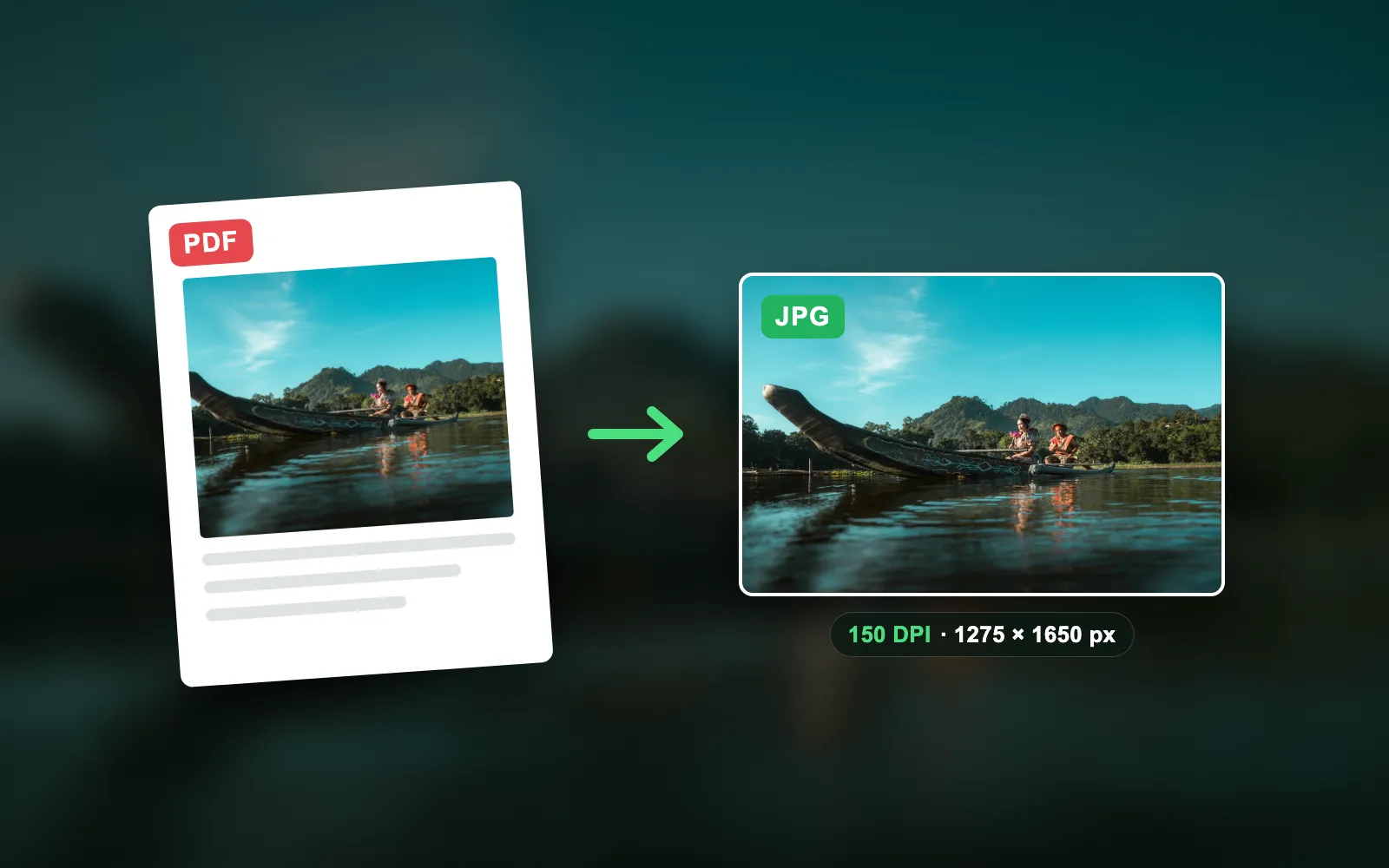
Each page becomes its own picture. A JPEG holds one image, so a 4-page PDF turns into 4 JPEG files. The text stops being text: you cannot select it, search it or copy it any more.
Two settings decide the result, and they are not the same thing. Resolution (DPI, or pixels per inch) sets how many pixels each page gets. Quality sets how hard the JPEG squeezes those pixels. A US Letter page is 8.5 × 11 inches, so it becomes 612 × 792 pixels at 72 DPI, 1,275 × 1,650 at 150 DPI and 2,550 × 3,300 at 300 DPI.
How do I save a PDF as a JPEG on a Mac?
Open the PDF in Preview, choose File, then Export, and pick JPEG from the Format menu. Apple’s Preview guide gives that path. Nothing to install, and the file never leaves your Mac.
Open the PDF in Preview and pick the page
Double-click the PDF, or Control-click it and choose Open With, then Preview. Click the page you want in the sidebar.
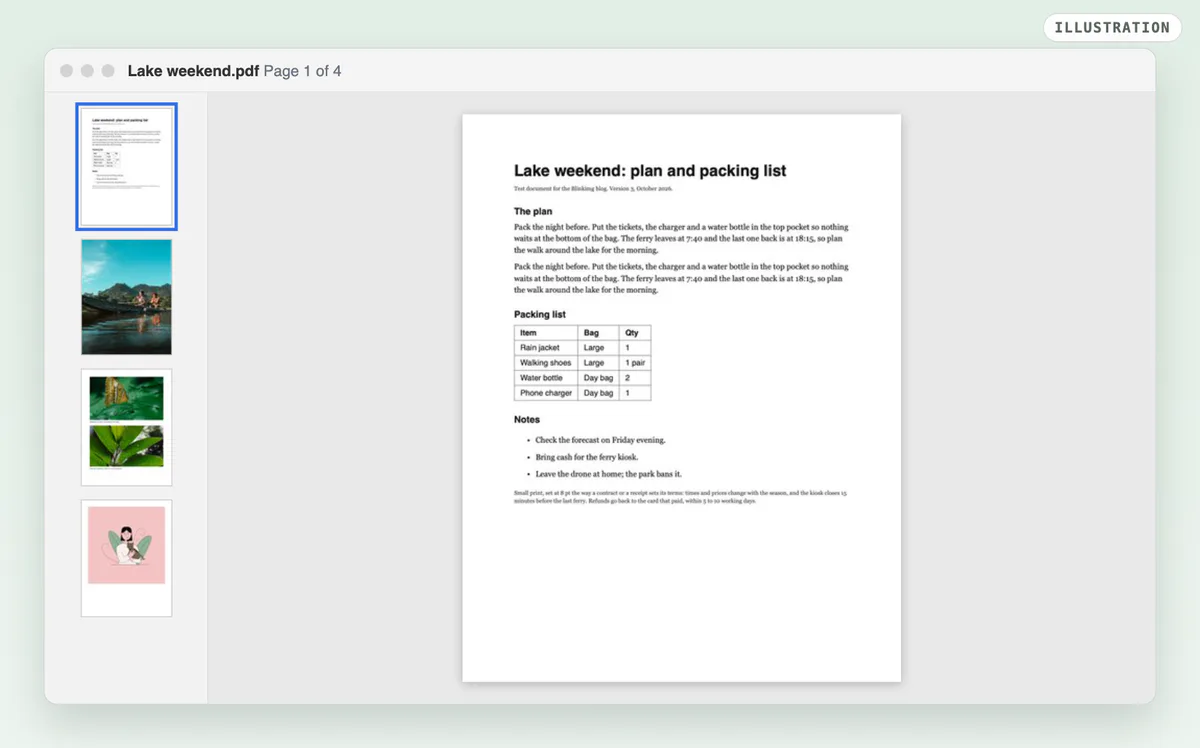
Illustration: Preview with our test PDF open, page 1 selected in the sidebar. Choose File, then Export
Use Export, not Export as PDF. Export is the one that offers image formats.
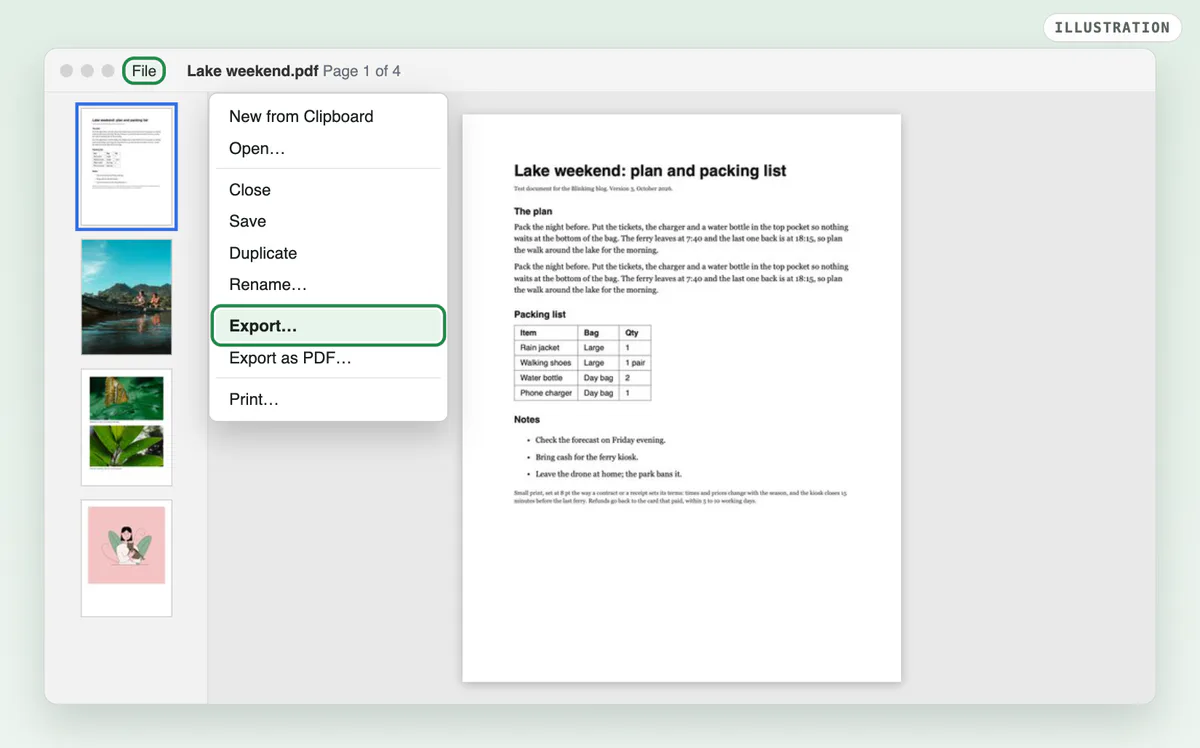
Illustration: File, then Export in Preview. Set Format to JPEG and Resolution to 150
Pick JPEG in the Format menu. Type 150 in Resolution for a page you will read on screen, or 300 for a page you will print. Leave Quality in the middle: on our photo page, the top of the slider made a file over 5 times bigger.
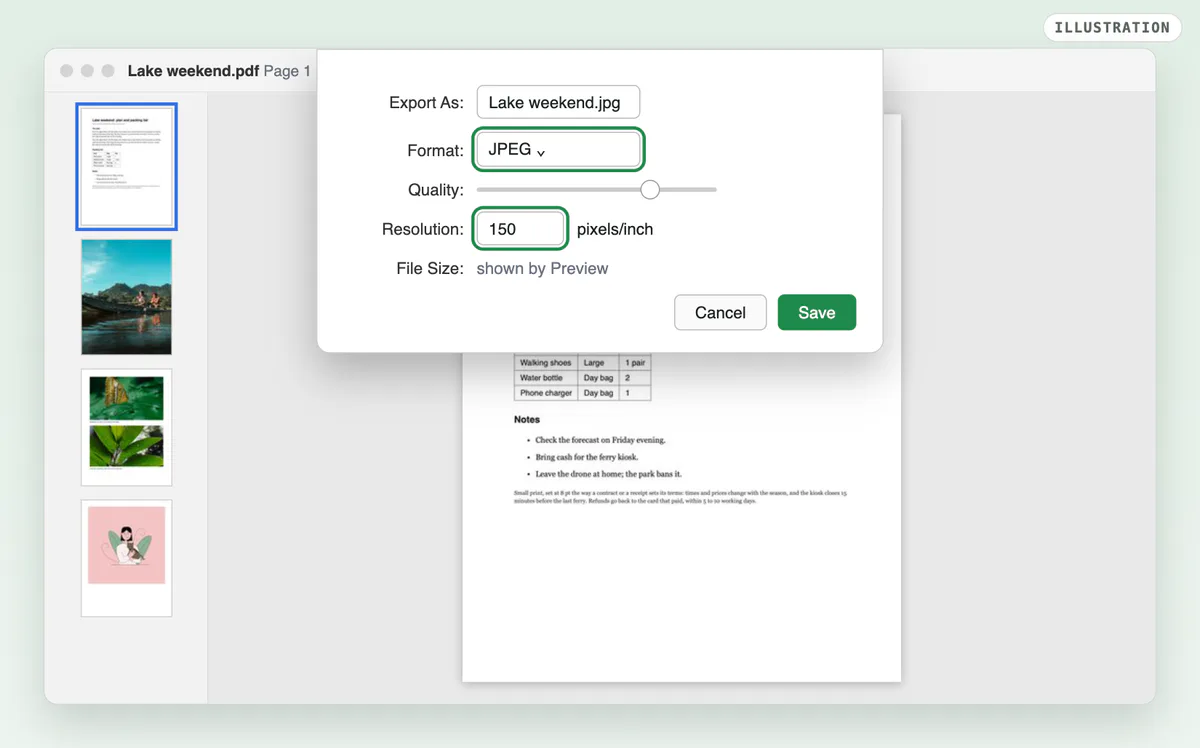
Illustration: Format JPEG and Resolution 150 in Preview’s Export sheet. Save writes one page.
How do I export every page, not just one?
Preview's Export saves the page you have selected, so a long PDF means one export per page. The Mac's Terminal tool sips is no shortcut: run on our test PDF with no options, it saved only page 1, at 612 × 792 pixels (72 DPI) and 67.1 KB. For every page in one go, use Acrobat or the iPhone shortcut below.
How do I save a PDF as a JPEG on Windows 11?
Windows 11 has no built-in PDF to JPEG export, so the free way is a screenshot. Open the PDF in your browser, fit the page to the window, and press Windows logo key + Shift + S. Microsoft’s Snipping Tool page documents the shortcut and the Save as button.
Open the PDF and fit one page to the screen
A screenshot holds only your screen’s pixels, so make the page as large as it can be.
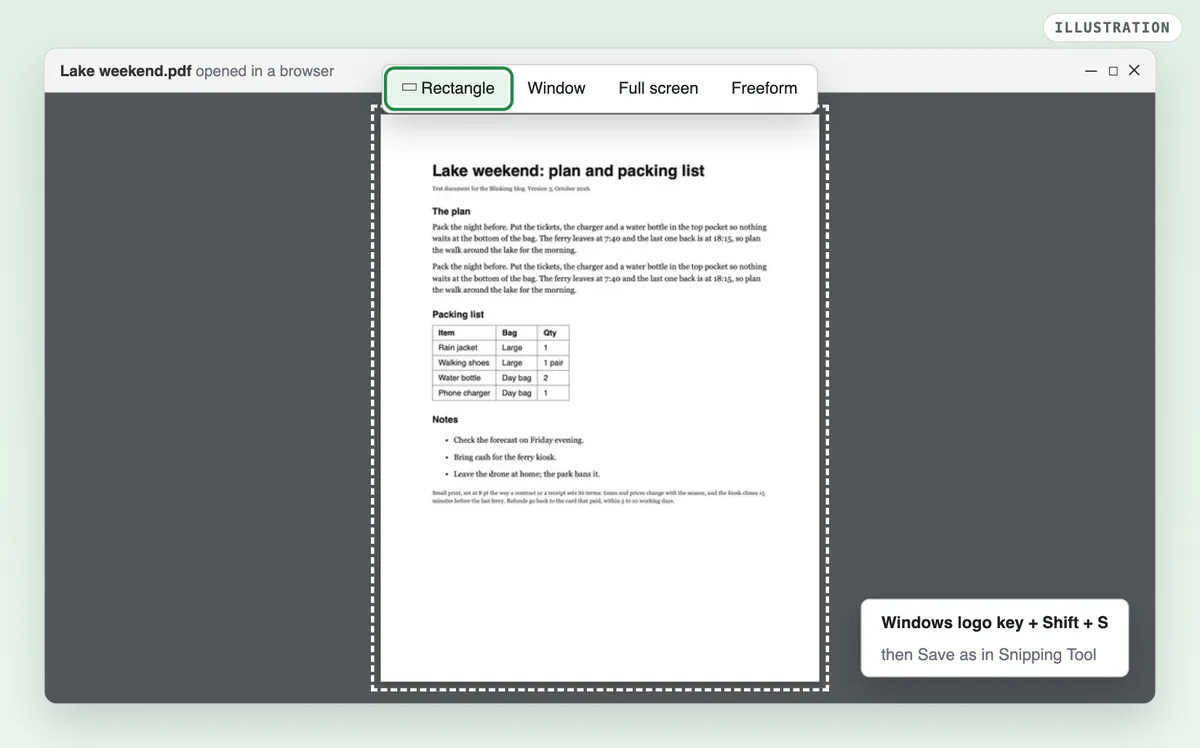
Illustration: the page fitted to the window before the snip. Press Windows logo key + Shift + S and drag over the page
Pick Rectangle in the bar and drag from corner to corner.
Illustration: Rectangle mode, then drag over the page. Select Save as and name the file
Choose a folder and a name. Snipping Tool also saves every snip to your Screenshots folder by itself.
Illustration: Save as in Snipping Tool keeps a copy where you choose.
The catch is size. A snip holds only the pixels your screen shows, and a full page at 150 DPI needs 1,650 pixels of height, more than most screens have. Fine for reading, too small to print.
How do I convert a PDF to JPEG in Adobe Acrobat?
In Acrobat, select Convert, then Image format, then JPEG, and every page saves as its own file. The steps are on Adobe’s help page, updated 23 September 2025. Exporting needs Acrobat Standard or Pro; the free Reader only views.
Select Convert in the global bar
Adobe names the bar at the top of the window the global bar.
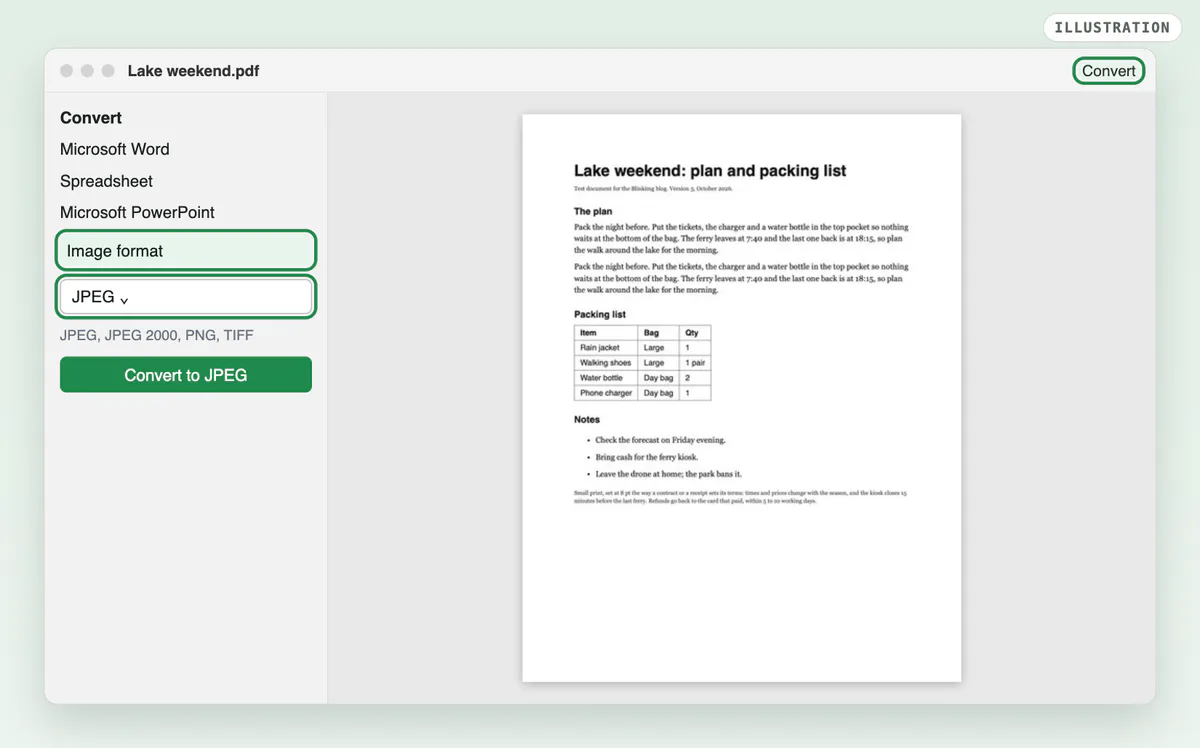
Illustration: Convert, Image format, JPEG and Convert to JPEG, as Adobe’s help page names them. Choose Image format, then JPEG
The dropdown in the left pane offers JPEG, JPEG 2000, PNG and TIFF.
Illustration: pick JPEG for photos, PNG for pages that are mostly text. Select Convert to JPEG and save
Pick a folder and a name. Acrobat writes one numbered JPEG per page.
Illustration: Convert to JPEG writes every page.
How do I save a PDF as a JPEG on iPhone or Android?
On an iPhone, the Shortcuts app does it with the action Make Image from PDF Page, which turns every page into its own JPEG. Apple documents no step-by-step guide for that action, so ours follows Matthew Cassinelli’s action directory, which we did not run on a phone.
Build a shortcut with three actions
Receive PDFs from the Share Sheet, Make Image from PDF Page set to JPEG, then Save to Photo Album.
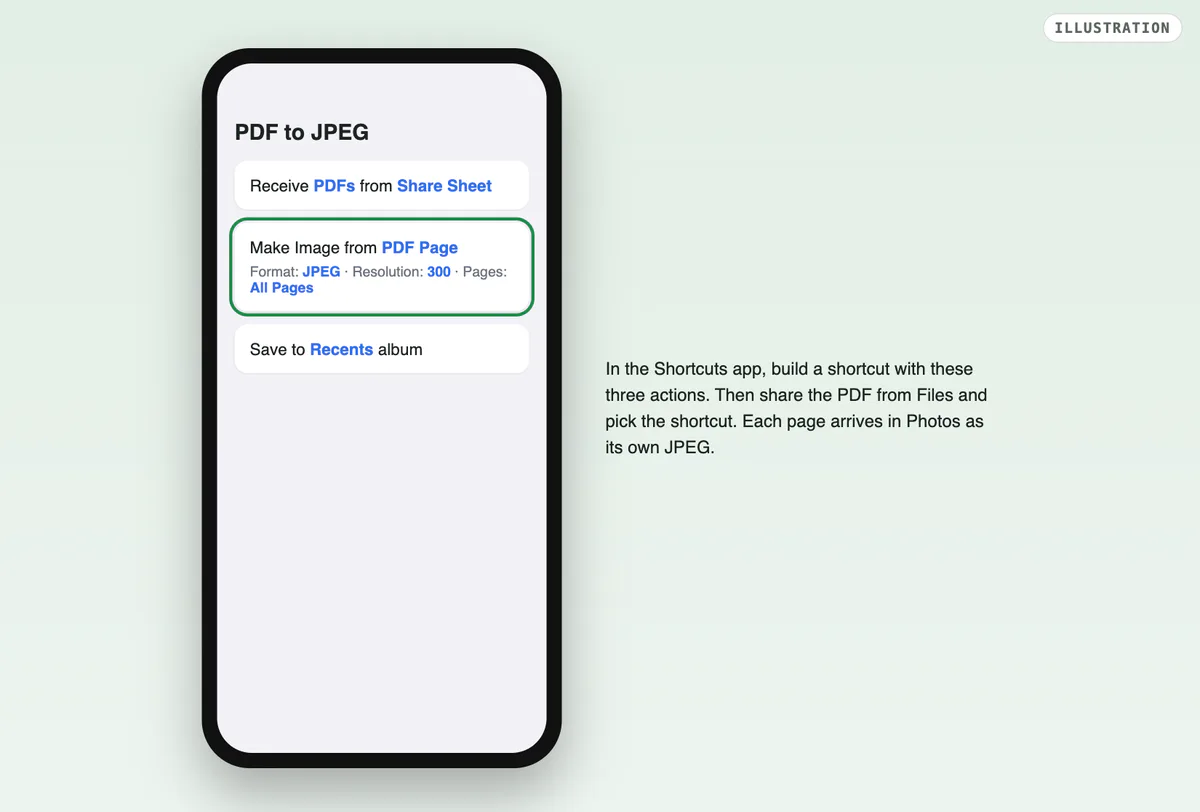
Illustration: the three actions, as the action directory describes them. Share the PDF from Files and pick the shortcut
Each page lands in Photos as a separate JPEG.
Illustration: run it from the Share Sheet in Files.
Android has no built-in export either. Google Drive previews PDFs but its help page offers no way to save a page as an image, so a screenshot is the built-in route, with the same size limit as on Windows.
What DPI should I use to save a PDF as a JPEG?
Use 150 DPI for reading on a screen and 300 DPI for printing. We rendered the same text page at all three and scaled each up to the 300 DPI size: against the 300 DPI page, 72 DPI scored 0.905 and 150 DPI 0.950 on SSIM, where 1 means identical. At 72 DPI, 8 pt small print gets only 8 pixels of height.
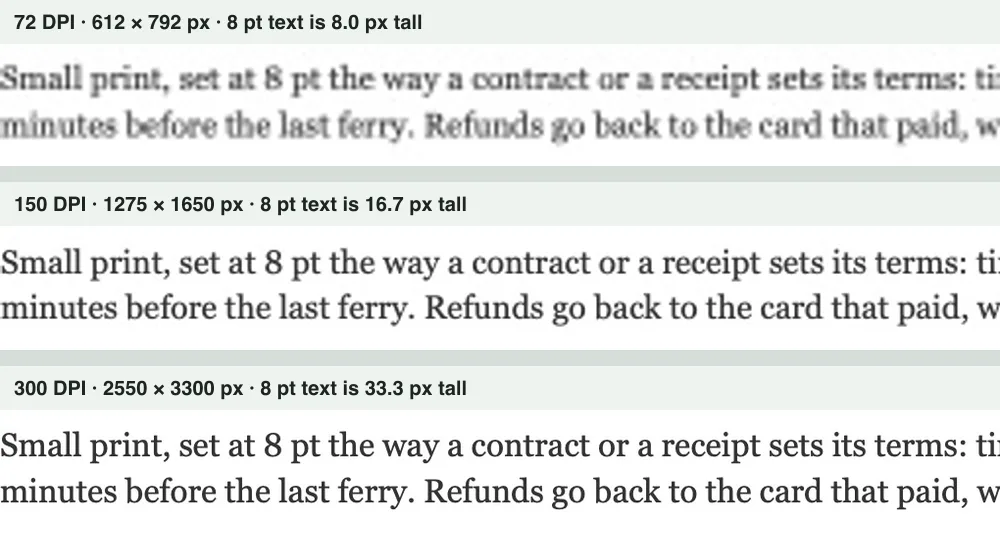
Full-page photo, JPEG quality 0.75
- 72 DPI94.0 KB
- 150 DPI361.1 KB
- 300 DPI1.0 MB
Text page, JPEG quality 0.75
- 72 DPI66.4 KB
- 150 DPI200.1 KB
- 300 DPI550.1 KB
| DPI | Pixels per page | Text page | Photo page | All 4 pages | Text sharpness (SSIM) |
|---|---|---|---|---|---|
| 72 | 612 × 792 | 66.4 KB | 94.0 KB | 287.9 KB | 0.905 |
| 150 | 1,275 × 1,650 | 200.1 KB | 361.1 KB | 955.5 KB | 0.950 |
| 300 | 2,550 × 3,300 | 550.1 KB | 1.0 MB | 2.8 MB | 1.000 |
Should you save PDF pages as JPEG or PNG?
Save photo pages as JPEG and text pages as PNG. JPEG blurs the edges of letters a little, while PNG keeps them exact, and on a page of black text on white it is also smaller. After Blinkimg compressed our 300 DPI text page, the JPEG was 261.5 KB and the PNG 93.3 KB. On the photo page, JPEG is the better pick by far: the lossless PNG was 7.7 MB.
The catch with PNG: some upload forms accept only JPG. Then JPEG at 150 DPI is the safe choice. Our guide to PNG vs JPG weighs the two in more detail.
Is it safe to convert a PDF to JPG online?
An online converter uploads the whole PDF to someone else’s server. For a menu or a flyer that is fine. For a tax form, a contract or a scanned ID, use Preview, Acrobat or a phone shortcut, which work on your own device. Every method above, except an online converter, keeps the file on your computer or phone.
How do I make the JPEGs smaller after converting?
Run them through an image compressor. A 300 DPI export at top quality is huge: our photo page came out at 6.0 MB, and all 4 pages at 12.4 MB. Blinkimg brought that photo page to 391.2 KB as a JPEG at the same 2,550 × 3,300 pixels, 93% smaller.
Drop the exported JPEGs on the JPG compressor
Up to 50 at once. Output format on Auto keeps each JPG a JPG.
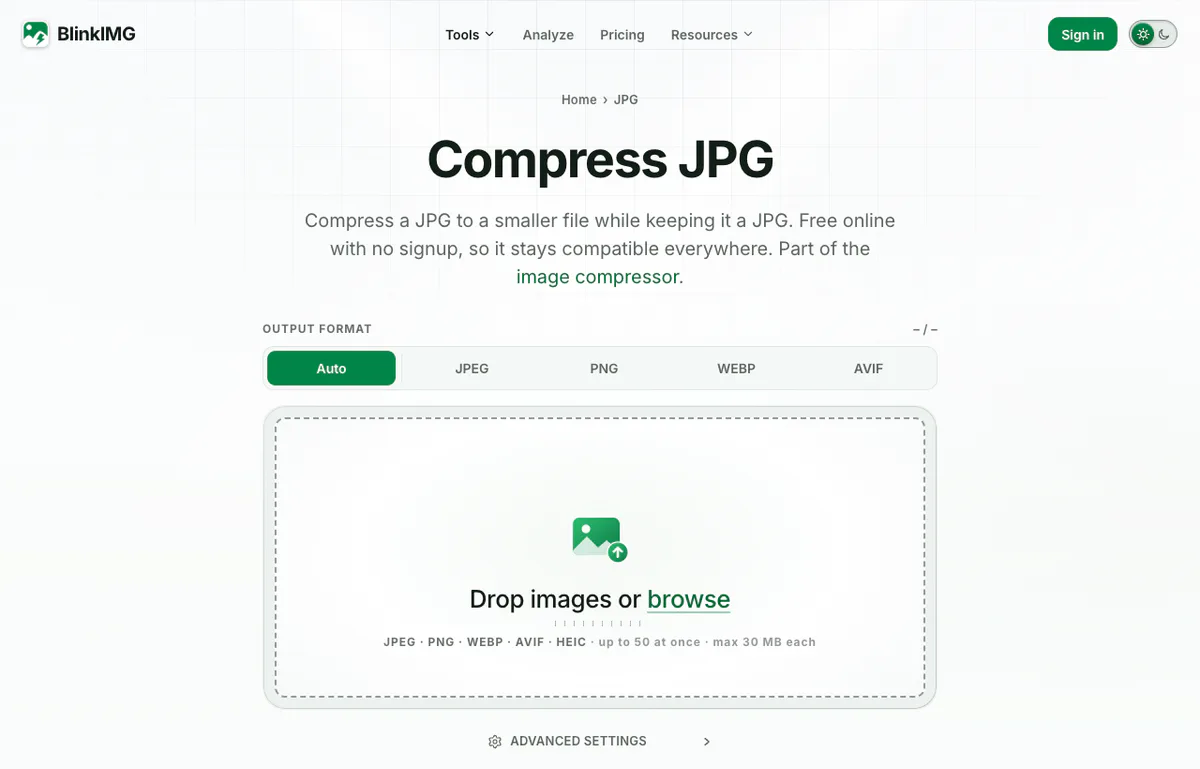
Screenshot: Compress JPG on Blinkimg, the step after export. Set a Max file size if a form has a limit
Open Advanced settings and type the limit in KB. Under a 200 KB cap, our 6.0 MB photo page came back at 197.3 KB, still 2,550 × 3,300 pixels.
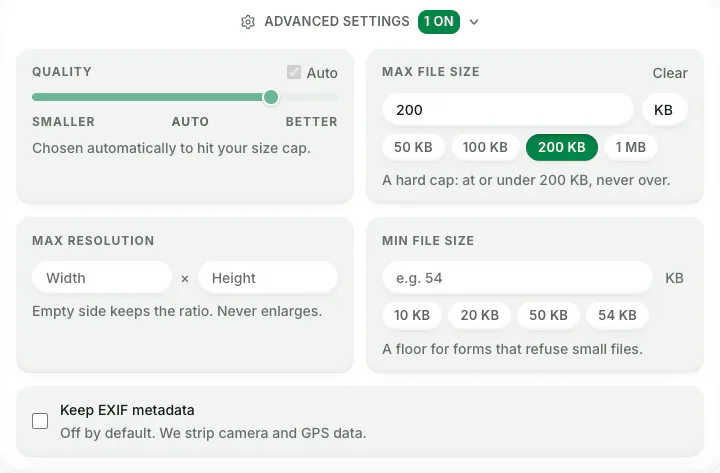
Screenshot: Max file size set to 200 KB.
For a form that asks for an exact number of kilobytes, use reduce image size in KB. To turn the pages back into one document, our JPG to PDF converter joins them.
Read the full guide: Best image format: JPG, PNG, WebP, AVIF, HEIC and GIF explained.
How we tested
- The PDF: 4 US Letter pages printed to PDF by Chrome 155: a text page (11 pt body, 8 pt small print), a full-page photo, a page with two photos and a flat illustration, 1.5 MB. The photos are our own.
- The export: every page rendered at 72, 150 and 300 DPI by macOS 15.7.3’s own PDF renderer and saved through its JPEG encoder at qualities 0.25, 0.5, 0.75 and 1.0, plus a lossless PNG. The sips test ran the Mac’s built-in tool with no options.
- The score: SSIM over brightness. For sharpness, each text render was scaled up to the 300 DPI size and compared with the lossless 300 DPI page. How we measure covers the rest.
- The compress step: Blinkimg’s engine, version 9, at Auto, measured 2026-10-17.
- The steps: Preview from Apple’s guide, Acrobat from Adobe’s, Snipping Tool from Microsoft’s. The Shortcuts steps come from a third-party directory.
Read the full guide: Best image format: JPG, PNG, WebP, AVIF, HEIC and GIF explained.
Questions
- How can I convert my PDF file to JPG?
- On a Mac, open the PDF in Preview, choose File, then Export, and set Format to JPEG. In Adobe Acrobat, select Convert, then Image format, then JPEG, which saves every page. On Windows 11 without Acrobat, open the PDF in a browser and snip the page with Windows logo key + Shift + S.
- How to save PDF as JPEG without Adobe?
- Use the tools your device already has. A Mac exports a page as JPEG from Preview with File, then Export. An iPhone does it with the Shortcuts action Make Image from PDF Page. Windows 11 and Android have no export, so a screenshot of the page is the built-in route.
- Can I change a PDF to JPG for free?
- Yes. Preview on a Mac and Shortcuts on an iPhone are free and keep the file on your device. A screenshot works free on Windows and Android, at your screen’s resolution. Free online converters work too, but they upload the whole PDF to their server, which matters for private documents.
- How can I save a JPEG as a PDF file?
- On a Mac, open the JPEG in Preview and choose File, then Export as PDF, the same menu that saves a PDF as a JPEG. To join several JPEGs into one PDF in a browser on any device, drop them on a JPG to PDF converter, put them in order and download the single file.
- What DPI is best for saving a PDF as a JPEG?
- Use 150 DPI for reading on a screen and 300 DPI for printing. In our test, a US Letter page came out at 1,275 × 1,650 pixels at 150 DPI and 2,550 × 3,300 at 300. Text at 72 DPI looked soft, scoring 0.905 against the 300 DPI page.
- Why is my PDF to JPEG blurry?
- The resolution was too low. At 72 DPI, our 8 pt small print got only 8 pixels of height, and letters smeared together. A screenshot is capped by your screen in the same way. Export again at 150 or 300 DPI. A higher Quality setting adds bytes but cannot add the missing pixels.
- How do I convert every page of a PDF to JPEG at once?
- Use Adobe Acrobat or an iPhone shortcut. Acrobat’s Convert, then Image format, then JPEG writes one JPEG per page. The Shortcuts action Make Image from PDF Page also handles every page. Preview on a Mac exports the selected page only, so a long PDF there takes one export per page.
- Does converting a PDF to JPEG reduce quality?
- It can. The text becomes pixels, so it blurs if the DPI is low, and JPEG adds a little loss on top. At 300 DPI and quality 0.75, our text page still scored 1.000 against the lossless render, where 1 means identical. You also lose selectable, searchable text.
- Is PNG better than JPEG for PDF pages?
- For pages that are mostly text, yes. PNG keeps letter edges exact and is often smaller: our compressed 300 DPI text page was 93.3 KB as a PNG and 261.5 KB as a JPEG. For photo pages, JPEG wins by far, because a lossless PNG of a photo is many megabytes.
- Why are my PDF to JPEG files so big?
- Because a high DPI and top quality multiply each other. Our full-page photo at 300 DPI and quality 1.0 came to 6.0 MB. Quality 0.75 at the same DPI made 1.0 MB, and compressing the big one brought it to 391.2 KB at full size. Keep quality near the middle.
- Can I edit text after saving a PDF as a JPEG?
- Not as text. A JPEG is a picture of the page, so a word processor sees pixels, not letters. To edit, keep the original PDF and change it in a PDF editor, or run the JPEG through text recognition, which turns the letters back into text that you then check by hand.