Crop PNG images here and the see-through parts stay see-through: the output is set to PNG before you drop, and the editor opens on Crop. Drag the handles, press a ratio or type an exact size, and Save hands back a PNG, cropped and compressed. One of the image tools.
Output format
– / –
Drop images or browse
JPEG · PNG · WEBP · AVIF · HEIC · up to 50 at once · max 30 MB each
HEIC
PNG
JPEG
AVIF
WEBP
Advanced settings1 on
SmallerAutoBetter
Auto tunes each image.
A hard cap for the number your form demands.
KB
A floor for forms that refuse small files.
Max resolution
×
Empty side keeps the ratio. Never enlarges.
A real crop, before and after
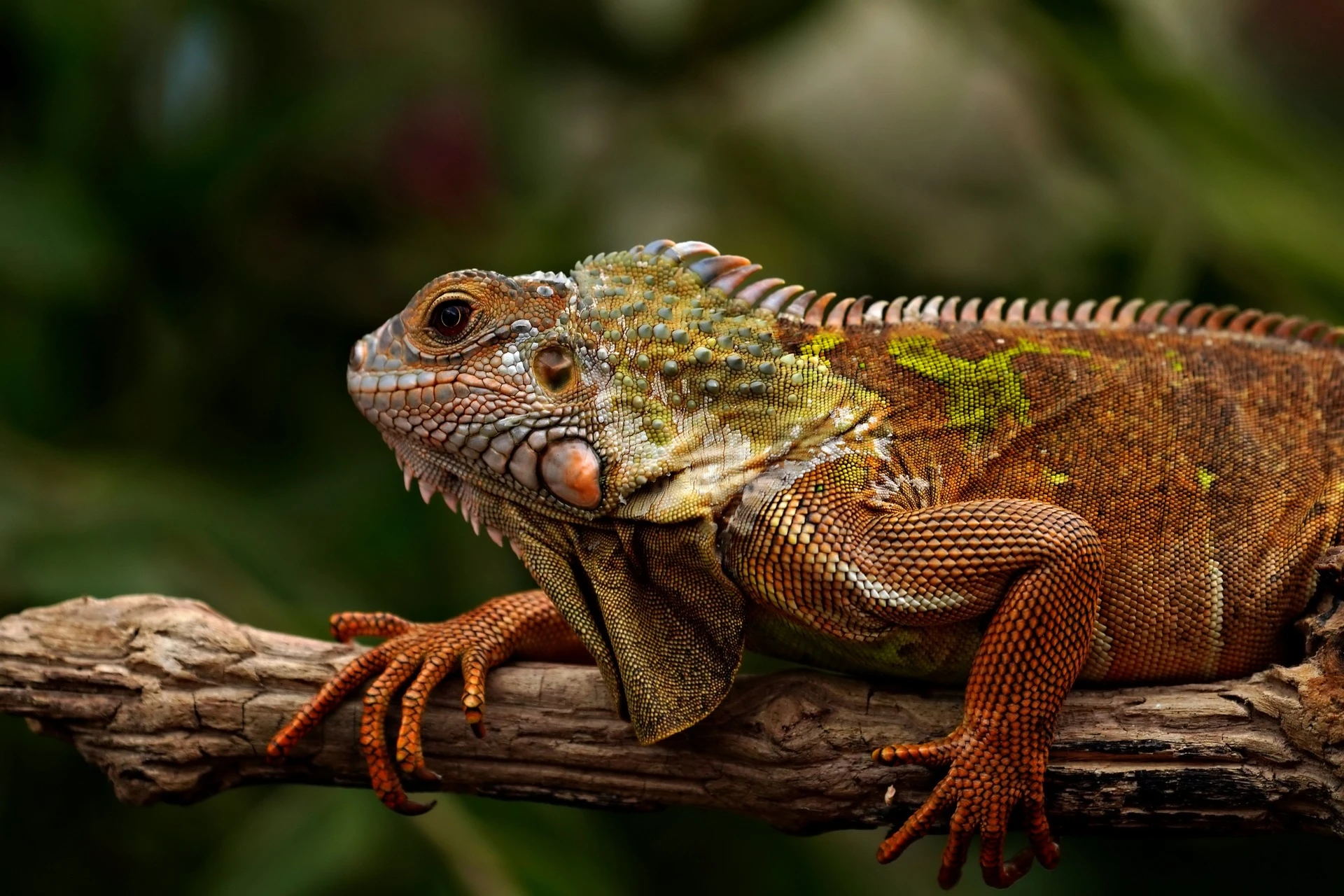
Original PNG · 4.1 MB
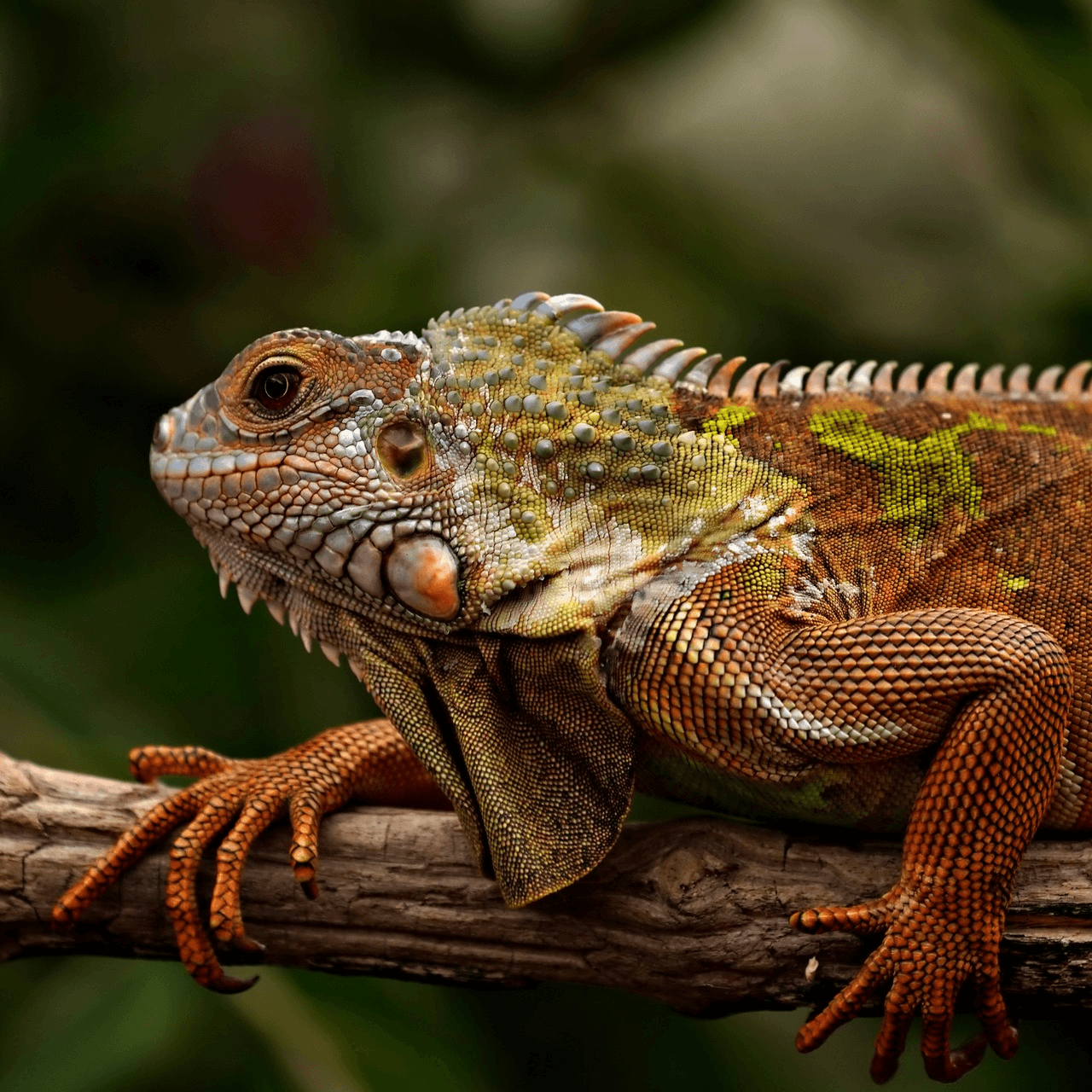
PNG, 1280×1280 · 705.5 KB
−83%
This is the reference PNG actually cropped by our engine and saved as a PNG. Drop your own and do the same. The left half is a preview render; the byte counts are the real files’.
How it works
Drop, crop, save
Three steps, no account. The file leaves smaller than it arrived.
01
Drop
Drop a PNG and the editor opens on Crop, the output set to PNG.
02
Crop
Drag the handles, lock a ratio, or type an exact size in pixels.
03
Save
The crop comes back as a PNG, the see-through parts still see-through.
How do I crop a PNG without losing transparency?
Drop it here and crop: the output is set to PNG before you drop, so nothing is filled. The editor opens on Crop and shows the see-through parts on a checkerboard, which is how you can tell the transparency is there before and after. Drag the handles over the part to keep, press a ratio tile, or type an exact size. Save hands back a PNG whose transparent pixels are still transparent, soft edges and drop shadows included. The PNG specification gives even a palette PNG a full transparency value for every colour, so Auto’s small file keeps them too.
How do I trim the empty transparent space around a PNG?
Drag each edge of the frame in until it touches the picture, then Save. Zoom the stage to put the edges exactly on the last visible pixel; there is no auto-trim button, so the line is yours to judge. The margin is worth losing: an empty border pushes the picture off-centre in a layout, and the PNG specification notes that even fully transparent pixels are stored. Our 512 px logo trimmed to 409 px kept 63.8% of its pixels and weighed 1.2 KB.
Why does my cropped PNG have a white or black background?
Because it was saved as a JPG on the way, and a JPG has no transparency to keep. A tool that writes a JPG must fill the see-through part with something, usually white and sometimes black; our engine fills white when you ask it for a JPG. Paint on Windows did the same until version 11.2308.18.0 in 2023. This page only writes PNG, so the answer here is simply to crop and save, and to check that the file you share still ends in .png.
Does cropping a PNG reduce its quality?
The crop does not touch the pixels it keeps. The frame lands on whole pixels, so they are copied at their size rather than resampled; only an exact size larger or smaller than the frame scales the picture. The save is where quality is decided. Quality 100 writes truecolour, every kept pixel as it was, though a browser canvas may round a half-transparent pixel by a step, as the HTML standard allows. Auto rebuilds the colours on a palette of up to 256. Our 1920 × 1280 photo PNG of 4.1 MB cropped to its centre square came to 705.5 KB at Auto: the crop kept 66.7% of the pixels, and the palette did the rest.
How do I crop a PNG to an exact size, a square or a circle?
For pixels, open Custom size, type the width and the height and press Apply; the frame takes the shape and you drag it over the part to keep. For a square, press the 1:1 tile, or use the crop image to square page, which opens with it pressed. A circle is the one crop the editor does not cut: rounded corners stop at a quarter of the short side. For a profile picture, that does not matter, because Instagram, WhatsApp and Discord mask a square into a circle themselves.
How do I crop a PNG on a Mac, Windows, an iPhone or Android?
The built-in apps crop, each with its own route and its own rule on transparency; the steps are the vendors’ own. The editor above keeps the PNG a PNG in any browser.
Device
App
Steps
Source
Mac
Preview
Markup toolbar, Rectangular Selection, then Crop
Apple, Preview User Guide
Windows
Paint
Select, then Crop; transparent PNGs from version 11.2308.18.0 (2023)
Microsoft; Windows Insider Blog
iPhone
Photos
Edit, drag the corners, or a ratio such as Square, 9:16 or 5:7
Apple, iPhone User Guide
Android
Google Photos
Edit, crop, Aspect ratio, then Save as copy to keep the original
Google Photos Help
Mac: Apple's Preview User Guide. Windows: Microsoft's Paint page and the Windows Insider Blog (Paint 11.2308.18.0). iPhone: Apple's iPhone User Guide. Android: Google Photos Help. As read in September 2026; each vendor's page wins.
What do cropped PNGs weigh?
Two crops, both saved at Auto: a transparent logo trimmed to its edges, still see-through, and a photo PNG cut to its centre square, which stays heavy because a photo is the wrong picture for a PNG.
File
Cropped to
Pixels kept
Saved at Auto
transparent.png, 512 × 512
409 × 409
63.8%
1.2 KB
photo.png, 1920 × 1280
1280 × 1280
66.7%
705.5 KB
Sources: transparent.png (a transparent logo, 7.9 KB), trimmed to its circle, and photo.png (a photo, 4.1 MB), cut to its centre square, each saved as PNG by the engine at Auto. The editor draws the crop in your browser and uploads a PNG, so a file saved there can differ by a few bytes.
Every byte count is the size of the actual file our engine produced from the named source, the same bytes you would download, not an estimate. The reference photo is one of our own photographs, an iguana on a branch, and the camera photo is a real one too. Drop your own file into the tool above to rerun any of them. How we measure names the sources and the settings.
When the PNG cropper is the wrong tool
The whole picture, only smaller?
That is resizing: the PNG resizer keeps every part of the picture and the transparency.
A photo, not a graphic?
Crop it as a JPG: the crop image page keeps a photo small, and a photo saved as PNG only grows.
Fewer KB, nothing cut?
The PNG compressor rebuilds the colours and keeps every pixel in place.
Short answers specific to this tool. Try it above and the editor settles the rest.
Q:How do I crop a PNG without losing transparency?
Drop it here: the output is set to PNG before you drop, and the editor shows the see-through parts on a checkerboard. Drag the frame over the part to keep, or pick a ratio, then Save. The crop comes back as a PNG with the transparent pixels still transparent, soft edges and shadows included, and no background is added.
Q:How do I crop a PNG on a Mac in Preview?
Open the PNG in Preview, click the Show Markup Toolbar button, then the Rectangular Selection button, and drag over the part to keep; then click Crop, the steps in Apple's Preview User Guide. Saving keeps it a PNG with its transparency. The editor here does the same in any browser, with ratios and exact pixel sizes on top.
Q:How do I crop a PNG on Windows?
In Paint, choose Select, drag over the part to keep and click Crop, as Microsoft's Paint page describes. Transparency is the catch: Paint on Windows 11 keeps a transparent PNG only from version 11.2308.18.0, released in 2023, on the Windows Insider Blog, and an older Paint fills it in. The browser editor here keeps it in any version.
Q:How do I trim the empty transparent space around a PNG?
Drag the frame's edges in until they touch the picture on every side, then Save; zoom the stage to place them exactly. There is no auto-trim button, so the edge is yours to judge. Our 512 px logo trimmed to 409 px kept 63.8% of its pixels and weighed 1.2 KB, and it now sits flush in any layout.
Q:Why does my cropped PNG have a white or black background?
Because it was saved as a JPG somewhere, and JPG has no transparency: a tool that writes one has to fill the see-through part, often with white, sometimes with black. Paint before version 11.2308.18.0 did the same. This page only writes PNG, so the transparent part comes back transparent. Check the file ends in .png.
Q:Does cropping a PNG reduce its quality?
The crop itself does not: the frame lands on whole pixels, so the pixels you keep are copied at their size, not resampled. Quality depends on the save. Quality 100 writes truecolour and keeps each of them; Auto rebuilds the colours on a palette of up to 256, smaller and usually identical to the eye. A browser can round a half-transparent pixel by a step.
Q:Why is my cropped PNG still a large file?
A crop only removes the pixels outside the frame; what is left is packed as before. A photo kept as a PNG stays heavy: our 1920 × 1280 photo PNG cropped to a 1280 px square was 705.5 KB even at Auto. For a photograph, convert it to JPG or AVIF; for a graphic, the PNG compressor or a Max file size in Advanced trims the bytes.
Q:How do I crop a PNG to an exact size in pixels?
Open Custom size, type the width and height and press Apply: the frame takes that shape, and Save exports exactly those pixels. Drag the frame to choose the part inside it. If the numbers are larger than the part you keep, the picture is scaled up to fill them, which softens it, so pick a frame at least that size.
Q:How do I crop a PNG into a square?
Press the 1:1 ratio tile: the frame becomes the largest square the picture holds, centred, and you drag it over the part to keep. Save exports the square as a PNG, transparency kept. The crop image to square page opens with 1:1 already pressed and lists the platforms that want a square.
Q:Can I crop a PNG into a circle?
Not as a cut circle: rounded corners go up to a quarter of the short side, which makes a rounded square, not a disc. For a profile picture, crop a square with the face centred and upload that; Instagram, WhatsApp, Discord and the rest mask a square into a circle themselves, so the corners never show.
Q:How do I crop a PNG on my iPhone or Android phone?
In the browser, open this page, tap the drop zone and pick the PNG. On an iPhone, Photos crops with the ratio presets Square, 9:16 and 5:7, per Apple's iPhone guide, and Google Photos on Android crops with Aspect ratio and Save as copy, per Google's help. The browser editor keeps the PNG a PNG on both.
Q:Can I crop several PNGs at once?
Not in the editor: a crop is a choice made per picture, so it takes one image at a time. Each save lands in the same download list, and a ZIP gathers them once there is more than one. For many PNGs made the same size without choosing the part, the compressor’s Max resolution resizes a batch instead.
Q:Is it safe to crop a PNG online for free here?
The crop is drawn in your browser, and nothing is sent until you press Save. Then the cropped copy goes to our servers over HTTPS to be encoded. We keep nothing: files are processed and wiped automatically, never archived and never used to train anything. There is no account and no watermark, and EXIF metadata is stripped by default.