PNG resizer: resize a PNG and keep its transparency
The PNG resizer takes a PNG to the width and height you type, in pixels, cm, mm or inches, and gives a PNG back: the output is set to PNG before you drop, so a transparent logo stays see-through. Drop one and the editor opens on it; Save hands it back compressed. Part of the image resizer.
Output format
– / –
Drop images or browse
JPEG · PNG · WEBP · AVIF · HEIC · up to 50 at once · max 30 MB each
HEIC
PNG
JPEG
AVIF
WEBP
Advanced settings1 on
SmallerAutoBetter
Auto tunes each image.
A hard cap for the number your form demands.
KB
A floor for forms that refuse small files.
Max resolution
×
Empty side keeps the ratio. Never enlarges.
A real resize, before and after
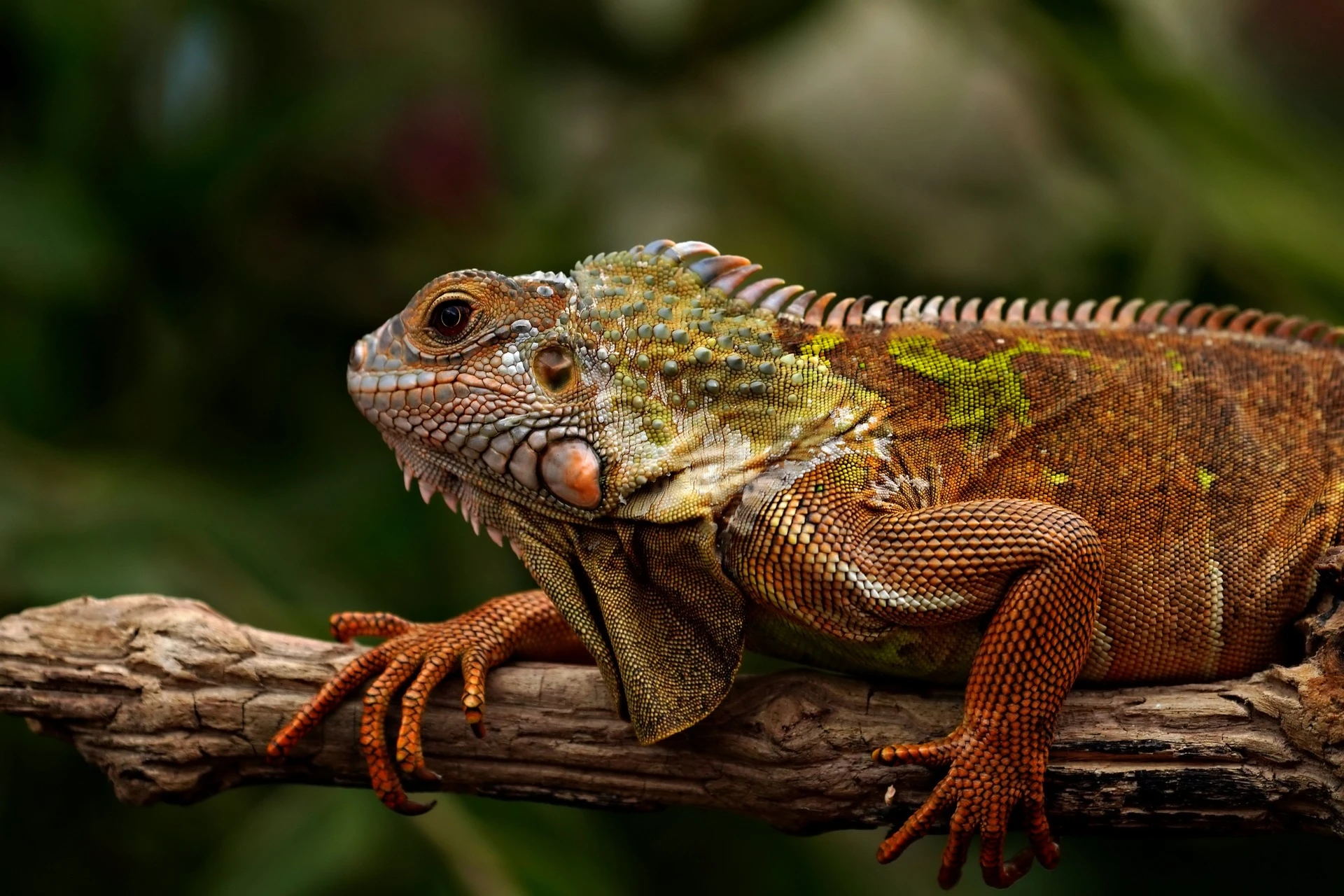
Original PNG · 4.1 MB
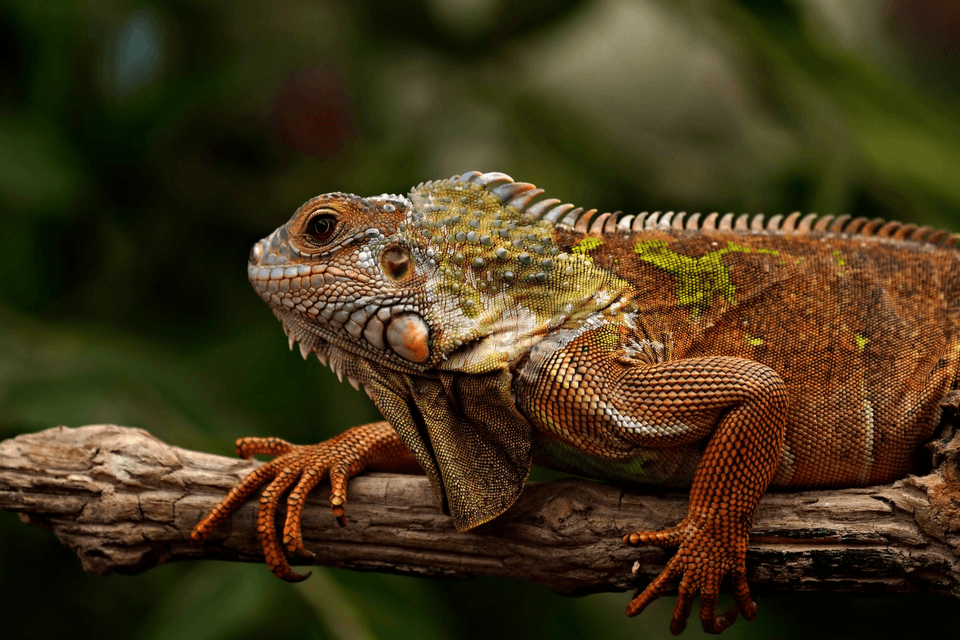
PNG at 960 px · 292.3 KB
−93%
This is the reference PNG actually resized by our engine and saved as a PNG. Drop your own and do the same. The left half is a preview render; the byte counts are the real files’.
How it works
Drop, resize, save
Three steps, no account. The file leaves smaller than it arrived.
01
Drop
Drop a PNG and the editor opens on it, the output already set to PNG.
02
Resize
Type a width × height with the sides linked, in pixels, cm, mm or inches.
03
Save
The PNG comes back at the new size, its transparency kept.
Does resizing a PNG lose quality?
Shrinking drops detail by design: a copy at half the width holds a quarter of the pixels. What happens to the pixels that are left depends on how the file is saved. PNG itself is lossless, which the W3C’s specification defines as reconstruction of the data “exactly, bit-for-bit”. At Quality 100 the engine writes truecolour, every resized pixel as it was drawn. At Auto it rebuilds the picture from a palette of up to 256 colours with dithering, the step that makes a PNG small; on logos, icons and screenshots the difference rarely shows. Our 1920 × 1280 photo PNG halved came to 292.3 KB at Auto and 918.3 KB at Quality 100.
How do I resize a PNG and keep the transparent background?
Drop it here and do nothing special: the output is set to PNG before you drop, so the transparency goes in and comes back out. Our 512 px transparent logo, halved to 256 px, came back a PNG of 1.6 KB with its edges still soft. Auto’s palette keeps full transparency per colour, the tRNS rule of the PNG specification, so a drop shadow survives too. One setting fills the see-through part: Fit, which pads the picture to a new shape with a colour. Keep the sides linked, or use Crop, and nothing is filled. White or black corners on a resized logo mean a JPG somewhere in the chain.
Why is my resized PNG bigger than the original?
Because a resize can make the picture harder to pack. Resampling averages neighbours, so a flat area with a clean edge becomes many in-between colours, and PNG’s compression thrives on repeats. And a tool that saves a palette PNG as truecolour starts from 4 bytes a pixel instead of 1, the arithmetic of the PNG specification’s colour types. Our logo shows it: halved and saved at Quality 100 it still weighed 7.9 KB, the size of the original with four times the pixels. At Auto the same resize weighed 1.6 KB. If a resized PNG must be small, save it at Auto, or set a Max file size.
Can you enlarge a PNG without losing quality?
Not in detail. Enlarging spreads the pixels a picture already has over more of them, and no resizer can add what was never captured; the result is softer in proportion to the stretch. The editor lets you type any size up to 8,192 pixels a side, so a small step up for a layout is one Apply away. For a logo, an icon or a line of text, export a larger PNG from the design file, where the shapes are still shapes. Shrinking is the safe direction: start from the largest original and resize once.
How do I scale a PNG to an exact size, a square or an icon size?
Open Custom size, type the width and the height and press Apply. The fields take pixels, and centimetres, millimetres or inches at 300 DPI, and with the sides linked the shape stays the picture’s own. For half the size, type half the width: 50% of 1200 is 600, and the height follows. A square from a wider picture is a choice: Crop keeps the middle, or the part you drag the frame over, and Fit keeps everything on a coloured pad. The 1024 × 1024 and 512 × 512 pages open on those icon sizes already.
How do I resize a PNG image on a Mac, Windows, an iPhone or Android?
Each system has a way, and each has a catch; the steps below are from Apple’s, Microsoft’s and Samsung’s own pages. The editor above works the same in any browser on all four.
transparent PNGs only from version 11.2308.18.0 (2023)
Windows, a folder
PowerToys Image Resizer
right-click, Resize with Image Resizer
a separate install; pixels, percent, cm or inches
iPhone
Shortcuts
a shortcut with the Resize Image action
the Photos app crops but does not resize
Android, Samsung
Gallery
Edit, More options, Resize
percentages only, never larger than the original
Mac: Apple's Preview User Guide. Windows: Microsoft's Paint page, the Windows Insider Blog (Paint 11.2308.18.0) and Microsoft Learn's PowerToys Image Resizer page. iPhone: Apple's Shortcuts User Guide. Android: Samsung UK's Gallery support page. As read in September 2026; each vendor's page wins.
Should I resize a PNG or convert it to JPG?
For a photograph, convert it: a different format saves far more than a smaller size. Our reference photo at 1920 × 1080 weighed 926 KB as a PNG, 261.6 KB as a JPEG, 215.9 KB as a WebP and 119.9 KB as an AVIF. Keep PNG for what the others spoil or cannot hold: transparency, text, screenshots, logos and flat colour. The PNG to JPG converter flattens transparency onto white, and PNG to AVIF keeps it.
What do resized PNGs weigh?
Three PNGs at half their width, each saved twice: Auto, the palette, and Quality 100, truecolour. The palette file is the smaller of the two every time, about 3 times on the photo and 2 times on the flat graphic, which shows how little a clean PNG needs.
File
Resized to
Auto
Quality 100
photo.png, 1920 × 1280
960 × 640
292.3 KB
918.3 KB
transparent.png, 512 × 512
256 × 256
1.6 KB
7.9 KB
graphic.png, 640 × 480
320 × 240
0.6 KB
1.3 KB
Sources: photo.png (a photo, 4.1 MB), transparent.png (a transparent logo, 7.9 KB) and graphic.png (flat colour, 7.4 KB), each resized to half its width by the engine's own resize and saved as PNG at Auto and at Quality 100. The editor on this page draws its resize in your browser, so a file saved there can differ by a few bytes.
Every byte count is the size of the actual file our engine produced from the named source, the same bytes you would download, not an estimate. The reference photo is one of our own photographs, an iguana on a branch, and the camera photo is a real one too. Drop your own file into the tool above to rerun any of them. How we measure names the sources and the settings.
Can I resize several PNGs at once?
Yes, on the image compressor. Pick PNG as the output, open Advanced and type the width you want into Max resolution, then drop up to 50 files. Each comes back no wider than that, still a PNG with its transparency, in one ZIP, and a PNG already smaller is left at its size rather than enlarged. The editor on this page takes one image at a time, because an exact size or a crop is a decision per picture.
When the PNG resizer is the wrong tool
Smaller in KB, same pixels?
That is compressing: the PNG compressor keeps every pixel in place and the transparency with it.
Only part of the picture?
Crop it instead: the PNG cropper cuts to the part you keep and stays see-through.
A JPG photo?
The JPG resizer keeps it a JPG; a photo saved as a PNG only grows.
Short answers specific to this tool. Try it above and the editor settles the rest.
Q:Can you resize a PNG without losing quality?
Shrinking always drops pixels, but the PNG you get can keep every one that is left. Save at Quality 100 and the engine writes truecolour, each resized pixel as drawn. Auto rebuilds it from up to 256 colours with dithering, which looks the same on logos and screenshots and weighs far less: our photo PNG halved came to 292.3 KB at Auto, 918.3 KB at 100.
Q:How do I resize a PNG and keep the transparent background?
Drop it here: the output is set to PNG, so the transparency goes through the resize and comes back. Our 512 px logo halved to 256 px stayed see-through at 1.6 KB. Keep the sides linked or use Crop; Fit on a coloured pad is the one setting that fills the see-through part with a colour.
Q:Why is my resized PNG bigger than the original?
Two reasons. Resampling turns flat areas into many in-between colours, which compress worse. And a tool that saves a palette PNG as truecolour stores 4 bytes a pixel instead of 1. Our logo halved and saved at Quality 100 weighed 7.9 KB, the same as the original with four times the pixels; at Auto it came to 1.6 KB.
Q:Why is my PNG blurry after resizing?
Usually because it was made bigger, or scaled twice. Enlarging spreads the same pixels over more of them, and every resize averages neighbours, so fine lines soften. Resize once, from the largest original you have, to the size the page shows. For a logo or an icon, export a larger PNG from the design file instead of stretching a small one.
Q:Can you enlarge a PNG without losing quality?
Not in detail: no resizer can add what the pixels never held. The editor here scales a PNG up to any size up to 8,192 pixels a side, and the result is softer in proportion to the stretch. A small enlargement for a layout is fine. For a logo, an icon or text, export a bigger PNG from the original design file.
Q:How do I resize a PNG on a Mac?
In Preview: open the PNG, click the Show Markup Toolbar button, then Adjust Size, the steps in Apple's Preview User Guide. Type a width and height, or pick a size from the Fit into menu, with Scale proportionally ticked to keep the shape. Tools, Adjust Size is the same command from the menu bar. Save keeps it a PNG.
Q:How do I resize a PNG in Paint on Windows?
Open the PNG in Paint and choose Resize on the Home tab, as Microsoft's Paint page describes, then set the new size. Paint on Windows 11 opens and saves transparent PNGs since version 11.2308.18.0, from 2023, on the Windows Insider Blog; an older Paint fills the see-through part. For a folder of PNGs, PowerToys' Image Resizer adds a right-click resize.
Q:How do I resize a PNG on my iPhone or Android phone?
In the browser: open this page, tap the drop zone, pick the PNG and type the size. The iPhone's Photos app crops but has no pixel resize; Apple's Shortcuts has a Resize Image action. Samsung's Gallery resizes by percentage under Edit, More options, Resize, and never larger than the original, on Samsung's own support page.
Q:How do I resize a PNG to a specific size, like 1024x1024?
Drop the PNG, open Custom size, type 1024 and 1024 in pixels and press Apply, then Save. If the picture is not square, the frame crops to the square; drag it to keep what matters, or turn on Fit to keep the whole picture on a coloured pad. The 1024 × 1024 and 512 × 512 pages open on those sizes already.
Q:How do I resize a PNG to a square without stretching it?
Two ways, and neither stretches. Crop cuts the largest square from the picture, and you drag the frame over the part to keep. Fit keeps the whole picture inside the square and fills the bands with a colour you pick. For a transparent logo, crop is the way to stay see-through: a see-through pad is not offered yet.
Q:How do I make a PNG smaller in file size, not just in pixels?
That is compressing, and it keeps every pixel's position: the PNG compressor rebuilds the colours on a palette and keeps the transparency. Set Max file size in Advanced for a hard cap in KB. Resizing and compressing combine: our 640 × 480 graphic PNG of 7.4 KB came to 0.6 KB at half its size, at Auto.
Q:Should I resize a PNG or convert it to JPG?
For a photograph, convert: our photo at 1920 × 1080 weighed 926 KB as a PNG, 261.6 KB as a JPEG and 119.9 KB as an AVIF. Keep PNG for what JPEG spoils or cannot hold: transparency, text, screenshots, logos and flat colour. The PNG to JPG converter flattens the transparency onto white, so check the picture has none first.
Q:Can I resize several PNGs at once?
Yes, on the compressor. Pick PNG as the output, open Advanced and type a width into Max resolution, then drop up to 50 files: each comes back no wider, as a PNG, in one ZIP, and none is enlarged. The editor on this page takes one image at a time, because an exact size or a crop is a decision per picture.
Q:Is it safe to resize a PNG online here?
The resize is drawn in your browser, and nothing is sent until you press Save. Then the resized copy goes to our servers over HTTPS to be encoded. We keep nothing: files are processed and wiped automatically, never archived, never used to train anything. There is no account and no watermark, and EXIF metadata is stripped by default.