Drop a photo and the editor opens on Crop with 1:1 already pressed. Drag the square over what matters and save: the file leaves optimised, and under a size cap if you set one. One of the image tools.
Output format
– / –
Drop images or browse
JPEG · PNG · WEBP · AVIF · HEIC · up to 50 at once · max 30 MB each
HEIC
PNG
JPEG
AVIF
WEBP
Advanced settings1 on
SmallerAutoBetter
Auto tunes each image.
A hard cap for the number your form demands.
KB
A floor for forms that refuse small files.
Max resolution
×
Empty side keeps the ratio. Never enlarges.
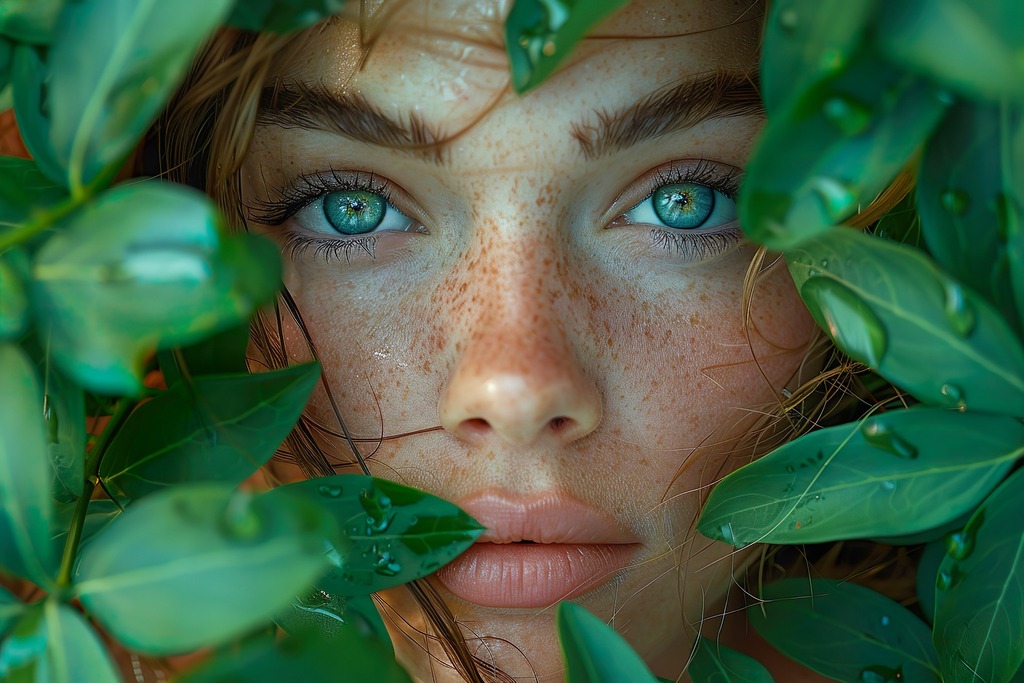
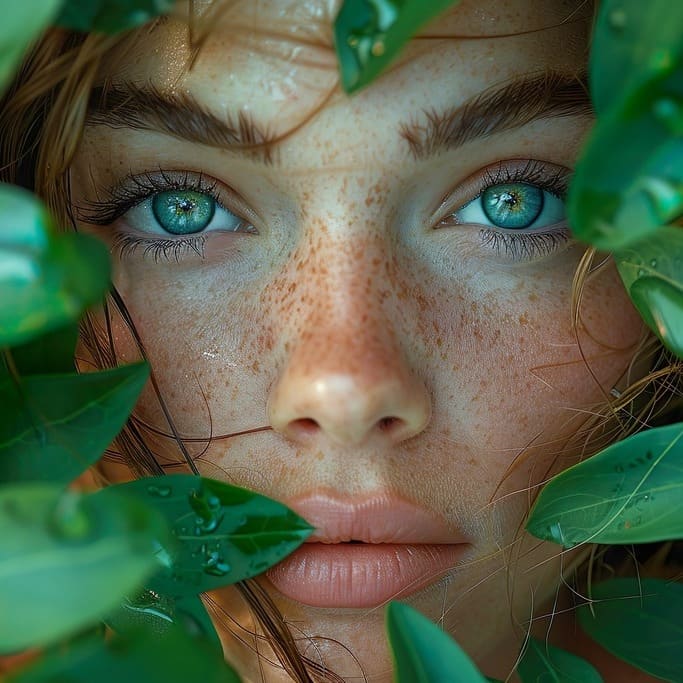
A real square crop, before and after
Original · 176.5 KB
Square 683×683 · 62.9 KB
−64%
One of our photographs, actually cropped square in the editor and saved by our engine; the sizes are the real files'. Drop your own image and do the same.
How it works
Drop, square, save
Three steps, no account. The file leaves smaller than it arrived.
01
Drop
Drop a photo and the editor opens on Crop with 1:1 already pressed.
02
Square
Drag the locked square over the subject, or tap a platform preset.
03
Save
The square comes out optimised, under a size cap if you set one.
Which square size does my platform want?
Instagram’s help page says a post between 320 and 1080 pixels wide keeps its own resolution, so 1080 × 1080 is the square to send. The other slots below carry their own numbers, each from the platform’s own page. Other square croppers stop at “1:1”; the pixels are what the upload form checks.
1
Instagram post: 1080 × 1080
Instagram’s help page says a photo between 320 and 1080 pixels wide keeps its resolution when its ratio sits between 1.91:1 and 3:4. A wider one is sized down to 1080. Its API spec adds JPEG only and 8 MB at most. The IG/FB post preset lands 1080 × 1080 exactly.
2
Profile pictures: 320 to 400
Facebook’s help page asks for 320 × 320, shown at 176 on a computer and 196 on a phone. LinkedIn’s help page puts a Page logo at 400 × 400, PNG or JPEG, 3 MB at most. X’s Help Center recommends 400 × 400 for a profile photo, up to 2 MB. YouTube’s wants a square or round image, up to 15 MB, shown at 98 × 98.
3
App icons: 1024 and 512
Apple’s Human Interface Guidelines set the layout size at 1024 × 1024, and the system masks the corners itself. Google Play’s help page wants a 512 × 512 32-bit PNG with alpha under 1024 KB, delivered as a full square: its icon spec says Play masks it at 30% of the icon size.
4
Marketplace photos: 1,000 and up
Amazon staff on the Seller Central forums prefer product images larger than 1,000 pixels on the longest side. The accepted range is 500 to 10,000, as JPEG, TIFF, PNG or non-animated GIF. A square cut from a full-size phone photo clears that with room to spare.
How do I crop a photo to a square without cutting off the subject?
Drag the locked square over the subject: the 1:1 tile fixes the shape, so the only decisions left are position and size. The editor opens with the largest centred square already drawn. Pull a corner to shrink it and drag the middle to move it, with a mouse or a finger. For a profile picture, keep the face in the middle of the square, because a platform that shows a circle throws the corners away. For a product on a plain background, leave a margin around the object, so a marketplace’s own thumbnail crop has room to work.
Crop to square or pad to square: which one do I need?
A crop keeps part of the photo at full detail. A fit keeps the whole photo and fills the rest of the square with a colour. Many people who search “make image square” want the second one, and this page opens on the first. The editor does both: press a square preset such as IG/FB post, switch Crop to Fit under the tiles, and the whole picture sits inside the square on a fill you pick, nothing cut. The WhatsApp DP and Discord PFP pages open with Fit already on. A crop is still the right answer whenever the subject sits in the middle and the edges are what you can spare.
What happens to the file when I crop it square?
Our photograph is 1024 × 683. It shows a freckled face with blue eyes framed by green leaves. It exported at 176.5 KB as a JPEG at 92. Quality 92 was the editor’s JPEG step before 5 October 2026. Its 683 × 683 square, exported the same way, weighed 138.1 KB. The crop cut 33% of the pixels and 22% of the bytes. A crop removes pixels, so the file shrinks with the area you cut. Our engine then saved the square at 62.9 KB, the file in the figure at the top of the page.
File
Pixels
Size
Our photograph, exported
1024 × 683
176.5 KB
Square crop, exported
683 × 683
138.1 KB
Square crop, saved by our engine
683 × 683
62.9 KB
Source: one of our photographs, a freckled face with blue eyes framed by green leaves, at 1024 × 683. The square is its largest 1:1 region, centred on its subject. The exports are JPEGs at 92, as the editor saved them before 5 October 2026. The last row is the file our engine made from the square.
Every byte count is the size of an actual file, not an estimate. A row marked exported is the picture as a JPEG at 92, the editor’s save before 5 October 2026. The engine’s row is the file the engine produced from that JPEG. The photograph is one of our own. Drop your own file into the tool above to rerun any of them. How we measure names the sources and the settings.
Does cropping to a square lose quality?
No. A crop is a selection, not a transformation: the pixels inside the square are the original pixels, untouched. Saving encodes once, optimised, the same one-time cost as any edit, and the compare view shows the result at full zoom before you download. The one real trap is a small square shown big. Cut a tiny face out of a large group photo and post it at 1080 wide, and it looks soft, because that is enlarging, not cropping. Frame generously when the destination is large, and start from the biggest copy you have.
How do I get the square under an upload limit?
Set Max file size in Advanced settings before you save, and the square arrives under that number, never over. Instagram’s API spec caps a JPEG at 8 MB, Google Play’s help page caps an icon PNG at 1024 KB, and LinkedIn’s help page caps Page images at 3 MB. Type the portal’s number, or tap a preset chip, and the engine searches for the highest quality that fits under it. A cap it cannot meet fails with a clear message instead of handing you mush. The frame and the bytes pass in one save.
Should I round the corners of an app icon?
No. Apple’s Human Interface Guidelines say the system applies masking to produce the rounded corners. Google’s icon design spec says Play handles masking dynamically, with a radius of 30% of the icon size. Deliver a full square: 1024 × 1024 for Apple, a 512 × 512 32-bit PNG with alpha for Play. Corners you round yourself get masked a second time, and the two edges never agree. The Regions tab’s Corners dial is for screenshots and avatars, not store icons.
When a square crop is the wrong tool
The whole photo has to stay?
That is padding or a resize. A crop spends pixels by definition.
A different shape, not a square?
Press another tile on the same tab: 4:3, 3:2, 16:9, 9:16 or 2:3. The aspect ratio page opens with them in view.
A circle avatar?
Upload the square. The platform cuts the circle itself, and a pre-cut circle gets cropped twice.
Short answers specific to this tool. Try it above and the editor settles the rest.
Q:How do I crop an image to a square?
Drop the photo into the square crop tool. The editor opens on the Crop tab with the 1:1 tile already pressed, so the frame is the largest square that fits. Drag it over the part that matters, then tap Save. The square comes back optimised, and under your Max file size if you set one.
Q:How do I make a picture square without cropping it?
That is a fit, not a crop: the whole photo stays and a fill makes up the rest of the square. Press a square preset such as IG/FB post, switch Crop to Fit under the tiles, and the picture sits inside the square on a fill colour you pick, nothing cut. The WhatsApp DP and Discord PFP pages open with Fit already on.
Q:What size is a square Instagram post?
1080 × 1080 pixels. Instagram's help page says a photo between 320 and 1080 pixels wide keeps its own resolution when its ratio sits between 1.91:1 and 3:4. A wider photo is sized down to 1080. A 1:1 square is inside that range. Crop square, then pick the IG/FB post preset to land exactly 1080 × 1080.
Q:How do I crop a photo to a square on iPhone?
Open the square crop tool in Safari or Chrome, tap the drop zone and pick the photo from your library. The editor opens on Crop with 1:1 pressed; drag the frame with a finger and tap Save. A HEIC photo needs one conversion to JPG first, because the editor does not open HEIC yet; the converter link appears when you drop one.
Q:How do I make a square profile picture?
Crop to 1:1 with the face in the middle, because many platforms show the square inside a circle and the corners go. Facebook's help page asks for 320 × 320. LinkedIn's help page puts a Page logo at 400 × 400, and X's Help Center recommends 400 × 400 for a profile photo, up to 2 MB. YouTube's says a square or round image. Type the number into the Custom size box, save once and upload the square itself.
Q:What size is a square app icon?
1024 × 1024 pixels for Apple and 512 × 512 for Google Play. Apple's Human Interface Guidelines put the layout size at 1024 × 1024 and say the system applies the rounded-corner mask itself. Google Play's help page asks for a 512 × 512 32-bit PNG with alpha under 1024 KB. Its icon spec says to deliver a full square, because Play masks it.
Q:What is a 1:1 aspect ratio image?
A 1:1 aspect ratio means the width equals the height: a square, at any size. 600 × 600, 1080 × 1080 and 1024 × 1024 are all 1:1. The ratio says nothing about pixels, so a 1:1 crop of a large photo can be big or tiny depending on how much of the frame you keep. The 1:1 tile locks the shape; a preset sets the pixels.
Q:Does cropping to a square reduce quality?
The crop itself does not: it keeps a square region of the original pixels and invents nothing. Before 5 October 2026, our photograph weighed 176.5 KB as the editor's JPEG at 92. The square weighed 138.1 KB, and our engine saved it at 62.9 KB. The one trap is a small crop shown large, which is enlarging, not cropping.
Q:What size will my square image be after cropping?
The side of the square you drew, in the photo's own pixels, unless you pick an exact-size preset. The largest square inside our 1024 × 683 photograph is 683 × 683. Drag the frame smaller and the output shrinks with it. A preset such as IG/FB post exports at exactly 1080 × 1080, and the Crop panel's readout shows the output pixels before you save.
Q:Can I crop multiple images to square at once?
One at a time in the editor, because a square that guesses its own position cuts off heads. Each photo opens with 1:1 already pressed, so a batch is drop, drag, Save, next. Every save lands in the same download list, and the compressor beside the editor takes up to 50 files in one run once the squares exist.
Q:Will my square PNG have a transparent background?
Only if the source already has one. A PNG with real transparency stays a PNG and keeps its alpha inside the square. A JPEG has no transparency, so its square is a solid image. A square crop never adds transparency, and it never needs to: platforms draw their own circles and masks over the full square you upload.
Q:Is the crop exactly 1:1?
Yes. The 1:1 tile locks the frame so every drag keeps the width equal to the height, and the export keeps them equal. Nothing is stretched: a square crop selects a square region and keeps it. If a form wants a specific number, an exact-size preset resamples that square to those pixels, and the ratio stays 1:1.
Q:Do you keep my photo after I crop it?
No. We keep nothing: files are processed and wiped automatically, never archived and never used for anything else. The editor redraws the square, so the saved copy carries none of the photo's EXIF metadata, GPS location included, and the square you post carries no record of where it was taken. There is no account, no watermark and no charge for the square crop.