Drop a photo and the editor opens on Crop with the ratio tiles in view. Press the shape you need, drag the frame to the subject and save: a crop, never a stretch, optimised on the way out. One of the image tools.
Output format
– / –
Drop images or browse
JPEG · PNG · WEBP · AVIF · HEIC · up to 50 at once · max 30 MB each
HEIC
PNG
JPEG
AVIF
WEBP
Advanced settings1 on
SmallerAutoBetter
Auto tunes each image.
A hard cap for the number your form demands.
KB
A floor for forms that refuse small files.
Max resolution
×
Empty side keeps the ratio. Never enlarges.
A real aspect ratio change, before and after
Original · 269.1 KB
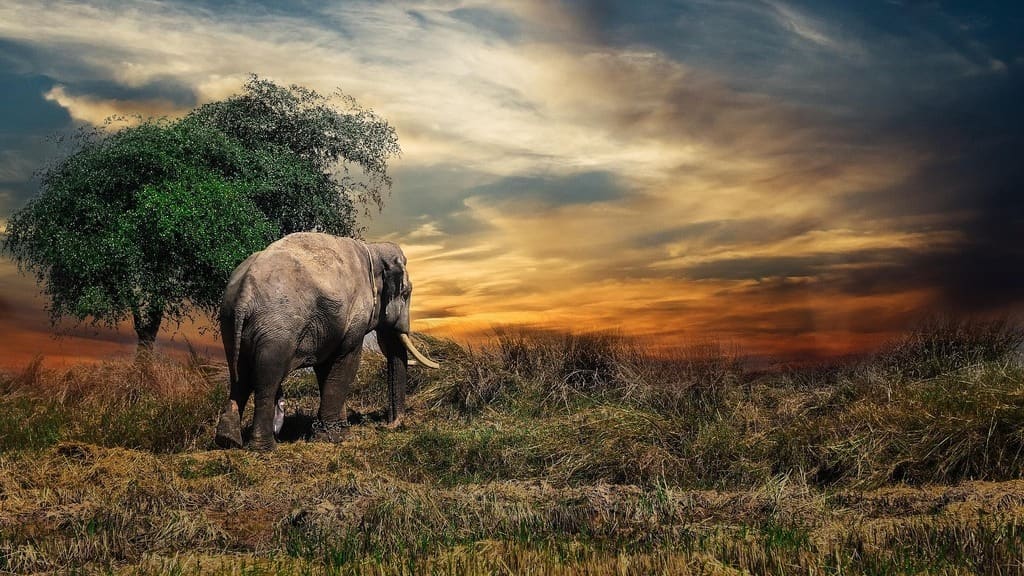
Cropped to 16:9 · 117.6 KB
−56%
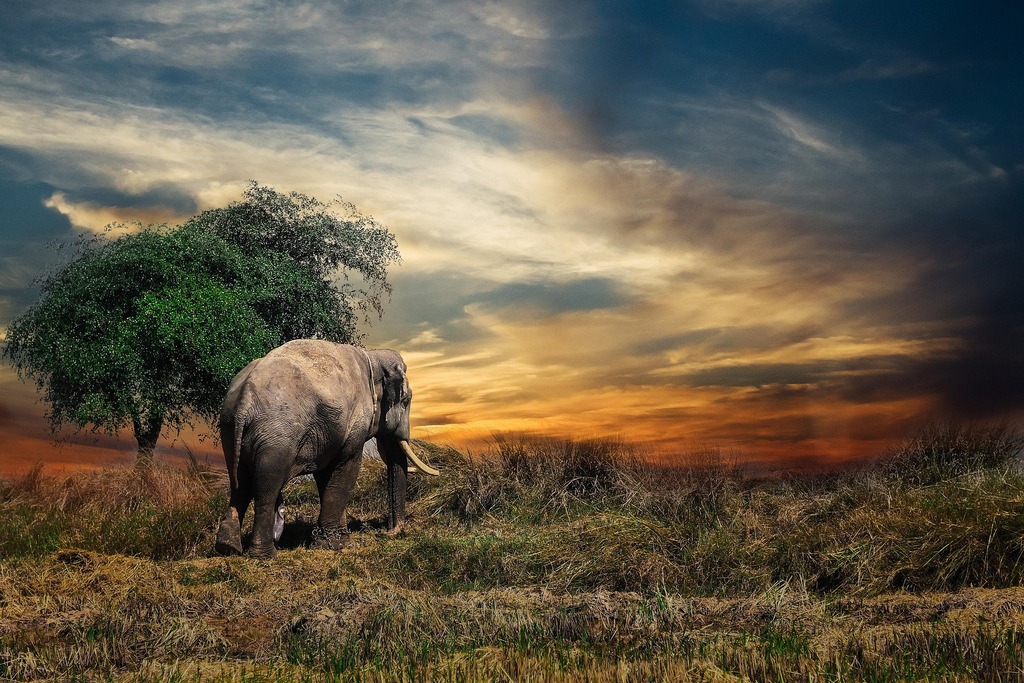
One of our photographs, actually cropped to 16:9 in the editor and saved by our engine; the sizes are the real files'. Drop your own image and do the same.
How it works
Drop, ratio, save
Three steps, no account. The file leaves smaller than it arrived.
01
Drop
Drop a photo and the editor opens on Crop with the ratio tiles in view.
02
Ratio
Press 16:9, 9:16, 4:3, 3:2, 2:3 or 1:1 and drag the frame. Never a stretch.
03
Save
The crop comes out optimised, at exact pixels if you tapped a preset.
Which aspect ratio does each platform want?
YouTube’s help page asks for 16:9 thumbnails at 3840 × 2160 with a 640-pixel minimum width. The other slots below carry their own ratio and pixels, each from the platform’s own page, which is the part most ratio lists leave out.
1
16:9: video and thumbnails
YouTube’s help page: thumbnails at 16:9, 3840 × 2160 recommended, 640 pixels minimum width, JPG or PNG, 50 MB on desktop. Its banner page: at least 2048 × 1152 at 16:9, 2560 × 1440 recommended, 6 MB or smaller, with text kept inside a 1235 × 338 safe area. The YouTube preset exports 1280 × 720, above the minimum.
2
9:16: Stories, Reels, Shorts and TikTok
Instagram’s API spec recommends 9:16 for Reels to avoid cropping or blank space. YouTube’s help page puts a Shorts thumbnail at 2160 × 3840. TikTok’s In-Feed Ads page recommends vertical 9:16 at 540 × 960 or larger, and accepts 16:9 at 960 × 540 or larger and 1:1 at 640 × 640 or larger. The IG/FB story preset exports 1080 × 1920; the 9:16 ratio page has every platform’s number and the safe zone for text.
3
4:5 to 1.91:1: feeds and link previews
Instagram’s help page says the app keeps a feed photo between 1.91:1 and 3:4, so 1080 × 1440 is the tallest post; its API, which schedulers use, accepts 4:5 to 1.91:1. Facebook’s Open Graph docs ask for link images of at least 1200 × 630, as close to 1.91:1 as possible, under 8 MB. Pinterest’s spec recommends 2:3, or 1000 × 1500. The OG image preset exports 1200 × 630; the 2:3 tile covers Pinterest; the IG portrait tile gives 4:5 at 1080 × 1350, and the 4:5 aspect ratio page has it in pixels at every width.
4
4:1 and wider: covers and banners
LinkedIn’s help page: a profile cover at 1584 × 396, which is 4:1, JPG or PNG under 8 MB; a Page cover at 1512 × 256, 3 MB at most. Facebook’s help page: a Page cover at least 400 × 150, loading fastest as a JPG at 851 × 315 under 100 KB. Google Play’s help page: a feature graphic at 1024 × 500. The LinkedIn preset exports 1584 × 396.
Where do 3:2, 4:3 and 16:9 come from?
Wikipedia’s aspect ratio article traces 3:2 to 35 mm film, whose 36 × 24 mm frame the DSLRs kept; 4:3 to point-and-shoot, Four Thirds and Micro Four Thirds cameras; and 16:9 to the HDTV standard. That is why a camera photo and a TV frame never fit each other without a cut. It is also why a 4 × 6 print, which the same article notes matches 3:2 exactly, takes a camera frame whole. Press the Original tile and the frame locks to your file’s own ratio. The Custom size readout shows its pixels, so you can tell which family it belongs to before you pick the target.
Will changing the aspect ratio stretch my photo?
No. The ratio tiles crop; they never stretch. Pressing 16:9 draws the largest 16:9 rectangle inside your photo: what is inside survives, what is outside is cut. A stretch would squeeze the same pixels into a new shape, so circles become ovals, faces widen and text leans; it is the one edit a viewer spots at a glance. An exact-size preset resamples the crop to its pixels, but only a crop that already has that shape, so the proportions hold. Crop versus stretch is the whole difference between a photo that looks right and one that looks wrong.
Image stretcher, stretch image online: the honest version of that
People search for an image stretcher when a picture has to fill a frame it does not fit. Stretching in the literal sense, scaling width and height by different amounts, distorts faces and text, so this editor does not offer it as a default. What it offers instead is the two honest ways to fill a frame: crop to the ratio, or fit the whole picture inside it on a fill. Both are above, both keep the shapes, and the result is what the platform expected in the first place.
How do I change the aspect ratio without cropping?
You cannot without adding something: a photo keeps all of its pixels only if the new shape is filled in around them. Three routes exist. Fit: keep the whole photo and fill the rest with a colour. Press an exact-size preset, switch Crop to Fit under the tiles, and the picture sits inside the new shape on the fill you pick; the Instagram post size page opens that way. Reframe: press Free, draw a looser crop, and let the platform trim the rest. AI extend: other tools invent new pixels beyond your edges; we do not, because those pixels are not your photo. A crop is the right answer more often than it feels: the subject usually sits in the middle, and the edges are what you lose.
Aspect ratio converter: how do I convert 16:9 to 9:16, or 4:3 to 16:9?
Press the target tile, then drag the frame to the subject. From 16:9 to 9:16, a tall slice under a third of the width survives, so put the subject in the middle and accept that the sides go. From 4:3 to 16:9, you keep the full width and lose a band at the top and the bottom. Then the exact pixels. IG/FB story exports 1080 × 1920. YouTube exports 1280 × 720, above YouTube’s 640-pixel minimum and below its 3840 × 2160 recommendation. Or type any width × height in the Custom size field. The panel prints the output pixels before you save.
A portrait image in landscape: crop a band or fit it
Press 16:9, 4:3 or 3:2 and a wide band of the portrait survives, the top and the bottom cut. To keep all of it, press a wide preset such as Full HD and switch Crop to Fit: the photo sits in the middle with a fill at each side.
What happens to the file when I change the ratio?
Our photograph is 1024 × 683, a 3:2 frame. It shows an elephant beside a lone tree under a dramatic sunset sky. It exported at 269.1 KB as a JPEG at 92. Quality 92 was the editor’s JPEG step before 5 October 2026. Cropped to 16:9 it is 1024 × 576 and exported at 247.2 KB. The band it cut was 16% of the pixels and 8% of the bytes. Our engine then saved the crop at 117.6 KB, the file in the figure at the top of the page.
File
Ratio
Pixels
Size
Our photograph, exported
3:2
1024 × 683
269.1 KB
Cropped to 16:9, exported
16:9
1024 × 576
247.2 KB
Cropped to 16:9, saved by our engine
16:9
1024 × 576
117.6 KB
Source: one of our photographs, an elephant beside a lone tree under a dramatic sunset sky, at 1024 × 683. The 16:9 crop keeps the full width. The exports are JPEGs at 92, as the editor saved them before 5 October 2026. The last row is the file our engine made from the crop.
Every byte count is the size of an actual file, not an estimate. A row marked exported is the picture as a JPEG at 92, the editor’s save before 5 October 2026. The engine’s row is the file the engine produced from that JPEG. The photograph is one of our own. Drop your own file into the tool above to rerun any of them. How we measure names the sources and the settings.
Does changing the aspect ratio lose quality?
No. A ratio change is a crop, and a crop keeps the original pixels inside the frame; saving encodes once, optimised. Two things do cost detail. An exact-size preset larger than your crop enlarges it, because a preset exports exactly its pixels: frame generously, or start from a bigger copy. And a 9:16 slice of a wide photo keeps only a narrow column, so a small source runs out of pixels early. The Crop panel prints the output width and height beside the Custom size field, so you see both before you save.
Which ratio does a 4×6, 5×7 or 8×10 print need?
Wikipedia’s list of print sizes puts 4×6 and 8×12 at 3:2, 5×7 at 7:5 and 8×10 at 5:4. A camera’s 3:2 frame prints on 4×6 or 8×12 without a cut and loses a strip on 5×7 and 8×10. A lab crops it for you if you do not, and it picks the strip. The 3:2 tile keeps a 4×6 crop exact. The Print 4×6 preset exports 1800 × 1200 and the Print 5×7 preset 2100 × 1500, both at 300 pixels per inch. For 8×10, type 3000 × 2400 in the Custom size field, or 2400 × 3000 for a portrait: the same 5:4 shape at the same density.
When a ratio tile is the wrong tool
Everything in the frame must stay?
That is padding or a resize, not a crop. The whole-frame route is the resize page.
The shape is right, the pixels are too many?
Resize it. The ratio is fine; the file is the problem.
A stretch is what you actually want?
We do not offer it. A stretched face reads wrong at a glance, and no upload form asks for one.
Short answers specific to this tool. Try it above and the editor settles the rest.
Q:How do I change the aspect ratio of an image without cropping?
Only by adding something: a photo keeps all of its pixels only when the new shape is filled in around them. That is a fit. Press an exact-size preset, switch Crop to Fit under the tiles, and the whole picture sits inside the new shape on a fill colour, nothing cut. A ratio tile alone always cuts; it never stretches.
Q:Will changing the aspect ratio distort my image?
No. The ratio tiles crop, so the pixels inside the frame keep their shape and the pixels outside are removed. Distortion happens when a tool stretches the same pixels into a new shape: circles turn into ovals and faces widen. An exact-size preset resamples the crop to its pixels, but only a crop that already has that shape, so nothing leans.
Q:What is aspect ratio?
The width of an image divided by its height, written as two numbers: 16:9 is sixteen units wide for every nine tall, whatever the pixels. A 1920 × 1080 frame and a 1280 × 720 frame are both 16:9. Wikipedia's aspect ratio article traces 3:2 to 35 mm film, 4:3 to point-and-shoot cameras and 16:9 to HDTV.
Q:Which aspect ratio should I use for Instagram, YouTube or TikTok?
Instagram's help page keeps a feed photo between 1.91:1 and 3:4 and takes Reels up to 9:16; its API, which schedulers use, stops at 4:5. YouTube's help page asks for 16:9 thumbnails, 3840 × 2160 recommended, and 2160 × 3840 for Shorts. TikTok's In-Feed Ads page recommends vertical 9:16 at 540 × 960 or larger. Press the tile, drag the frame, and pick a preset.
Q:What is 16:9 used for?
Video and everything that sits beside it. Wikipedia's aspect ratio article calls 16:9 the standard image aspect ratio for HDTV. YouTube's help page asks for 16:9 thumbnails at 3840 × 2160 with a 640-pixel minimum width, and a channel banner of at least 2048 × 1152. The 16:9 tile locks the shape, and the YouTube preset exports 1280 × 720.
Q:What is a 9:16 image used for?
A phone held upright. Instagram's API spec recommends 9:16 for Reels to avoid cropping or blank space. YouTube's help page puts a Shorts thumbnail at 2160 × 3840. TikTok's In-Feed Ads page recommends vertical 9:16 at 540 × 960 or larger. Stories follow the same shape. The 9:16 tile locks it; the IG/FB story preset exports 1080 × 1920.
Q:How do I convert a 16:9 image to 9:16?
Press the 9:16 tile and drag the tall frame over the subject. A 9:16 slice of a 16:9 frame is under a third of its width, so the sides go and the subject has to sit in the middle. Then pick IG/FB story for 1080 × 1920, or type a width and height. Save once and the crop comes back optimised.
Q:What is the difference between changing the aspect ratio and resizing?
A ratio change alters the shape of the frame: 4:3 to 16:9 cuts a band off the top and bottom. A resize keeps the shape and changes the pixel count: half the width, half the height, nothing cut. Most uploads need both, and the editor does them in one save, the crop tile first and an exact-size preset second.
Q:How do I calculate an aspect ratio?
Divide the width by the height, then find the smallest whole numbers with the same quotient. 1920 divided by 1080 is 1.78, and 16 divided by 9 is the same, so the frame is 16:9. 1080 by 1350 is 0.8, which is 4:5. The Original tile reads your file and locks its own ratio, so you rarely need the arithmetic.
Q:Can the aspect ratio changer make a 4:5 ratio, or any custom one?
Yes. The Crop tab has a Custom size field: type a width and a height, unlink the two if you want a new shape, and tap Apply. The frame locks to that ratio and the export lands at exactly those pixels, from 16 to 8192 a side. 1080 × 1350 gives you 4:5 for an Instagram portrait, the same size the IG portrait tile sets.
Q:Does changing the aspect ratio lower image quality?
No: a ratio change is a crop, and a crop keeps the original pixels inside the frame. Before 5 October 2026, our photograph weighed 269.1 KB as the editor's JPEG at 92. Its 16:9 crop weighed 247.2 KB. A preset larger than your crop does cost detail, because it enlarges to reach its pixels.
Q:Can I change the aspect ratio of iPhone HEIC photos?
After one conversion. The editor does not open HEIC yet, so convert the photo to JPG first. The converter link appears when you drop a HEIC on the tool, and the conversion honours the orientation tag, so the frame arrives upright. Then press the tile you need and crop. The saved file is JPEG, PNG, WebP or AVIF, your choice.
Q:Can I convert multiple images at once?
One image at a time in the editor, because the frame has to be placed by a person: a ratio applied blind cuts off heads. Each photo opens on the ratio tiles, so a set is drop, press, drag, Save, next, and every save lands in the same download list. The compressor beside the editor takes up to 50 files in one run afterwards.
Q:Do you keep the photo after I change its aspect ratio?
No. We keep nothing: files are processed and wiped automatically, never archived and never used for anything else. The editor redraws the cropped picture, so the saved copy carries none of the photo's EXIF metadata, GPS location and capture time included; the Keep EXIF metadata switch cannot bring them back to an edited copy. There is no account, no watermark and no charge.