How to download an image from Google, full size and as a JPG
To download an image from Google, click the picture, then right-click the large preview and choose Save image as. On a phone, touch and hold the preview instead. Save the preview, not the grid thumbnail, and check the extension: a .webp file converts to a real JPG. Part of the image converter.
By Sahadat Husain13 min readGuides

How to download an image from Google on a computer
Click the image in Google Images, then right-click the large preview and choose Save image as. That works in Chrome, Edge and Firefox on Windows, Mac and ChromeOS. Do not right-click the small picture in the grid. That is Google’s thumbnail, not the photo.
Search on Google Images
Go to images.google.com, or search on google.com and click Images under the search box.
Click the picture you want
A panel opens on the right with a larger preview. Wait a second for it to sharpen: the preview starts as the thumbnail, then loads the real file from the website.
Right-click the preview, then Save image as
Chrome’s own help says it plainly: “Right-click on the image and choose Save Image As.” Edge and Firefox have the same item in their menus.
Pick a folder and click Save
The file goes to your Downloads folder unless you pick another one, Google Chrome Help notes. Check the extension in the name before you close the window: .jpg, .png, .webp or .avif.
In Safari on a Mac
On a Mac in Safari, Control-click the preview. Apple’s Safari guide lists three choices: “Save Image to ‘Downloads,’ Save Image As, or Add Image to Photos.” On a laptop trackpad, a two-finger click is the right-click.
With the keyboard
A keyboard shortcut needs one extra step. Right-click the preview and choose Open image in new tab. Then press Ctrl + S on Windows, or Command + S on a Mac. In a tab with a search page, the same keys save the whole page instead.
How do I download images from Google to my phone?
To download an image from Google on a phone, tap the picture, then touch and hold the larger preview. A menu opens. The words differ by phone and browser.
On Android
Open Chrome and search Google Images
Tap the picture you want so the larger preview opens.
Touch and hold the preview
Then tap Download image. That is the wording in Chrome’s Android help.
Find it in Files or Gallery
Chrome’s help says to open the Files app to see every download. Most gallery apps show the Download folder as an album too.
On iPhone and iPad
Tap the picture in Safari or Chrome
Wait for the larger preview to load.
Touch and hold the preview
In Safari, tap Save to Photos. In Chrome, tap Save Image, as Chrome’s iPhone help puts it.
Open Photos, then Recently Saved
Apple’s iPhone guide says pictures saved from Safari land in the Recently Saved collection.
Full size or thumbnail: why your download is small
Google shows you its own small copy first. The full-size image only comes when the preview panel loads it from the website. We followed one photo, NASA’s Blue Marble from Apollo 17, which is public domain on Wikimedia Commons.
- The grid: the first 24 thumbnails were JPEGs written into the page itself. Each was 120 to 246 pixels wide and 2.5 KB to 13.4 KB.
- The result’s thumbnail: a 447 × 447 JPEG of 35.7 KB from Google’s own server.
- The preview panel: loaded the original from upload.wikimedia.org, 3000 × 3002 and 6.5 MB, and drew it 400 pixels wide.
- Google thumbnail447 × 447, 35.7 KB
- Wikipedia copy330 × 330, 38.5 KB
- The original3000 × 3002, 6.5 MB
On a phone screen the two look the same. Enlarge a patch and the gap shows. The thumbnail’s 45 × 45 pixels of Madagascar cover what the original draws with 300 × 300:
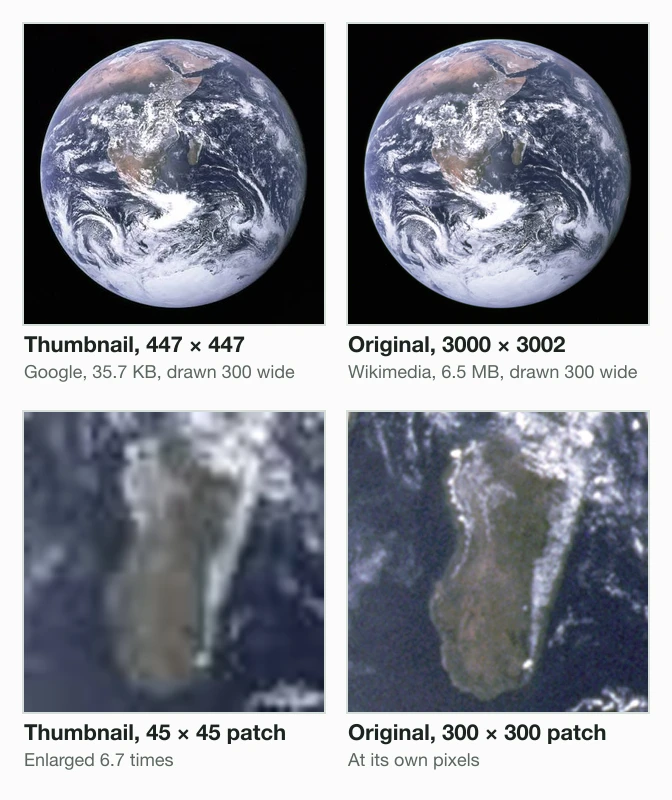
The original is 182 times the bytes of the thumbnail. No app can rebuild that detail from a thumbnail; how to resize an image without losing quality measures what enlarging really does. Save the preview, not the grid.
How to find the largest version
- Filter by size. Under the search box, click Tools, then Size, then Large.
- Visit the page. Click Visit in the preview panel and save the picture from the website. How-To Geek gives the same advice for a small download.
- Read the address. Many sites put the width in the image address. Wikipedia served our photo as 330px-The_Earth_seen_from_Apollo_17.jpg, a 330 × 330 copy of 38.5 KB. Without the thumb folder and the 330px- prefix, the address gives the 3000 × 3002 file.
Why does an image from Google save as WebP?
A Google image saves as WebP because the website that hosts it sent WebP to your browser. Google’s own thumbnail did not change: it came back as the same 35.7 KB JPEG to every browser we tried.
We ran the same photo through Photon, the image service of WordPress.com and Jetpack sites, at an address ending in .jpg. The browsers got WebP. An older app that lists only PNG and JPEG got a JPEG:
| Who asked | Google thumbnail | Original (Wikimedia) | Photon, 1200 wide |
|---|---|---|---|
| Chromium (Chrome, Edge) | JPEG, 35.7 KB | JPEG, 6.5 MB | WebP, 160.1 KB |
| Firefox | JPEG, 35.7 KB | JPEG, 6.5 MB | WebP, 160.1 KB |
| WebKit (Safari) | JPEG, 35.7 KB | JPEG, 6.5 MB | WebP, 160.1 KB |
| An app that lists only PNG and JPEG | JPEG, 35.7 KB | JPEG, 6.5 MB | JPEG, 299.0 KB |
Photon answered with the header Vary: Accept. That means it picks the format from the list each browser sends. Its WebP was 46% smaller than its JPEG, which is why sites do it. Chrome’s Save image as keeps the bytes that arrived, so the file on your disk is a WebP. Our post What is a WebP file? shows the whole exchange, and why Chrome has no setting to stop it.
How do I save an image off Google as a JPG?
Save the image as it comes, then convert it to JPG if it is not one already. The extension in the file name tells you what you got.
Does the saved file end in .jpg or .jpeg?
- Yes
Done
It is a JPG already. Keep it as it is.
- No
Does the picture have see-through parts, like a logo?
- Yes
Convert it to PNG
A JPG fills the see-through parts with a solid colour.
- No
Convert it to JPG
Our 160.1 KB WebP became a 158.0 KB JPG.
- Yes
Convert it in three steps
Save the image from the preview
Use Save image as, or Download image on a phone. Note the extension.
Open the converter for that format
A .webp file goes into the WebP to JPG converter. A .avif file goes into the AVIF to JPG converter. For a logo, use WebP to PNG instead.
Download the JPG
The converter reads the bytes, so a WebP with a .jpg name still converts.
What the conversion costs
Blue Marble at 1200 × 1200, KB
- WebP from Photon160.1 KB
- JPG from that WebP, Auto158.0 KB
- JPEG Photon sent an old app299.0 KB
Blinkimg’s engine turned the 160.1 KB WebP into a 158.0 KB JPG at Auto. That is 47% smaller than the JPEG Photon made for the old app. The JPG scored a PSNR of 37.5 dB against the WebP; PSNR measures how close one file stays to another, and higher is closer.
How to find images you can use: the Usage rights filter
Downloading a picture does not give you the right to use it. Google’s help page Find images you can use & share warns: “Images might be subject to copyright.” Its Usage rights filter narrows the results to pictures with licence details attached.
Search on Google Images
Type what you need and press Enter.
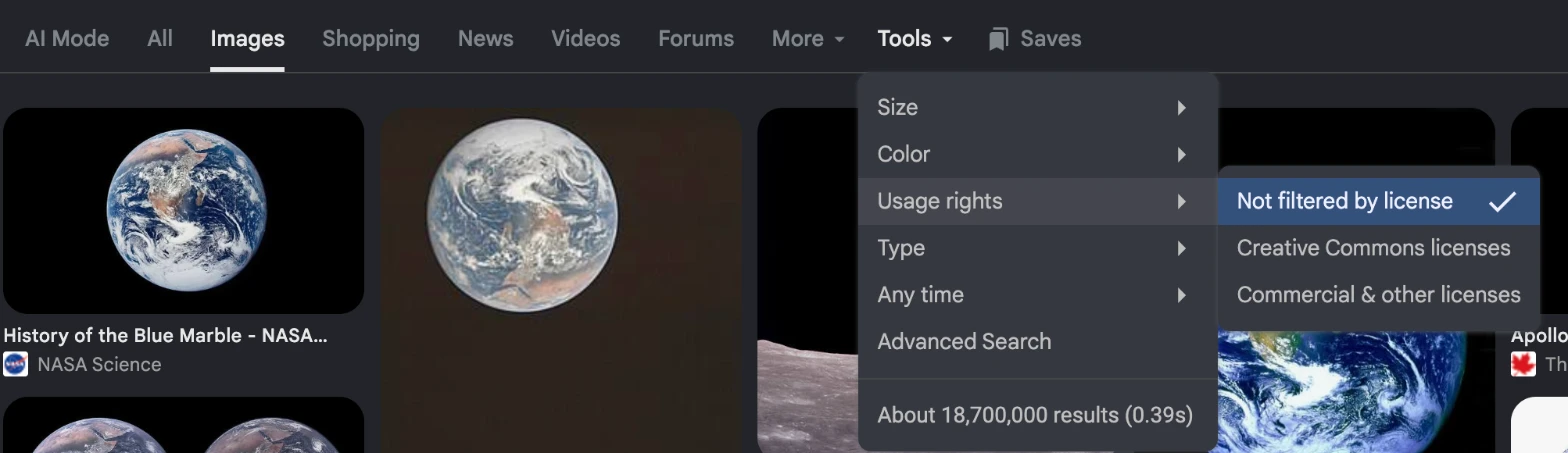
Click Tools, then Usage rights
Usage rights opens three choices; the ticked one reads Not filtered by license. On a phone, tap Filter under the search box, then Usage rights.
Choose a licence type
Pick Creative Commons licenses, or Commercial & other licenses. Results then carry a Licensable label.
Read the License details
Click a result, then License details below the preview. It opens the licence the site gives.
The filter relies on what each site declares. Google “filters images by license based on information provided by the sites that host those images”, so check the licence on the site itself. Creative Commons images “are usually available at no charge to use, but require credit”, the help page says. Some forbid changes or commercial use.
Our test photo shows the ideal case. Its Wikimedia Commons page lists the licence as public domain, a NASA photograph by the Apollo 17 crew.
Why can’t I download an image from Google?
Most failed downloads come from one of five causes. Each has a quick fix:
- You saved the grid thumbnail. That small copy is Google’s, a few hundred pixels at most. Click the picture first, then save the preview.
- The preview had not loaded. The panel shows the thumbnail until the website answers. Wait for it to sharpen, then save.
- The website blocks it. If the preview stays blurry, click Visit and save it from the page. Apple notes that some images, “such as background images, can’t be saved.”
- You tapped Save in Google. That adds it to a collection, not to your device.
- You cannot find the file. On a computer, look in Downloads. On Android, open Files. On iPhone, open Photos, then Recently Saved.
There is no View image button any more. Google removed it in February 2018, part of a settlement with Getty Images, Engadget reported. The Visit button stayed.
Downloading from Google Photos instead
Your own pictures in Google Photos download another way. Google’s Photos help gives the steps: go to photos.google.com, select a photo, then click More and Download. For your whole library at once, Google points to an export of your Google Photos data, known as Google Takeout.
Read the full guide: How to reduce image file size on any device.
Questions
- Why can’t I download images from Google?
- The small picture in the grid is Google’s thumbnail, so saving it fails or gives a tiny file. Click the picture first, wait for the large preview to sharpen, then right-click it or touch and hold it. If the preview stays blurry, the website blocks it: click Visit and save the picture from the page.
- How do you download pictures from Google to your phone?
- Open Google Images in your phone's browser and tap the picture you want. Touch and hold the large preview. On Android in Chrome, tap Download image. On iPhone, tap Save to Photos in Safari, or Save Image in Chrome. The Save button in Google's panel only adds it to a collection.
- How do I save an image off Google as a JPG?
- Save the image from the large preview, then look at the extension. A .jpg file is done. A .webp or .avif file needs a converter, which decodes it and writes a real JPG. Blinkimg's engine turned a 160.1 KB WebP into a 158.0 KB JPG at Auto. Renaming the extension changes nothing inside.
- Why do images from Google save as WebP?
- The website hosting the picture sent WebP, because your browser said it can show WebP. Google's own thumbnail came back as the same JPEG to every browser we tried. We sent the same photo through Photon, a WordPress image CDN. It came back as WebP to Chromium, Firefox and WebKit, and as JPEG to an older app.
- How do I download a full size image from Google?
- Click the picture and save the large preview, not the small grid picture. The preview panel loads the website's own file. For NASA's Blue Marble, Google's thumbnail was 447 × 447 at 35.7 KB. The original in the preview was 3000 × 3002 at 6.5 MB. Tools, then Size, then Large finds bigger pictures.
- How do I download free images from Google?
- Search Google Images, click Tools under the search box, then Usage rights, and choose Creative Commons licenses. Click a picture and read its License details before you save it. Google's help says Creative Commons images are usually free to use but require credit. Some forbid changes or commercial use.
- How do I download images from Google on a laptop?
- Open Google Images in your browser and click the picture you want. Right-click the large preview with a two-finger click on the trackpad, or the right trackpad button. Choose Save image as, pick a folder and click Save. The file goes to your Downloads folder unless you choose another one.
- How do I download an image from Google on Mac?
- In Safari, click the picture in Google Images, then Control-click the large preview. Apple's Safari guide lists Save Image to Downloads, Save Image As, and Add Image to Photos. In Chrome on a Mac, Control-click the preview and choose Save Image As. Check the extension, because many sites send WebP.
- How do I download an image from Google on iPhone?
- Open Google Images in Safari, tap the picture, then touch and hold the large preview. Tap Save to Photos. In Chrome for iPhone, the same press shows Save Image. Apple's iPhone guide says pictures saved from Safari appear in the Recently Saved collection of the Photos app.
- Where do downloaded Google images go?
- On a computer, Save image as puts the file in your Downloads folder unless you pick another folder. On Android, Chrome's help says to open the Files app to see every download. On iPhone, a picture saved from Safari goes to the Photos app, in the Recently Saved collection.
- Is it legal to download images from Google?
- Saving a picture to look at is one thing; using it is another. Google's help warns that images might be subject to copyright. To reuse one, filter by Usage rights, read the License details, and confirm the licence on the site that hosts it. A public domain photo, like NASA's Blue Marble, is free to use.
- Can I copy all my photos from Google Photos to my computer?
- Yes. For a few pictures, go to photos.google.com, select a photo, then click More and Download, as Google's Photos help describes. For your whole library, Google points to an export of your Google Photos data, known as Google Takeout. It packs your photos into files you download.